External Tracking in HighLevel now lets you control tracking for individual websites, choose which forms create CRM contacts, and customize how form fields map to contact records. You can also capture submissions from forms embedded in cross-domain iFrames.
These improvements help you collect accurate data, prevent unwanted contacts, and track leads across different websites.
TABLE OF CONTENTS
- What Is Field Mapping Control and iFrame Form Tracking?
- Key Benefits of Field Mapping Control and iFrame Form Tracking
- Domain-Level Tracking Settings
- Form Tracking and Field Mapping
- iFrame Form Tracking
- How to Configure Domain-Level Tracking
- How to Configure Form Tracking and Field Mapping
- How to Set Up iFrame Form Tracking
- Frequently Asked Questions
- Related Articles
What Is Field Mapping Control and iFrame Form Tracking?
Field Mapping Control and iFrame Form Tracking are enhanced External Tracking capabilities that give you more control over website events and form submissions. You can manage tracking by domain, customize CRM field mappings, and capture submissions from supported iFrame forms using two tracking scripts.
These features are available through Settings → External Tracking when the new External Tracking experience is enabled through Labs for your location.
Key Benefits of Field Mapping Control and iFrame Form Tracking
These enhancements make tracking external websites and managing form submissions more flexible, while improving contact data accuracy.
Domain-Level Control: Enable or disable Page views, Form analytics, and Form submissions for individual domains.
Bulk Updates: Change tracking settings for multiple domains at once.
Selective Form Tracking: Choose which forms create CRM contacts without disabling form analytics.
Customizable Field Mapping: Match form fields to standard CRM contact fields and correct automatic mappings.
Data Privacy: Exclude optional fields using Do not track. Password, payment, and hidden fields are never captured.
iFrame Tracking: Capture submissions from supported cross-domain embedded forms.
Backward Compatibility: Existing scripts and automatic mappings continue working without changes.
Domain-Level Tracking Settings
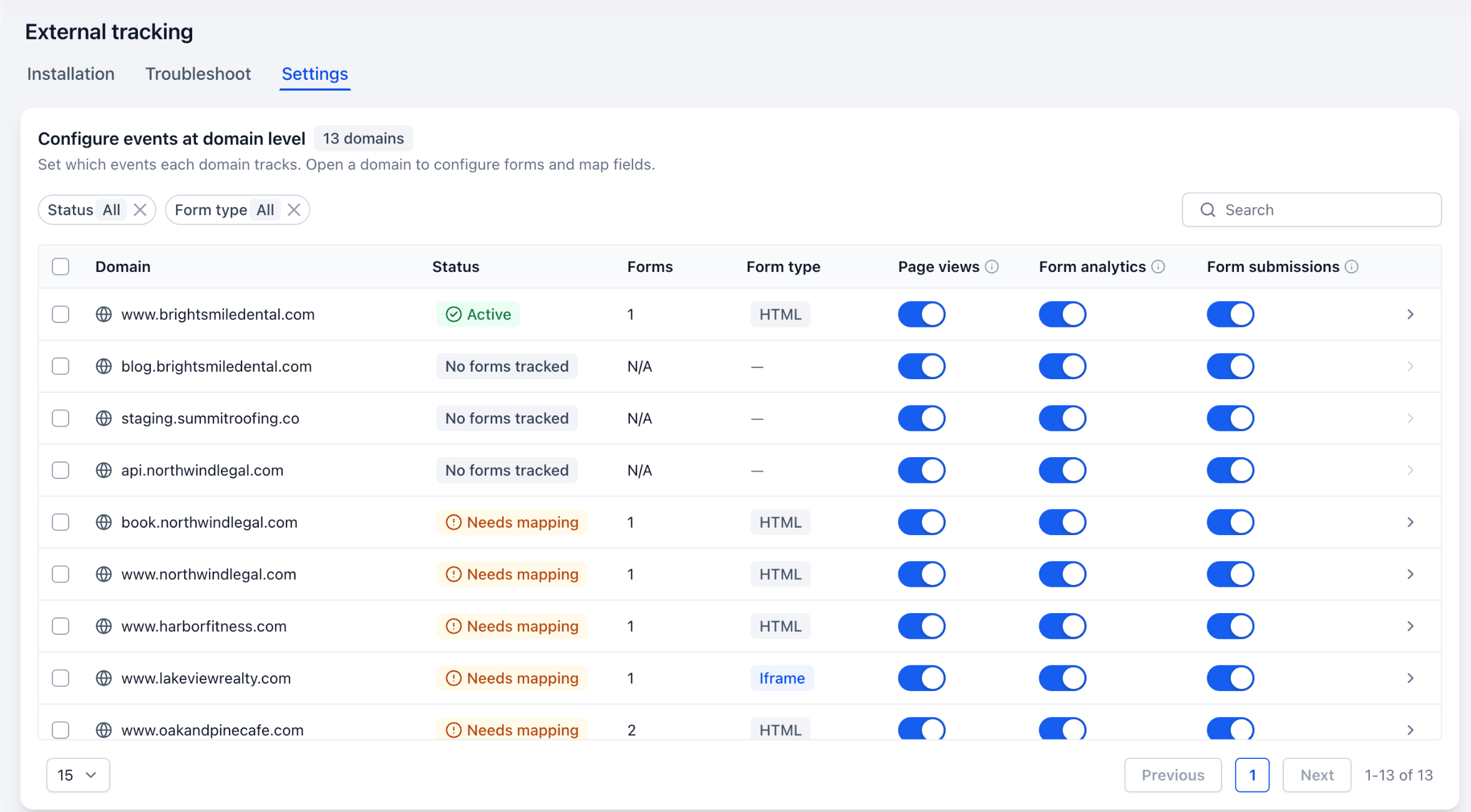
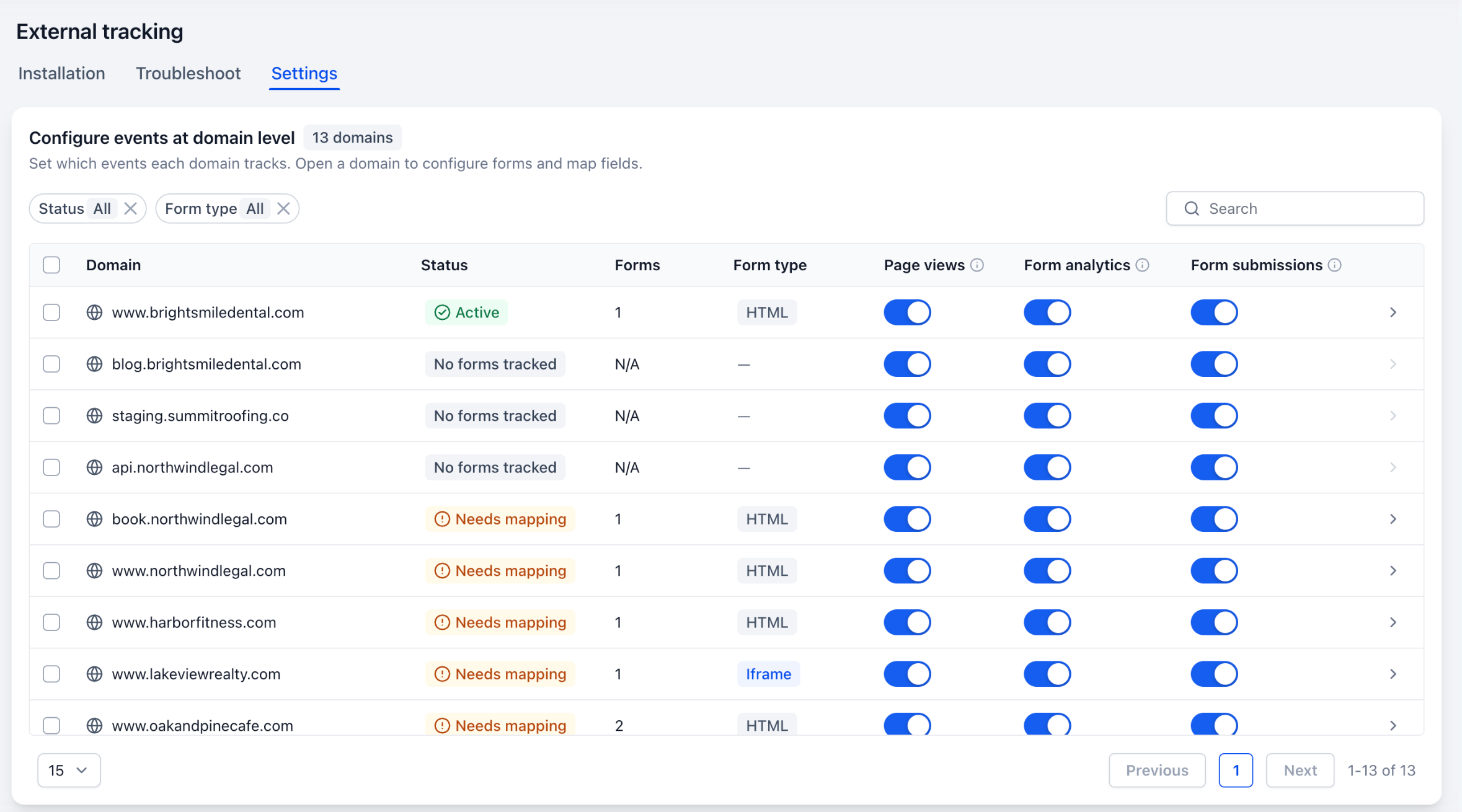
Domain-level settings let you control what HighLevel tracks on each external website. The Settings tab displays detected domains, tracking statuses, form counts, and event controls.
Each domain has three independent switches:
Page views: Tracks website visits.
Form analytics: Tracks form engagement and performance.
Form submissions: Controls submission tracking.
Domains display one of four statuses: Active, Needs mapping, No forms tracked, or No tracking.
You can also use the Status and Form type (HTML/iFrame) filters or search for a specific domain.
Form Tracking and Field Mapping
Form-level settings let you control which forms send submissions to HighLevel and how their values are stored in CRM contacts.
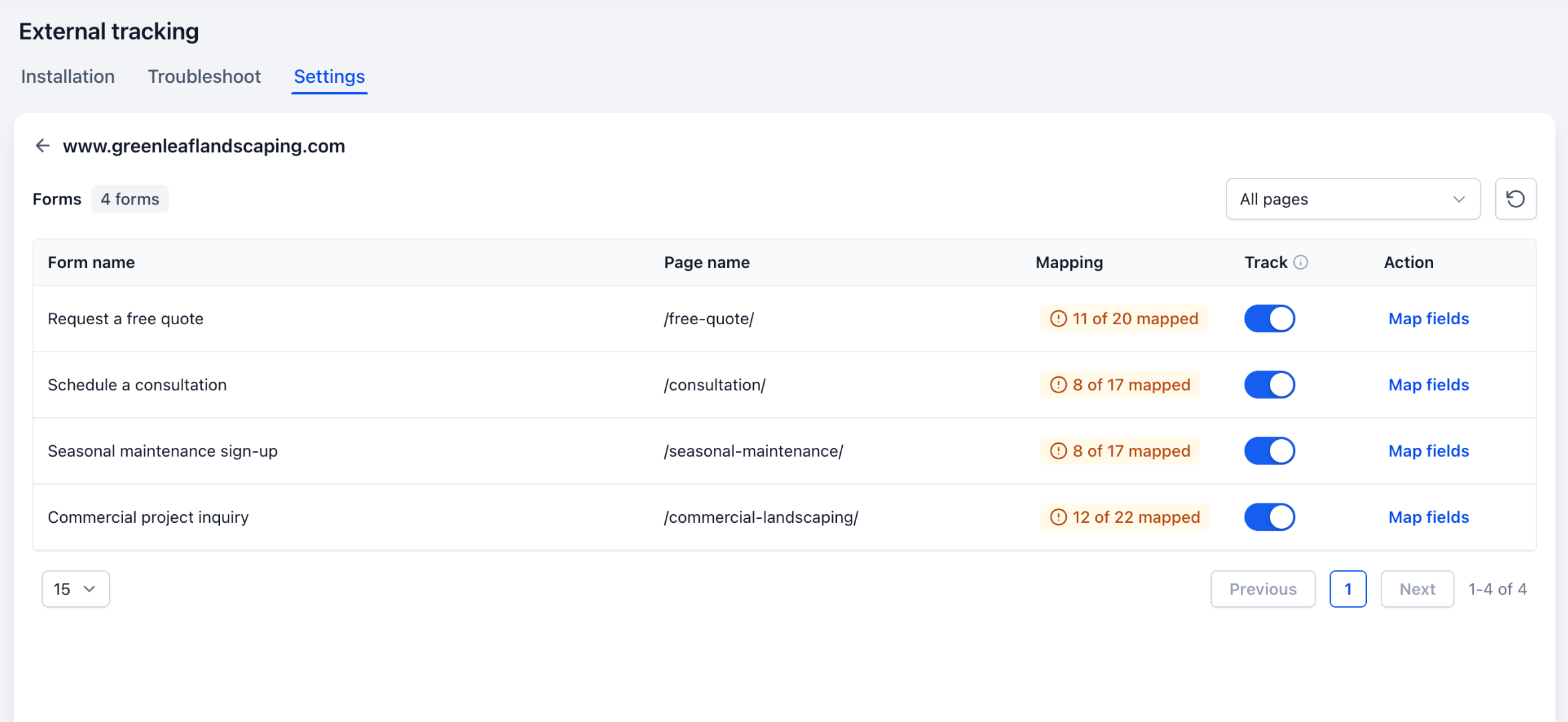
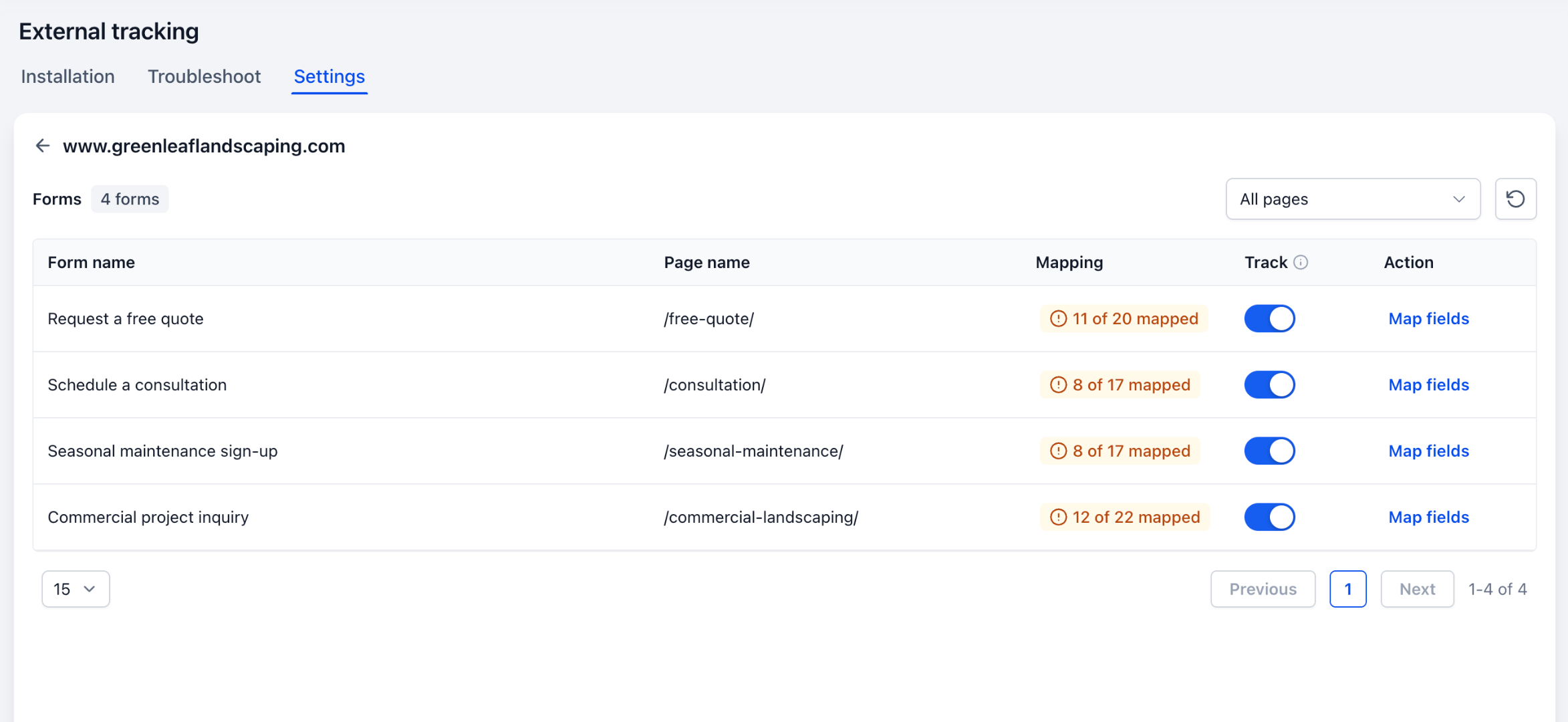
Opening a domain displays its detected forms, page names, mapping progress, and individual Track switches.
Track enabled: Form submissions can create CRM contacts when domain-level submission tracking is also enabled.
Track disabled: The form does not create contacts through External Tracking, but form analytics can continue when enabled.
Field Mapping Options
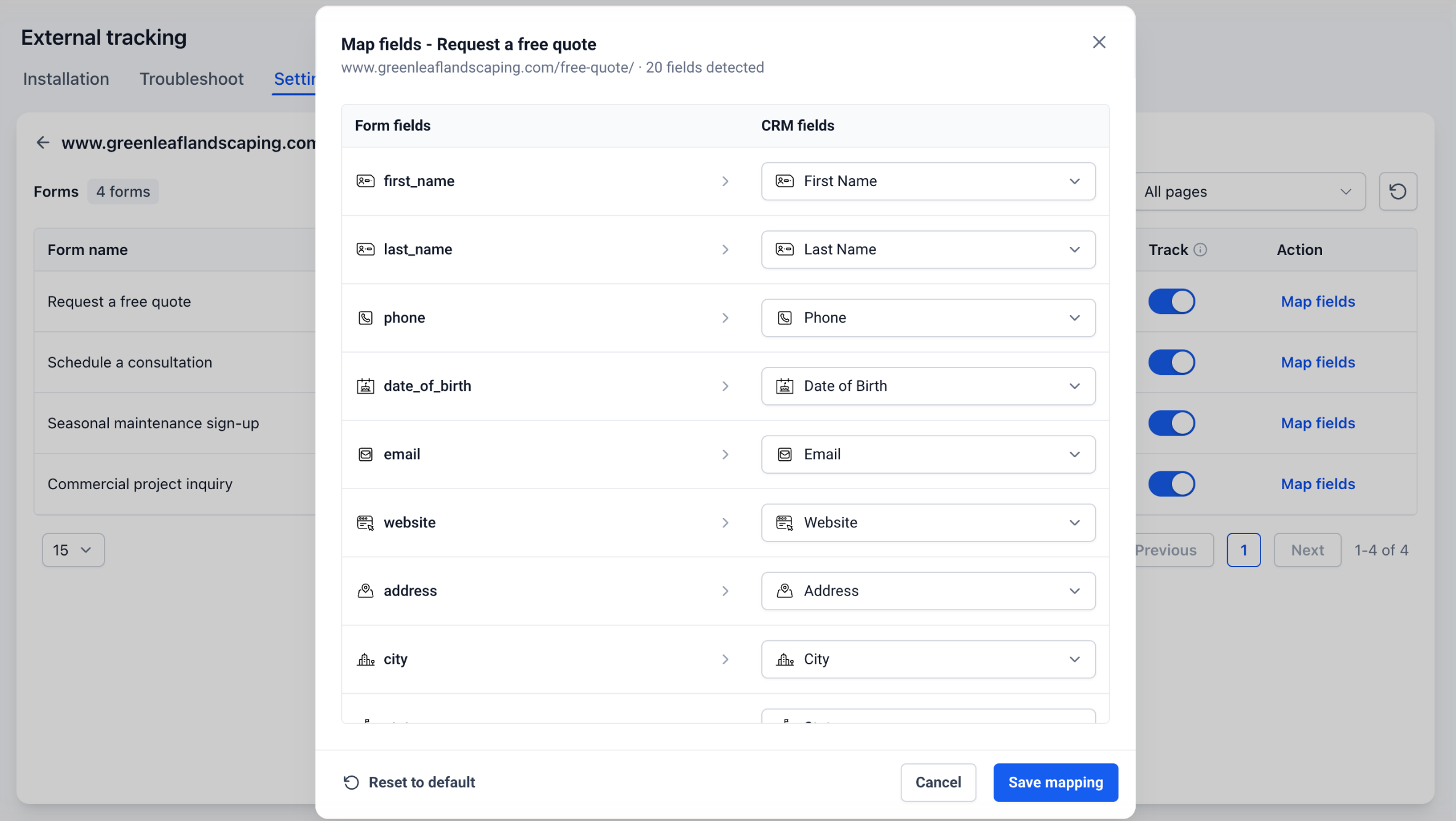
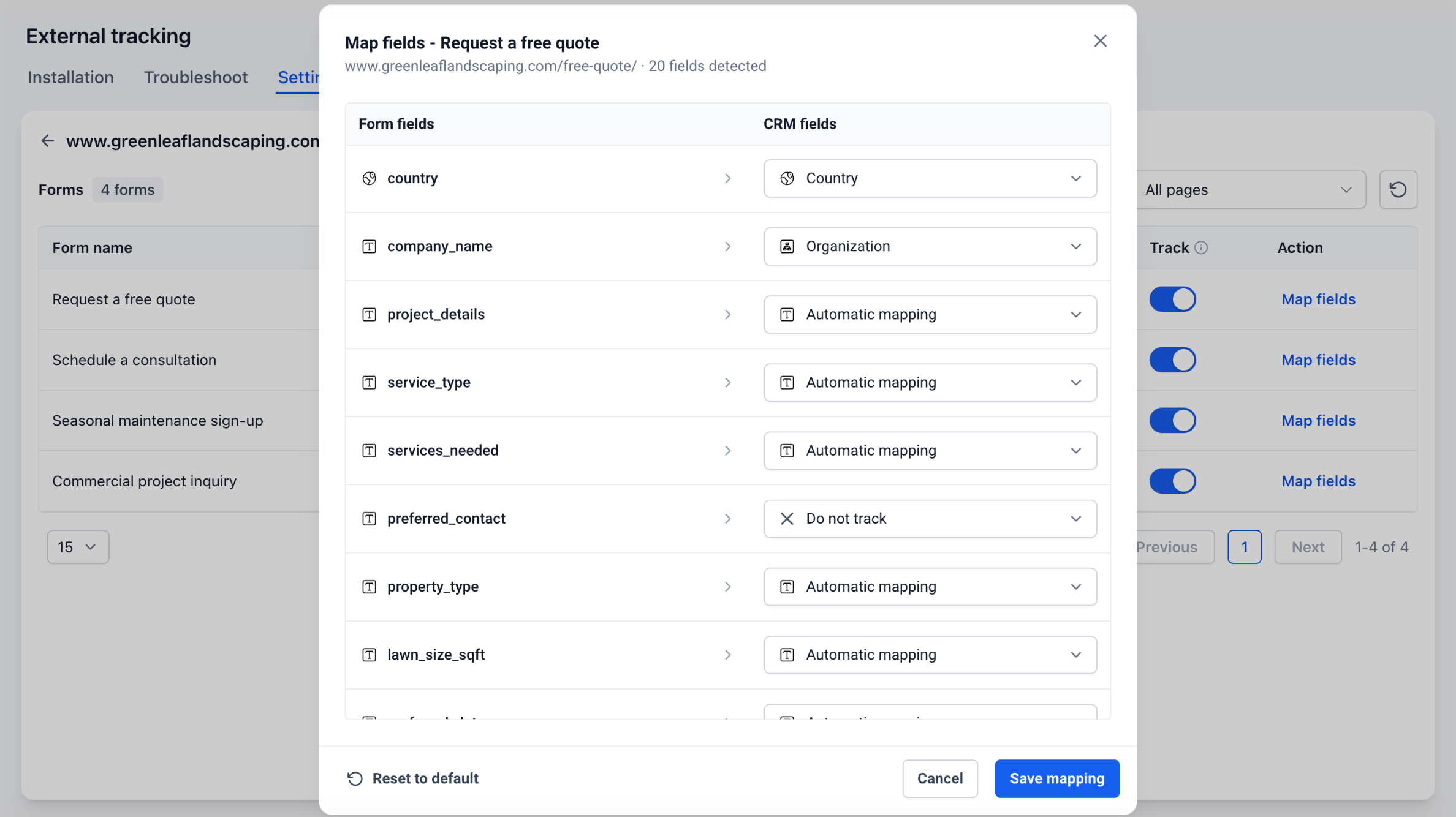
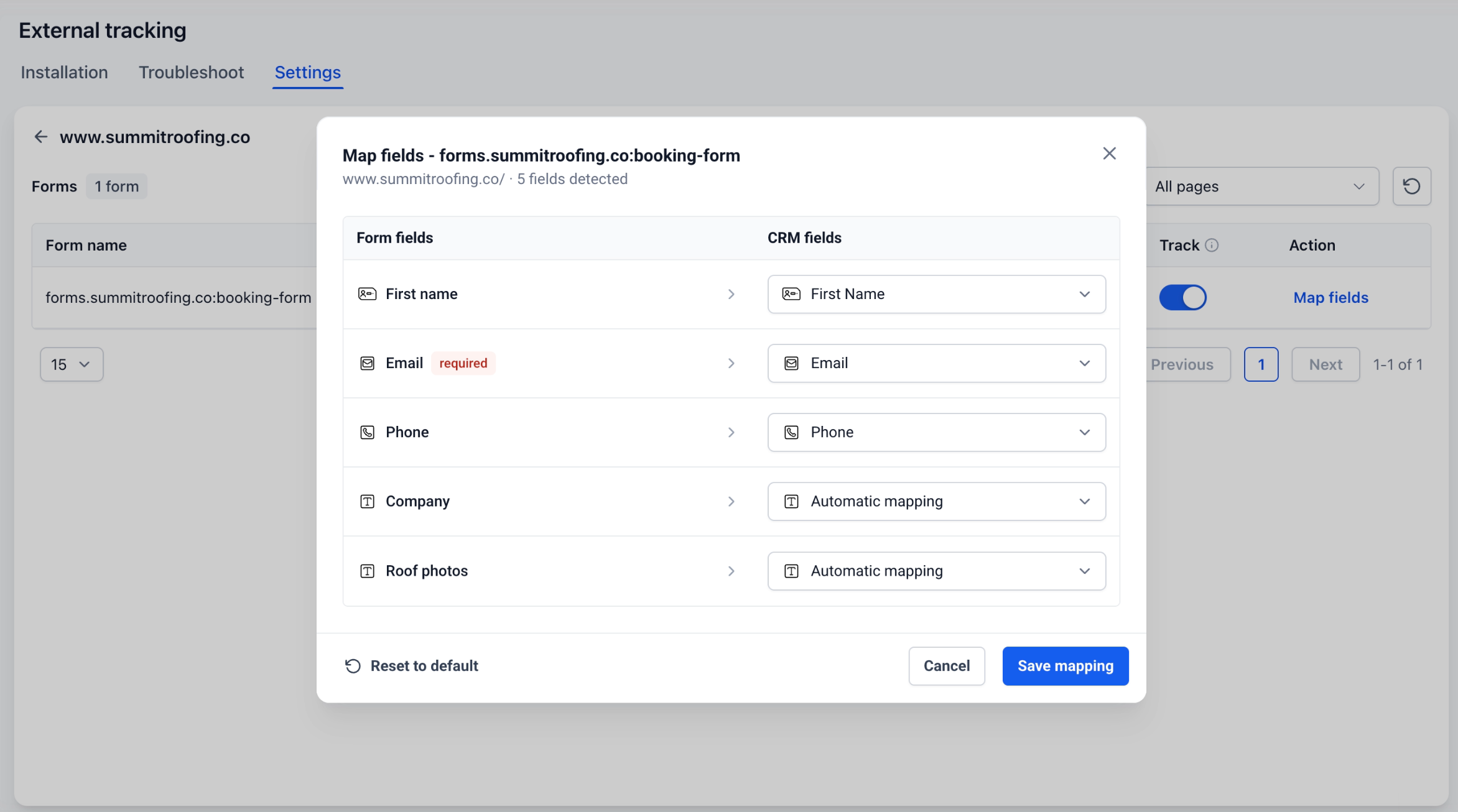
HighLevel automatically matches recognized form fields to CRM contact fields. You can change these mappings using the Map fields option.
| Mapping option | Purpose |
|---|---|
| Standard CRM field | Map to First Name, Email, Phone, Organization, and other supported fields. |
| Automatic mapping | Use HighLevel's automatic matching. |
| Do not track | Exclude an optional field from being stored. |
| Reset to default | Restore automatic mappings. |
Important limitations:
Manual mapping supports standard contact fields only. Existing automatic custom-field matching still works.
Required fields cannot be set to Do not track.
Mapping changes affect future submissions only, not existing contacts or submissions.
iFrame Form Tracking
iFrame tracking captures submissions from forms hosted on another domain and embedded within your website.
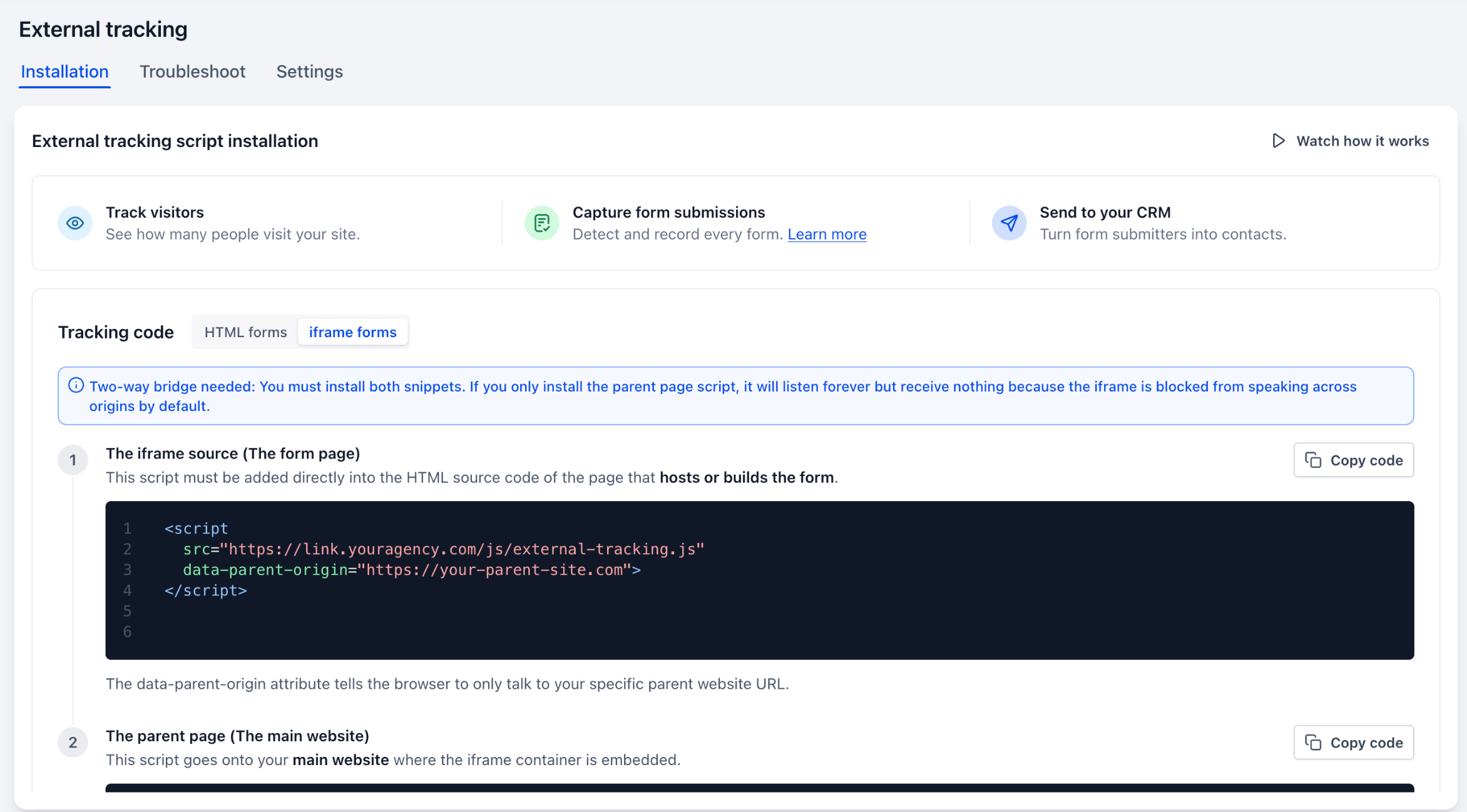
Because browsers restrict communication between different domains, HighLevel requires two tracking snippets.
| Snippet | Where to install |
|---|---|
| iFrame source snippet | On the page hosting the actual form inside the iFrame. |
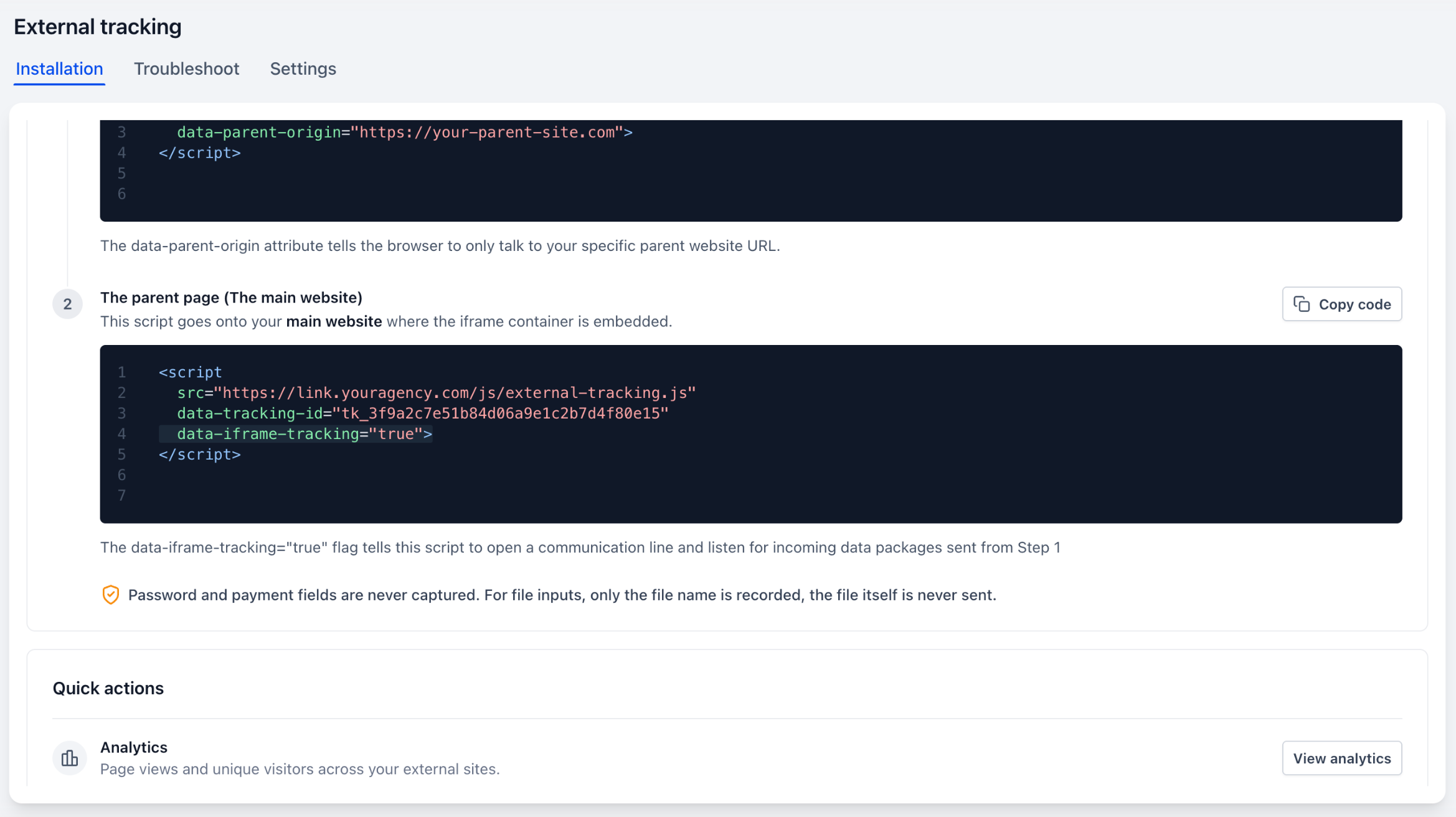
| Parent page snippet | On the main website page containing the iFrame. |
The source snippet uses data-parent-origin to identify the permitted parent website, while the parent snippet uses data-iframe-tracking="true" to receive the data.
Important requirements:
Both snippets must be installed.
The parent origin must match exactly, including
httpsandwww.Each source snippet supports one configured parent origin.
Forms must use the browser's normal submit event.
Custom JavaScript-only submissions and unsupported nested iFrames, such as certain Wix HTML embeds, cannot be tracked.
Password, payment, and hidden fields are excluded. For file uploads, only the file name is recorded.
Existing External Tracking installations do not need changes unless you want to track cross-domain iFrame forms.
How to Configure Domain-Level Tracking
Configure event settings individually or in bulk to control what each website sends to HighLevel.
Go to Settings → External Tracking → Settings.
Locate your domain using Search or the available filters.
Turn Page views, Form analytics, and Form submissions on or off as needed.
To update multiple domains, select their checkboxes and use Bulk actions to change the desired event settings.
How to Configure Form Tracking and Field Mapping
Proper field mapping ensures external form submissions populate the correct CRM fields while excluding information you do not need.
Go to Settings → External Tracking → Settings and open a domain.
Find the form and enable or disable its Track switch.
Click Map fields and review the automatic mappings.
Select the correct CRM field for each input, or choose Do not track for optional fields.
Click Save mapping. Use Reset to default if you need to restore automatic matching.
Submit a test form and verify the captured contact information in HighLevel.
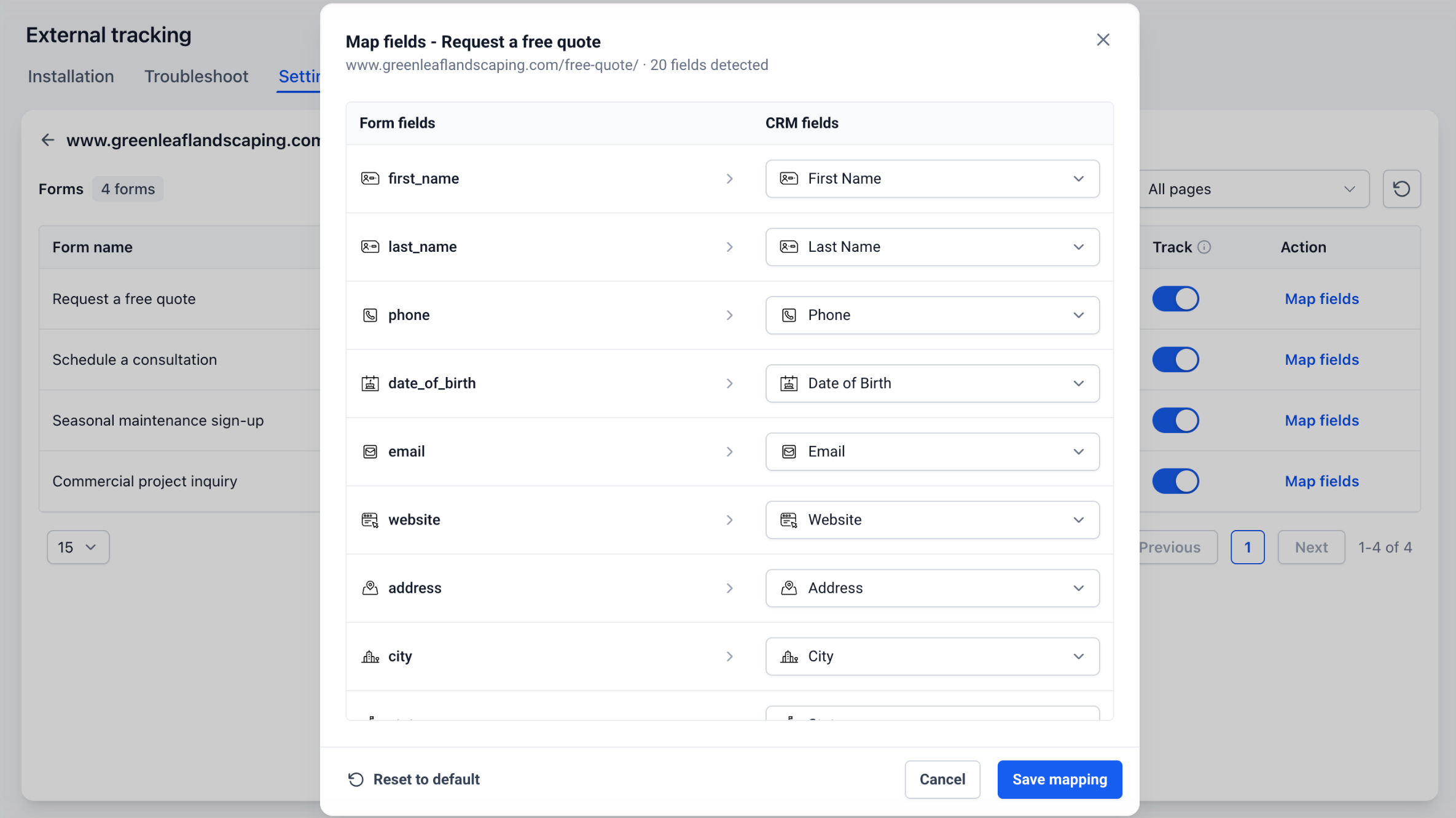
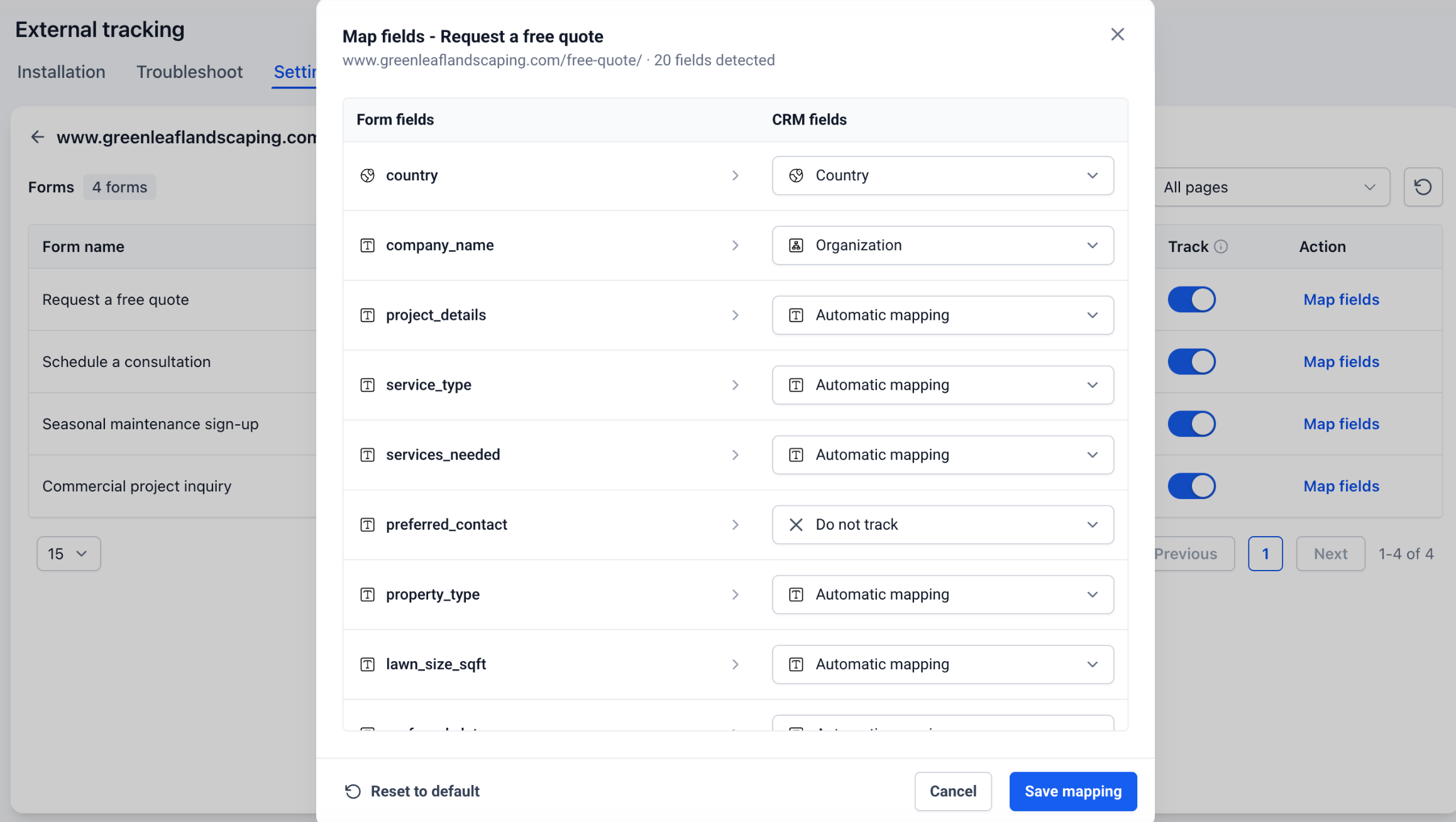
Note: Mapping changes apply only to future submissions. Required fields must remain mapped to contact fields.
How to Set Up iFrame Form Tracking
Installing both tracking snippets allows HighLevel to receive submissions from supported cross-domain embedded forms.
Go to Settings → External Tracking → Installation → Tracking code → iFrame forms.
Copy the iFrame source snippet and install it directly on the page hosting the form.
Set
data-parent-originto the exact main website origin, such ashttps://www.example.com.Copy the parent page snippet and install it on the main website page containing the iFrame.
Publish both pages and submit a test form.
Go to External Tracking → Settings. Find the main website domain and confirm the form appears with the iFrame form type.
Open the domain, enable Track if needed, click Map fields, adjust the mappings, and select Save mapping.
Troubleshooting: If an iFrame form is not detected, confirm both scripts are installed, the parent origin matches exactly, the form uses a supported submit event, and the domain and form tracking controls are enabled.
Frequently Asked Questions
Q: Why does my domain show Needs mapping?
A: One or more detected forms require mapping attention. Open the domain and review their field mappings.
Q: Can I collect form analytics without creating contacts?
A: Yes. Keep Form analytics enabled and turn off the individual form's Track switch.
Q: Can I manually map custom contact fields?
A: No. Manual mapping currently supports standard contact fields, although existing automatic custom-field matching still works.
Q: Will changing field mappings update existing contacts?
A: No. Changes apply only to future form submissions.
Q: Can required fields use Do not track?
A: No. Required fields must be mapped to a contact field.
Q: Why isn't my iFrame form appearing?
A: Verify that both snippets are installed, the parent origin matches, and the form uses the browser's normal submit event.
Q: Can I use one iFrame source snippet for multiple websites?
A: Each source snippet is configured for one parent website origin. Configure the correct origin for the intended website.
Q: Do existing tracking scripts need updating?
A: No. Existing tracking setups continue working. The additional snippets are needed only for supported cross-domain iFrame forms.
Related Articles
Was this article helpful?
That’s Great!
Thank you for your feedback
Sorry! We couldn't be helpful
Thank you for your feedback
Feedback sent
We appreciate your effort and will try to fix the article