Analytics for External Tracking in HighLevel allows you to monitor visitor behavior on externally hosted websites and forms using a centralized analytics dashboard.
Track key performance metrics like page views, form submissions, and completion rates without relying on third-party tools. This feature brings external data directly into HighLevel for a seamless analytics experience.
TABLE OF CONTENTS
- What is Analytics for External Tracking?
- Key Benefits of Analytics for External Tracking
- Analytics Dashboard Overview
- Time-Based Insights
- Audience & Traffic Breakdown
- Form-Level Analytics
- How To Set Up Analytics for External Tracking
- Frequently Asked Questions
What is Analytics for External Tracking?
Analytics for External Tracking enables you to track and analyze visitor activity on websites and forms that are hosted outside of HighLevel. By installing a tracking script on your external pages, HighLevel collects and displays key engagement metrics inside a dedicated analytics dashboard. This allows you to measure performance, identify trends, and make data-driven decisions without switching between multiple platforms.
Key Benefits of Analytics for External Tracking
Understanding how visitors interact with your external pages and forms helps you optimize performance and improve conversions. This feature provides centralized visibility and actionable insights directly within HighLevel.
- Centralized Analytics Dashboard: View all external page and form performance data in one place without needing third-party tools.
- Improved Conversion Insights: Track form views, responses, and completion rates to identify drop-offs.
- Advanced Filtering: Analyze performance by domain, page, or form for more precise insights.
- Audience Intelligence: Understand traffic sources, devices, browsers, and geographic distribution.
- Time-Based Analysis: Monitor trends over time using date range filters and visual charts.
Analytics Dashboard Overview
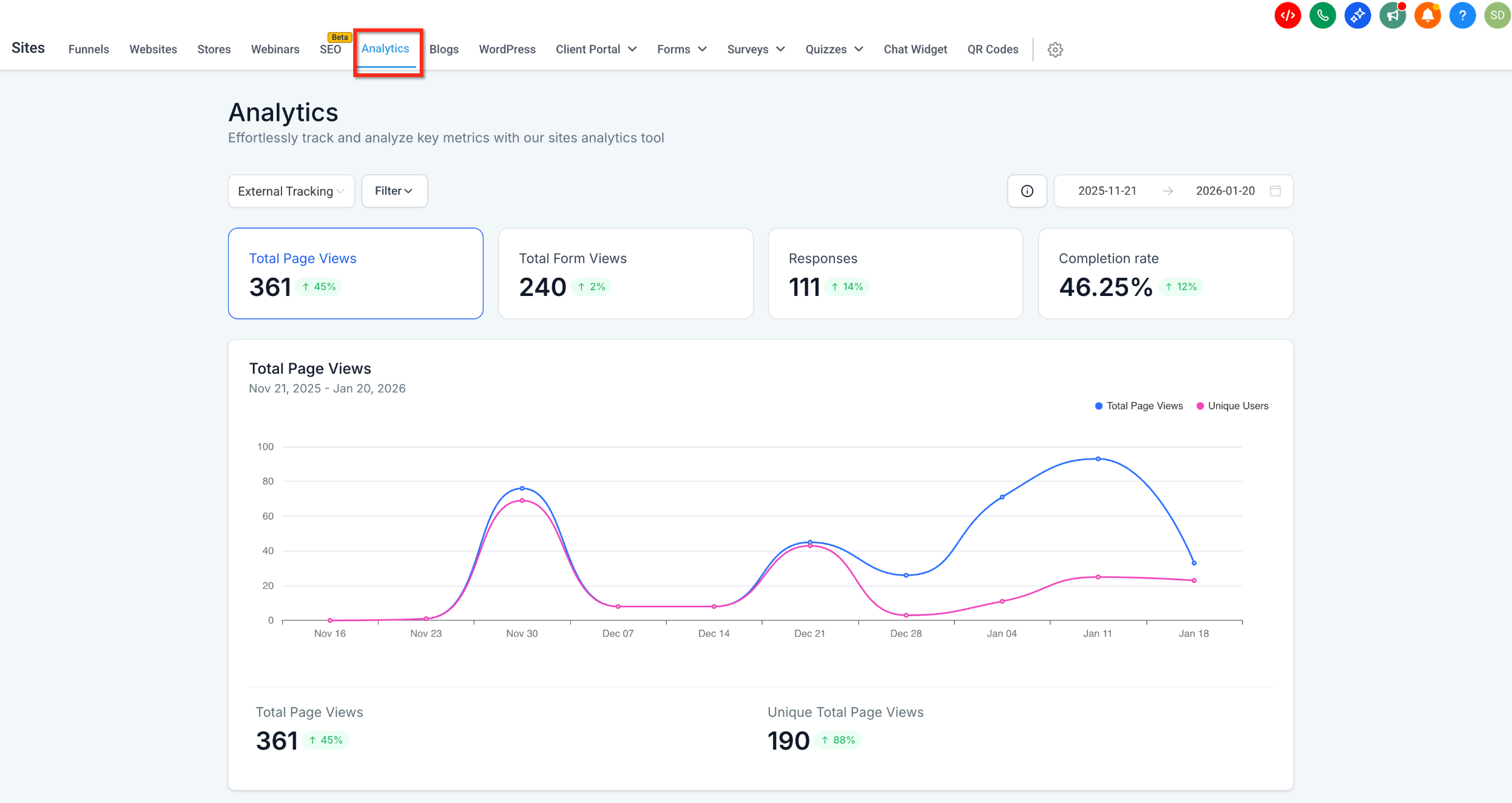
The Analytics dashboard provides a comprehensive view of how users interact with your externally tracked assets. It consolidates key performance indicators and visualizes trends to help you quickly assess performance.
Metrics available:
- Total Page Views
- Total Form Views
- Responses
- Completion Rate
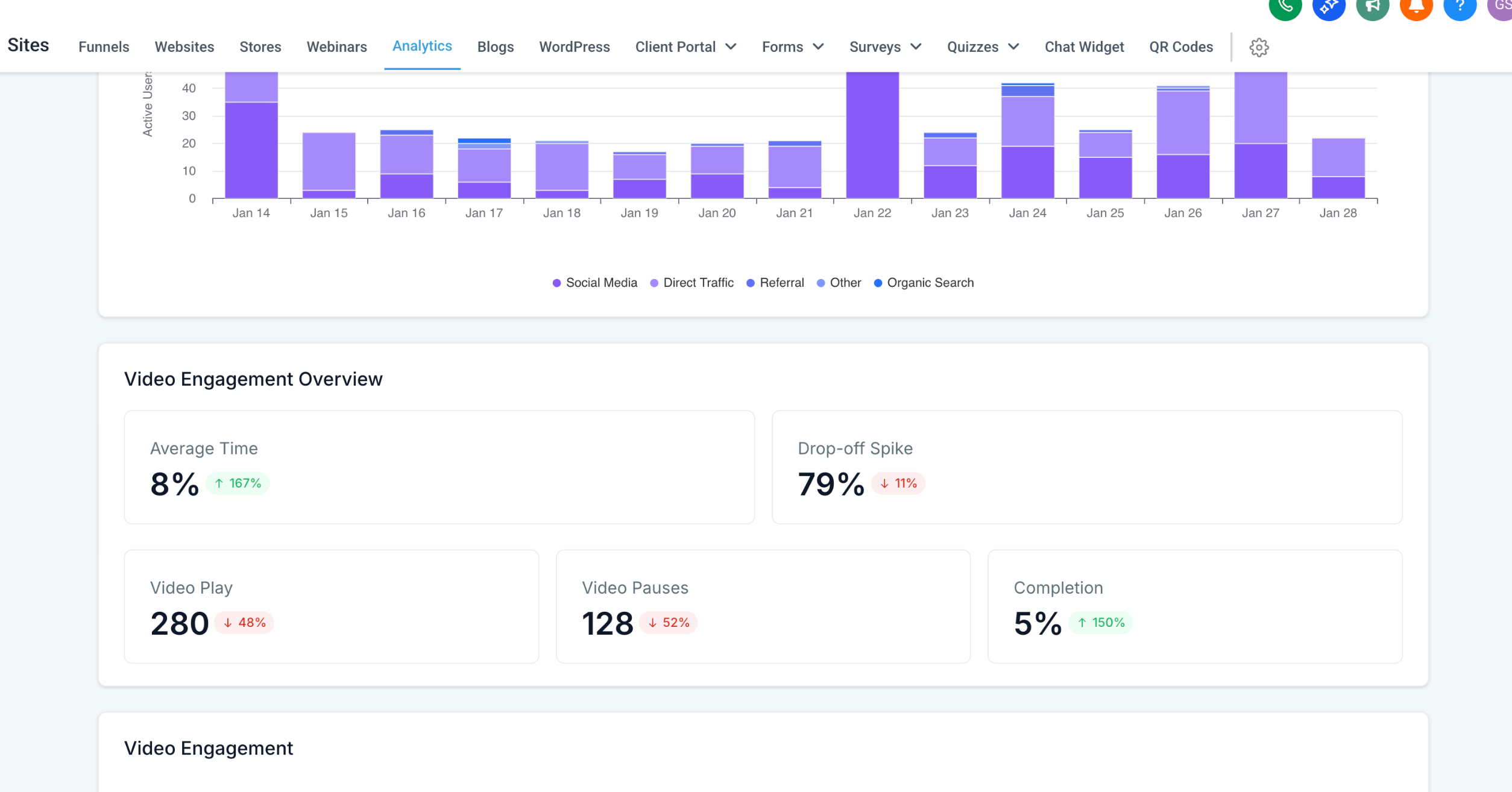
Engagement metrics:
- Average Time on Page
- Exit Before 30s (Bounce Rate)
Time-Based Insights
Tracking performance over time helps identify patterns, peak engagement periods, and potential issues affecting conversions. HighLevel provides visual tools to analyze trends efficiently.
- Use the date range selector to customize the reporting period
- View line chartswith daily breakdowns for:
- Page Views
- Form Views
- Responses
- Completion Rate
- Page Views
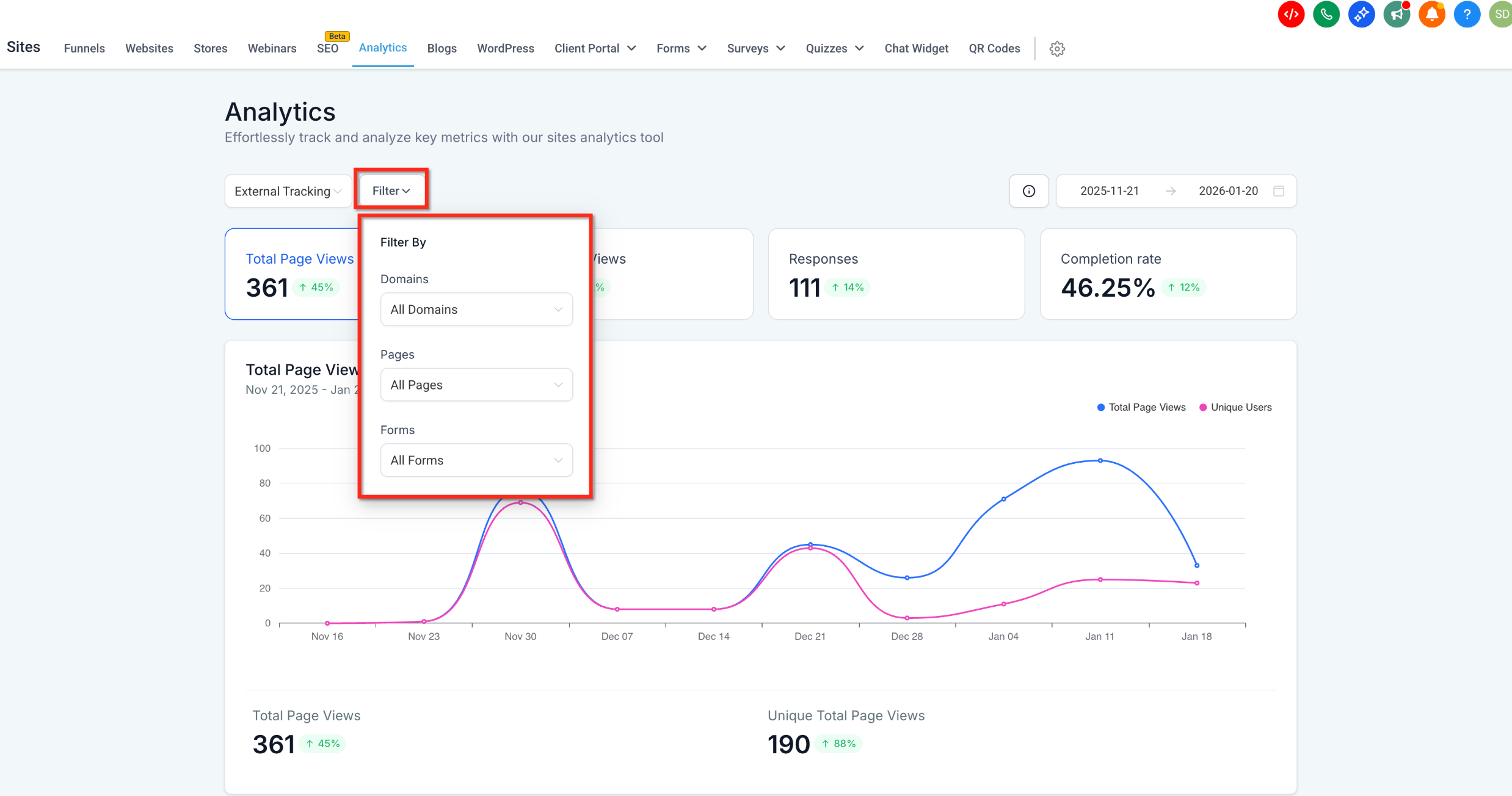
Filtering allows you to isolate specific data points and focus on what matters most. This reduces noise and helps you analyze performance at a granular level.
Available filters:
- Domains
- Pages
- Forms
Use filters to:
- Evaluate performance of a specific landing page
- Compare form performance across different pages
- Identify underperforming assets
Audience & Traffic Breakdown
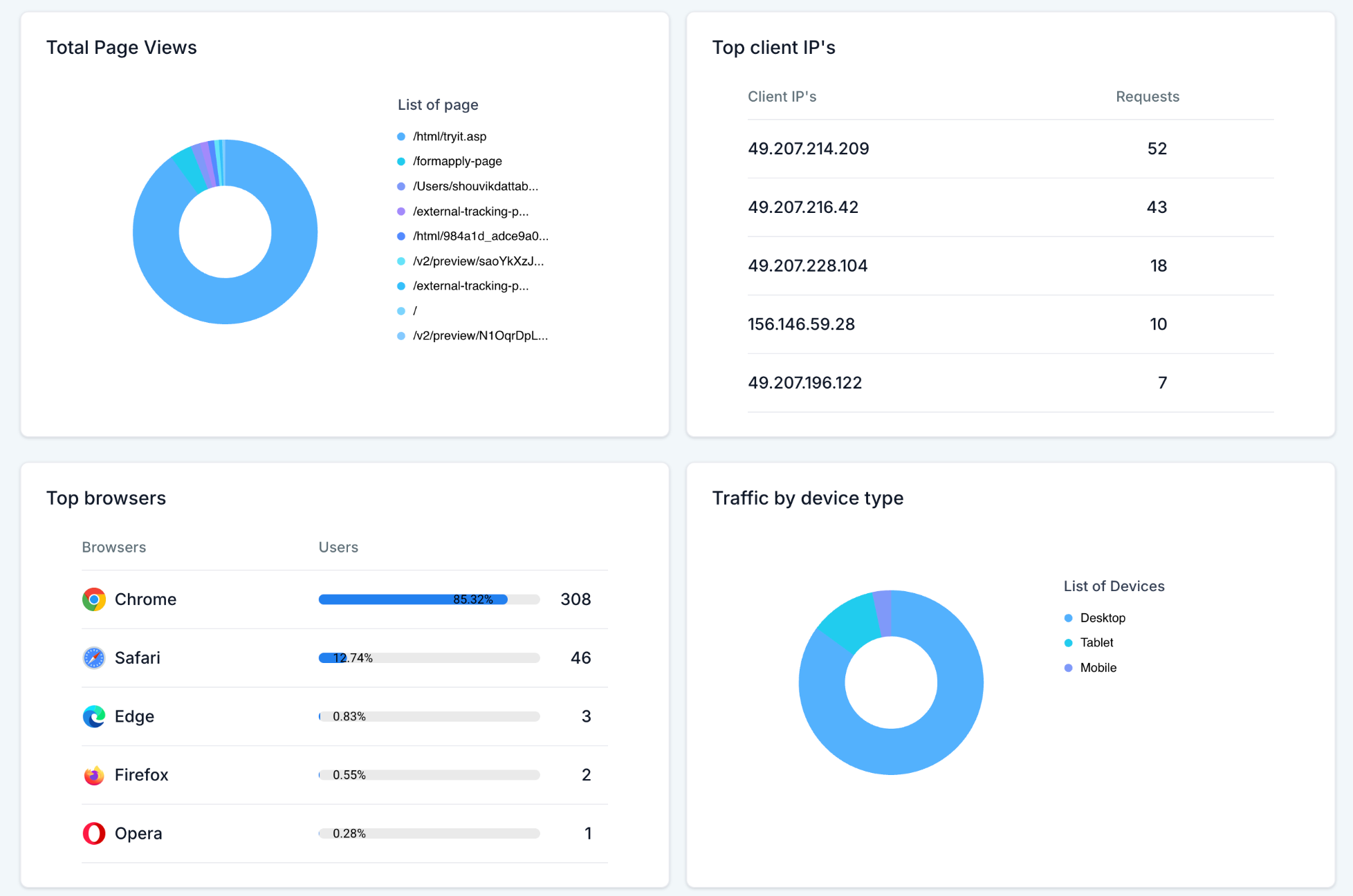
Understanding your audience helps you tailor your content and improve engagement strategies. HighLevel provides anonymized, aggregated insights into visitor behavior.
Traffic breakdown includes:
- Device type (Desktop, Tablet, Mobile)
- Top browsers
- Top client IPs (aggregated)
- Geographic data:
- Country
- State
- City
- Country
Form-Level Analytics
Form-level insights allow you to evaluate how effectively your forms are converting visitors into leads. This is especially useful for optimizing external and HTML-based forms.
View per-form data including:
- Total Views
- Responses
- Completion Rate
- Includes last updated timestamps for quick auditing
How To Set Up Analytics for External Tracking
Proper setup ensures accurate data collection and allows the analytics dashboard to function correctly. Without the tracking script installed, analytics data will not be available.
Step 1: Install the External Tracking Script
- Navigate to Sites > External Tracking in HighLevel
- Copy the provided tracking script
- Paste the script into the <head> section of your external website or funnel pages
- Save and publish your changes
Step 2: Access the Analytics Dashboard
- Go to Sites > Analytics
- Click the Analytics dropdown
- Select External Tracking (visible only when script is connected)
Alternative Access:
- Open the External Tracking modal
- Click the Analytics button to be redirected automatically
Step 3: Verify Data Tracking
- Visit your external site to generate activity
- Return to the Analytics dashboard
- Confirm that metrics such as page views and form views are populating
Frequently Asked Questions
Q: Why don’t I see the External Tracking option in Analytics?
The option only appears when the tracking script is properly installed and connected.
Q: How long does it take for data to appear?
There may be a slight delay after activity occurs before data is reflected in the dashboard.
Q: What is the difference between Form Views and Responses?
Form Views count how many times a form is seen, while Responses track successful submissions.
Q: How is Completion Rate calculated?
Completion Rate is the percentage of users who submitted the form compared to total form views.
Q: What does Exit Before 30s mean?
It represents users who leave the page within 30 seconds, commonly referred to as bounce rate.
Q: Why is Average Time on Page missing for older data?
This metric started tracking on January 20, 2026, so earlier data is not available.
Q: Can I track multiple domains?
Yes, as long as the tracking script is installed on each domain.
Was this article helpful?
That’s Great!
Thank you for your feedback
Sorry! We couldn't be helpful
Thank you for your feedback
Feedback sent
We appreciate your effort and will try to fix the article