Tracking code lets you connect analytics, advertising, and conversion tracking tools to your HighLevel funnels and websites. You can add tracking code to a specific page or across an entire funnel or website, depending on where the script needs to run.
This article explains the difference between page-level and site-wide tracking, where to add each type of code, and how to verify that your tracking is working correctly.
TABLE OF CONTENTS
- What Is Tracking Code?
- Page-Level vs. Site-Wide Tracking
- How to Add Tracking Code to a Specific Page
- How to Add Tracking Code Across an Entire Funnel or Website
- Where Should You Add the Tracking Code?
- How to Verify Your Tracking Code
- Important Considerations
- Frequently Asked Questions
- Related Articles
What Is Tracking Code?
Tracking code is a script that collects information or triggers an event when visitors interact with your funnel or website.
Common examples include:
- Google Analytics
- Google Tag Manager
- Meta Pixel
- Analytics scripts
- Advertising pixels
- Conversion event scripts
The script provider typically specifies where the code needs to be placed.
Important: Always follow the placement instructions provided by the service that generated your tracking script.Page-Level vs. Site-Wide Tracking
Before adding a script, decide whether it should run on a single page or across the entire funnel or website.
| Tracking Type | Best For | Where It Is Added |
|---|---|---|
| Page-Level Tracking | Scripts or events that should run only on a specific funnel step or website page. | Open the page in the builder and use Tracking Code to add the script under Header Tracking or Footer Tracking. |
| Site-Wide Tracking | Scripts that should run across every page or step in the selected funnel or website. | Open the funnel or website Settings and add the script under Head tracking code or Body tracking code. |
For example, a Google Analytics or Meta Pixel base script may be added at the site-wide level when it needs to run on every page. A conversion event that should fire only when someone reaches a confirmation page can be added at the page level.
How to Add Tracking Code to a Specific Page
Use page-level tracking when a script should run only on one funnel step or website page.
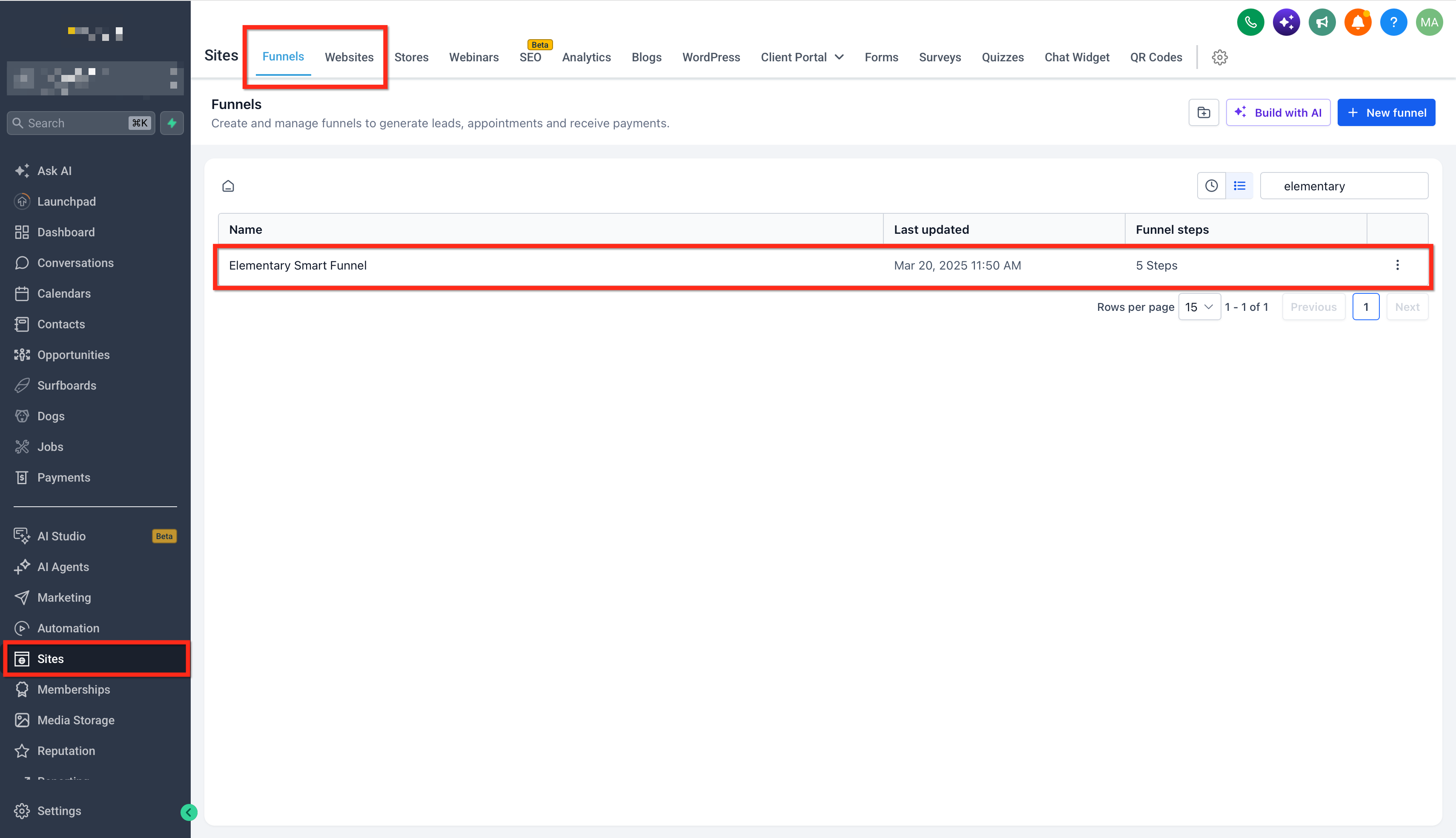
Step 1: Open the Funnel or Website
Go to Sites, then select Funnels or Websites.
Open the funnel or website containing the page where you want to add the tracking code.
Step 2: Open the Page in the Builder
Select the applicable page or funnel step and open it in the builder.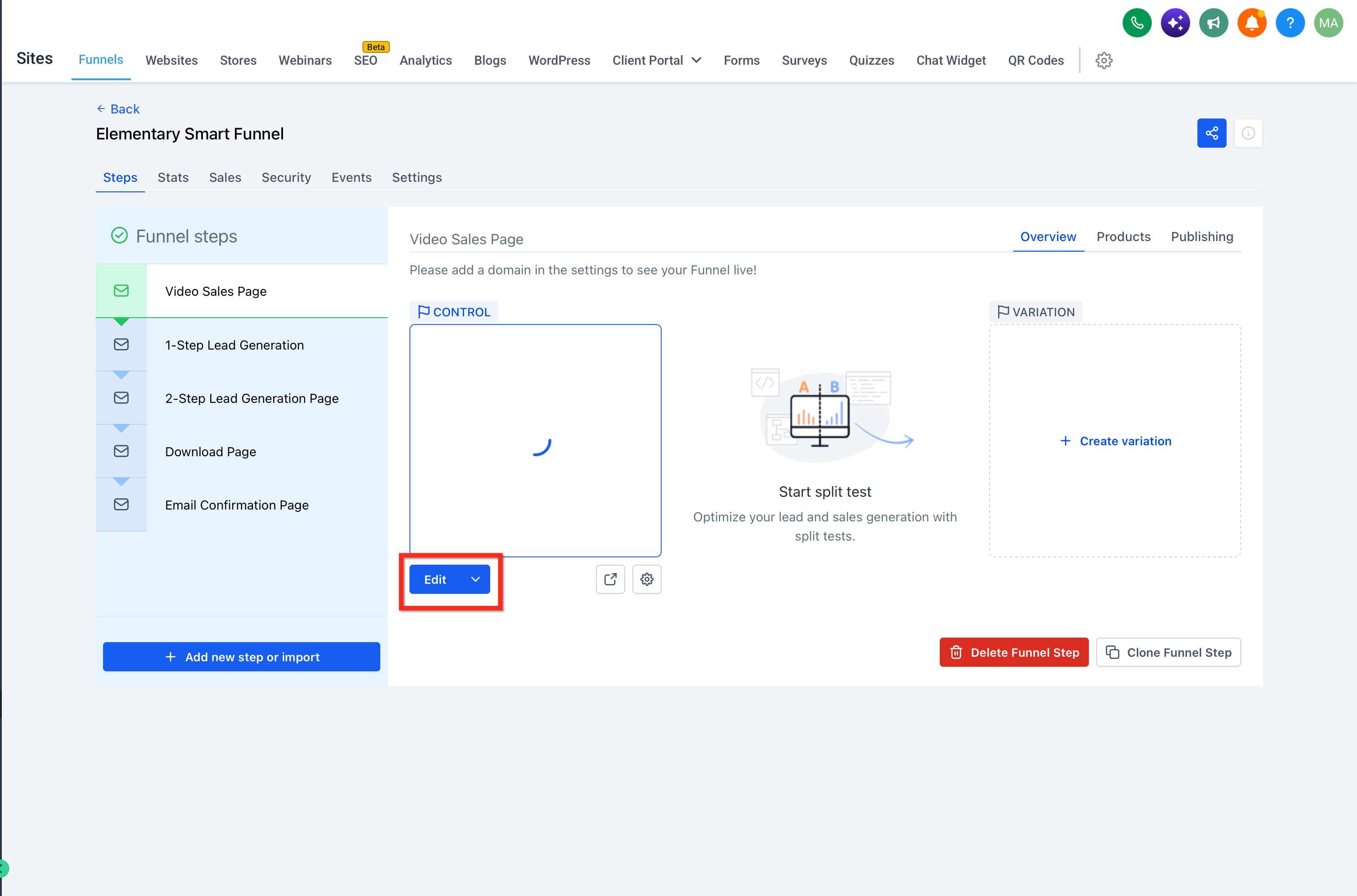
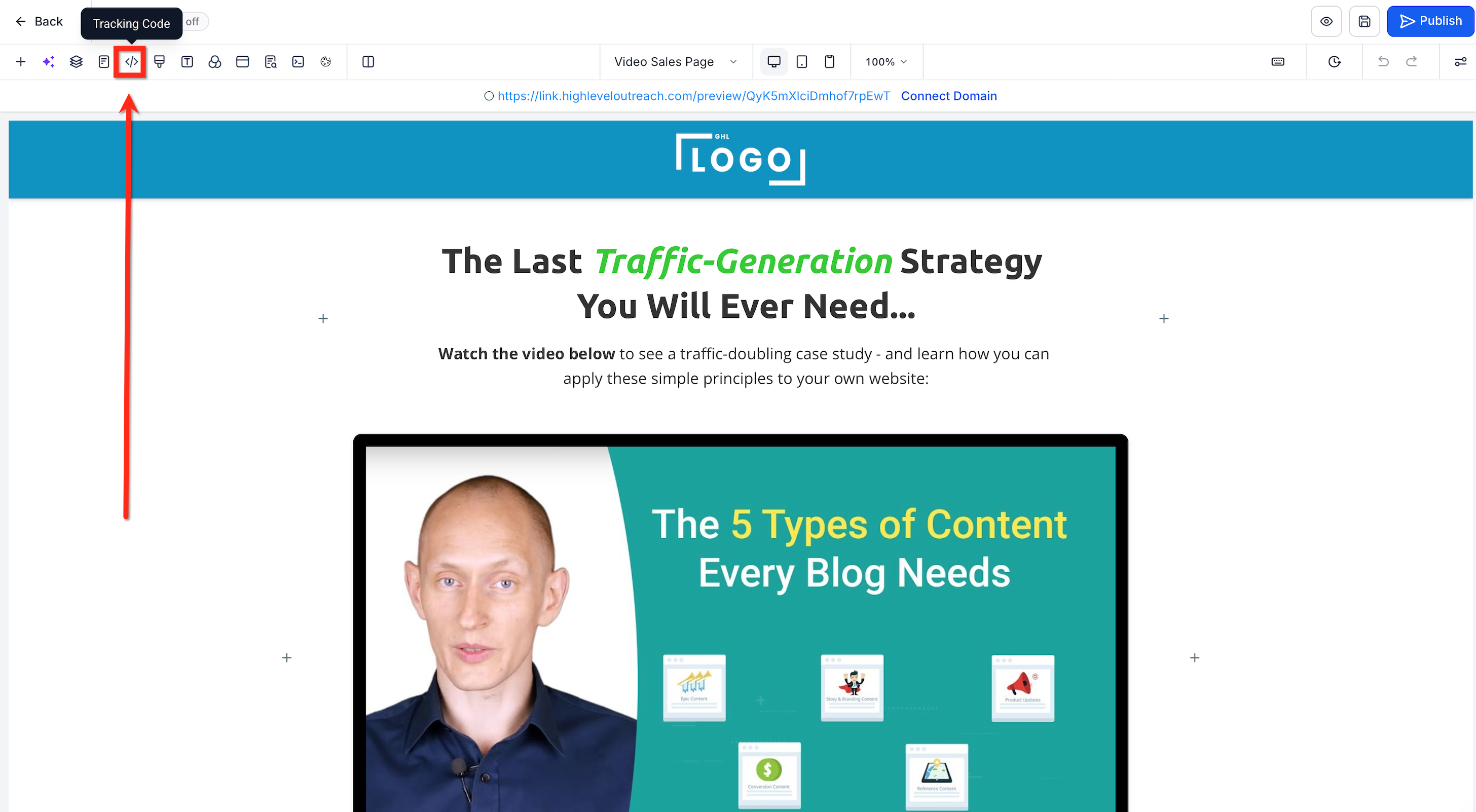
Step 3: Open Tracking Code
Click the Tracking Code option in the builder.
Step 4: Add the Script
Paste the script into:
- Header Tracking, or
- Footer Tracking
Use the location specified by your tracking provider.
Click Save.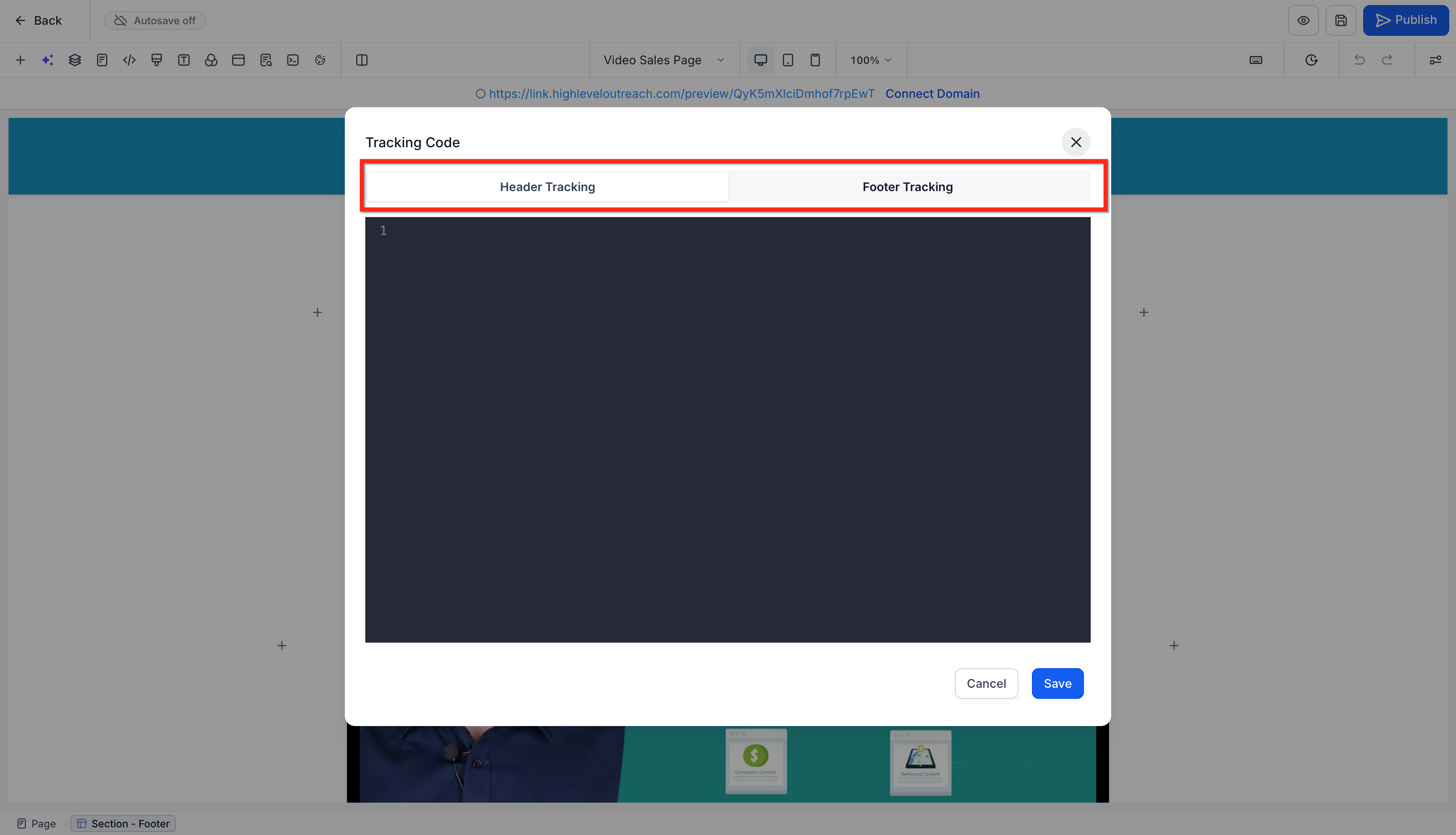
Step 5: Verify the Tracking
Open the published page and verify that the tracking code is working as expected.
Use the analytics or advertising provider's testing tool, when available, to confirm that the script or event is being detected.
How to Add Tracking Code Across an Entire Funnel or Website
Use site-wide tracking when the same script needs to run across all pages or steps within a funnel or website.
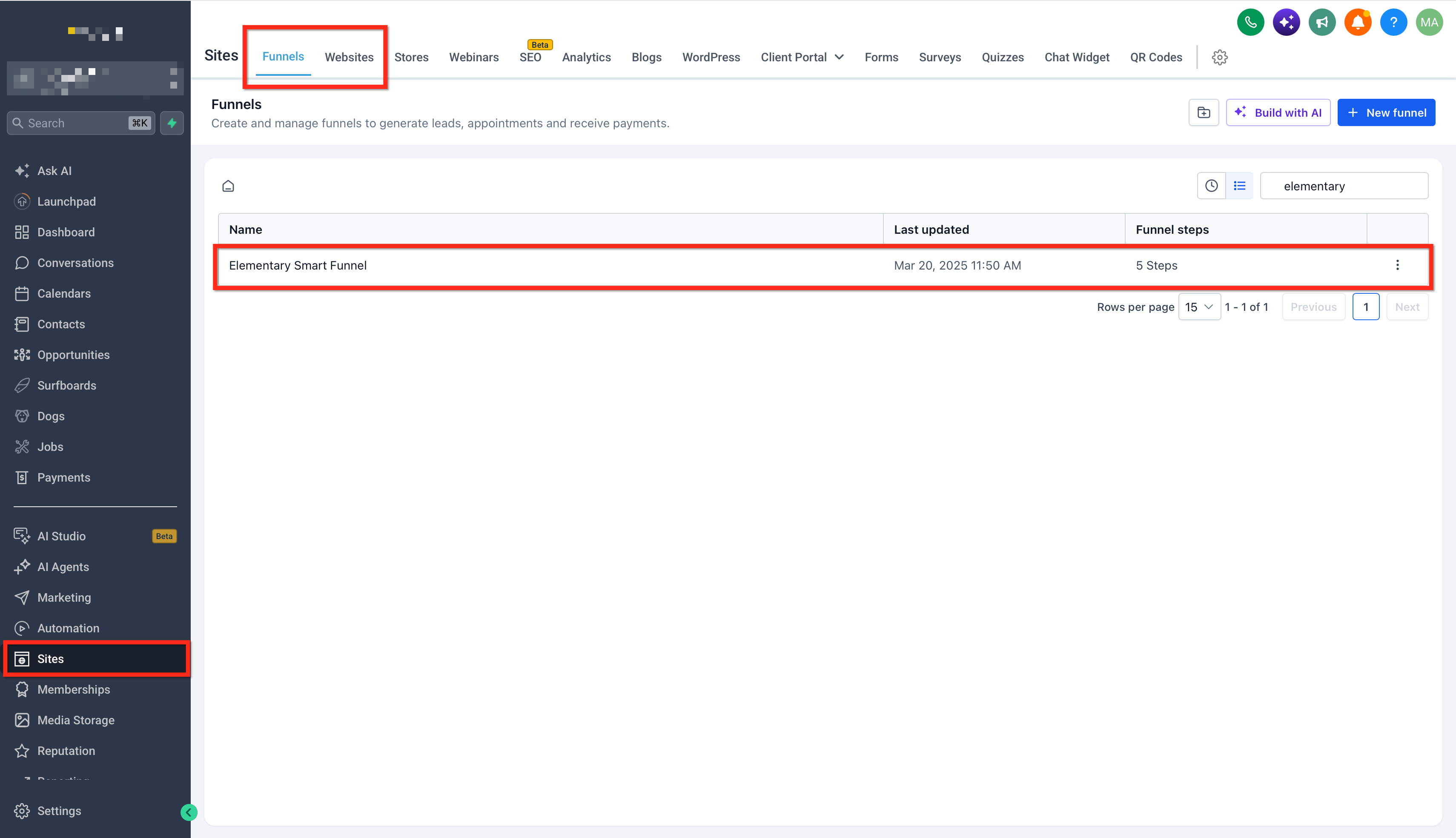
Step 1: Open the Funnel or Website
Go to Sites > Funnels or Sites > Websites, then open the applicable funnel or website.
Step 2: Open Settings
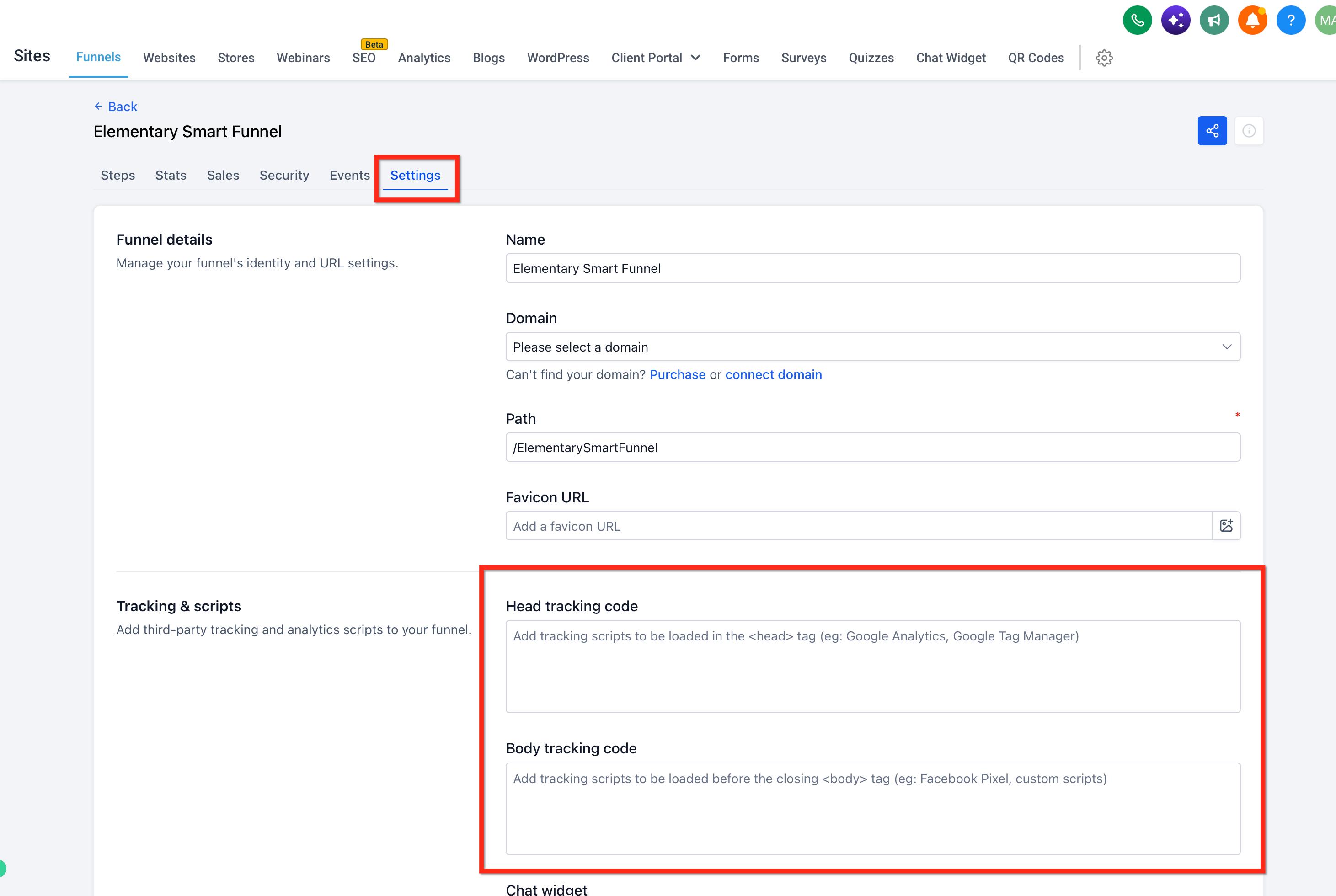
Click the Settings tab.
Step 3: Add the Tracking Code
Locate the tracking code fields:
- Head tracking code
- Body tracking code
Paste the script into the location specified by your tracking provider.
Step 4: Save and Verify
Click Save to apply the tracking code.
Then verify the script on the published pages where it should run.
Use the analytics or advertising provider's testing tool, when available, to confirm that the script or event is being detected.
Where Should You Add the Tracking Code?
Use the following guidance when deciding where to place a script.
| Requirement | Recommended Placement |
|---|---|
| Run on one specific page | Page-level Header Tracking or Footer Tracking |
| Run across the entire funnel or website | Site-wide Head tracking code or Body tracking code |
| Google Analytics or Meta Pixel base script that should run across all pages | Site-wide tracking |
| Conversion event that should run only on a specific page | Page-level tracking |
| Provider specifies that the script must be placed in the page head | Header Tracking or Head tracking code |
The exact placement depends on the requirements provided by the third-party service.
How to Verify Your Tracking Code
After adding the tracking code, test it to confirm that it is working correctly.
- Save your tracking code.
- Open the published page where the tracking should run.
- Perform the action you expect to track, such as opening the page, submitting a form, or reaching a confirmation page.
- Use the analytics or advertising provider's testing tool, when available, to verify that the script or event is being detected.
- Confirm that the tracking runs on the intended page or pages.
Note: Tracking scripts added through HighLevel may be injected dynamically in the browser and may not appear in the static View Page Source output. Use browser developer tools or the tracking provider's testing tools when validating the script.Important Considerations
Avoid Adding the Same Script Twice
Before adding page-level tracking, check whether the same script is already configured at the funnel or website level.
Adding the same tracking script at both levels can cause duplicate:
- Page views
- Events
- Conversions
- Reporting data
Use either page-level or site-wide tracking based on where the script needs to run.
Page-Level Tracking Is Not Copied When a Page Is Cloned
When you copy a funnel step or website page, page-level tracking code is intentionally excluded from the copied page.
This helps prevent page-specific pixels, analytics scripts, or conversion events from being carried into the wrong page.
Site-wide tracking continues to apply because it is configured at the funnel or website level rather than on an individual page.
Consider Cookie Consent Requirements
Analytics and advertising scripts may use cookies or other tracking technologies.
HighLevel provides a Cookie Consent Banner for Funnels and Websites. Review your tracking setup and applicable privacy requirements when using scripts that store or access visitor information.
Frequently Asked Questions
Q: Should I add Google Analytics to every page individually?
If the Google Analytics base script should run across the entire funnel or website, add it at the site-wide level instead of adding the same script to every page individually.
Q: Can I add tracking only to a thank-you page?
Yes. Use page-level tracking when a script or conversion event should run only on a specific page.
Q: Can I use Google Tag Manager with HighLevel?
Yes. Google Tag Manager and similar tools can work with HighLevel tracking code. Follow the placement instructions provided by the tracking provider.
Q: Why is my tracking code not visible in View Page Source?
HighLevel can inject tracking code dynamically in the browser. Use browser developer tools or the tracking provider's testing tools to verify whether the script is running.
Q: Why are my events firing twice?
Check whether the same tracking script is installed both at the page level and at the funnel or website level. Duplicate installations can cause the same event to fire more than once.
Q: Does tracking code copy when I duplicate a page?
Page-level tracking code does not copy when a funnel step or website page is duplicated. Review the copied page and add the appropriate page-specific tracking code if needed.
Q: Can I add Meta Pixel to a funnel or website?
Yes. Meta Pixel can be added at the page level or across the entire funnel or website, depending on where the pixel needs to run. For complete Meta Pixel and Conversions API setup, refer to the dedicated Meta Pixel and Conversion API documentation.
Related Articles
- Why Tracking Code Is Not Copied When You Clone a Page
- How to Record Pageviews into Google Analytics for Funnels/Websites (GA4)
- How to Set Up a Funnel Event Pixel for Facebook Conversion API
- How to Use the Cookie Consent Banner in GHL Funnels & Websites
- FAQs, Basic Troubleshooting - Funnels, Websites, Webinars
Was this article helpful?
That’s Great!
Thank you for your feedback
Sorry! We couldn't be helpful
Thank you for your feedback
Feedback sent
We appreciate your effort and will try to fix the article