Forms and calendars help turn an AI-generated page into a working experience that can collect information or book time with your business. In AI Studio, these components begin as part of the front-end page experience, then can be connected to your HighLevel account when you are ready to make them functional. This makes it easier to build the page first, then complete the connection steps needed for submissions or scheduling.
TABLE OF CONTENTS
- What are Forms and Calendars in AI Studio?
- Key Benefits of Connecting Forms and Calendars in AI Studio
- When AI Studio Needs Your Input
- How Forms Work in AI Studio
- How To Connect Forms in AI Studio
- Where Form Submissions Go After Connection
- How Workflows Connect to Form Submissions
- How Calendars Work in AI Studio
- How To Connect Calendars in AI Studio
- What Happens After a Calendar Is Connected
- Frequently Asked Questions
- Related Articles
What are Forms and Calendars in AI Studio?
AI Studio can create the form experience on the page. If a user asks for a form, AI Studio can help shape the page around that goal. For example, it can create a contact section, registration section, or book a call section and place the form in the right part of the page. If the request is broad, AI Studio may first ask what kind of form the user wants.
This makes setup easier because users do not need to know all the details before getting started.
This means AI Studio can help create:
Contact forms
Registration forms
Lead capture sections
Appointment booking pages
Consultation request pages
AI Studio gives you creative flexibility because it can generate custom, unique forms and booking experiences that match your brand, page style, and overall goal!
Important: Forms and calendars are not connected automatically. AI Studio can create the layout for a form or booking section, but you need to ask it to connect that component before it starts sending data into your sub-account.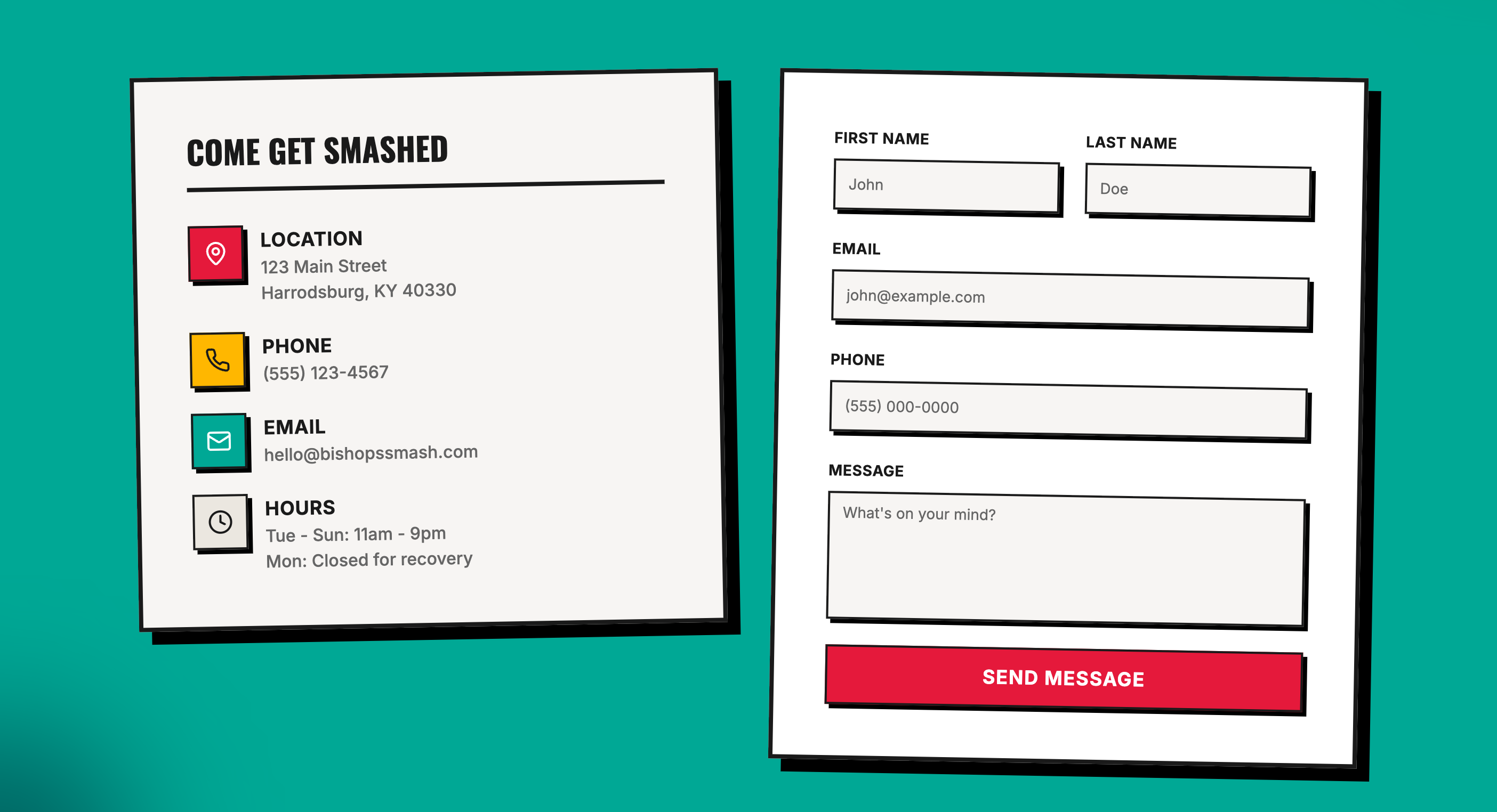
Key Benefits of Connecting Forms and Calendars in AI Studio
Connecting forms and calendars in AI Studio helps turn a generated draft into a usable experience for your business. It also saves time by combining page creation with lead capture and booking functionality in one workflow.
Faster Setup: Build the page and the action area together instead of assembling them manually
Controlled Connection: Decide when forms and calendars should be connected to your HighLevel account
CRM-Ready Lead Capture: Connected forms can send submissions into your sub-account
Simpler Scheduling Flow: Connected calendars can turn a booking page into a live scheduling experience
When AI Studio Needs Your Input
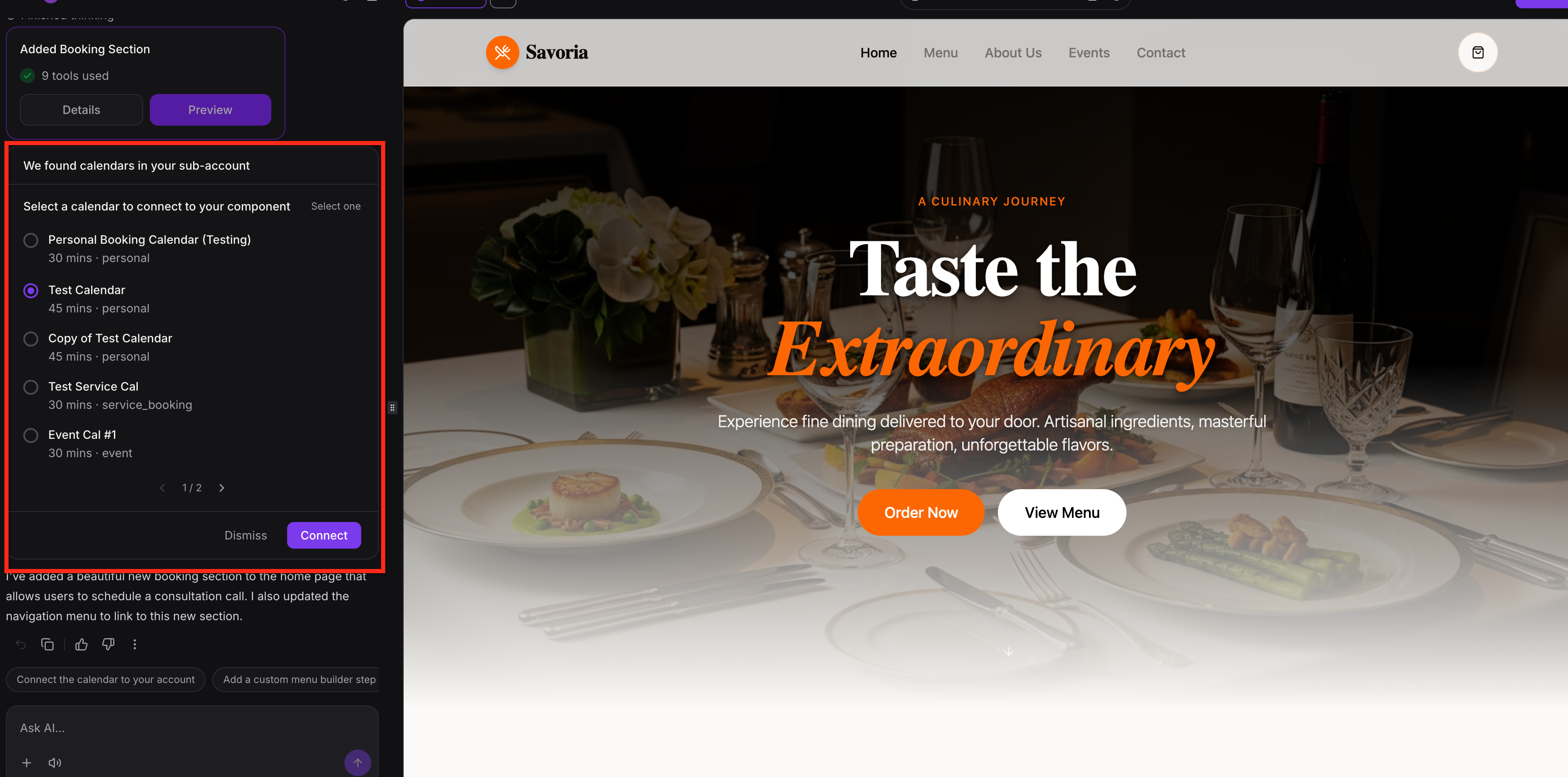
If AI Studio needs you to choose a calendar or form, it pauses the current request and shows a selection card in chat.
Choose the resource and click Connect to continue the same request without sending a new prompt.
If nothing is available to connect, you can create the required resource, return to AI Studio, and click Check again. If the list fails to load, click Try again.
You can also click Dismiss to continue building without the connection and connect it later.
How Forms Work in AI Studio
You can ask AI Studio to create different types of forms, such as contact forms, booking inquiry forms and registration forms. AI Studio can add the form directly into the page layout, a section, or a popup flow depending on the prompt and page goal.
Forms in AI Studio start as front-end layouts. This is important because seeing a form on the page does not automatically mean it is already connected to your CRM or collecting submissions.

How To Connect Forms in AI Studio
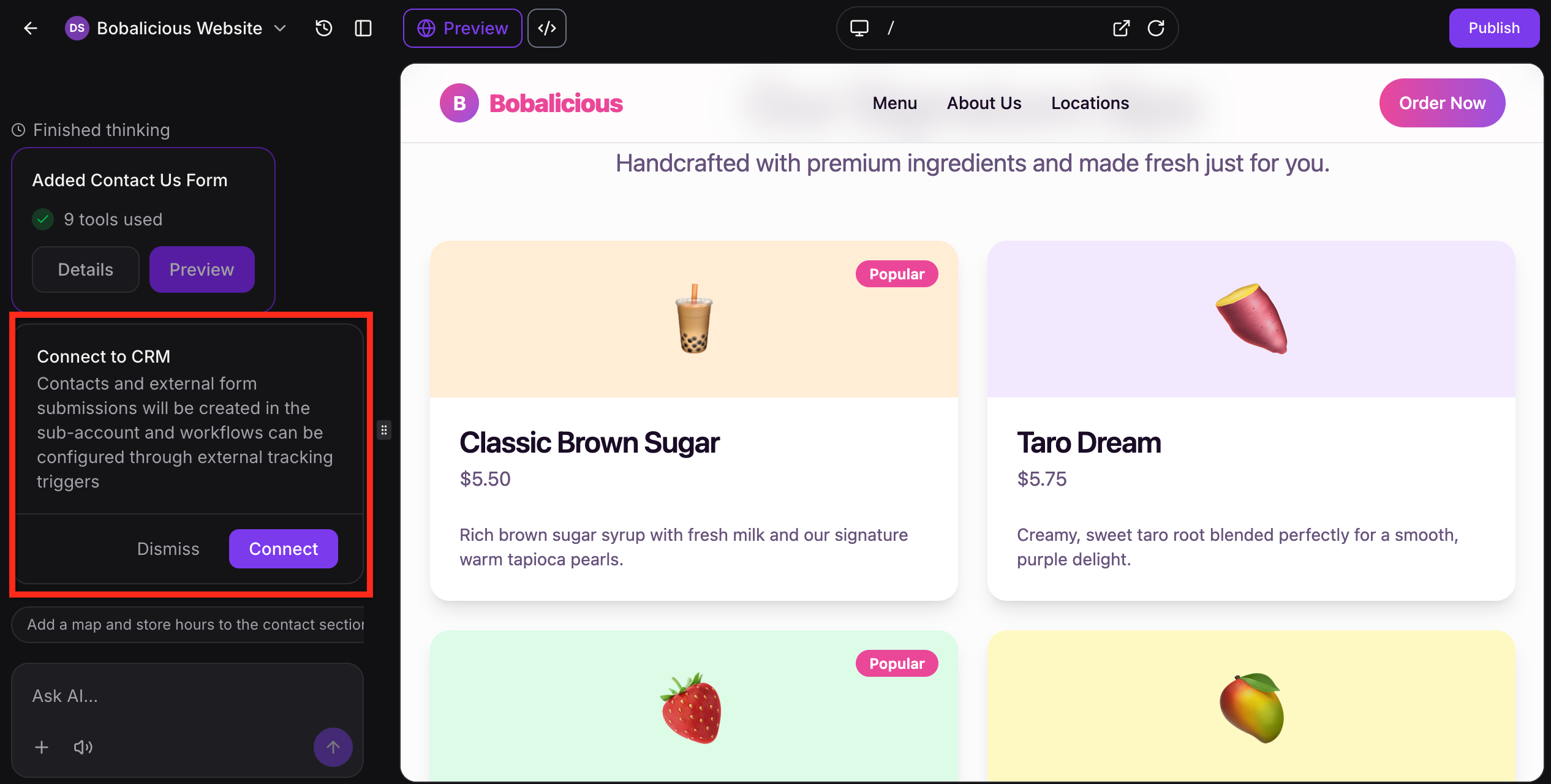
When you want the form to start collecting submissions, ask AI Studio to connect it (e.g. "Connect forms to my CRM") or click Connect when prompted in the chat. This triggers the Connect to CRM flow.
When a form is connected in AI Studio, the page uses HighLevel's external tracking behavior to send submission activity back into the account. After the user chooses to connect CRM tracking to the page, form submissions can be captured into HighLevel and used for follow-up workflows.
In simple terms, the process works like this:
- AI Studio builds the form on the page
- The user connects it to CRM tracking
- Submissions begin flowing into HighLevel
Where Form Submissions Go After Connection
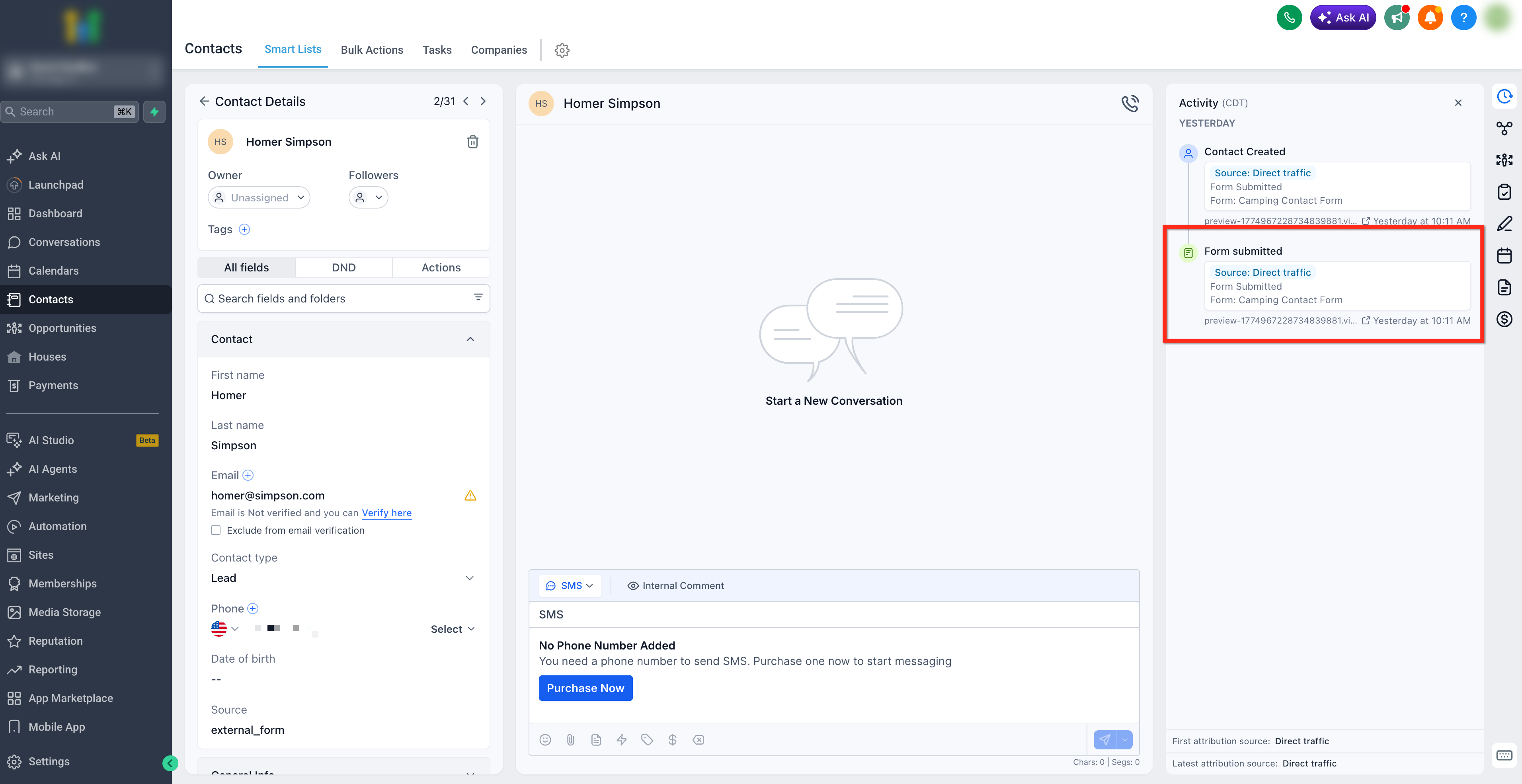
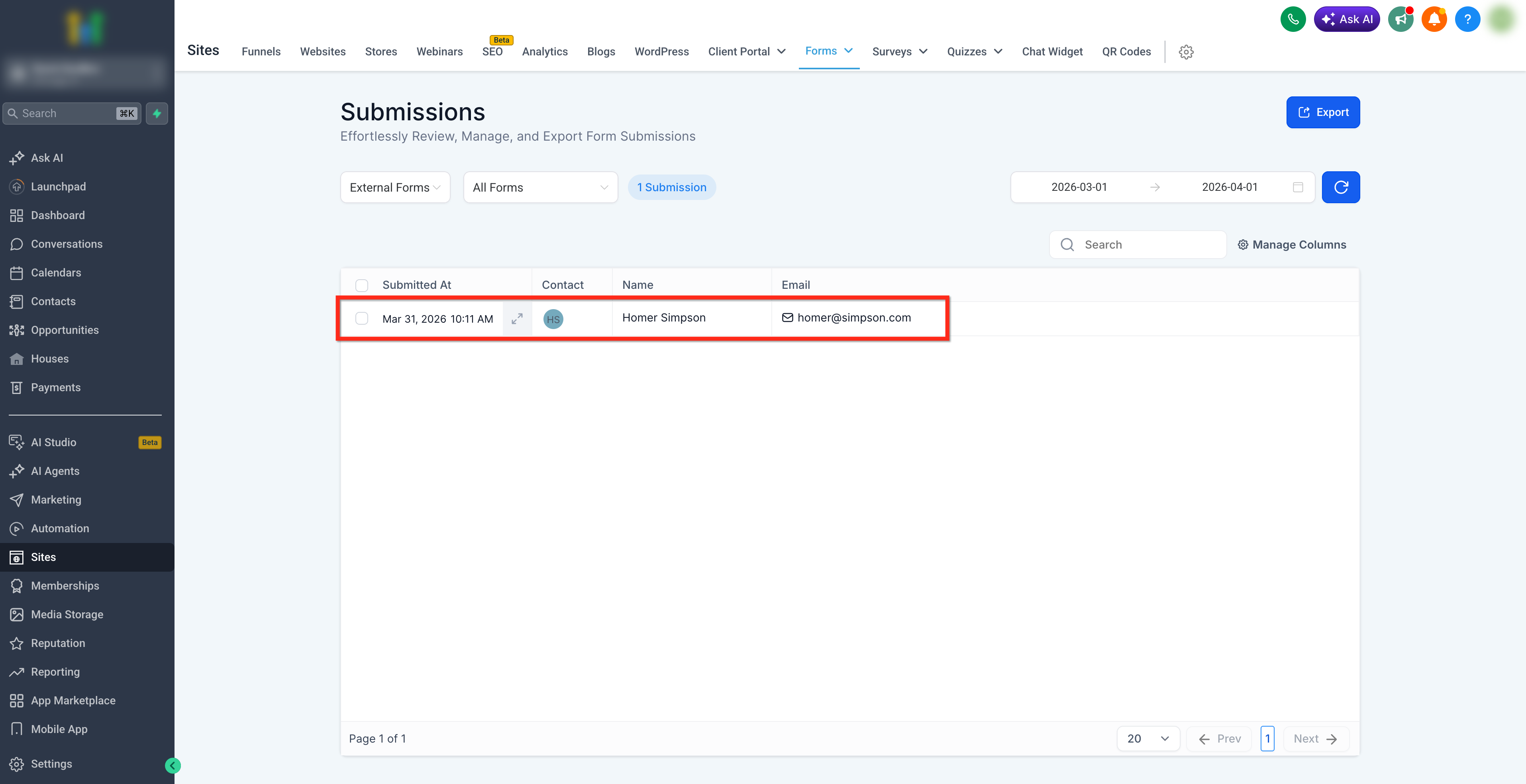
Once connected, form submissions go into the connected sub-account CRM setup, not into the AI Studio project itself. This means that the page lives in AI Studio but the responses, contacts and submission activity go into the connected HighLevel account. After connection, form submissions can appear under form submissions as third-party submissions, and they can also be tied into workflow activity through external tracking behavior.
Users can view submissions in:
- Contacts
- Sites > Forms > Submissions > ExternalForms
How Workflows Connect to Form Submissions
Use the AI Studio Form Submitted workflow trigger to start a workflow automatically when a visitor submits a connected form on an AI Studio site. The trigger is designed specifically for AI Studio form submissions and lets you automate follow-up actions for captured leads.
To configure the workflow:
- Go to Automation > Workflows and create a new workflow or open an existing one.
- Click Add New Trigger.
- Search for and select AI Studio Form Submitted.
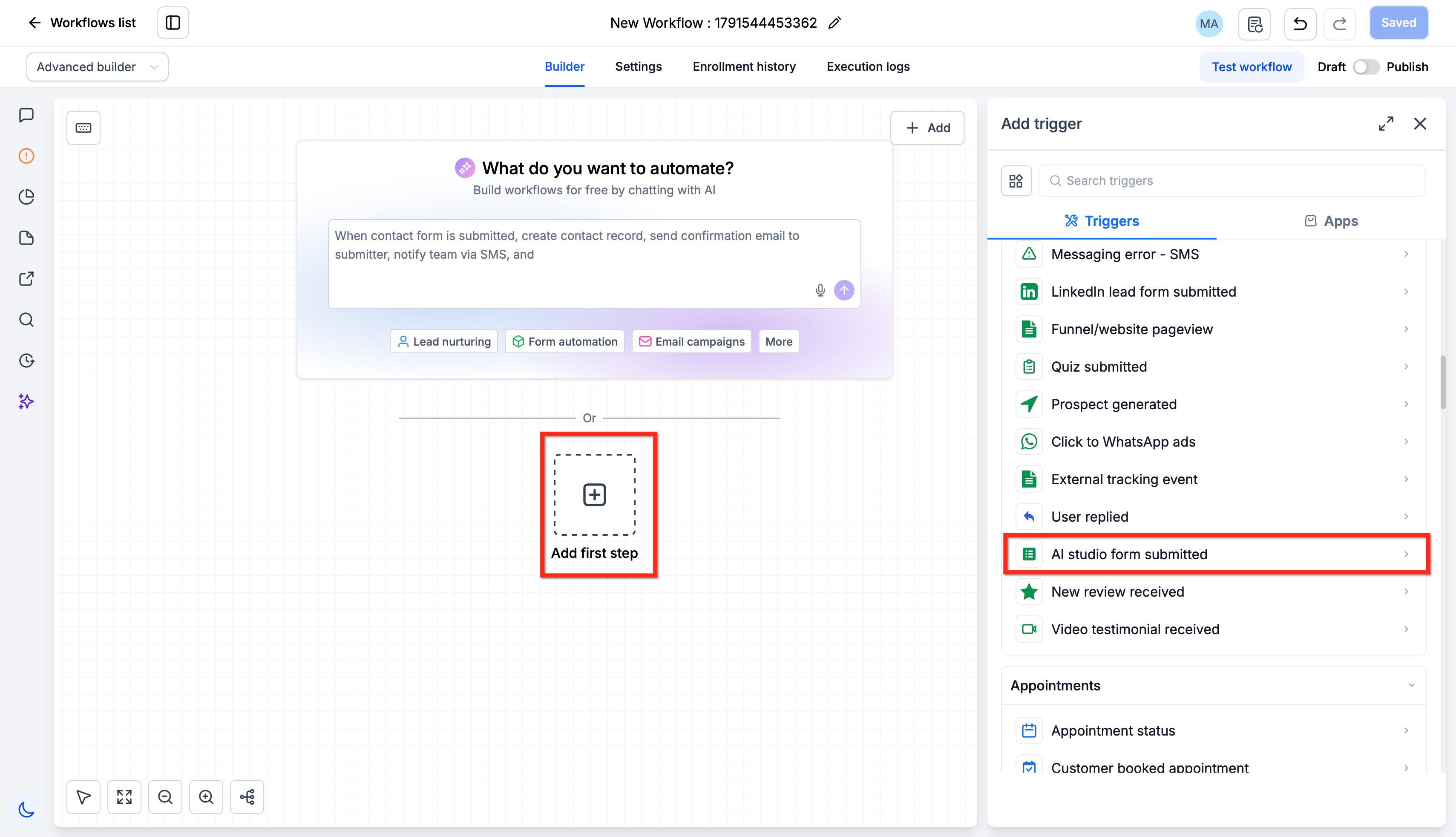
- Add filters as needed to control which form submissions start the workflow.
- Add the workflow actions you want to run after the form is submitted. Save and publish the workflow when ready.
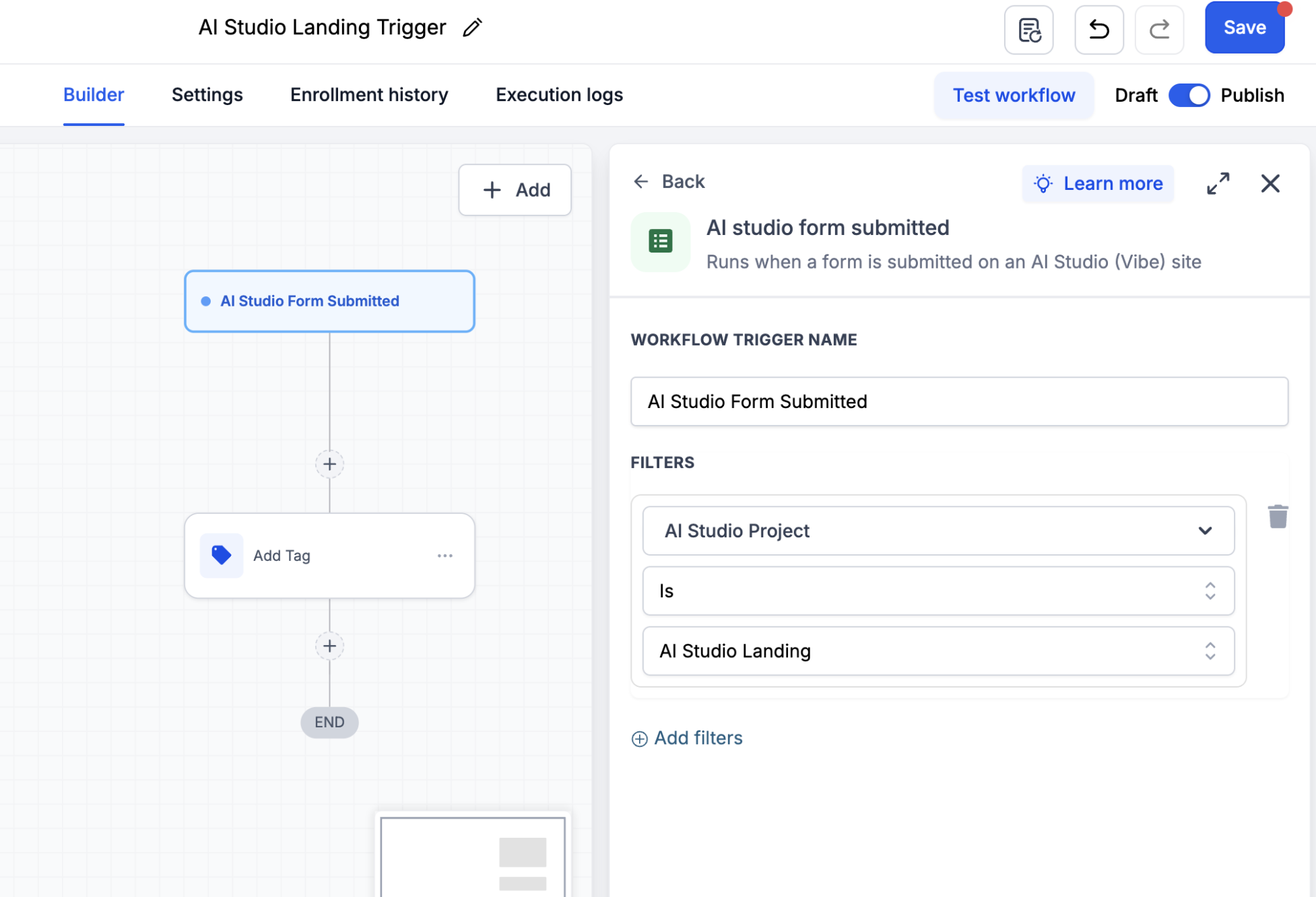
After configuring the trigger, you can add workflow actions such as sending emails or SMS messages, adding tags, creating opportunities, updating contact fields, or assigning contacts to team members.
For complete setup instructions, see AI Studio Form Submitted Workflow Trigger.
Important: Existing AI Studio forms that use the External Tracking Event > Form submission trigger will continue to work and do not need to be updated.

Reconnect an existing AI Studio form to CRM only if you want that form to use the new AI Studio Form Submitted workflow trigger. Reconnect each existing form individually that you want to use with the new trigger.
How Calendars Work in AI Studio
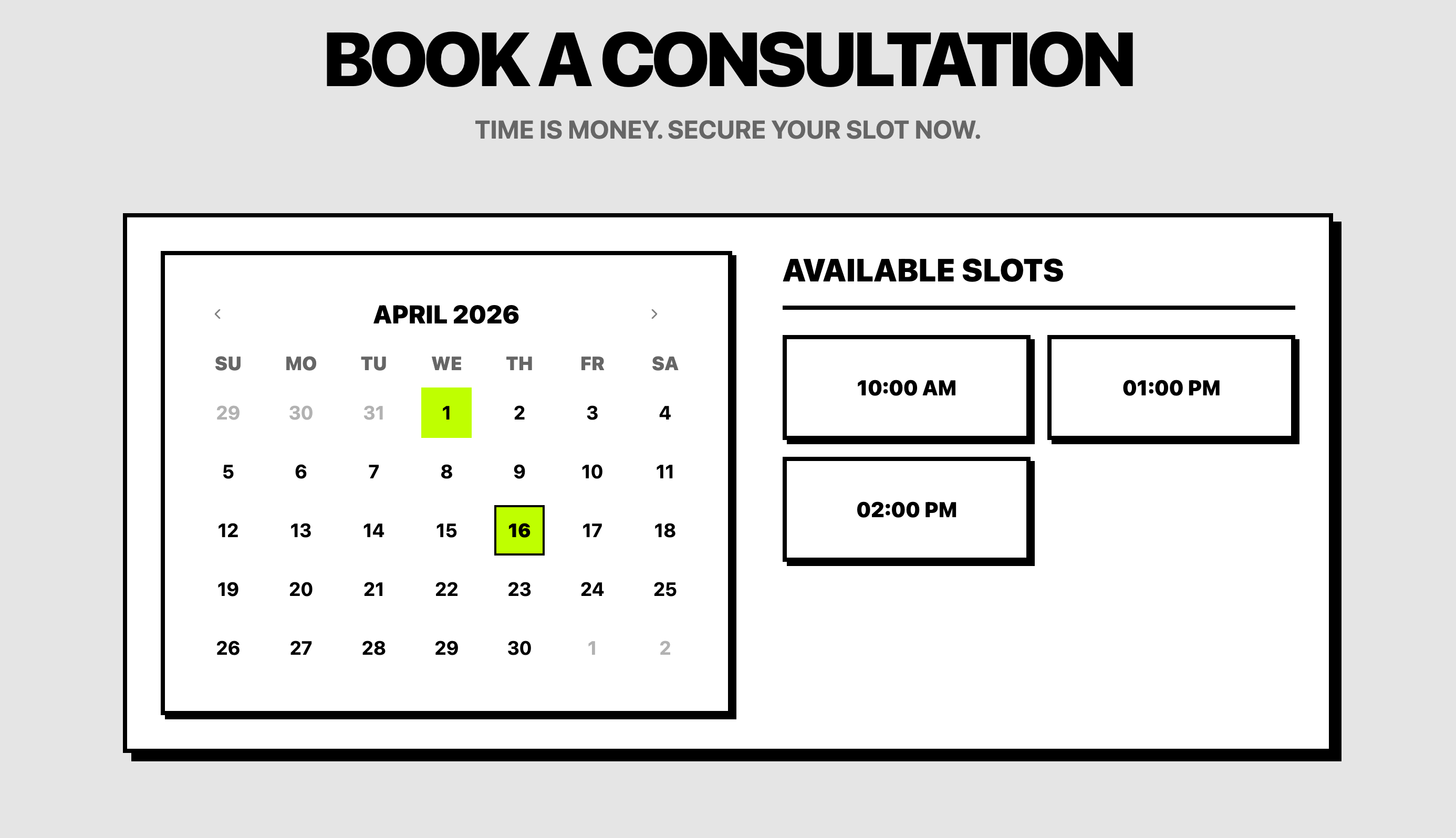
AI Studio can create a custom booking experience on the front end instead of only embedding a standard calendar widget layout. If you ask AI Studio for an appointment page, consultation page, or discovery call page, it can generate the front-end layout and add a booking area as part of the experience.
Once connected to one of your pre-existing calendars, that custom experience can use the selected HighLevel calendar in the background for scheduling!
How To Connect Calendars in AI Studio
Connecting a calendar turns the booking section on the page into a live scheduling experience. Instead of building the scheduling component manually, AI Studio can help you connect an existing calendar from the sub-account.
Ask AI Studio to create a booking-focused page or scheduling section.
When prompted within the chat, choose the calendar you want to use from the sub-account.
Connect that calendar to the page component.
Preview and test the booking experience.
What Happens After a Calendar Is Connected
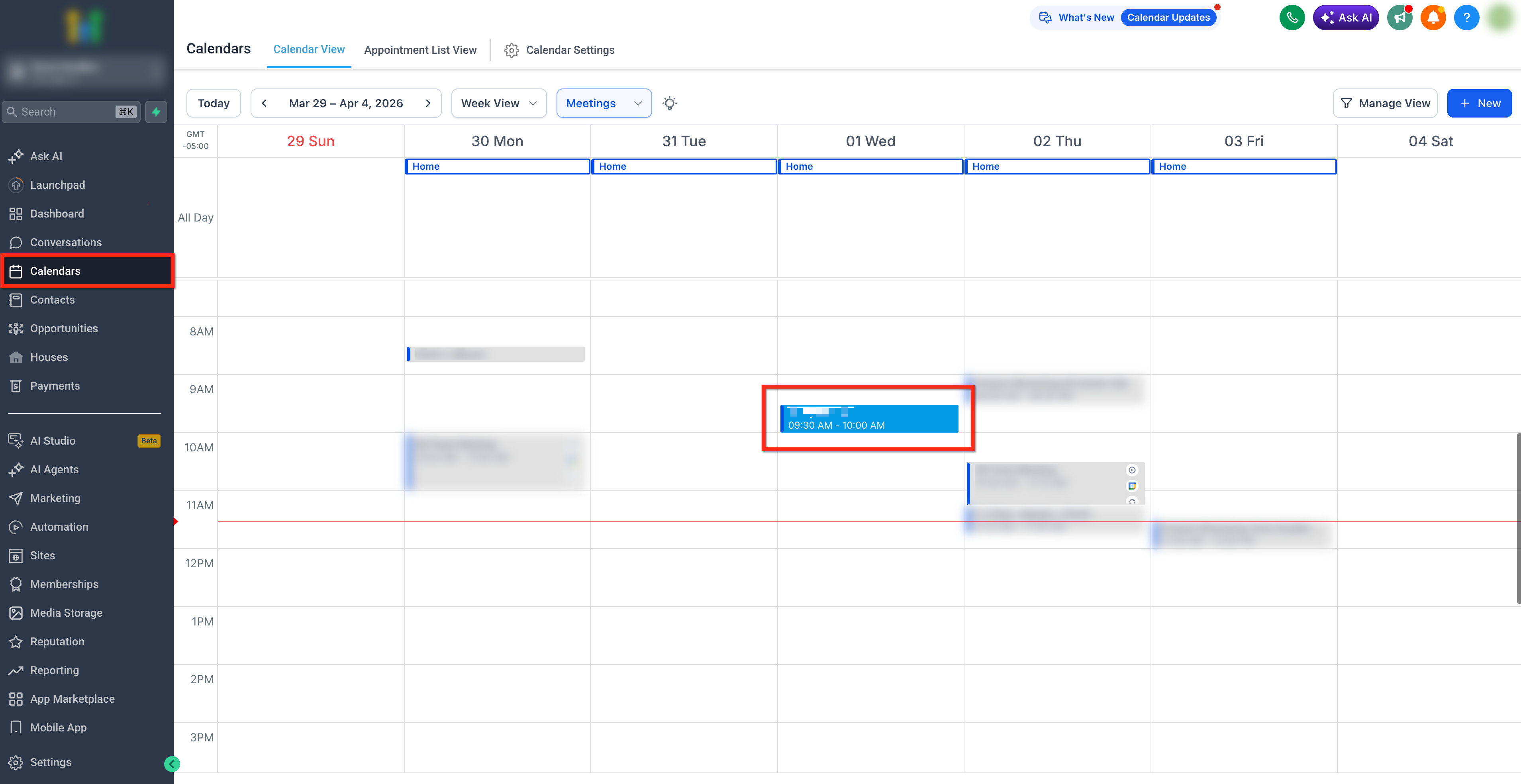
The calendar itself comes from the sub-account. AI Studio helps place and connect it inside the page experience. So the page lives in AI Studio, but the scheduling setup is still tied to the connected calendar inside the account.
That means any meetings or time slots booked from the AI Studio page are added to that connected calendar instead of staying only on the front end. After the calendar is connected:
Visitors can book available times from the page
Booked meetings are added to the selected calendar in your sub-account
The booking uses the availability and setup already configured on that calendar
Any automations, follow-up actions, or other calendar-based behavior tied to that calendar can continue to run as configured in HighLevel
This makes the AI Studio page a fast way to present the booking experience while still using the calendar setup that already exists in your account.
Frequently Asked Questions
Q: Can I edit the page after connecting a form or calendar?
Yes. You can continue refining the page experience in AI Studio after the component has been connected.
Q: Do I need to create a form in HighLevel first before using it in AI Studio?
No. AI Studio can generate the front-end form experience from a prompt, then guide you through the connection step when you are ready.
Q: Do calendar confirmations, reminders, and automations still come from the connected calendar setup?
Yes. Once the page is connected to a calendar, bookings made from the page use that selected calendar, so any confirmations, reminders, and automations tied to that calendar will run.
Related Articles
- AI Product Pricing Update
- AI Studio in HighLevel
- Tracking External Forms with GoHighLevel
- Where Do Form Responses Show Up?
- How to Set Up a Personal Booking Calendar with HighLevel
Was this article helpful?
That’s Great!
Thank you for your feedback
Sorry! We couldn't be helpful
Thank you for your feedback
Feedback sent
We appreciate your effort and will try to fix the article