A person can work with several Companies. Primary Company is a system label that can't be edited and links each Contact to one Company, so to show the other connections you create a new association label between Contacts and Companies. This guide covers creating that label, linking from either record, and reviewing the resulting connections.
TABLE OF CONTENTS
- When to use multiple Company links
- Primary and Additional Companies
- Create a Label for Additional Companies
- Add Companies to a Contact
- Link an Existing Contact to a Company
- Review the Connections
- Frequently asked questions
When to use multiple Company links
- One consultant across clients: Connect the same Contact to each client Company without creating a separate Contact for every account.
- Shared finance contacts: Link one accountant to the Companies they support so each account’s team can find the same person.
- Owners across a portfolio: Keep a business owner’s Contact connected to all relevant Companies and maintain their details in one place.
Primary and Additional Companies
Primary Company is the Contact’s main Company relationship. It is a system label: it can't be edited, and it links each Contact to one Company. System automations, including domain name automation and business name automation, associate Contacts with Companies under this relationship by default. Company merge fields resolve to Primary Company, so its details are used when those fields personalise content. Additional links use your own association labels and do not replace Primary Company.
To link a Contact to more Companies, create a new association label between Contacts and Companies that allows many Companies, such as Employer and Employee. The steps are below.
Create a Label for Additional Companies
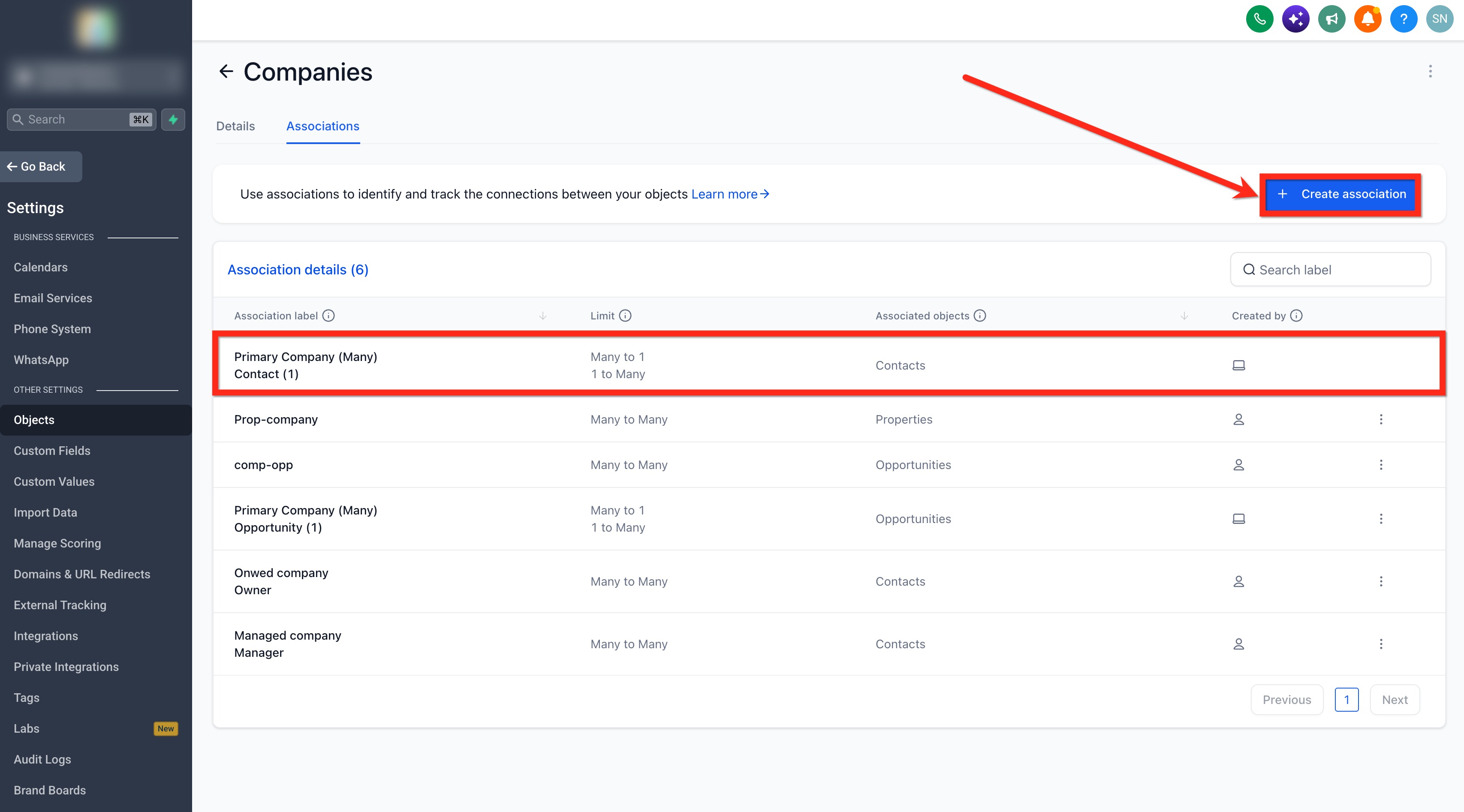
- Go to Settings > Objects > Companies > Associations. Primary Company is listed as a system label and can't be edited.
- Click Create association and choose Contacts.
- Name the association, for example a pair of labels such as Employer and Employee.
- Under Configure relationship, set Contacts to Many Companies, then click Save.

Add Companies to a Contact
- Open the Contact record and find Companies in its associations.
- Click Add and search for the Company you want to link.

- Choose Link existing Company.

- Select the Company, then choose the association label for this relationship.

- Click Save.
- The Contact now shows both Companies, each with its own label.

Link an Existing Contact to a Company
- Open the Company and go to Associations.
- In Contacts, click Add and search for the existing Contact.
- Choose the relevant custom association label and save. A Contact that already has a Primary Company can still be linked under a custom relationship.

Review the Connections
Use the Contact’s associations to review linked Companies and open the Company records. In the new Contact Smart Lists table, configured Company association columns can display additional Companies beside Primary Company. Column and filter setup is covered in the separate Smart Lists release documentation.

Frequently asked questions
Q: Do I need another Contact for each Company?
No. Link the existing Contact to each relevant Company and keep their details on one record.
Q: Will another Company link replace Primary Company?
A link under a custom association label is an additional relationship. Choose the custom label when you want to retain the existing primary relationship. Company merge fields continue to resolve to Primary Company.
Q: Can I edit Primary Company so a Contact can have more Companies?
No. Primary Company is a system label and can't be edited. Create a new association label between Contacts and Companies for the additional Companies.
Q: How many Companies can I link?
The configured limits for the association determine the allowed links. Check the relationship settings if you reach a limit.
Q: Does Add to primary company create an additional link?
That bulk action sets Primary Company. Use the record association controls for additional Company links.
Q: Where do I define what a relationship means?
Use association labels. The separate guide Define Contact Roles in Companies Using Association Labels covers setup, paired labels, and role based email audiences.
Was this article helpful?
That’s Great!
Thank you for your feedback
Sorry! We couldn't be helpful
Thank you for your feedback
Feedback sent
We appreciate your effort and will try to fix the article