Associate Records Workflow Action
The Associate Records workflow action eliminates manual effort by automatically finding and linking CRM records based on field values, merge fields, and custom matching rules.
This article explains how to configure the action, choose matching strategies, apply association labels, and use real-world workflows to model complex business relationships.
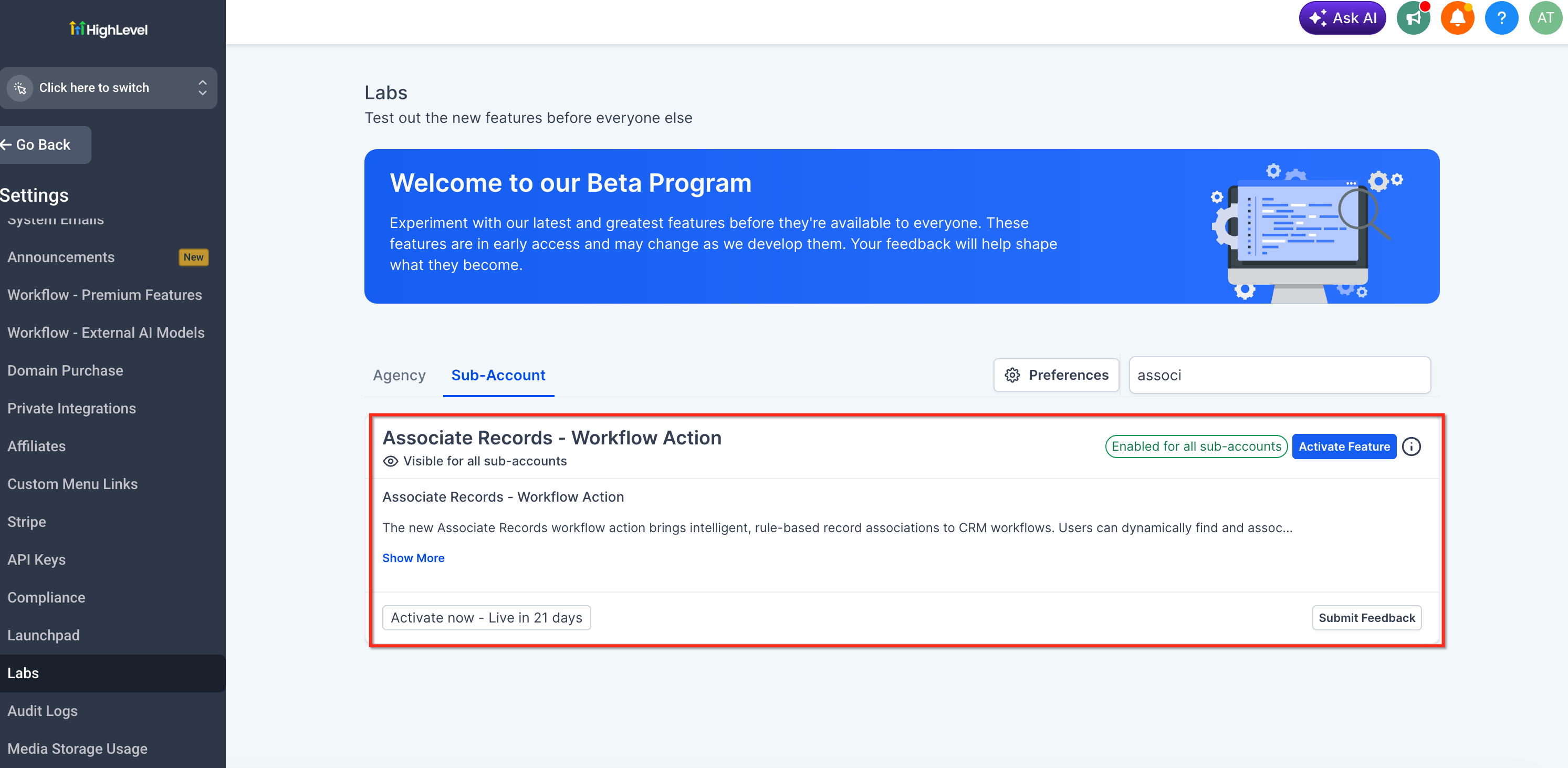
The Associate Records workflow action is currently available in Beta through Labs. Enable it from Settings → Labs → Associate Records - Workflow Action before use. Beta features are in active development and may receive updates based on user feedback.
What is the Associate Records Workflow Action?
The Associate Records workflow action automatically creates associations between CRM records based on field-level matching rules. It works across Contacts, Companies, Opportunities, and Custom Objects, allowing you to model complex business relationships without manual data entry.
When a workflow enrolls a record, the action searches for matching records using filters you configure—such as matching city, property type, or status—and creates associations using the strategy you define (earliest, latest, or all matches).
This action removes the need for external tools or custom code to maintain CRM relationships, and it keeps associations accurate as records are created or updated.
Key Benefits
The Associate Records action delivers automation, accuracy, and flexibility for managing CRM relationships at scale.
Feature Capabilities
The Associate Records action provides flexible configuration options to handle a wide range of CRM workflows and business scenarios.
Associate records across Contacts, Companies, Opportunities, and Custom Objects, based on the workflow type and configured object associations in your sub-account.
Find records using one or more field-based filters with support for all applicable field types and their corresponding operators (equals, is, is not empty, contains, greater than, etc.).
Use fixed values (like "4" for bedrooms) or merge fields from the enrolled record (like contact.preferred_city) to dynamically match records based on real-time data.
Choose to associate with the earliest created record (the record created first), the latest created record (the record created most recently), or all matching records based on your business requirements.
Apply existing association labels to categorize and describe the relationship between records (e.g., "Potential Buyer", "Seller"). The selected label is applied to the trigger record.
Create associations between different objects (Contact to Property, Company to Opportunity) based on the associations configured in your sub-account.
Add multiple filters with AND logic to create precise matching rules. A record must meet every condition to qualify for association.
How to Set Up the Associate Records Action
Follow these steps to configure the Associate Records action in a Contact, Company, or Custom Object workflow.
Navigate to Settings → Labs and enable the Associate Records - Workflow Action feature.
Open an existing workflow or create a new Contact, Company, or Custom Object workflow where you want to add the action.
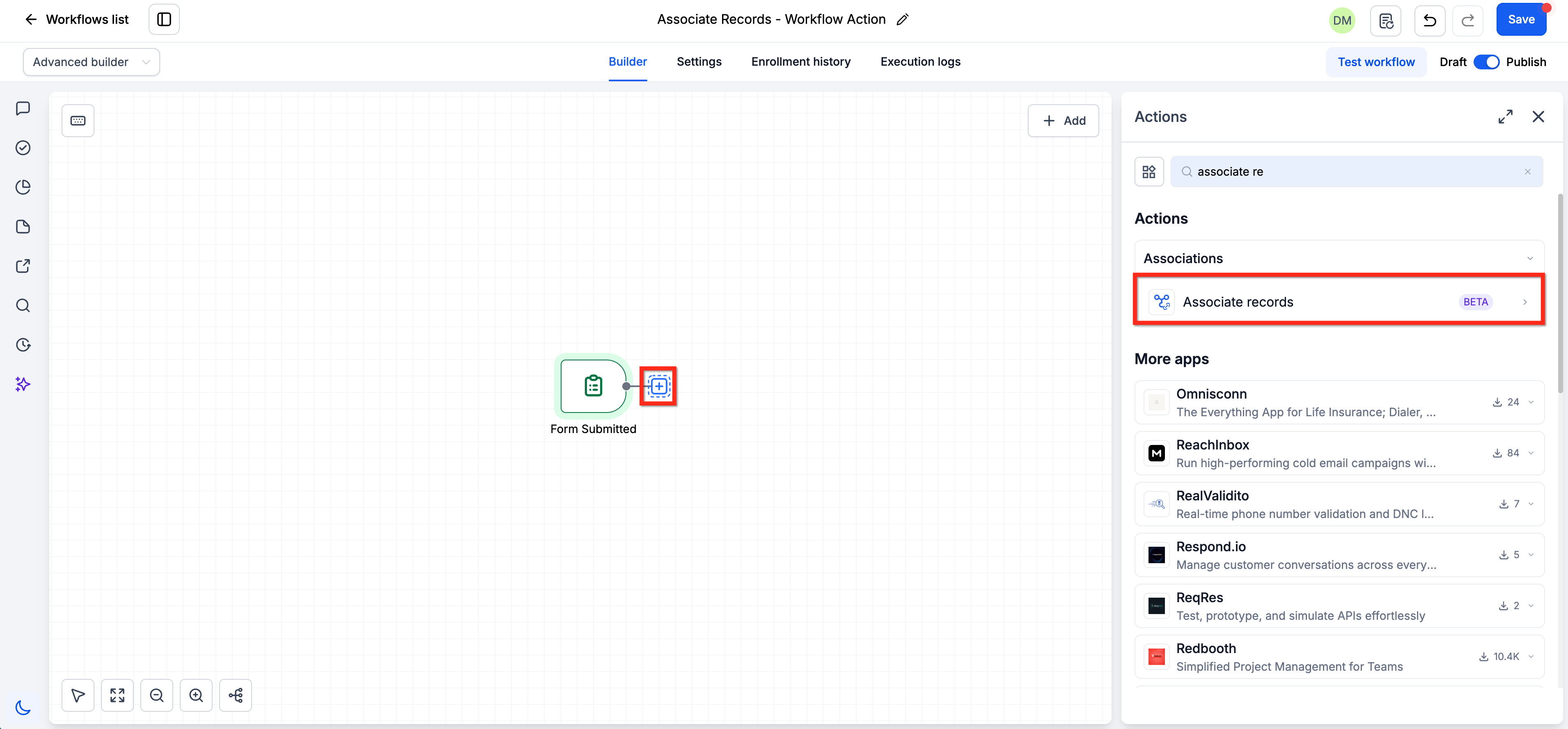
Click the + icon to add a new action. Under the Associations category, select Associate Records (marked with a BETA tag).
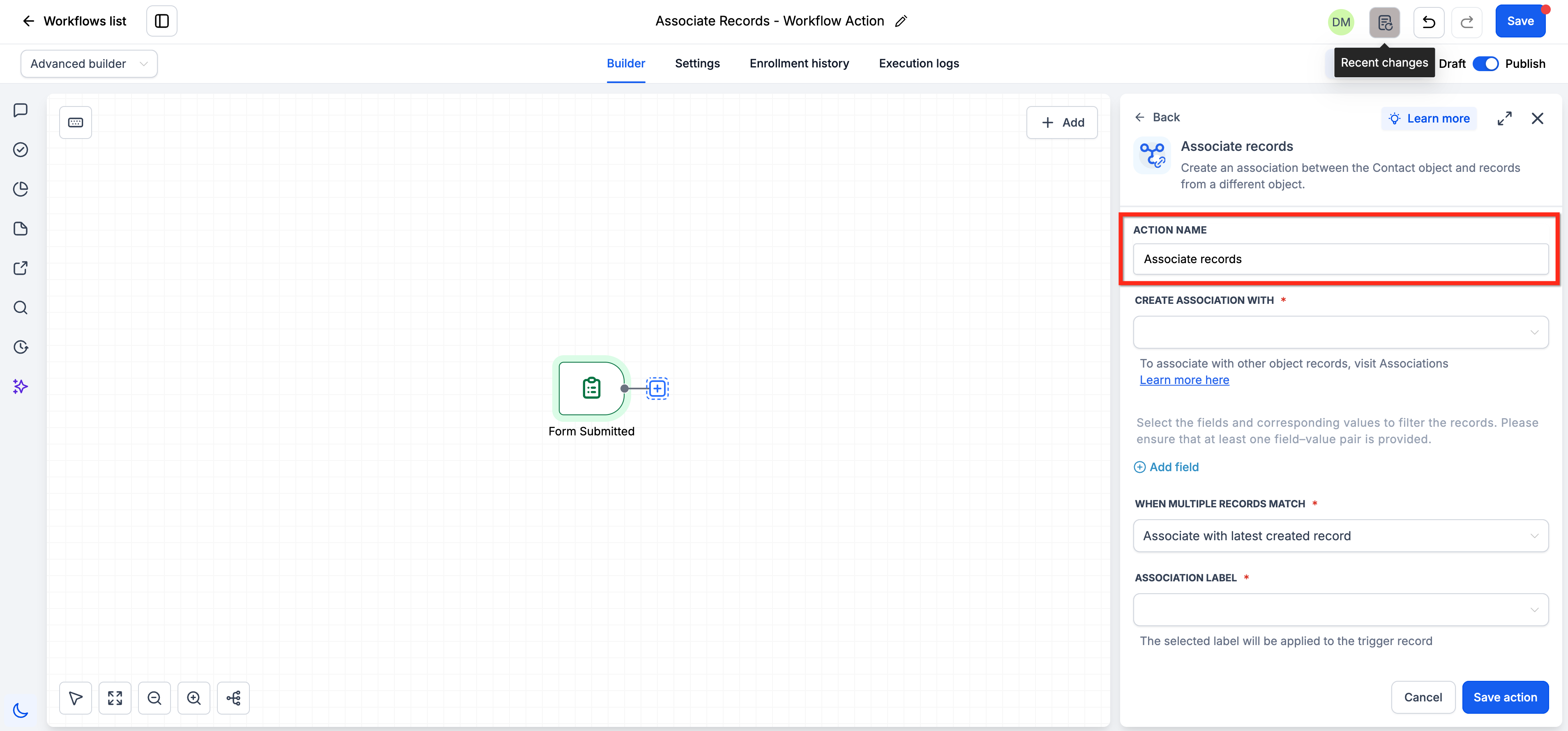
In the ACTION NAME field, you can keep the default name "Associate records" or customize it to describe the specific association being created.
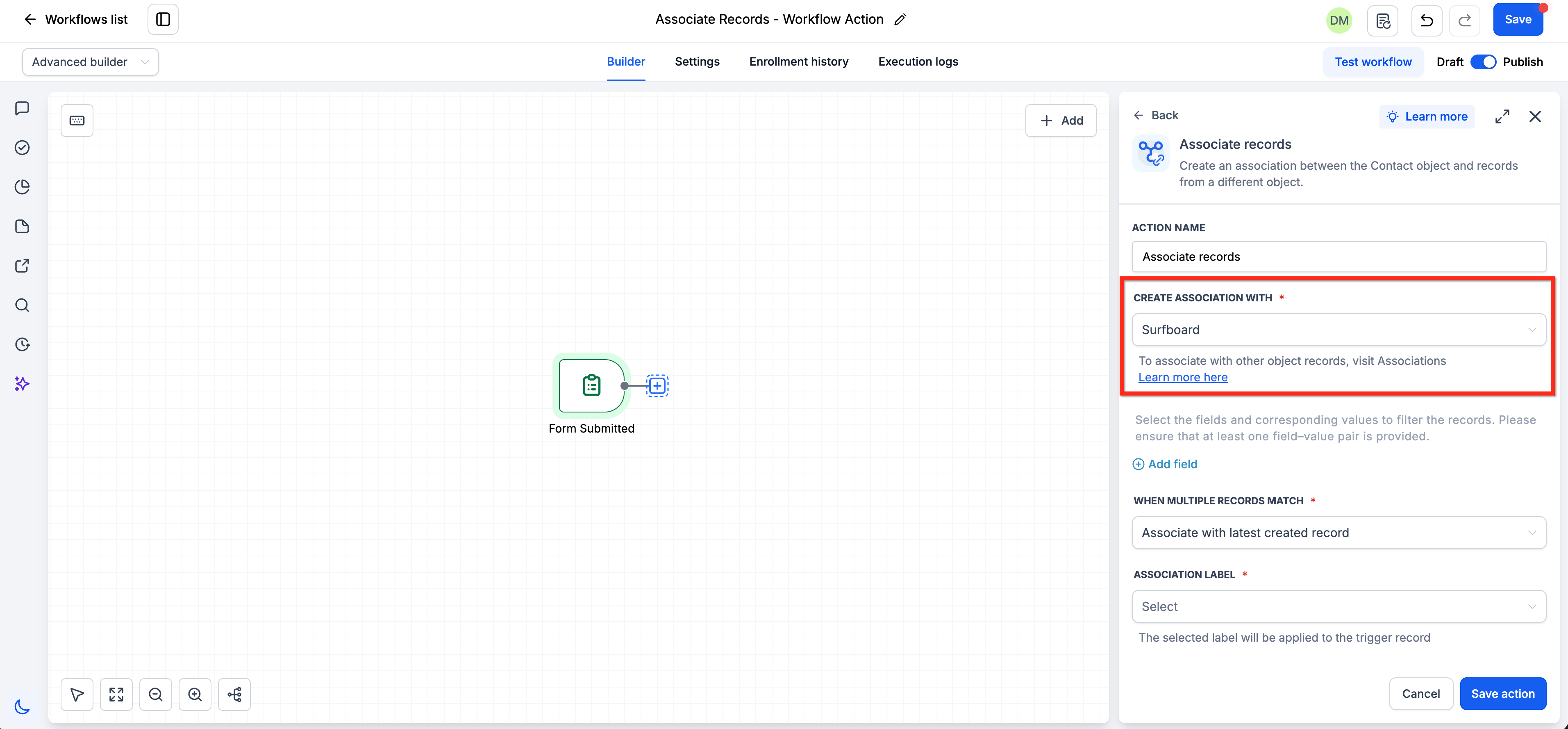
Under CREATE ASSOCIATION WITH, select the object type containing the records you want to associate (e.g., Property, Campaign, Company, Insurance Policy, Transaction).
Available objects depend on the associations configured in your sub-account. To associate with other object records, visit Associations settings.
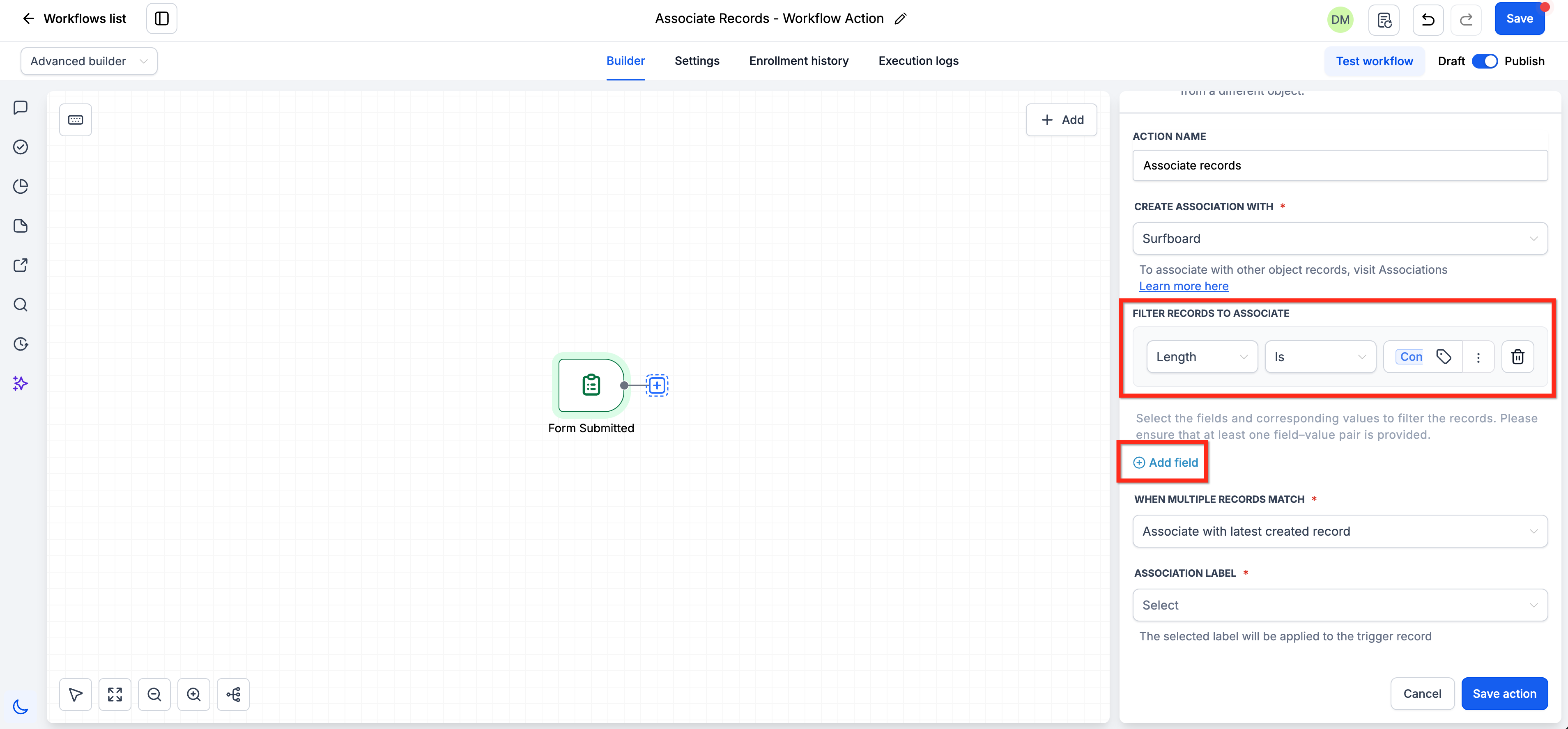
Under FILTER RECORDS TO ASSOCIATE, add one or more field-based filters. For each filter row:
- Select the field you want to match (e.g., Bedrooms, City, Property Type)
- Choose the operator (e.g., Equals, Is, Is not empty)
- Enter a fixed value or use merge fields from the enrolled record (indicated by the merge field icon)
Click Add field to add additional filter conditions. All filters use AND logic—a record must meet every condition to qualify.
At least one field-value pair must be provided for the action to work.
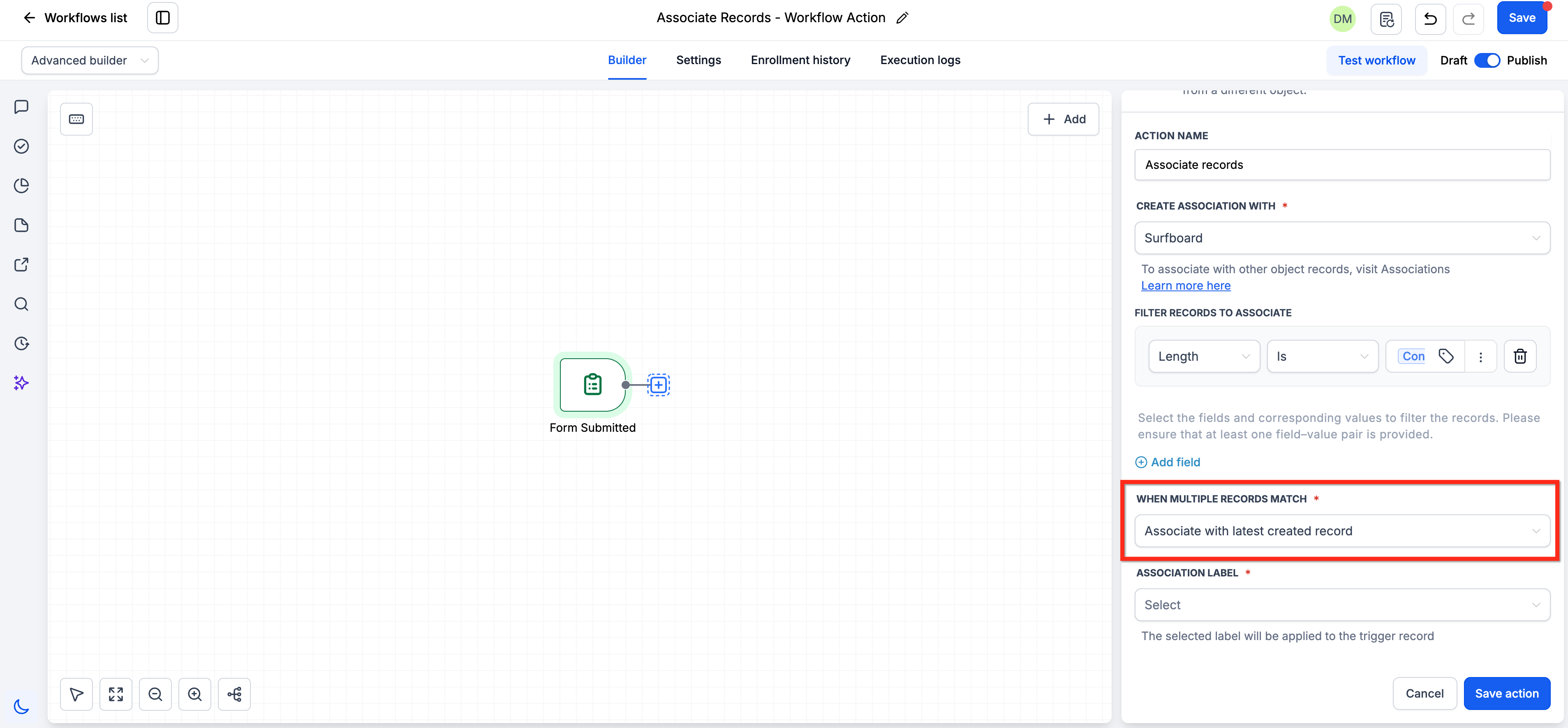
Under WHEN MULTIPLE RECORDS MATCH, select how you want to handle multiple matching records:
- Associate with all matching records — Creates associations with every record that meets the filter criteria
- Associate with earliest created record — Associates only with the record that was created first
- Associate with latest created record — Associates only with the record that was created most recently.
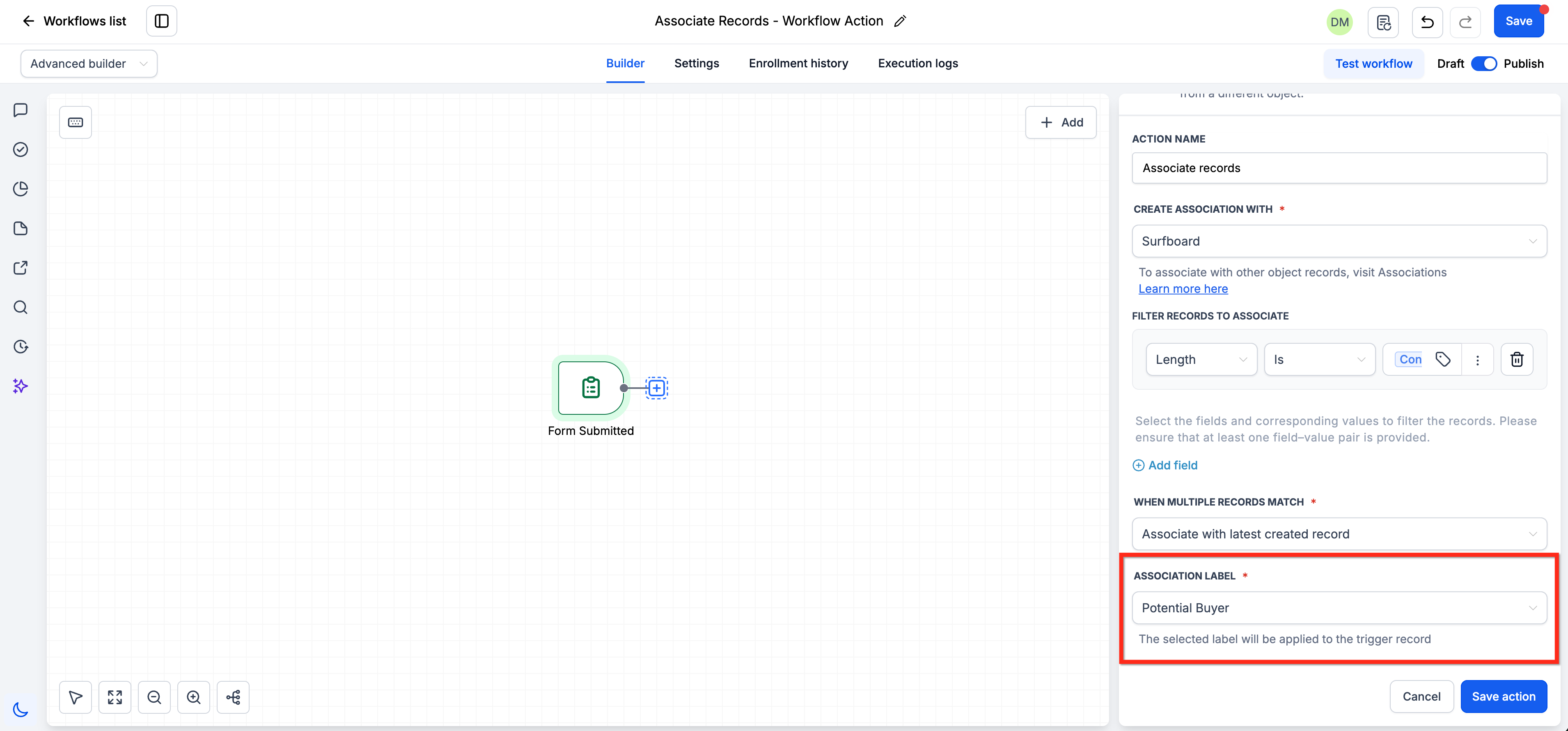
Under ASSOCIATION LABEL, select an existing label to categorize the association (e.g., "Potential Buyer", "Seller").
The selected label will be applied to the trigger record. Some labels are paired (e.g., "Seller - Paired with Property" and "Potential Buyer - Paired with Interest Property").
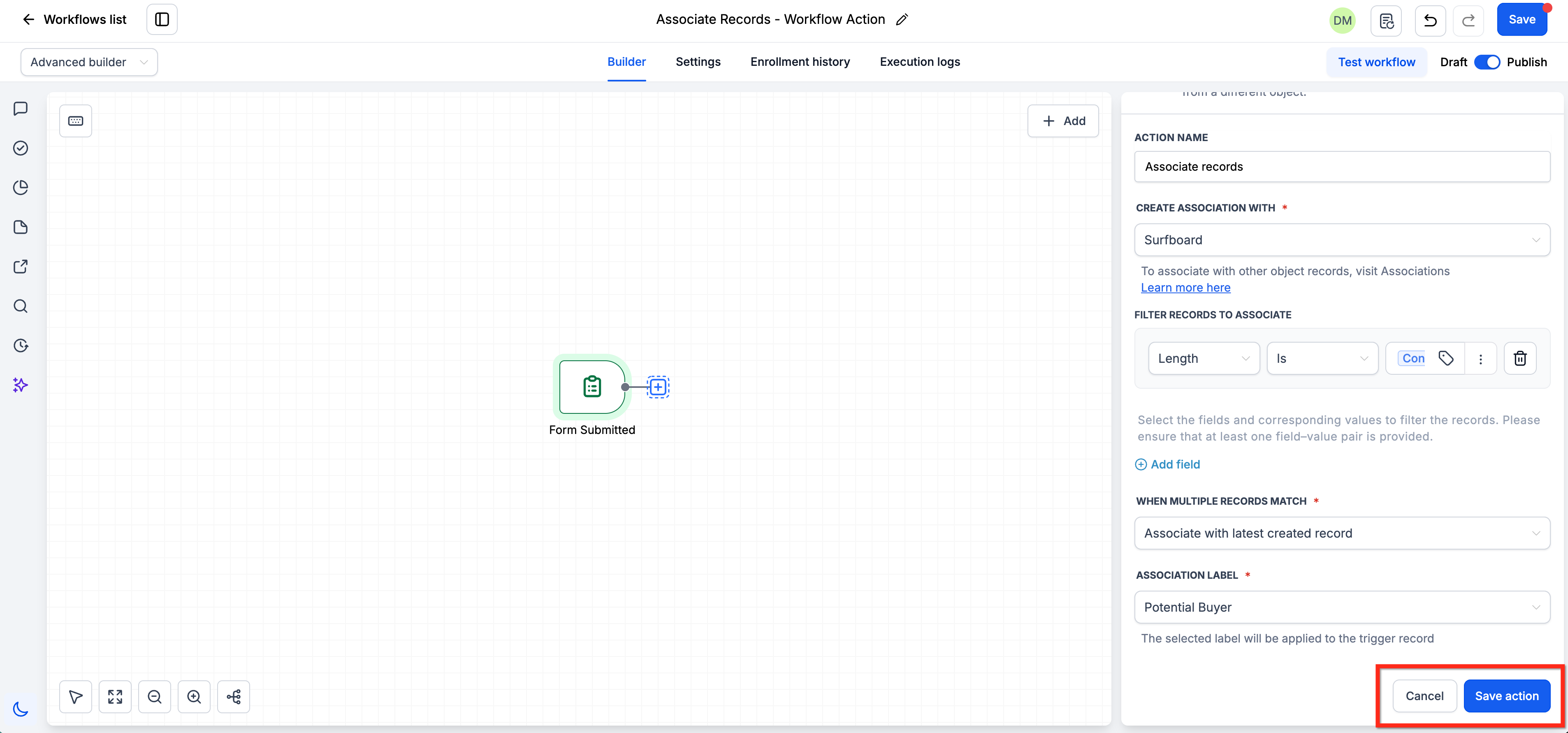
Click Save action to add the configured action to your workflow. You can also click Cancel to discard changes.
Save and publish the workflow to activate the association automation.
To view the associate after the workflow has ran, go to Contacts > Associations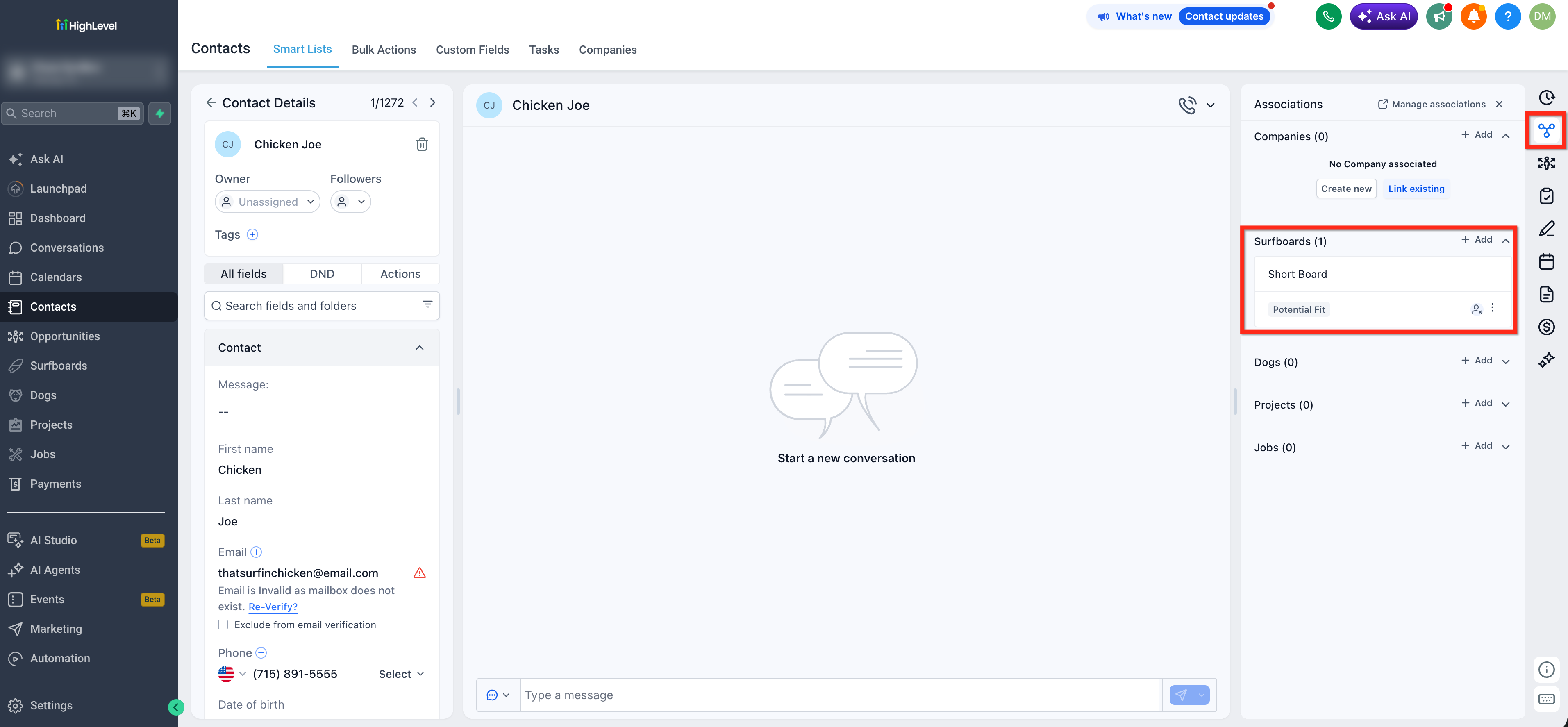
Once published, the workflow will automatically create associations whenever a record enrolls and matches the filter criteria you configured.
Real-World Use Case
The Associate Records action is ideal for industries that require dynamic, rule-based associations between records. Here's a real estate agency example.
A real estate agency uses a Custom Object called "Property" to track listings. When a new buyer Contact enrolls in a workflow, the Associate Records action automatically searches for Property records that match the buyer's preferences.
Configuration:
- Create Association With: Property
- Filters: Bedrooms (Number) equals 4, City (Dropdown single) is contact.preferred_city, Property Type (Dropdown single) is contact.preferred_type, and Property Name (Single line) is not empty
- Matching Strategy: Associate with all matching records
- Association Label: Potential Buyer
Result: Each buyer is automatically linked to all matching properties, and agents can see the list of interested buyers directly from each Property record. This eliminates manual association work and ensures buyers see relevant listings immediately.
This automation helps teams create and maintain associations without manually associating records one at a time, saving significant time as new contacts and properties are added to the system.
Related Articles
Frequently Asked Questions
Was this article helpful?
That’s Great!
Thank you for your feedback
Sorry! We couldn't be helpful
Thank you for your feedback
Feedback sent
We appreciate your effort and will try to fix the article