With this feature, you can represent real-world relationships—for example, linking an Opportunity (deal) to Companies, Properties, or other Custom Objects—and also connecting Companies directly to Custom Objects. This creates a unified, contextual view across your business records, helping your team work faster and make more informed decisions.
TABLE OF CONTENTS
- Key Highlights
- How to Create an Association
- Managing Associations from Opportunities
- Viewing Associations in the CRM
- Opportunity Details
- Kanban View
- List View
- Tips
- Example Use Cases
- Frequently Asked Questions
- Related Articles
Why This Matters
Associations make your CRM more powerful and connected. Here’s why they matter:
Gain a 360° view across Opportunities, Companies, and Custom Objects
Mirror real business relationships (e.g., deals ↔ companies ↔ assets like properties or policies)
Reduce time spent navigating across records by managing related information from one place
Use association data in workflows, reports, and exports for better tracking and personalization
Key Highlights
Supports associations between:
Opportunities ↔ Custom Objects
Companies ↔ Custom Objects
Companies ↔ Opportunities
Supports one-to-one, one-to-many, many-to-one, and many-to-many relationships
Create and manage associations directly from record panels
Search and link existing records instantly without leaving your workflow
View associated records across record details, Kanban cards, and List Views
Add association fields via Manage Fields → Association Label (Object Types)
How to Create an Association
Step 1: Open the Associations Tab
Step 1: Open the Associations Tab
Go to Settings → Custom Objects → [Your Object]
Click on the Associations tab
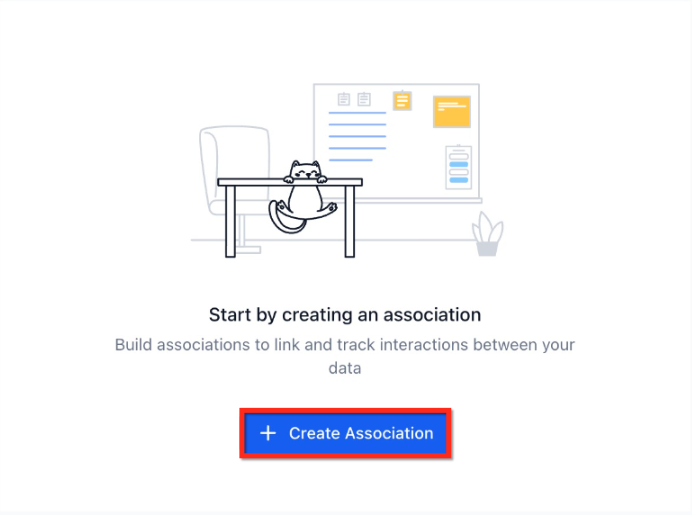
Click Create Association
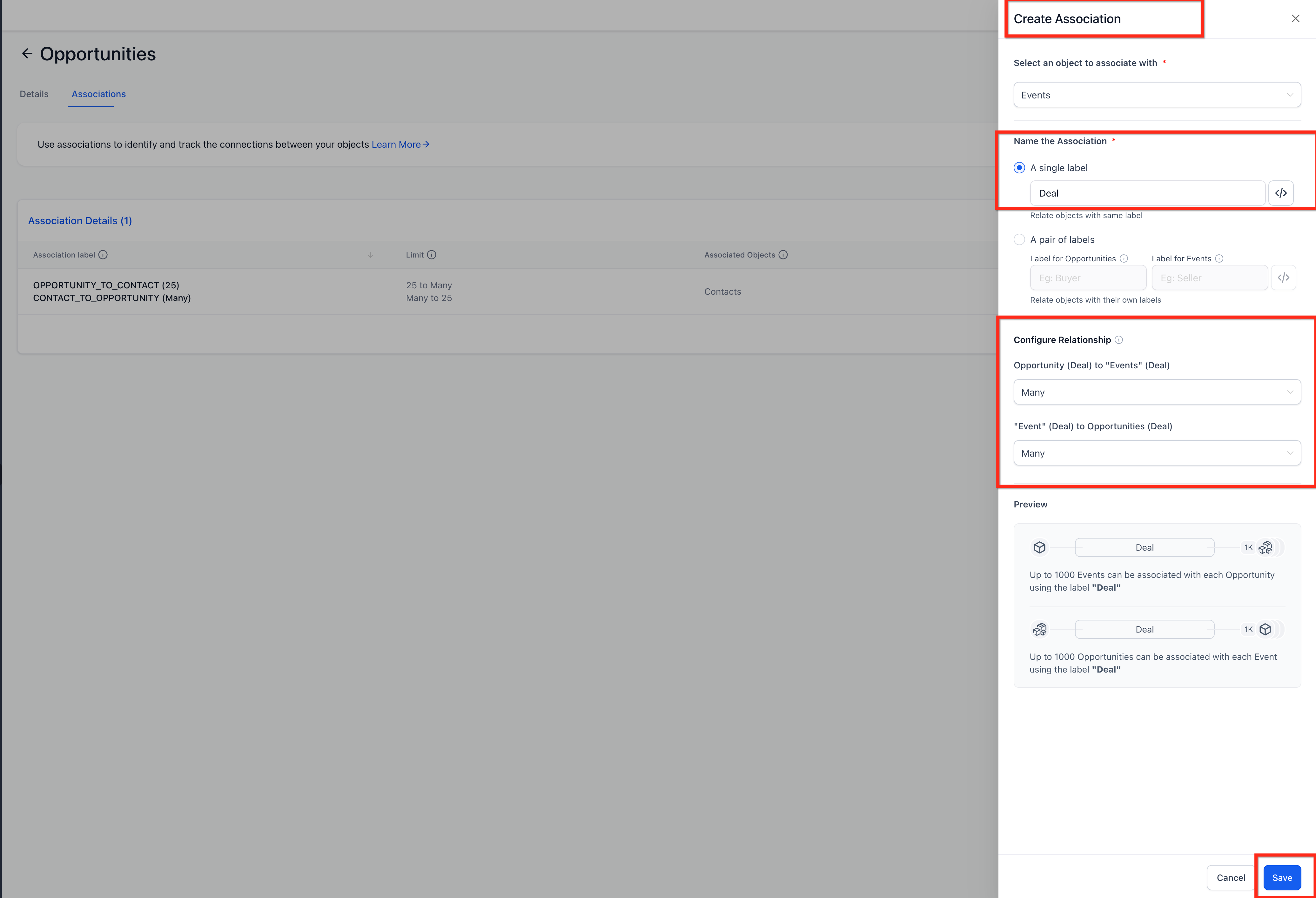
Step 2: Configure the Association
Select the object to associate with (Opportunities or Companies)
Name your association:
Single Label (e.g., “Deal”)
Pair of Labels (e.g., “Buyer ↔ Seller”)
Configure the relationship type:
One-to-One
One-to-Many / Many-to-One
Many-to-Many
(Optional) Set record limits (up to 1,000)
Review preview → Click Save
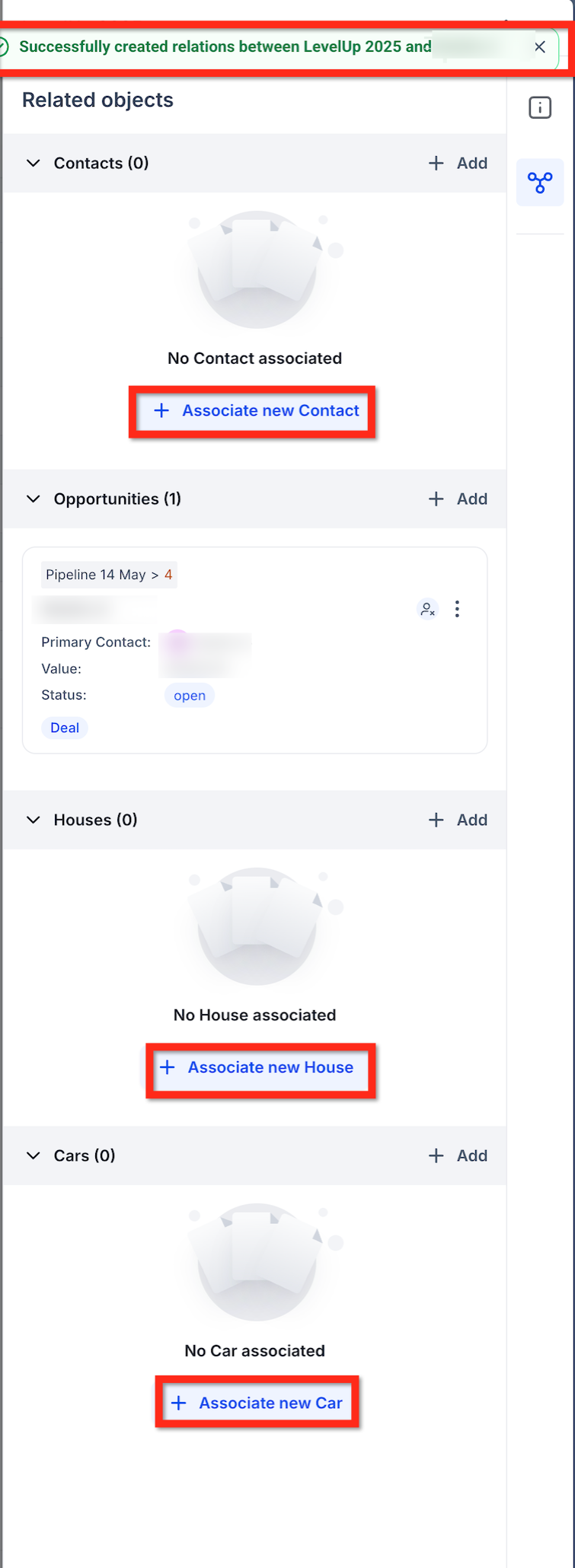
Managing Associations from Records
You can manage associations from any supported record type:
From Opportunities
Open an Opportunity
Go to Associated Objects
Click + Associate
Select Company or Custom Object
From Companies
Open a Company
Go to Associations / Related Objects
Link Opportunities or Custom Objects
From Custom Objects
Open a Custom Object record
Add associated Opportunities or Companies
All associations appear instantly and can be edited anytime.
Viewing Associations in the CRM
Record Details
All linked records (Opportunities, Companies, Custom Objects) appear in the Associated Objects panel
Open any linked record in a side panel without leaving your current screen
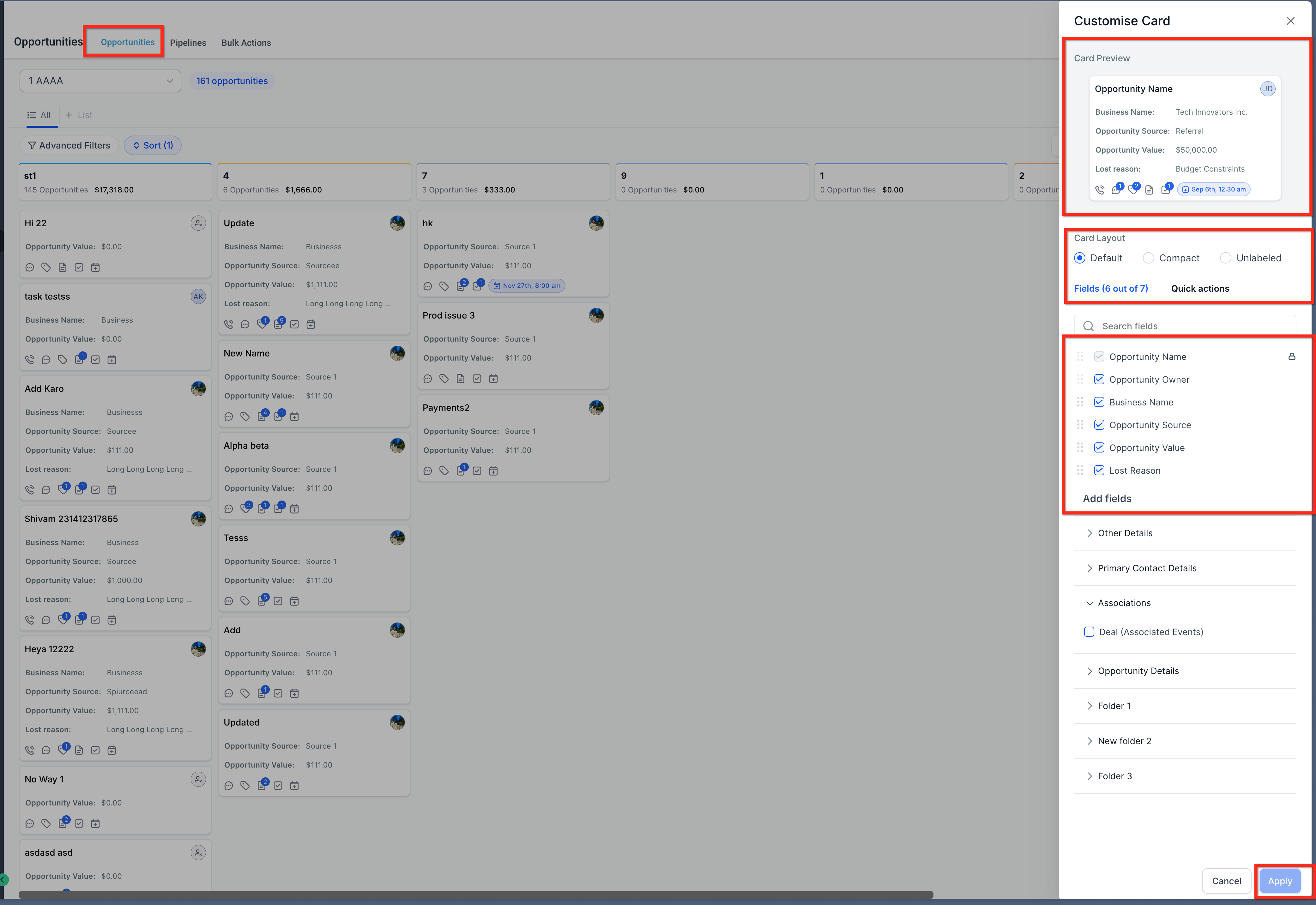
Kanban View (Opportunities)
Go to Opportunities → Manage Fields
Add Association Label (Object Type) to cards
View linked Companies or Custom Objects directly on cards
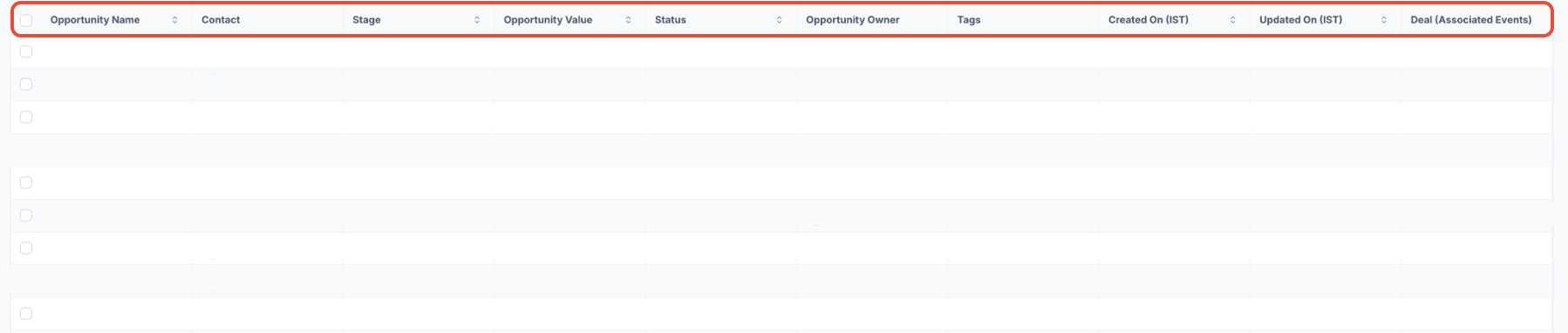
List View
Add Association fields as columns
View all linked records in one place
Useful for filtering, bulk actions, and exports
Tips
Create up to 10 labels per object pair
Each label supports up to 1,000 linked records per side
Associations are automatically removed if a record is deleted
Add association fields to reports and exports via Manage Fields
API and automation support is coming soon
Example Use Cases
Real Estate
Link Properties (Custom Objects) ↔ Opportunities ↔ Companies to track buyers, listings, and agencies in one place
Events
Connect Events (Custom Objects) ↔ Companies ↔ Sponsorship Opportunities
Insurance
Associate Policies/Quotes (Custom Objects) ↔ Opportunities ↔ Companies for full lifecycle tracking
Frequently Asked Questions
Q: Can I limit relationships?
Yes — use One-to-One or set limits in configuration
Q: Will renaming labels break associations?
No — only the display label changes
Q: Can I bulk import associations?
Not yet
Q: Can I use this in reporting?
Yes — via association fields
Q: What happens on delete?
Associations are automatically removed
Related Articles
Was this article helpful?
That’s Great!
Thank you for your feedback
Sorry! We couldn't be helpful
Thank you for your feedback
Feedback sent
We appreciate your effort and will try to fix the article