The GoKollab App Banner makes it easier to switch from the GoKollab mobile website to the mobile app. Open the app directly from the page you are viewing, or go to the appropriate app store to install it. This guide explains where the banner appears, how it chooses your destination, and how to continue browsing on the web instead.
TLDR: While browsing GoKollab on your mobile device, tap Open app in the banner at the bottom of the page. If the app is installed, it opens the same page in the app. Otherwise, you are directed to the Apple App Store or Google Play Store. Tap X to dismiss the banner and stay on the website.
TABLE OF CONTENTS
- What is the GoKollab App Banner?
- Key Benefits of the GoKollab App Banner
- App Detection and Redirection
- How To Use the GoKollab App Banner
- Frequently Asked Questions
- Related Articles
What is the GoKollab App Banner?
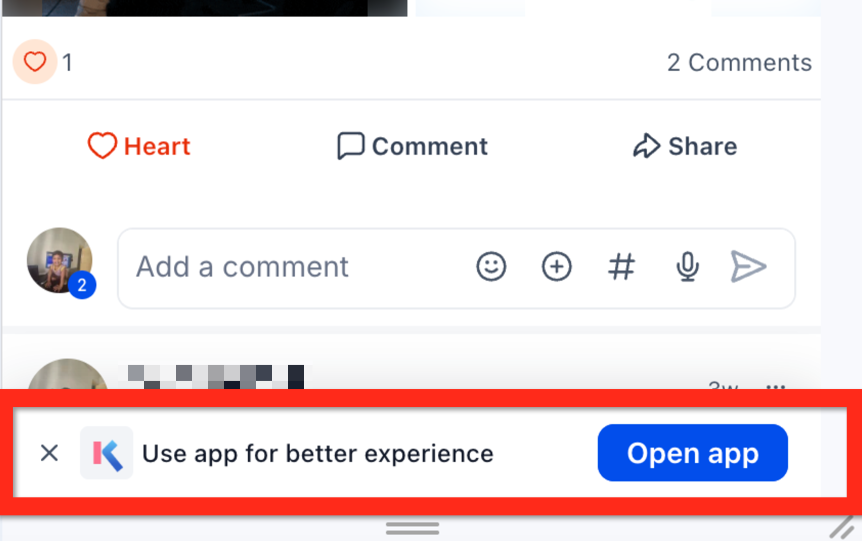
The GoKollab App Banner is a dismissible prompt displayed at the bottom of pages across the GoKollab mobile website. It provides a direct entry point into the mobile app while you browse communities, discussions, and other supported content.
The banner displays “Use app for better experience”, an Open app button, and an X on the left to close it.
Key Benefits of the GoKollab App Banner
The banner reduces the steps needed to move from browsing GoKollab on the web to using the mobile app.
Direct app access: Open the installed app from the GoKollab mobile website instead of locating it separately on your device.
Easier installation: Go directly to the appropriate app store without manually searching for the app.
Content continuity: When the app is already installed, continue viewing the same page after switching from the website.
App Detection and Redirection
The destination of the Open app button depends on whether the GoKollab app is installed and which mobile operating system you use.
| Device and app status | What happens when you tap Open app |
|---|---|
| iOS or Android device with the app installed | The GoKollab app opens to the same page you were viewing on the website. |
| iOS device without the app installed | You are directed to the Apple App Store to download the app. |
| Android device without the app installed | You are directed to the Google Play Store to download the app. |
How Same-Page Navigation Works
When the app is already installed, the banner uses a deep link—a link that opens a specific destination inside the app rather than simply opening its home screen.
For example, when you are viewing a supported community page on the GoKollab mobile website, tapping Open app takes you to that same page in the app. You do not need to search for the community again.
How To Use the GoKollab App Banner
Use the banner from the GoKollab mobile website whenever you are ready to switch to the app.
Step 1: Open GoKollab on Your Mobile Device
Open the GoKollab website in your mobile browser and navigate to the community, discussion, or other supported page you want to view.
Step 2: Locate the App Banner
Look for the “Use app for better experience” banner at the bottom of the page. The Open app button appears on the right side of the banner.
Step 3: Tap Open app
Tap Open app to proceed.
If the app is installed: GoKollab opens the same page in the mobile app.
If the app is not installed: Your device opens the Apple App Store or Google Play Store. Download the app, then open it.
Step 4: Sign In if Needed
Use the same email address and password you use for your community, course, or Client Portal access. The app also supports signing in with a one-time password. If you are prompted to choose from multiple domains, select the one associated with the content you want to access.
Prefer to stay on the website? Tap the X on the left side of the banner to dismiss it and continue browsing in your mobile browser.
Frequently Asked Questions
Q: Why does Open app take me to an app store?
The banner directs you to an app store when the GoKollab app is not installed on your device. iOS users are directed to the Apple App Store, and Android users are directed to the Google Play Store.
Q: Will I need to find the same content again after switching to the app?
If the app is already installed, the banner opens the same supported page you were viewing on the website. This lets you continue without manually finding that content again.
Q: Do I need to create a separate account for the mobile app?
Use the same credentials associated with your existing community, course, or Client Portal access. You do not need a separate account just to sign in to the mobile app.
Q: Do I have to use the mobile app?
No. You can dismiss the banner using the X on its left side and continue using the GoKollab mobile website.
Related Articles
Quick Start Guide – Kollab (iOS & Android)
Downloading the app and signing in with your existing credentials.
GoKollab Mobile App (Beta v2) – Native iOS & Android Experience
An overview of the mobile app, its features, and setup.
Communities New Experience in Unified Client Portal and GoKollab
Community navigation, discussions, and the refreshed member experience.
Was this article helpful?
That’s Great!
Thank you for your feedback
Sorry! We couldn't be helpful
Thank you for your feedback
Feedback sent
We appreciate your effort and will try to fix the article