Voice Notes in Community Chats
This guide explains how Voice Notes work in Community Chats, how to record and send audio messages from the HighLevel web app and GoKollab mobile apps, and how to use playback controls to listen and scrub through recordings.
You'll also learn how to grant microphone permissions, recognize voice messages by their waveforms, and use Voice Notes to make community conversations feel more natural and human.
What is Voice Notes in Community Chats?
Voice Notes in Community Chats are short audio messages that members can record and send directly inside one-to-one community conversations. Instead of writing long replies, members tap the microphone icon in the chat input, speak their message, and send it as an inline voice note that plays right in the chat.
Voice Notes build on the existing Community Chat and GoKollab Chats experience, where members can already send private messages, media, and files to each other inside HighLevel Communities. The feature adds a more natural, async way to communicate so members can talk through ideas, follow up after discussions, or check in on progress without needing a live call.
Key Benefits of Voice Notes in Community Chats
Recording Voice Notes in Community Chats
Recording Voice Notes in Community Chats gives members a simple, consistent way to send audio messages from both the web and the GoKollab mobile apps. Learning where the microphone icon lives and how the record/send flow works helps members use voice confidently without disrupting their existing chat habits.
- Open any eligible Community Chat or GoKollab direct message.
- Use the microphone icon in the message input bar to start recording.
- Speak your message while watching the live waveform.
- Release or tap to send the Voice Note, which appears inline in the conversation.
Web – Communities New UI
Go to Memberships > Communities > Groups. Then Login to your Group.

Go to Members and click on the Chat button beside the member's name to message them.

Locate the message input bar at the bottom of the chat. Click and hold the microphone icon to start recording. A live, animated waveform appears to confirm that audio is being captured.
Speak clearly into your microphone. Click the Send button to send the Voice Note.

GoKollab – iOS and Android
Open the GoKollab app and sign in. Navigate to the community where you want to send a message. Open an existing chat or start a new direct message with another member.
In the chat input bar, press and hold the microphone icon to start recording. Watch the animated waveform as you speak to confirm your audio is being captured.
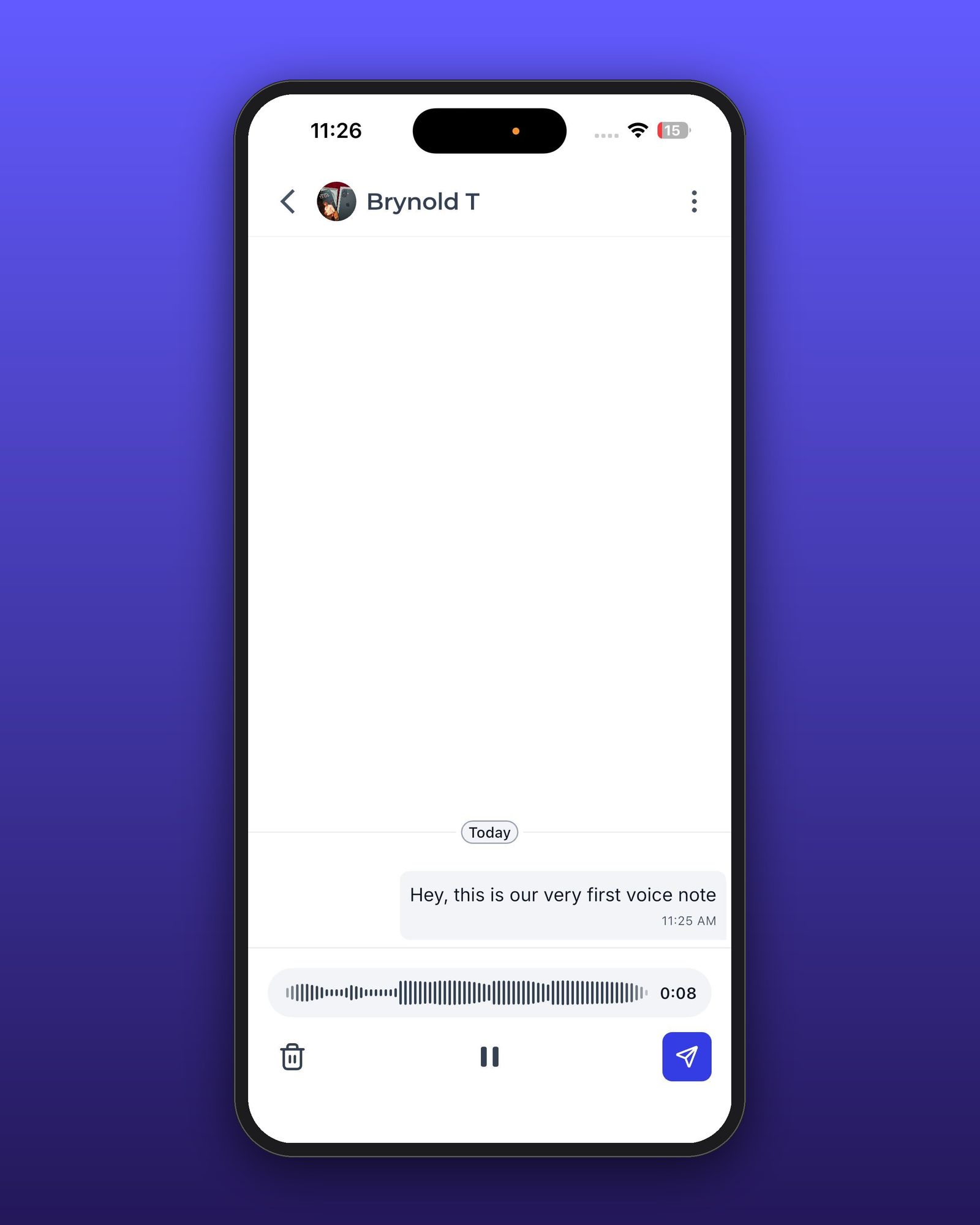
Release the microphone to send the Voice Note.
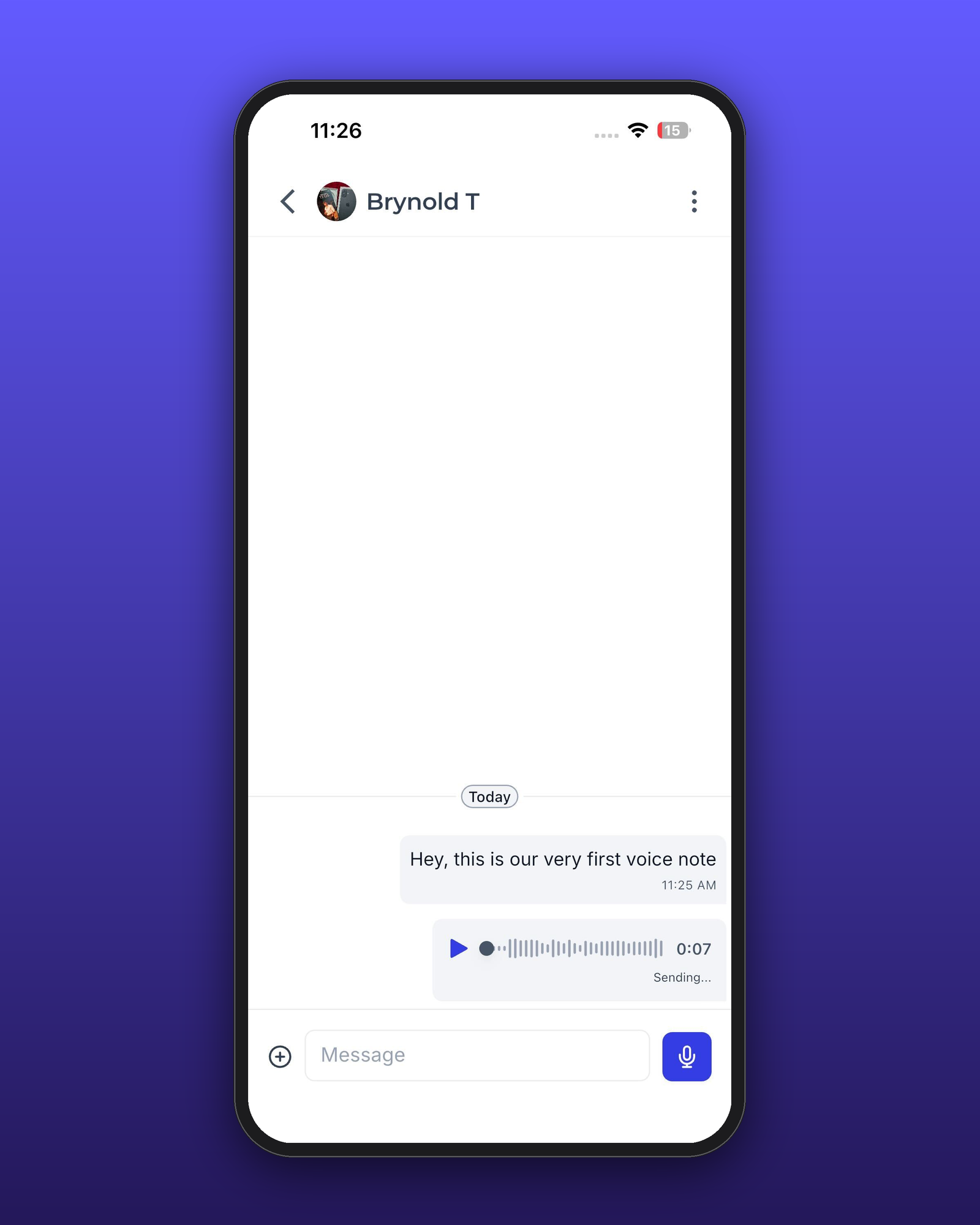
Browser or device microphone permissions must be granted before recording will work. If you see a prompt asking for microphone access, choose Allow so you can send Voice Notes.
Platform Availability
Knowing where Voice Notes are supported and what's required to use them ensures that your team and community members have a consistent experience across devices.
Supported Platforms
Voice Notes in Community Chats are available on:
Frequently Asked Questions
Was this article helpful?
That’s Great!
Thank you for your feedback
Sorry! We couldn't be helpful
Thank you for your feedback
Feedback sent
We appreciate your effort and will try to fix the article