Service (v2) Appointments in the HighLevel mobile app allow teams to schedule complex, service-based bookings directly from their phone. Staff can select locations, services, variations, add-ons, coupons, and available time slots in a single flow, using the same Services (v2) logic available on the web. This makes it easier to manage multi-service appointments accurately while on the go.
TABLE OF CONTENTS
- What Are Service (v2) Appointments in the Mobile App?
- Key Benefits of Service (v2) Mobile Appointments
- Supported Booking Capabilities
- How to Book a Service
- Frequently Asked Questions
What Are Service (v2) Appointments in the Mobile App?
Service (v2) Appointments bring the full capabilities of HighLevel’s Services (v2) engine to iOS and Android devices, allowing staff to create service-based appointments directly from the mobile app. From the Calendars module, teams can build bookings that include one or more services with configurable durations, staff assignments, variations, add-ons, and staff-specific pricing, while automatically applying real-time availability rules.
This experience is designed for situations where appointments need to be scheduled or managed away from a desktop, such as at the front desk, during field work, or while coordinating schedules on the move. By using the same Services (v2) logic available on the web, mobile bookings remain accurate and consistent across devices, helping reduce pricing errors, availability conflicts, and manual adjustments.
Key Benefits of Service (v2) Mobile Appointments
- Book from anywhere: Create or update service appointments directly from the mobile app without switching to a desktop.
- Multi-service checkout: Combine multiple services into a single appointment with a unified summary. Accurate pricing: Automatically applies variation pricing and staff-specific pricing rules.
- Add-ons and upsells: Attach optional add-ons to services, including quantity-based extras. Real-time availability: Time slots respect staff hours, date-specific overrides, and resource availability.
- Cleaner calendar views: Filter calendar views by multiple services in Month, Week, or List view to focus on relevant bookings.
Supported Booking Capabilities
Multi-Location Support
When multiple physical locations exist, the booking flow displays only those locations tied to available staff. This helps ensure that appointments are scheduled at viable sites.
Service Variations
Variations allow a single service to be offered with different durations or pricing options. All configured variations are available for selection during mobile booking.
Add-Ons
Add-ons appear as optional extras during booking. Quantity-based add-ons are supported, allowing multiple units to be added to a service.
Staff-Specific Pricing
If staff-specific pricing is configured, the mobile app automatically applies the correct price based on the selected staff member.
Date-Specific Staff Hours
Special working hours, holidays, or one-off availability changes configured for staff are reflected in the time-slot selector, helping prevent overbooking.
Multi-Service Checkout
Multiple services can be added to a single appointment. Downstream automations can be configured to trigger once per booking using the Service Booking workflow trigger.
Multi-Service Calendar
View Filtering Calendar views support filtering by multiple services at once, making it easier to review schedules for teams offering several services.
How to Book a Service
Open the Calendar Module
From the mobile app, go to the Calendar tab and tap the + (plus) button. → Choose “New Service Appointment.”

Select Contact and Location
After choosing New Service Appointment, you’ll first search and select a contact (customer) for the booking.
If your services operate across multiple store locations, the next step will prompt you to select the location you'd like to book from.
This is useful when the same service is offered in more than one branch (e.g., New York vs.New Jersey).

Choose Services
Browse or search available services and select the ones to book.

Select Variants & Add-Ons
Choose a variant (e.g. 30, 45, or 60 mins) Add optional Add-ons with pricing and quantity.

Assign Staff
Pick a team member for each service. If pricing is staff-specific, it updates automatically.

Apply Coupons (Optional)
Add a valid promo/coupon code to apply discounts.

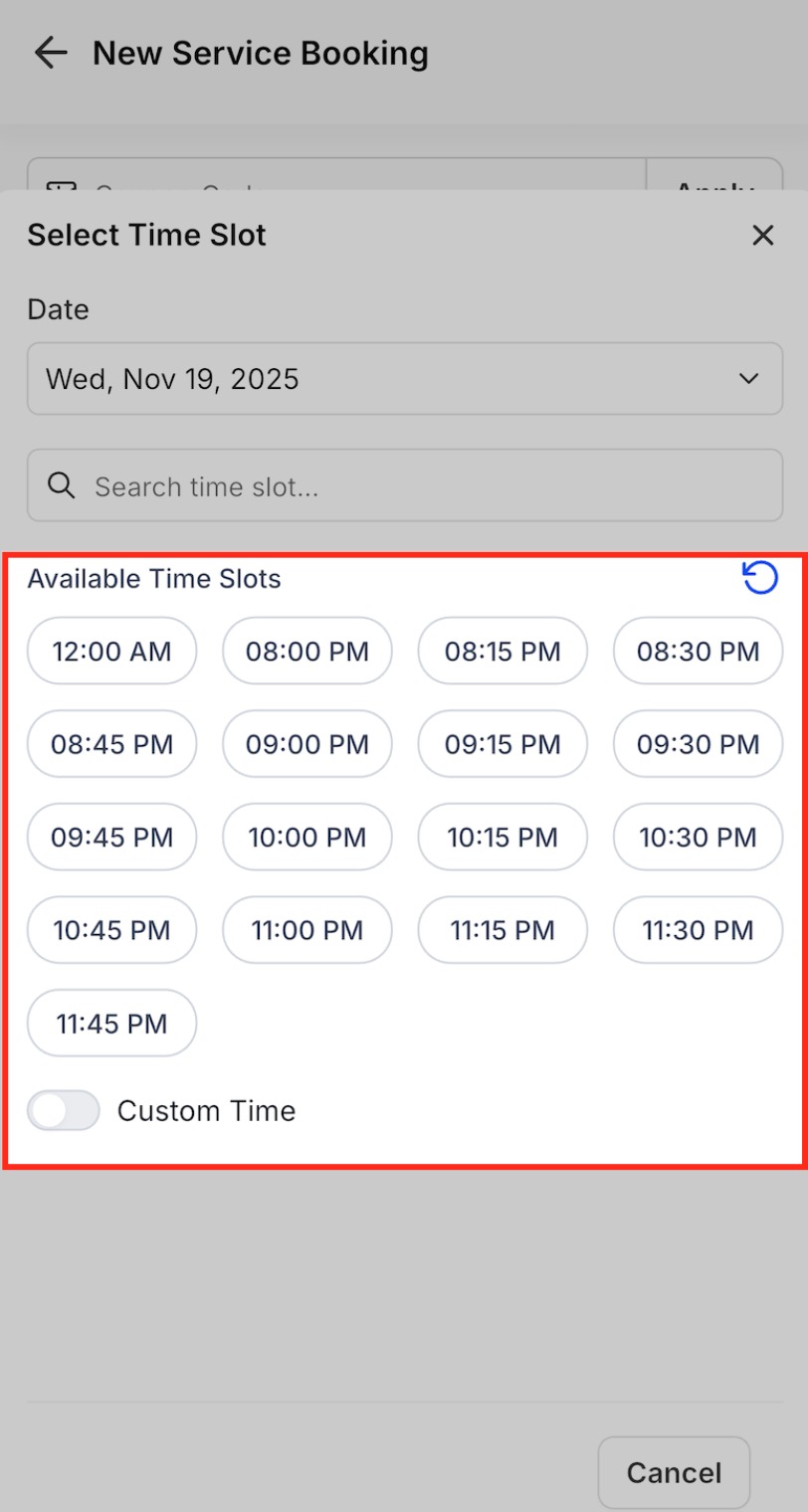
Pick a Time Slot
View real-time availability by staff & service You can also select Custom Time if enabled. Confirm & Schedule Booking Review service, staff, pricing, and discounts. → Tap Schedule Booking to finish.
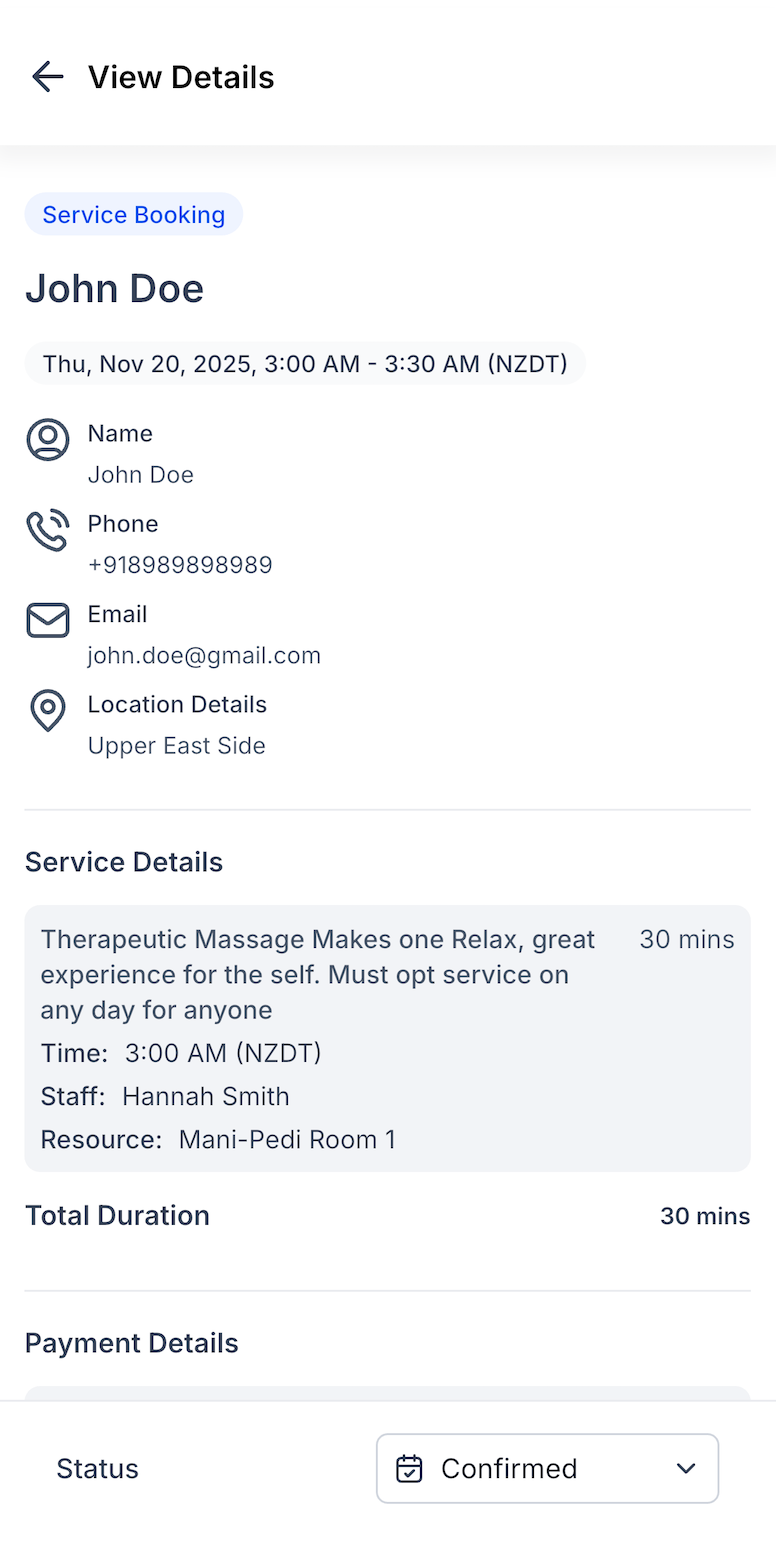
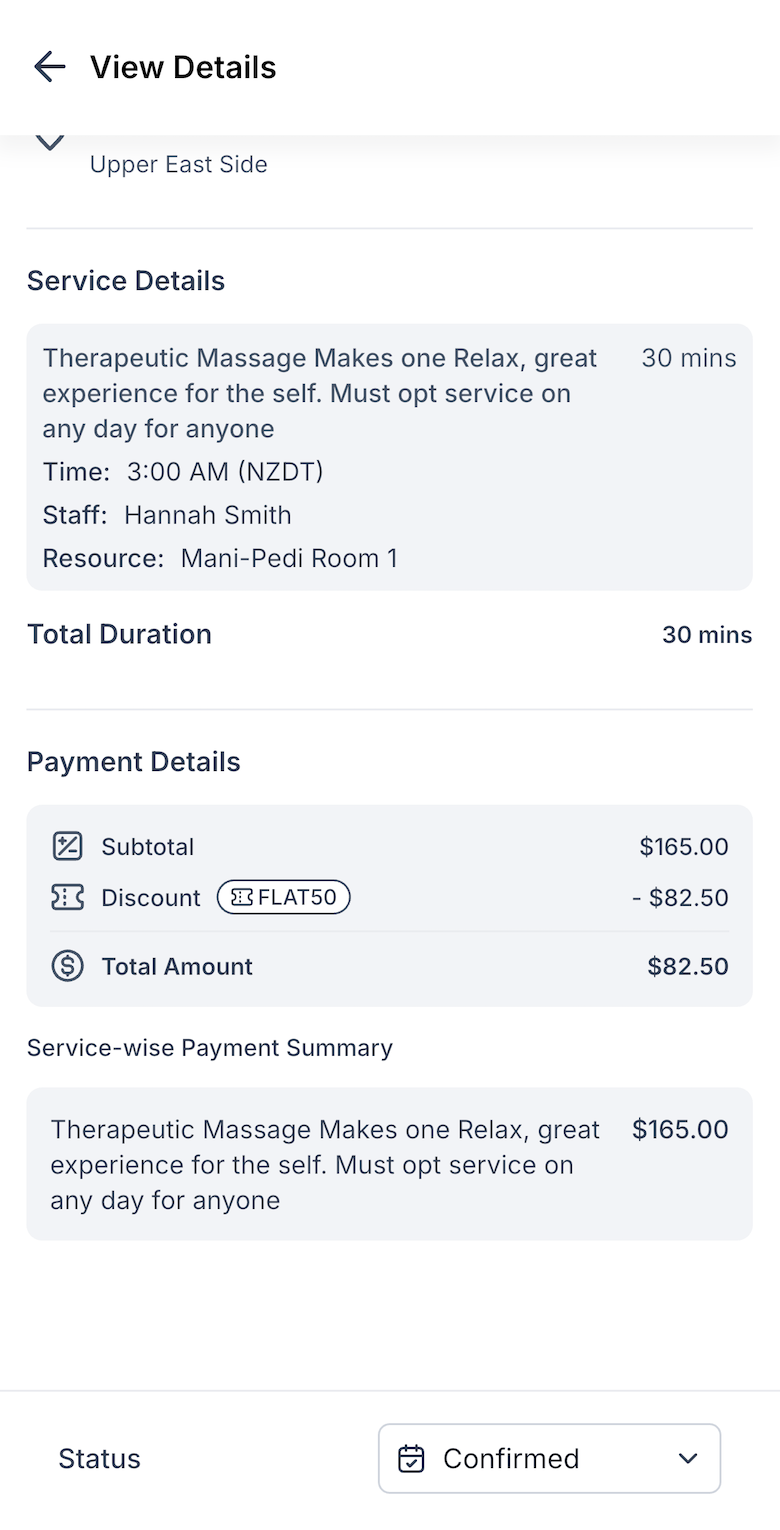
View Booking Summary
You'll see a full summary with Customer details, Service breakdown, Duration, pricing, and discount info.
Accessing Existing Service Appointments
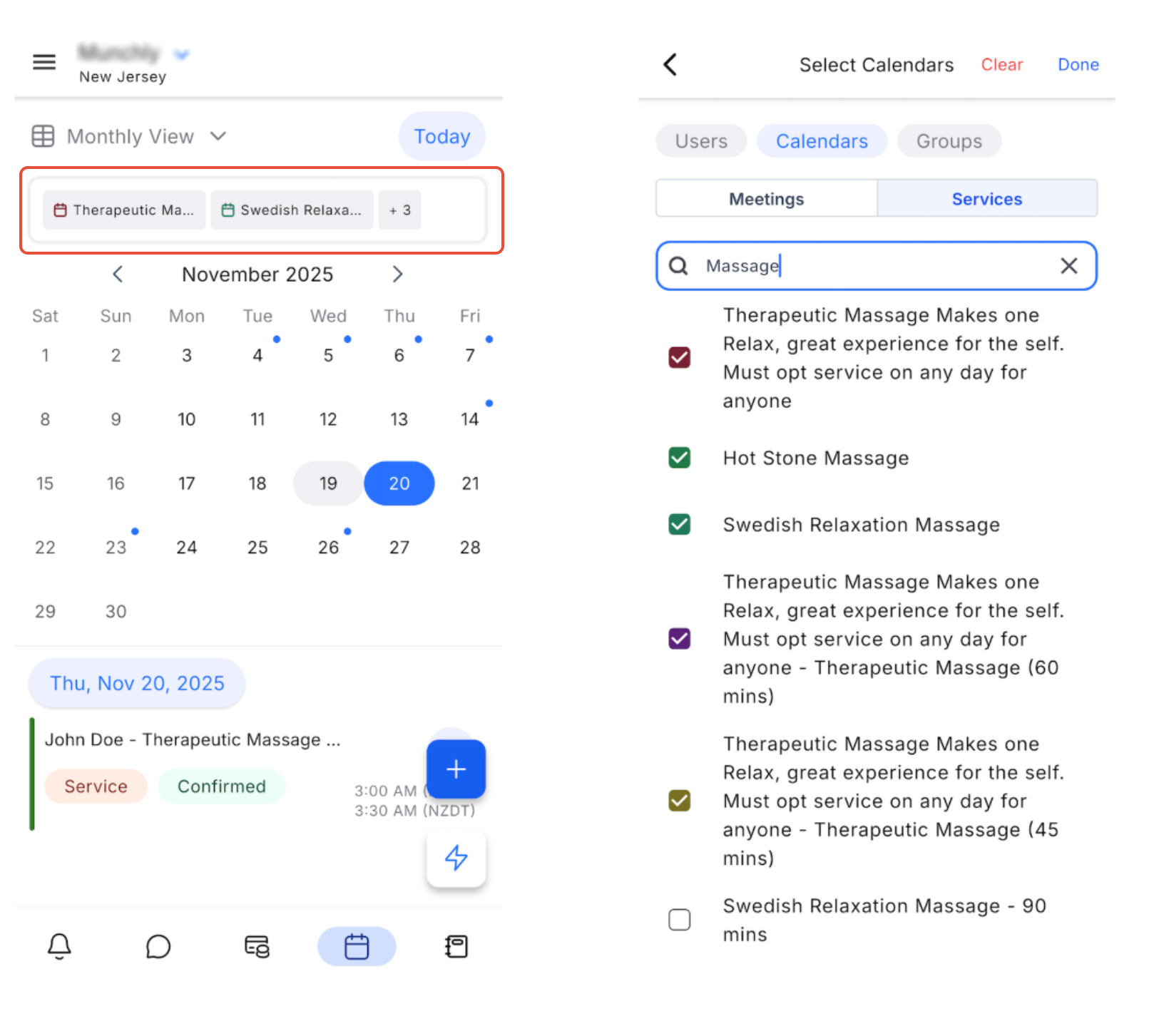
To view existing service appointments filtered by service:
- Go to the Calendar tab on the mobile app.
- At the top of the calendar, you'll see colored labels representing selected services
- Tap on those labels - this opens a filter modal with Users, Calendars, and Groups tabs.
- Under Calendars, tap Services.
- You'll now see a list of all available services. Use the search bar if needed.
- Select one or more services to filter the calendar.
- Once selected, the calendar view updates to only show appointments related to the chosen services.
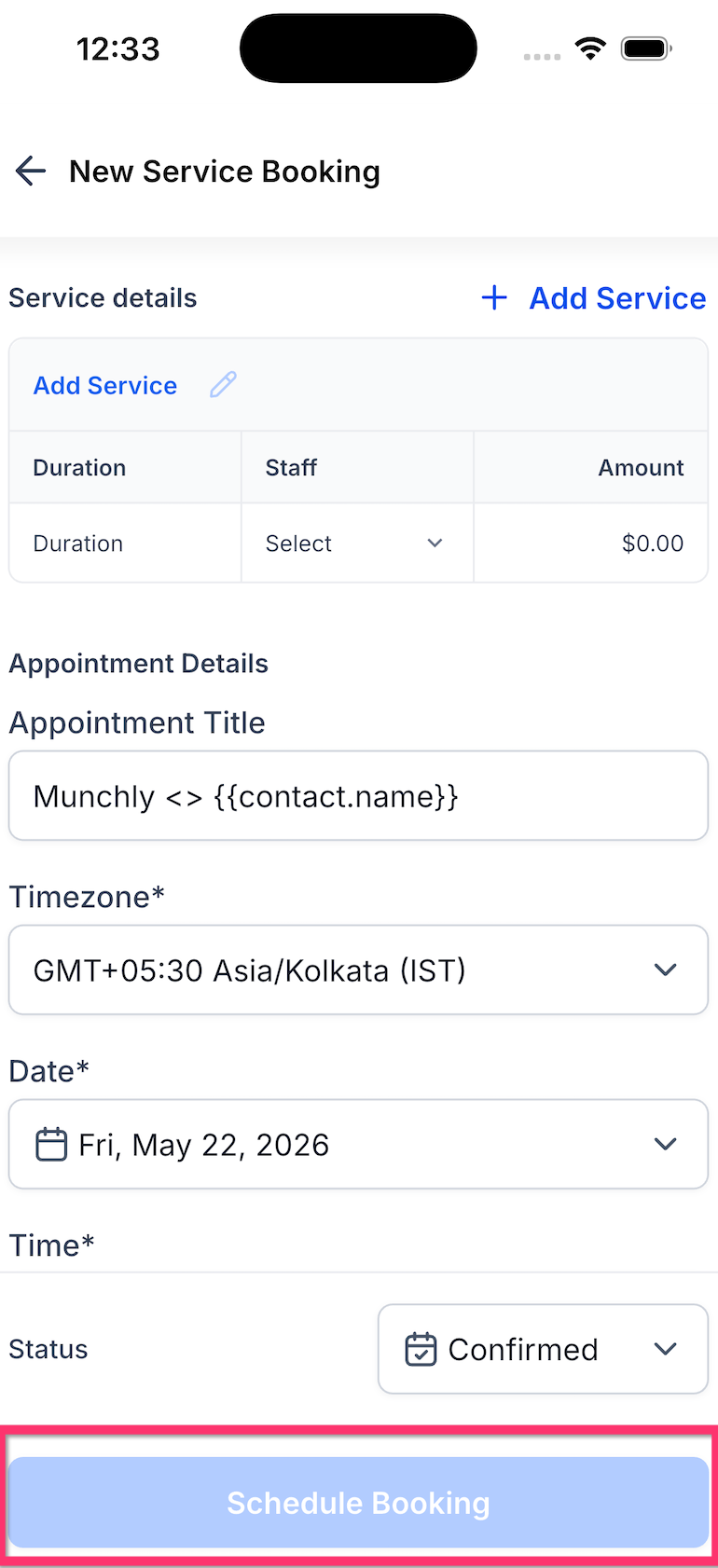
Appointment Title Auto-Fills from Services Global Settings
The Appointment Title field now pulls from your Services Global Settings, which helps mobile bookings follow the same naming rules used on web. This saves time during booking and reduces title inconsistencies across your team.
When you create a new Service (v2) appointment in the mobile app, the Appointment Title field automatically pre-fills using the Service booking title configured in Services Global Settings.
If no custom Service booking title is configured, the field falls back to <Contact Name>.
Important:
- This applies to new service bookings
- Edit, Reschedule, and Duplicate flows are not affected
- Existing edit-style flows continue to pre-fill from the source booking
Frequently Asked Questions
Q: Can I collect payments inside the mobile app?
Payment collection is not currently supported for mobile service bookings.
Q: Are resources such as rooms or equipment considered when showing availability?
Yes. Resource conflicts prevent unavailable time slots from appearing.
Q: Can I apply coupons created in Payments?
Any active calendar coupon can be applied during mobile booking.
Q: What’s the difference between editing an appointment and rescheduling it?
Editing updates appointment details, while rescheduling changes the date or time.
Q: Can I disable staff-specific pricing?
Leaving the custom price field empty in staff service assignments defaults the service to its base price.
Q: Does multi-service booking trigger multiple workflow runs?
No. The Service Booking trigger runs once per booking, even if multiple services are included.
Q: Are online locations supported in the mobile booking flow?
Only physical locations appear. Online links can be added manually in the address field if needed.
Q: Which app versions support this feature?
HighLevel, LeadConnector, and white-label apps version v4.2.0.789 or later.
Was this article helpful?
That’s Great!
Thank you for your feedback
Sorry! We couldn't be helpful
Thank you for your feedback
Feedback sent
We appreciate your effort and will try to fix the article