The Graphic Library in HighLevel lets you easily add icons, emojis, and illustrations to your funnels, websites, stores, and webinar pages. With over 11,000 icons and emojis, customizable icon colors, and AI-generated illustrations, you can create visually engaging designs without relying on external tools. This article covers how to access the Graphic Library, explore its features, and add graphics to your pages.
TABLE OF CONTENTS
- What is the Graphic Library in HighLevel?
- Key Benefits of the Graphic Library
- Icons in the Graphic Library
- Emojis in the Graphic Library
- Illustrations in the Graphic Library
- Using Icons in Buttons and Text Elements
- Frequently Asked Questions
- Related Articles
What is the Graphic Library in HighLevel?
The Graphic Library in HighLevel makes it easy to add icons, emojis, and illustrations directly to your funnels, websites, stores, and webinar pages. With over 11,000 icons and emojis available, you can search, browse categories, and customize icon colors without leaving the builder. You can also create unique illustrations using AI or upload your own graphics to personalize your designs. This helps you build visually engaging pages while reducing the need for third-party design tools.
The Graphic Library is a built-in collection of visual assets available through the Icons & Graphics panel in supported HighLevel builders. Instead of searching external websites for graphics, you can find and insert visual elements directly into your page.
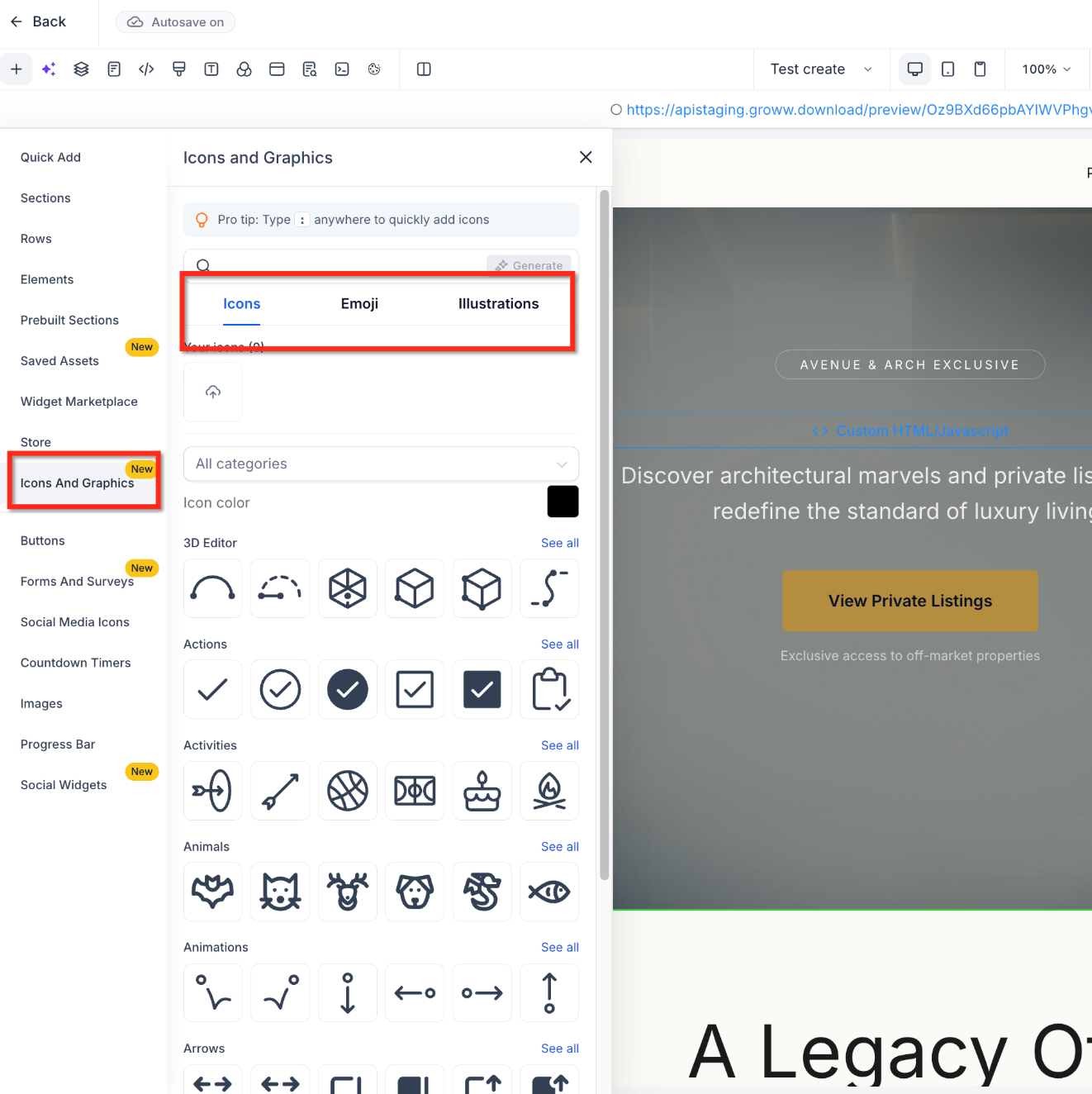
The library includes three main types of graphics:
Icons: Add visual symbols to highlight features, communicate ideas, or complement page content.
Emojis: Make headings, messages, and other content more expressive with familiar visual characters.
Illustrations: Enhance your designs using built-in artwork, AI-generated illustrations, or graphics uploaded from your device.
Graphics can be added directly to the canvas, and icons can also be used within supported text and button elements.
Key Benefits of the Graphic Library
Using the Graphic Library helps you create more visually appealing pages without interrupting your workflow. Its built-in collection and customization capabilities make it easier to find graphics that suit your content and maintain consistent designs across your pages.
Access Thousands of Graphics: Choose from more than 11,000 icons and emojis directly within HighLevel.
Save Time Designing Pages: Find and insert graphics without searching external websites or manually importing every asset.
Maintain Brand Consistency: Customize icon colors to complement your website or funnel design.
Find Graphics Faster: Search for specific icons and emojis or explore organized categories.
Create Custom Illustrations with AI: Generate illustrations when the available artwork does not match your needs.
Use Your Own Graphics: Upload custom illustrations to personalize your pages.
Enhance Text and Buttons: Add icons within headings, paragraphs, and supported buttons to make content easier to recognize and navigate.
Icons in the Graphic Library
Icons are visual symbols that help communicate information quickly, highlight important content, and guide visitors through a page. The Graphic Library provides a searchable collection of icons that can be added to page designs and customized to match your brand.
Browsing and Searching for Icons
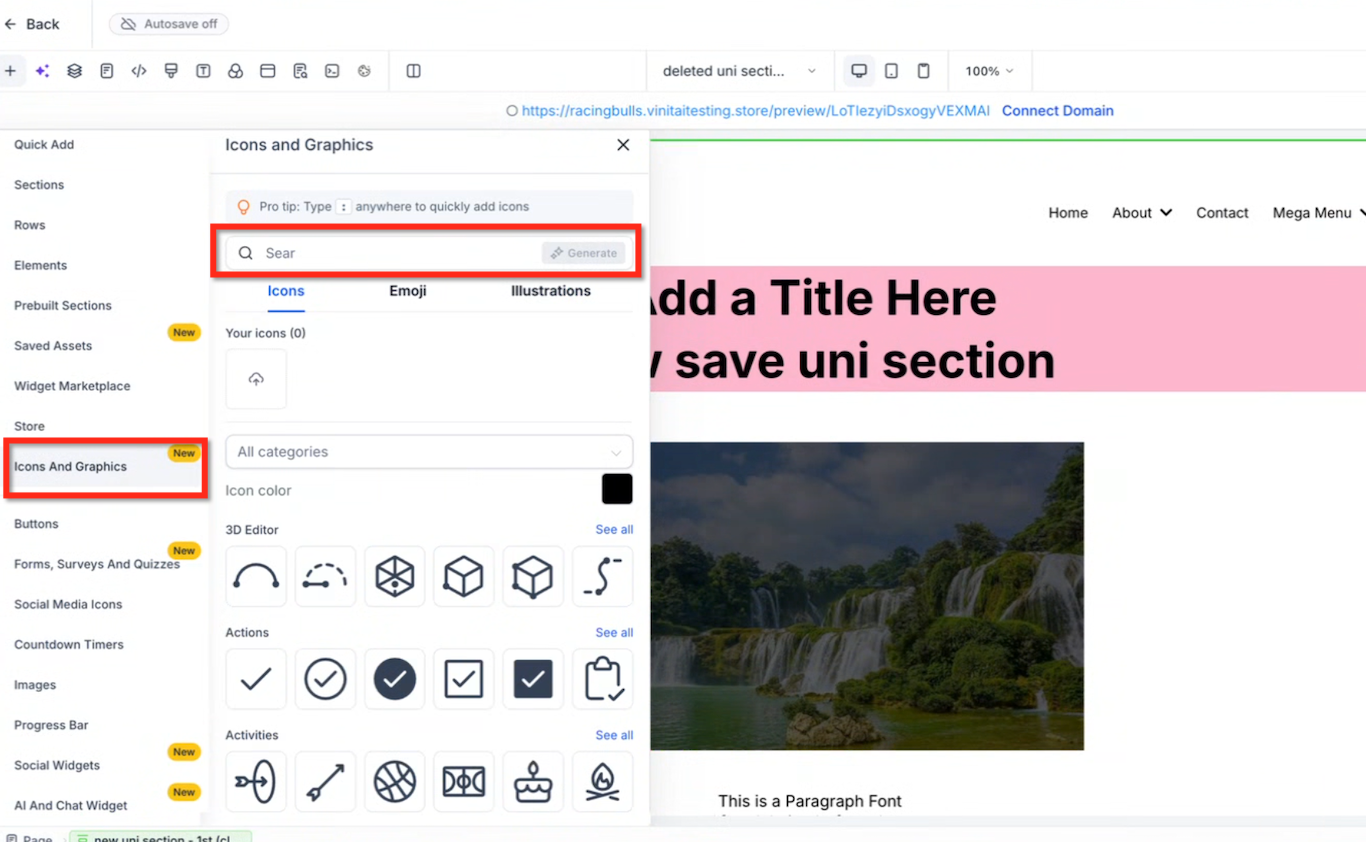
You can explore available icons by category or search for a specific graphic using keywords.
Open the Icons & Graphics panel from the builder's (sites or funnels or email or any builder) left sidebar.
Select the Icons tab.
Browse the available icon categories.
Use the Search field to find a specific icon.
Select an icon to add it to your page, or drag it directly onto the canvas.
Customizing Icon Colors
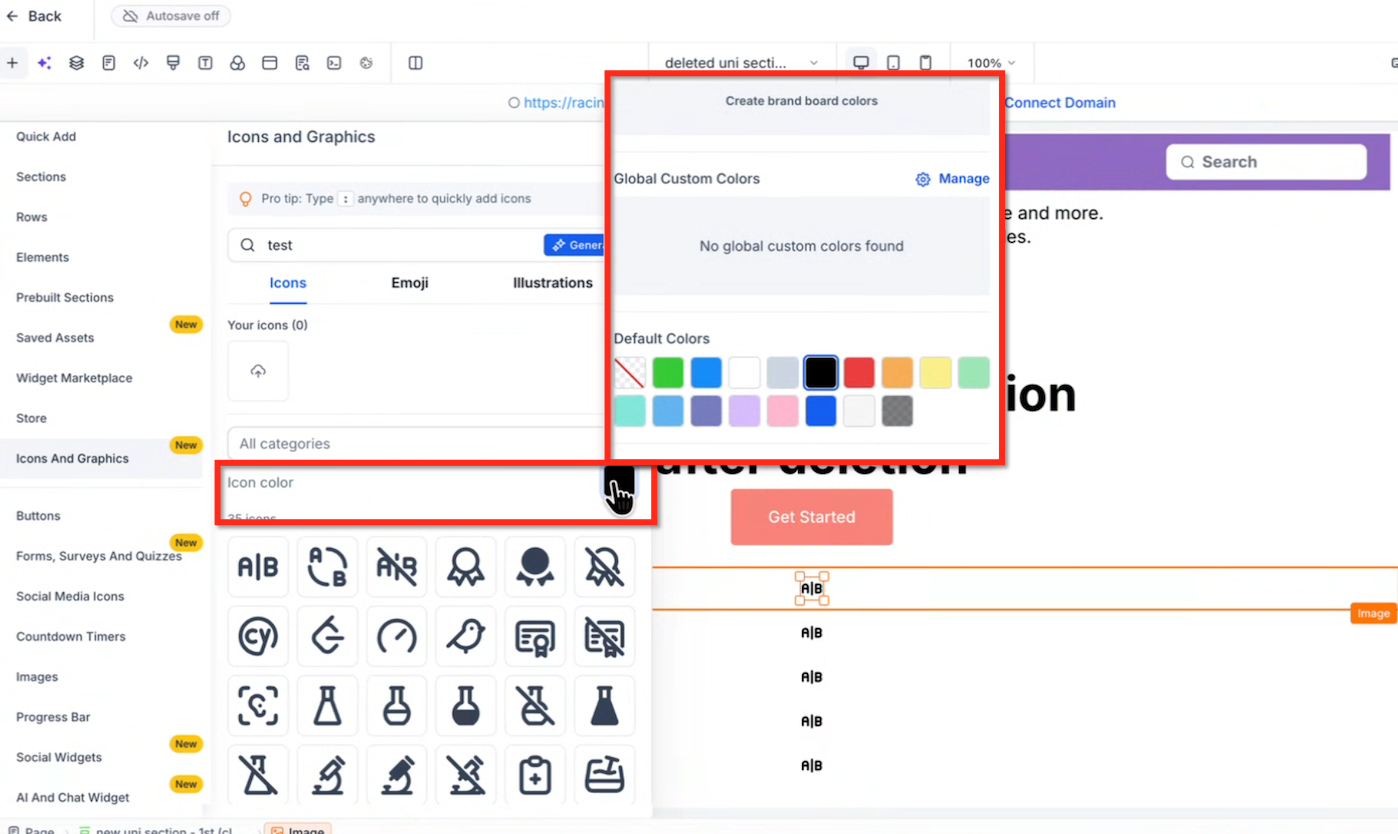
Icon colors can be adjusted to complement your page's visual design. This is particularly useful when you want icons to match your brand colors, buttons, or other page elements.
To select an icon color:
Open the Icons tab in the Graphic Library.
Locate the Icon Color option.
Choose your preferred color using the available color selector.
Select the icon you want to add to your page.
Emojis in the Graphic Library
Emojis can make page content more expressive and help emphasize messages, headings, and other important information. With emojis available directly inside the Graphic Library, you can add familiar visual characters without switching to another application.
To add an emoji:
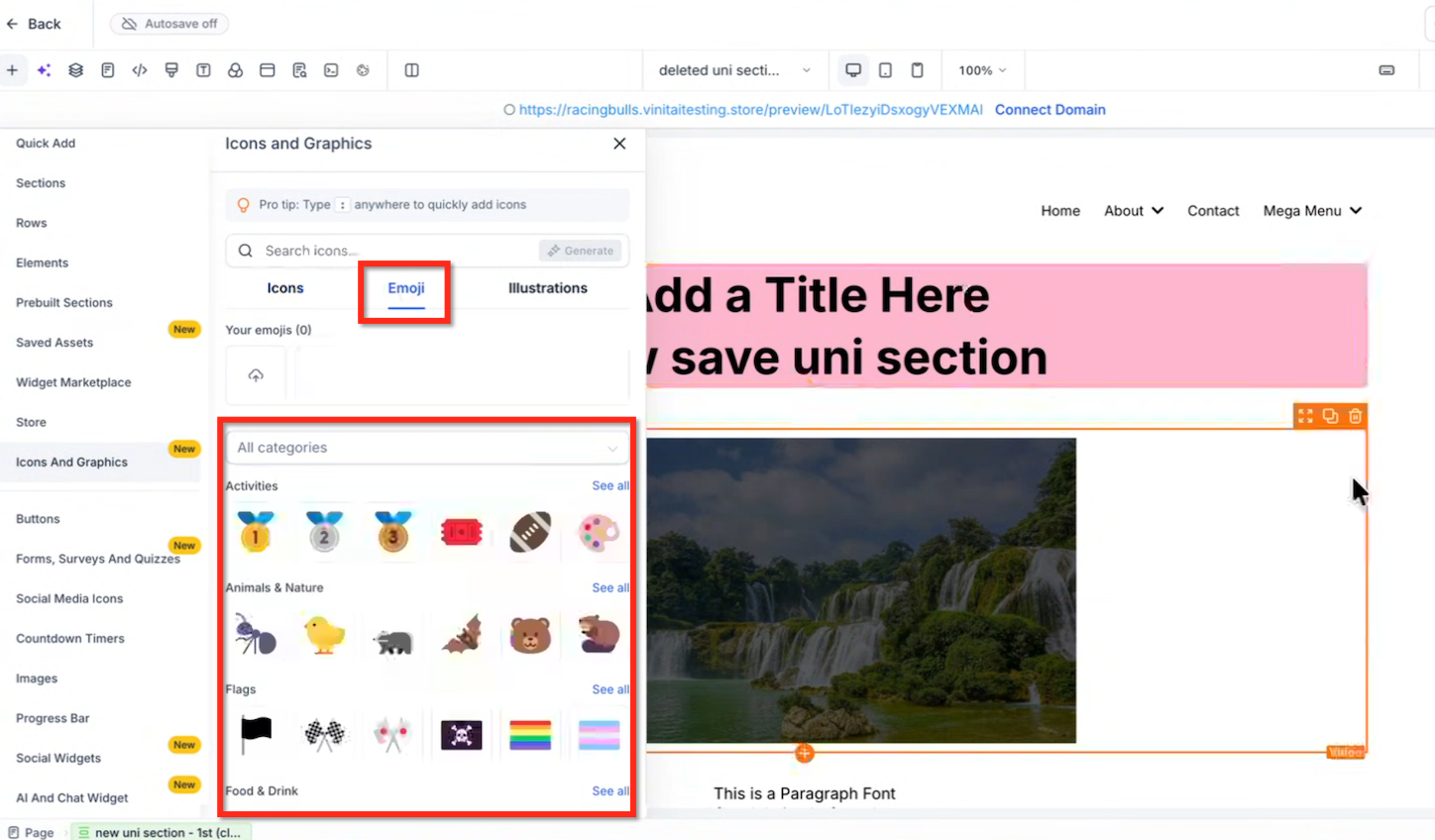
Open Icons & Graphics from the builder's left sidebar.
Select the Emoji tab.
Browse the available emojis or use the search field to find one.
Click or drag your chosen emoji onto the canvas.
Emojis can be useful for highlighting announcements, drawing attention to offers, and adding personality to page content.
Illustrations in the Graphic Library
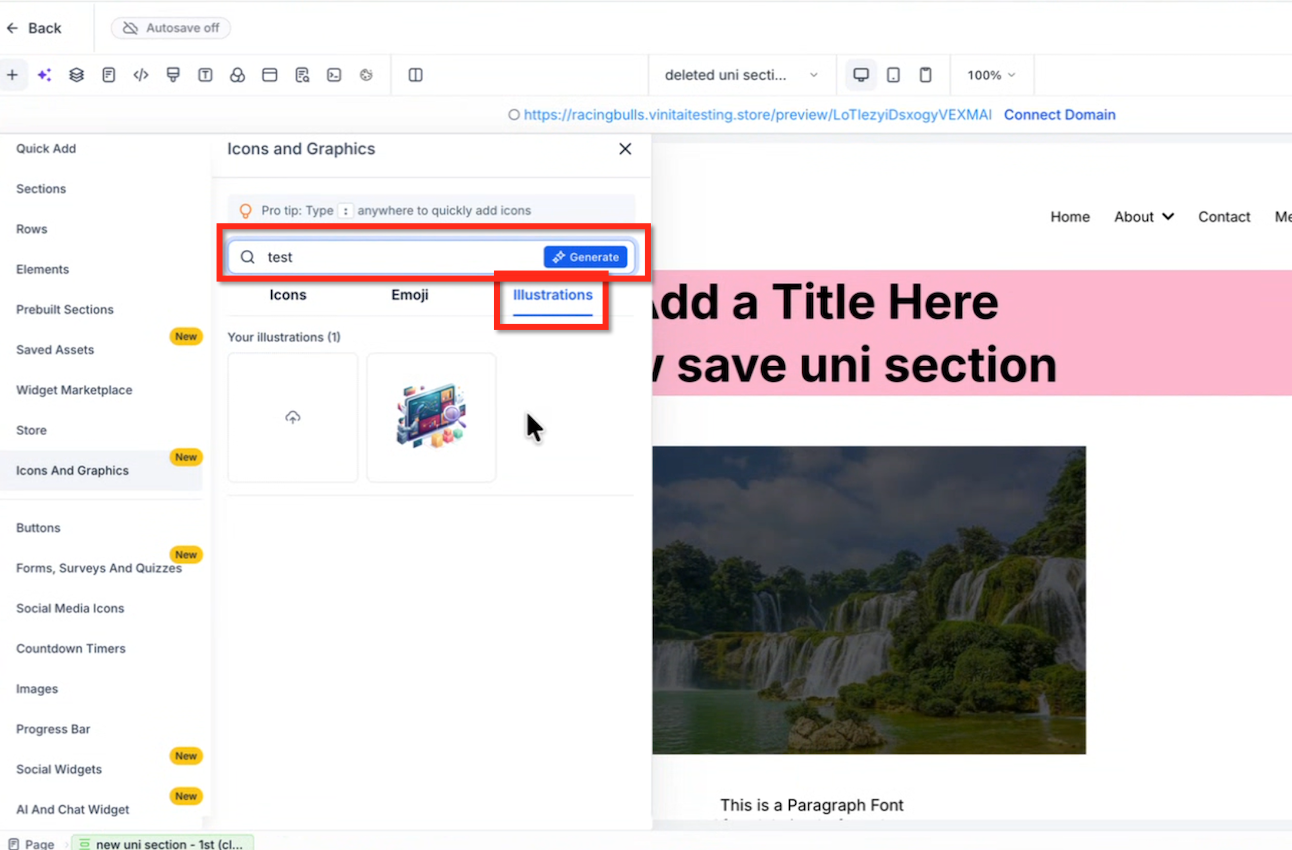
Illustrations help communicate concepts, support your page's message, and add visual interest to your designs. The Graphic Library provides built-in illustrations while also allowing you to generate new artwork with AI or upload your own illustrations when you need something more specific.
Using Built-In Illustrations
Built-in illustrations provide ready-to-use artwork that can be inserted into your page without creating a graphic from scratch.
Open the Icons & Graphics panel.
Select the Illustrations tab.
Browse the available illustrations.
Choose an illustration that matches your page's content.
Click or drag it onto the canvas.
Generating Illustrations with AI
AI illustration generation provides another way to create visual content when the existing library does not contain the artwork you need. You can use the available AI generation functionality to create illustrations tailored to your design requirements.
To get started:
Open the Graphic Library.
Access the illustration generation option using Generate.
Follow the available AI generation prompts to create your illustration.
Review the generated artwork and select the illustration you want to use.
Add the illustration to your page.
Uploading Your Own Illustrations
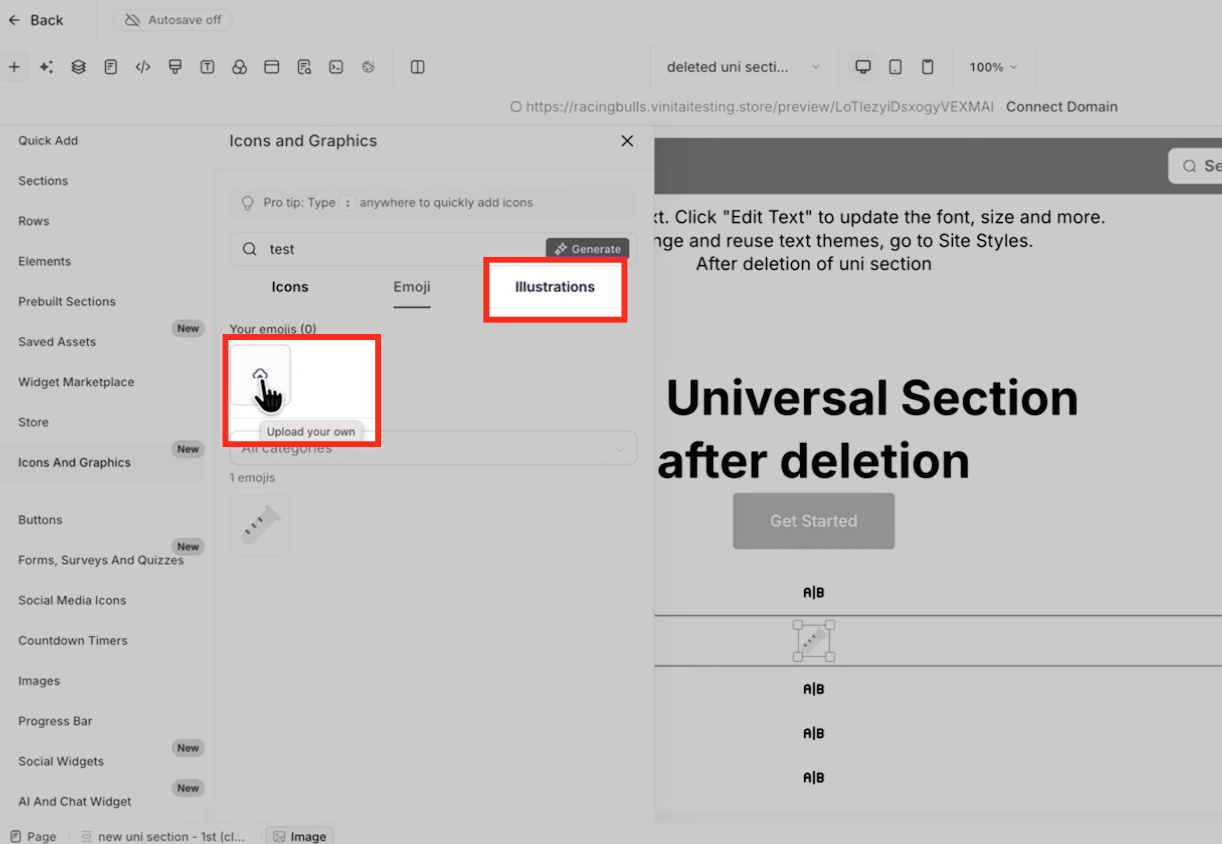
Uploading custom illustrations allows you to use graphics created for your business, brand, or campaign. This is useful when you already have artwork that you want to incorporate into a page.
To upload an illustration:
Open Icons & Graphics.
Navigate to the appropriate illustration or custom graphic upload option.
Select the available Upload control.
Choose a graphic from your device.
Once the upload is available, select the graphic to use it in your page.
Using Icons in Buttons and Text Elements
Icons are not limited to standalone graphics on the canvas. HighLevel also supports using icons within text and button content, allowing you to combine visual symbols with written information. This can help make calls to action easier to recognize and improve the visual presentation of headings and paragraphs.
Adding Icons to Buttons
Icons can appear at the beginning or end of button text within the supported builder ecosystem.
For example, you can use an arrow icon after Get Started or a download icon before Download Guide to reinforce the action visitors should take.
Adding Icons Within Text
Icons can also be used inline with supported text elements, including:
H1 headings
H2 headings
Paragraphs
Other supported text content
This allows you to place icons alongside words rather than using separate graphic elements for every visual symbol.
For example, a feature heading could include a checkmark icon before the text, while a paragraph could use an inline icon to emphasize a particular point.
Icons in the New Email Builder
Inline icon functionality has also been added to the new Email Builder, extending icon usage beyond the original Funnel, Website, Store, and Webinar Builder launch scope.
This helps support more consistent visual content across different HighLevel design experiences.
For additional information about email editing, see How to Use the Email Builder and Its In-line Editor.
Frequently Asked Questions
Q: Do I need to use an external website to find icons and emojis?
No. The Graphic Library includes more than 11,000 icons and emojis that you can access directly within supported HighLevel builders.
Q: Can I use the Graphic Library to create illustrations that aren't already available?
Yes. The Graphic Library includes AI illustration generation, allowing you to create artwork when the built-in illustration collection does not meet your needs.
Q: Can I add icons before or after text inside buttons?
Yes. Icons can be placed at the beginning or end of button content within supported builders.
Q: Can icons be added between words in a heading or paragraph?
Yes. Inline icon functionality supports placing icons within headings, paragraphs, and other supported text content.
Q: Is the Graphic Library available in the Email Builder?
Inline icon functionality has been added to the new Email Builder. The availability of the complete Graphic Library, including all illustration and AI generation features, may differ from the original supported page builders.
Q: Can I upload graphics that I created outside HighLevel?
Yes. The Graphic Library supports uploading your own illustrations, allowing you to use custom artwork in your designs.
Q: Is the Graphic Library the same as the Social Icons element?
No. The Graphic Library provides general-purpose icons, emojis, and illustrations for page design. The Social Icons element is intended for displaying icons that link to social media profiles.
Q: Are all Graphic Library features automatically available in every HighLevel account?
Feature availability depends on the product rollout and account access. If the Icons & Graphics option is not visible, the Graphic Library may not yet be enabled for your account.
Related Articles
Was this article helpful?
That’s Great!
Thank you for your feedback
Sorry! We couldn't be helpful
Thank you for your feedback
Feedback sent
We appreciate your effort and will try to fix the article