This reference covers Media Storage file details, supported formats, per-product upload limits, browser compatibility, private files, storage usage, integrations, and other advanced Media Storage behavior.
TABLE OF CONTENTS
- File Details in Media Storage
- Per-Product File Limits
- Supported Formats & Browser Compatibility
- Preview Limit for Edited Text Files
- Private Files in Media Storage
- How Private Files Are Created
- How to Identify Private Files
- Manage Private Files
- Public vs. Private Files
- View Storage Usage
- Google Drive Integration
- Media Storage Across HighLevel Products
- Agent-Generated Media
- Frequently Asked Questions
File Details in Media Storage
Files use specific formats and extensions, such as .png, .pdf, or .txt. HighLevel products can have different limits for the file types and file sizes they support.
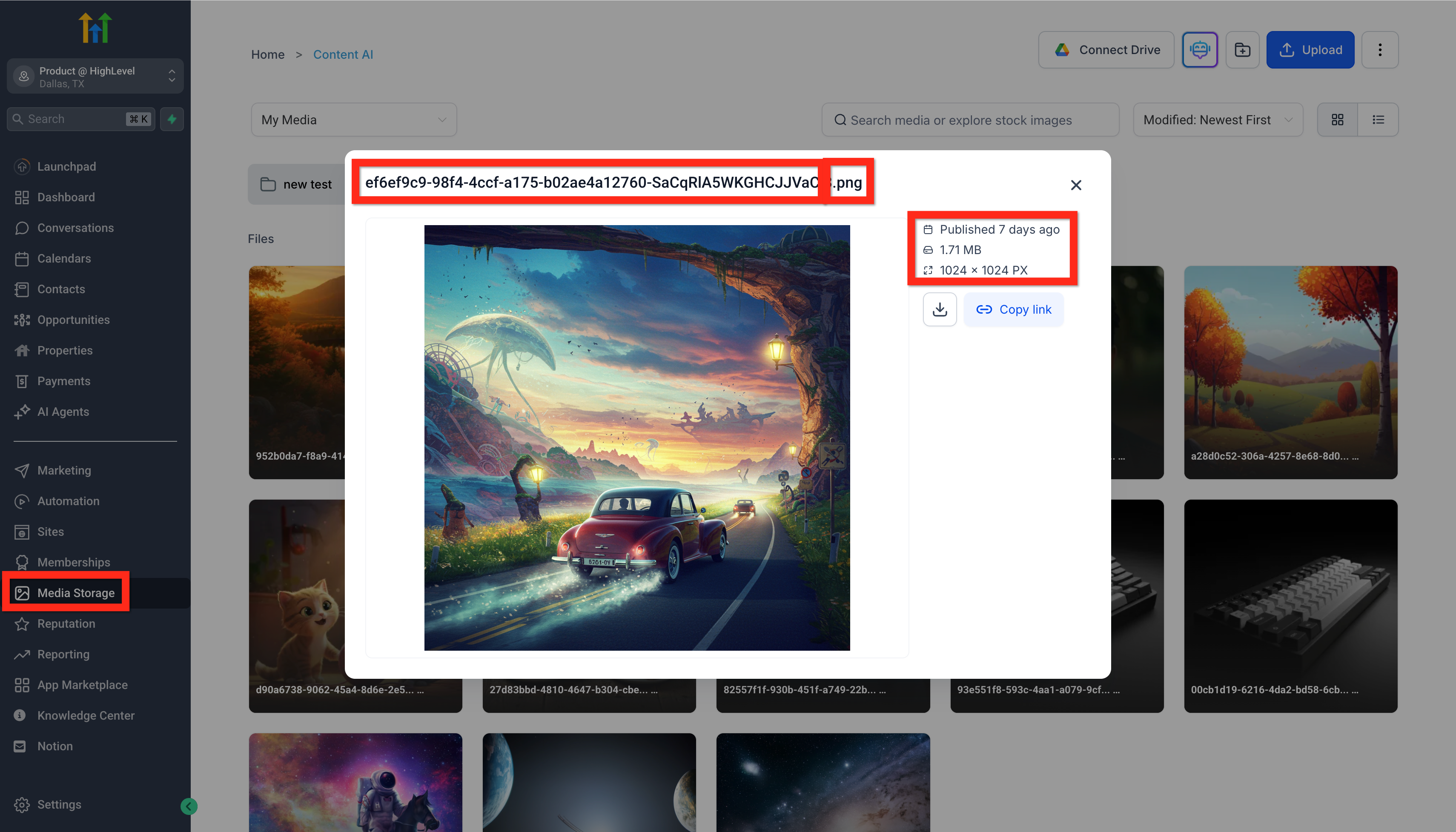
To review a file in Media Storage, navigate to Media Storage > Folder/File.
- Filename: The name that identifies the file.
- File Extension: The short value at the end of the filename, such as
.png. The extension identifies how the file data is encoded. - Publication Date: The date the file was added to Media Storage.
- File Size: The amount of storage used by the file, commonly shown in KB, MB, or GB.
- Dimensions: The native pixel width and height of an image.
Per-Product File Limits
Different HighLevel products support different upload limits depending on the file type.
Files can also be uploaded through Forms by creating a Custom Value of type File Upload.
Media Storage also supports font uploads such as .ttf, .otf, .woff, and .woff2. These files can be used for branding in websites or funnels through Custom CSS.
| File Type | Media Library | Social Planner | Sites & Funnels | Courses | CV File Upload |
|---|---|---|---|---|---|
| Images | |||||
| PNG (.png) | 100MB | 10MB | 100MB | 50MB | 50MB |
| JPEG (.jpg, .jpeg, .jfif, .pjpeg, .pjp) | 100MB | 10MB | 100MB | 50MB | 50MB |
| GIF (.gif) | 100MB | 10MB | 100MB | 50MB | 50MB |
| TIFF (.tif, .tiff, x-tiff) | 100MB | 10MB | 100MB | 50MB | 50MB |
| WEBP (.webp) | 100MB | 10MB | 100MB | 50MB | 50MB |
| SVG (.svg) | 100MB | 10MB | 100MB | 50MB | 50MB |
| ICON (.ico, .cur, x-icon) | 100MB | 10MB | 100MB | 50MB | 50MB |
| Videos | |||||
| AVI (.avi, x-troff-msvideo) | 4GB | 1GB | 4GB | 5GB | 50MB |
| QuickTime (.qt, .qtc, .mov, .moov) | 4GB | 1GB | 4GB | 5GB | 50MB |
| MP4 (.mp4) | 4GB | 1GB | 4GB | 5GB | 50MB |
| MPEG (.mpg) | 4GB | 1GB | 4GB | 5GB | 50MB |
| Ogg Video (.ogv) | 4GB | 1GB | 4GB | 5GB | 50MB |
| Windows Media (.wmv, .asf) | 4GB | 1GB | 4GB | 5GB | 50MB |
| WebM (.webm) | 4GB | 1GB | 4GB | 5GB | 50MB |
| Audio | |||||
| AIF (.aif, .aiff, .aifc) | 100MB | 100MB | 100MB | 50MB | 50MB |
| MIDI (.midi, .mid) | 100MB | 100MB | 100MB | 50MB | 50MB |
| Windows Audio (.wav) | 100MB | 100MB | 100MB | 50MB | 50MB |
| Ogg Audio (.oga) | 100MB | 100MB | 100MB | 50MB | 50MB |
| WebM Audio (.weba) | 100MB | 100MB | 100MB | 50MB | 50MB |
| MPEG (.mpeg) | 100MB | 100MB | 100MB | 50MB | 50MB |
| M4A (.m4a) | 100MB | 100MB | 100MB | 50MB | 50MB |
| Applications and Documents | |||||
| PDF (.pdf) | 100MB | 100MB | 100MB | 50MB | 50MB |
| Word (.doc, .docx, ms-doc, msword, vnd.openxmlformats-officedocument.wordprocessingml.document) | 100MB | 100MB | 100MB | 50MB | 50MB |
| Excel (excel, .xls, .xlsx, .xlsm, vnd.ms-excel, x-excel, x-msexcel, vnd.openxmlformats-officedocument.spreadsheetml.sheet) | 100MB | 100MB | 100MB | 50MB | 50MB |
| PowerPoint (.ppt, .pptx, .pptm, mspowerpoint, powerpoint, vnd.ms-powerpoint, x-mspowerpoint, vnd.openxmlformats-officedocument.presentationml.presentation) | 100MB | 100MB | 100MB | 50MB | 50MB |
| Apple Numbers (x-iwork-numbers-sffnumbers) | 100MB | 100MB | 100MB | 50MB | 50MB |
| Google Sheet (vnd.google-apps.spreadsheet) | 100MB | 100MB | 100MB | 50MB | 50MB |
| Google Doc (vnd.google-apps.document) | 100MB | 100MB | 100MB | 50MB | 50MB |
| Google Slides (vnd.google-apps.presentation) | 100MB | 100MB | 100MB | 50MB | 50MB |
| Text (.rtf, .txt) | 100MB | 100MB | 100MB | 50MB | 50MB |
| ZIP (.zip, x-zip, z-zip-compressed, x-compress, x-compressed) | 100MB | 100MB | 100MB | 50MB | 50MB |
| CSV (.csv) | 100MB | 100MB | 100MB | 50MB | 50MB |
| Fonts | |||||
| TrueType TTF (.ttf) | 100MB | 100MB | 100MB | 50MB | 50MB |
| OpenType OTF (.otf) | 100MB | 100MB | 100MB | 50MB | 50MB |
| Web Open Font Format WOFF and WOFF2 (.woff, .woff2) | 100MB | 100MB | 100MB | 50MB | 50MB |
| Contact | |||||
| vCard (.vcf) | 100MB | 100MB | 100MB | 50MB | 50MB |
Supported Formats & Browser Compatibility
The formats below have verified validation, upload, listing, and Preview behavior across Chrome, Firefox, and Safari.
| Category | Formats | Browsers Verified |
|---|---|---|
| Images | JPEG/JPG, PNG, SVG, WEBP, GIF, TIFF, HEIC | Chrome, Firefox, Safari |
| Audio | MP3, WAV, OGG/OGA | Chrome, Firefox, Safari |
| Video | MP4, MOV, WEBM, WMV, AVI, M4V | Chrome, Firefox, Safari |
| Documents | PDF, PPT, TXT, DOC, DOCX, CSV, XLS, XLSX | Chrome, Firefox, Safari |
| Archives | ZIP | Chrome, Firefox, Safari |
| Code/Other | JSON, CSS | Chrome, Firefox, Safari |
Verified support includes JSON, CSS, OGG/OGA, M4V, HEIC, and consistent ZIP handling across supported browsers.
Editable Text File Types
Media Storage supports in-place editing for the following text file types:
- `.txt`
- `.css`
- `.json`
- `.sql`
- `.rtf`
Open a supported file in Preview and click Edit to modify it. Saving updates the existing file while preserving its file name and public URL.
For the complete editing workflow, see Complete Guide to Media Storage!
Preview Limit for Edited Text Files
Supported text files larger than 5 MB can still be saved after editing.
After saving a file larger than 5 MB, the file is no longer available for Preview. Media Storage displays a warning before saving when this limit applies.
Private Files in Media Storage
Media Storage supports private files for Digital Products. Private files help protect product files that should only be accessible through the appropriate product purchase or delivery flow.
Important: You cannot manually mark a file as private or select an Upload as Private option directly from Media Storage.

A file is automatically uploaded as a private file when you upload it as a Digital Product file while creating or configuring a product.
How Private Files Are Created
Private status is determined by the HighLevel feature through which the file is uploaded.
For Digital Products, files uploaded through the Digital Product setup are automatically stored as private files.
How to Identify Private Files
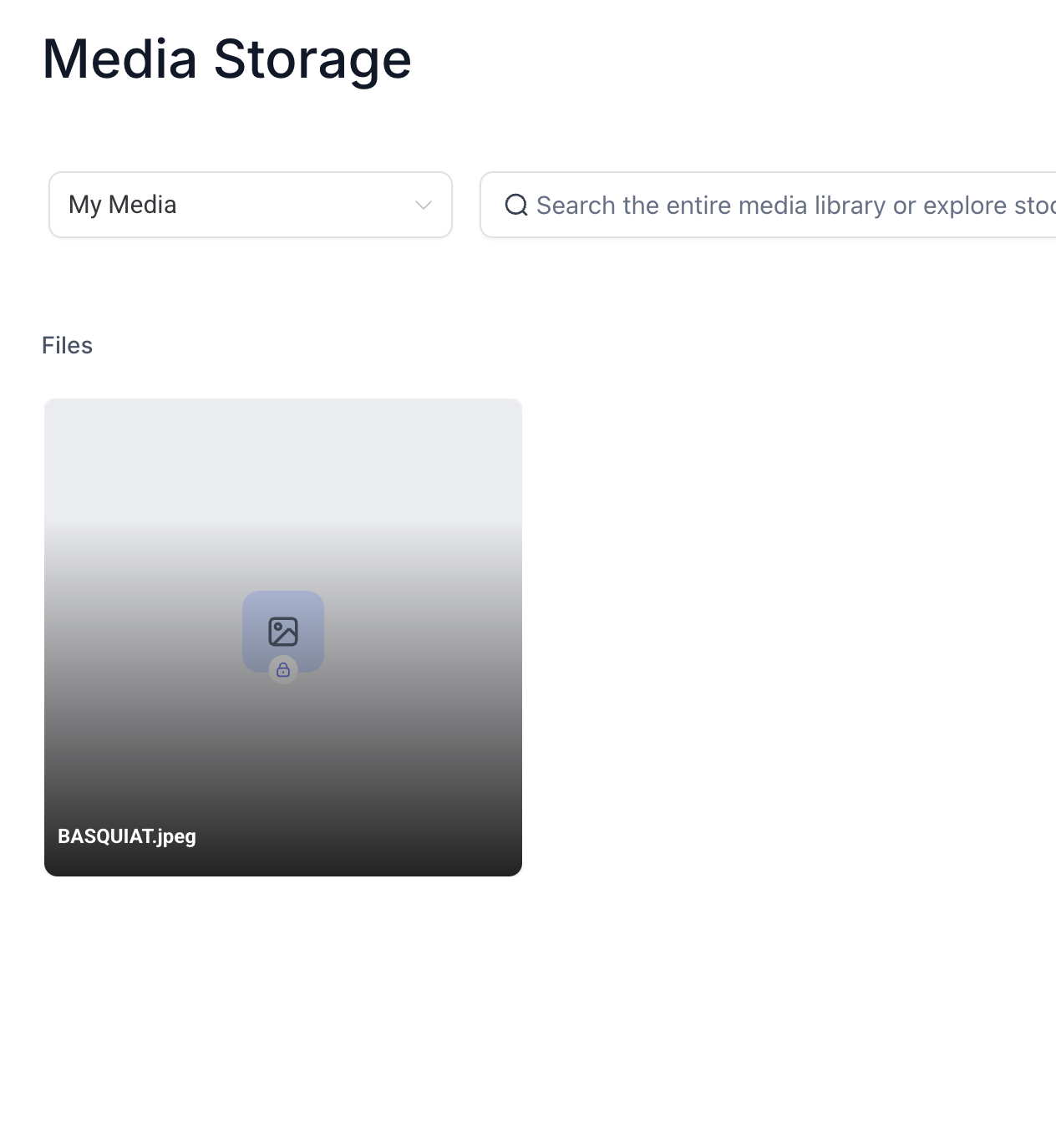
A lock icon appears on the thumbnail of a private file, indicating that the file has restricted access.
If you uploaded a file for a Digital Product and later locate it in Media Storage, look for the lock icon to confirm that the file is stored as private.
Manage Private Files
Available actions for a private file include:
- Download — Download the private file.
- Copy Private Link — Generate a temporary link that can be used to access the private file.
- Delete — Delete the private file when it is no longer required.
Private links expire after 10 minutes. If access is required after the link expires, generate a new private link from Media Storage.
Because private links are temporary, do not use them as permanent URLs on websites, funnels, emails, or other locations that require ongoing file access.
Public vs. Private Files
| Public File | Private Digital Product File |
|---|---|
| Uploaded normally through Media Storage | Uploaded through the Digital Product setup |
| Standard Media Storage file | Automatically stored as private |
| Does not display the private-file lock indicator | Displays a lock icon in Media Storage |
| Uses normal file access behavior | Supports temporary private links |
| Cannot be manually changed to private | Cannot currently be manually changed to public |
View Storage Usage
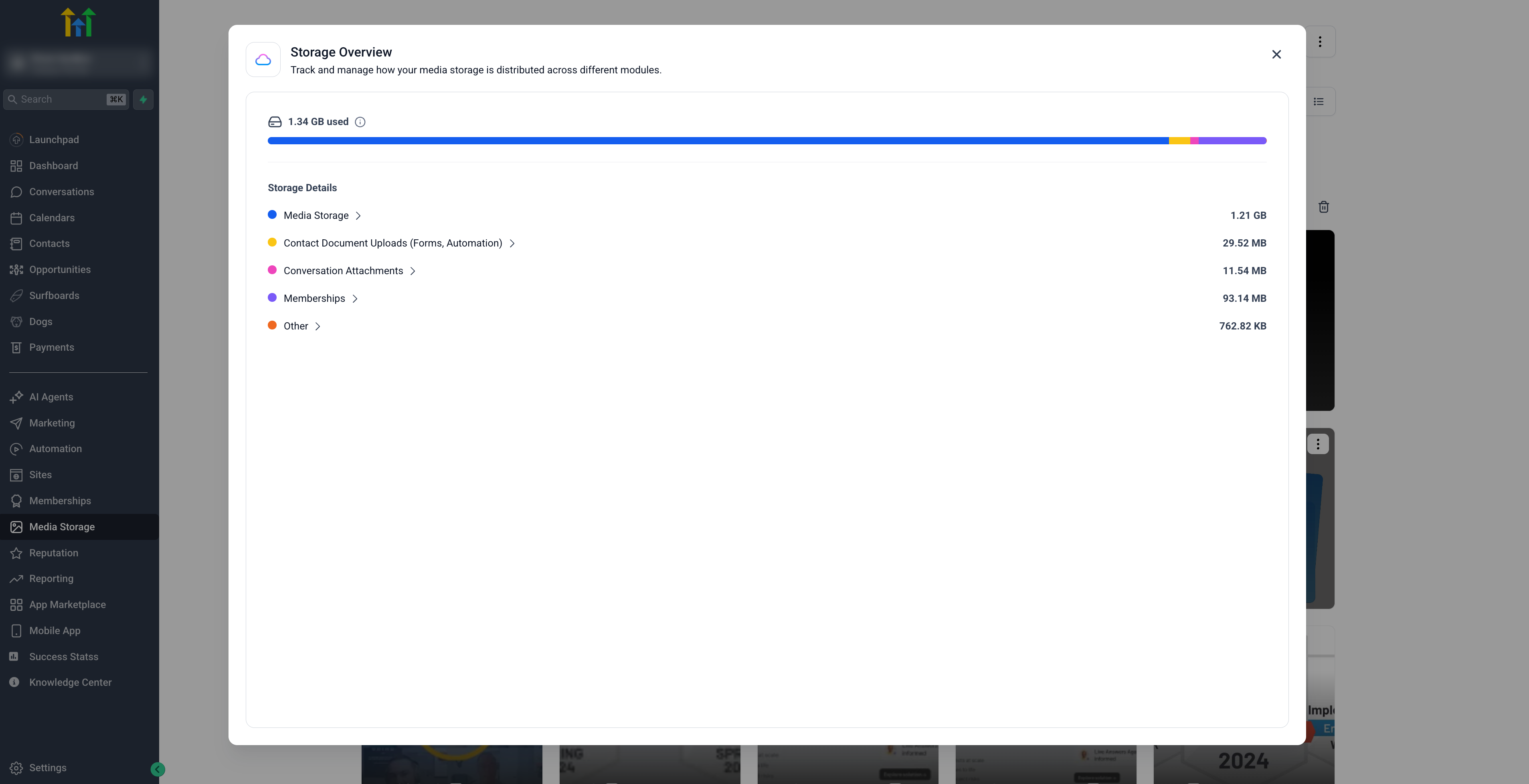
Use the Media Usage modal to review how much storage your account is using and where that usage comes from.
The modal shows total storage with a color-coded bar and provides a per-module breakdown, including Media Library, Conversations, Memberships, Contacts, and Calendar.
Expand a module to review storage usage by file type, such as Images, Videos, Documents, and Audio.
To view storage usage:
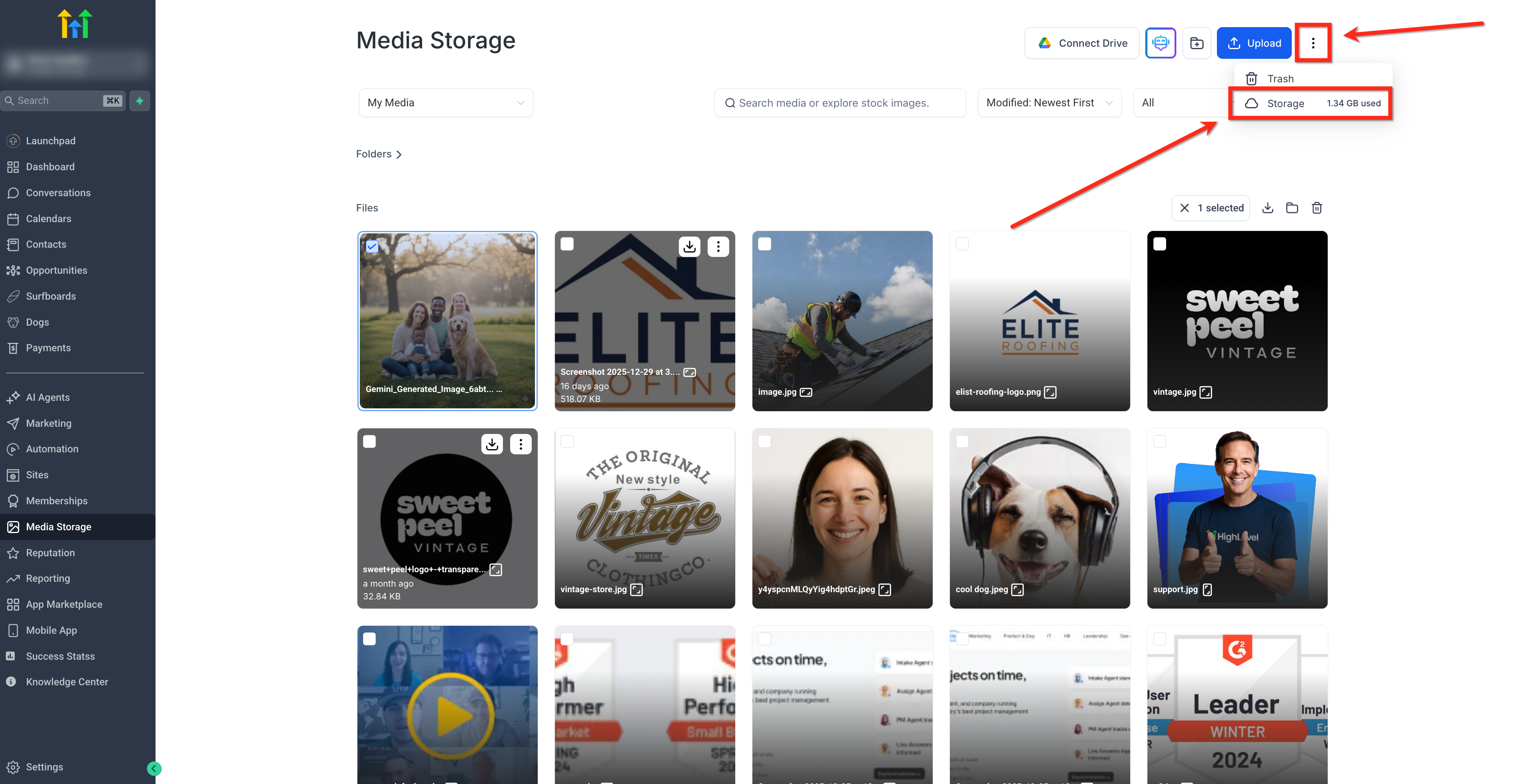
- Click the three-dot (⋮) menu and select Storage.
- Click a module to view usage by file type.
Google Drive Integration
Connect Drive enables you to import files you own from Google Drive.
Important: Shared files and shortcuts to shared files do not display because of Google Drive access, visibility, and ownership restrictions. Media Storage currently shows files owned by you.

Workaround: Create a copy of the shared file instead of creating a shortcut. The copied file can then appear as an owned file.
When using Login As:
- The Connect Drive button is disabled and grayed out.
- Google Drive data belonging to the original user does not display.

Media Storage Across HighLevel Products
Media Storage is integrated with other HighLevel products. When you access Media Storage from products such as funnels or websites, it opens in a modal so you can select or upload media without leaving the current workflow.
Note: Drag-and-drop uploads also work when Media Storage opens inside a Funnel modal. Drop files anywhere in the available modal drop zone before inserting them.
Agent-Generated Media
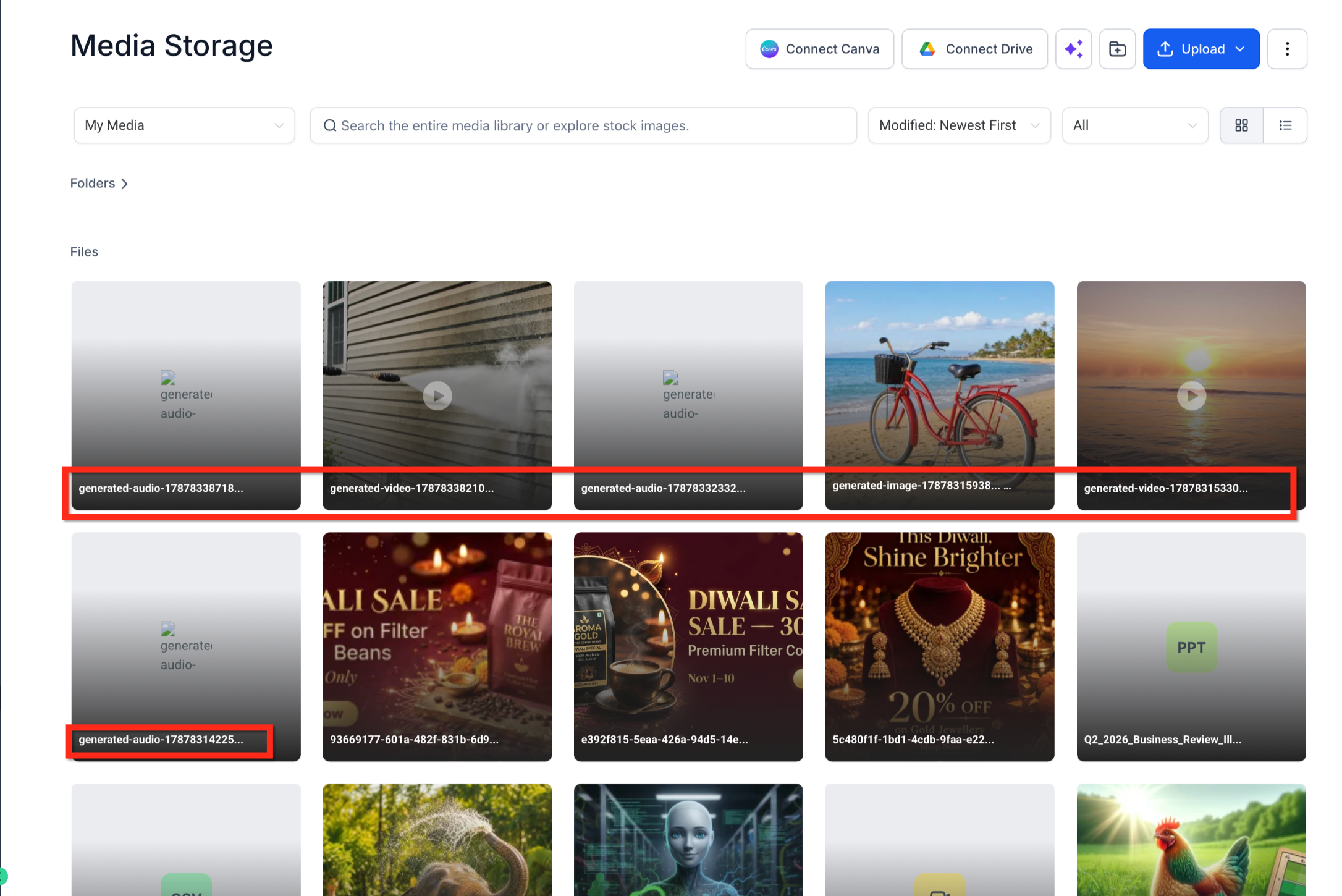
Images, audio files, and videos created by Managed Agents are automatically saved to Media Storage as reusable files.
Agent-generated media:
- Is stored in Media Storage instead of relying on a temporary generated-media location.
- Appears at the root of the Media Library like a standard uploaded file.
- Uses recognizable generated-file names. For example, generated audio files use names beginning with
generated-audio-and use the.mp3format. - Can be found later using Media Storage search.
- Can be reused elsewhere in HighLevel, including emails, funnels, and social posts.
- Uses the standard video-processing pipeline for generated videos, including video thumbnails.
Frequently Asked Questions
Q: What file types can I upload?
Media Storage supports images, videos, audio files, documents, fonts, contact files, and other supported application formats listed in this article.
Q: Are upload limits the same across all HighLevel products?
No. Upload limits vary by file type and product. Use the Per-Product File Limits table above to compare the supported limits.
Q: Why does a file download instead of opening in Preview?
Inline Preview depends on whether the browser and operating system support the file format. Files that cannot render inline remain available for download.
Q: Can I make an existing Media Storage file private?
No. You cannot currently select an existing public file in Media Storage and change it to private. There is also no general Make Private option when uploading files directly to Media Storage.
For Digital Products, files uploaded through the Digital Product setup are automatically stored as private files and display a lock icon in Media Storage.
Q: Can I integrate Media Storage with Google Drive?
Yes. Media Storage can display files you own in Google Drive. Shared files and shortcuts to shared files do not display.
Q: How does Login As affect Google Drive access?
When Login As is active, the Connect Drive button is disabled and the original user's Google Drive content is hidden.
Was this article helpful?
That’s Great!
Thank you for your feedback
Sorry! We couldn't be helpful
Thank you for your feedback
Feedback sent
We appreciate your effort and will try to fix the article