Managing phone configurations across multiple sub-accounts is easier with the new filtering options in HighLevel's Phone Integration settings. Agency owners and administrators can quickly find sub-accounts based on their phone system, rebilling status, messaging configurations, and A2P verification status. Filters help reduce manual account reviews and make it easier to identify locations that require attention.
TABLE OF CONTENTS
- What Are Sub-Account Settings Filters in Phone Integration?
- Key Benefits of Sub-Account Settings Filters
- Available Filter Categories
- Telephony System (Managed By)
- Rebilling Status Filter and Plan Eligibility
- Number Intelligence and Messaging Ramp Filters
- Messaging Ramp
- Phone Number Availability and A2P Verification Filters
- How to Filter Sub-Accounts in Phone Integration
- Frequently Asked Questions
- Related Articles
What Are Sub-Account Settings Filters in Phone Integration?
Sub-Account Settings Filters allow agency users to narrow the list of sub-accounts displayed within Phone Integration based on specific telephony and messaging attributes. This makes it easier to identify accounts with particular configurations without individually opening each sub-account.
The filtering capability is available in Agency View → Settings → Phone Integration → Sub-Account Settings. Using the Filters panel, you can identify sub-accounts based on their phone system provider, rebilling status, Number Intelligence settings, Messaging Ramp, phone number availability, and A2P verification status.
All available filter options are selected by default, so the complete list of sub-accounts is displayed initially. You can select different filtering criteria to narrow the results, combine filters to refine your search, or use Clear Filters to restore the default view.
Key Benefits of Sub-Account Settings Filters
Managing telephony and messaging configurations across multiple sub-accounts can require frequent checks. Filtering provides a faster way to locate accounts that meet specific criteria, helping agencies manage configurations, identify potential issues, and plan account updates.
Faster Account Discovery: Find sub-accounts with specific phone configurations without manually reviewing individual locations.
Simplified Telephony Management: Identify sub-accounts using the Native Phone System, Twilio, or third-party configurations.
Easier Rebilling Reviews: Locate sub-accounts with rebilling enabled or disabled when using an eligible agency plan.
Improved Messaging Visibility: Identify accounts based on Number Intelligence and Messaging Ramp settings.
Simplified A2P Status Reviews: Find sub-accounts based on their A2P verification status for further review.
Flexible Account Filtering: Combine multiple filtering criteria to narrow results based on your operational needs.
Efficient Account Audits: Review phone number availability and messaging configurations across your agency's sub-accounts.
Available Filter Categories
The Filters panel groups sub-accounts by important phone system and messaging attributes. Understanding what each category represents helps you select the right criteria for account reviews, migrations, and ongoing administration.
| Filter Category | Available Options | Description |
|---|---|---|
| Managed By | Native Phone System, Twilio, None / Third Party | Identifies the telephony system associated with each sub-account. |
| Rebilling Status | Enabled, Disabled | Identifies whether rebilling is enabled for a sub-account. Available only on eligible agency plans. |
| Number Intelligence | Enabled, Disabled | Identifies whether Number Intelligence is enabled for a sub-account. |
| Messaging Ramp | Yes, No | Identifies sub-accounts based on their Messaging Ramp status. |
| Have Phone Numbers | Yes, No | Identifies sub-accounts based on phone number availability. |
| A2P Verified | Yes, No | Identifies sub-accounts based on their A2P verification status. |
Note: Filtering helps you identify sub-accounts with particular configurations. It does not directly enable, disable, or modify those settings.Telephony System (Managed By)
The Managed By filter helps agencies identify which phone system is associated with each sub-account. This is particularly useful when reviewing phone provider configurations or identifying accounts before planning a phone system migration.
For more information about provider configurations and migration considerations, refer to Agency-Managed Twilio & Phone Rebilling in HighLevel.
Rebilling Status Filter and Plan Eligibility
Rebilling Status filtering helps eligible agencies identify sub-accounts with phone rebilling enabled or disabled. This makes it easier to review billing configurations across multiple locations without manually checking each account.
Plan Availability
The Rebilling Status filter is available only to agencies on the following plans:
$297 Agency Plan
$497 Agency Plan
Agencies on other plans will not see the Rebilling Status filter in the Filters panel.
Important: The availability of the Rebilling Status filter is separate from the requirements for configuring phone rebilling. Filtering identifies the current status but does not modify rebilling settings.For more information, refer to Activate SaaS Mode, Request Payment, and Configure Phone Rebilling.
Number Intelligence and Messaging Ramp Filters
Number Intelligence and Messaging Ramp are two settings that affect different aspects of phone and messaging operations. Filtering by these attributes helps agencies identify which sub-accounts use each feature and locate accounts that may need further configuration review.
For more information, refer to Number Intelligence – Number Validation, Spam Detection, and Unknown Caller.
Messaging Ramp
Messaging Ramp is a level-based messaging system designed to manage SMS sending limits as accounts progress through messaging activity levels.
Example: An agency reviewing messaging configurations can use Messaging Ramp and Number Intelligence together to identify sub-accounts with particular messaging settings.
For more information, refer to Messaging Ramp Progress Card.
Phone Number Availability and A2P Verification Filters
Phone number availability and A2P verification are important considerations when reviewing sub-account readiness for calling and messaging. These filters help agencies identify accounts that may require additional phone setup or verification checks.
Important: The A2P Verified filter is useful for identifying accounts for review. It does not replace checking the applicable registration, campaign, and phone number requirements before sending messages.
For additional guidance, refer to US Phone Number Registrations.
How to Filter Sub-Accounts in Phone Integration
The Filters panel is available directly within the Sub-Account Settings tab in Agency View. Selecting the appropriate criteria helps you locate sub-accounts with particular phone and messaging configurations while leaving the underlying settings unchanged.
Step 1: Open Phone Integration in Agency View
Log in to your HighLevel agency account.
Switch to Agency View, if necessary.
Navigate to Settings.
Select Phone Integration.
Open the Sub-Account Settings tab.
The Phone Settings for Sub-Accounts table displays your agency's sub-accounts and their associated phone settings.
Step 2: Open the Filters Panel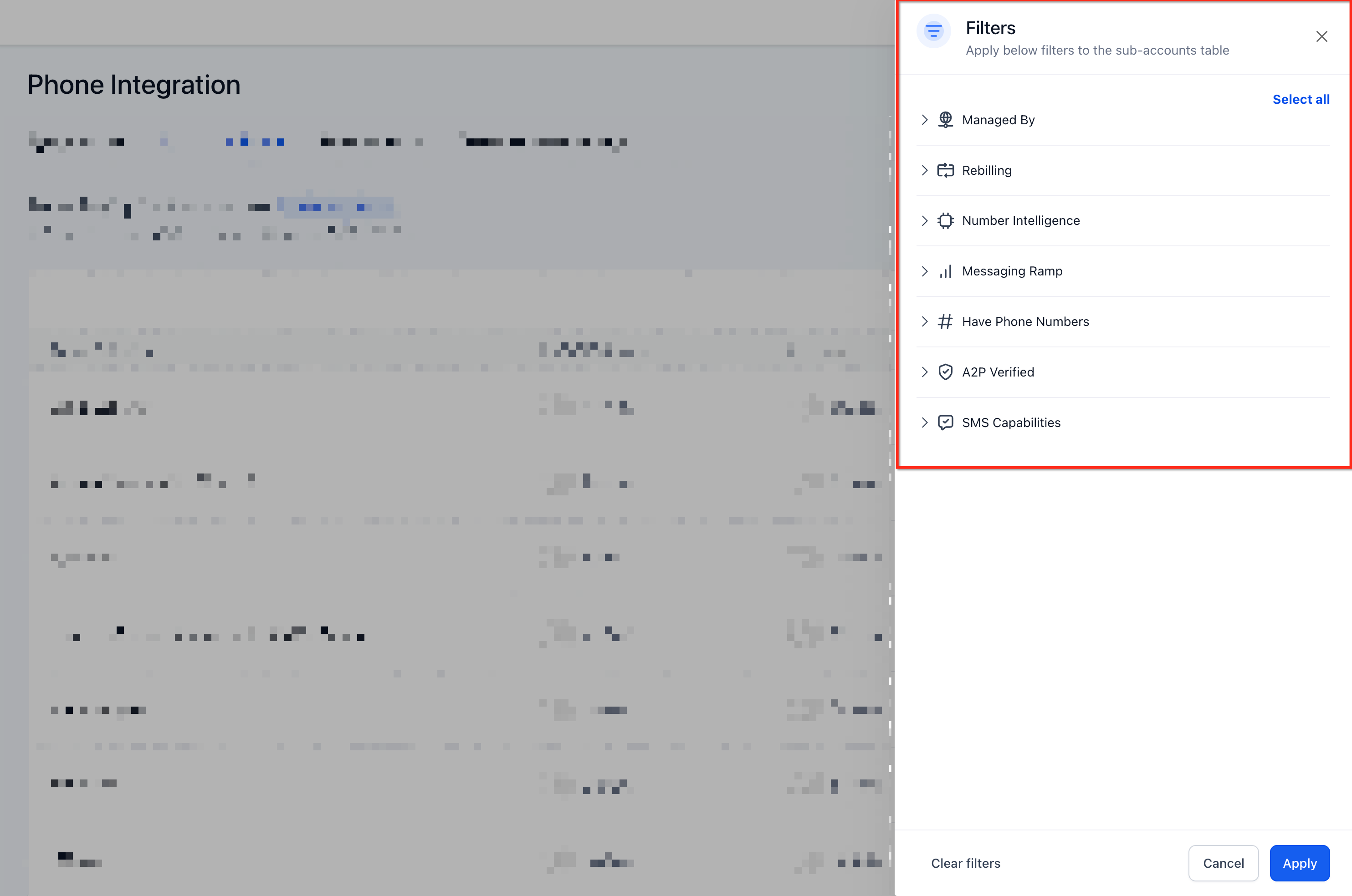
Locate the Filters button in the top-right corner of the Phone Settings for Sub-Accounts table.
Click Filters to open the filtering panel.
Review the available filter categories.
All available filter options are selected by default, allowing the complete list of sub-accounts to remain visible initially. The Rebilling Status category is displayed only for agencies on eligible $297 and $497 plans.
Step 3: Select Your Filtering Criteria
Locate the filter category you want to use.
Choose the values that match the sub-accounts you want to display.
Review the updated sub-account list.
For example, to locate sub-accounts using Twilio, select Twilio in the Managed By category and adjust the other filter selections as needed. The sub-account list updates automatically as filtering criteria are changed.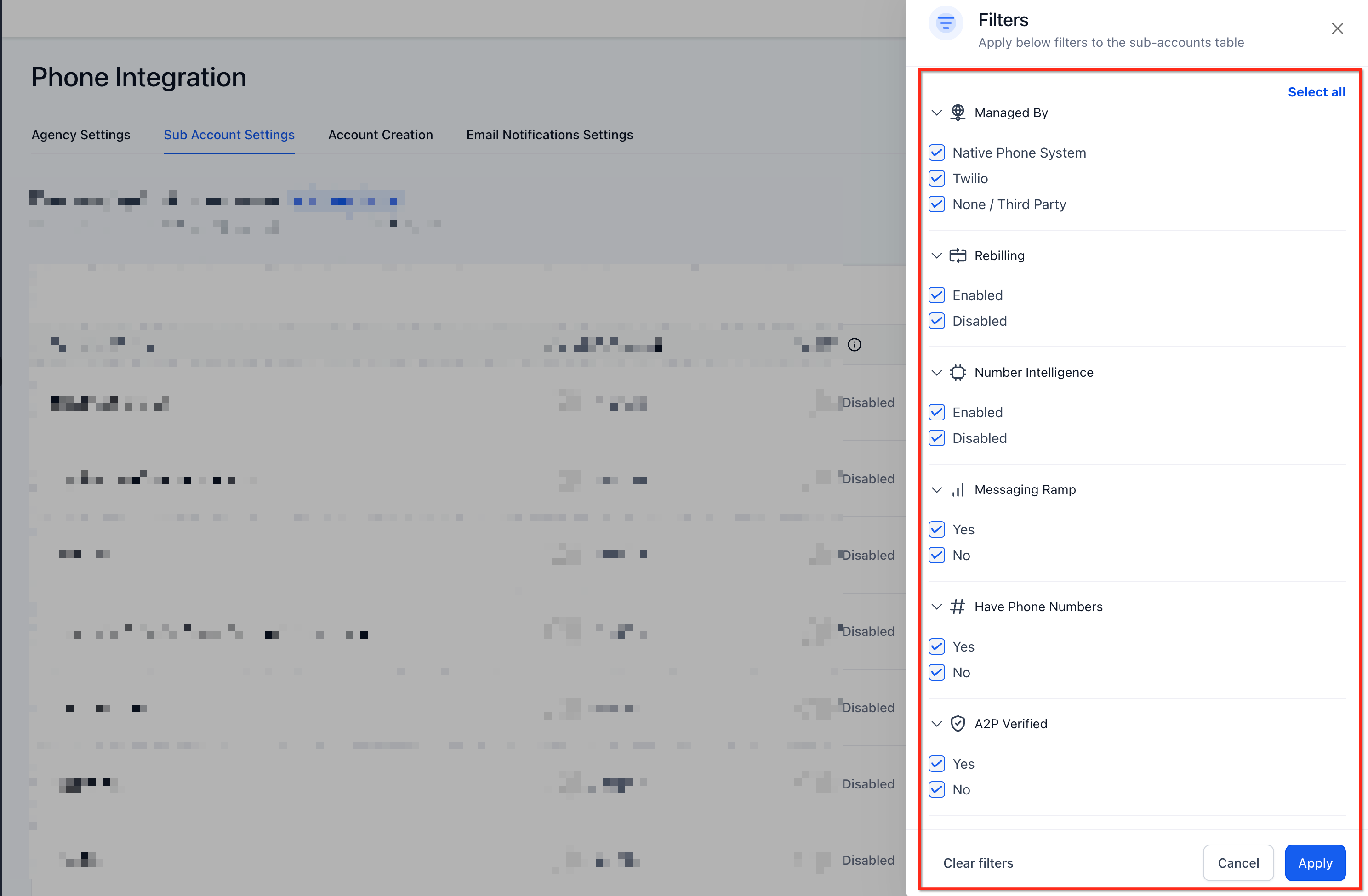
Step 4: Combine Multiple Filter Criteria
Keep the Filters panel open.
Select additional criteria from other filter categories.
Review the updated list as the active criteria change.
Adjust your selections to refine the results further.
For example, you can combine the Managed By, Number Intelligence, and A2P Verified filters when reviewing messaging readiness across specific phone system configurations.
Step 5: Clear Filters and Restore the Full Account List
Open the Filters panel if it is not already visible.
Locate Clear Filters.
Click Clear Filters.
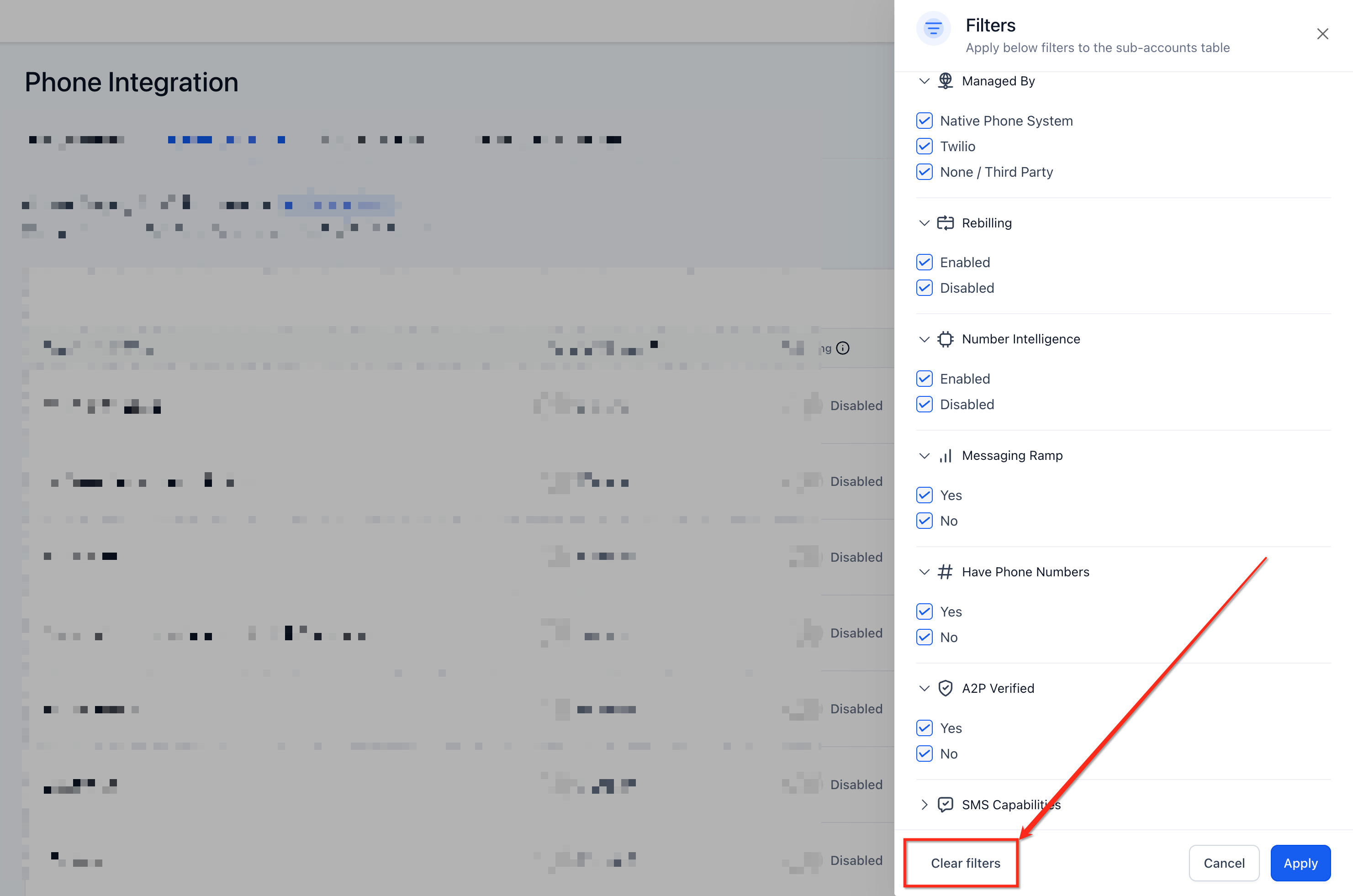
All filter options return to their default selected state, and the full list of sub-accounts is displayed again.
Note: Clear Filters restores the default selections rather than leaving every filter option unselected.
Frequently Asked Questions
Q: Can I use the Sub-Account Settings Filters to change phone configurations?
No. The filtering capability helps you locate sub-accounts based on their configurations. Changes to the actual phone system or messaging settings must be made through the appropriate settings controls.
Q: Why can't I see the Rebilling Status filter?
The Rebilling Status filter is available only to agencies on the $297 and $497 plans. Agencies on other plans will not see this option.
Q: Do I need to save or apply my filters manually?
No separate Apply action is described in the release. The sub-account list updates in real time as filtering criteria are changed.
Q: Can I use the filters to identify accounts that may need A2P verification?
Yes. Selecting No under A2P Verified helps identify sub-accounts not marked as verified. You should still review the applicable A2P registration and campaign details before determining the next action.
Q: Can I use these filters to identify accounts for migration to the Native Phone System?
Yes. The Managed By filter can help you locate sub-accounts using Twilio or categorized as None / Third Party. However, migration eligibility and requirements must be reviewed separately before making changes.
Q: Will clearing filters change the settings of my sub-accounts?
No. Clear Filters only restores the filtering selections to their default state and displays the full sub-account list. It does not modify the phone or messaging configurations of individual sub-accounts.
Q: Can I use the filters to determine whether an account is ready to send SMS?
The filters can help you review messaging-related attributes such as Messaging Ramp, A2P verification, and phone number availability. However, these results alone do not establish that an account is ready to send messages. Additional registration, configuration, and messaging requirements may apply.
Q: Can I use the Filters panel to find sub-accounts that do not have phone numbers?
Yes. Select No under Have Phone Numbers to identify sub-accounts categorized as not having phone numbers. You can then review those accounts to determine whether additional phone setup is required.
Related Articles
Was this article helpful?
That’s Great!
Thank you for your feedback
Sorry! We couldn't be helpful
Thank you for your feedback
Feedback sent
We appreciate your effort and will try to fix the article