Conversation AI can help contacts manage existing appointments directly within a conversation. By enabling cancellation and rescheduling actions, your bot can reduce manual appointment-management work while giving contacts a faster way to change their bookings. These controls can be enabled independently and tested before the bot begins handling live conversations.
TABLE OF CONTENTS
- What is Cancellation and Rescheduling in Conversation AI?
- Key Benefits of Cancellation and Rescheduling
- How Appointment Booking, Rescheduling, and Cancellation Work
- Cancellation and Rescheduling Controls
- Appointment Notifications After a Cancellation or Reschedule
- Conversation AI vs. Booking Widget Cancellation and Rescheduling
- How To Set Up Cancellation and Rescheduling in Conversation AI
- Frequently Asked Questions
- Related Articles
What is Cancellation and Rescheduling in Conversation AI?
Cancellation and rescheduling allow Conversation AI to manage existing appointments for a contact during an active conversation. Instead of requiring a team member to make the change manually, the bot can help a contact cancel an appointment or move it to another available time when the corresponding action is enabled. New appointment bookings remain tied to the calendar configured for the bot, while existing appointments can be canceled or rescheduled across calendars at the contact level.
Key Benefits of Cancellation and Rescheduling
Giving contacts more control over their appointments can reduce friction while helping your team spend less time processing routine scheduling requests.
Automated appointment changes: Contacts can cancel or reschedule appointments through a Conversation AI interaction instead of waiting for manual assistance.
Cross-calendar appointment management: Existing appointments can be canceled or rescheduled even when they belong to a calendar other than the calendar configured for new bot bookings.
Flexible bot behavior: Cancellation and rescheduling can be enabled or disabled independently based on how you want the bot to manage appointments.
Multiple cancellations: A contact with multiple appointments can cancel several appointments within the same interaction.
Support for appointment statuses: Cancellation and rescheduling are supported across appointment statuses documented for this feature.
Safer testing before launch: Bot Trial lets you test appointment-management behavior before using it with live contacts.
How Appointment Booking, Rescheduling, and Cancellation Work
Understanding how each appointment action uses calendars helps prevent unexpected booking behavior. New appointment creation and changes to existing appointments follow different calendar rules.
New bookings: New appointments are created using the calendar configured for the bot’s appointment-booking action.
Rescheduling existing appointments: Existing appointments can be rescheduled across calendars at the contact level.
Canceling existing appointments: Existing appointments can be canceled across calendars at the contact level.
Multiple cancellations: If a contact has multiple appointments, the bot can process multiple cancellations within the same conversation.
Appointment Eligibility and Scheduling Conflicts
Conversation AI checks appointment timing when contacts request a cancellation or reschedule.
Past Appointments: Appointments that have already started are not offered as options for cancellation or rescheduling.
Scheduling Conflicts: When rescheduling an appointment, the bot prevents moving it to a time when the contact already has another appointment.
Past Time Slots: If a requested rescheduling time has already passed, the bot informs the contact and offers the next available time.
These safeguards help contacts manage upcoming appointments without selecting past appointments or creating scheduling conflicts.
Cancellation and Rescheduling Controls
Separate controls for cancellation and rescheduling let you decide which appointment-management actions the bot should be allowed to perform. This is useful when your business allows one type of appointment change but wants the other handled manually.
You can configure the bot to:
Allow both cancellation and rescheduling.
Allow cancellation while keeping rescheduling disabled.
Allow rescheduling while keeping cancellation disabled.
Disable both actions when Conversation AI should only handle new bookings.
The individual controls can be changed later. However, if the feature requires activation through Labs in your account, the release configuration states that the Labs activation itself cannot be reversed after it is enabled.
Appointment Notifications After a Cancellation or Reschedule
Changing an appointment and notifying the contact are separate parts of the appointment experience. Configure your calendar notifications or related automation if you want contacts, guests, or team members to receive messages after an appointment is canceled or rescheduled.
HighLevel calendar notifications can be configured for events such as appointment cancellations and changes to an appointment’s date or time. Available channels can include email, SMS, WhatsApp, and in-app notifications depending on the configuration.
For more information, see Calendar: Email, In-App, SMS & WhatsApp Appointment Notifications.
Conversation AI vs. Booking Widget Cancellation and Rescheduling
Conversation AI appointment actions and cancellation or rescheduling links in a booking widget serve similar customer needs but are configured differently. Keeping these features separate helps ensure that rules intended for booking links are not mistakenly treated as Conversation AI rules.
The Booking Widget includes its own Cancellation & Reschedule Policy, which can determine how long cancellation and rescheduling links remain available to bookers. Those settings control the links generated for the booking experience.
The available HighLevel documentation reviewed for this article does not establish that Booking Widget link-expiration rules also limit Conversation AI appointment actions. Avoid assuming that those policies apply to Conversation AI unless your account configuration or updated HighLevel documentation specifically confirms it.
For Booking Widget controls, see Cancellation & Reschedule Policy (Booking Widget).
How To Set Up Cancellation and Rescheduling in Conversation AI
Proper setup ensures that the bot has the correct appointment actions available and gives you an opportunity to verify the customer experience before live conversations begin. Review the Labs requirement, configure the appropriate bot, and test each appointment scenario you plan to support.
1. Enable the Labs Feature, If Required
If Cancel And Reschedule is available as a Labs feature in your account:
Navigate to Labs.
Locate Cancel And Reschedule.
Review the feature information before enabling it.
Enable the feature.
Important: The release configuration for this feature states that enabling the Labs feature is irreversible. The cancellation and rescheduling controls inside the bot can still be toggled as needed.
2. Open the Conversation AI Bot
Navigate to Conversation AI.
Select the bot you want to configure.
Click Edit Bot.
Open Bot Goals.
Bot Goals control what a Conversation AI agent should accomplish and which actions it can take during a conversation.
3. Open the Appointment Booking Action
Locate the bot action used for appointment booking.
Open the Appointment Booking Action.
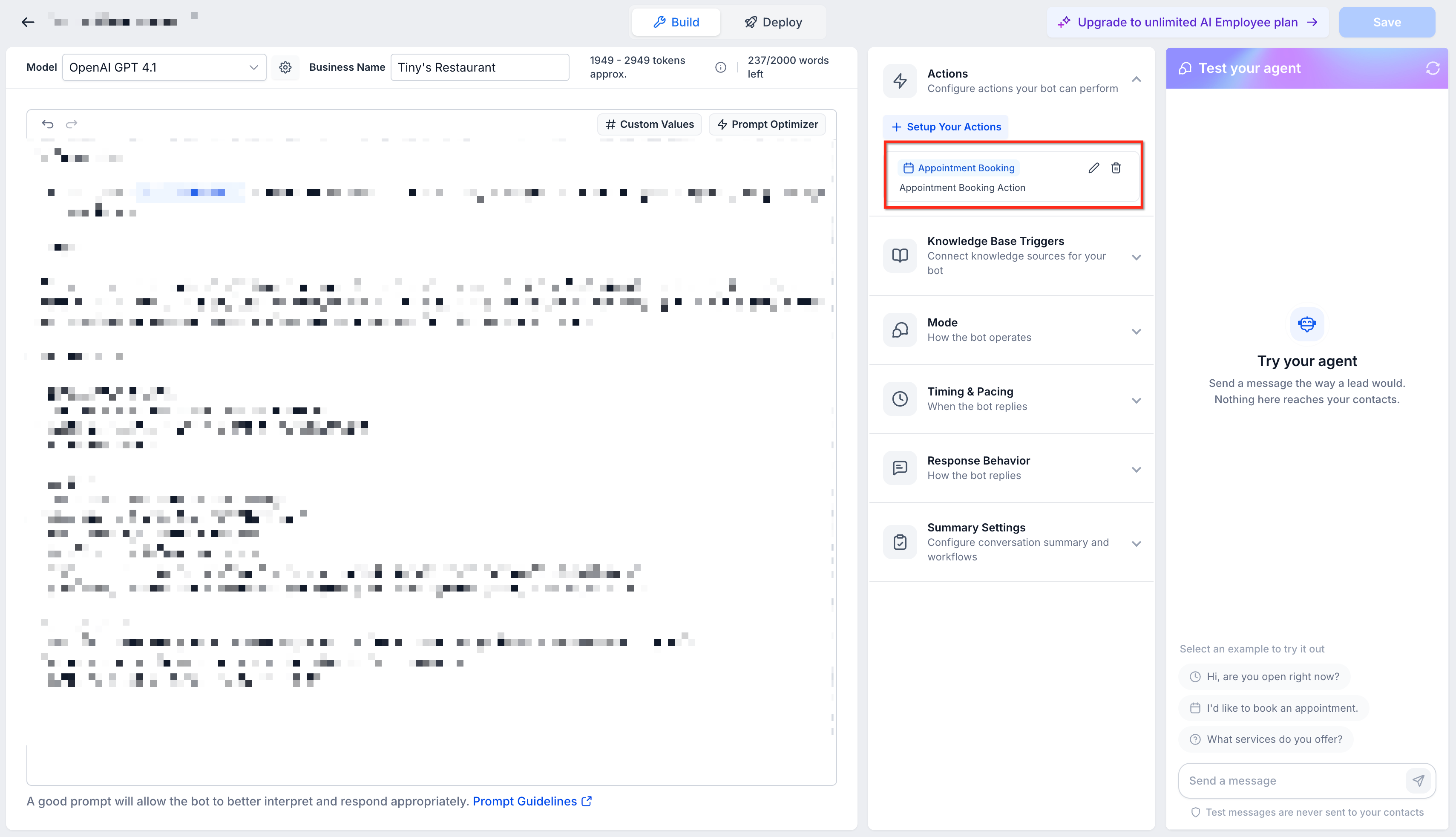
Confirm that the correct calendar is configured for new bookings.
The calendar selected for appointment booking determines where new appointments created by the bot are placed.
4. Enable Cancellation and/or Rescheduling
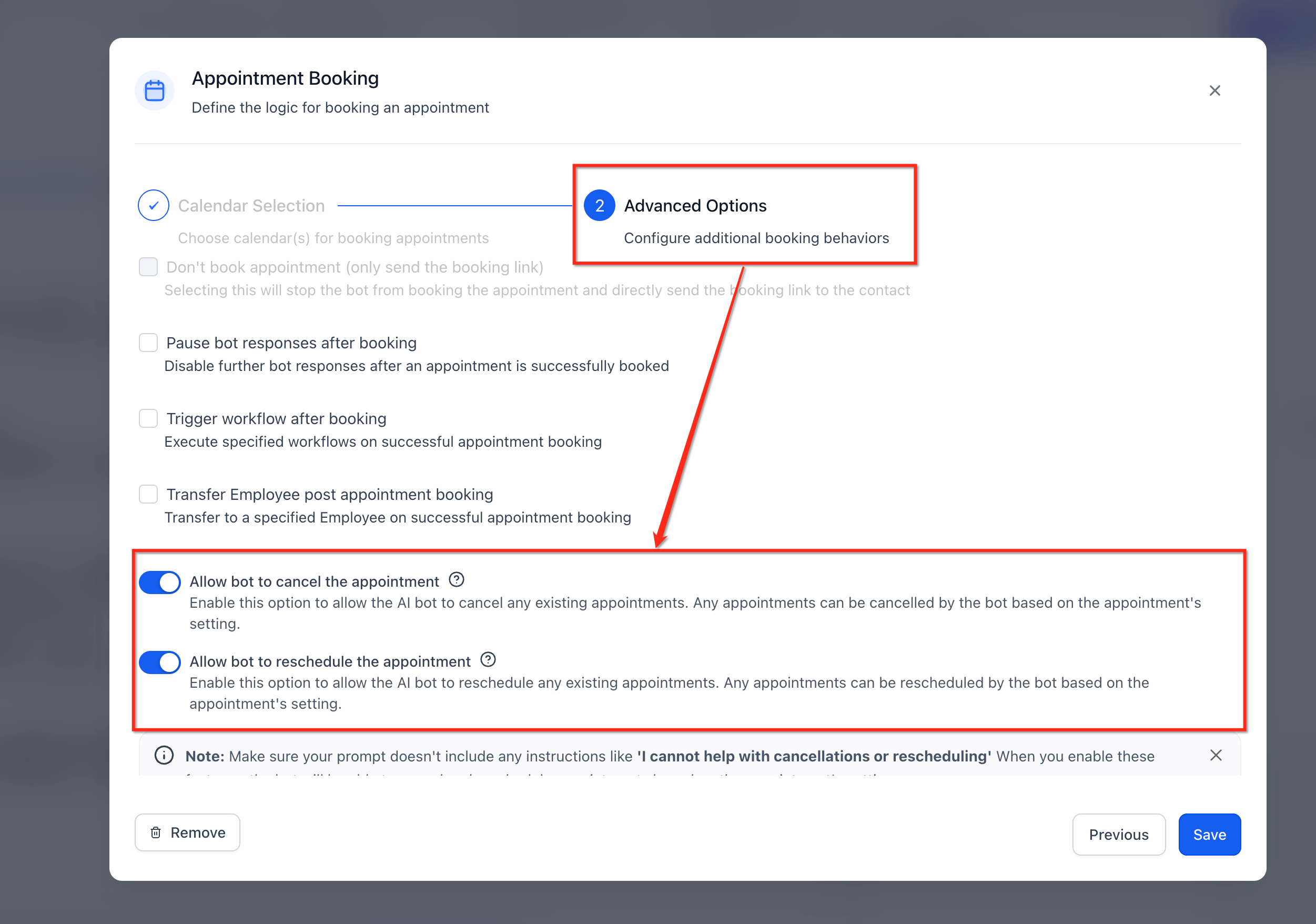
Use the available controls to enable the appointment actions you want the bot to perform.
Turn on Rescheduling if contacts should be able to move existing appointments.
Turn on Cancellation if contacts should be able to cancel existing appointments.
Enable both if the bot should support both types of appointment changes.
5. Test the Experience in Bot Trial
Use Bot Trial before making the updated bot experience available to live contacts. Testing helps verify that the conversation behaves as intended and that the correct appointment actions are offered.
Frequently Asked Questions
Q: Can Conversation AI cancel an appointment from a calendar other than the bot’s booking calendar?
Yes. Existing appointments can be canceled across calendars at the contact level. New bookings, however, are created using the calendar configured for the bot.
Q: Can Conversation AI reschedule an appointment from another calendar?
Yes. Existing appointments can be rescheduled across calendars at the contact level.
Q: Can the bot cancel multiple appointments at once?
Yes. HighLevel documents support for multiple cancellations during a single interaction when a contact has multiple appointments.
Q: Can I enable cancellation without enabling rescheduling?
Yes. Cancellation and rescheduling have separate controls, allowing you to enable the actions independently.
Q: Will a contact automatically receive a message when the bot cancels or reschedules an appointment?
Notification behavior depends on your calendar notification and automation configuration. HighLevel lets you configure notification events for cancellations and reschedules separately.
Q: Can I turn cancellation or rescheduling off after enabling it?
Yes. The individual bot controls can be toggled on or off. However, the existing feature documentation states that activation of the related Labs feature itself is irreversible.
Related Articles
Was this article helpful?
That’s Great!
Thank you for your feedback
Sorry! We couldn't be helpful
Thank you for your feedback
Feedback sent
We appreciate your effort and will try to fix the article