Make it easier for leads and customers to schedule time with your business by letting Conversation AI handle appointment booking automatically. HighLevel can book appointments through Conversation AI across supported channels, collect the contact details you need, and guide the conversation toward the right calendar based on your setup. You can also extend the experience with multiple calendar selection, fallback routing, cancellations, reschedules, and post-booking automation for a smoother customer journey.
TABLE OF CONTENTS
- What is Appointment Booking in Conversation AI?
- Key Benefits of Appointment Booking in Conversation AI
- Before You Begin
- How Appointment Booking Works in Conversation AI
- Single Calendar Booking
- Multiple Calendar Booking
- Prompt and Calendar Setup Best Practices
- How To Setup Appointment Booking in Conversation AI
- Frequently Asked Questions
- Related Articles
What is Appointment Booking in Conversation AI?
Appointment booking in Conversation AI allows a HighLevel bot to talk with contacts, gather the required information, offer available time slots, and book appointments on a selected booking calendar. Depending on how your bot is configured, it can support a single calendar or route requests across multiple calendars using intent-based matching. It can also work alongside broader bot settings, training, and automation so your team can reduce manual scheduling work while keeping the conversation natural and on-brand.
Key Benefits of Appointment Booking in Conversation AI
- Automated scheduling: lets the bot collect contact details, present available times, and complete the booking without manual back-and-forth.
- Smarter routing: helps the bot choose the right calendar when you configure multiple calendars with descriptions, keywords, and optional fallback behavior.
- Better customer experience: supports fast replies across supported channels and reduces delays when contacts want to book, cancel, or reschedule.
- Operational efficiency: allows your team to trigger workflows, pause the bot after booking, or hand off to the right process after an appointment is scheduled.
- More accurate follow-up conversations: recent appointment context can help the bot avoid repeated booking prompts and answer follow-up questions more naturally.
Before You Begin
A successful booking setup depends on having the right calendar and bot foundation in place before you turn on appointment booking. This helps prevent missing slots, poor routing, and incomplete responses when contacts ask follow-up questions.
Before setting up appointment booking in Conversation AI, make sure you have:
- HighLevel booking calendar already configured
- Conversation AI bot created in the sub-account
- Brand voice or Bot training setup that reflects your business accurately
- The channels selected where you want the bot to respond
- A clear plan for whether the bot should book on one calendar or route across multiple calendars
How Appointment Booking Works in Conversation AI
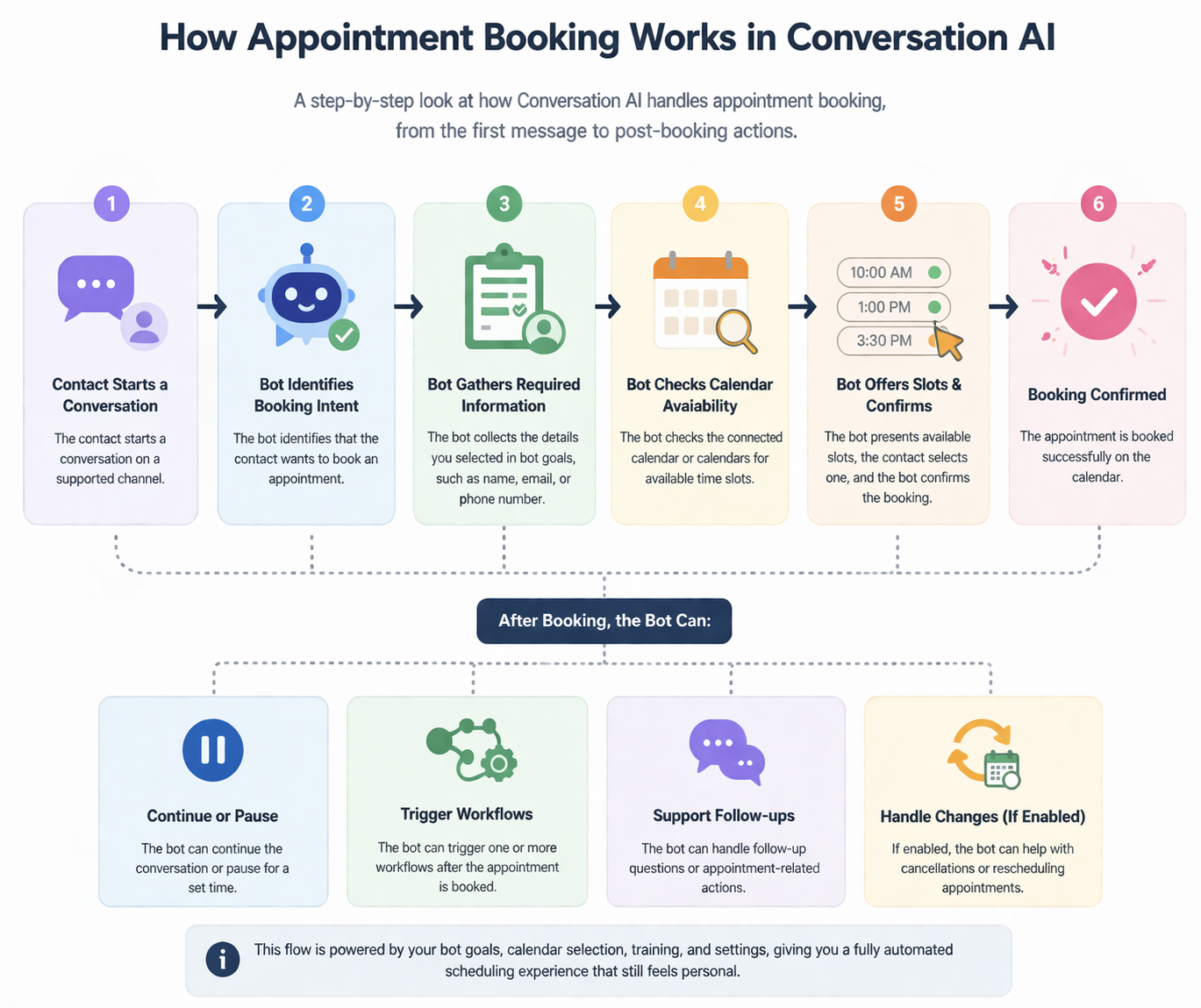
Appointment booking works by combining your bot goals, calendar selection, bot training, and response behavior into one scheduling experience. When a contact asks to book an appointment, the bot can collect required details, check availability from the connected calendar, suggest time slots, and confirm the booking inside the conversation. In more advanced setups, the bot can also support cancellation and rescheduling, depending on the options you enable.
Accurate Date and Time Handling
Conversation AI uses the original message timestamp to interpret dates and times throughout a conversation. This helps the bot schedule appointments accurately, even when a contact replies hours or days later.
Relative Dates: The bot interprets expressions such as "today," "tomorrow," and specific weekdays based on when the contact originally sent the message.
Multilingual Date References: The bot interprets relative dates in other languages, including "kal" and "demain," using the original message context.
Past Time Slots: If a previously offered appointment slot has already passed, the bot informs the contact and offers the next available time.
Appointment Conflicts: The bot prevents new bookings at times when the contact already has an appointment.
Date Calculations: The bot handles invalid dates, past dates, month and year transitions, and daylight-saving time changes.
For example, if a contact asks for an appointment "tomorrow" late at night but confirms the following morning, Conversation AI uses the date of the original request rather than interpreting "tomorrow" again.
These improvements help prevent incorrect bookings during conversations that continue across multiple days.
Single Calendar Booking
Single calendar booking is the best option when all appointment requests should go to one booking calendar. This setup is simpler to manage and works well for businesses with one service type, one scheduling path, or one main appointment destination.
With a single calendar setup, the bot uses the calendar you assign for appointment booking and guides contacts through available time slots for that calendar. This is often the fastest path to launch if you do not need service-based routing.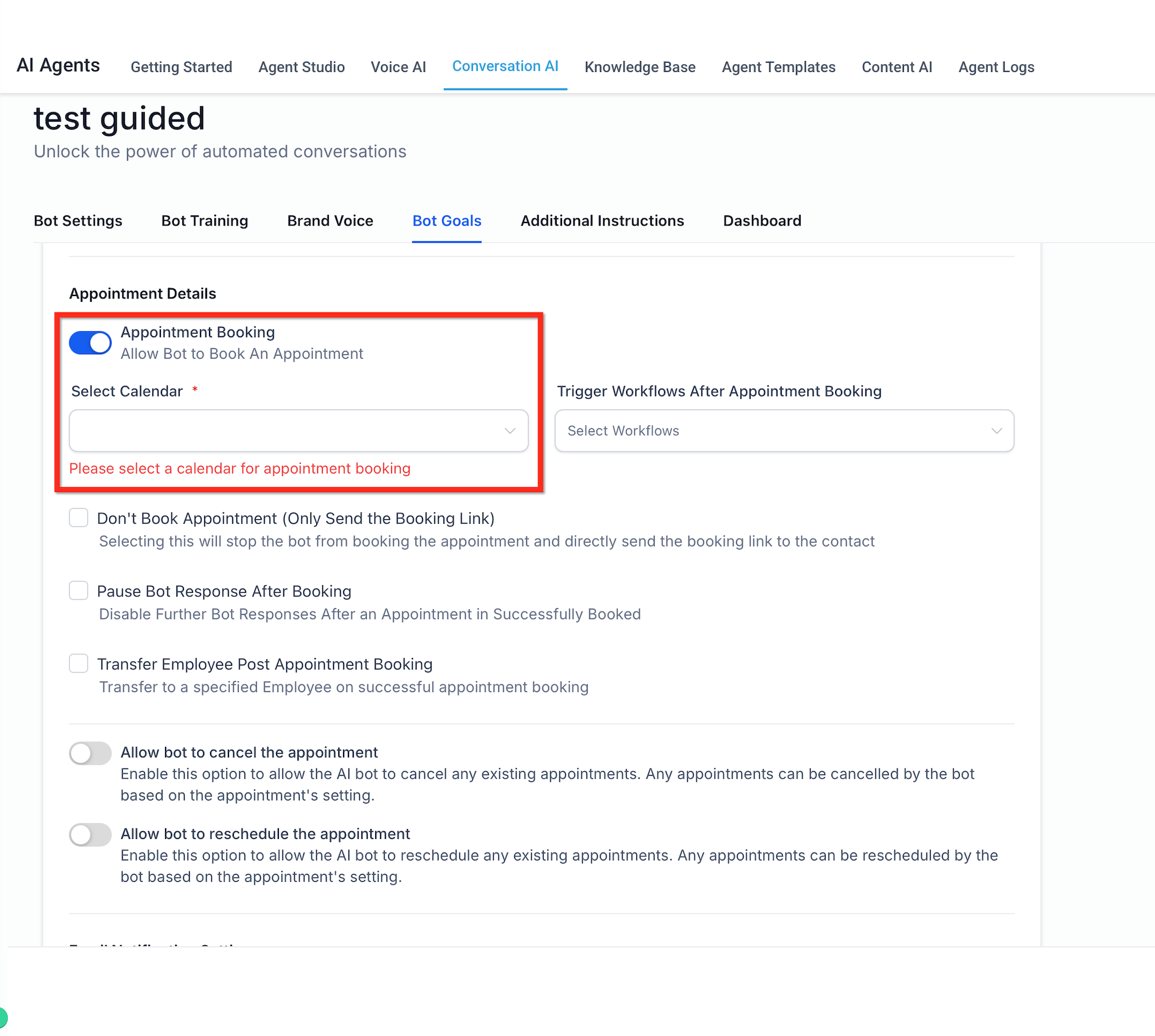
Multiple Calendar Booking
Multiple calendar booking is ideal when your business offers different appointment types, departments, services, or routing needs. HighLevel supports multiple calendar selection for Conversation AI so the bot can identify the best calendar for the request instead of sending every inquiry to a single destination.
To improve routing accuracy, you can configure each calendar with:
- a clear description of what the calendar is for
- additional trigger keywords related to the service or use case
- an optional fallback calendar if the bot cannot confidently match the request to one calendar
This setup helps the bot distinguish between services such as consultations, demos, support calls, or location-specific bookings.
Note: Multiple calendar booking is currently available only for prompt-based Conversation AI bots.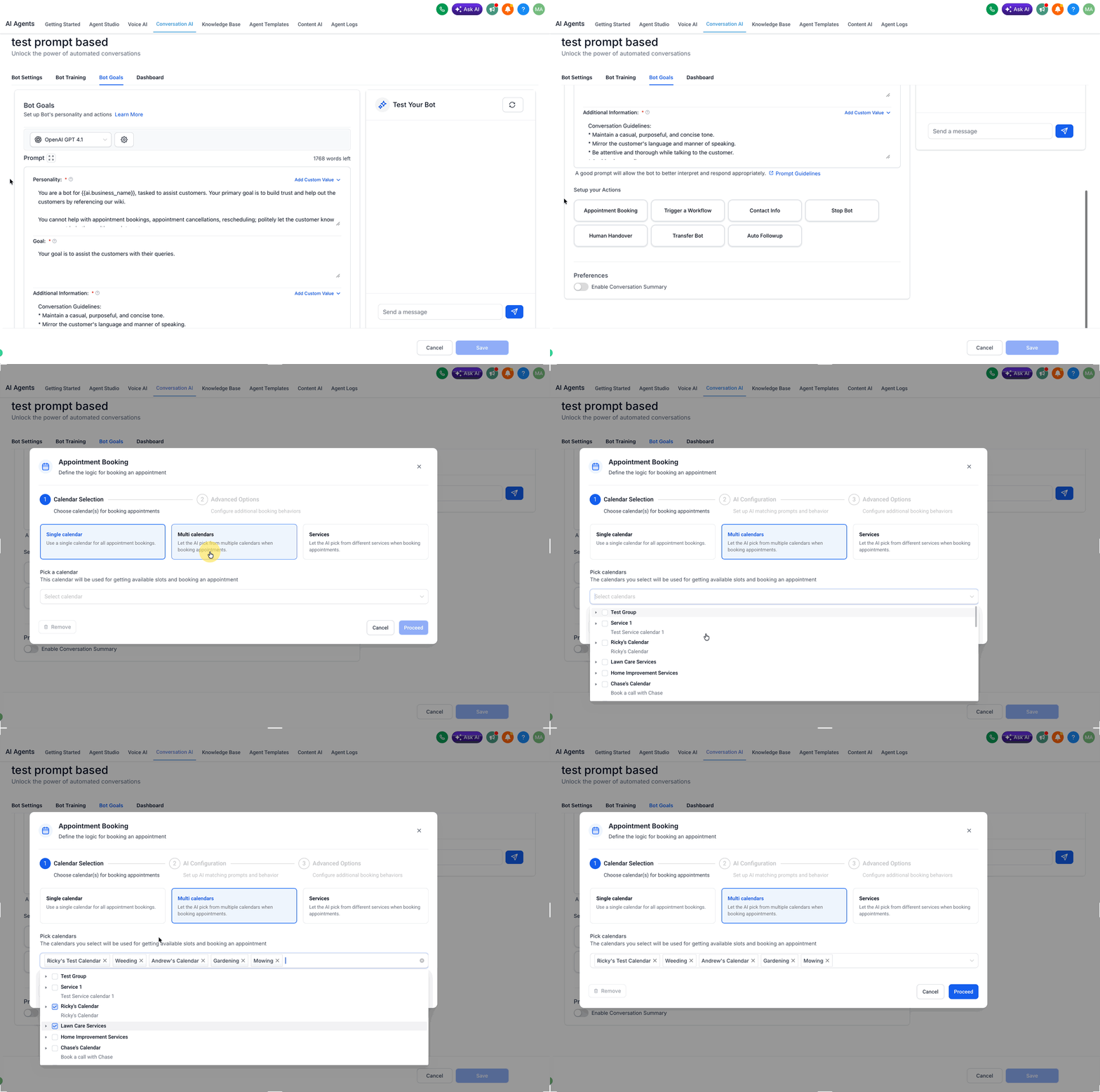
Prompt and Calendar Setup Best Practices
Good booking performance depends on more than selecting a calendar. The bot also needs the right prompt, training, and business context so it can guide the conversation clearly and answer user questions accurately. Calendar details are used for calendar selection, while information you want the bot to discuss with end users should also be included in the main prompt.
Use these best practices when preparing your bot:
- Write clear calendar descriptions so the bot can tell when each calendar should be used.
- Add relevant keywords for common services, appointment types, or request phrases.
- Put customer-facing business details in the bot’s prompt or training, not only in calendar descriptions.
- Keep your initial message and tone aligned with your brand voice.
- Choose the contact fields you really need so the booking process stays efficient.
How To Setup Appointment Booking in Conversation AI
A proper setup ensures the bot can understand booking intent, use the right calendar, and respond in a way that feels helpful instead of repetitive. Following these steps also makes it easier to expand later into multi-calendar routing, cancellations, reschedules, or workflow automation.
- Go to your HighLevel sub-account and open AI Agents > Conversation AI. Create a new bot or open an existing bot you want to use for appointment booking.
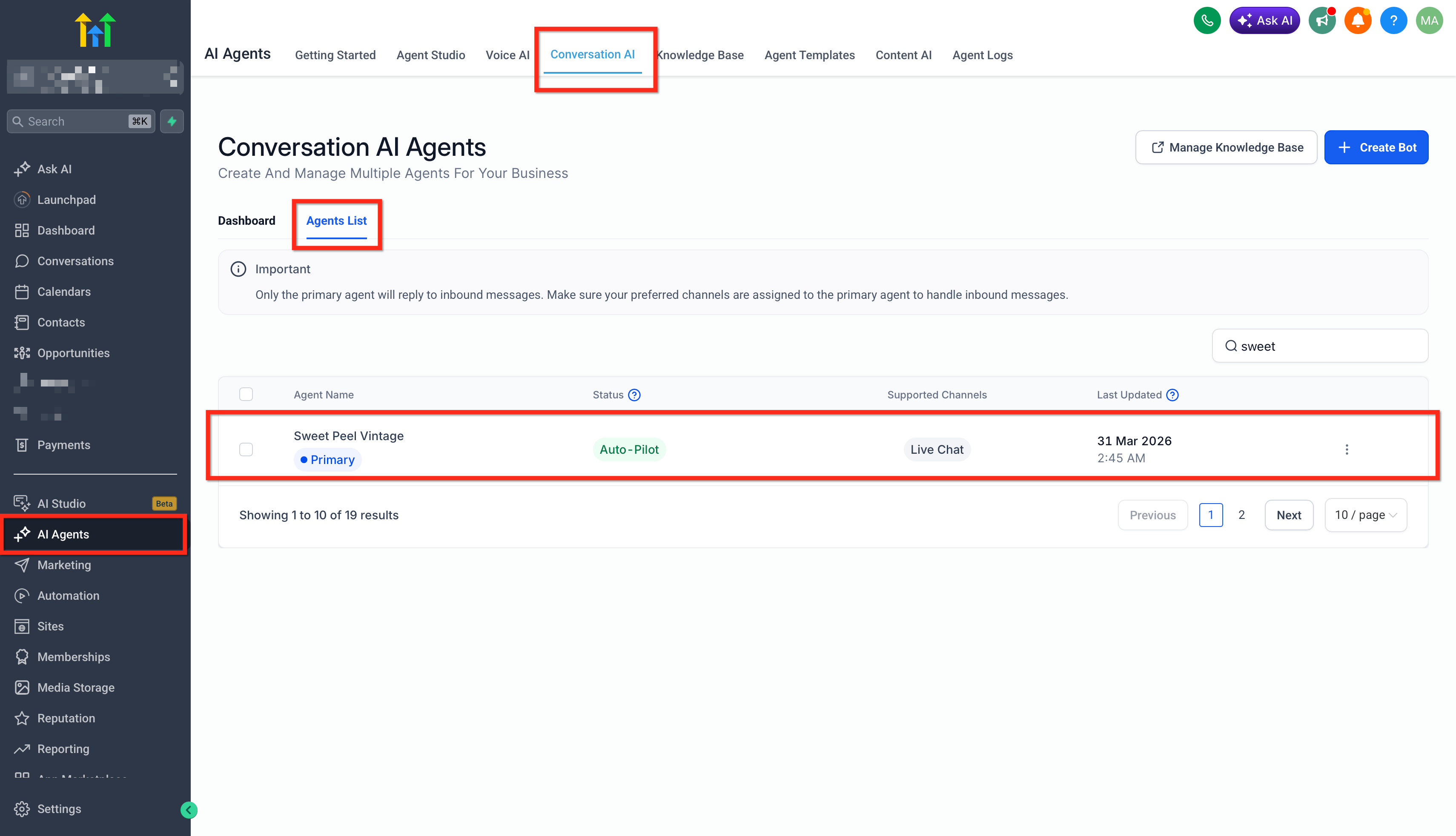
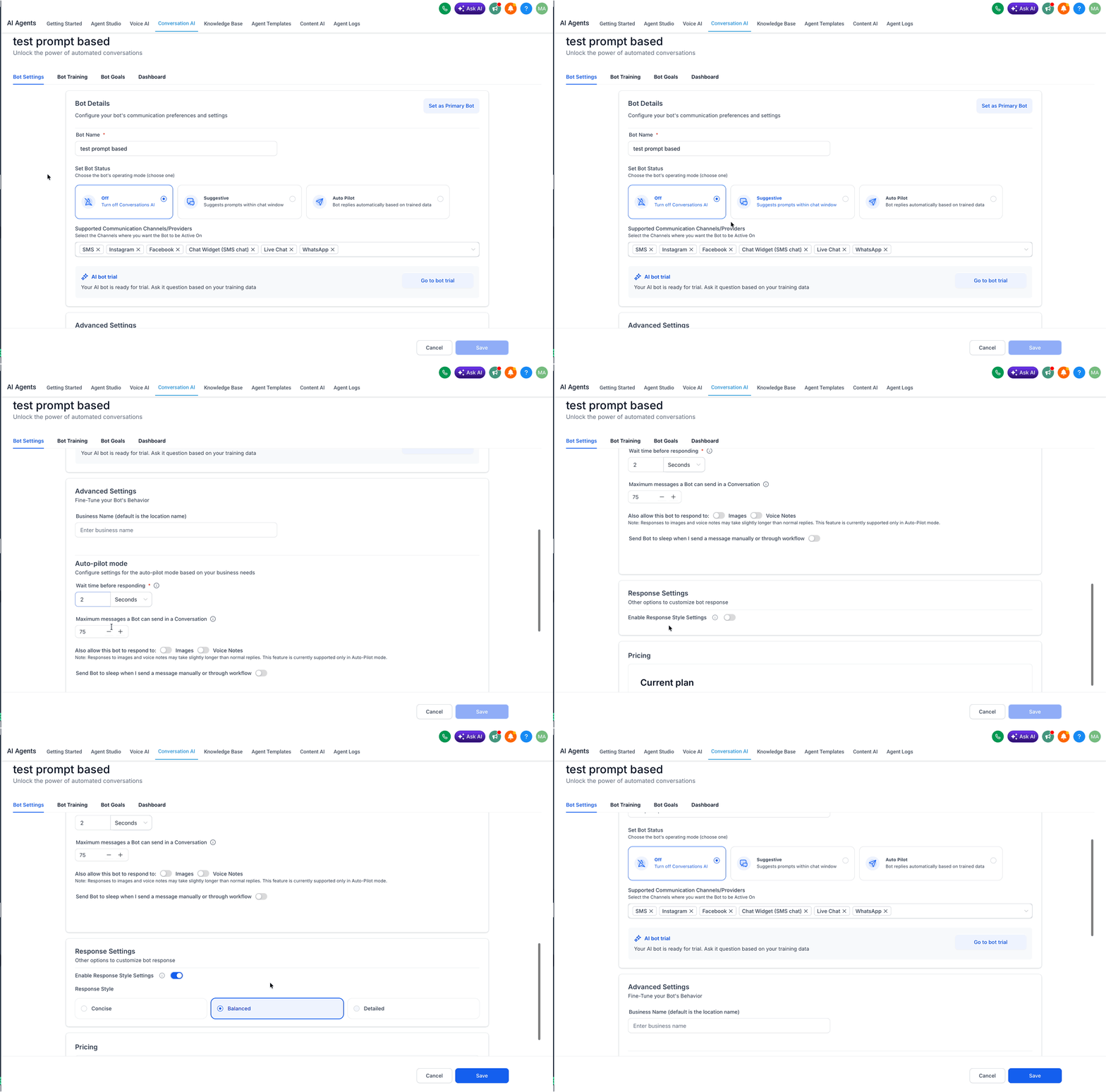
- Configure the bot basics, including the bot name, wait time before responding, and initial message. These settings shape how the appointment conversation begins.
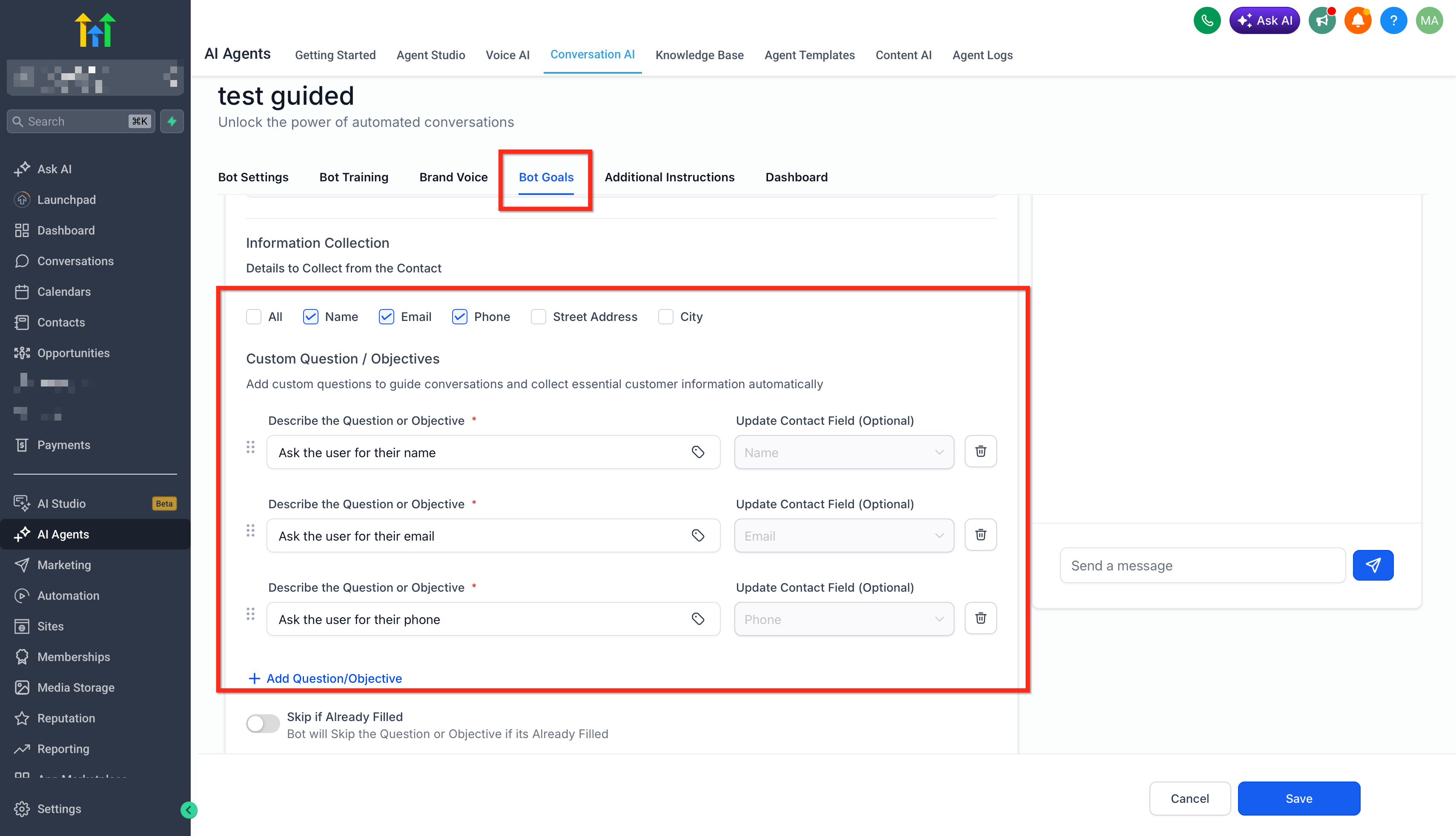
- Open Bot Goals and choose the contact information you want the bot to collect, such as name, email, or phone number.
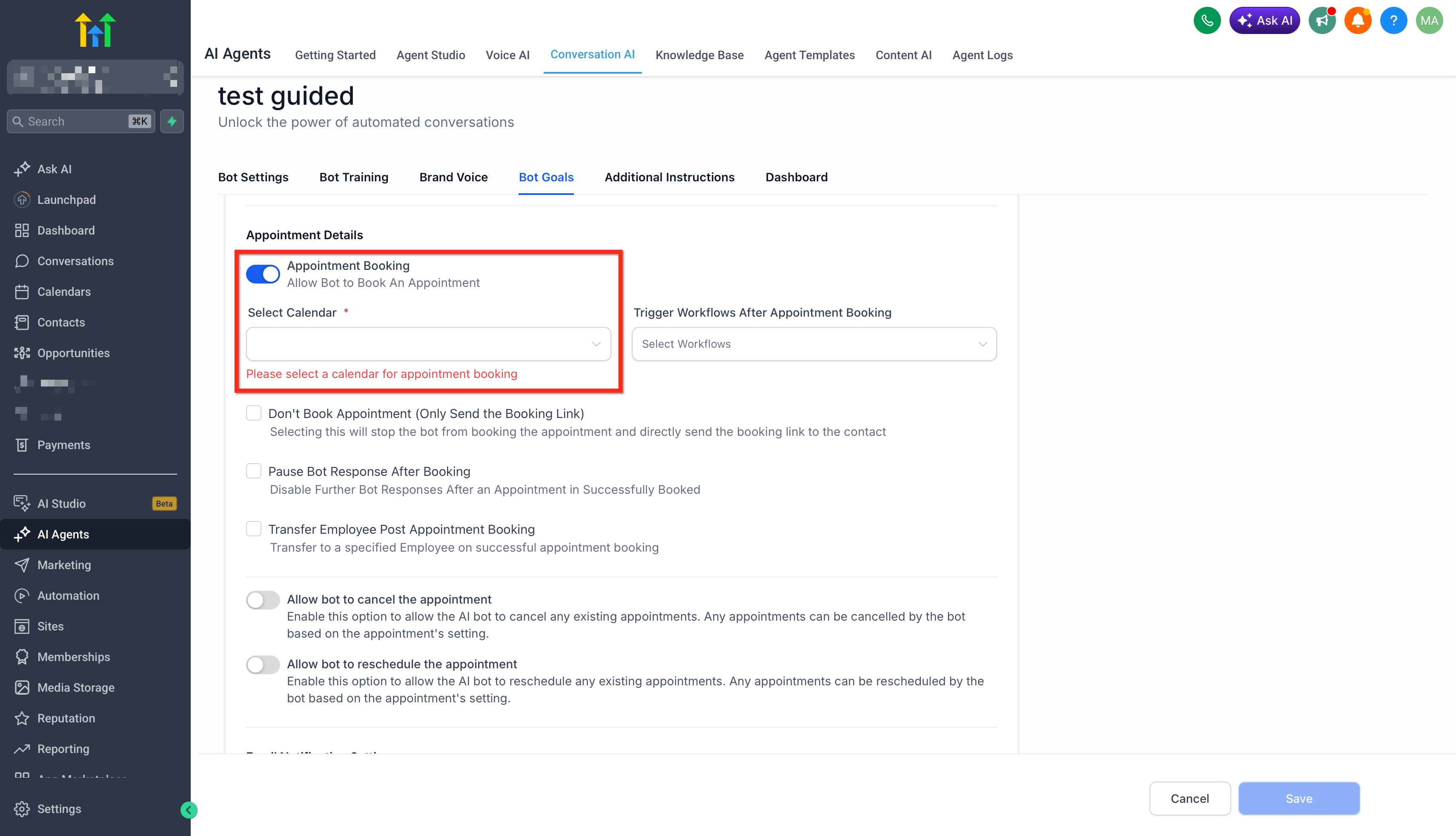
- Enable Appointment Booking and select the booking calendar you want the bot to use. If you only need one scheduling path, choose a Single Calendar. For Guided and Flow Builder bots, Single Calendar is currently the only available option.
- If your business needs service-based routing, select Multiple Calendars and configure each one with a description and any supporting keywords. Add a fallback calendar if you want the bot to route unmatched requests to a default option
Note: Multiple Calendar booking is currently available only for prompt-based Conversation AI bots.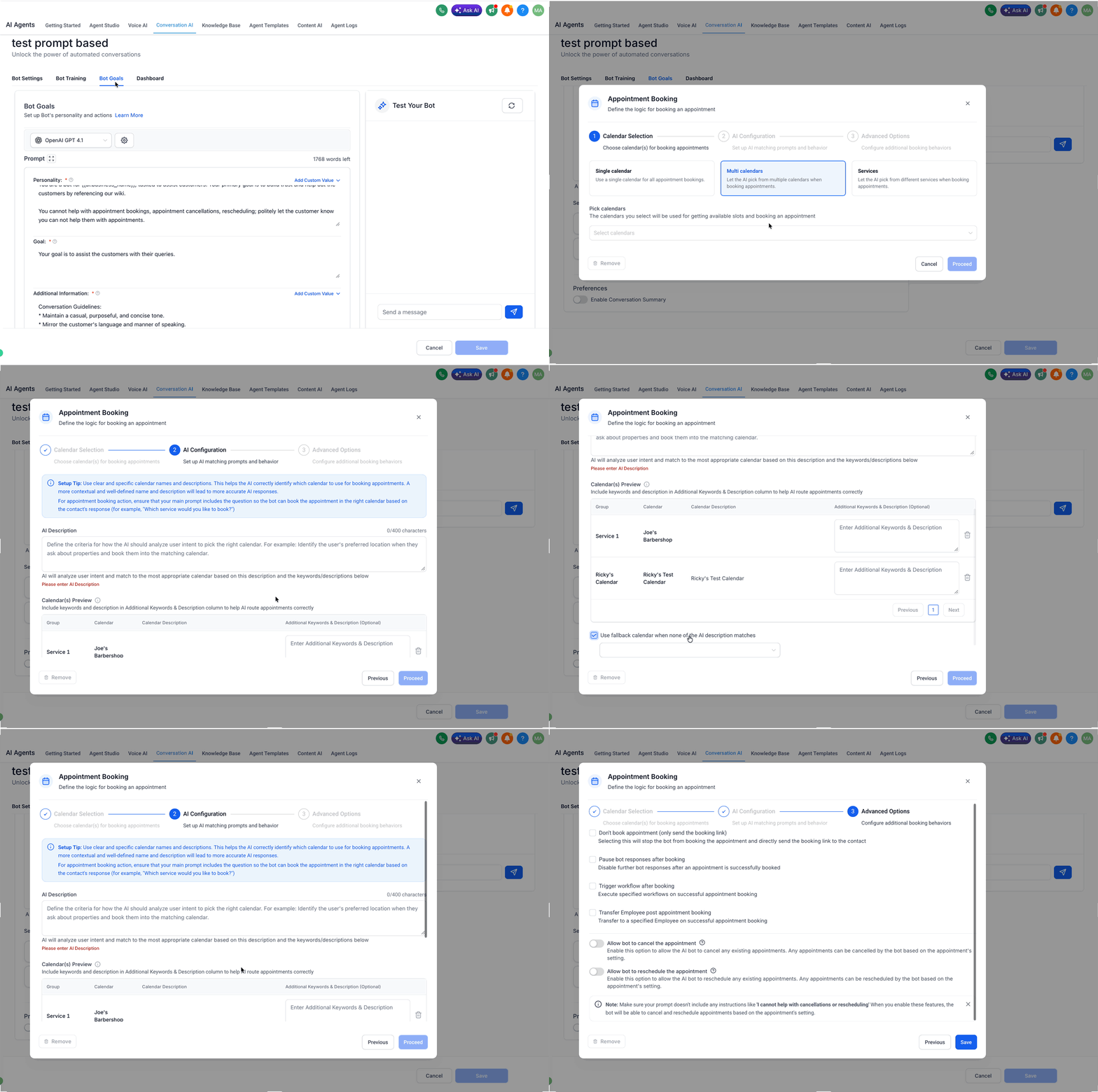
- If you want to use a Services Calendar (v2), select Services option. You can choose the public-facing services the AI should handle, and the bot can book using service details such as staff selection, add-ons, and variations. Keep in mind that private services are not supported, and online payment is not collected by the bot during the booking flow.
Note: Services booking is currently available only for prompt-based Conversation AI bots.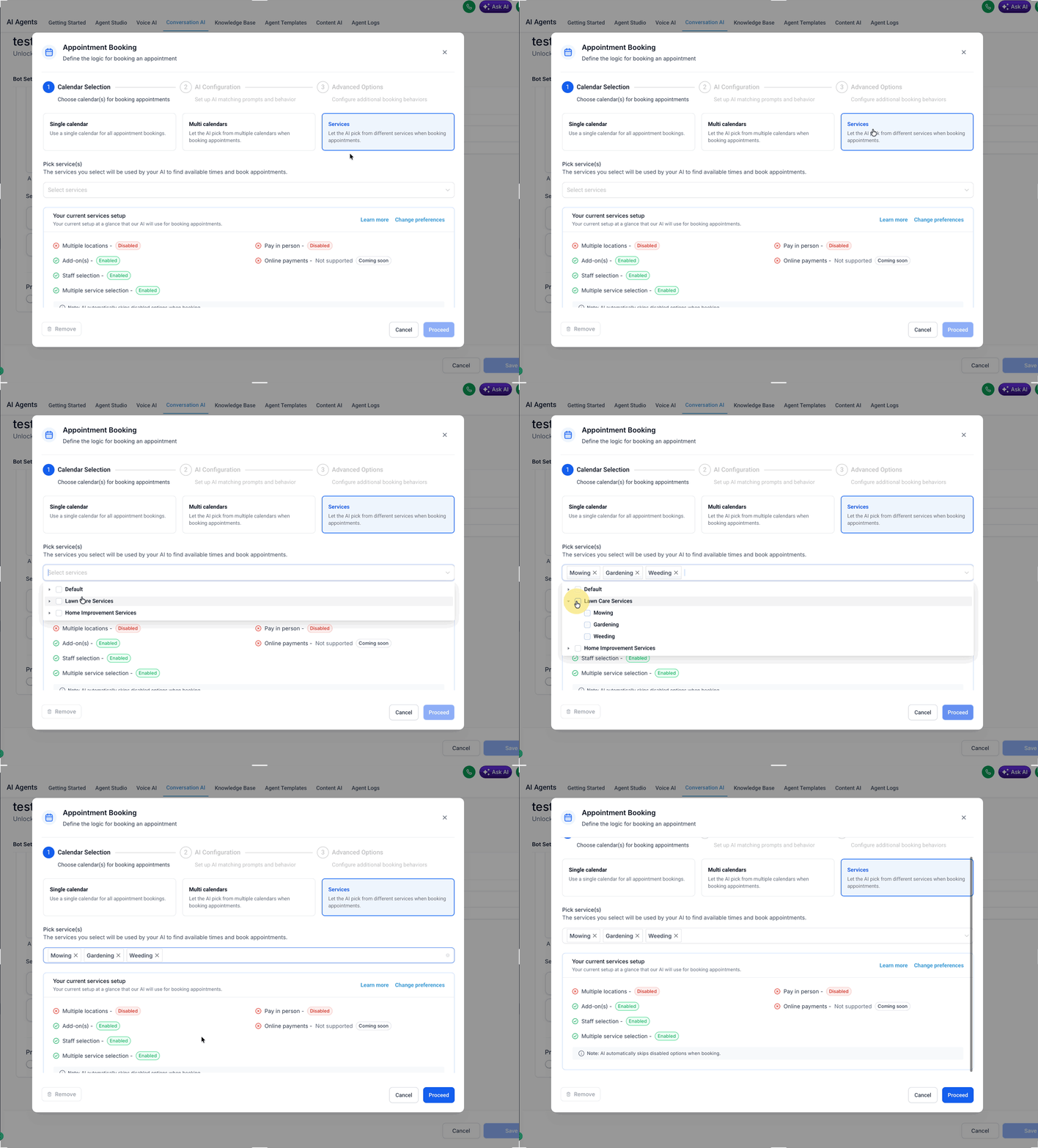
- Add prompt instructions and training content that explain what the bot should say to contacts about your services, availability expectations, and booking flow. Do not rely only on calendar descriptions for customer-facing information.
- Decide whether the bot should also support cancellation and rescheduling. Configure any post-booking behavior you need. This can include sending only the booking link, pausing the bot after an appointment is booked, or triggering one or more workflows after booking.
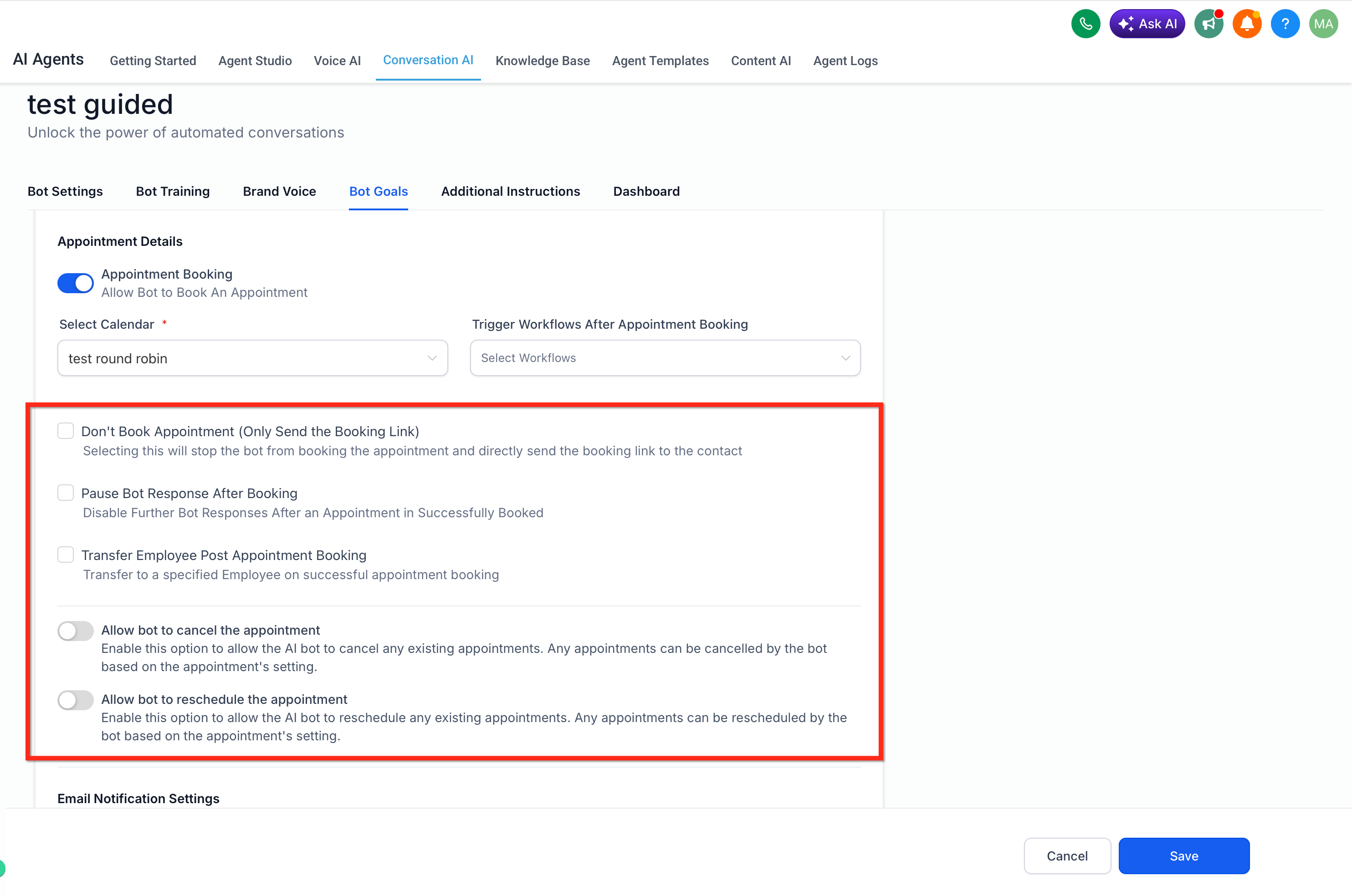
- Save the bot and test the experience carefully. Live testing is especially important for confirming cancellation or reschedule behavior.
Frequently Asked Questions
Q: Should I use one calendar or multiple calendars?
Use one calendar if every appointment request should go to the same booking path. Use multiple calendars when you need the bot to route requests based on service type, department, or intent.
Q: Can the bot cancel or reschedule appointments?
Yes, HighLevel supports cancellation and rescheduling options in Conversation AI-related appointment flows when those settings are enabled.
Q: Do calendar descriptions replace prompt instructions?
No. Calendar descriptions help the bot choose the right calendar, but customer-facing details should also be included in the main prompt or bot training.
Q: Can appointment booking work inside a flow-based bot?
Yes. HighLevel’s Conversation AI Flow Builder includes a Book Appointment AI action and appointment options such as cancel and reschedule.
Related Articles
- Setting Up Conversation AI: Streamline Client Engagement
- Conversation AI: Multiple Calendars Support for Appointment Booking
- Conversation AI Flow Builder
- How to Set Up a Booking Calendar in HighLevel
- Cancellation and Rescheduling of Appointments in Form Based Bots
- Appointment Booking for Voice AI Agents in HighLevel
Was this article helpful?
That’s Great!
Thank you for your feedback
Sorry! We couldn't be helpful
Thank you for your feedback
Feedback sent
We appreciate your effort and will try to fix the article