The Lead Source Report in HighLevel helps you track where leads come from, monitor opportunity statuses, and compare lead values by source. It provides a clear overview of your sales pipeline so you can identify which channels generate the most opportunities.
TABLE OF CONTENTS
- What Is the Lead Source Report?
- Key Benefits of the Lead Source Report
- Understanding the Lead Source Report
- Filtering and Date Settings
- How to Set Up the Lead Source Report
- Viewing Opportunities and Missing Sources
- Frequently Asked Questions
- Related Articles
What Is the Lead Source Report?
The Lead Source Report is a dashboard widget that groups opportunities by their recorded source. It displays lead counts, opportunity statuses, and monetary values to help you evaluate lead generation performance.
Key Benefits of the Lead Source Report
The report makes it easier to understand lead performance and identify opportunities requiring attention.
Lead Source Tracking: See which channels generate opportunities.
Status Monitoring: Track Open, Won, Lost, and Abandoned opportunities.
Value Insights: Compare opportunity values across sources.
Flexible Filtering: Filter by pipeline, users, sources, and attribution.
Opportunity Details: Click counts to review individual opportunities.
Understanding the Lead Source Report
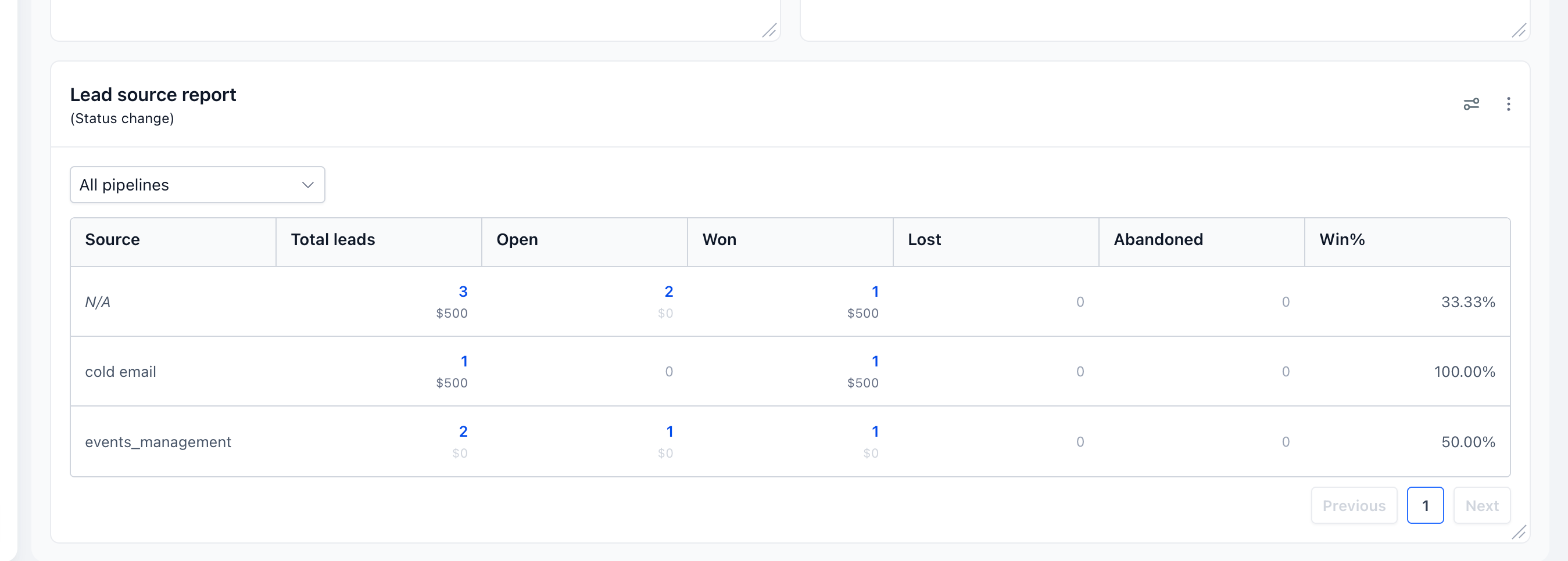
Each source appears in a separate row, with opportunities grouped by status.
| Column | Description |
|---|---|
| Source | Recorded opportunity source. |
| Total Leads | Total opportunities from that source. |
| Open | Opportunities still in progress. |
| Won | Opportunities marked as won. |
| Lost | Opportunities marked as lost. |
| Abandoned | Opportunities marked as abandoned. |
Note: The report counts opportunities, not unique contacts. Monetary values require the appropriate permissions.
Filtering and Date Settings
Filters help you narrow results to specific opportunities, while date settings control which reporting period is used.
Available filters include:
Pipeline and Assigned User
Source and Attribution
Tags and Followers
Lead Value and Custom Fields
Source filters: Use Is, Is not, Is empty, or Is not empty to include or exclude sources.
Date properties:
Created Date: When the opportunity was created.
Status Change Date: When its recorded status last changed.
How to Set Up the Lead Source Report
Proper configuration ensures the report displays the relevant opportunities and reporting period.
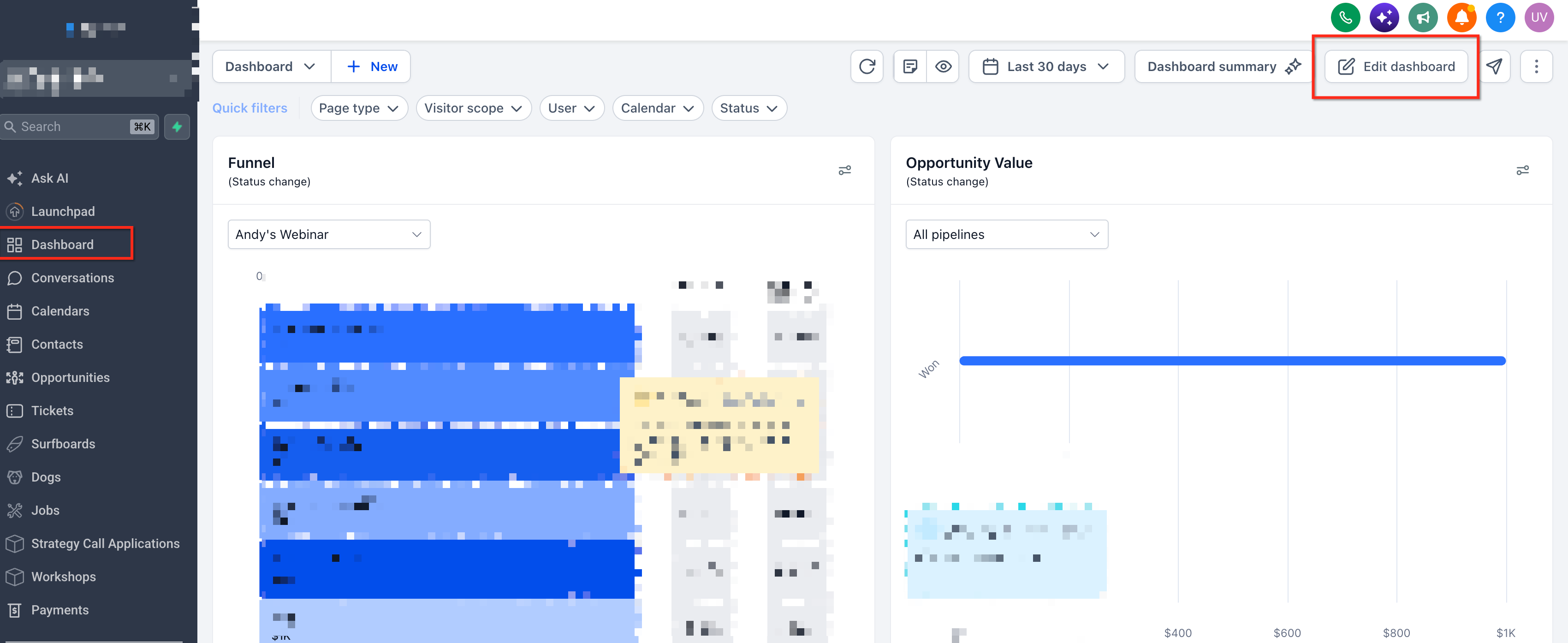
Navigate to Dashboard in your HighLevel sub-account.
Click Edit dashboard, then Add widget.
Search for Lead Source Report in the Widget Gallery.
Select the widget and choose your pipeline.
Configure filters under Conditions.
Adjust date settings as needed.
Click Save.
Viewing Opportunities and Missing Sources
The report allows you to inspect individual opportunities and identify records without source information.
View opportunities: Click an opportunity count to open the corresponding records.
Find missing sources: Locate the N/A row or apply Source → Is empty.
Exclude missing sources: Apply Source → Is not empty.
Frequently Asked Questions
Q: Why are some opportunities missing?
Check the selected pipeline, date range, and filters. Opportunities without a source may appear under N/A.
Q: Why can't I see opportunity values?
Your account may not have the required permission to view lead values.
Q: Can one contact appear multiple times?
Yes. Each opportunity is counted separately, even when several belong to the same contact.
Q: Does the report use UTM parameters as the Source?
No. The report groups opportunities by Opportunity Source. UTM parameters can be used as additional attribution filters.
Q: Can I filter the report by salesperson?
Yes. Use the Assigned User condition to display opportunities associated with specific users.
Related Articles
Was this article helpful?
That’s Great!
Thank you for your feedback
Sorry! We couldn't be helpful
Thank you for your feedback
Feedback sent
We appreciate your effort and will try to fix the article