Use Affiliate Manager workflows to automate what happens when an affiliate generates a lead. The Lead Created trigger can start a workflow for affiliate-attributed leads, while the Add Leads under an Affiliate action can assign contacts to an affiliate and campaign.
Trigger: Lead Created
What it does
The Lead Created trigger starts a workflow when a new affiliate-attributed lead is created.
You can apply it across all campaigns or filter to trigger for a specific campaign only.
How to Use It
- From the Sub-Account view, go to Automation → Workflows, then click + Create Workflow
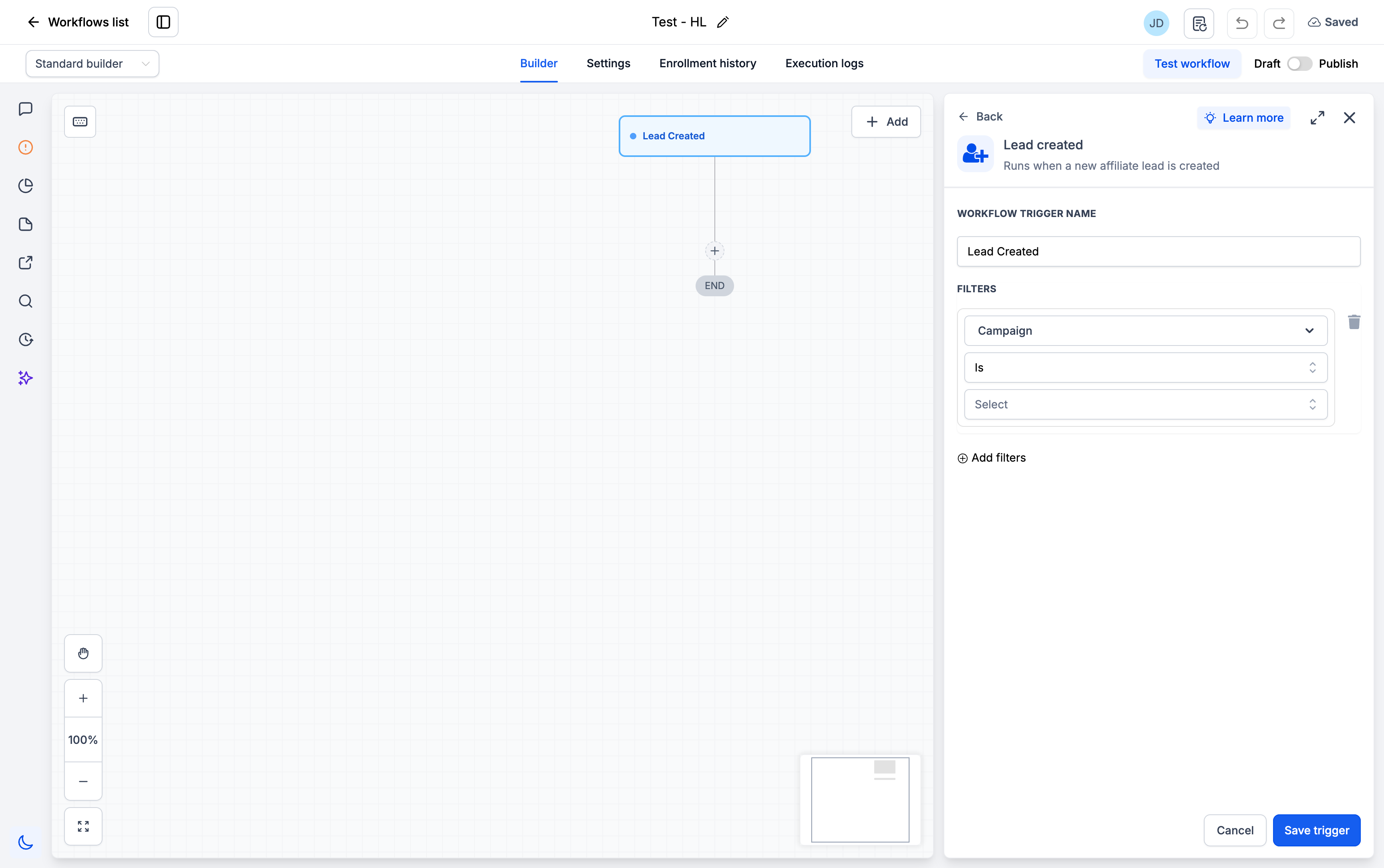
- Set the Trigger as Lead Created
- To target a specific campaign, click Add filters → Campaign → Is select the campaign, then click Save Trigger. Leave the campaign filter blank to apply the trigger across all campaigns.
- Add actions like:
- Send email to affiliate
- Notify internal team
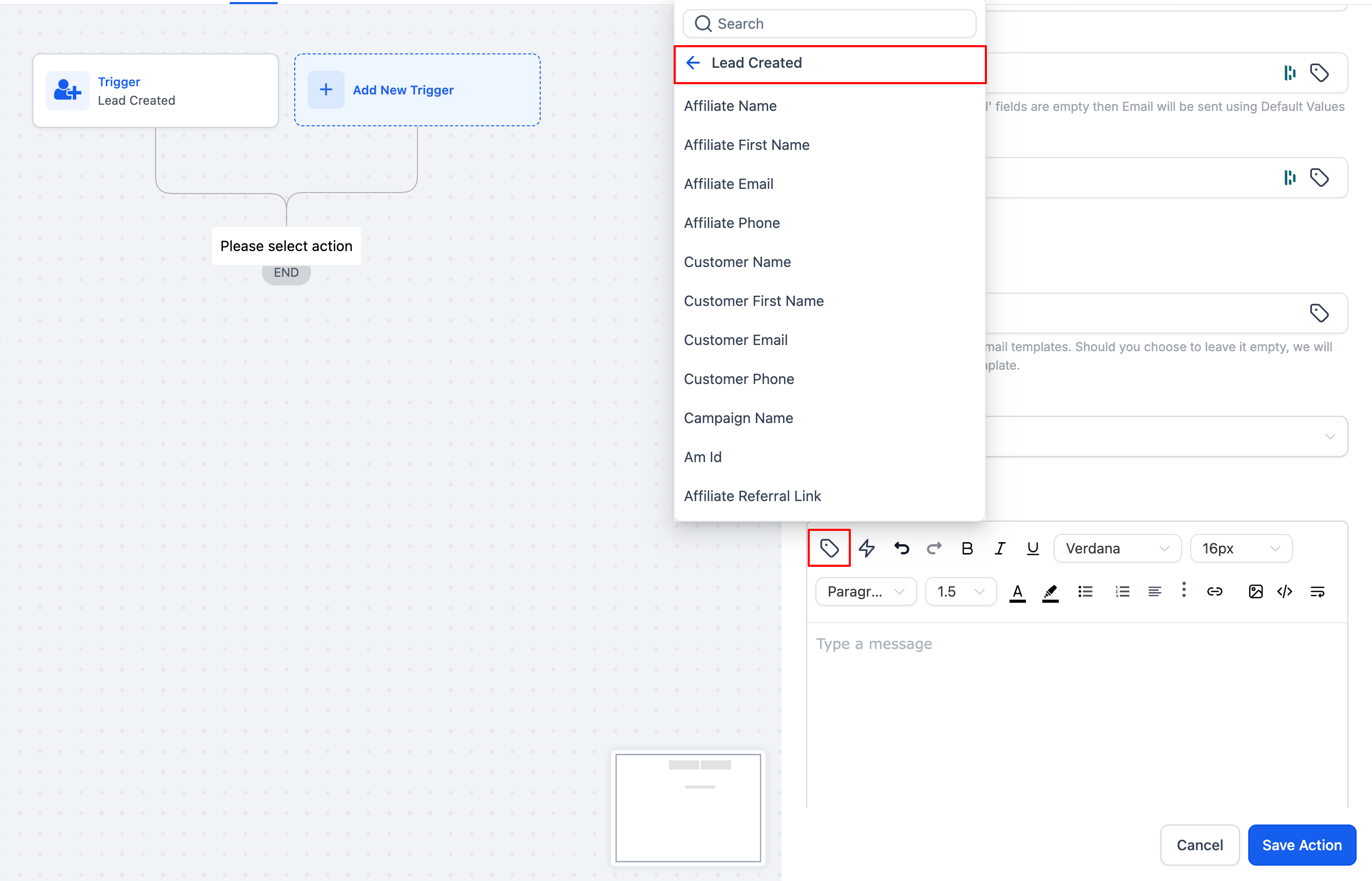
- Use custom values from the Lead Created section in emails/messages
- Save and publish your workflow
Use Cases
- Send a “Congrats!” email to affiliates when they generate a lead
- Alert your sales or support team about new affiliate leads
- Automatically track and tag affiliate leads for nurturing
Action: Add Leads under an Affiliate
What it does
The "Add Leads under an Affiliate" action assigns a contact (lead) to an affiliate and their associated campaign, making sure affiliates are correctly credited.
You can now choose from three assignment methods for total flexibility.
How to Use It
In your workflow, add the action:
Add Leads under an AffiliateChoose your assignment method:
Manual
Auto (Attribution)
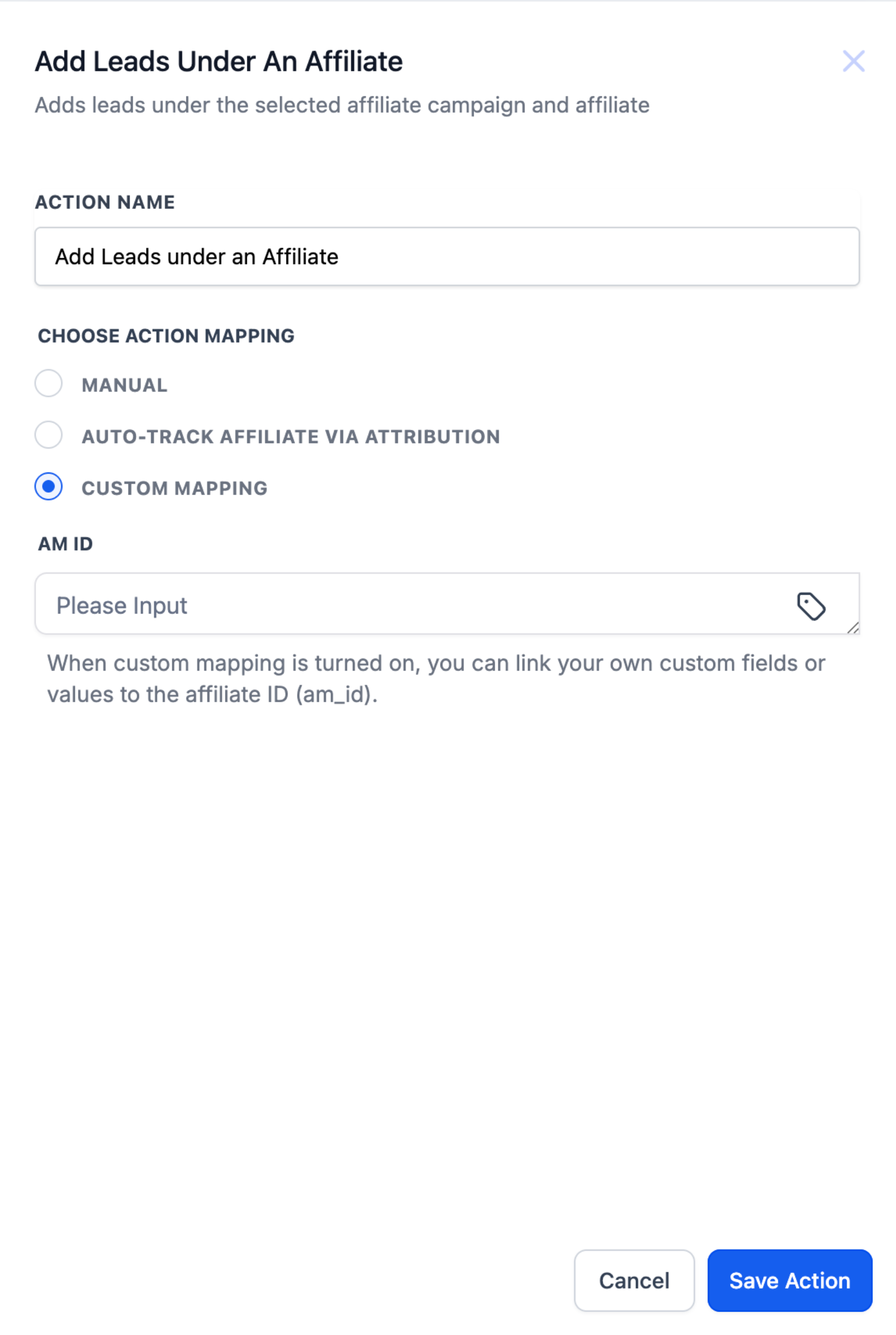
Custom Mapping
Configure additional fields based on the method
Save and publish the workflow
Assignment Methods
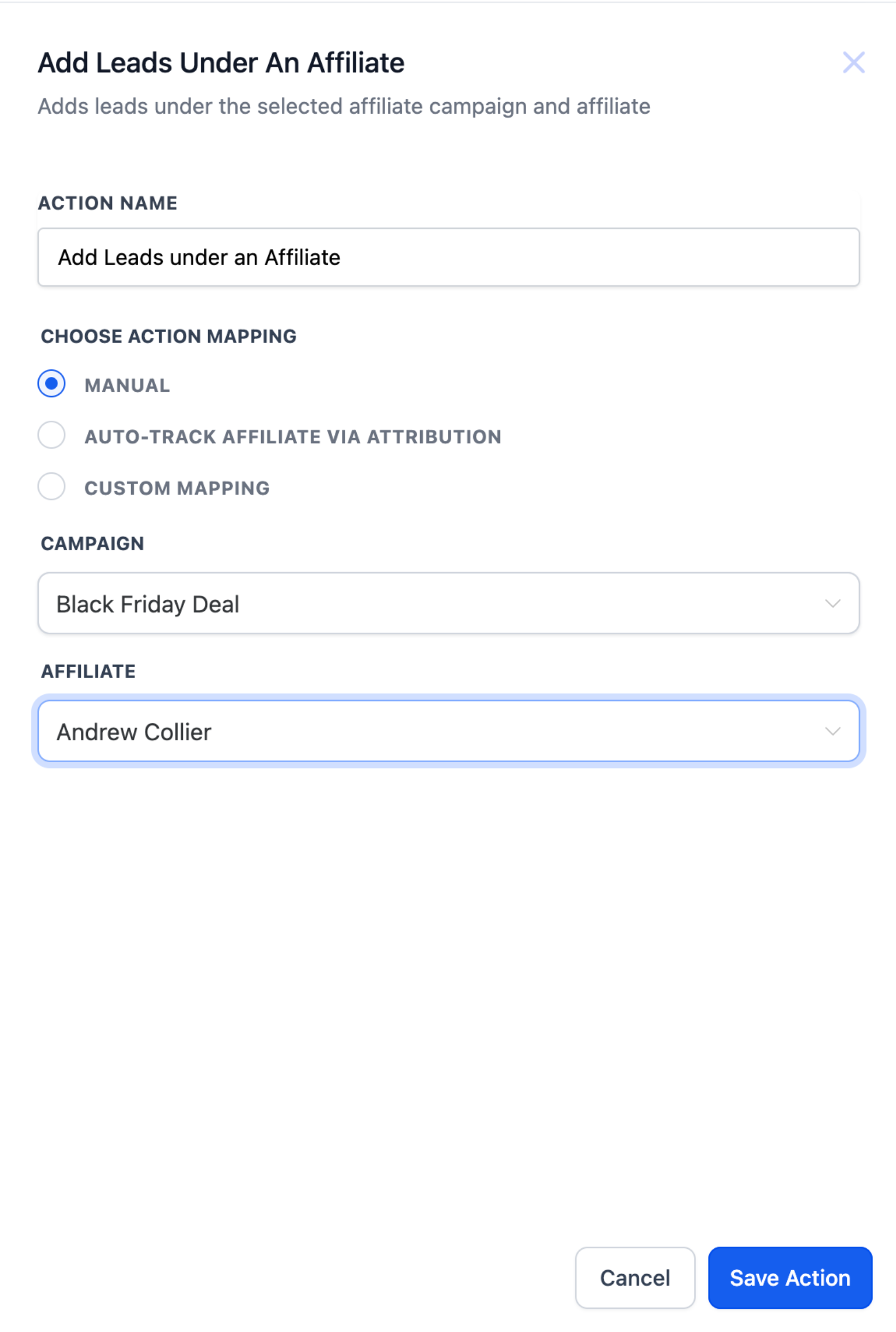
1. Manual : Manually assign a lead to a known affiliate in a specific campaign.
Best for: Form submissions, internal routing, admin decisions.
Steps:
- Select campaign
- Select affiliate (from affiliates in that campaign)
2. Auto (Attribution via URL) : Automatically assign leads using am_id passed in the URL parameters.
Supports first or last click attribution.
Steps:
- Choose Attribution Method: First / Last
- Make sure
am_idis passed earlier in the funnel (e.g., form/page URL)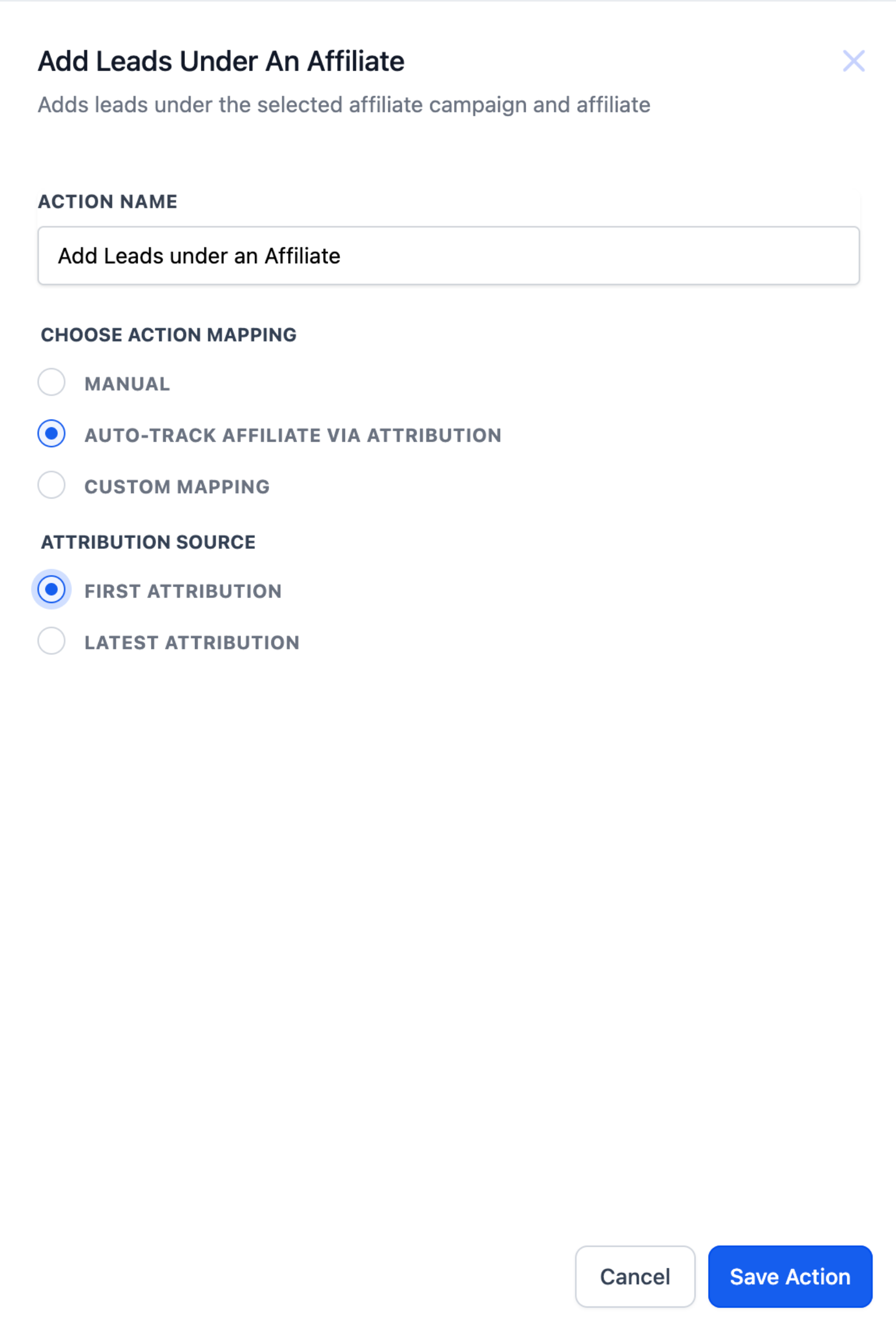
3. Custom Mapping : Use if am_id is stored in a custom field or passed as a workflow value.
Best for: API pushes, third-party systems, hidden fields on forms.
Steps:
- Choose mapping source: custom field or workflow value
- System reads value and assigns the lead to the matching affiliate
Use Cases
- Reward Lead Generation
Example: A lead fills a form → system assigns them to the affiliate who shared the link → sends a “Congrats!” email. - Custom Lead Nurturing
Example: Leads from a funnel are assigned to specific affiliates for 1-on-1 follow-up — boosting conversion rates. - Simplify Administrative Tasks
Example: Replace manual lead assignments with automation — perfect for busy teams managing many affiliates.
Was this article helpful?
That’s Great!
Thank you for your feedback
Sorry! We couldn't be helpful
Thank you for your feedback
Feedback sent
We appreciate your effort and will try to fix the article