General Widgets on the sub-account dashboard are fully editable, giving you more control over the data and presentation of your default dashboard. You can add permanent Conditions, set widget-specific date ranges, compare reporting periods, rename widgets, apply themes, and duplicate or delete widgets. These options help teams create focused reporting views without rebuilding pre-built widgets as custom widgets. This guide explains how to configure General Widgets and use the new editing options.
TABLE OF CONTENTS
- What are Editable General Widgets?
- Key Benefits of Editable General Widgets
- Prerequisites and Limitations
- How To Edit and Configure General Widgets
- Configure the Widget Title and Reporting Period
- Add Permanent Data Filters With Conditions
- Apply a Theme to a General Widget
- Duplicate or Delete a General Widget
- Frequently Asked Questions
What are Editable General Widgets?
General Widgets are pre-built dashboard widgets provided in sub-accounts to help users monitor common business metrics without creating widgets from scratch. These widgets can now be edited so each dashboard can show data that better matches a team's reporting needs.
You can change a General Widget's title, reporting dates, comparison period, saved Conditions, and visual theme. General Widgets can also be duplicated to create reporting variations or deleted when they are no longer needed.
The widget face also displays its active date property and date range, helping viewers understand the reporting basis behind the displayed values.
Key Benefits of Editable General Widgets
Editable General Widgets make the default dashboard more flexible while preserving the convenience of pre-built reporting components.
- Permanent data filtering: Add Conditions based on supported fields such as assigned user, tags, source, lead value, custom fields, and attribution.
- Widget-specific reporting periods: Override the dashboard-level date range for an individual widget.
- Period comparisons: Compare the current reporting period with Last year or Last period.
- Clear date context: View the active date property and date range directly on the widget.
- Custom titles: Rename widgets using team-specific or client-friendly language.
- Visual customization: Apply themes to General Widgets without rebuilding them.
- Faster reporting variations: Duplicate configured widgets and apply different Conditions or date settings.
- Cleaner dashboards: Delete General Widgets that are no longer required.
How To Edit and Configure General Widgets
Editing a General Widget opens its configuration panel, where you can change reporting settings, apply Conditions, and select a theme.
From the Sub-Account view, select Dashboard in the left navigation.
Click Edit dashboard in the top-right corner.
Locate the General Widget you want to customize.
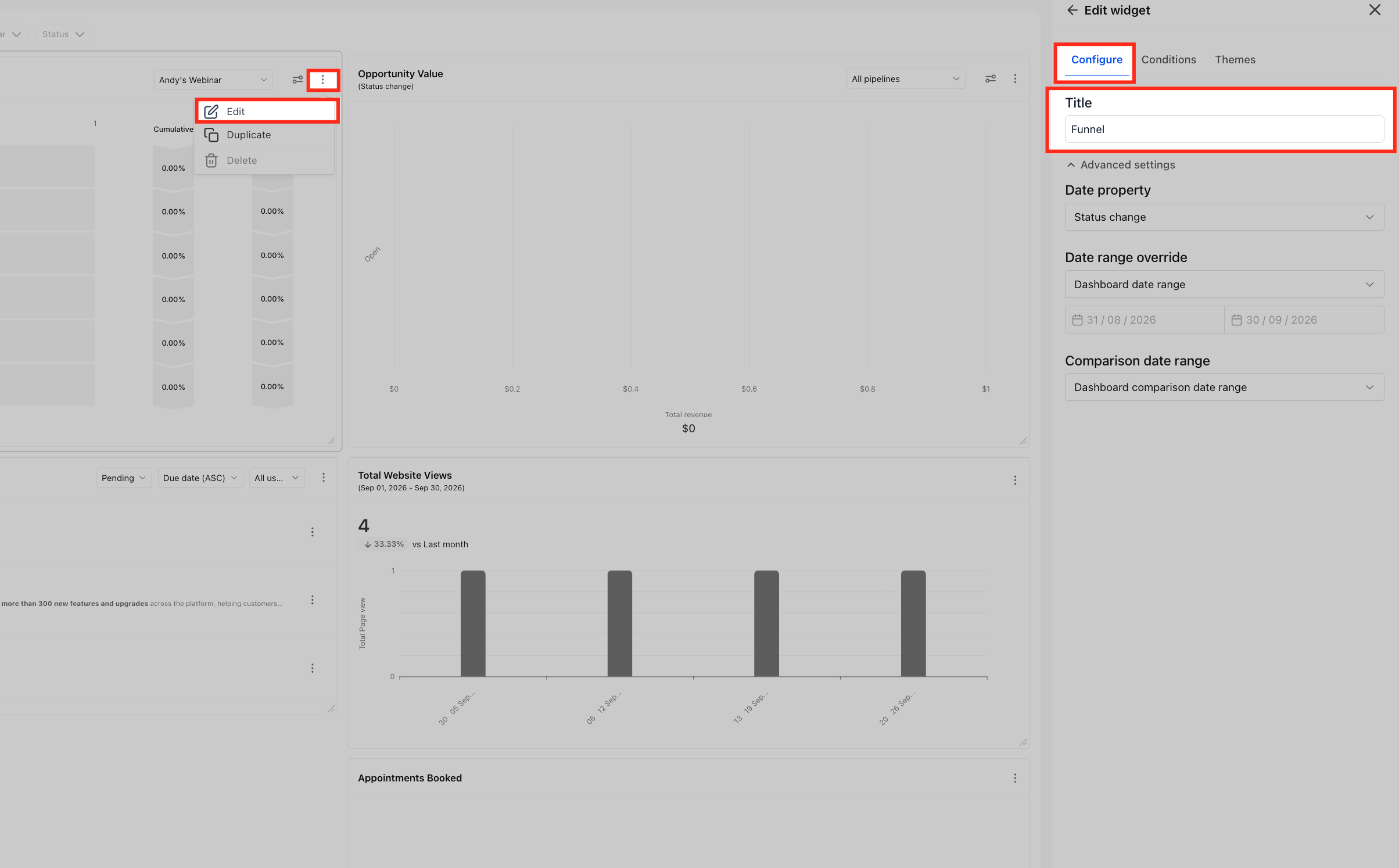
Hover over the widget and click the three-dot menu (⋮).
Select Edit.
The Edit widget panel opens with Configure, Conditions, and Themes tabs.
Make the required changes.
Click Save.
Configure the Widget Title and Reporting Period
The Configure tab controls the widget's title and date settings. These options help viewers identify what the widget measures and which reporting period is used to calculate its values.
Edit the Widget Title
Open the Edit tab.
Locate the Title field.
Enter the title you want to display on the widget.
You can rename a General Widget using terminology that is clearer for your team or client.
Configure Advanced Settings
From the Configure tab, expand Advanced settings.
Use Date property to select the date field used when calculating widget data.
Use Date range override to assign a reporting period specifically to the widget.
Use Comparison date range to compare the selected period with a supported comparison period.
Click Save.
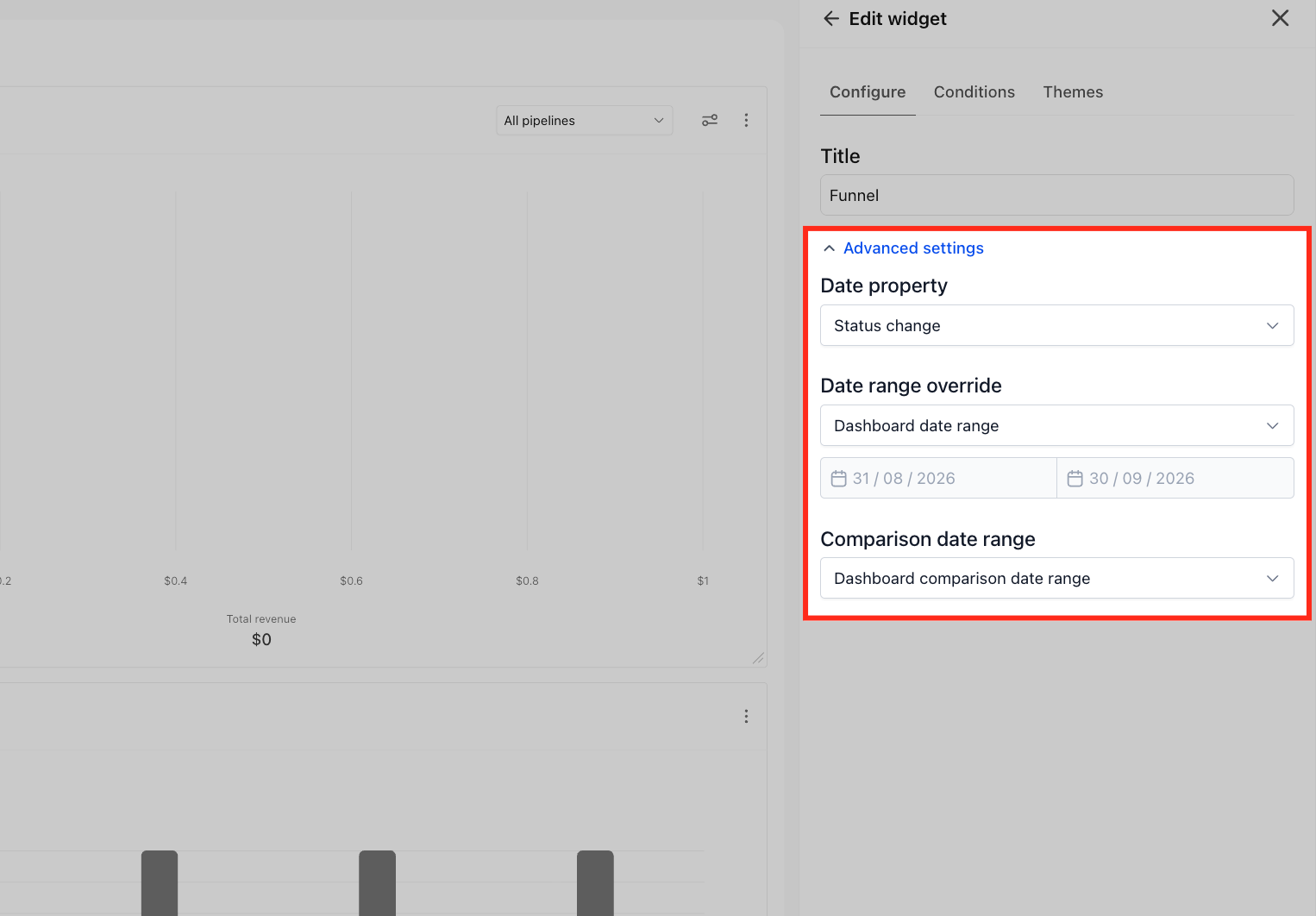
Supported comparison examples include Last year and Last period.
A widget-level date range override works independently from the dashboard-level date range. This allows two similar widgets to report on different time periods.
The widget face displays the active date property and date range, helping viewers understand which reporting basis produced the displayed values.
Add Permanent Data Filters With Conditions
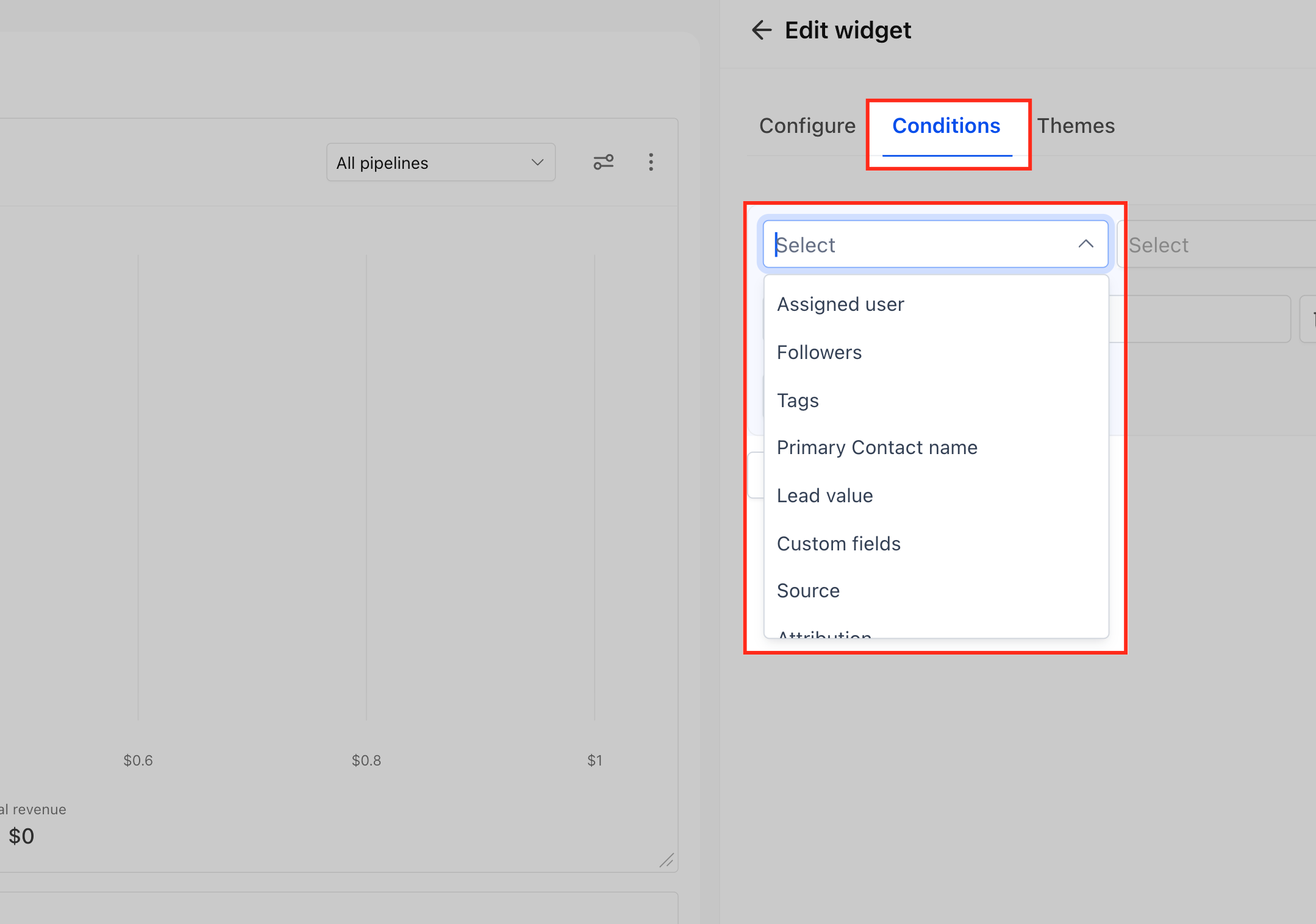
The Conditions tab controls which records contribute to a General Widget. These filters remain saved on the widget, making them useful for permanent reporting segments.
The following General Widgets will now get a Conditions tab:
| Widget | Available Conditions | Notes |
|---|---|---|
| Opportunity Status, Opportunity Value, Conversion Rate, Funnel, Stages Distribution, Lead Source Report | Assigned user, Followers, Tags, Primary contact name, Lead value, Custom fields, Source, Attribution | Pipeline is selected in the widget settings, not in Conditions |
| Sales Efficiency | Followers, Tags, Primary contact name, Lead value, Custom fields, Source, Attribution | To filter by user, use the widget's own user dropdown |
| Google Analytics Count, Google Analytics Chart | Country, Device category, Session default channel group, Session source, Session medium, Session source/medium, First user source, First user medium, Page path, Page title, Landing page, Event name, User type, Custom fields | |
| Facebook Ads Report | Campaign, Ad set, Ad name, Objective, Zero impressions, Frequency | The ad account is selected in the Integration tab |
| Google Ads Report | Campaign, Ad group, Ad name, Campaign type, Network, Campaign status | The ad account is selected in the Integration tab |
The following General Widgets don't currently have a Conditions tab:
- Tasks: You can edit the title and dashboard date range (date property applies to the due date).
- Manual Actions: You can edit the title and dashboard date range (date property applies to the created date).
- Google Business Profile: You can edit the title only.
- Email Health Report: You can edit the title and dashboard date range override.
Available fields in the conditions depend on the widget and its underlying data:
Add a Condition
From the Edit widget panel, select Conditions.
Select the field you want to filter.
Select the appropriate operator.
Select or enter the value.
Click + AND when another condition in the same filter group must also match.
Click + Add filter to create another filter group.
Add any additional Conditions needed for the widget.
Click Save.
Conditions within the same group use AND logic. Separate filter groups use OR logic.
For example, you can filter by a custom field using a configuration such as:
Custom fields → Property Type → Is one of → selected property types
You can also combine supported criteria such as Source and Tags to create more focused reporting views.
Apply a Theme to a General Widget
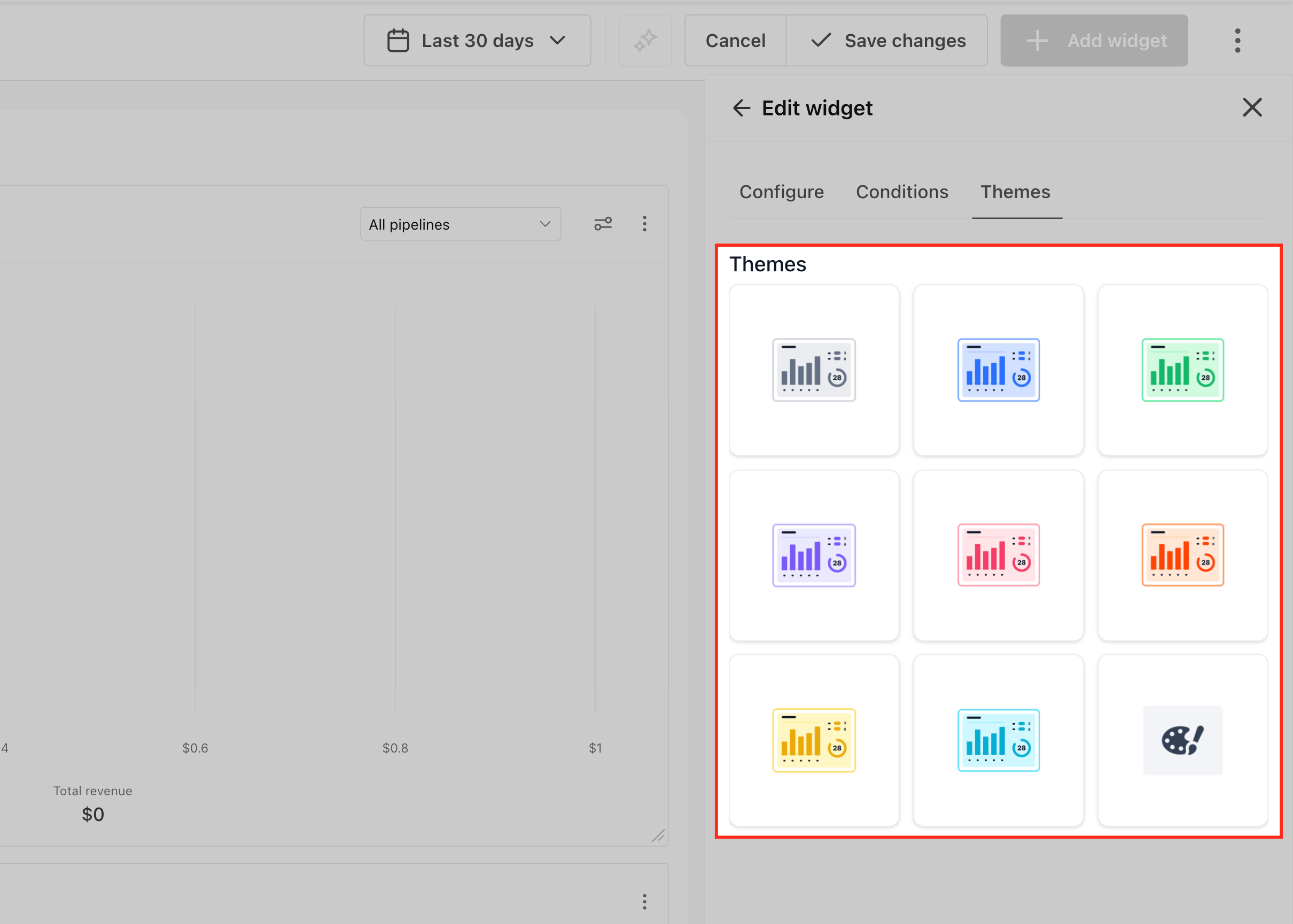
Themes change the visual appearance of a General Widget without requiring you to recreate it as a custom widget. This can help distinguish reporting groups or create a dashboard that better matches client-facing presentation needs.
From the Edit widget panel, select Themes.
Select the visual theme you want to apply.
Review the updated widget appearance.
Click Save.
Duplicate or Delete a General Widget
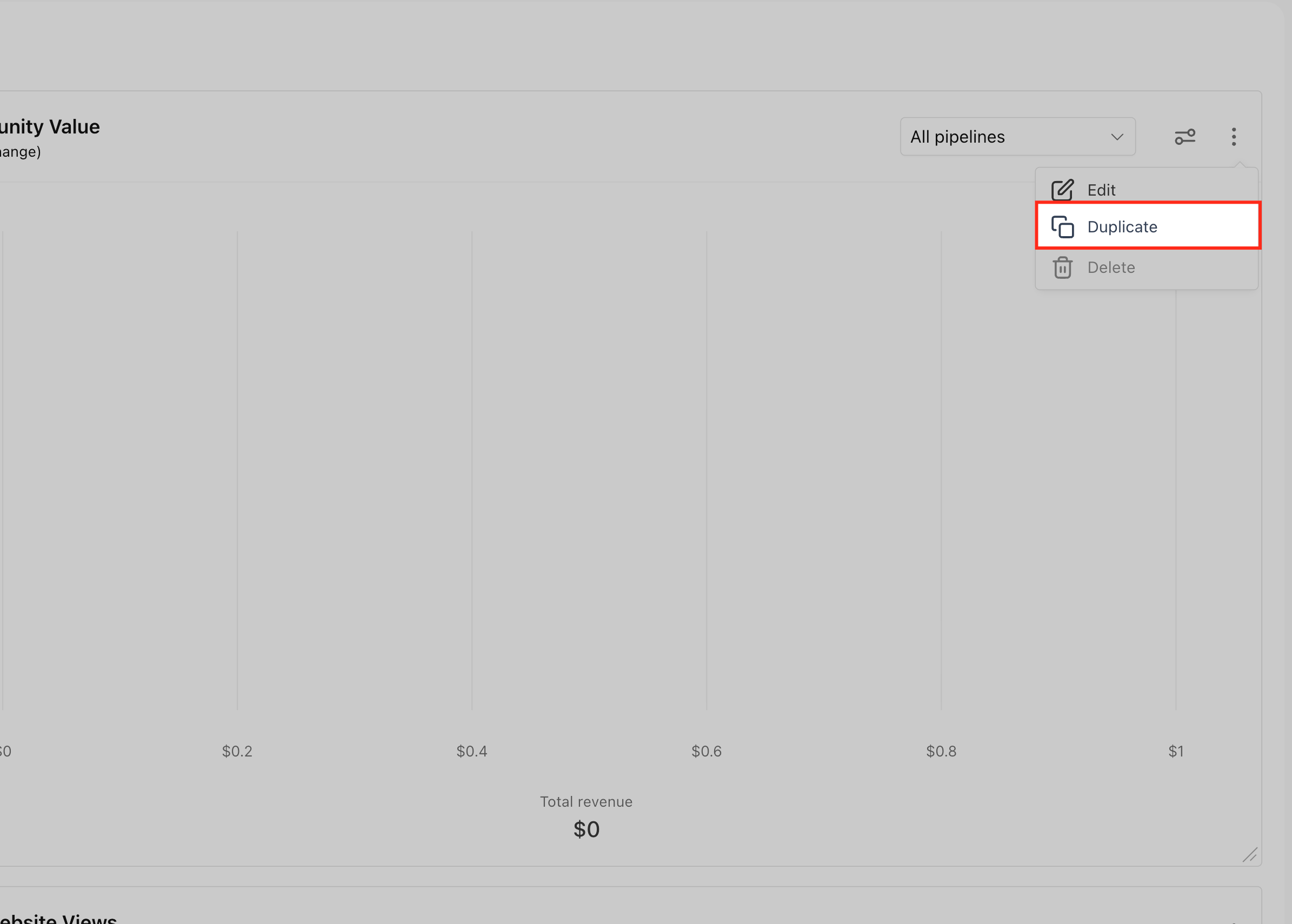
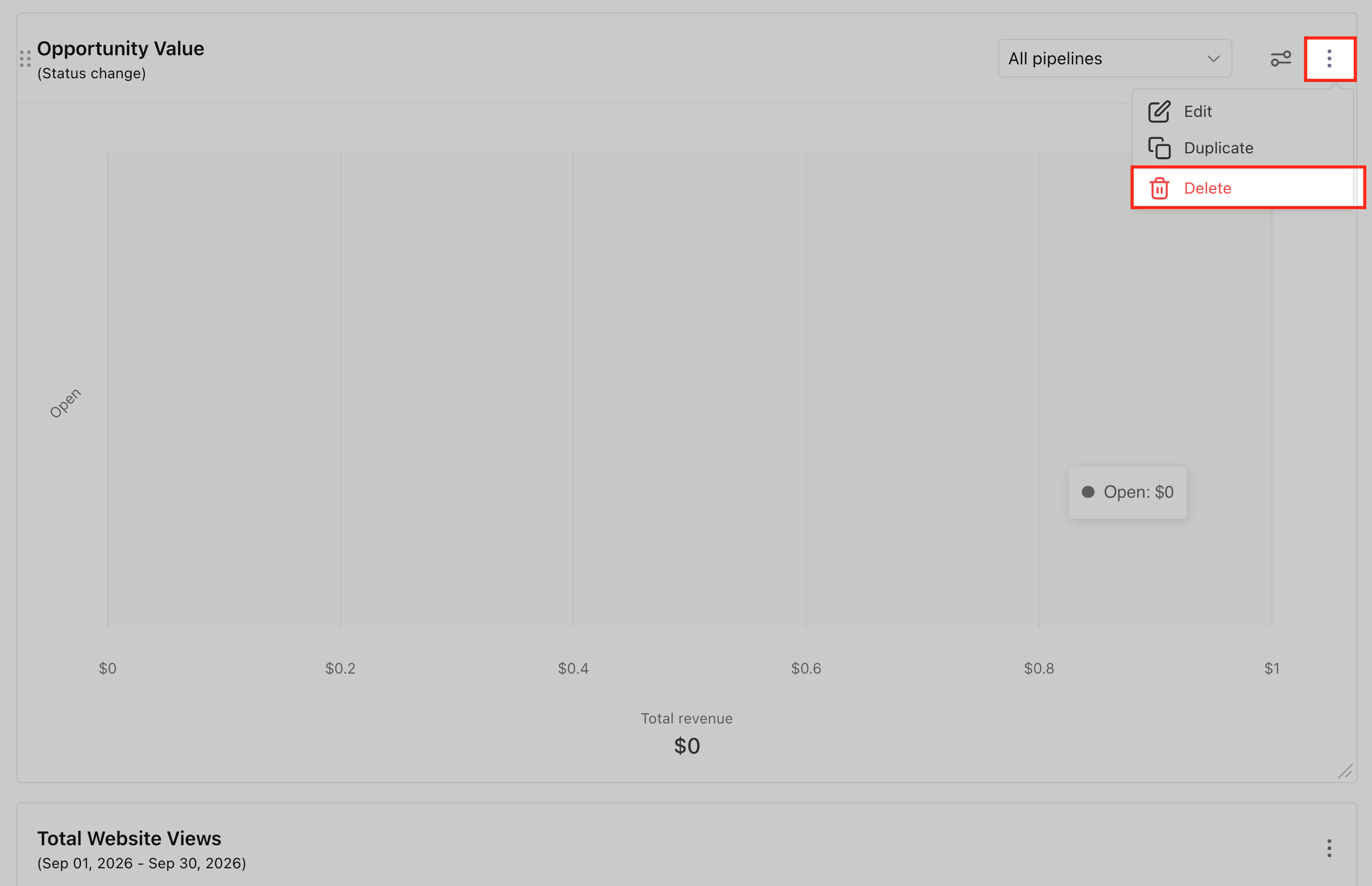
Duplicating a configured widget makes it easier to create reporting variations from the same starting point. Widgets that are no longer useful can also be removed while the dashboard is in edit mode.
Duplicate a General Widget
From the Sub-Account view, select Dashboard.
Click the three-dot menu (⋮).
Select Duplicate.
Edit the duplicated widget as needed.
Duplicating is useful when you want to compare different users, sources, tags, custom-field values, or reporting periods using the same base widget.
Delete a General Widget
From the Sub-Account view, select Dashboard.
Click the three-dot menu (⋮).
Select Delete.
Frequently Asked Questions
Q: Are Conditions saved permanently on a General Widget?
Yes. Conditions remain applied to the widget after you leave edit mode and return to the dashboard.
Q: Can a General Widget use a different date range from the dashboard?
Yes. Use Date range override under Configure → Advanced settings to assign a reporting period specifically to that widget.
Q: Can I compare one reporting period with another?
Yes. Use Comparison date range to compare the current period with a supported comparison such as Last year or Last period.
Q: Can I combine multiple Conditions?
Yes. Use + AND when conditions within the same filter group must all match. Separate filter groups use OR logic.
Q: Can I create multiple versions of the same General Widget?
Yes. Use Duplicate, then change the duplicated widget's title, Conditions, date settings, or theme.
Q: Can I remove a General Widget I no longer need?
Yes. Enter Edit dashboard, open the widget's three-dot menu, and select Delete.
Q: Do General Widgets respond to dashboard-level Quick Filters?
No. Dashboard Quick Filter support for General Widgets is not included in the current release.
Q: Can I configure what appears inside Funnel and Manual Actions widgets?
Not as part of the current General Widget editing release.
Related Articles
Was this article helpful?
That’s Great!
Thank you for your feedback
Sorry! We couldn't be helpful
Thank you for your feedback
Feedback sent
We appreciate your effort and will try to fix the article