Product Wishlisting in HighLevel Ecommerce Stores lets logged-in customers save products from the storefront and return to them later through the Customer Access Center. Store owners can enable wishlisting on supported product elements, customize the wishlist button, and add a Wishlist option to customer navigation.
Proper setup requires Customer Login and a connected store domain. This guide covers the storefront experience, Customer Access Center behavior, configuration steps, troubleshooting, and the exact locations where customers can save and manage products.
Customers must be logged in to use Wishlist. A valid store domain must also be connected and configured with a default page linked to the store so Customer Login and Wishlist access can function correctly.
What is Wishlisting in Ecommerce Stores?
Wishlisting lets logged-in customers save products they are interested in without adding them to the cart. Saved products can then be reviewed from a dedicated Wishlist page connected to the Customer Access Center.
Store owners can enable the wishlist control on supported storefront elements and customize its appearance. This creates a convenient way for shoppers to remember products and return to them later without interrupting the normal shopping journey.
Key Benefits of Wishlisting in Ecommerce Stores
Wishlisting gives customers a lightweight way to remember products while they browse. For store owners, it adds a useful customer-experience feature without requiring shoppers to immediately place products in their cart.
- Save Products for Later: Customers can keep products they want to revisit without adding them to the cart.
- Simpler Product Discovery: Saved items remain organized in a dedicated Wishlist rather than requiring customers to locate them again.
- Customer-Specific Experience: Wishlist access is tied to authenticated Customer Access Center use.
- Multiple Storefront Entry Points: Wishlisting can be enabled on Product List, Product Details, and Featured Product elements.
- Customizable Appearance: Adjust the active wishlist icon color and wishlist button background color.
- Convenient Navigation: Add My Wishlist to the logged-in customer navigation so saved products are easy to reach.
Where Wishlist Appears in the Store
Wishlist controls can appear wherever supported product elements are displayed. Enabling the feature in the appropriate Store Builder element lets customers save products while browsing or while reviewing an individual product.
| Store Element | Wishlist Experience |
|---|---|
| Product List | Displays a wishlist control on supported product cards while customers browse the catalog. |
| Product Details | Lets customers save the product directly from its Product Details Page. |
| Featured Product | Lets customers save products displayed through a Featured Product element. |
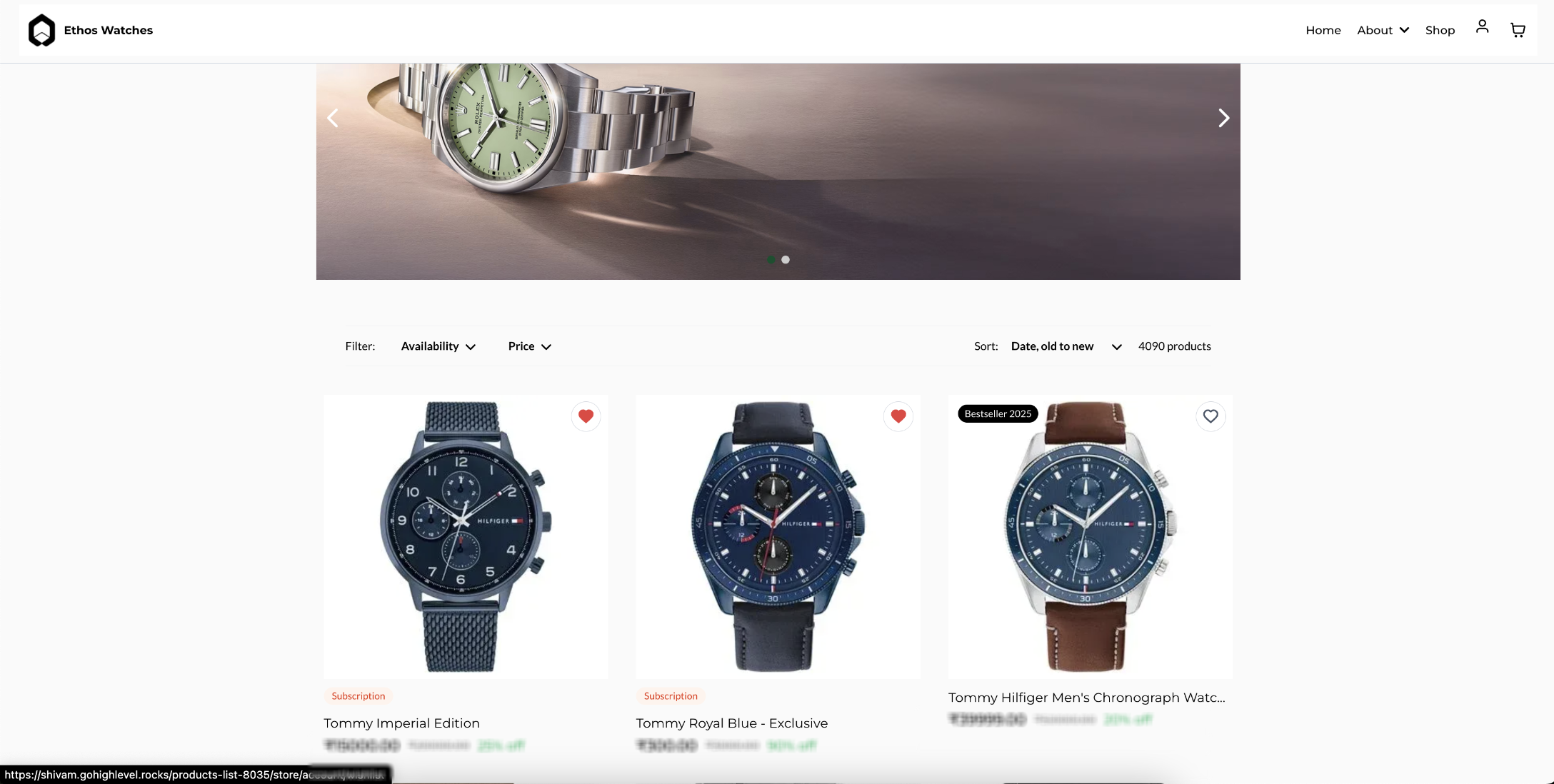
Product List Experience
Product List wishlisting gives shoppers a fast way to save an item without opening its Product Details Page. This is especially useful when customers are comparing several products in the same catalog view.
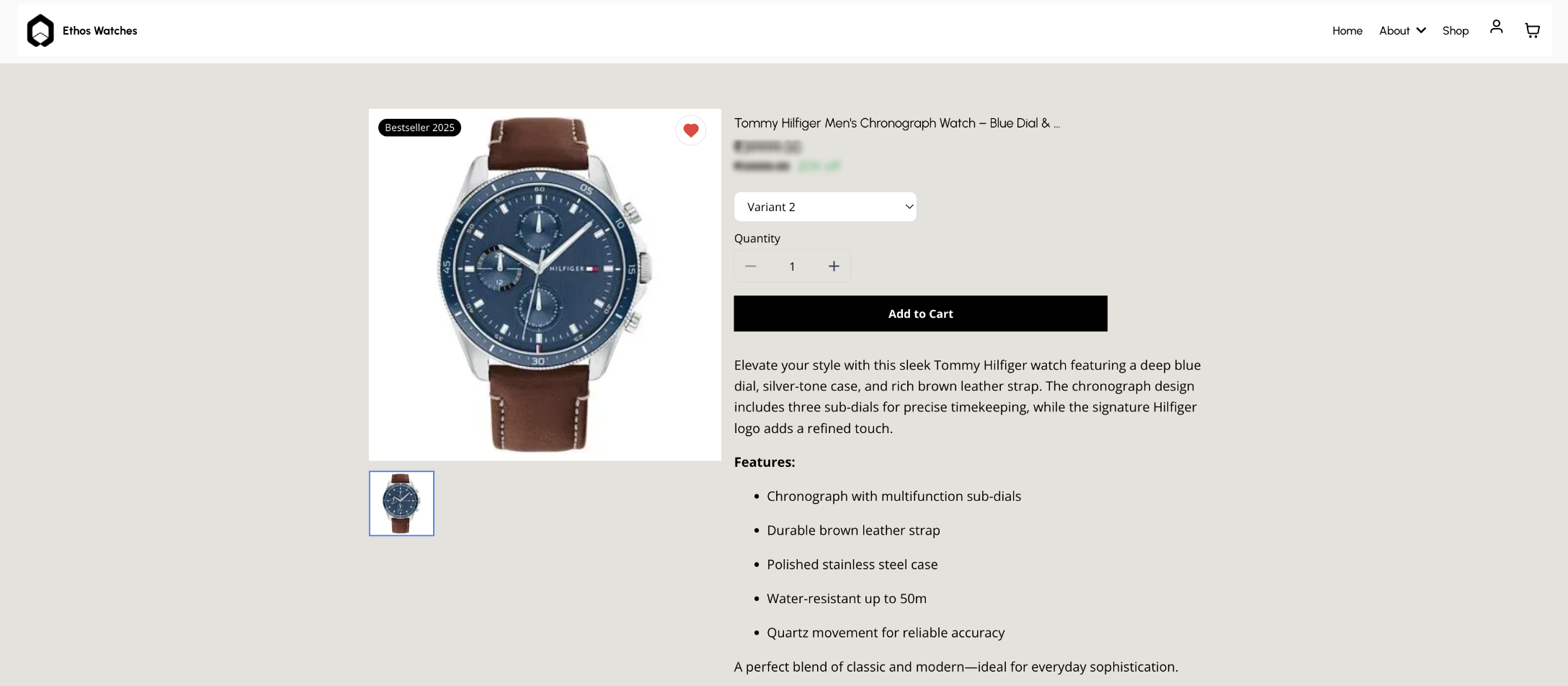
Product Details Experience
The Product Details Page can display the same wishlist control alongside the product's purchasing information, allowing a customer to save the item while reviewing its details.
Customer Login and Wishlist Experience
Wishlists are designed for authenticated customers so saved products can be associated with their customer experience. Customer Login and the Customer Access Center therefore form an important part of the wishlist workflow.
- Customers must be logged in before using Wishlist.
- If a logged-out customer attempts to use Wishlist, the Customer Access Center login experience is prompted.
- After login, customers can access My Wishlist from configured storefront navigation.
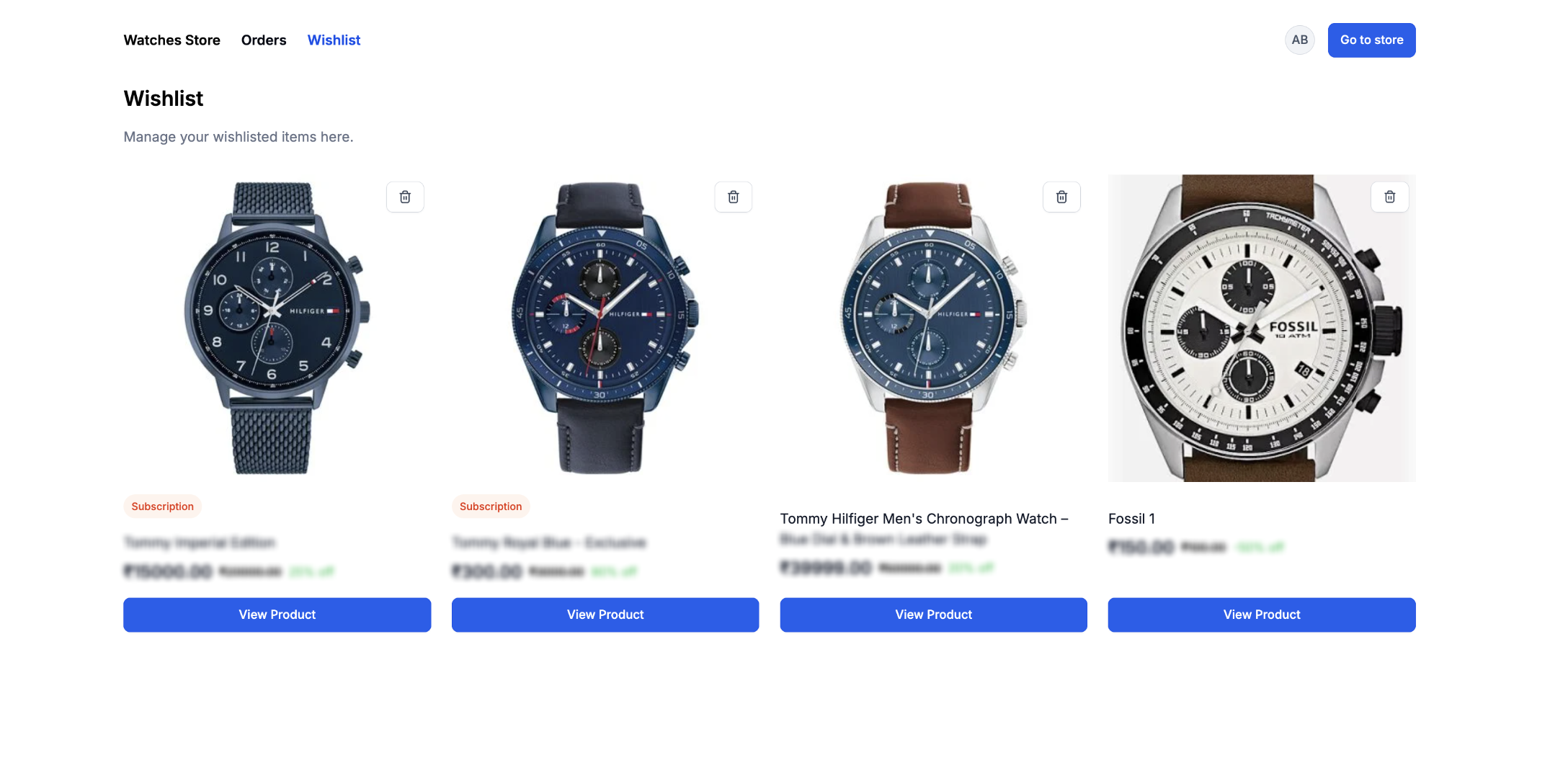
- The dedicated Wishlist page displays saved products and provides controls to remove items.
- A valid store domain must be configured for Customer Login to function correctly.
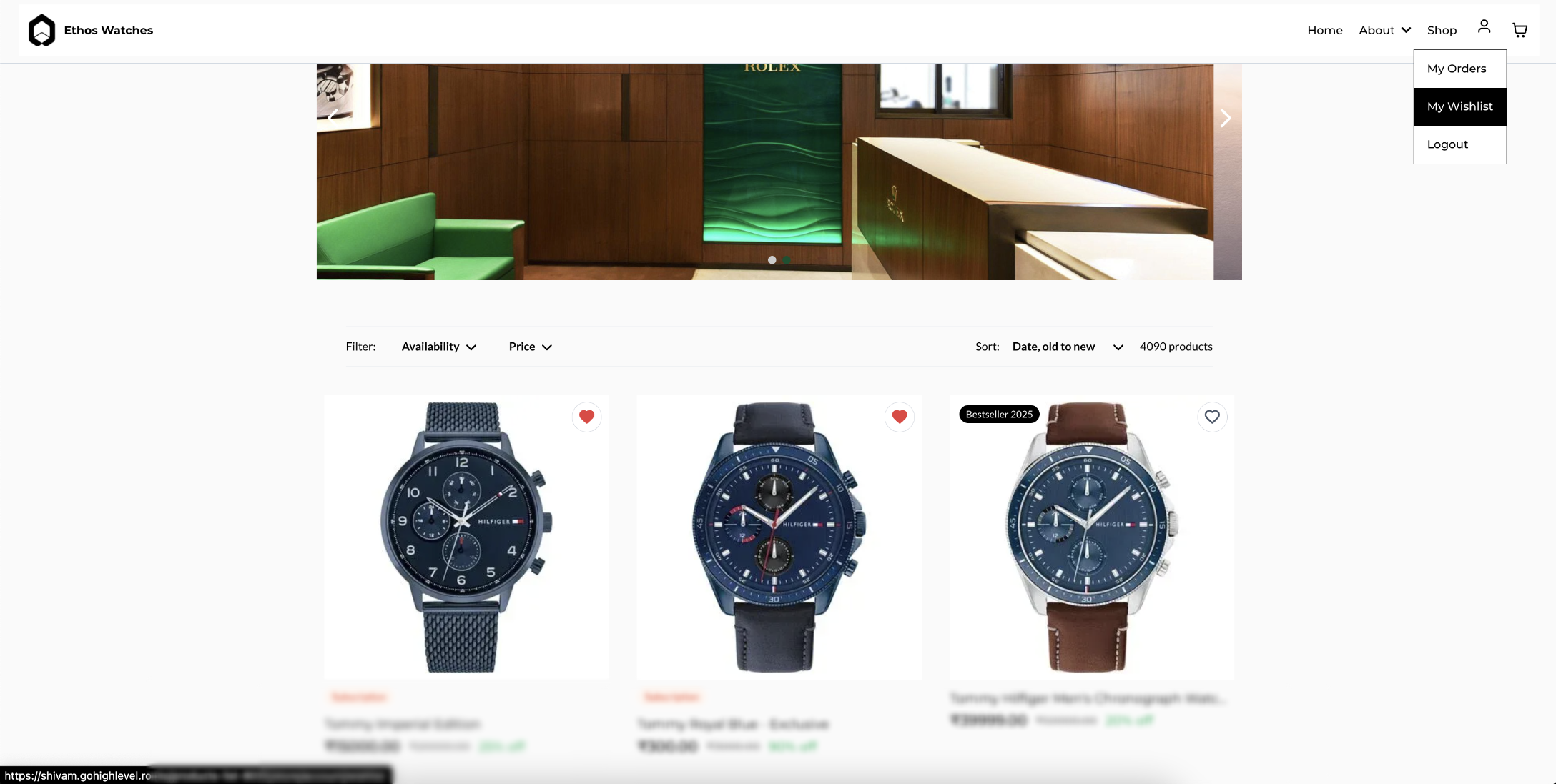
Wishlist in Customer Navigation
Adding My Wishlist to the customer menu creates a direct route from the live storefront to the customer's saved products. Logged-in customers can then move between their orders, wishlist, and account controls from the same navigation area.
How To Setup Wishlisting in Ecommerce Stores
Enabling the wishlist on product elements and adding a customer-navigation link ensures shoppers can both save products and return to them later. Complete the storefront, login, and domain configuration before testing the live experience.
Step 1: Open the Store Builder
Open the store you want to edit so wishlist controls can be configured on the product elements where customers browse and review products.
- Go to Sites → Stores.
- Open the applicable Ecommerce Store.
- Open the Store Builder and navigate to the page containing the product element you want to configure.
Step 2: Enable and Customize Wishlist Products
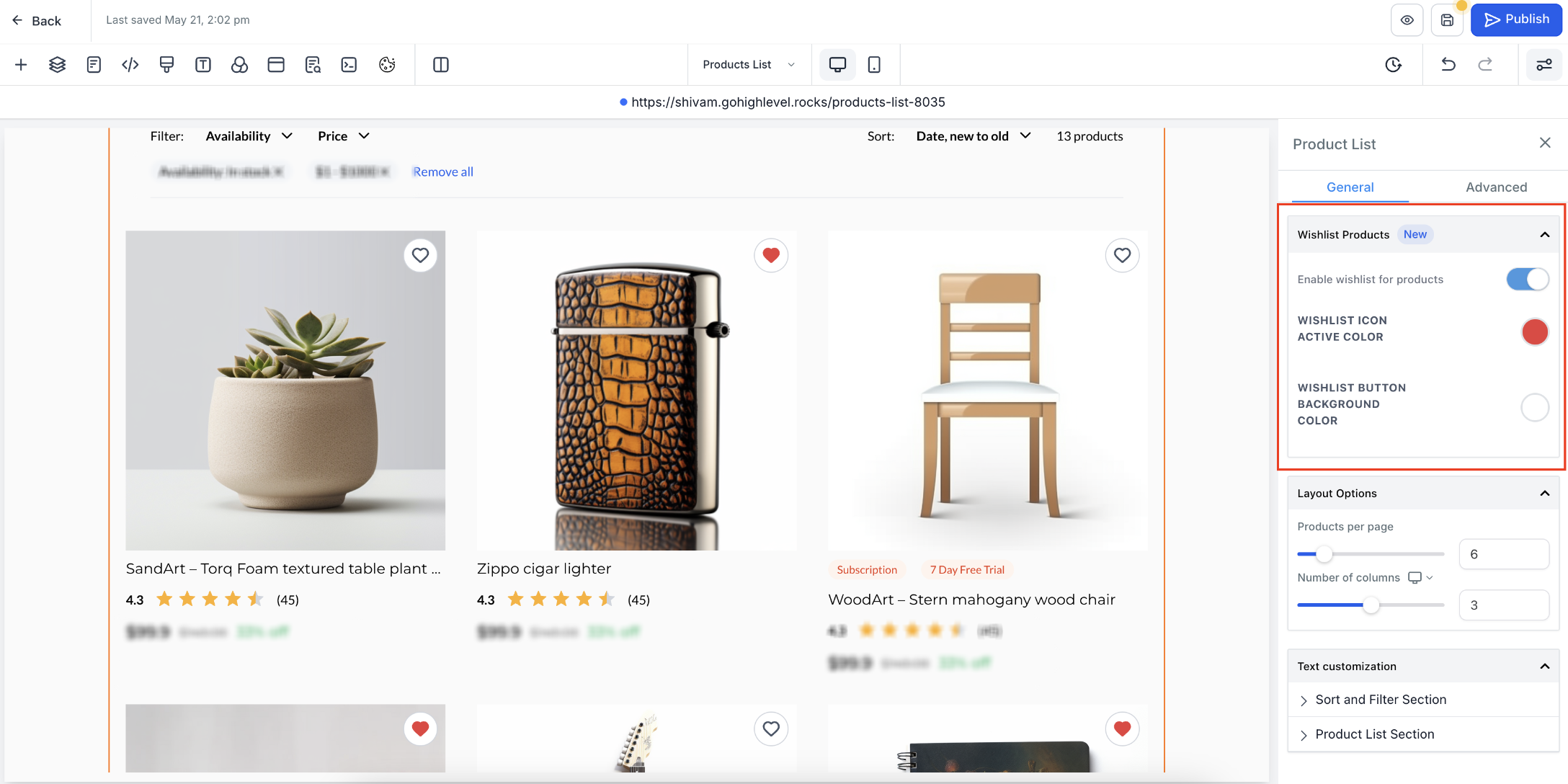
Wishlist settings are configured on supported product elements. Enable the feature wherever customers should be able to save products, then adjust the available colors to match the storefront design.
- Select the Product List, Product Details, or Featured Product element.
- Open General settings.
- Expand Wishlist Products.
- Turn on Enable wishlist for products.
- Choose the Wishlist Icon Active Color.
- Choose the Wishlist Button Background Color.
Step 3: Add My Wishlist to Customer Navigation
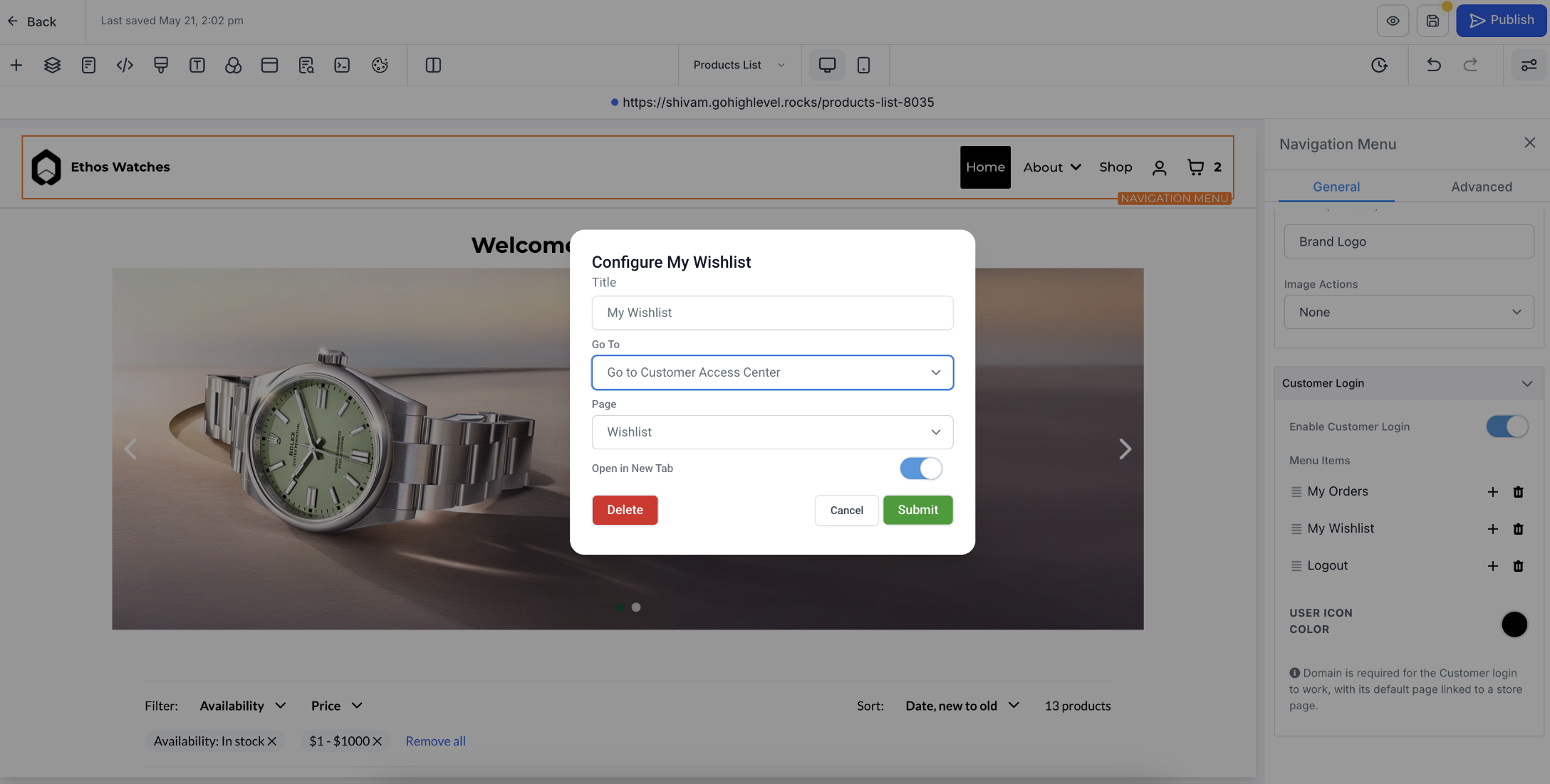
A My Wishlist menu item gives logged-in customers a predictable way to open their saved-product list from the store. Configure the menu item to route directly to the Wishlist page in the Customer Access Center.
- Select the store's Navigation Menu.
- Open General → Customer Login.
- Turn on Enable Customer Login if it is not already enabled.
- Add or configure a menu item named My Wishlist.
- Set Go To to Go to Customer Access Center.
- Set Page to Wishlist.
- Submit the menu configuration.
Step 4: Verify the Store Domain
Customer Login depends on the live store domain. Confirm the domain is connected and that its default page points to a page in the Ecommerce Store before testing the wishlist as a customer.
- Confirm the store has a valid connected and verified domain.
- Confirm the domain's default page is linked to a page within the store.
- Correct the domain configuration before testing Customer Login if either requirement is missing.
Step 5: Save, Publish, and Test
Testing the published storefront confirms that wishlist buttons, login behavior, customer navigation, and saved-product access work together as expected.
- Save the Store Builder changes.
- Publish the updated store.
- Open the live storefront.
- Test the wishlist while logged out and confirm the login experience appears.
- Log in as a customer and save a product.
- Open My Wishlist and confirm the product appears.
Manage Saved Products in the Wishlist
The dedicated Wishlist page gives logged-in customers one place to review products they previously saved. Customers can return to a product for more information or remove products they no longer want to keep in the list.
- Log in through the store's Customer Login.
- Open My Wishlist from the configured customer menu.
- Review the saved products.
- Select View Product to return to a product when needed.
- Use the remove control to delete a product from the Wishlist.
Troubleshooting Product Wishlists
Wishlist issues usually involve the product-element toggle, Customer Login configuration, navigation routing, publication status, or store domain setup. Checking these requirements individually helps isolate the missing part of the customer journey.
| Issue | What to Check |
|---|---|
| The wishlist button does not appear | Confirm Enable wishlist for products is turned on for the applicable Product List, Product Details, or Featured Product element, then save and publish the page. |
| A logged-out customer cannot save a product | Wishlist requires customer authentication. Confirm Customer Login is enabled and the login experience can open successfully. |
| My Wishlist is missing from the customer menu | Open Navigation Menu settings and confirm a menu item routes to Customer Access Center → Wishlist. |
| The Customer Login button does not work | Confirm a valid domain is connected and that the domain's default page is linked to a store page. |
| A saved product does not appear in Wishlist | Confirm the customer is logged in, verify the product was actually saved, and refresh the Wishlist page before testing again. |
Frequently Asked Questions
Was this article helpful?
That’s Great!
Thank you for your feedback
Sorry! We couldn't be helpful
Thank you for your feedback
Feedback sent
We appreciate your effort and will try to fix the article