Overview
Starting with White-Label Mobile App Release 4.18.0, agencies can enable WhatsApp Inbound Calling within their whitelabel mobile applications.
To support this feature on iOS, existing white-label mobile apps must have the following Apple credentials configured:
Apple Team ID
APNs Key ID
If your white-label app was created before this release, you may need to update your configuration before publishing the latest app version.
Once the required information is added, publish an updated version of your white-label app to make WhatsApp Inbound Calling available to your users.
Who Needs to Update?
This update applies to agencies that:
Already have a published White-Label Mobile App
Want to enable WhatsApp Inbound Calling
Have not previously configured their Apple Team ID or APNs Key ID
Step 1: Update Your Apple Team ID
Navigate to:
Agency View → Mobile app → Customisation → Distribution → Channels → App store settings → App Store Connection
Locate the Apple Team ID field and enter your Team ID.
Where to Find Your Apple Team ID
Sign in to your Apple Developer Account.- https://developer.apple.com/account/resources/authkeys/list
Navigate to Apple Developer account → Certificates, Identifiers & Profiles → Keys
- Locate your Team ID at top right, which appears as a 10-character alphanumeric value
(for example,YY17XOOGQV). - Copy and paste this value into the Apple Team ID field in the White Label Mobile App Customizer.
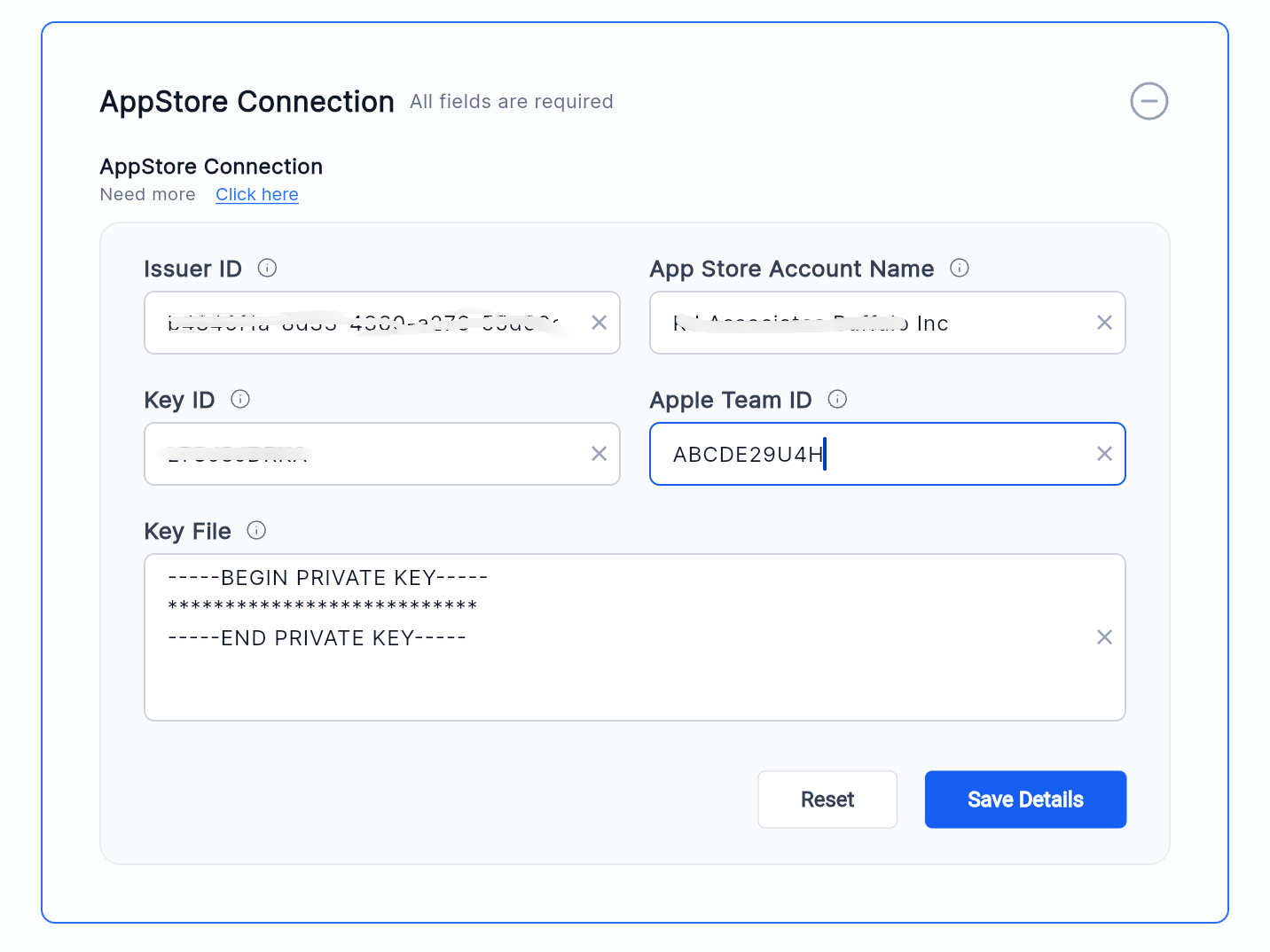
Example
In the App Store Connection section, ensure the following fields are populated:
Issuer ID
Key ID
App Store Account Name
Apple Team ID
Click Save Details.
Step 2: Verify Your APNs Configuration
Navigate to:
Agency View → Mobile app → Customisation → Distribution → Channels → App store settings → Setup Firebase
Verify that the following are configured:
Services.json
GoogleService-Info.plist
APNs Authentication Key (.p8)
APNs Key ID
Where to Find Your APNs Key ID
- Sign in to your Apple Developer Account.
- Navigate to Apple Developer account → Certificates, Identifiers & Profiles → Keys
- Select Keys from the left-hand menu.
- Locate the APNs key associated with your white-label app.
- The value shown under the KEY ID column is your APNs Key ID which appears as a 10-character alphanumeric value (for example,
YY77X72SAV). - Copy this 10-character identifier and paste it into the APNs Key ID field in the White Label Mobile App Customizer.
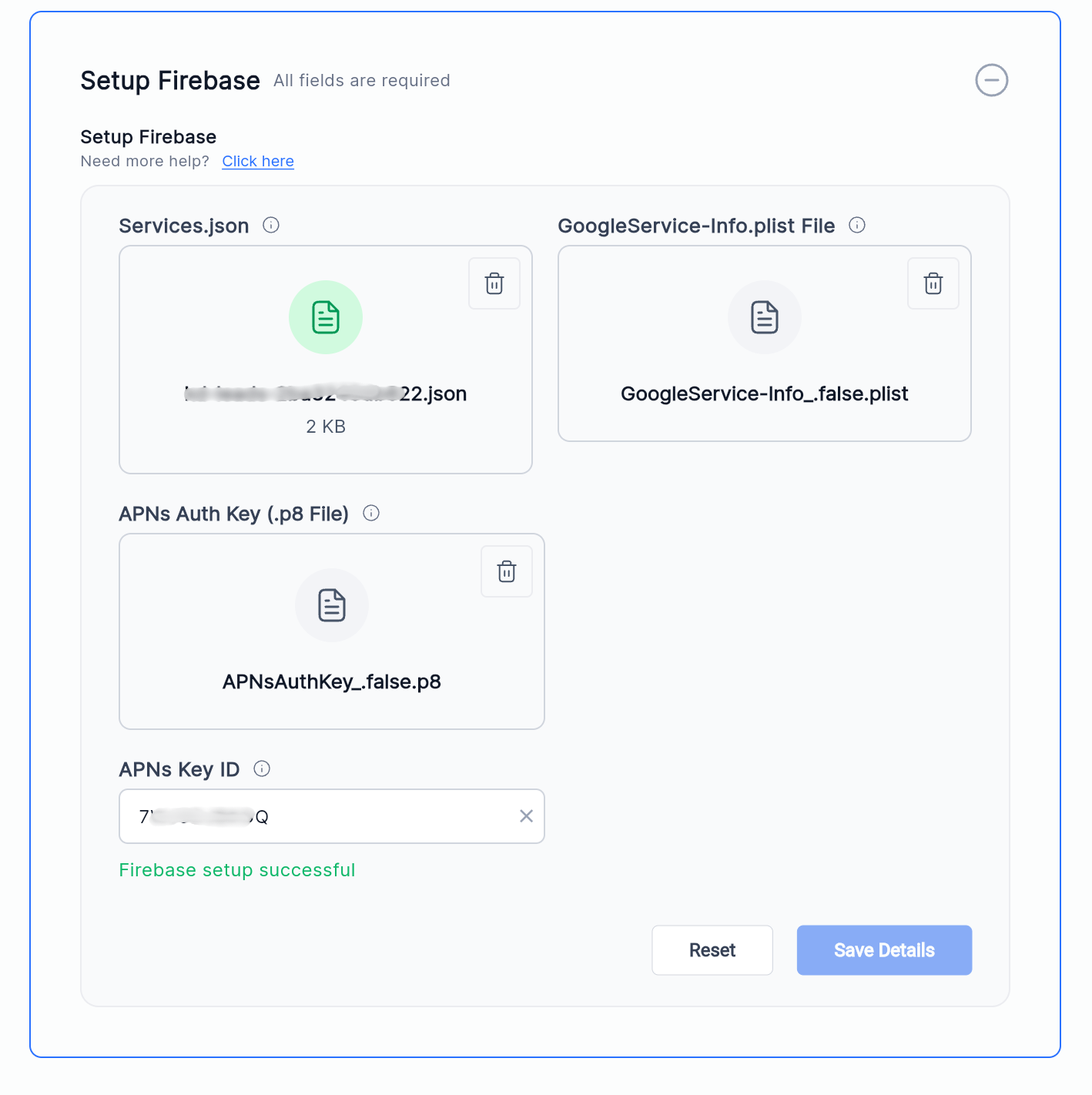
Note: You do not need to generate a new APNs key if you already have a valid .p8 file configured for your app.
Click Save Details after updating the information.
Step 3: Publish Your App Update
After updating the required fields:
Save all changes.
Generate a new mobile app build.
Submit the updated version to Apple.
Wait for App Store approval.
Once approved, WhatsApp Inbound Calling will be available in your white-label mobile app.
Verification Checklist
Before submitting your update, confirm:
✅ Apple Team ID is populated
✅ APNs Authentication Key (.p8) is uploaded
✅ APNs Key ID is entered
✅ Firebase configuration files are present
✅ App is built using Release 4.18.0 or later
✅ Updated version has been submitted to Apple
Frequently Asked Questions
Do I need to create a new APNs (.p8) key?
No. If you already have a valid APNs Authentication Key uploaded, you can continue using it. Simply verify that the APNs Key ID is populated.
What if I don't know my APNs Key ID?
You can find it in your Apple Developer Account under:
Certificates, Identifiers & Profiles → Keys
The Key ID is displayed next to the APNs key.
Do I need to create a new white-label app?
No. Existing apps only need the required configuration updates and a new app submission.
Will users need to reinstall the app?
No. Users only need to update to the latest version from the App Store.
What happens if I don't update these settings?
WhatsApp Inbound Calling may not function correctly on iOS devices until the required Apple credentials are configured.
Was this article helpful?
That’s Great!
Thank you for your feedback
Sorry! We couldn't be helpful
Thank you for your feedback
Feedback sent
We appreciate your effort and will try to fix the article