Before your White Label Mobile App can be built, Agency App Manager checks that your Apple App Store or Google Play Store setup is complete. These checks run automatically when you start a build.
You will find them under Distribution → Channels. Select Launch App for the store you are publishing to, and the checklist opens on step 1, App build.
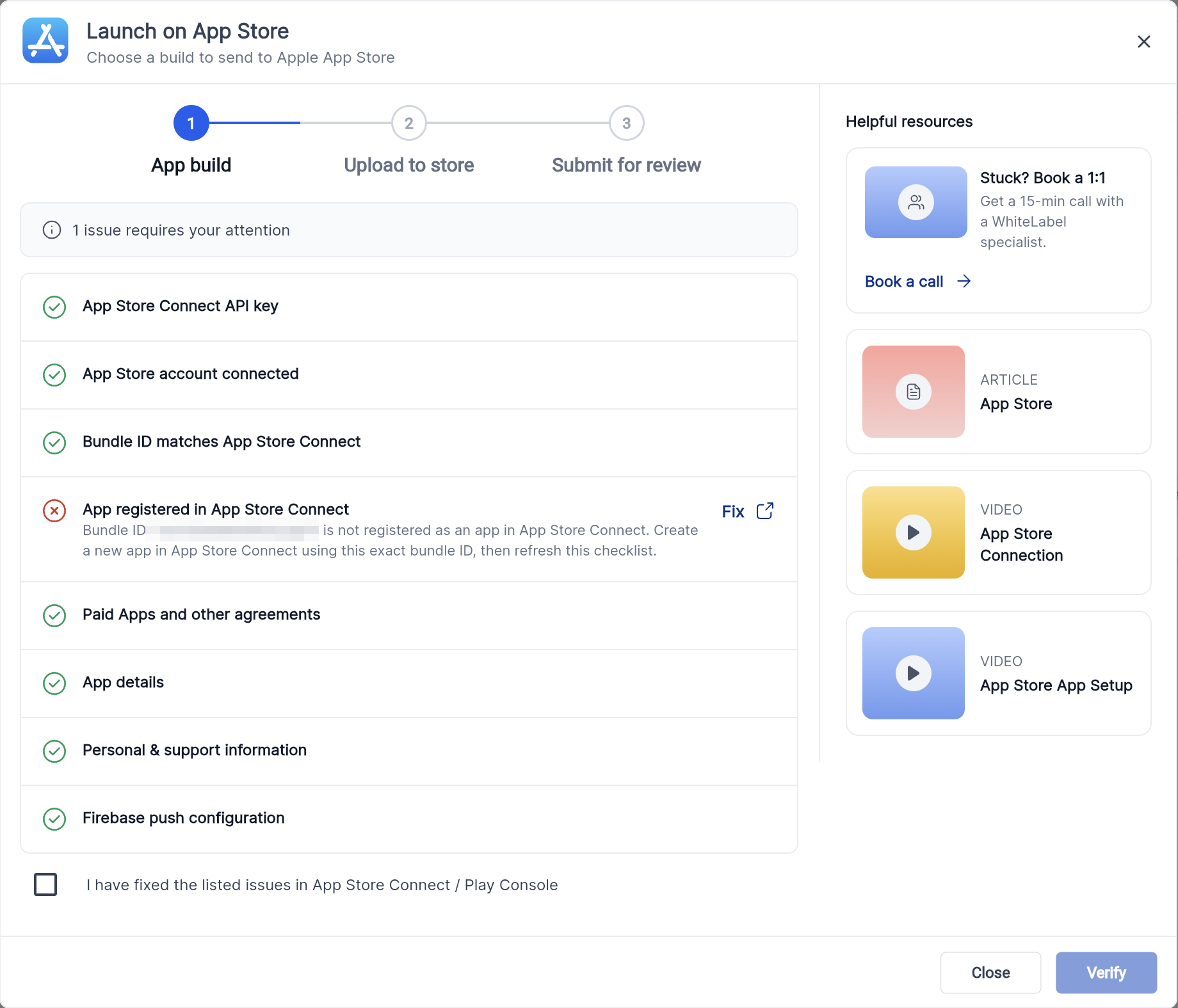
The App build checklist. A banner shows how many issues need your attention, and each issue that needs fixing has a Fix shortcut.
Two types of result
- BLOCKER must be resolved before you can continue. Your app cannot be built while a blocker is showing.
- WARNING does not stop your build. It tells you a check could not be completed yet, or that something optional is missing. Warnings will not disable you from getting the build created, they are good to be closed, but not must.
The checklist runs separately for each store. An Apple issue does not affect your Android build, and an Android issue does not affect your iOS build.
How to re-check after fixing an issue
Most issues are fixed outside Agency App Manager, in App Store Connect or Google Play Console. The Fix link beside an issue will redirect you to the relevant section where you are expected to make changes
When you have made your changes, return to the checklist, tick the confirmation box, and select Verify.

Tick the confirmation box, then select Verify to re-run the checks.
Results do not refresh on their own. Select Verify each time you make a change. Some Google Play permission changes take a few minutes to apply, so if a check still fails, wait briefly and verify again.
Fix these in order. Add your store credentials first, then resolve the Apple agreements, then your identifiers and app records, and finally your listing and contact details. Several checks cannot run until the ones before them pass.
Watch the whole process
These walkthroughs follow a complete build from start to finish, for each store.
Quick reference
Select an issue to jump straight to it.
| Issue | Store | Type |
|---|---|---|
| App Store Connect API key | iOS | BLOCKER |
| App Store account connected | iOS | BLOCKER |
| Bundle ID matches App Store Connect | iOS | BLOCKER |
| App registered in App Store Connect | iOS | BLOCKER |
| Paid Apps and other agreements | iOS | BLOCKER |
| App details | iOS | BLOCKER |
| Personal & support information | iOS | BLOCKER |
| Bundle ID could not be verified yet | iOS | WARNING |
| App Store app could not be verified yet | iOS | WARNING |
| Firebase push configuration | iOS | WARNING |
| Play Console service account | Android | BLOCKER |
| Play Console publishing access | Android | BLOCKER |
| App registered in Play Console | Android | BLOCKER |
| App details | Android | BLOCKER |
| Personal & support information | Android | BLOCKER |
iOS — Blockers
These must be resolved before your iOS app can be built.
App Store Connect API key
BLOCKERApple API credentials are not configured.
What this means
Agency App Manager uses an App Store Connect API key to communicate with Apple on your behalf. Until the key is added, no checks, uploads, or submissions can run.
Your API key, Issuer ID, or Key ID has not been added yet. All three are required.
How to resolve it
- Sign in to App Store Connect at appstoreconnect.apple.com.
- Go to Users and Access → Integrations → App Store Connect API and make sure you are on the Team Keys tab.
- Select + to generate a new API key. Set the role to Admin.
- Download the .p8 key file straight away and store it safely. Apple only lets you download it once.
- Copy your Issuer ID from the top of the Keys page, and your new Key ID from the table.
- In Agency App Manager, go to Distribution → Channels, select Settings on the Apple App Store card, expand AppStore Connection, then paste in the Issuer ID and Key ID and upload the .p8 file.
If you have lost the .p8 file, revoke the old key and create a new one. You can hold up to 50 active keys at a time.
Verify the fix
Return to the checklist, tick I have fixed the listed issues in App Store Connect / Play Console, then select Verify. The check should now pass.
App Store account connected
BLOCKERApple rejected the connection.
What this means
Your credentials are saved, but the connection to App Store Connect is failing.
The API key may have been revoked, the Issuer ID or Key ID may be mistyped, or the key may not have the permissions needed to read your app data.
How to resolve it
- In App Store Connect, go to Users and Access → Integrations → App Store Connect API and confirm your key is still listed under Active keys and has not been revoked.
- In Agency App Manager, go to Distribution → Channels, select Settings on the Apple App Store card, and open AppStore Connection.
- Check the Issuer ID and Key ID match exactly. A single incorrect character will cause the connection to fail.
- Confirm the key has Admin access.
- If the key was revoked, generate a new key in App Store Connect and upload the new .p8 file in the same AppStore Connection section.
- Select Save Details.
Verify the fix
Return to the checklist, tick I have fixed the listed issues in App Store Connect / Play Console, then select Verify. The check should now pass.
Bundle ID matches App Store Connect
BLOCKERBundle ID not found in your Apple Developer account.
What this means
Every iOS app needs a unique Bundle ID registered in the Apple Developer Portal. The Bundle ID set on your app could not be found there, so Apple will not accept your build.
How to resolve it
- Sign in at developer.apple.com and go to Certificates, IDs & Profiles → Identifiers.
- Check whether your Bundle ID is listed. If it is not, select + to register it, choose App IDs → App, then enter your Bundle ID.
- In Agency App Manager, go to Distribution → Channels, select Settings on the Apple App Store card, and open App Setup. Check that the Package Name - Bundle Identifier field matches exactly.
- Confirm your Apple Developer Program membership is active. This requires the paid annual enrolment.
Bundle IDs are case-sensitive. com.myapp.ios and com.myapp.iOS are treated as two different identifiers.
Verify the fix
Return to the checklist, tick I have fixed the listed issues in App Store Connect / Play Console, then select Verify. The check should now pass.
App registered in App Store Connect
BLOCKERNo App Store Connect app record found.
What this means
Your Bundle ID is registered in the Apple Developer Portal, but no app has been created in App Store Connect for it.
Registering a Bundle ID and creating an app in App Store Connect are two separate steps. Both are required before a build can be uploaded.

The checklist names your Bundle ID and gives you a Fix shortcut to App Store Connect.
How to resolve it
- Go to App Store Connect → My Apps.
- Select + then New App.
- Choose the iOS platform, enter your app name, and select your Bundle ID from the dropdown.
- Choose a primary language and select Create.
Verify the fix
Return to the checklist, tick I have fixed the listed issues in App Store Connect / Play Console, then select Verify. The check should now pass.
With the app created, the App build checklist passes.
Video tutorial
Watch: Fix App Registered in App Store Connect
Paid Apps and other agreements
BLOCKERAgreements are not signed or not active.
What this means
Apple requires the Paid Apps agreement and other legal agreements to be accepted before you can distribute an app. This applies even if your app is free.
Apple updates these terms periodically, so an agreement that was active before can move back to Action Required.
How to resolve it
- In App Store Connect, go to Agreements, Tax, and Banking.
- Look for any agreement showing Action Required or New, then review and accept it.
- If banking or tax details are requested, complete those too. Some agreements require payment information even for free apps.
- After signing, the status moves to Pending User Info rather than Active. Apple still needs your bank account and tax forms.
- Complete the Bank Account and Tax Forms sections on the same page. The agreement only becomes Active once both are done.
- Once the status reads Active, return to Agency App Manager and re-run the check.
Resolve this issue first. Two other Apple checks cannot complete while agreements are pending, and both clear on their own once this passes.
Only the Account Holder can accept agreements. If you have the Admin role, ask your Account Holder to complete this step.
Verify the fix
Return to the checklist, tick I have fixed the listed issues in App Store Connect / Play Console, then select Verify. The check should now pass.
App details
BLOCKERListing fields are missing or invalid.
What this means
One or more required fields for your App Store listing are incomplete. The checklist shows how many fields need attention and lists each one, so you can complete them in a single pass.
Fields checked include:
- App name, subtitle, description, promotional text and keywords
- Privacy Policy URL, Support URL and Marketing URL
- App categories
- Countries and regions for distribution
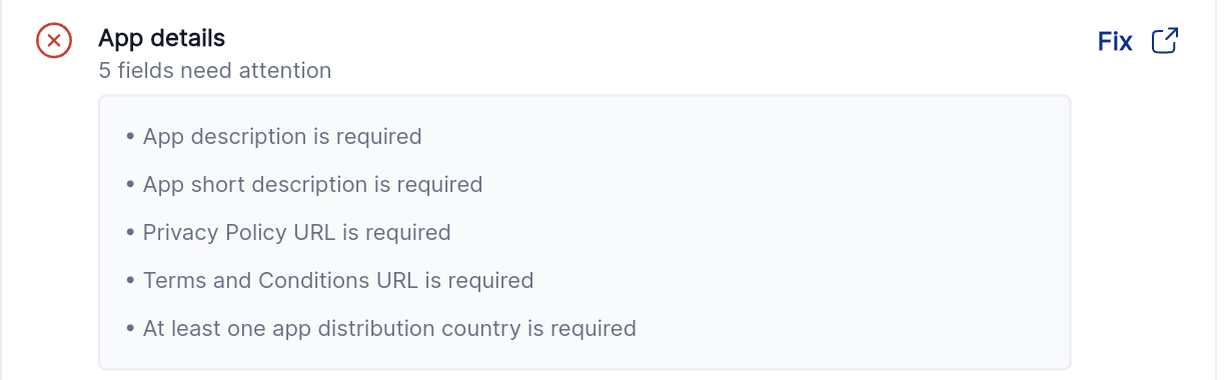
App details lists every field that needs attention, so you can complete them in one pass.
How to resolve it
- In Agency App Manager, go to Distribution → Profile and open App Details. Complete every field marked with an asterisk.
- Make sure all URLs begin with https://. Apple rejects
http://and bare domains. Every URL must open publicly, without a login. - Keep the description under 4,000 characters and keywords under 100 characters in total. Do not use emoji — Apple may reject listings that contain them.
- Select at least one country or region for distribution under Pricing & Availability.
Verify the fix
Return to the checklist, tick I have fixed the listed issues in App Store Connect / Play Console, then select Verify. The check should now pass.
Personal & support information
BLOCKERContact fields are missing or invalid.
What this means
Required contact details for the app developer or publisher are incomplete. These details appear on your App Store listing.
Fields checked include:
- First name and last name
- Email address and phone number
- Mailing address
- Support URL and support email
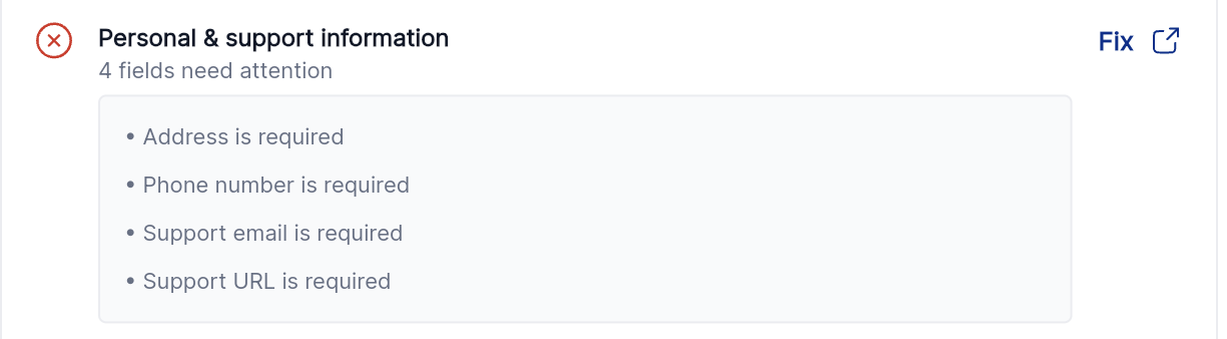
Personal & support information lists each missing contact detail.
How to resolve it
- In Agency App Manager, go to Distribution → Profile and open Personal info.
- Complete every required contact field.
- Make sure the Support URL is a valid https:// address that opens a support or contact page.
- Save your changes.
Verify the fix
Return to the checklist, tick I have fixed the listed issues in App Store Connect / Play Console, then select Verify. The check should now pass.
iOS — Warnings
These do not stop your build. Two of the three clear on their own.
Bundle ID could not be verified yet
WARNINGYour build can continue.
What this means
Your Bundle ID has not been rejected. Apple requires active agreements before it will allow the API calls that verify a Bundle ID, so the check could not run yet.
How to resolve it
No action needed. Resolve the Paid Apps and other agreements blocker above. Once your agreements are active, this check runs again automatically and clears on its own.
Verify the fix
After your agreements show as Active, run the checklist again. This check will either pass, or turn into a Bundle ID blocker if there is a genuine problem to fix.
App Store app could not be verified yet
WARNINGYour build can continue.
What this means
The App Store Connect app record could not be checked. This does not mean your app is missing.
The check is blocked either by pending agreements or by a Bundle ID that is not yet registered.
How to resolve it
No action needed. Resolve the Paid Apps and other agreements or Bundle ID matches App Store Connect blocker above. This warning clears automatically once those are fixed.
Verify the fix
Return to the checklist, tick I have fixed the listed issues in App Store Connect / Play Console, then select Verify. The check should now pass.
Firebase push configuration
WARNINGAlways a warning. This never blocks a build.
What this means
Firebase is optional for White Label Mobile Apps. If you are not using Firebase push notifications or analytics, this warning is safe to ignore.
If you do use Firebase features, there are four possible causes. Check which one applies to you before making changes.
How to resolve it
Firebase is not configured
No Firebase project has been linked. Go to Distribution → Channels, select Settings on the Apple App Store card, open Setup Firebase, and upload your GoogleService-Info.plist and APNs files.
The service account file cannot be read
The Firebase service account JSON is corrupted or invalid. Download it again from Firebase Console → Project Settings → Service Accounts and upload the new file.
The plist project or Bundle ID does not match
The BUNDLE_ID inside your GoogleService-Info.plist does not match your app's Bundle ID. Download a fresh plist for the correct Bundle ID from the Firebase Console.
The Firebase project reference is out of date
The Firebase project ID has changed, or the project was deleted. Link your app to the correct active Firebase project.
Verify the fix
Run the checklist again once you have uploaded the correct files. If you do not use Firebase, you can continue with the warning showing.
Android — Blockers
All Android results at this stage are blockers. There are no Android warnings in the App build checklist.
Play Console service account
BLOCKERGoogle Play service account is not configured.
What this means
Google Play uses a service account, supplied as a JSON credentials file, to allow automated builds and uploads through the Google Play Developer API. Until this is added, no Play Store operations can run.
This same check also covers your app's package name, so either value may be the cause.
How to resolve it
- Open Google Play Console → Setup → API access.
- Link your Play Console to a Google Cloud project, or create a new one.
- Under Service accounts, select Create new service account. In the Google Cloud dialog that opens, create the account and grant it the Service Account User role.
- Back in Play Console, grant this service account Admin permissions.
- In Google Cloud Console, create a JSON key for the service account and download it.
- In Agency App Manager, go to Distribution → Channels, select Settings on the Google Play Store card, expand PlayStore Connection, and upload the JSON key under Play Services JSON.
Service account permissions in Play Console can take up to 24 hours to propagate fully. If you see authentication errors immediately after setup, wait an hour and try again.
Verify the fix
Return to the checklist, tick I have fixed the listed issues in App Store Connect / Play Console, then select Verify. The check should now pass.
Play Console publishing access
BLOCKERAuthentication or release access is failing.
What this means
The service account exists, but authentication is failing or it does not have permission to edit releases.
Common causes are:
- The service account was deleted or suspended
- The account has insufficient Play Console permissions
- The wrong package name is linked to the account
- The Google Play Android Developer API is not enabled
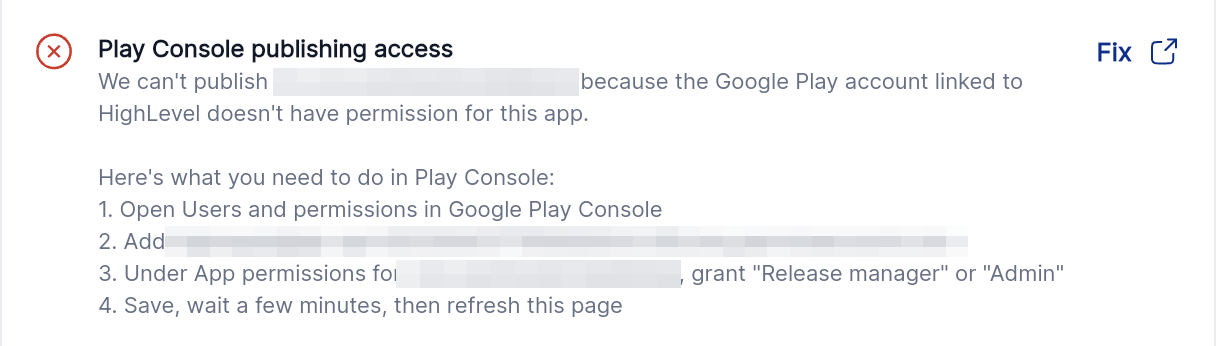
When the cause is a missing permission, the checklist gives you the exact steps to follow in Play Console.
How to resolve it
- In Google Cloud Console, check that the service account still exists and is not disabled.
- In Play Console → Setup → API access, confirm the account has the Admin role.
- Under APIs & Services → Enabled APIs in Google Cloud, confirm the Google Play Android Developer API is enabled.
- If the JSON key may have expired or been regenerated, download it again from Google Cloud Console. Then in Agency App Manager go to Distribution → Channels, select Settings on the Google Play Store card, open PlayStore Connection, and upload the new file under Play Services JSON.
Verify the fix
Return to the checklist, tick I have fixed the listed issues in App Store Connect / Play Console, then select Verify. The check should now pass.
App registered in Play Console
BLOCKERPackage name not found in Play Console.
What this means
The Android package name set in Agency App Manager does not match any app in your Google Play Console, so uploads will fail.

The checklist names your package name and gives you a Fix shortcut to Google Play Console.
How to resolve it
- In Play Console, go to All apps and note the exact package name.
- In Agency App Manager, go to Distribution → Channels, select Settings on the Google Play Store card, and open App Setup. Check the Package Name field matches exactly, including case and full stops.
- If the app does not exist in Play Console yet, create it first: Play Console → Create app, then complete the setup.
- Confirm the linked service account has access to this specific app in Play Console.
Unlike iOS, an Android package name is permanent. Once an app is created in Play Console its package name cannot be changed, so check it carefully before creating the app.
Verify the fix
Return to the checklist, tick I have fixed the listed issues in App Store Connect / Play Console, then select Verify. The check should now pass.
Video tutorial
Watch: Register your app in Play Console
App details
BLOCKERListing fields are missing or invalid.
What this means
One or more required fields for your Google Play listing are incomplete. Fields checked include:
- App name
- Short description, maximum 80 characters
- Full description, maximum 4,000 characters
- Privacy Policy URL
- App category
- Countries for distribution
How to resolve it
- In Agency App Manager, go to Distribution → Profile and open App Details. Complete every required field.
- Keep the short description under 80 characters and the full description under 4,000 characters.
- Make sure the Privacy Policy URL is a live https:// address that opens without a login.
- Google also requires a content rating. Complete this in Play Console → Store presence → Content rating.
Verify the fix
Return to the checklist, tick I have fixed the listed issues in App Store Connect / Play Console, then select Verify. The check should now pass.
Video tutorial
Watch: Complete your app details
Personal & support information
BLOCKERContact fields are missing or invalid.
What this means
Developer contact details for your Play Store listing are incomplete. These appear on your listing under Developer contact.
How to resolve it
- In Agency App Manager, go to Distribution → Profile and open Personal info.
- Complete all required fields: first name, last name, phone number, email, support email, support URL, and address.
- Save your changes.
Verify the fix
Return to the checklist, tick I have fixed the listed issues in App Store Connect / Play Console, then select Verify. The check should now pass.
Video tutorial
Watch: Complete personal and support information
Frequently asked questions
I fixed the problem in App Store Connect, but the checklist still shows the issue. Why?
Results do not refresh on their own. Tick the confirmation box and select Verify to run the checks again. Google Play permission changes can also take a few minutes to apply.
Can I build my app while a warning is showing?
Yes. Warnings do not block your build. Two of the iOS warnings clear on their own once your agreements are active, and the Firebase warning only matters if you use Firebase features.
Do I need Firebase?
No. Firebase is optional for White Label Mobile Apps. If you are not using Firebase push notifications or analytics, the Firebase warning is safe to ignore.
Will an Apple issue stop my Android build?
No. The checklist runs separately for each store.
Why do my Bundle ID and package name have to match exactly?
Agency App Manager matches your app to your store account on that identifier alone, and the match is case-sensitive. Always copy the value rather than retyping it. Take particular care with your Google Play package name, which cannot be changed once the app is created.
Who can accept the Apple agreements?
Only the Account Holder for your Apple Developer account. If you have the Admin role, ask your Account Holder to complete this step.
Related articles
The distribution workflow has three stages. This article covers stage 1 of 3.
Was this article helpful?
That’s Great!
Thank you for your feedback
Sorry! We couldn't be helpful
Thank you for your feedback
Feedback sent
We appreciate your effort and will try to fix the article