HighLevel’s White-Label Desktop App lets agencies create a branded desktop application experience for their customers across macOS, Windows, and Linux. Using the Desktop App Customizer in the Agency Dashboard, agencies can configure the app’s theme, icon, name, background image, and placeholder images before submitting the app for build. This gives agencies a more polished way to deliver a branded desktop experience without manually packaging applications.
TABLE OF CONTENTS
- What is the White-Label Desktop App?
- Key Benefits of the White-Label Desktop App
- Supported Platforms
- How To Setup the White-Label Desktop App
- Using Desktop App Branding With a Whitelabel Domain
- Frequently Asked Questions
- Related Articles
What is the White-Label Desktop App?
The White-Label Desktop App gives agencies a way to create and distribute a branded desktop application for their customers. Instead of relying only on the standard HighLevel or LeadConnector desktop app experience, agencies can customize the desktop app’s visual identity so it better reflects their own brand.
The Desktop App Customizer is available from the Desktop App tab in the Agency Dashboard. Agencies can apply branding updates, preview the app in real time, submit the app for build, and then download the app or copy generated access links once the build is complete.
Note: The White-Label Desktop App is separate from the standard HighLevel and LeadConnector desktop apps. Use it when you want to customize and distribute a branded desktop app for your customers. For the standard desktop app, see Download HighLevel & LeadConnector Desktop App for Windows, macOS & Linux.
Key Benefits of the White-Label Desktop App
A branded desktop app helps agencies create a more consistent customer experience while giving users a focused way to access HighLevel from their desktop. These benefits are especially useful for agencies that want their software experience to feel cohesive across login pages, apps, and customer onboarding materials.
- Fully branded desktop experience: Agencies can customize the app name, app icon, theme, login screen title, subtitle, full logo, background image, and placeholder images to align the desktop app with their brand.
- Cross-platform availability: Agencies can create branded desktop apps for macOS, Windows, and Linux.
- Live preview before building: The Desktop App Customizer shows changes in real time so agencies can review the app’s look and feel before submitting it for build.
- Automated builds: After the Build App action is triggered, HighLevel starts the build process and generates application links when the build is complete.
- Streamlined distribution: Agencies can download the completed app, copy its access links, or promote a published app directly to sub-account users through an in-app download
- More focused desktop experience: A desktop app gives users a dedicated workspace outside the browser, helping reduce distractions and improve day-to-day workflow efficiency.
Supported Platforms
Platform availability determines which users can install and use the branded desktop app. Offering desktop app access across major operating systems helps agencies support customers using different devices and internal technology requirements.
The White-Label Desktop App is available across:
- macOS
- Windows
- Linux
How To Setup the White-Label Desktop App
A clear setup process helps agencies review branding, submit the app correctly, and distribute the finished desktop app with confidence. Complete each step in order so the generated app reflects the intended branding before it is shared with customers.
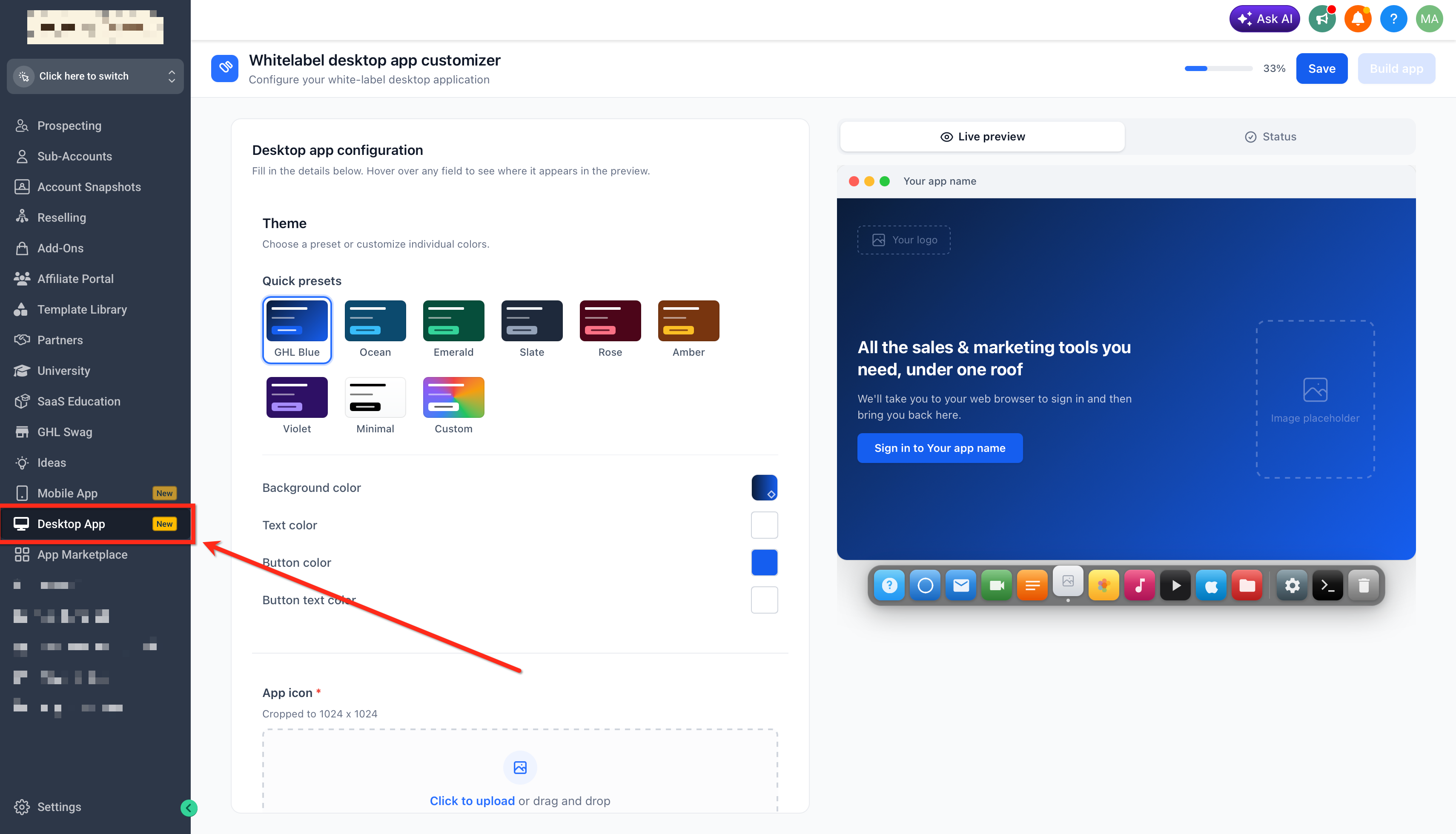
Step 1: Open the Desktop App Customizer
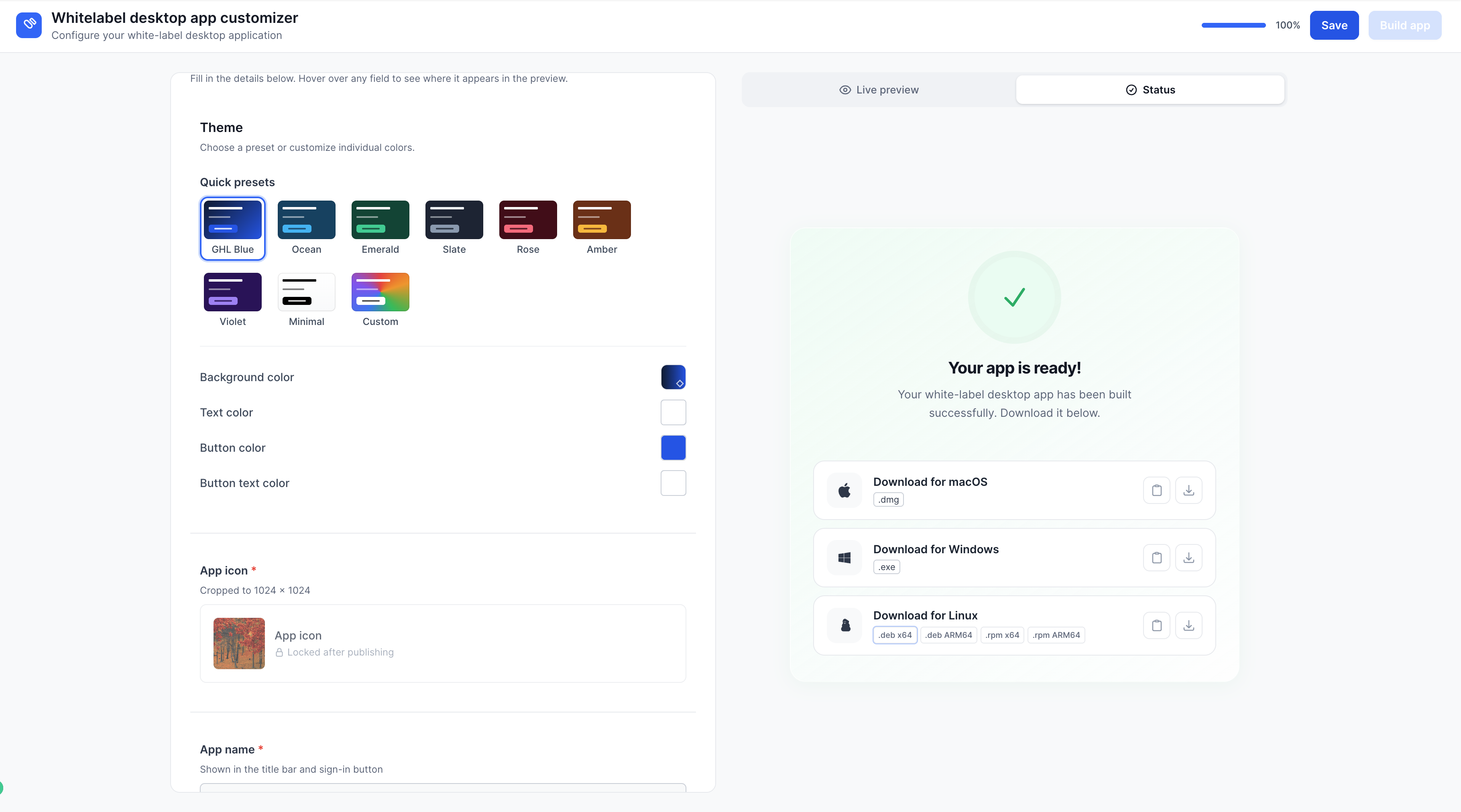
Log in to your Agency Dashboard and open the Desktop App tab. This is where you can configure the White-Label Desktop App, review branding changes in the live preview, and submit the app for building.
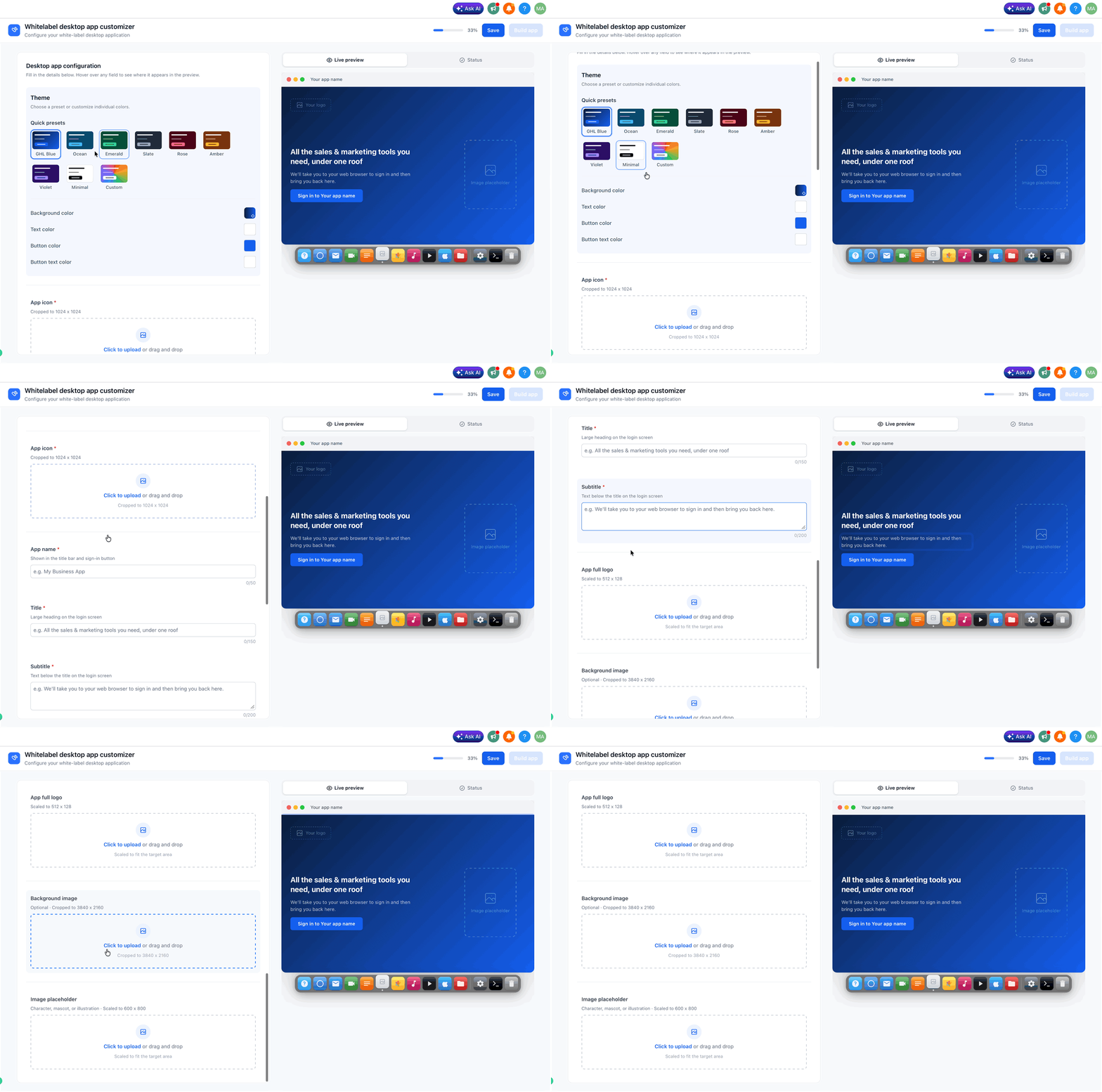
Step 2: Configure the Desktop App
Add the desktop app branding details you want customers to see. These settings control the app’s visual identity, login screen content, and brand presentation inside the White-Label Desktop App.
- Theme: Choose a preset theme or create a custom theme for the White-Label Desktop App.
- App Icon: Upload the app icon you want customers to see when using the desktop app.
- App Name: Enter the app name shown in the title bar and sign-in button. The app name cannot be changed while the app is being built.
- Title: Add the large heading that appears on the login screen.
- Subtitle: Add the supporting text that appears below the title on the login screen.
- App Full Logo: Upload the full logo for the app. The image is scaled to 512 x 128.
- Background Image: Upload the background image for the desktop app experience.
- Placeholder Images: Upload placeholder images to enhance the app’s appearance.
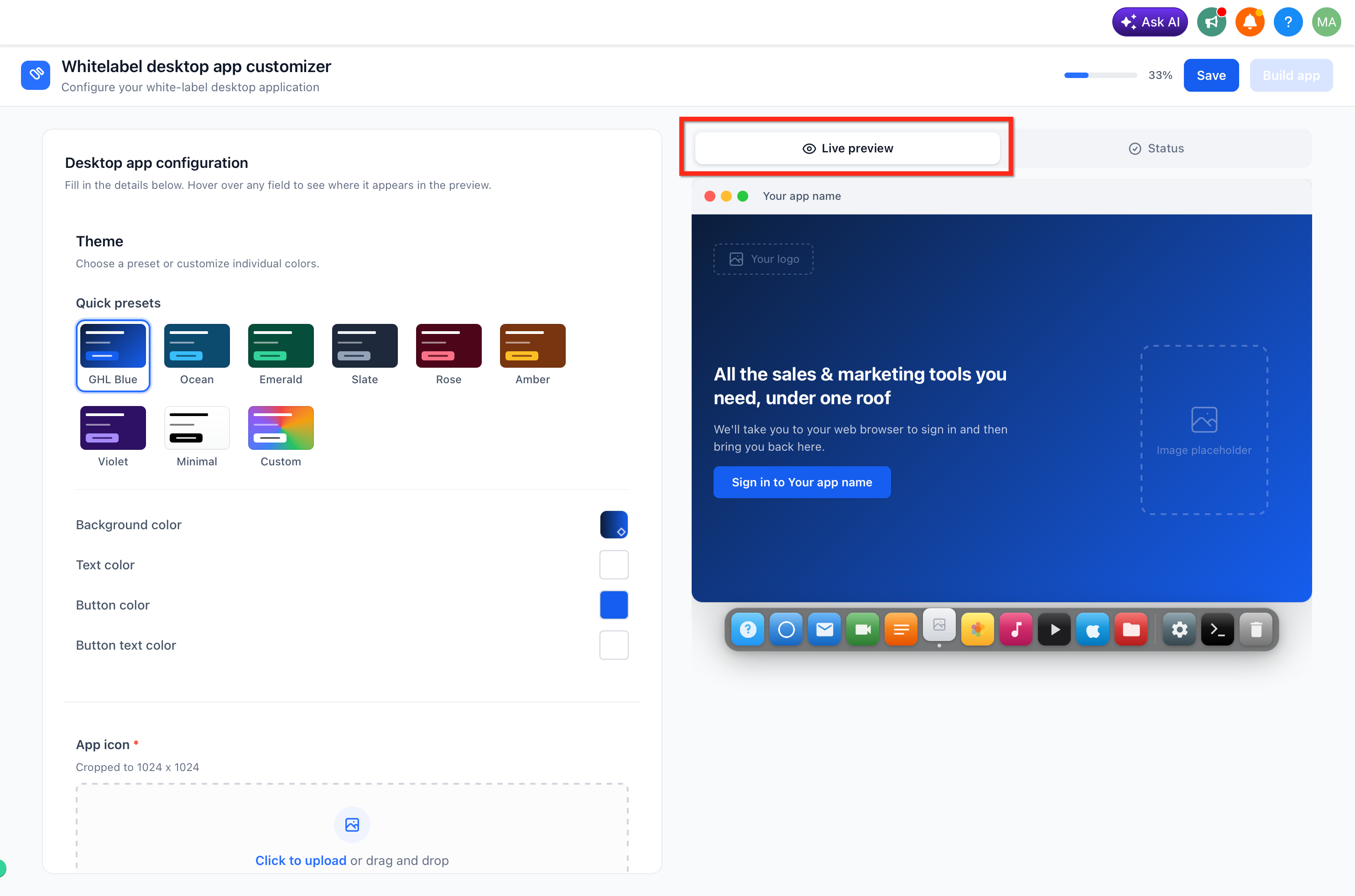
Step 3: Review the Live Preview
Review the live preview to confirm the desktop app reflects the selected branding settings. The preview updates as customizations are applied, allowing agencies to visualize the final app before submitting it for build.
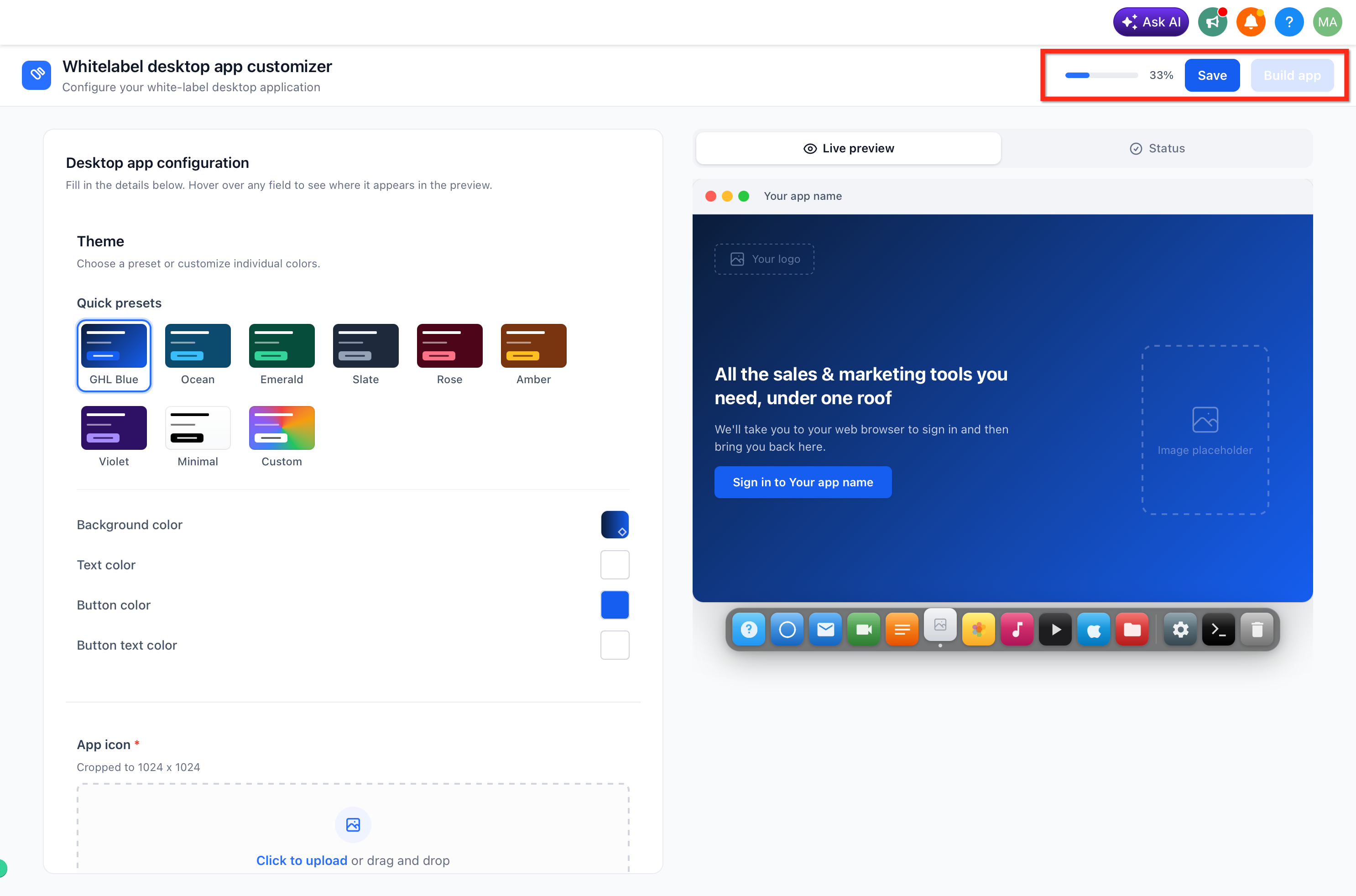
Step 4: Save the Configuration
Save the configuration once the branding settings are complete. Saving prepares the selected theme, app name, icon, title, subtitle, full logo, background image, and placeholder images for the build process.
Step 5: Submit the App for Build
After saving the configuration, submit the app for building. Once the Build App action is triggered, HighLevel automatically starts the build process.
Step 6: Download, Copy, and Share Access Links
Once the build is complete, HighLevel generates the corresponding application links. Agencies can download the app or copy the access links within the timeframe shown in HighLevel, then share the appropriate links with users.
These links can be included in:
- Onboarding materials
- Client portals
- Documentation
- Customer support responses
Step 7: Promote the Published App to Sub-Accounts
After the app reaches the Published state, use the Promote toggle in the Desktop App Customizer to make the app available inside sub-accounts.
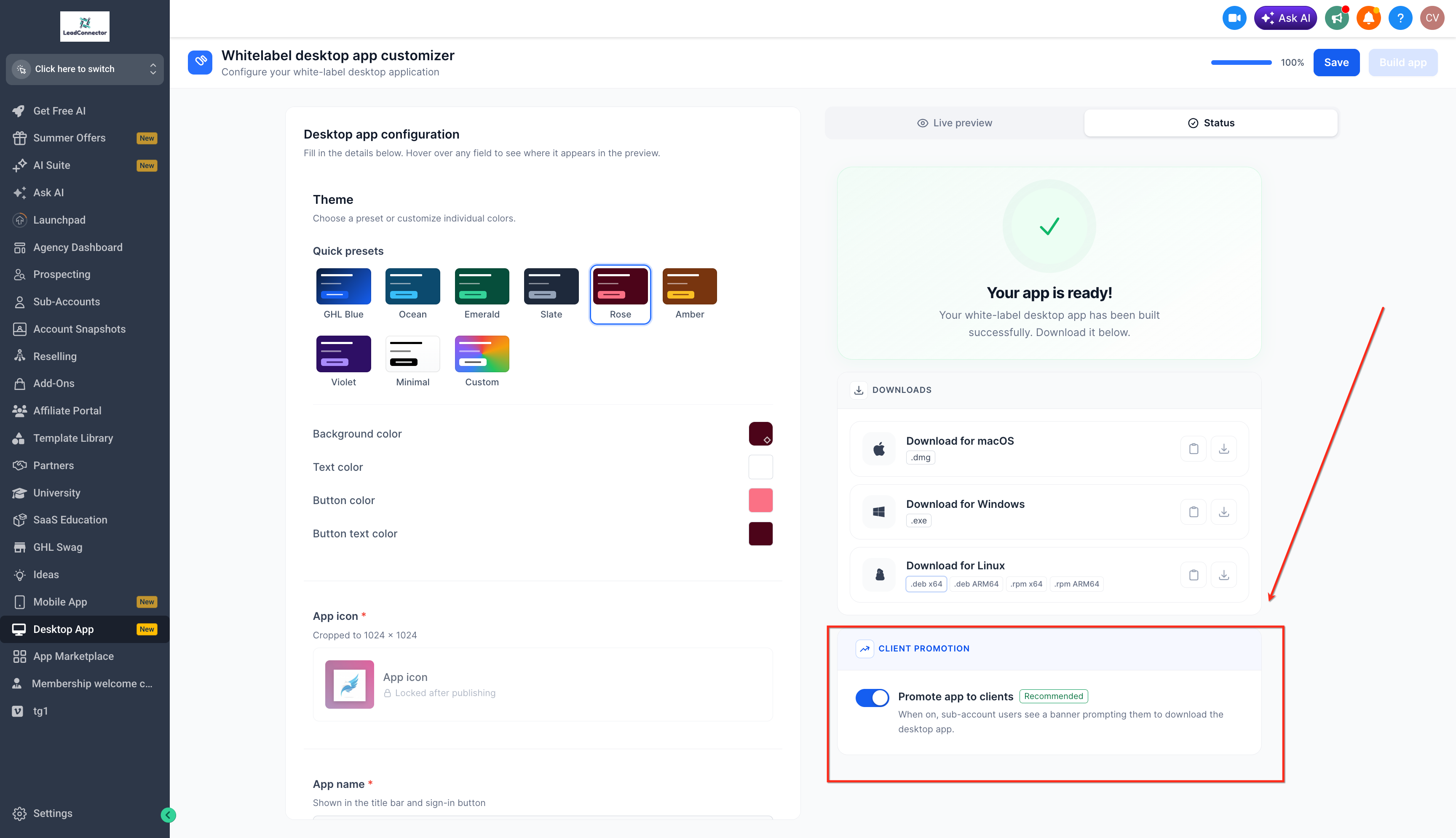
When promotion is enabled, sub-account users see a download banner for the agency’s White-Label Desktop App.
Download links for the other supported operating systems remain available below the primary installer. All banner download links point to the latest published build.
The banner detects the user’s operating system and highlights the matching installer for:
- macOS
- Windows
- Linux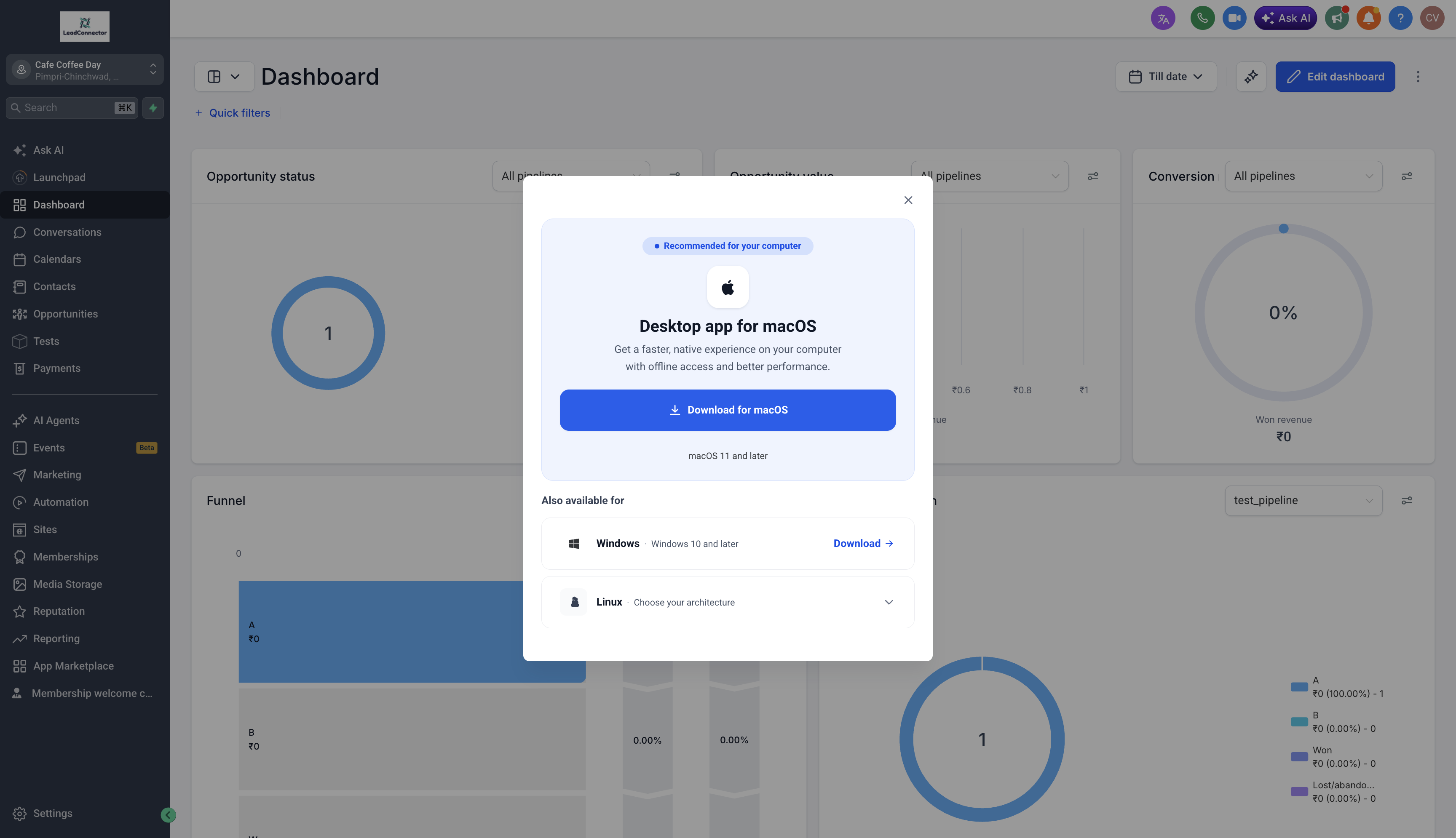
Using Desktop App Branding With a Whitelabel Domain
Desktop app branding controls how the installed White-Label Desktop App looks, including the app name, icon, theme, logo, and login screen visuals. A whitelabel domain controls the branded web login URL customers use when accessing HighLevel through a browser.
These settings are configured separately, but using both helps create a more consistent branded experience for customers. Use the Desktop App Customizer to brand the desktop app, and configure the whitelabel domain separately for the branded web login experience.
For setup instructions, see How to Set Up a Whitelabel Domain for the Desktop Web App.
Frequently Asked Questions
Q: Where do I find the Desktop App Customizer?
The Desktop App Customizer is available from the Desktop App tab in the Agency Dashboard.
Q: Which platforms are supported?
The White-Label Desktop App is available for macOS, Windows, and Linux.
Q: Can I preview the app before building it?
Yes. The Desktop App Customizer includes a live preview so you can review branding changes in real time before submitting the app for build.
Q: What happens after I click Build App?
HighLevel automatically starts the build process. Once the build is complete, application links are generated and made available for access.
Q: How do I share the completed desktop app with users?
After the app is built, you can download it or copy the generated access links from the Desktop App tab. After the app reaches the PUBLISHED state, you can also turn on the Promote toggle. This displays an app download banner inside sub-accounts. You can continue sharing direct links through onboarding emails, documentation, customer support responses, or client portals.
Q: Are Mac App Store and Microsoft Store listings available now?
The release note lists Mac App Store and Microsoft Store listing as a future enhancement. For now, use the generated download or access links provided after the build is complete.
Q: Is the whitelabel domain configured inside the Desktop App Customizer?
No. The Desktop App Customizer controls the desktop app’s branding and build settings. A whitelabel domain is configured separately for the branded desktop web app login experience.
Q: How does the download banner select an installer?
The banner detects the sub-account user’s operating system and highlights the matching macOS, Windows, or Linux installer. Links for the other supported operating systems remain available below the highlighted installer.
Related Articles
- Download HighLevel & LeadConnector Desktop App for Windows, macOS & Linux
- How to Set Up a Whitelabel Domain for the Desktop Web App
- Agency Launchpad
- Self-Service Whitelabelled Mobile App Customizer
- How to Promote and Customize Your Whitelabel Mobile App: A Comprehensive Guide
- How to Create a Whitelabel Membership App (PWA)
Was this article helpful?
That’s Great!
Thank you for your feedback
Sorry! We couldn't be helpful
Thank you for your feedback
Feedback sent
We appreciate your effort and will try to fix the article