You can trigger automations in bulk for Company and Custom Object records, directly from their list views. Instead of waiting for records to meet a workflow trigger or processing them individually, users can select the records they need and send them into the relevant automation in one action.
TABLE OF CONTENTS
- Overview of Triggering Automations in Bulk
- Prerequisites and Limitations
- How to Trigger Automations in Bulk for Companies and Custom Objects
- Use Cases
- Frequently Asked Questions
- Related Articles
Overview of Triggering Automations in Bulk
The Trigger Automation bulk action allows you to select multiple Company or Custom Object records and send them into a workflow at once.
This is useful when you want to run an automation for a specific group of existing records without waiting for them to meet a workflow trigger individually.
You can also combine this with Smart Lists and filters to create a segment, select the relevant records, and trigger an automation for the entire segment.
Prerequisites and Limitations
Before using the bulk action:
- A workflow must already exist for the selected object
- The workflow must be published
- The bulk action is currently available for Companies and Custom Objects
- Only workflows applicable to the selected object can be triggered
How to Trigger Automations in Bulk for Companies and Custom Objects
Step 1: Select the Records
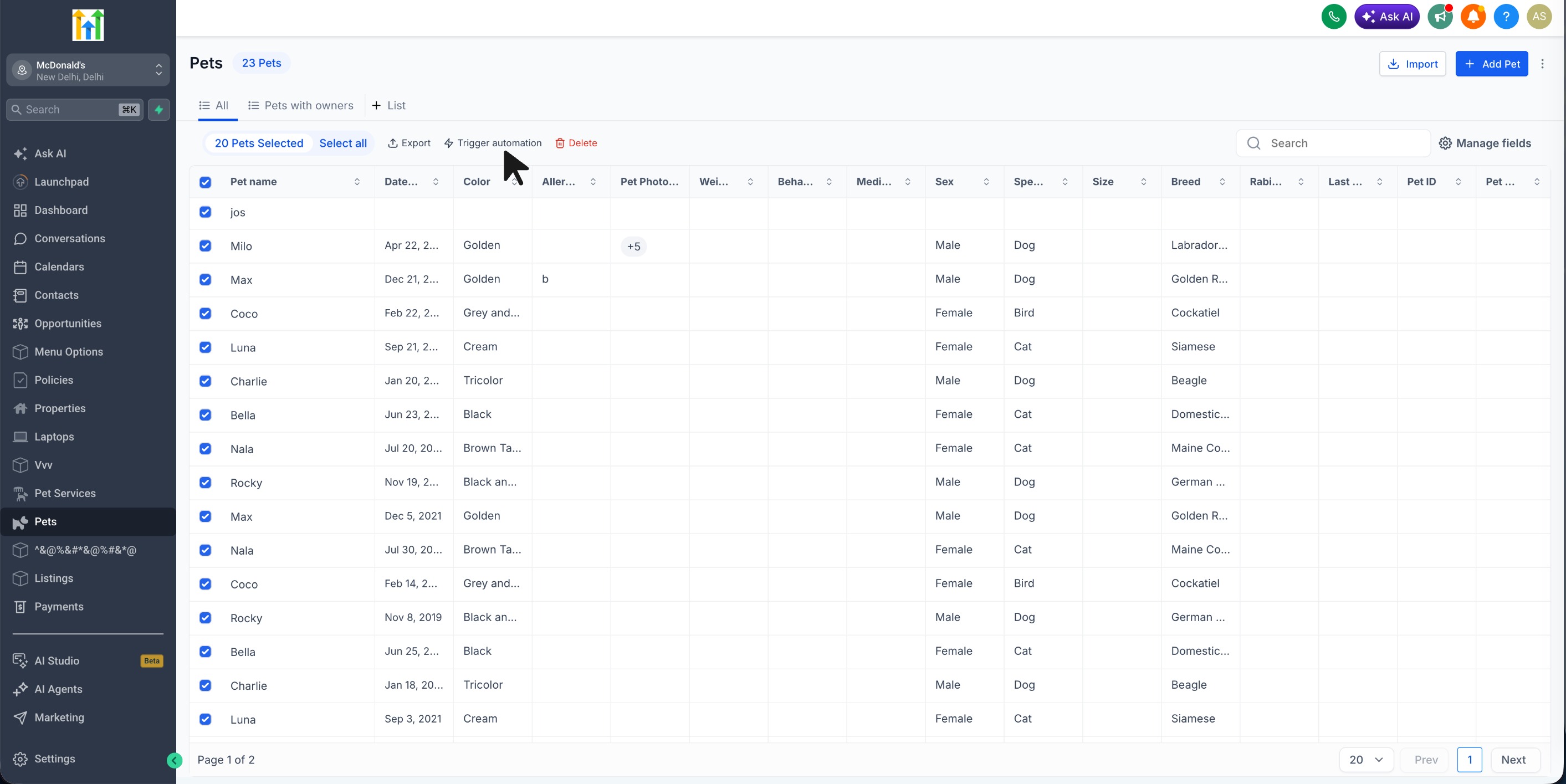
Open Companies or the required Custom Object and select the records you want to process.
You can apply filters or use a Smart List first to narrow the list to a specific segment.
Step 2: Select Trigger Automation
From the bulk actions menu, click Trigger Automation.
Step 3: Select the Workflow
Choose the workflow you want the selected records to enter.
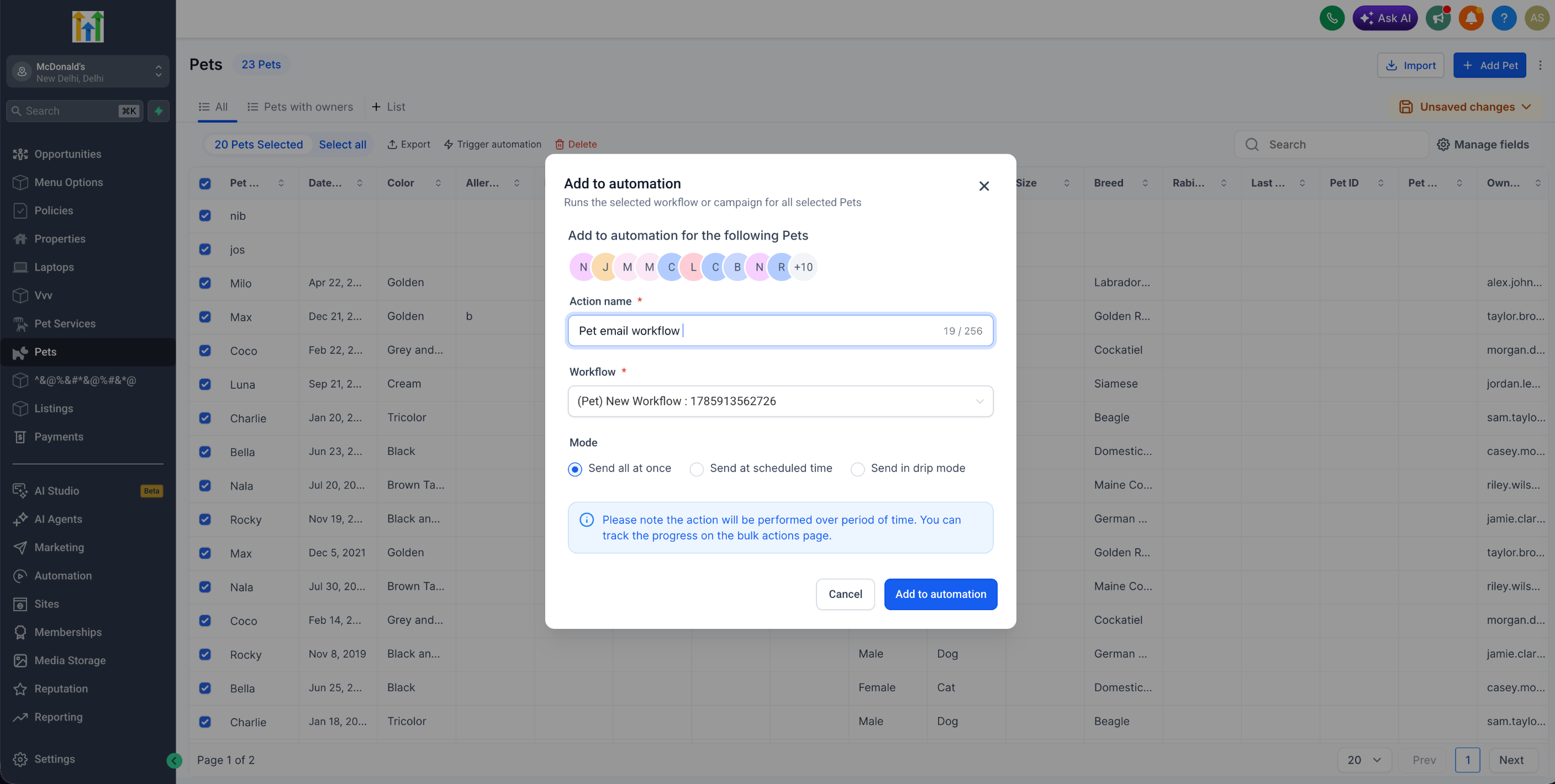
Step 4: Confirm the Action
Review your selection and confirm the action.
The selected records will be sent to the chosen workflow for processing.
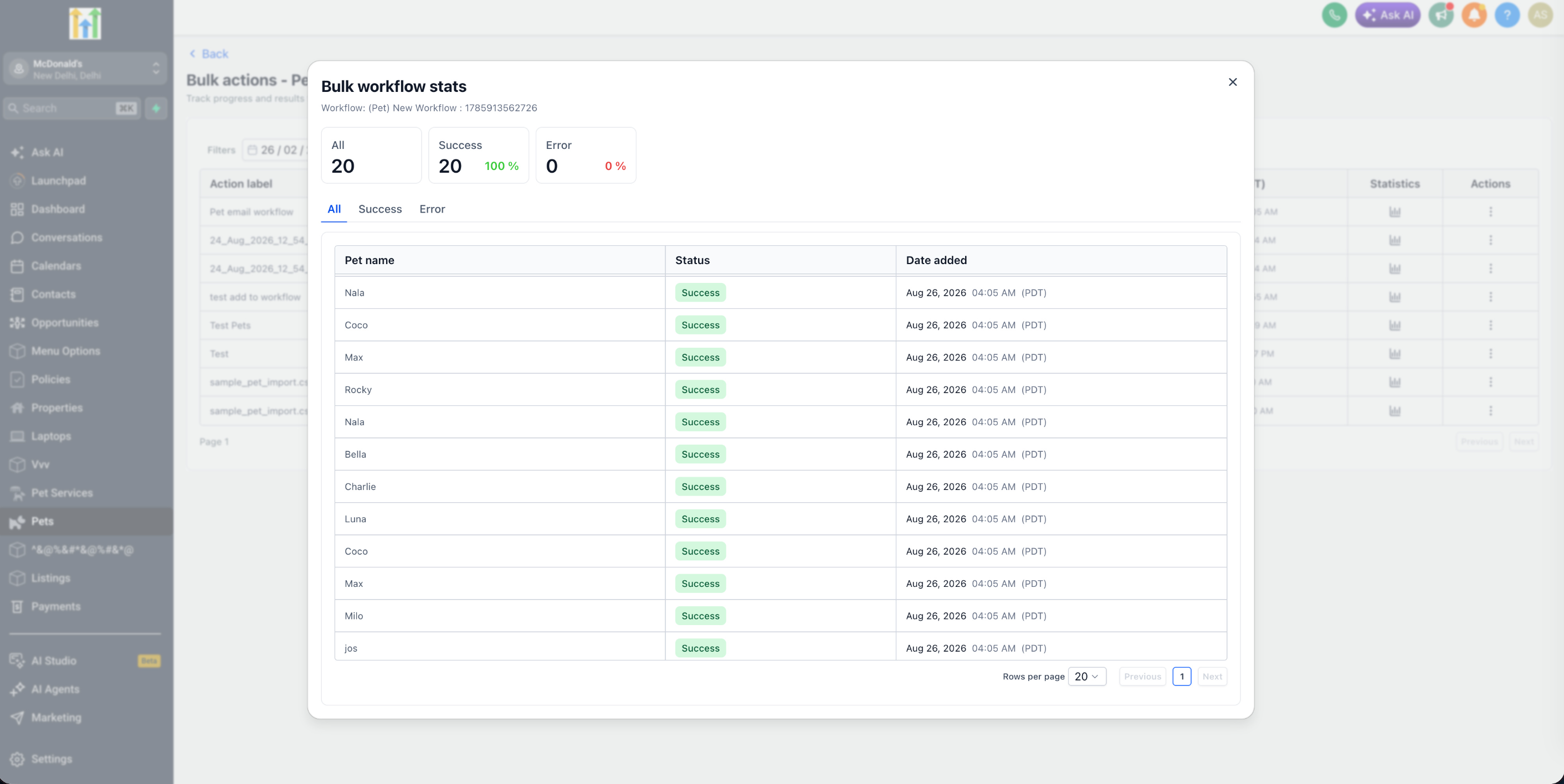
Step 5: Track Progress
Go to Bulk Actions to monitor the progress and review the status of individual records.
Use Cases
1. Run a Workflow for a Smart List Segment
Create a Smart List using filters such as industry, status, renewal date, owner, or any other field. Select the records in the segment and trigger the required workflow for all of them at once.
2. Trigger Renewal Workflows
Filter Policy, Subscription, Contract, or Membership records approaching renewal and send them into a renewal workflow.
3. Process Imported Records
After importing Companies or Custom Object records, select the relevant records and trigger onboarding, association, enrichment, or follow-up workflows.
4. Re-engage Existing Records
Identify inactive Companies or other records using filters and trigger a re-engagement workflow for the selected segment.
5. Reprocess Records
Filter records that missed an earlier automation or require additional processing and trigger the workflow again in bulk.
6. Run One-Time Operational Automations
Trigger workflows for one-time processes such as updating fields, creating associations, assigning owners, or notifying internal teams without modifying the workflow's regular triggers.
Frequently Asked Questions
Q: Does Trigger Automation in Bulk replace normal workflow triggers?
No. It provides a manual way to enroll selected existing records into a workflow. The workflow's normal trigger configuration can continue to operate independently.
Q: Why can't I see the workflow I want to use?
Only workflows applicable to the selected object can be triggered through the bulk action. The workflow must also already exist and be published.
Q: Where can I see whether individual records were processed successfully?
Open Bulk Actions and review the workflow statistics for the bulk action. The results provide record-level status information.
Related Articles
Was this article helpful?
That’s Great!
Thank you for your feedback
Sorry! We couldn't be helpful
Thank you for your feedback
Feedback sent
We appreciate your effort and will try to fix the article