Overview
We’re rolling out the Unified Client Portal Experience across the platform. Two things change for your members:
One login, all resources. End users with duplicate contacts inside the same sub-account now see everything under a single login — no profile switching.
A stronger sign-in. Client Portal sign-in has been upgraded to be more secure, more reliable, and consistent with the rest of the HighLevel platform.
What’s new
One login for everything. Members sign in once and see all their resources — courses, communities, memberships, and billing — in a single place, even if they previously had multiple duplicate accounts under the same email. No more juggling logins or hunting across profiles.
A unified home for every resource. Content and history that used to be scattered across duplicate profiles now come together under one account, so members always find what they’re looking for right where they expect it.
A more secure, standardized sign-in. Logging in is now more secure and consistent with the rest of the platform, with a smoother and more reliable experience for end users.
A fresh new look — the Compass app. The unified experience ships with our redesigned Compass interface, giving members a cleaner, more modern portal.
Reliable contact-to-portal linking. Updating a contact’s primary email in the CRM no longer accidentally changes or breaks their Client Portal login. A dedicated Client Portal email field keeps each contact reliably connected to the right portal account, and updates stay in sync across all related contacts.
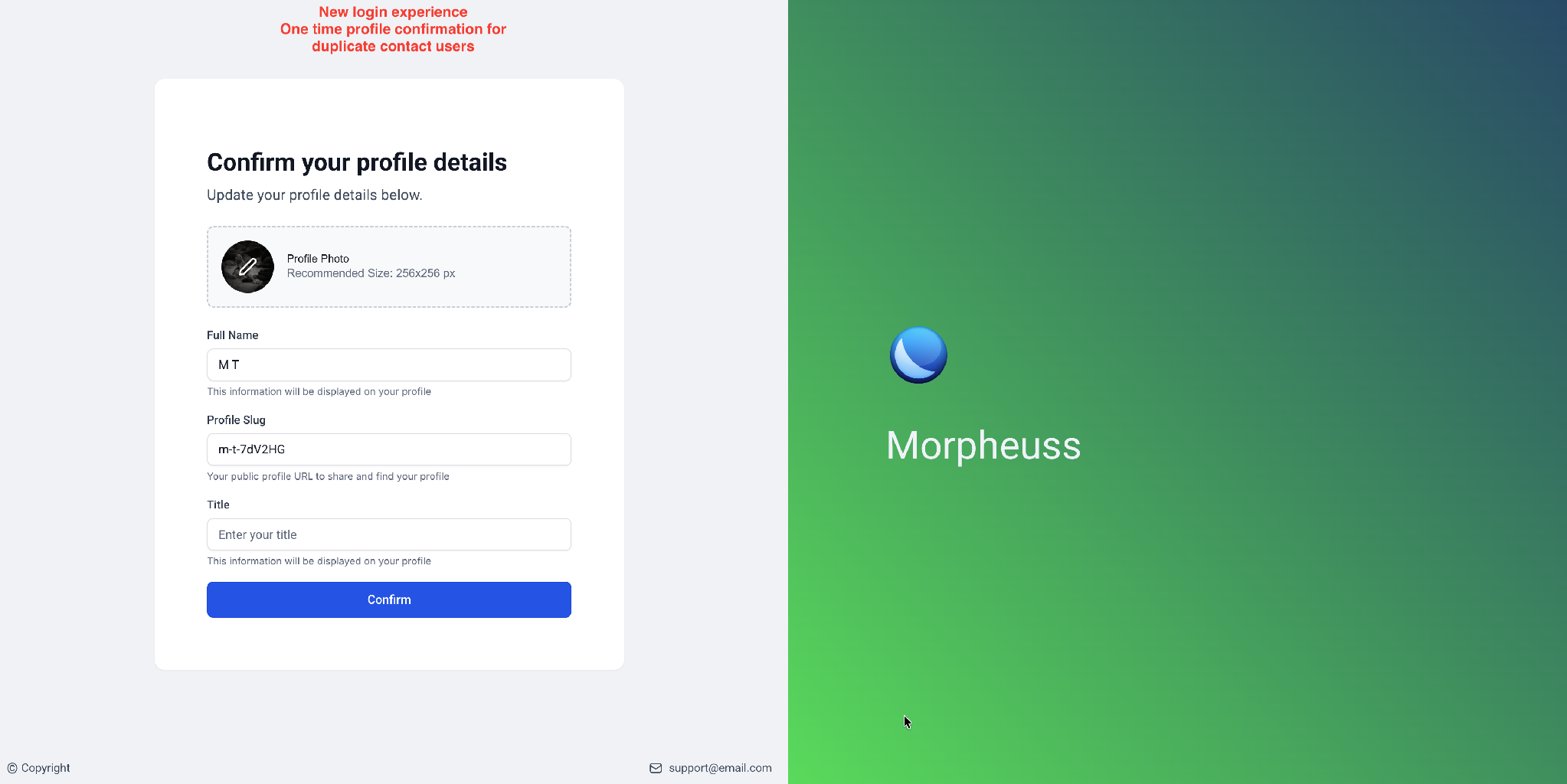
The new branded sign-in, with a one-time profile confirmation for members who previously had duplicate contacts.
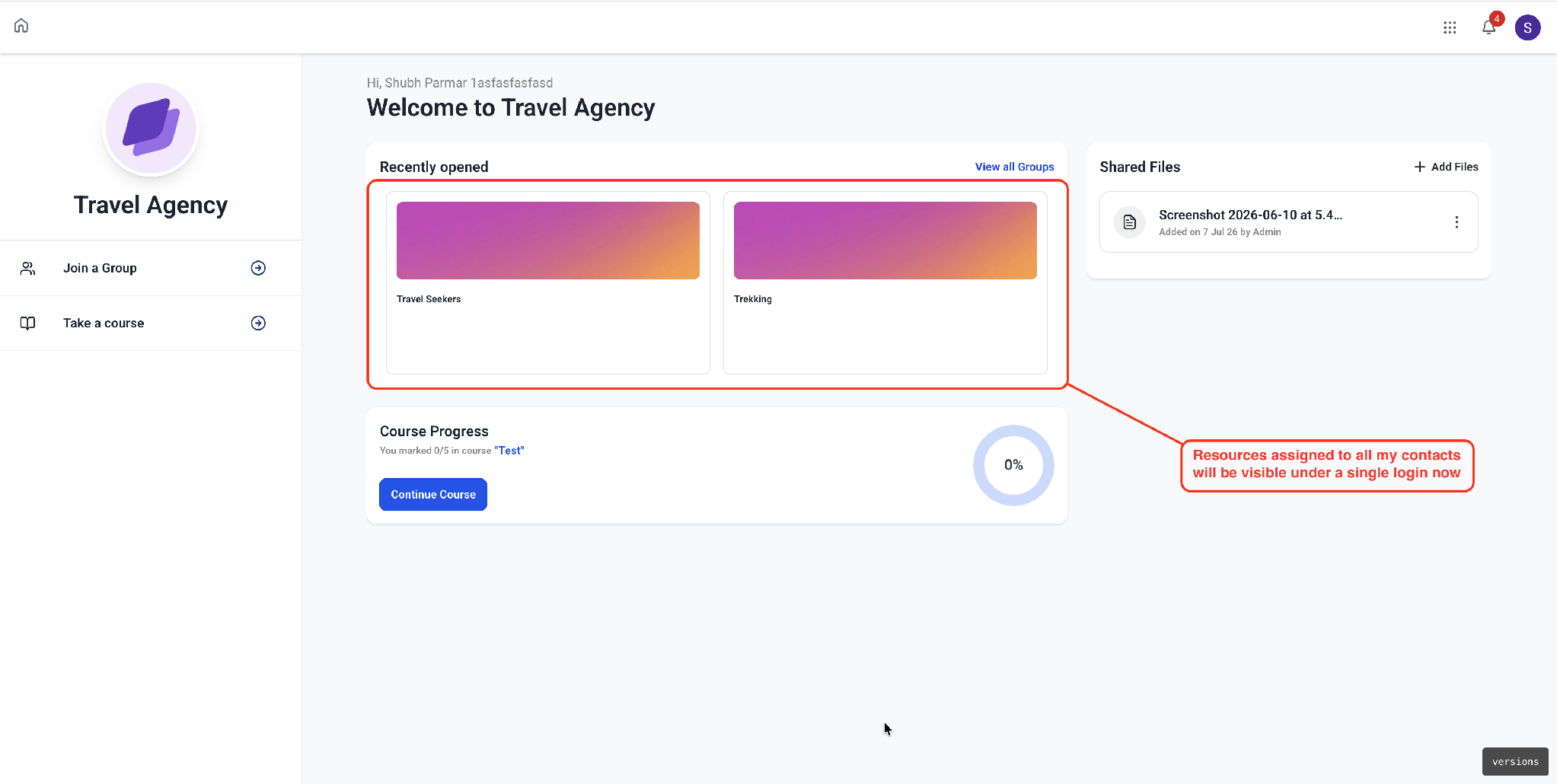
Member view — resources assigned across all of a member’s contacts now appear together under a single login.
How to enable the unified experience
Getting started is easy — just open the Client Portal dashboard in the builder for your sub-account.
That single visit puts your location in line to be upgraded. From there, everything happens automatically in the background, and the new Compass experience turns on for your members once it’s ready. There is nothing to configure, and no need to log anyone out.
Step 1 — Open the Client Portal dashboard
Go to Memberships › Client Portal › Dashboard in the sub-account. You’ll see the announcement for the redesigned portal, where you can preview the new look in your own account before rolling it out to members.
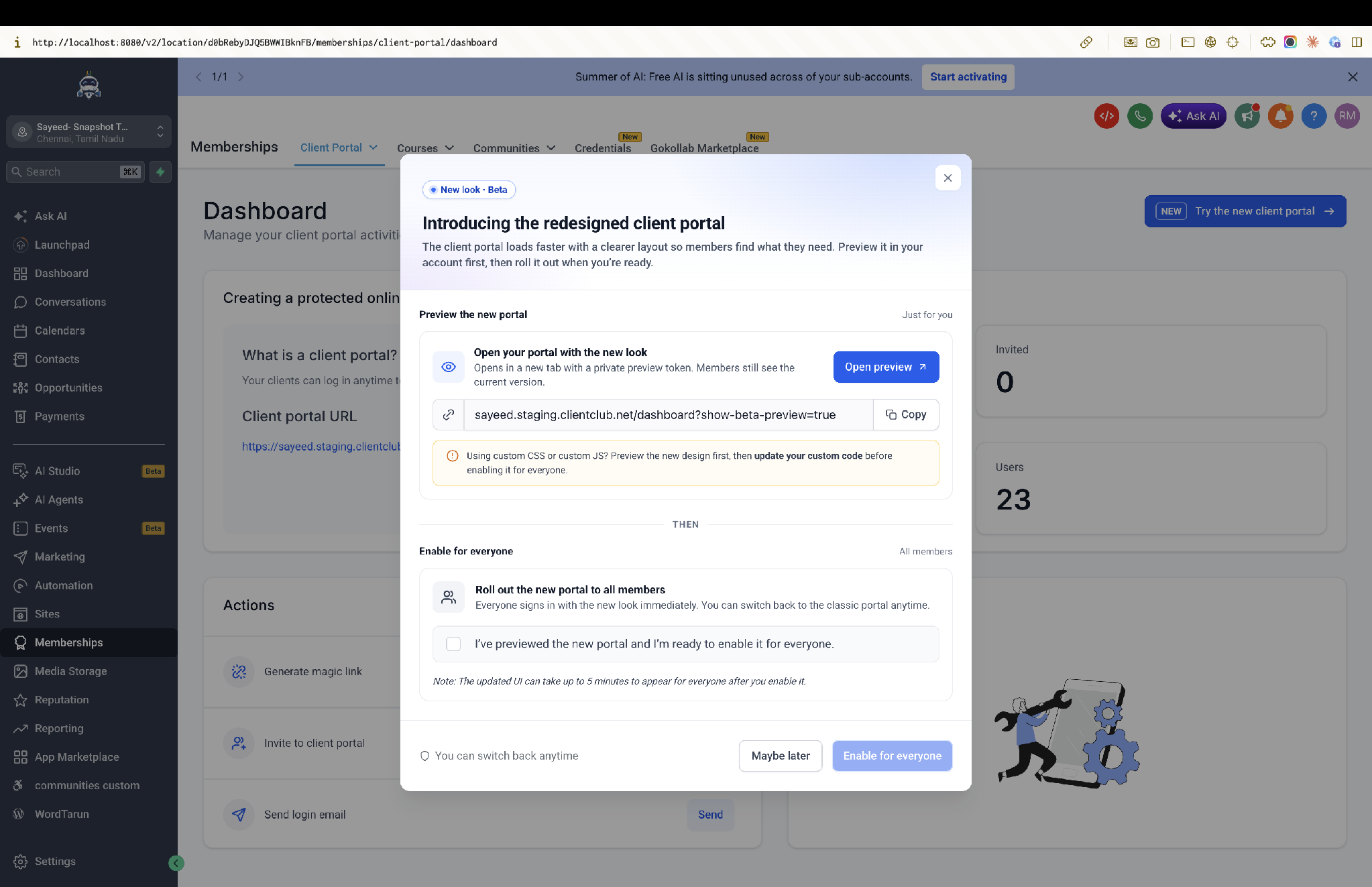
The redesigned Client Portal announcement — preview privately first, then enable for all members.
Open preview — opens the portal in a new tab with a private preview token. Members continue to see the current version.
Enable for everyone — all members sign in with the new look immediately. You can switch back to the classic portal at any time.
Using custom CSS or custom JS? Preview the new design first and update your custom code before enabling it for everyone.
Note: after enabling, the updated UI can take up to 5 minutes to appear for everyone.
Step 2 — Let the migration finish
Once the location is queued, the portal is migrated to the new experience in the background. This usually takes a few minutes. You can close the dialog and check back later — the migration continues on its own.
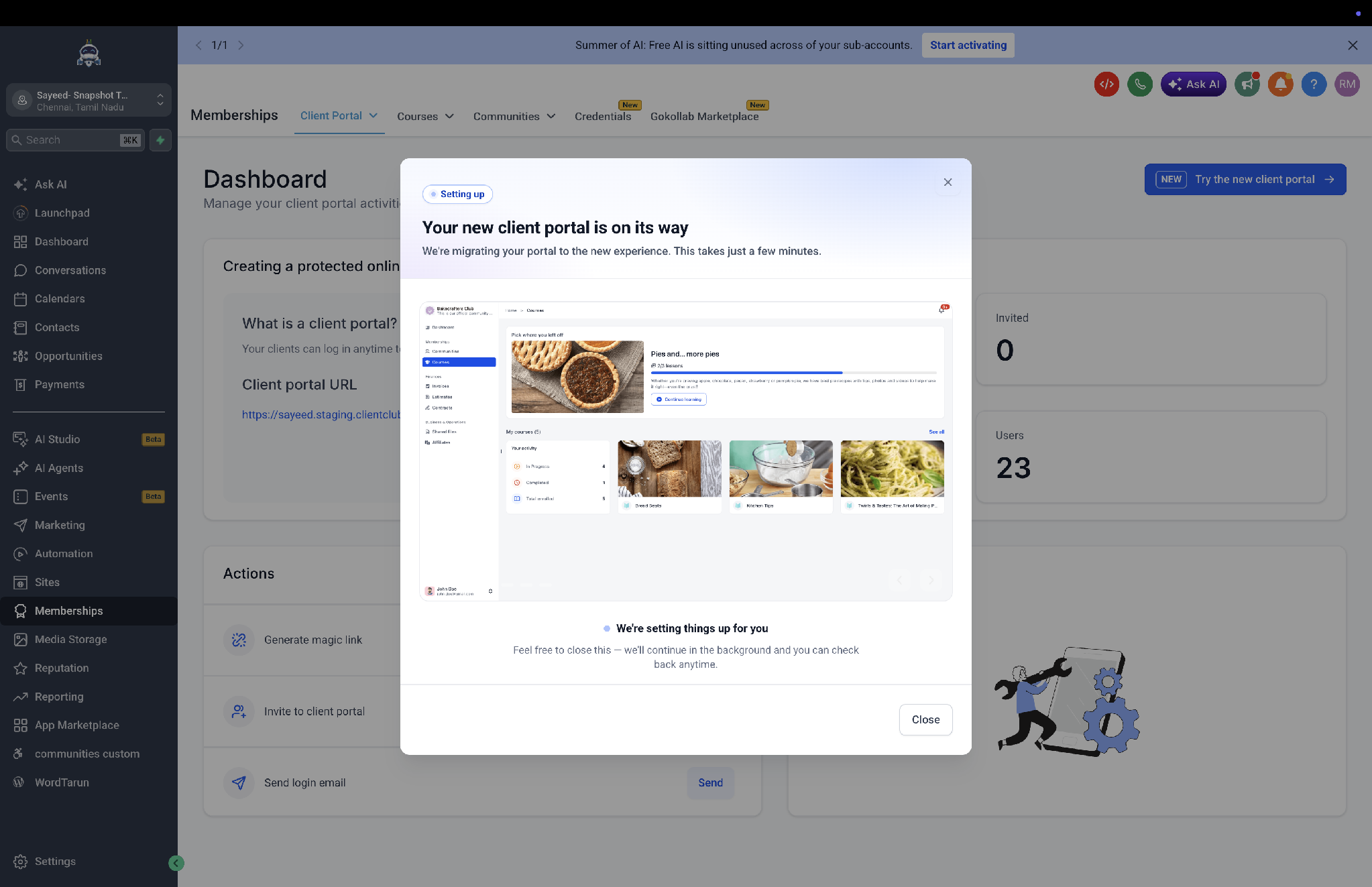
Migration in progress — the upgrade continues in the background; no action is required.
Step 3 — Members log in as usual
No communication or re-onboarding is required. Members simply log in the way they always have and find all their resources together in one place.
The new Client Portal email field
With this release we’re introducing a dedicated Client Portal email field on the contact record in the CRM. This keeps Client Portal login identity separate from, and protected against, changes to the contact’s primary email.
You can find it on the contact record under Actions › Client portal. This is the email address your Client Portal users will use to sign in and receive notifications from all Client Portal apps such as Courses, Communities, and others. From the same panel you can also change the member’s password or send them a reset link.
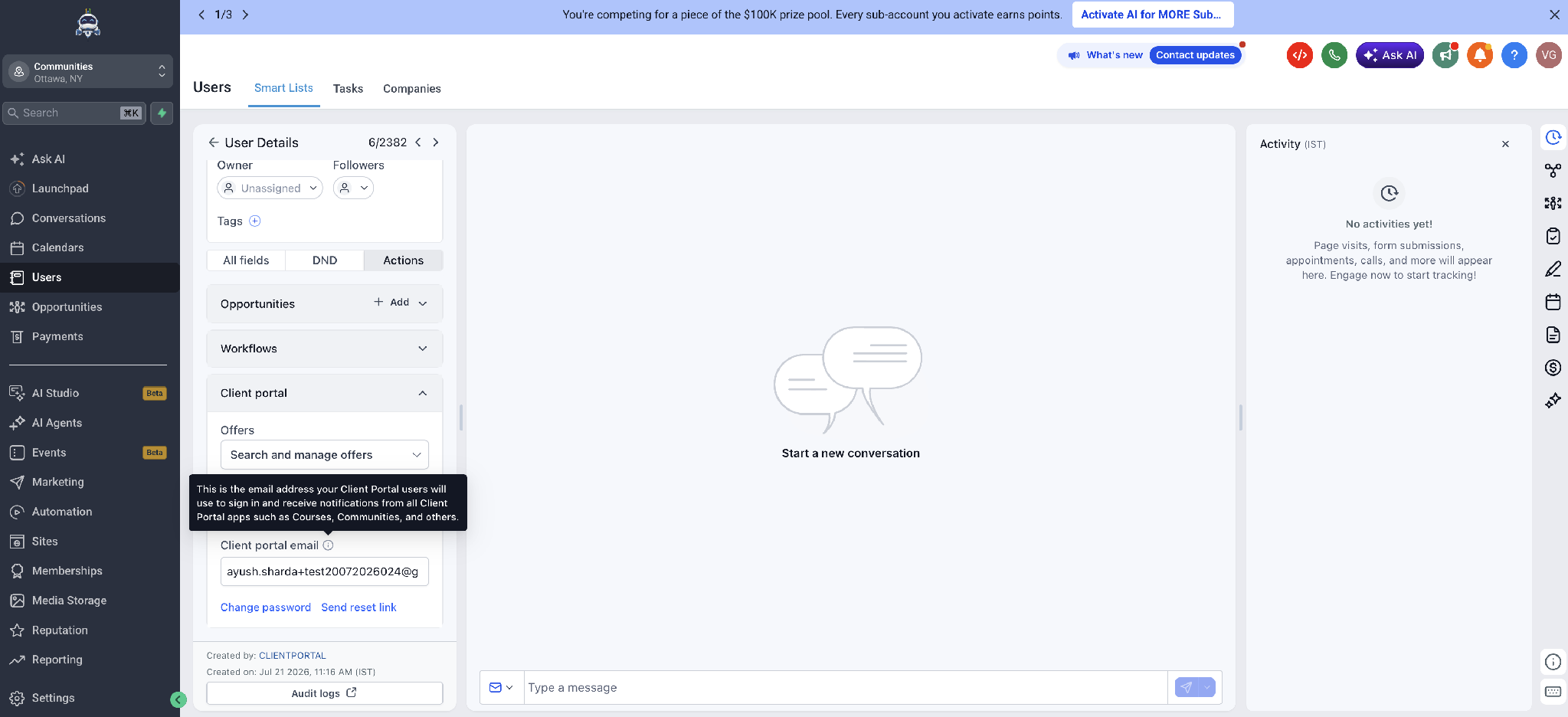
Contact record — the dedicated Client Portal email field, with change password and send reset link actions.
Frequently asked questions
Do members need to be logged out or re-invited?
No. There is no need to log anyone out and no re-invitation is required. Members log in exactly as they did before.
What happens to a member who had multiple duplicate accounts under the same email?
They now sign in once and see all of their resources — courses, communities, memberships, and billing — together under a single login. Content and history from the duplicate profiles come together under one account.
Does this merge duplicate contacts in the CRM?
No. Merging duplicate CRM contacts is a manual action that must be carried out by the agency or sub-account owner.
Will changing a contact’s primary email break their portal login?
No. The dedicated Client Portal email field keeps the portal login identity separate from the primary email, and updates stay in sync across all related contacts.
Can we go back to the classic portal after enabling the new look?
Yes. You can switch back to the classic portal at any time.
How long does the change take to appear?
The migration itself runs in the background and generally takes a few minutes. After enabling the new look for everyone, the updated UI can take up to 5 minutes to appear for all members.
We use custom CSS or JS on the portal — what should we do?
Preview the new design first using the private preview link, update your custom code against it, and only then enable the new experience for everyone.
Notes for support
A location is queued for migration the first time someone opens the Client Portal dashboard in the builder. If a sub-account is asking why they aren’t on the new experience yet, confirm the dashboard has been opened at least once.
If a member reports missing resources after the upgrade, check whether their contacts share the same Client Portal email. Resources unify by portal login identity, not by CRM contact record.
Reports of a broken login after a CRM email change should be checked against the Client Portal email field on the contact, which is now the source of truth for the portal login.
Styling issues reported immediately after enabling the new look are most often custom CSS or JS that has not yet been updated for the Compass interface.
Was this article helpful?
That’s Great!
Thank you for your feedback
Sorry! We couldn't be helpful
Thank you for your feedback
Feedback sent
We appreciate your effort and will try to fix the article