Duplicate contacts can clutter your CRM, split communication history, and make reporting less accurate. HighLevel provides two ways to manage duplicate contacts: manually selecting contacts to merge or using the Manage Duplicates tool to find potential matches by email, phone, or name. This article explains how to review duplicate records, choose the correct master contact, and merge records safely.
TABLE OF CONTENTS
- What is Managing and Merging Duplicate Contacts?
- Key Benefits of Managing and Merging Duplicate Contacts
- Best Practices
- How to Manually Merge from the Contacts List
- How to Merge Contacts Using the Manage Duplicates Tool
- Contact Deduplication PreferencesTroubleshooting
- Frequently Asked Questions
- Related Articles
What is Managing and Merging Duplicate Contacts?
Managing and merging duplicate contacts helps keep one accurate contact profile for each person in your CRM. When duplicate records exist, you can combine them into one master record while reviewing key details such as email, phone, business name, tags, conversations, and other contact data.
A master record is the contact profile that remains after the merge. Some information from duplicate records can be retained or combined, while conflicting fields may default to the selected master record unless a different value is chosen during review.
Key Benefits of Managing and Merging Duplicate Contacts
- Cleaner CRM data: Keep one accurate profile for each contact instead of multiple duplicate records.
- Better communication history: Combine relevant conversations, notes, tasks, opportunities, and tags into one contact record.
- More accurate reporting: Reduce duplicate records that may skew contact counts, campaign results, and pipeline visibility.
- Faster contact management: Use search or the Manage Duplicates tool to quickly find and review possible duplicate records.
- Improved team visibility: Help users work from the same contact profile instead of splitting updates across duplicates.
Best Practices
Run duplicate scans periodically to keep your CRM clean.
Always review field conflicts before merging.
Use the Reject option only when you’re sure a record isn’t a duplicate.
Encourage your team to standardize data entry to prevent future duplicates.
What Will Be Kept When Contacts Are Merged?
Different types of contact data are handled differently during a merge. Review how HighLevel retains or combines information before selecting a master contact and confirming the merge.
| Data or Behavior | What Happens During the Merge |
|---|---|
| Master contact | The contact selected as the master remains after the merge. Existing values on the master contact are kept by default where applicable. |
| Appointments, payments, orders, and invoices | These default to the master contact’s values. |
| Custom fields | A value from another selected contact is added only when the corresponding custom field on the master contact is blank. Existing custom field values on the master contact are not overwritten. |
| Workflows | Active workflow execution can transfer to the master contact. If the master contact is already running the same workflow, the existing execution is kept and the additional execution may end. Workflow waits, goals, re-entry settings, and actions tied to the original contact can also affect behavior after a merge. |
| Undoing the merge | A completed contact merge cannot be reversed. |
Important: Contact merges are permanent. Before confirming the merge, verify that you selected the correct master contact and review the affected custom fields, appointments, payments, orders, invoices, and active workflow behavior.
How to Manually Merge from the Contacts List
Manual merge is useful when you already know which contact records are duplicates. You can search for the records, select them from the Contacts table, and merge them into one profile.
- Navigate to Contacts > Smart Lists.

- Use the Search Contacts box to find possible duplicate contacts.
- Search by available contact details such as:
- Name
- Business name
- Tags
- Phone
- You can also search manually from the smart list.

- Select the contacts you want to merge.
- Click More from the top action bar.
- Select Merge.

- In the Merge Contacts window, choose the contact that should remain as the Master record.
- Review fields with different values.

- Review All Fields and select the values you want to keep, such as the primary email, phone number, or business name and more.
- Click Merge Contacts.

How to Merge Contacts Using the Manage Duplicates Tool
Permissions & Restrictions
| Role | Access |
|---|---|
| Agency Admin / Sub-Account Admin | ✅ Full access to find & merge duplicates |
| Team Members / Users | ❌ No access |
Step 1: Accessing the Duplicate Management Tool
Note: Only Admins can use this feature and works on both the classic and new Contacts List View.- Click on Contacts from your sub-account.
- Click on the ⋮ (three-dot menu)
Click on the Manage Duplicates option.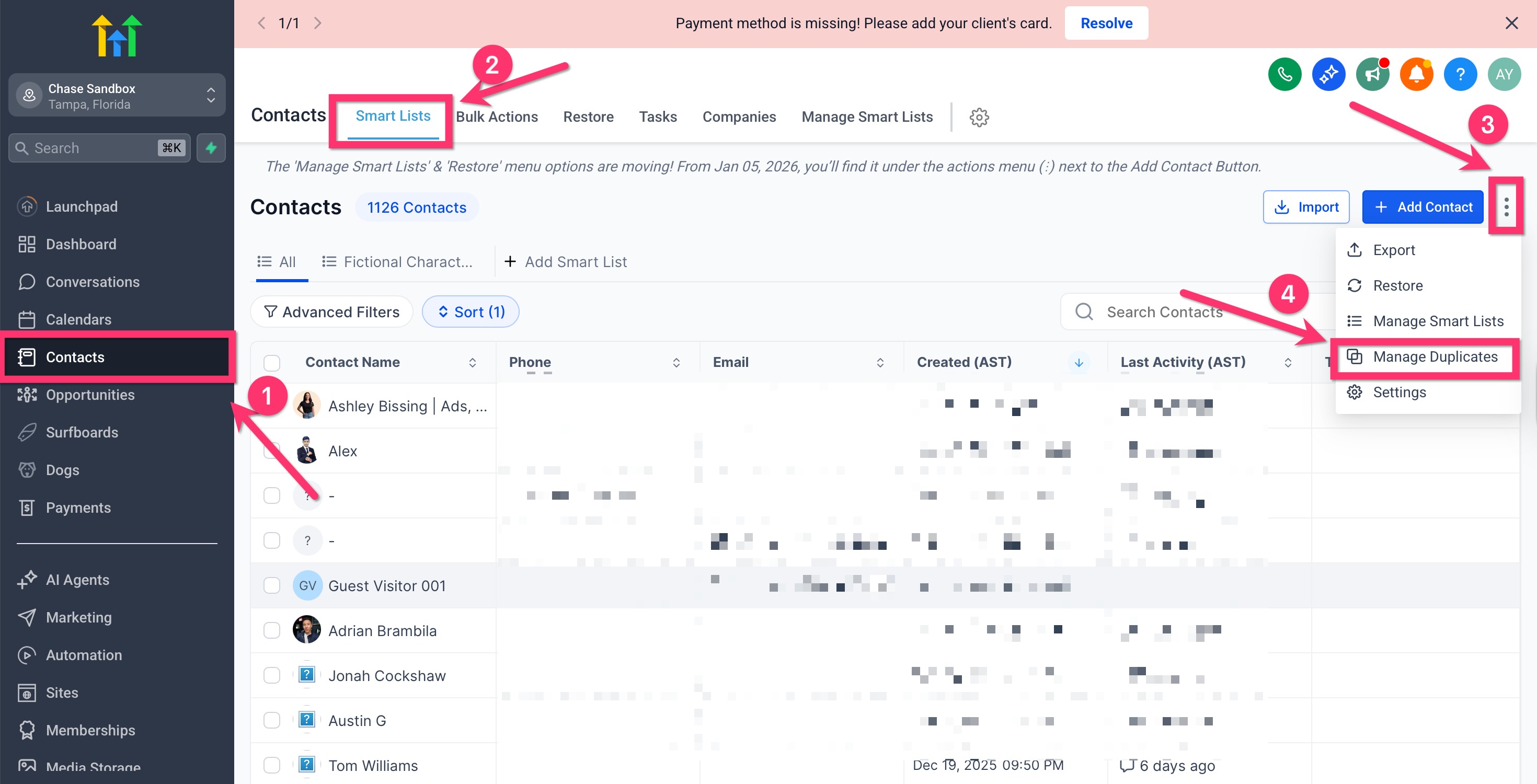
Step 2: Finding Duplicates
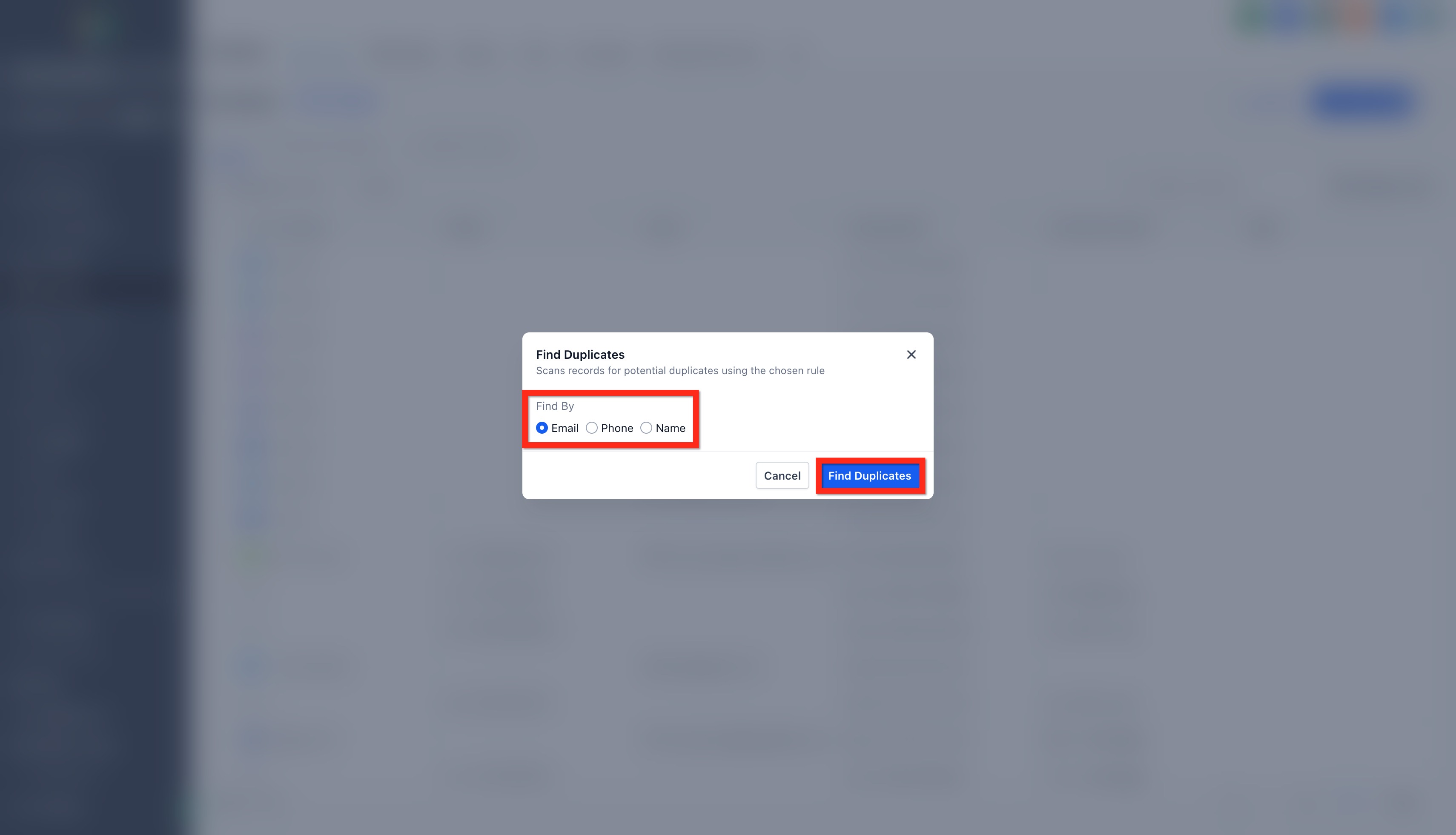
Choose a Find By criterion:
- Email (recommended default)
- Phone
- Name
- Email (recommended default)
- Click Find Duplicates.
- The system will start scanning your contact database and display duplicates that match the selected field
Step 3: Viewing Duplicate Records
- Once duplicates are found, you’ll see a list of potential duplicate groups.
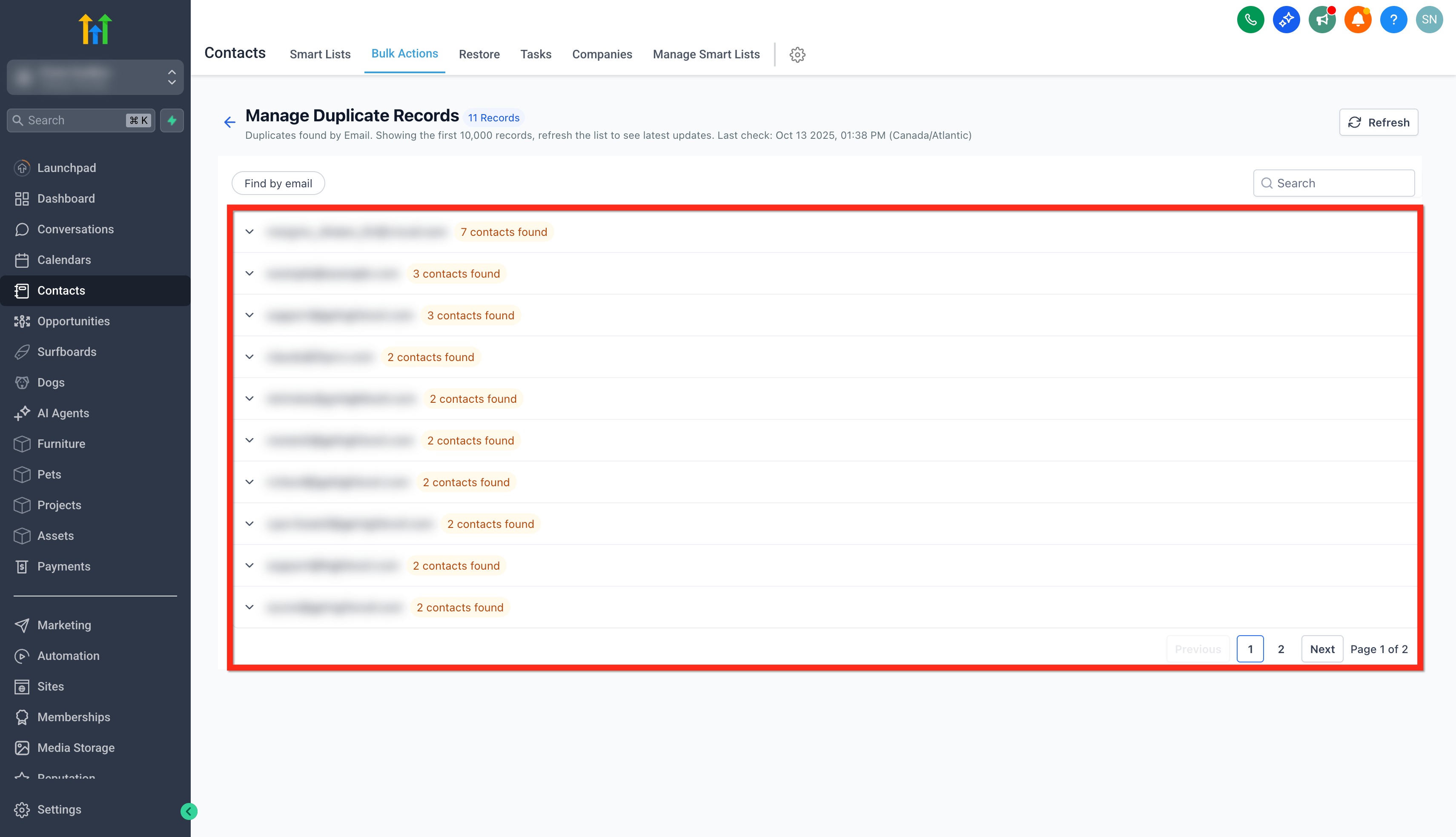
- Click on the Down Arrow sign beside a group to expand it.
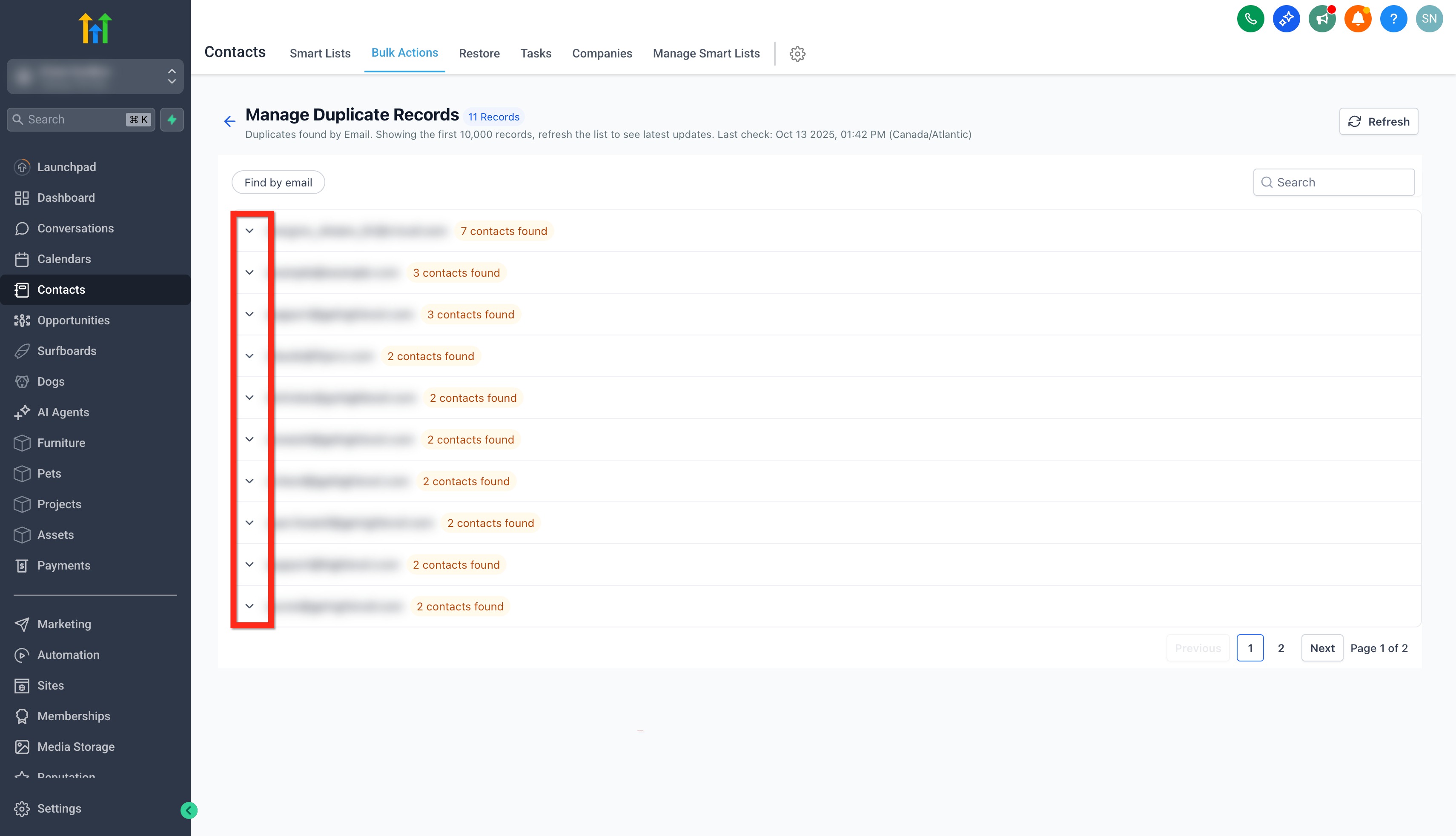
- You can expand a group to see all the contacts detected.
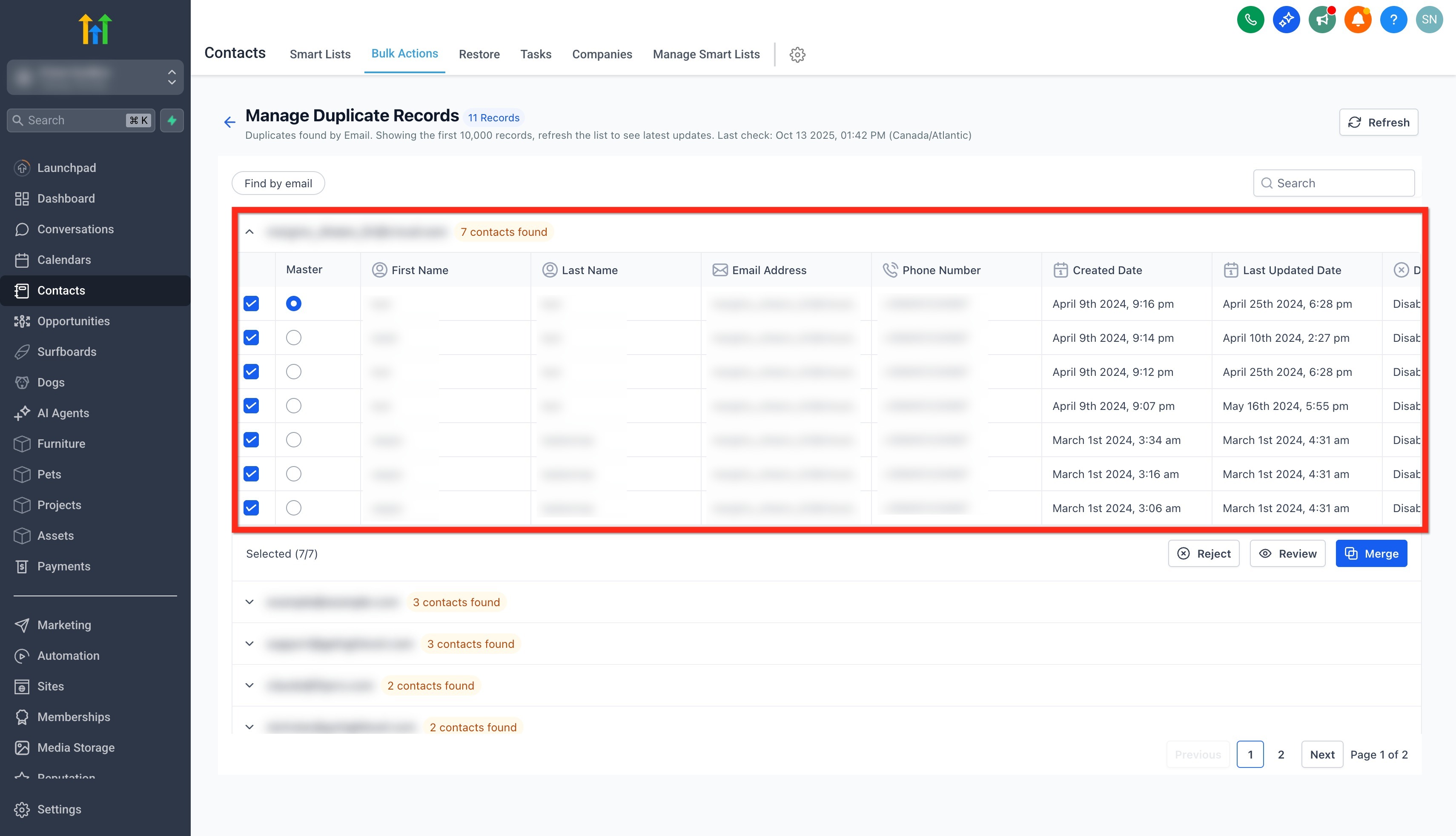
Step 4: Reviewing and Resolving Conflicts
You can also choose to review the changes in more details by clicking on Review.
Conflicting fields (like phone number, tags, country, etc.) are displayed side-by-side.
You can:
Select which value to keep for each field.
Combine multiple tags or additional details.
Choose primary email or phone number.
Ensure no duplicate opportunities are created.
Once reviewed, click Merge Contacts to proceed.
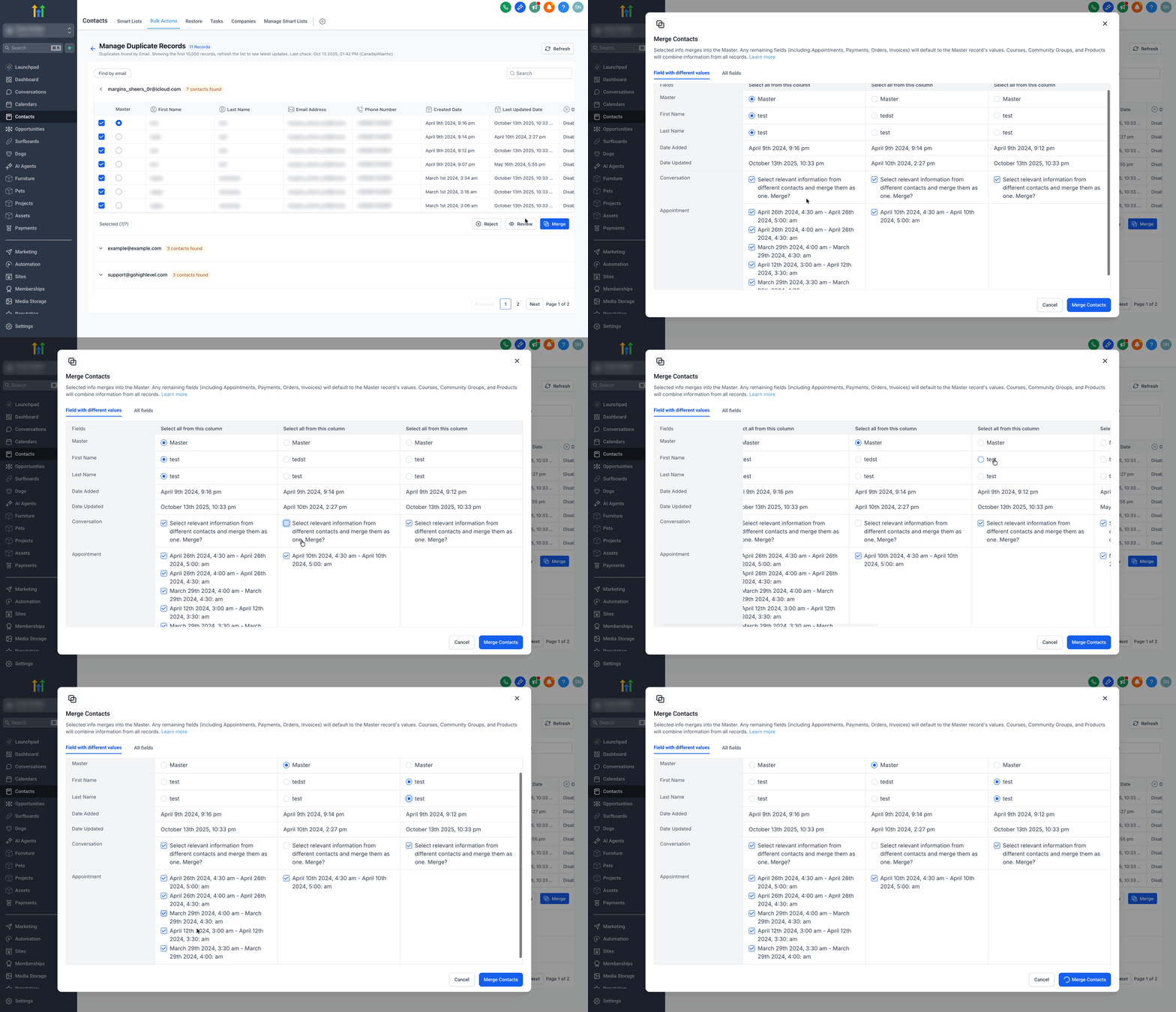
Step 5: Rejecting Duplicates
If you find that certain duplicates should not be merged:
Click Reject.
Confirm the rejection in the popup:
“This email address will not be used to find duplicates again.”
This action cannot be reverted.
Note: Rejected emails, phone numbers, or names will be excluded from future duplicate scans.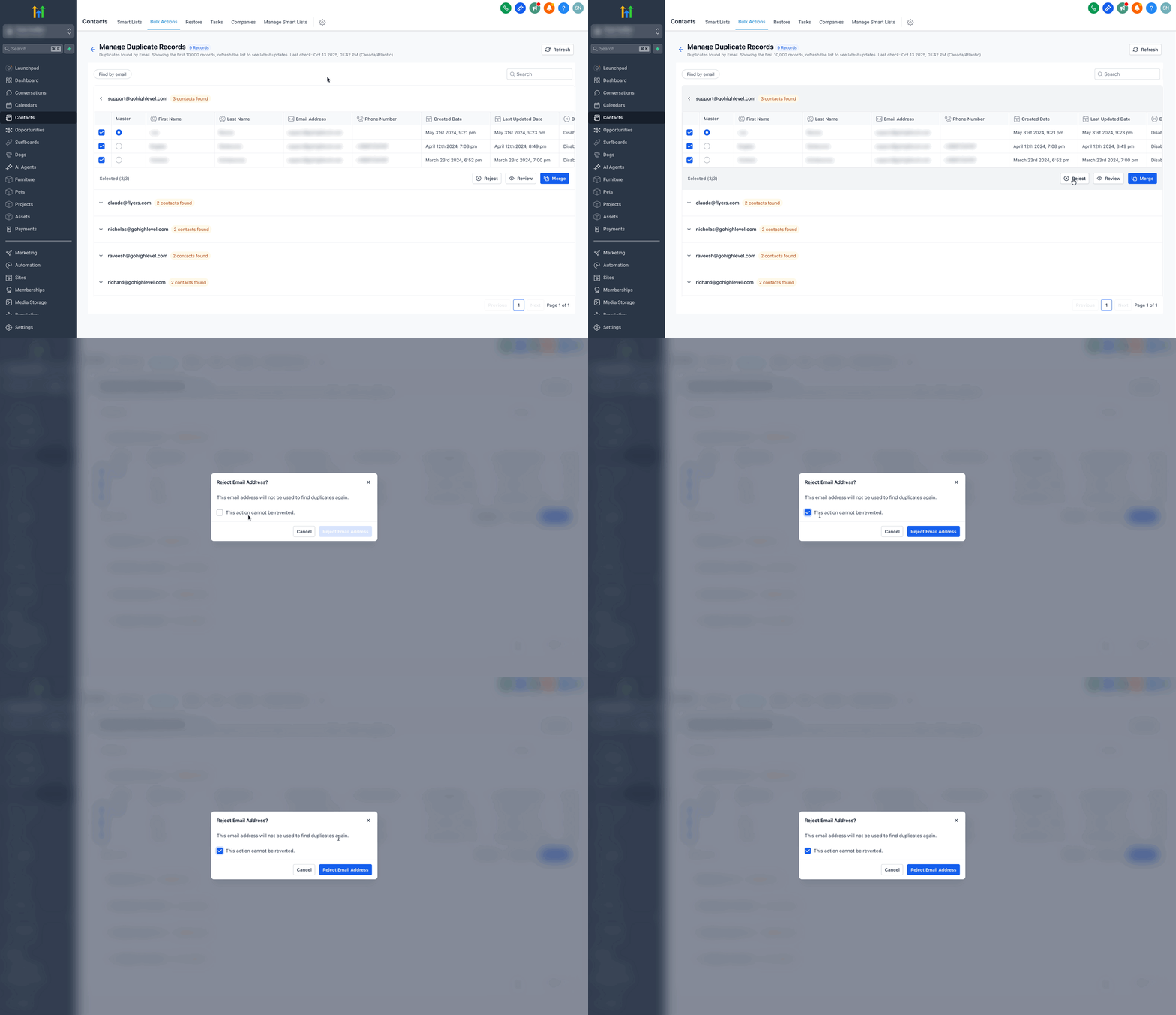
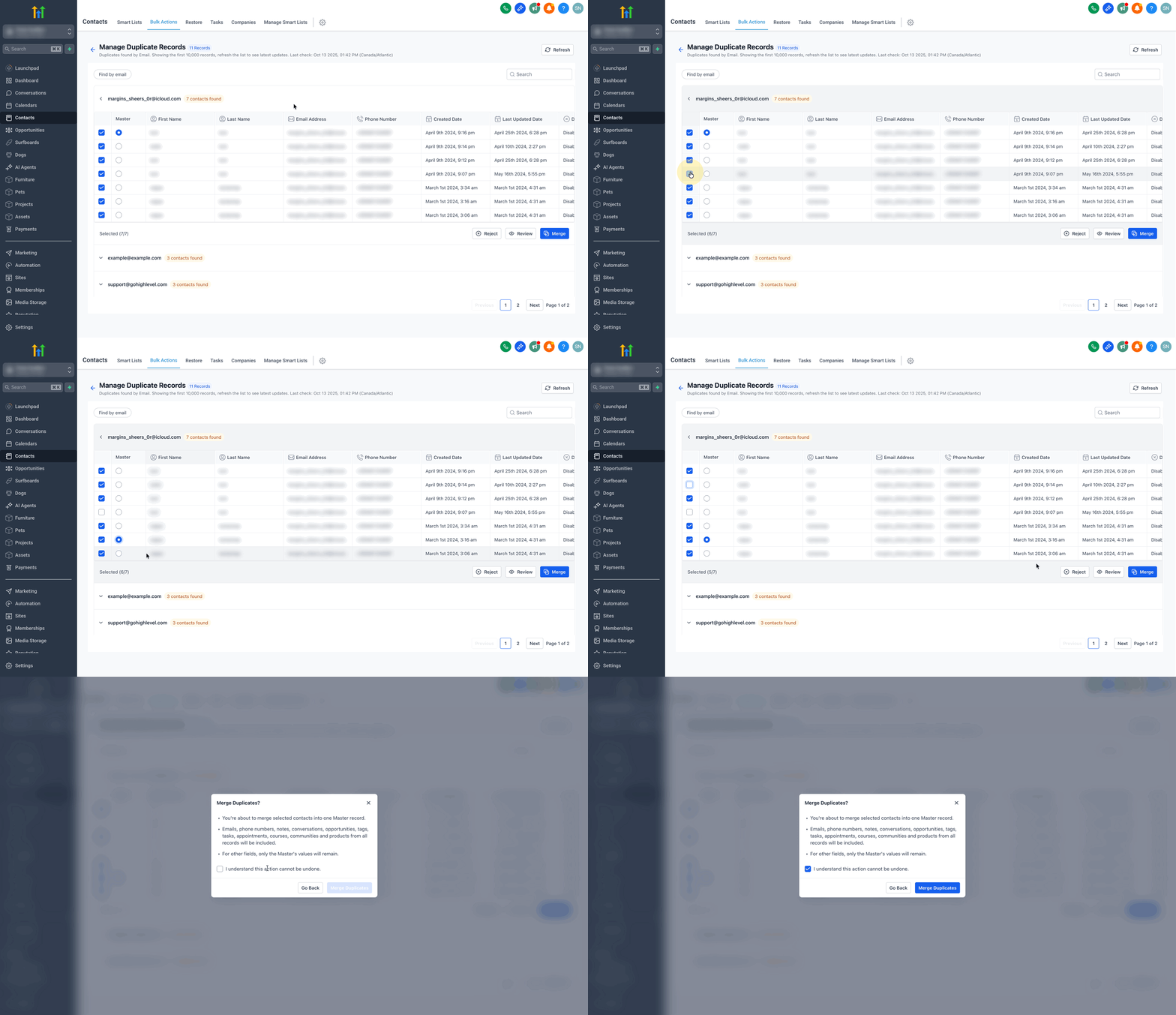
Step 6: Selecting Records to Merge
Note: Once merged, the process cannot be reverted. Review carefully before confirming.Select up to 10 records to merge at once.
- The tool will notify you when the limit is reached (Limit reached 10/10).
- The tool will notify you when the limit is reached (Limit reached 10/10).
Choose one record as the Master — this record will retain key details like name, main email, and main phone number.
All related data (tasks, opportunities, notes, products, etc.) from other records will be combined into this master record.
Click on Merge. Before merging, a confirmation dialog appears:
You’ll see:
A reminder that this action cannot be undone.
A note that emails, phone numbers, notes, opportunities, and tasks from all selected records will merge into one.
An option to confirm your understanding by checking the acknowledgment box.
Click Merge Duplicates to finalize.
Contact Deduplication Preferences
Avoiding duplicate contacts at the source can save significant time and confusion later. Contact Deduplication Settings give you control over how the system handles new contact entries, allowing you to prevent duplicates before they happen.
Navigate to Settings > Business Profile > Contact Preferences.
Enable or disable Allow Duplicate Contacts.
Choose primary and secondary deduplication fields (Email or Phone).

Troubleshooting
| Issue | Possible Cause | Solution |
|---|---|---|
| “No duplicates found” | Limited scan criteria | Try switching to another criterion (Phone or Name). |
| “Limit reached (10/10)” | Too many records selected | Merge the first 10, then return to merge the next set. |
| “Merge button disabled” | Confirmation not checked | Check the “I understand this cannot be undone” box. |
| Missing merge option | Not an Admin role | Contact your Admin to request access. |
Frequently Asked Questions
Related Articles
Was this article helpful?
That’s Great!
Thank you for your feedback
Sorry! We couldn't be helpful
Thank you for your feedback
Feedback sent
We appreciate your effort and will try to fix the article