The Knowledge Base Tool in Agent Studio allows an AI agent to answer questions using information stored in a selected Knowledge Base. A Knowledge Base can contain business information from sources such as website pages, FAQs, tables, rich text, uploaded files, and web search content. After the tool is added to an AI Agent node, the agent can search the selected Knowledge Base and use the relevant information to respond during a conversation.
This article explains how to create or select a Knowledge Base, add the Knowledge Base Tool to an AI Agent node, configure when the agent should use it, and test the response.
TABLE OF CONTENTS
- What is the Search Knowledge Base Tool in Agent Studio?
- Key Benefits of the Knowledge Base Tool
- How to Set Up the Knowledge Base Tool in an AI Agent
- Testing the Knowledge Base Tool
- Frequently Asked Questions
What is the Search Knowledge Base Tool in Agent Studio?
The Knowledge Base Tool connects an Agent Studio agent to stored business information so the agent can answer questions from trusted content. Knowledge Bases act as structured information sources that AI agents can search when a user asks a question.
Creating the Knowledge Base first ensures the agent has relevant content available before the tool is added in Agent Studio. The Knowledge Base Tool is useful when an agent needs to answer questions about:
- Product or service details
- Customer support topics
- Return, refund, or policy information
- Troubleshooting steps
- Internal or external documentation
- Pricing or structured table data
- Frequently asked questions
Knowledge Bases are created and managed from AI Agents → Knowledge Base. After the Knowledge Base is created, it can be selected inside the Knowledge Base Tool in Agent Studio. Supported Knowledge Base source types include:
- Web Crawler: Crawls website pages so the Knowledge Base can use website content as a source.
- FAQ: Stores question-and-answer content that the agent can reference.
- Web Search: Adds web-based information sources to the Knowledge Base.
- Tables: Stores structured data, such as pricing, product lists, service details, or other tabular information.
- Rich Text: Stores manually added text content, such as documentation, policies, or instructions.
- File Upload: Adds uploaded documents, such as supported document files, to the Knowledge Base.
Note: If you have not created a Knowledge Base yet, follow the steps in Knowledge Base Overview article to create and manage Knowledge Bases before adding the Knowledge Base Tool to an agent.Key Benefits of the Search Knowledge Base Tool
The Knowledge Base Tool helps agents answer questions more accurately by grounding responses in information that has already been added to HighLevel. This is especially helpful for support, service, and inquiry-based conversations where answers should come from known business content.
- Knowledge-backed answers: Let the agent answer using selected Knowledge Base content instead of unsupported assumptions.
- Faster customer support: Help customers get answers to common questions without waiting for a manual response.
- Reusable business information: Connect existing FAQs, documents, tables, rich text, and website content to an AI agent.
- More consistent responses: Use the same Knowledge Base content across relevant agent conversations.
- Flexible inquiry handling: Support product, service, policy, troubleshooting, pricing, and documentation-based questions.
How to Set Up the Search Knowledge Base Tool in an AI Agent
The Knowledge Base Tool works after a Knowledge Base is connected to an AI Agent node. The setup flow starts with creating or selecting the Knowledge Base, then building the agent flow, adding a trigger to start the agent, and configuring the tool inside the AI Agent node.
Step 1: Create or Select a Knowledge Base
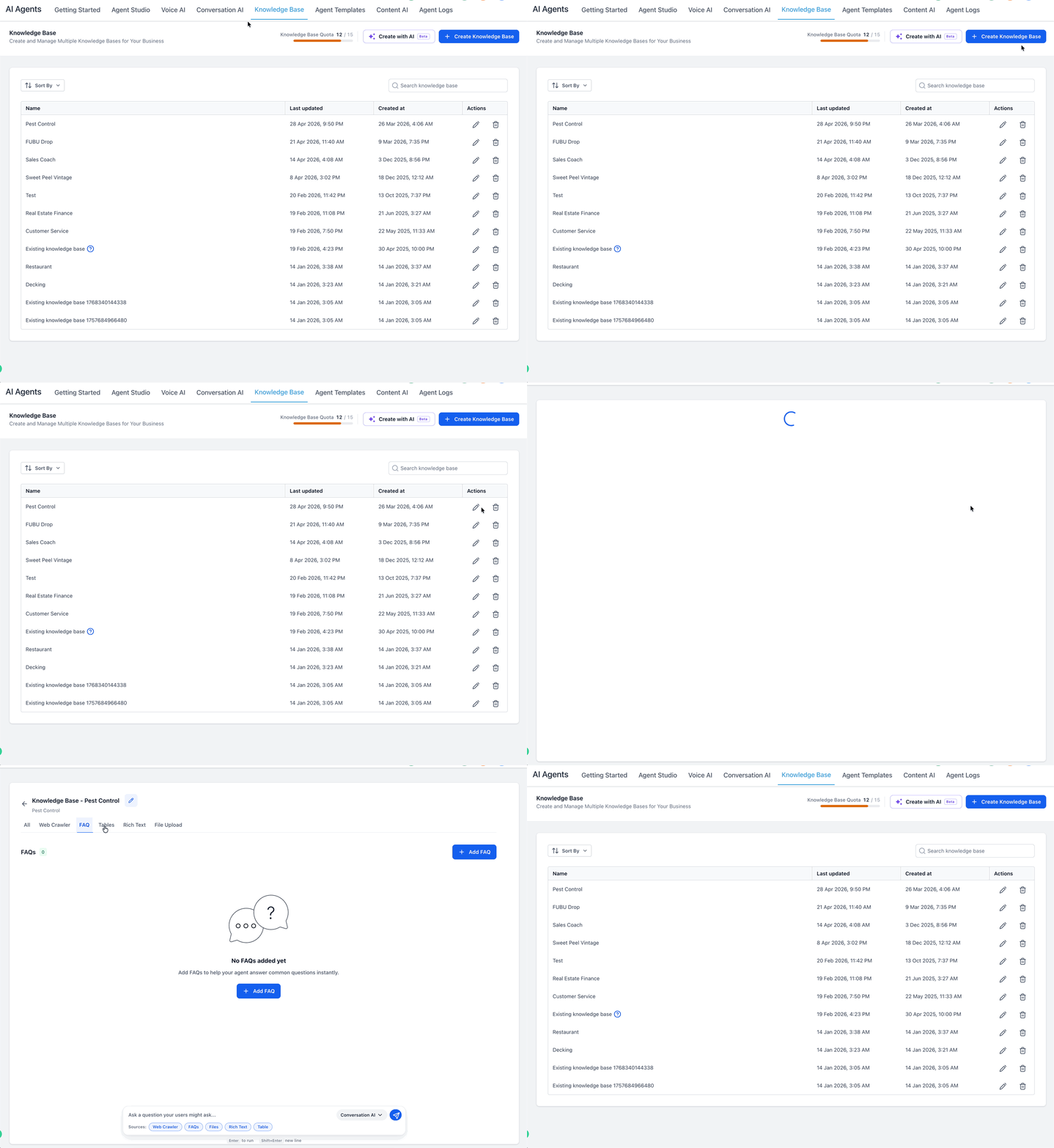
A Knowledge Base provides the source content the AI Agent node can search when answering customer questions.
- Go to AI Agents → Knowledge Base.
- Create a new Knowledge Base or open an existing one.
- Add the source content the agent should use, such as website pages, FAQs, tables, rich text, or uploaded files.
- Confirm the Knowledge Base contains the information needed to answer the expected customer questions.
Step 2: Create or Open an Agent
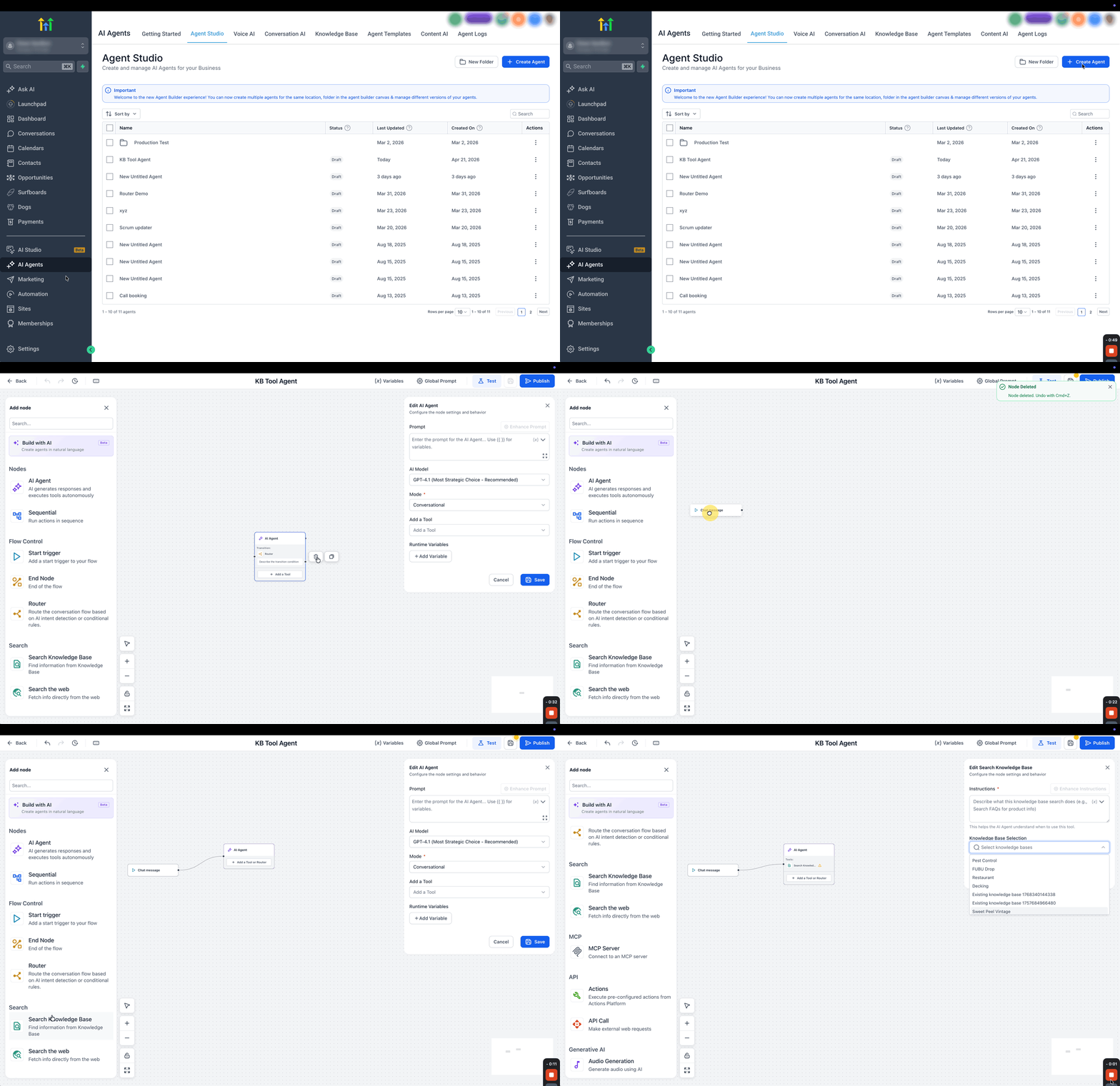
The agent flow determines how the conversation or process runs after it is started. Open the agent where the Knowledge Base Tool should be used.
- Go to AI Agents → Agent Studio.
- Create a new agent or open an existing agent.
- Open the agent builder canvas.
Step 3: Add a Trigger to Start the Agent
A trigger determines when the agent starts running. The Knowledge Base Tool does not activate the agent by itself. Once the trigger starts the agent, the AI Agent node can use the Knowledge Base Tool to search the selected Knowledge Base and answer relevant questions.
- Chat Message: Use this trigger when the agent should respond to incoming chat messages. This is the most common use case for the Knowledge Base Tool because customers often ask support, product, service, policy, or troubleshooting questions directly in chat.
- Form Submitted: Use this trigger when a submitted form should start the agent. The AI Agent node can review the submitted form details and use the Knowledge Base Tool to provide relevant next steps, answer product or service questions, or suggest support information.
- Lead Tag: Use this trigger when adding or removing a tag should start the agent. The AI Agent node can use the Knowledge Base Tool to provide information related to the contact’s tag, such as onboarding instructions, product details, support resources, or policy guidance.
Note: For detailed setup steps for each trigger type, see How to Set Up Agent Studio Triggers for Real-Time Starts.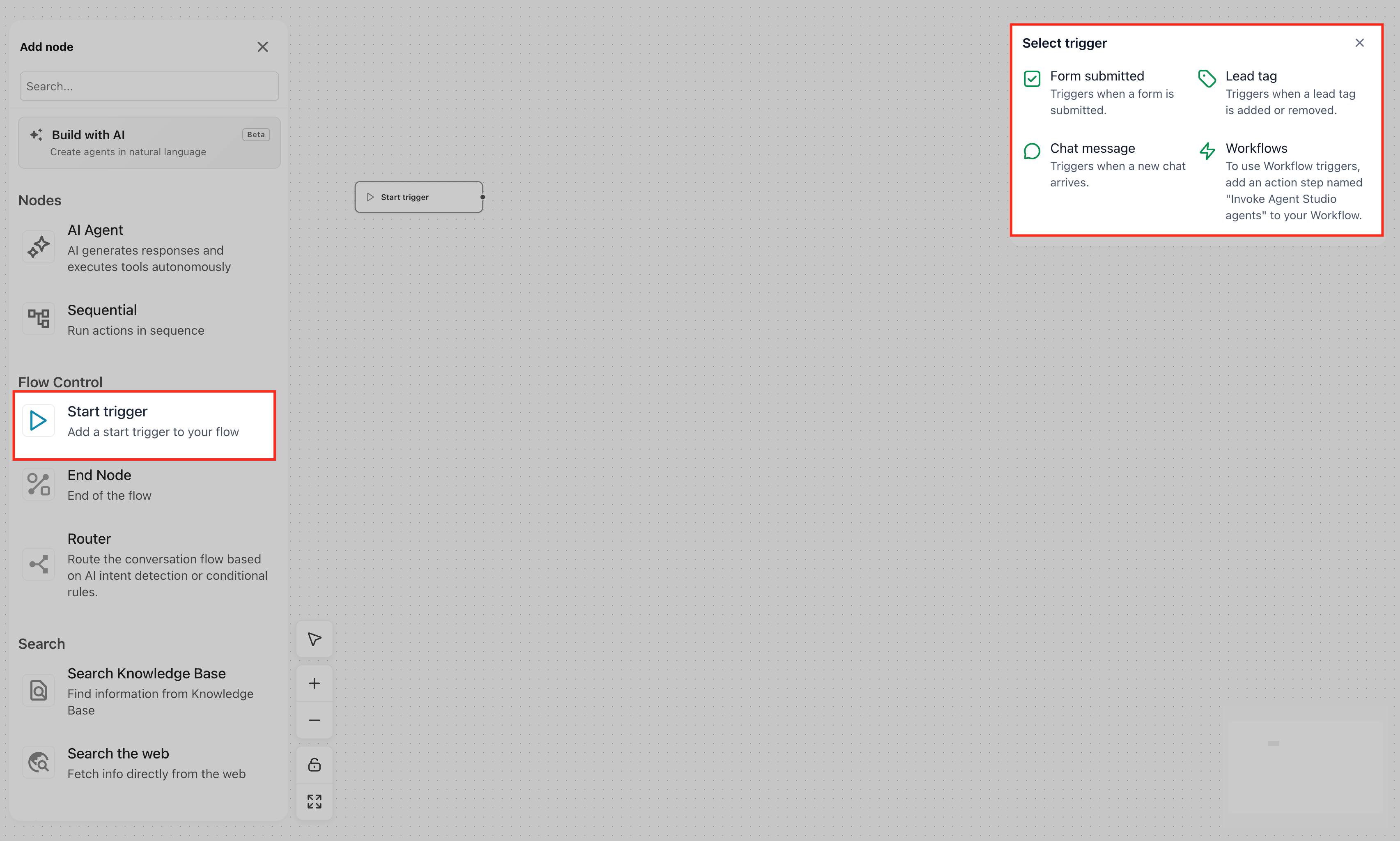
Step 4: Add an AI Agent Node
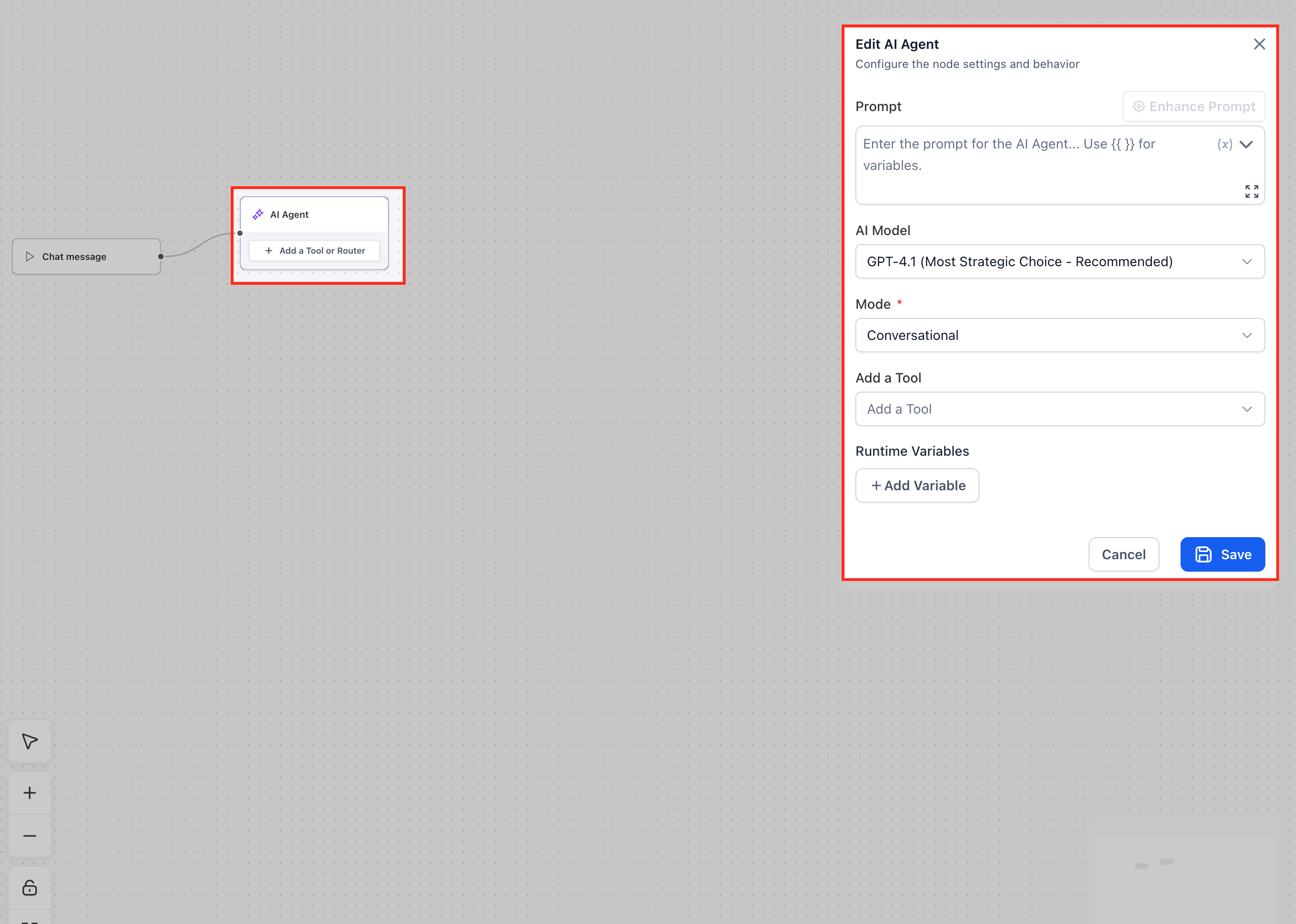
The Knowledge Base Tool is used inside an AI Agent node because the agent needs AI reasoning to search the Knowledge Base and generate an answer from the available content.
- Add an AI Agent node to the agent flow.
- Open the AI Agent node configuration.
- Locate the tools area where tools can be added to the AI Agent node.
Step 5: Add and Configure the Search Knowledge Base Tool
The Search Knowledge Base tool gives the AI agent access to one or more Knowledge Bases so it can find relevant information and answer the user’s question. Configure the tool carefully so the agent understands when to use Knowledge Base content during the conversation.
You can add Search Knowledge Base to an AI Agent node in two ways. Both methods add the same tool and open the same configuration panel.
- Add it from inside the AI Agent node: Use this method when you are already configuring the AI Agent node and want to add the tool directly from the node settings. Open the Add a Tool dropdown and select Search Knowledge Base.
- Drag it from the Add node panel into the AI Agent node: Use this method when you want to build visually on the canvas or add the tool after the AI Agent node has already been created. The Add a Tool field inside the AI Agent node can be left blank, and you can still drag Search Knowledge Base from the Add node panel into the AI Agent node later.
To configure the tool:
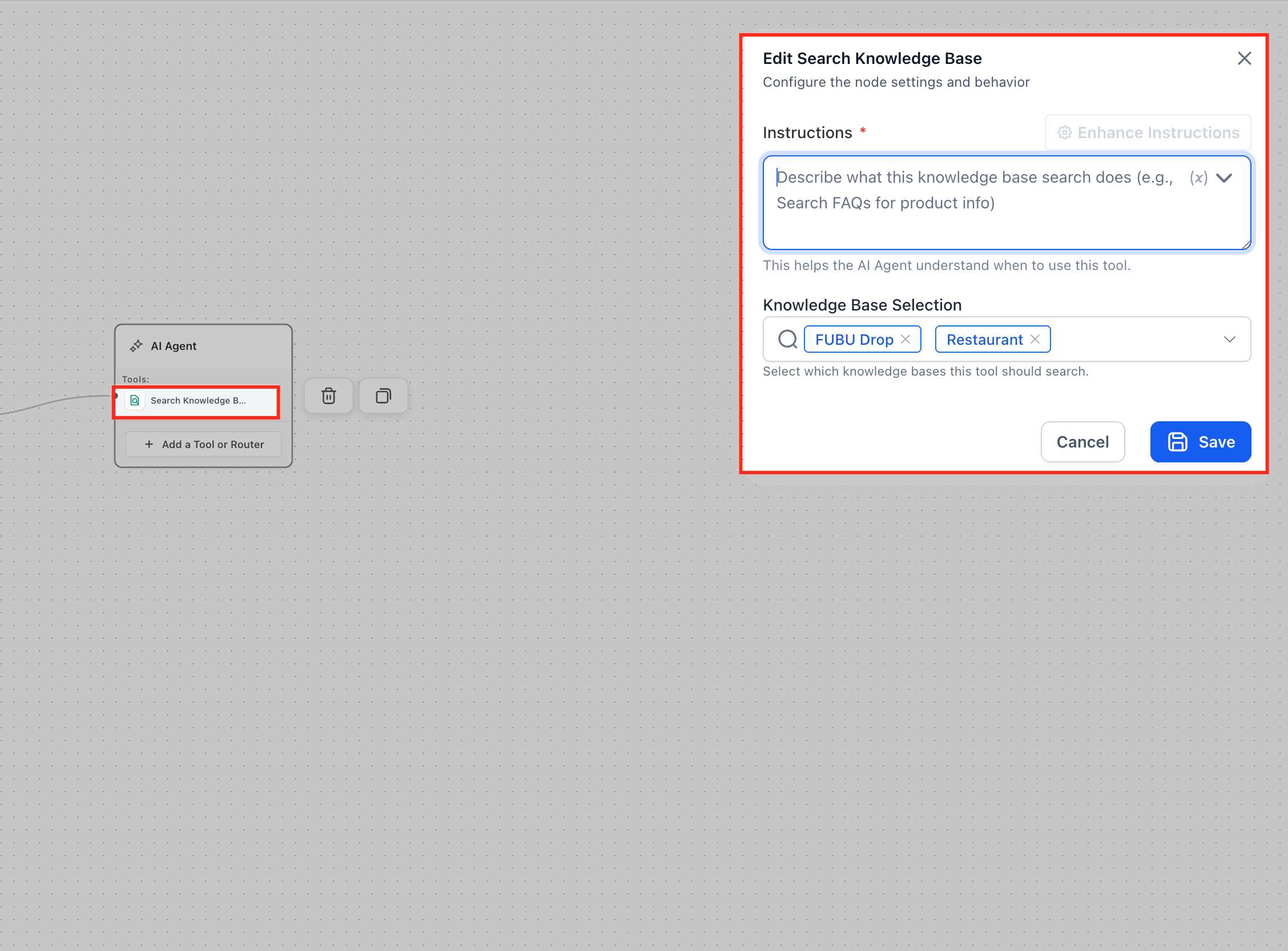
- Add or select Search Knowledge Base inside the AI Agent node.
- In the Instructions field, describe when the agent should use this tool.
- In Knowledge Base Selection, select one or more Knowledge Bases the tool should search.
- Click Save.
The Search Knowledge Base configuration includes these elements:
- Instructions: A required field that tells the AI Agent when and how to use this tool. The helper text explains that this helps the AI Agent understand when to use the tool.
- Enhance Instructions: Helps improve or expand the instruction before saving.
- Variable picker: Lets you insert dynamic values into the instruction when needed.
- Knowledge Base Selection: Lets you select one or more Knowledge Bases the tool should search. Choose the Knowledge Bases that contain the most relevant information for the questions this agent is expected to answer, such as support documentation, FAQs, product details, pricing tables, policies, or troubleshooting steps.
- Cancel: Closes the configuration panel without saving changes.
- Save: Saves the selected Knowledge Bases and instructions. Once saved, the AI Agent node can use the tool when the agent runs.
Testing the Knowledge Base Tool
Testing confirms that the agent can find and use the selected Knowledge Base content correctly. It also helps you identify whether the instruction is too broad, too narrow, or missing important context.
To test the Knowledge Base Tool:
- Open the agent in Agent Studio.
- Run a test conversation.
- Ask a question that should be answered by the selected Knowledge Base.
- Confirm the response matches the Knowledge Base content.
- Ask an unrelated question to confirm the agent does not overuse the Knowledge Base.
- Adjust the tool instruction if the agent uses the Knowledge Base too often or not often enough.
- Save and test again.
For example, if the Knowledge Base contains refrigerator product information, ask a related question such as “What is the price of the Samsung refrigerator?” The agent should search the selected Knowledge Base and answer using the available content.
Frequently Asked Questions
Q: Where do I create a Knowledge Base?
Knowledge Bases are created and managed from AI Agents → Knowledge Base.
Q: Where is the Knowledge Base Tool used?
The Knowledge Base Tool is used inside an AI Agent node in Agent Studio.
Q: Does the Knowledge Base Tool start the agent?
No. A trigger starts the agent. The Knowledge Base Tool is used inside the agent’s logic when the AI Agent node needs to answer a relevant question.
Q: What type of content can a Knowledge Base include?
A Knowledge Base can include content from source types such as Web Crawler, FAQ, Web Search, Tables, Rich Text, and File Upload.
Q: What should I write in the tool instruction?
Write when the agent should use the selected Knowledge Base. Include the topics, question types, or scenarios the Knowledge Base should support.
Q: Can the agent answer questions that are not in the Knowledge Base?
The Knowledge Base Tool helps answer questions using selected Knowledge Base content. If the information is not available, the agent may need additional instructions for how to respond when no relevant answer is found.
Q: How do I know if the Knowledge Base Tool is working?
Test the agent with questions that should be answered from the selected Knowledge Base and compare the response to the source content.
Related Articles
Was this article helpful?
That’s Great!
Thank you for your feedback
Sorry! We couldn't be helpful
Thank you for your feedback
Feedback sent
We appreciate your effort and will try to fix the article