Knowledge Base Web Crawler Sitemap-Powered URL Selection
This guide explains how sitemap-powered URL selection gives you precise control over which website pages are trained into your HighLevel Knowledge Base. You'll learn how the sitemap preview modal, discovery crawl, and URL quota tools make web training faster, clearer, and more efficient.
By the end of this article, you'll be able to preview discovered URLs, curate exactly which pages to train, monitor crawl and training progress with live operation cards, and recover from failed URLs without re-running entire crawls.
What is Sitemap-Powered URL Selection?
Sitemap-powered URL selection is an updated Web Crawler workflow that lets you preview and select website pages before training them into a Knowledge Base. When HighLevel finds sitemap URLs for a website, the "Select Pages to Train" modal displays available pages so you can choose only the URLs that should be used as Knowledge Base content.
This is useful when a website has many pages, but only some pages are relevant for AI answers. You can search, paginate, select individual URLs, review available page quota, and train selected pages from one modal. If a needed page is missing from the sitemap results, "Discover by Crawling" can be used as a fallback to find pages by following links from the website.
Key Benefits
Choosing specific website pages gives you better control over what your Knowledge Base learns from. This helps reduce irrelevant content, avoid unnecessary page usage, and make website training easier to monitor.
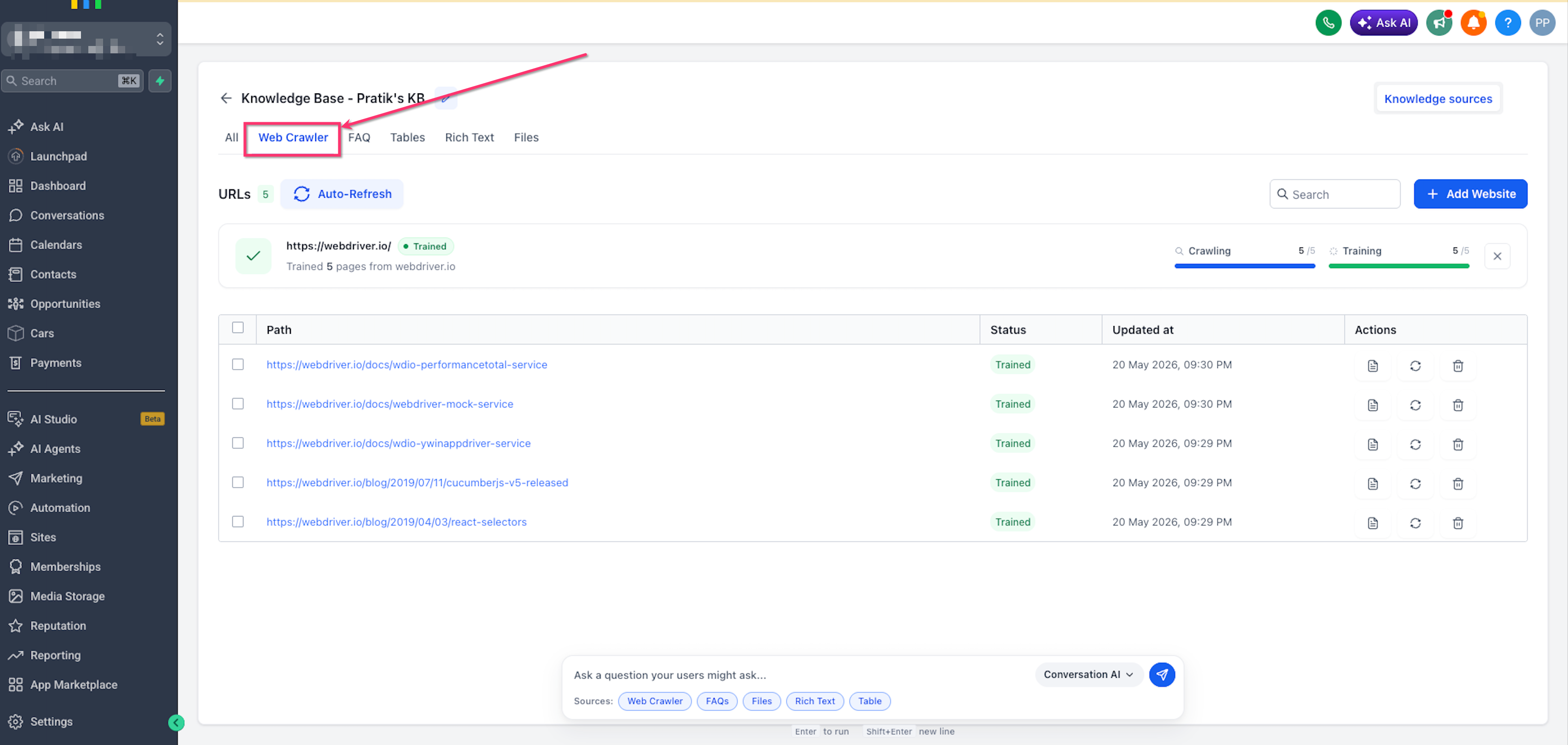
Where to Find the Web Crawler
The Web Crawler is available inside a Knowledge Base and is used to train website content. Website sources can help AI tools answer questions using selected public website pages.
To find the Web Crawler:
- Go to AI Agents in HighLevel
- Open Knowledge Base
- Select the Knowledge Base you want to update
- Click the Web Crawler tab
- Click Add Website to add a new website source
The Web Crawler tab shows website sources, trained page statuses, updated timestamps, and page-level actions.
URL Selection Modes
URL selection modes determine how HighLevel looks for pages related to the URL you enter. Choosing the right mode helps narrow the page list before selecting URLs to train.
Uses a specific page URL. Ideal for training one specific page without browsing a larger list.
Finds pages under a specific website path (e.g., /help, /docs, /support). Helpful when only a specific section should be used for Knowledge Base training.
Finds pages across the selected domain. Ideal when most of your site is relevant (e.g., documentation sites, small marketing websites). The sitemap modal lets you deselect irrelevant sub-areas.
Select Pages to Train Modal
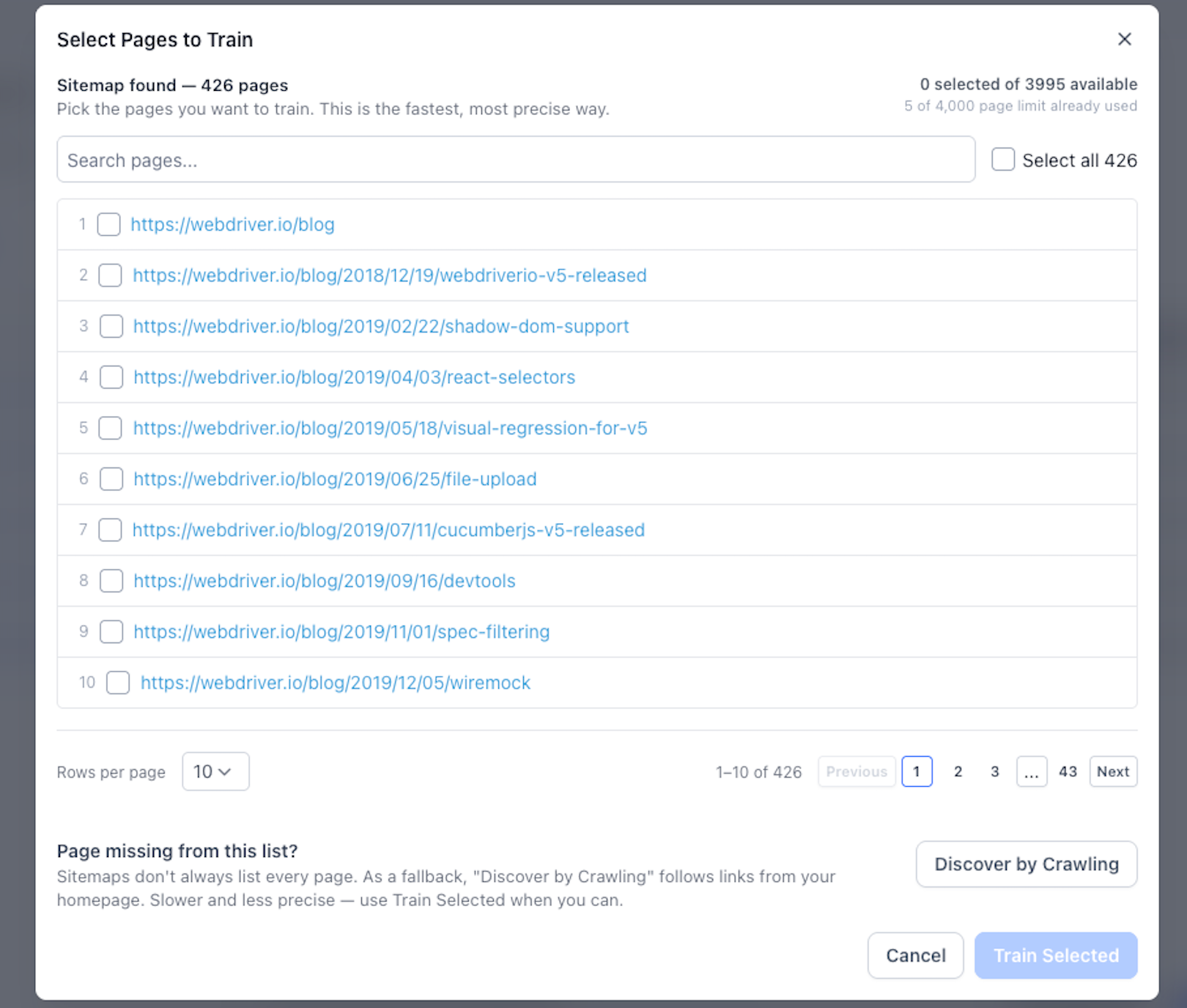
The "Select Pages to Train" modal is the core interface for sitemap-powered URL selection. It surfaces all discovered URLs in a structured table so you can quickly review, filter, and choose which pages belong in your Knowledge Base before any training occurs.
Within this modal, you can move from "train everything" to a deliberate, curated set of URLs—especially important for large or complex sites where only some pages are relevant to customers.
The modal includes:
- Sitemap-found page count (e.g., "Sitemap found — 426 pages")
- Selected page counter (e.g., "0 selected of 3995 available")
- Search field to filter URLs by keyword or path
- Individual page checkboxes for selection
- Select-all option to quickly choose all listed URLs
- Rows per page selector (e.g., 10, 25, 50)
- Pagination controls to navigate large lists
- "Discover by Crawling" button for deeper discovery
- "Train Selected" button to start training chosen URLs
Changing the page number, adjusting the number of rows per page, or updating the search query refreshes only the URL list. The modal itself stays open and responsive while you work through long lists (thousands of URLs) in just a few seconds.
Page Quota Counter
The quota counter helps prevent surprises before training begins. It shows how many pages are selected and how many pages are available for training based on the Knowledge Base limit.
Managing your URL quota is crucial for a healthy Knowledge Base. HighLevel lets you train up to a fixed number of web URLs per Knowledge Base (such as 4,000 URLs) and tracks which URLs are already part of your training data. The live quota counter keeps you within this limit without guesswork.
The counter displays a running tally such as "120 of 3,995 available".
It updates instantly as you:
- Select or deselect URLs in the modal
- Include or exclude previously trained URLs
The counter automatically accounts for URLs already present in your Knowledge Base, showing how much capacity remains for new pages.
- Avoids mid-training errors caused by exceeding your URL limit
- Encourages curating only high-value URLs instead of training entire domains by default
- Makes it easy to plan for future additions, reserving quota for new product pages or documentation
Discover by Crawling
"Discover by Crawling" is a fallback option when sitemap results are missing pages or when the sitemap does not include everything you need. Instead of relying only on sitemap results, this option follows links from the website to discover additional pages.
This option pairs with the Enhanced Web Crawler's advanced link discovery, which supports recursive sitemap crawling, zipped sitemap files, and dynamic link detection.
- The page you need is missing from the sitemap list
- Your site has no sitemap or an incomplete sitemap
- Key pages are only accessible through navigation menus, accordions, or other interactive elements
- You've recently added new sections that aren't yet reflected in the sitemap
- You want maximum coverage up to your URL limit
- Starts from your domain or path seed and follows internal links within the allowed scope
- Respects navigation boundaries and root-domain rules to prevent crawler drift
- Updates the URL list in the modal as additional pages are discovered
- Operation cards show progress like "Crawling — 42 pages found so far"
- May take longer than sitemap-powered selection because it explores links actively
Monitor Crawling and Training Progress
Operation cards give you real-time visibility into what the Web Crawler is doing and how your training run is progressing. This transparency is especially important for large sites or deep discovery crawls.
Rather than leaving you guessing, the UI surfaces status messages and counts that persist across page refreshes and tab switches.
- Crawling progress with status messages
- Training progress (e.g., "Training 5 of 5")
- Number of pages found during crawling
- Number of pages trained successfully
- Current operation status (in progress, completed, or failed)
- Visual progress indicators showing completion percentage
- You can safely navigate away from the page or switch tabs without interrupting the crawl or losing visibility
- When troubleshooting, you can quickly see whether issues happened during discovery, training, or both
- Non-technical team members get an easy, readable view of "what's happening now" with Knowledge Base training
Retry Failed URLs
Not every URL will train successfully on the first attempt—pages can time out, respond slowly, or temporarily fail due to external conditions. Manual retry tools let you recover from these failures without re-running the entire crawl.
The operation results provide a reliable way to identify and selectively retry problem pages.
If a page fails during crawling or training:
- Open the Knowledge Base and go to the Web Crawler tab
- Review the website source or page list for failed URLs
- Use the page-level retry or refresh action when available
- Monitor the operation card until the retry completes
Check the URL itself first
Verify the page loads correctly in a browser (no 404s, redirect loops, or login walls).
Retry in smaller batches
If multiple URLs failed, try retraining a subset to spot patterns.
Combine with Auto Refresh
Once URLs are successfully trained, you can enable Auto Refresh to keep them updated automatically.

How to Train Website Pages Using Sitemap-Powered URL Selection
Proper setup ensures your Knowledge Base trains only the pages that are useful for AI answers. Start by selecting a website source, choose the right URL mode, and review the sitemap-powered page list before training.
- Go to AI Agents → Knowledge Base in your sub-account
- Open an existing Knowledge Base or create a new one
- Select the Web Crawler tab
- Click + Add Website
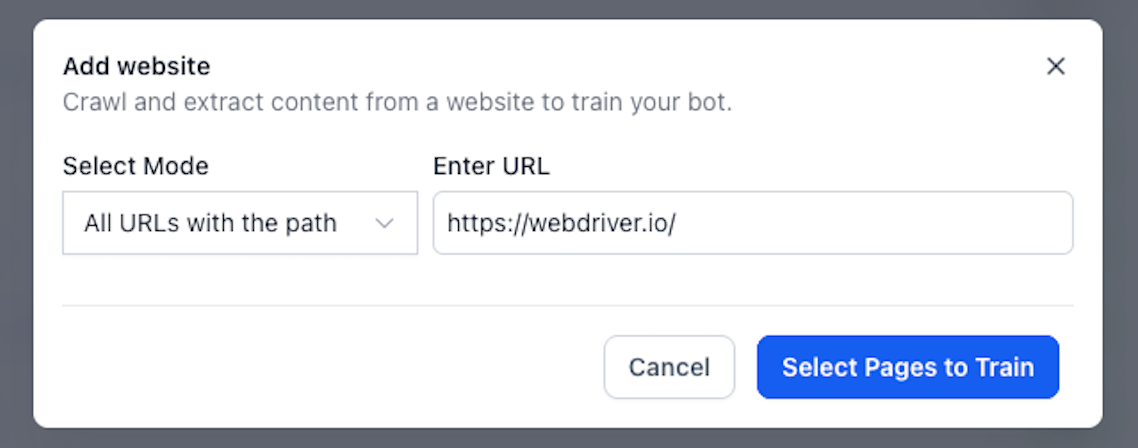
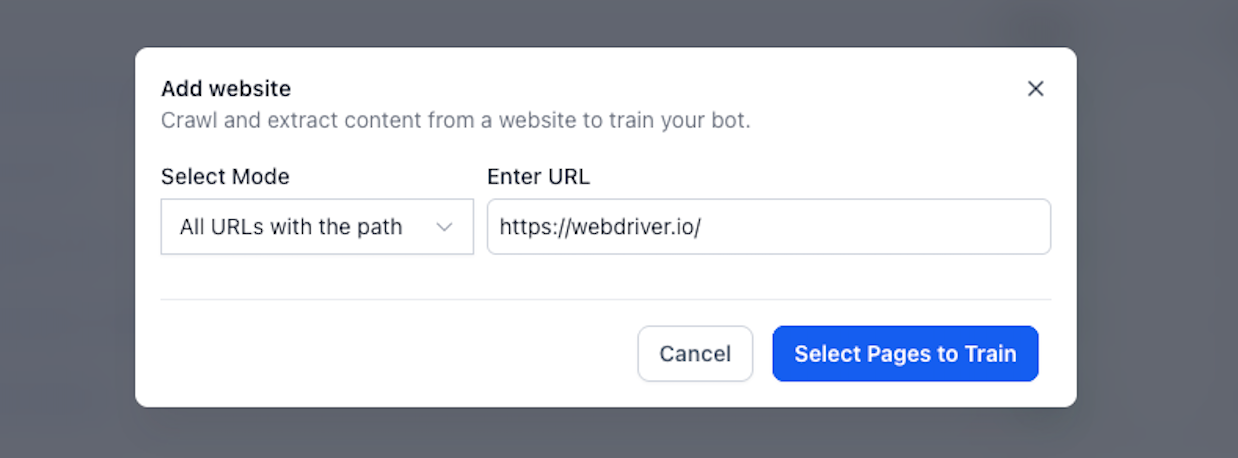
- Choose the URL selection mode:
- Exact URL (for single pages)
- All URLs with this Path (for path-based training)
- All URLs in this Domain (for domain-wide training)
- Enter the starting URL (including https://)
- Click Select Pages to Train
- HighLevel fetches the sitemap and displays discovered URLs
- The modal shows the sitemap-found page count (e.g., "Sitemap found — 426 pages")
- Review the URL list to see what pages are available
- Use the search bar to find URLs by keyword or path
- Adjust rows per page if working with a large site
- Navigate with pagination controls to browse the full list
- Check boxes next to URLs you want to train
- Use the "Select all" checkbox for bulk selection when appropriate
- Deselect any irrelevant URLs
- Watch the quota counter (e.g., "120 of 3,995 available") to stay under your limit
If needed pages are missing from the sitemap or your sitemap is incomplete:
- Click Discover by Crawling
- Allow the crawler time to explore internal links
- As new URLs appear in the table, refine selections using search and checkboxes
- Monitor the operation card for crawl progress messages
- Confirm your URL selections and verify the quota counter
- Click Train Selected
- An operation card appears showing training progress
- You can safely navigate to other tabs—the operation continues in the background
- Once training completes, review the trained URL list
- Check for any failed URLs
- If URLs failed, use the page-level retry/refresh action when available
- Test your Knowledge Base using the retrieval tester to confirm content is retrievable
Frequently Asked Questions
Was this article helpful?
That’s Great!
Thank you for your feedback
Sorry! We couldn't be helpful
Thank you for your feedback
Feedback sent
We appreciate your effort and will try to fix the article