Opportunities V2 Mobile App
This guide walks you through the redesigned Opportunities mobile experience, covering customizable card layouts, quick actions, and integrated detail views that streamline your lead management workflow.
You'll discover how to personalize your pipeline, take immediate actions on opportunities, and access all lead information in one unified screen—reducing clicks and accelerating deal closures.
What is Opportunities V2 Mobile App?
Opportunities V2 is HighLevel's redesigned mobile lead management interface that provides personalized card layouts and integrated functionality for sales teams on the go. This update consolidates opportunity details, quick actions, and contextual information into a unified workspace, reducing the need to navigate through multiple screens or tabs.
The mobile experience allows you to customize which fields appear on opportunity cards, execute immediate actions like calling or messaging, and access comprehensive lead information—all from a single, intuitive interface designed to accelerate your sales process.
Key Benefits
The redesigned mobile opportunity experience delivers measurable improvements to your sales workflow by eliminating unnecessary navigation and consolidating essential actions into a single interface.
Customizable Opportunity Cards
Opportunity cards can be tailored to display only the fields and quick actions that matter most to your workflow. Choose from over 40 available fields and configure up to 7 custom fields per card, ensuring your pipeline shows exactly what you need at a glance.
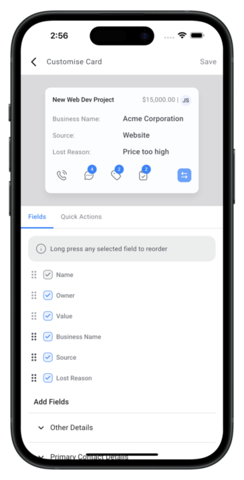
Each opportunity card displays Name, Value, and Owner on the top line by default. You can select up to 4 additional custom fields from options including Source, Business, Lost Reason, and 37+ other available fields.
Default quick actions include Message, Add Tag, Add Task, and Move Opportunity. You can customize which actions appear on your cards to match your team's most frequent workflows.
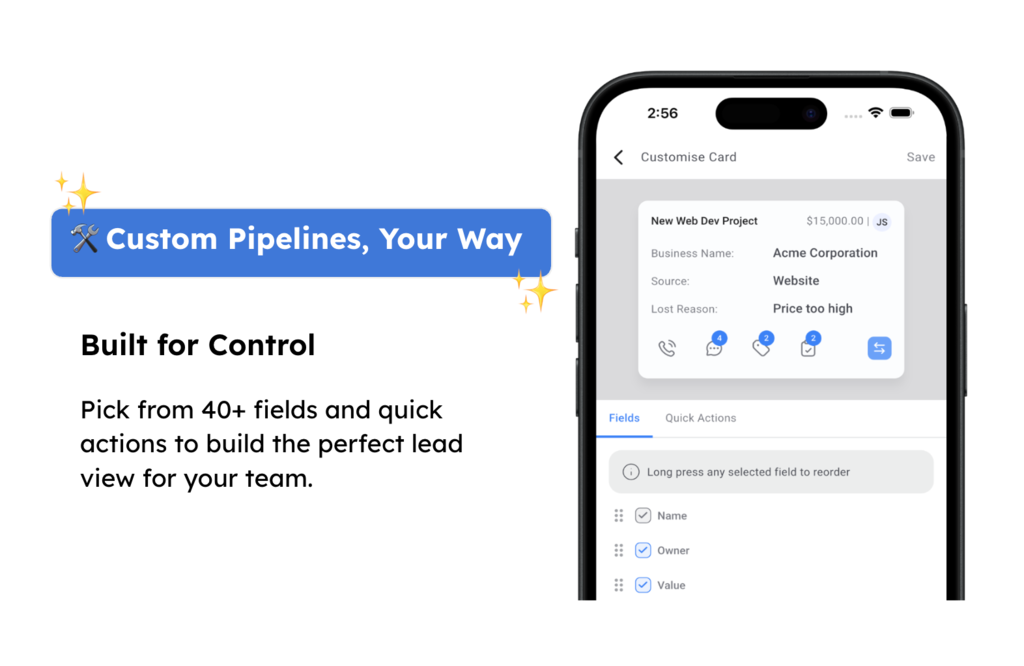
Customize your card layout to prioritize the fields your team checks most frequently, reducing the time spent opening detailed views for routine information.
Redesigned Pipelines
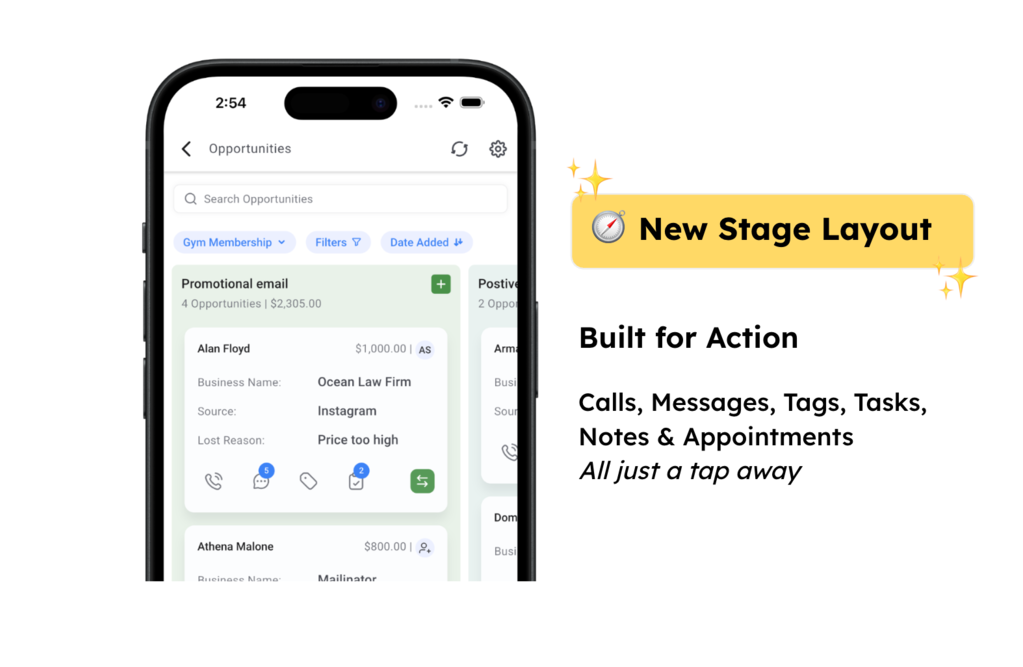
The updated pipeline interface provides a modern, streamlined view of your opportunity stages with interactive cards that support direct actions. All critical lead management functions are accessible without leaving the pipeline view, eliminating context switching and reducing friction in your workflow.
Take immediate action on opportunities including calling, adding notes, creating tasks, applying tags, and changing stages—all directly from the card without opening detailed views.
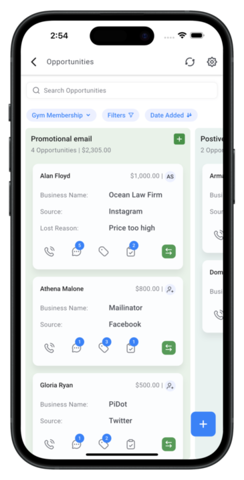
Active badges display counters for conversations, notes, tasks, and tags on each opportunity card, providing instant visibility into lead activity without opening the full record.
All-in-One Opportunity View
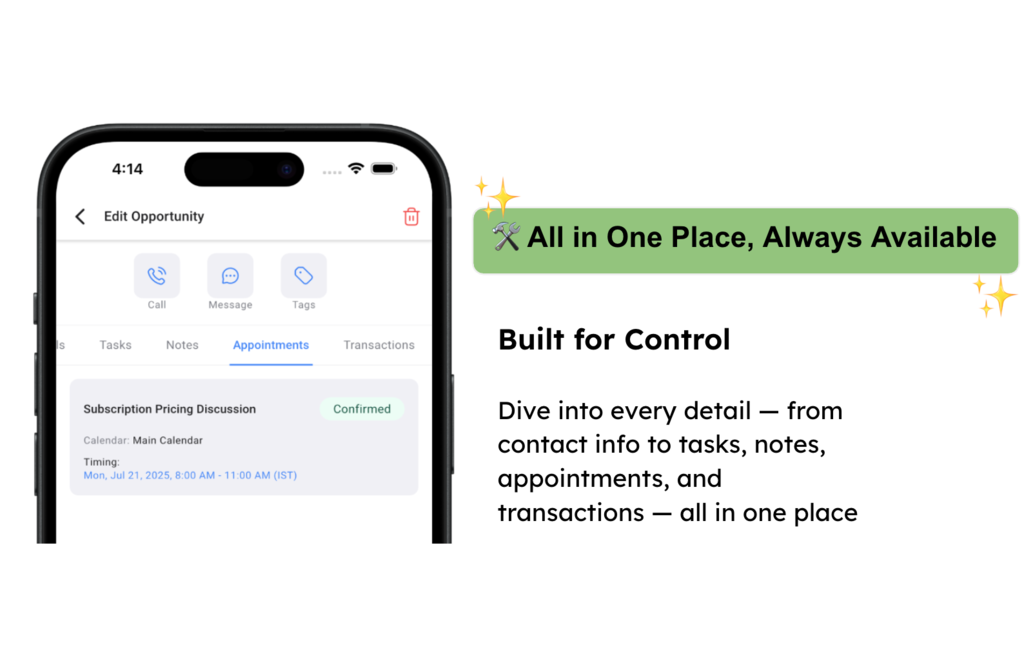
The detailed opportunity view consolidates all lead information into a single screen with tabbed navigation for different information types. This unified interface eliminates the need to navigate between separate screens to view call logs, messages, tasks, appointments, or transaction history.
Access top quick actions including call, message, and tag directly from the opportunity detail view for instant lead engagement without leaving the screen.
Switch between Details, Tasks, Notes, Appointments, and Transactions tabs to view and manage every aspect of the opportunity in one unified interface. Edit information, add updates, and track activity seamlessly without changing screens.
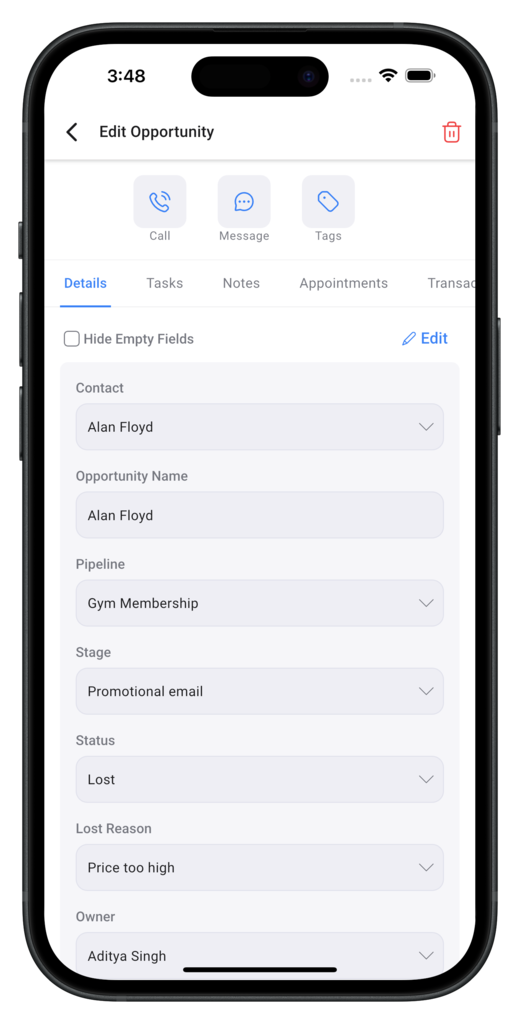
Watch for counters on conversations, notes, tasks, and tags in the tab bar—these indicators help you identify which areas need attention without opening each tab individually.
How to Set Up Opportunities V2
Setting up the enhanced mobile opportunity experience requires customizing your card layout and familiarizing yourself with the updated pipeline interface. Follow these steps to configure your workflow for maximum efficiency.
Open the mobile app and navigate to Opportunities → Settings → Customize Cards.
Choose from 40+ available fields and select the quick actions you want to appear on your opportunity cards.
Select up to 7 fields (including the 3 default fields: Name, Value, and Owner) and choose your preferred quick actions.
Tap Save. Your personalized opportunity cards will refresh instantly in your pipeline view.
In the mobile app, navigate to Opportunities → Pipelines to view your updated stages.
Explore the updated stages and interact with customized cards. Execute quick actions such as calling, adding notes or tasks, tagging, and changing stages directly from each card.
Tap any opportunity card within your pipeline to open the detailed view.
Use the top quick actions for immediate engagement, including call, message, and tag functions.
Switch between tabs—Details, Tasks, Notes, Appointments, and Transactions—to manage every aspect of the opportunity in one unified screen. Edit information, add updates, and track activity without leaving the detail view.
This update will reset your current mobile card layout and fields to the default configuration. You will need to reconfigure your preferences using the customization settings after updating the app.
Frequently Asked Questions
Was this article helpful?
That’s Great!
Thank you for your feedback
Sorry! We couldn't be helpful
Thank you for your feedback
Feedback sent
We appreciate your effort and will try to fix the article