Ask the Booker location support lets service businesses collect the customer’s service address while creating a Service v2 appointment in the mobile app. When a configured Ask the Booker location is selected, an address field appears so the user can enter where the service should take place. The saved address appears on the appointment detail screen and is pre-filled when editing or duplicating the appointment.
TABLE OF CONTENTS
- What is Ask the Booker Location Support?
- Key Benefits of Ask the Booker Location Support
- Availability and Requirements
- Web Setup for Ask the Booker Locations
- Selecting an Ask the Booker Location in the Mobile App
- Required Service Address Field
- Viewing the Saved Address on the Appointment
- Editing or Duplicating Appointments with Ask the Booker Locations
- Multiple Location Type Behavior
- How To Use Ask the Booker Location Support in the Mobile App
- Frequently Asked Questions
- Related Articles
What is Ask the Booker Location Support?
Ask the Booker Location Support allows Service Calendar v2 appointments to collect a client-provided service address during booking. This is useful for businesses that travel to the customer, such as mobile groomers, repair technicians, cleaners, consultants, trainers, and other on-site service providers.
The location type is configured on web, and the mobile app automatically supports it during Service v2 booking once enabled. When the Ask the Booker location is selected in the mobile app, the booking form displays a required address field so the appointment includes the exact service location.
Key Benefits of Ask the Booker Location Support
Collecting the service address during booking helps mobile service teams avoid extra follow-ups before an appointment. The address is saved directly with the appointment, giving staff the information they need from the appointment view.
Collect Service Addresses Upfront: Capture the customer’s home, business, or preferred service address during booking.
Reduce Manual Follow-Ups: Avoid separate calls, texts, or emails to confirm where the service should happen.
Prevent Blank Location Details: Required address validation helps ensure the booking cannot be submitted without a service address.
Support Mobile Service Teams: Give staff access to the client-provided address while they are working from the mobile app.
Use Address Details Across Appointment Actions: Keep the saved address pre-filled when editing or duplicating the appointment.
Navigate Faster: Use the appointment view to copy the address or open the location in Maps.
Availability and Requirements
Ask the Booker location support is available for Service Calendar v2 appointments. Confirming setup and app eligibility helps ensure the address field appears correctly in the mobile booking flow.
This feature is available for:
Service Calendar v2 appointments only
HighLevel mobile app
LeadConnector mobile app
White-labeled mobile apps
Mobile app version 4.10.0 (810) or later
Web and mobile Service v2 booking flows
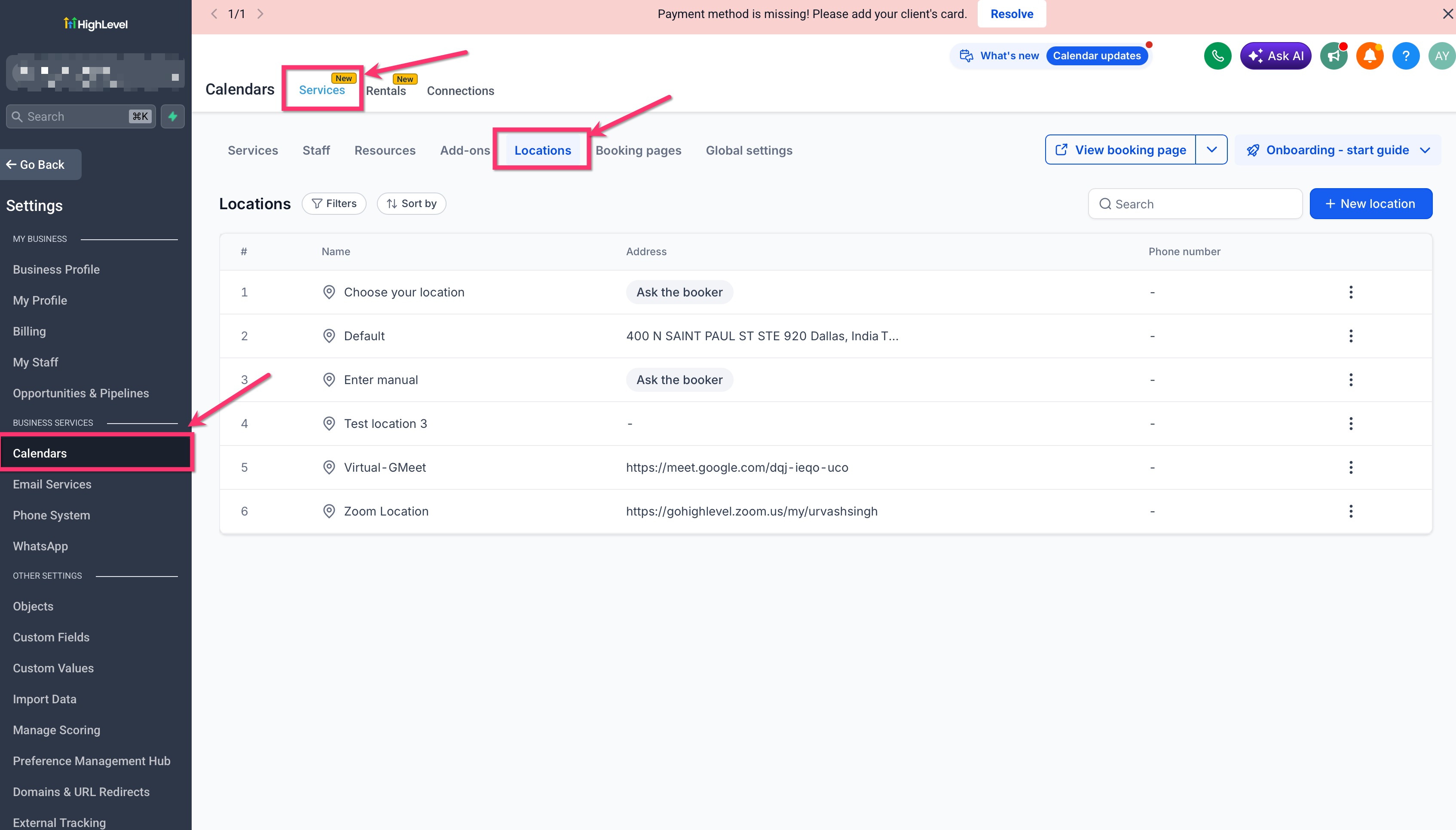
The Ask the Booker location type is configured on web under Calendar Settings > Services (v2) > Locations. Once configured, the mobile app automatically displays the service address field when that location is selected.
Web Setup for Ask the Booker Locations
Ask the Booker locations are created and managed from the web app. This setup tells the Service v2 booking flow when to ask for the client’s preferred service address.
To configure the location:
Go to Calendar Settings > Services (v2) > Locations.
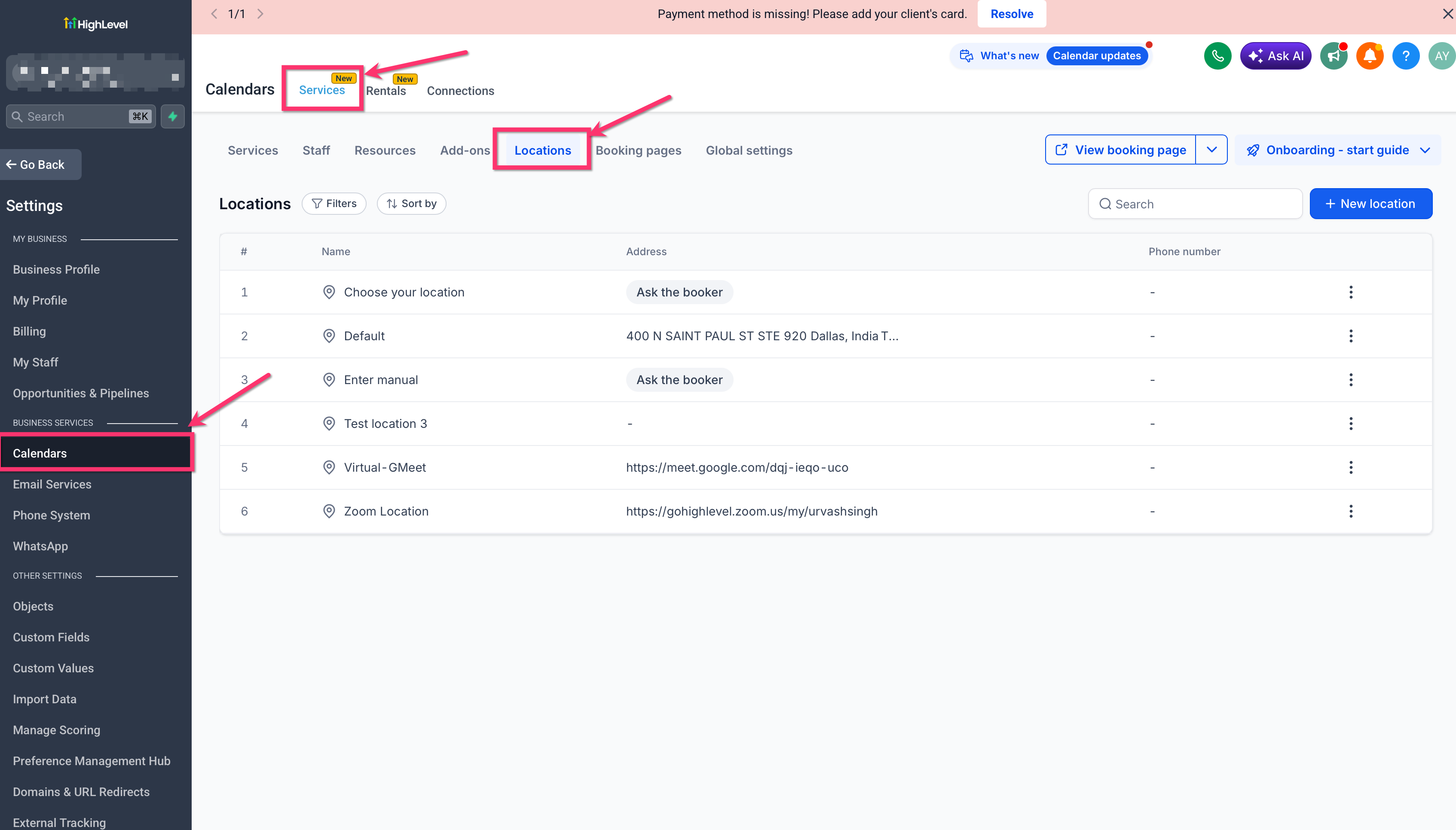
Create a new location or edit an existing location.
Enable Let bookers enter their own service address.
Assign the location to staff availability as needed.
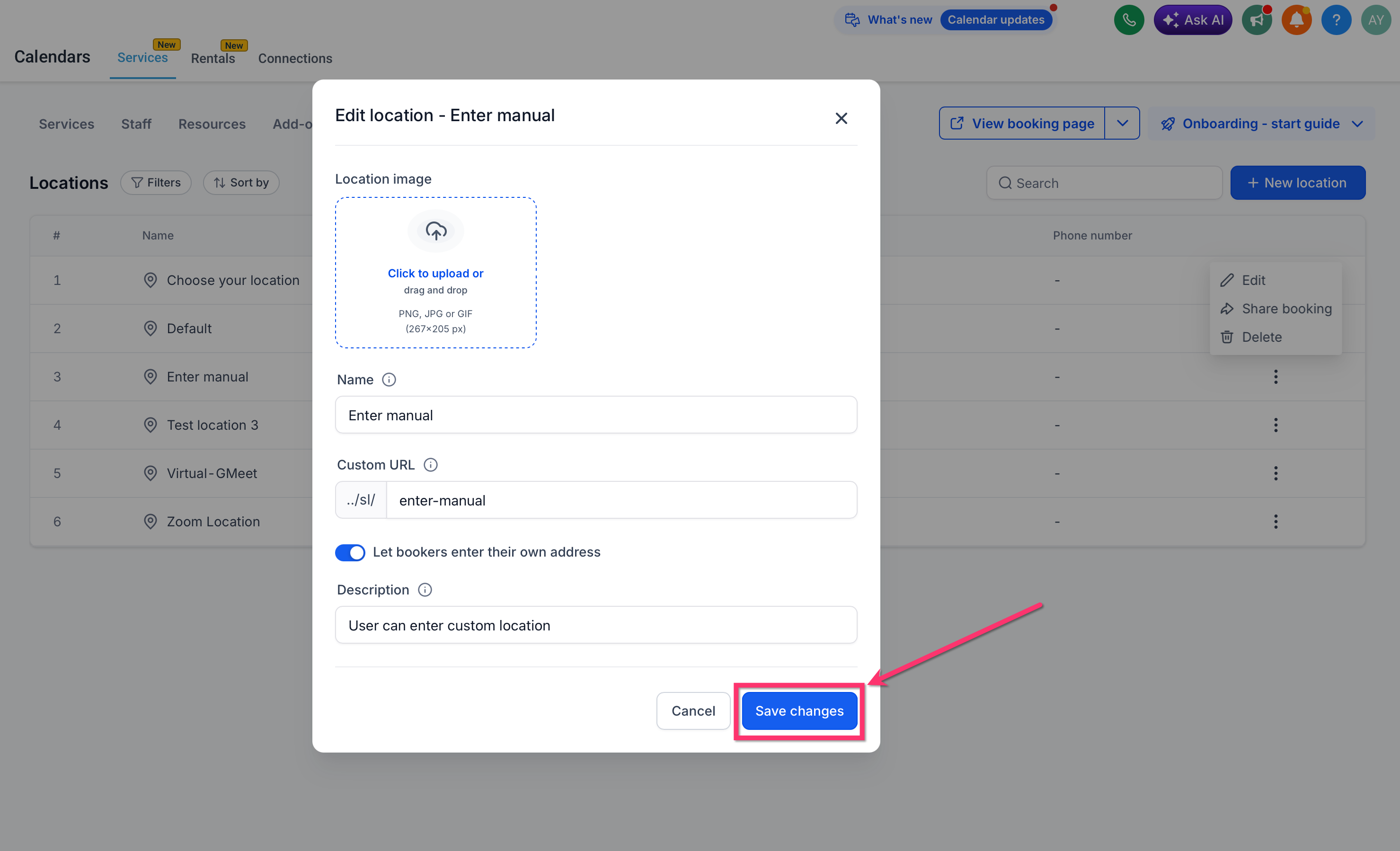
Save the location settings.
After setup is complete, users can select that location while creating Service v2 bookings in the mobile app.
Selecting an Ask the Booker Location in the Mobile App
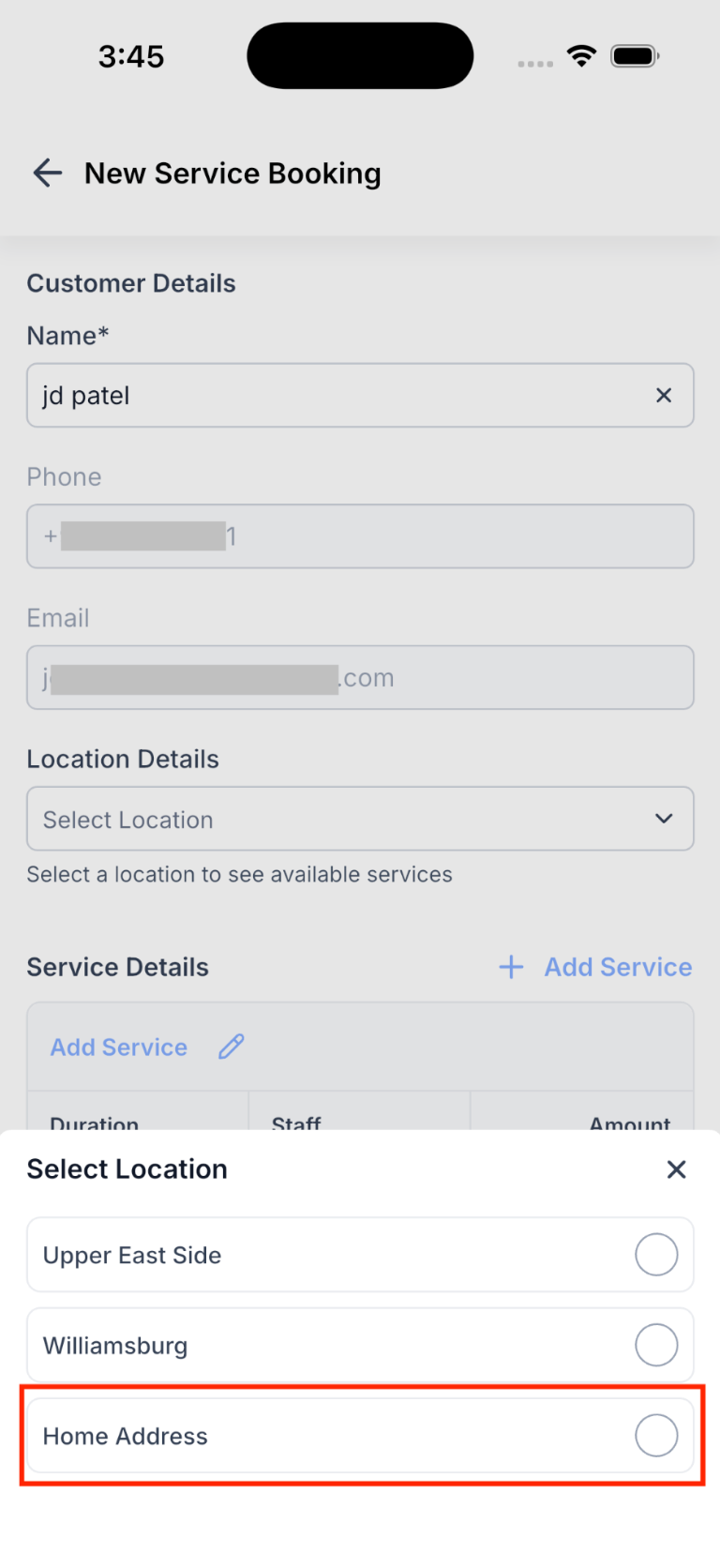
The mobile booking form changes based on the selected location type. When users select an Ask the Booker location, the app displays an additional address field so the service address can be collected before the booking is scheduled.
To select the location:
Open the mobile app.
Go to Calendars.
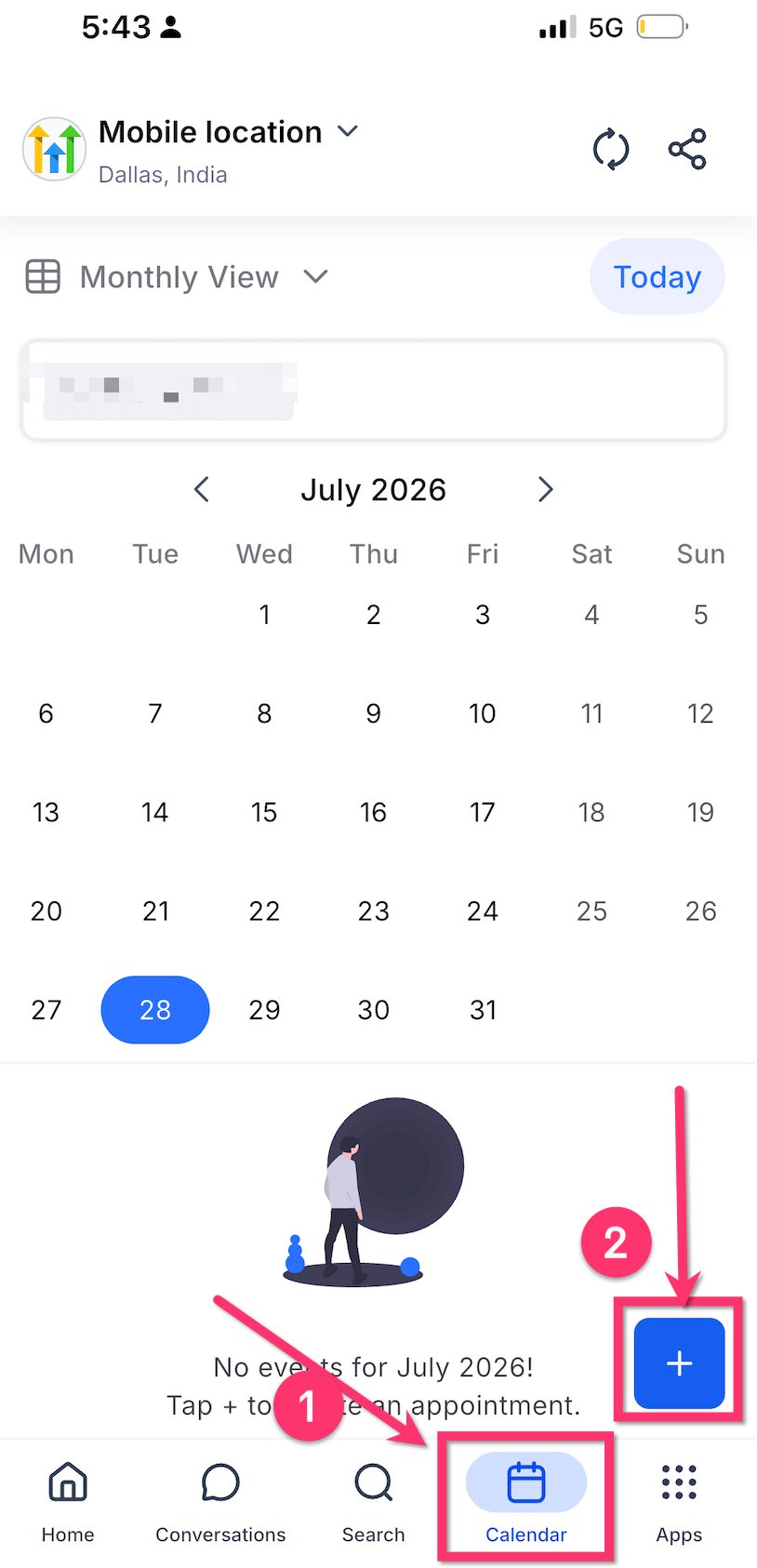
Tap + New Service Appointment, or start a Service v2 booking from Contacts, Conversations, or Opportunities.
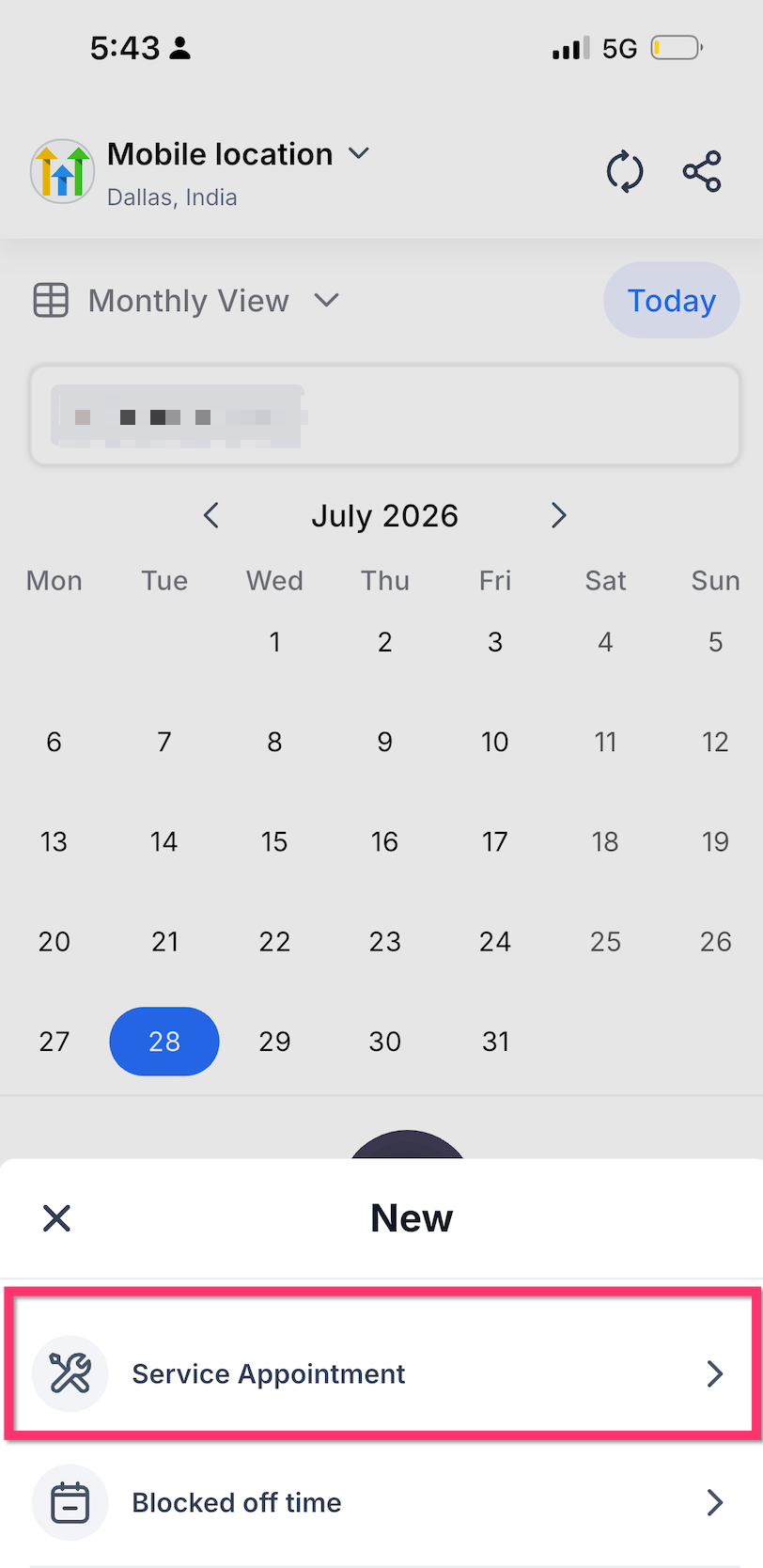
In Location Details, tap the location dropdown.
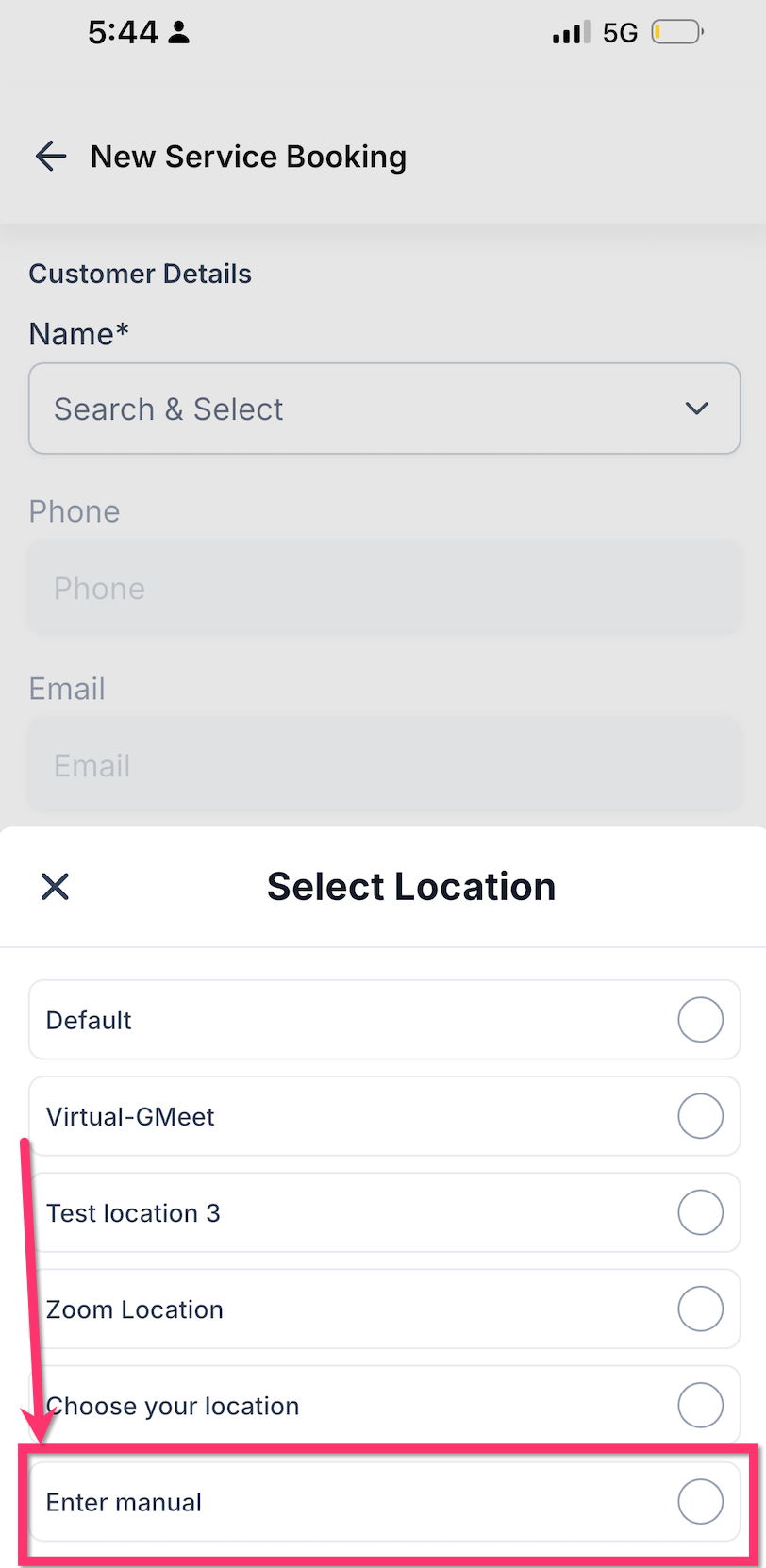
Select the location configured to ask the booker for an address, such as Enter manual.
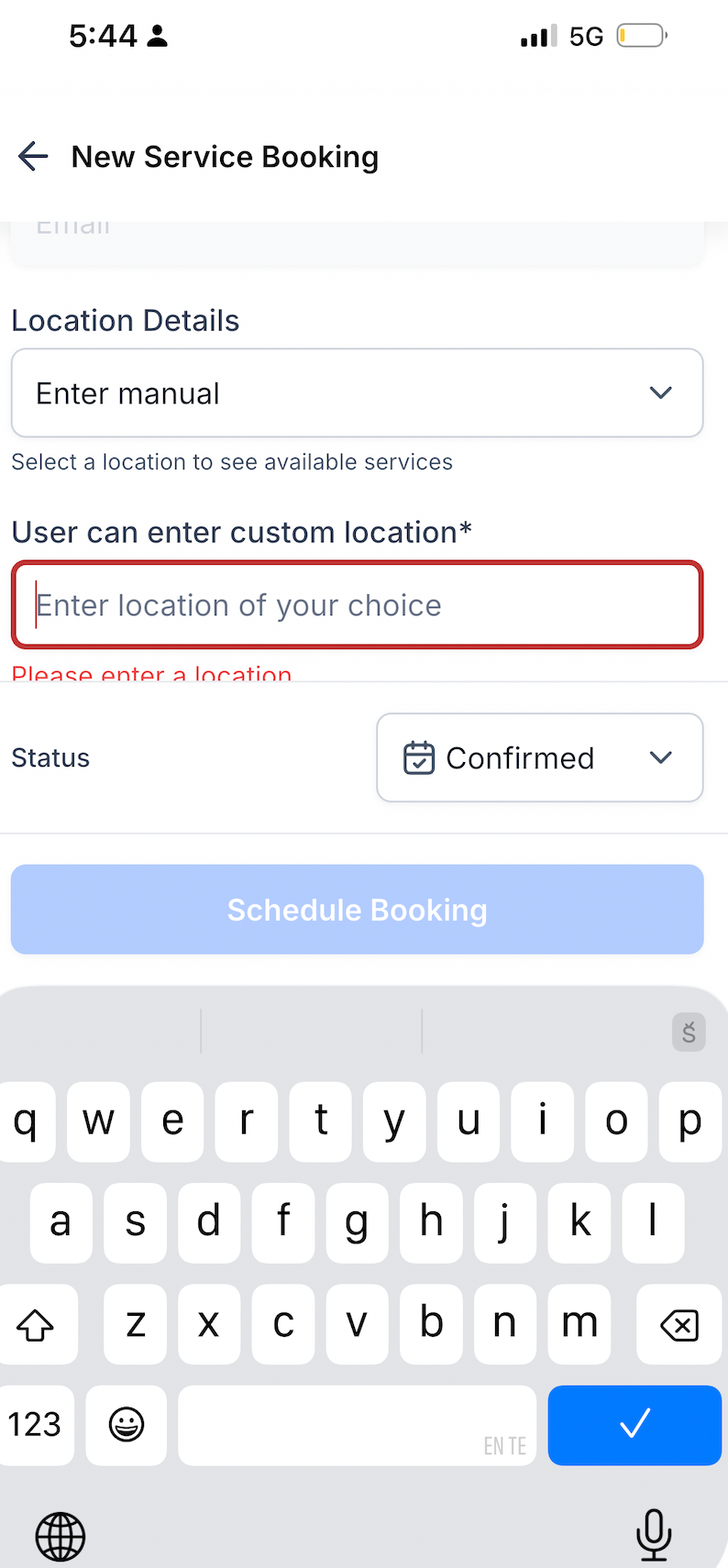
Required Service Address Field
The service address field is required when an Ask the Booker location is selected. This helps prevent appointments from being scheduled without the address staff need to complete the service.
After selecting the Ask the Booker location, enter the customer’s service address in the address field. If the field is left blank, the app displays inline validation, such as Please enter a location, and the booking cannot be scheduled until an address is provided.
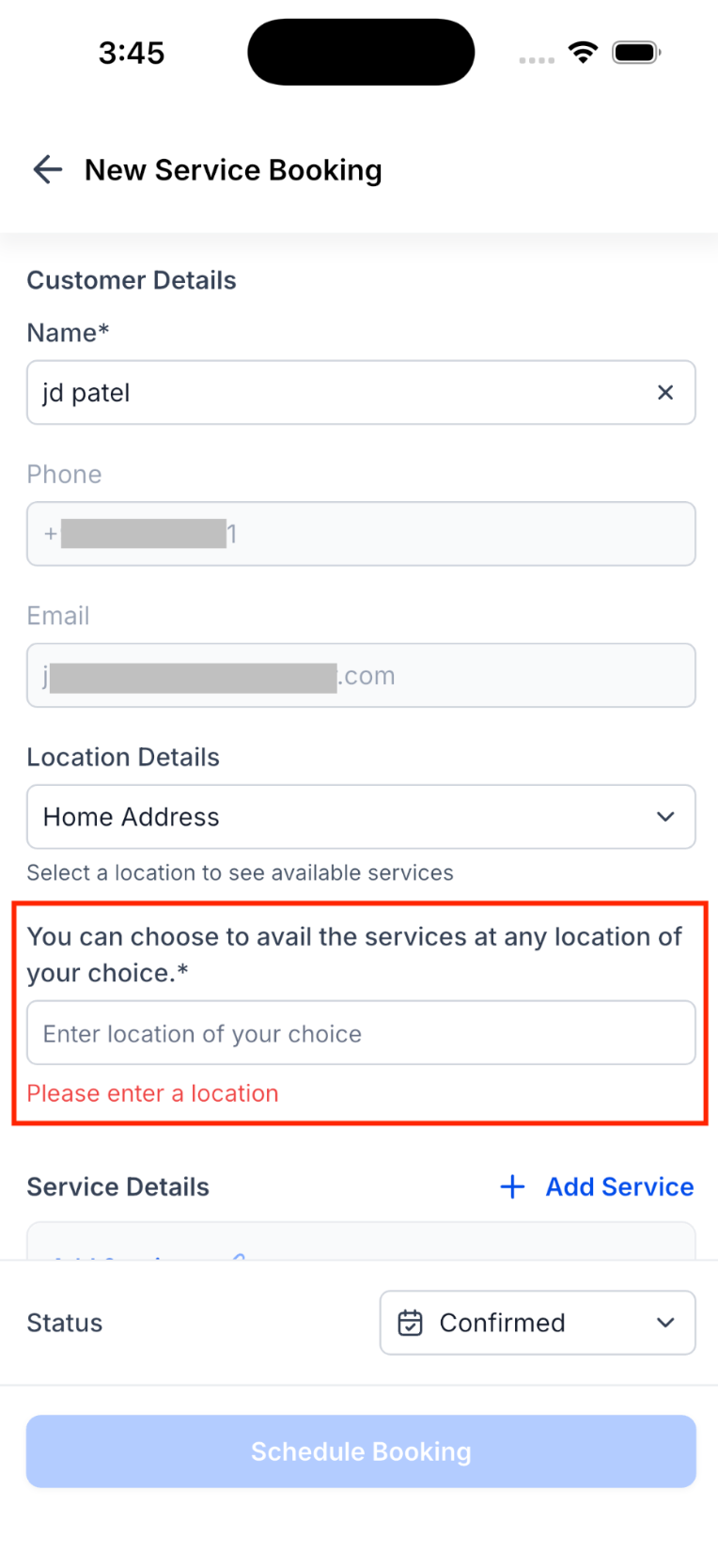
Viewing the Saved Address on the Appointment
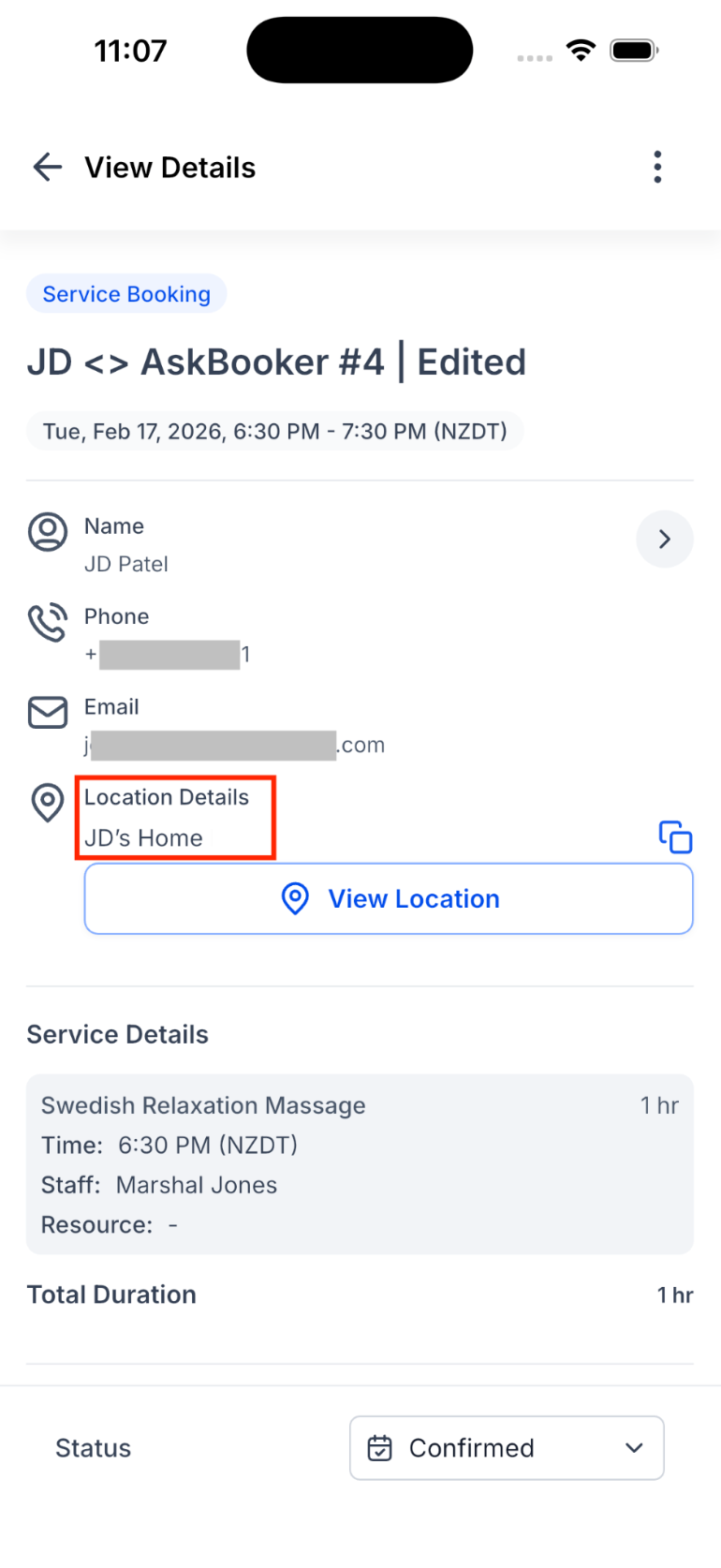
The saved service address appears directly on the appointment detail screen after the booking is created. This gives staff quick access to the address they need without searching through notes or messages.
On the appointment detail screen, the address appears under Location Details. Users can copy the address with the copy icon or tap View Location to open map navigation.
Editing or Duplicating Appointments with Ask the Booker Locations
Ask the Booker address details stay connected to the appointment during edit and duplicate flows. This helps users make changes without re-entering information that was already collected.
When editing or duplicating a Service v2 appointment:
The previously entered service address is pre-filled.
Users can keep the existing address or update it.
The address remains required if the selected location is still an Ask the Booker location.
The updated or copied address is saved with the appointment after changes are completed.
This is useful when rebooking repeat customers or adjusting an existing appointment while keeping the original service address available.
Multiple Location Type Behavior
Some locations may include more than one location type. The booking form behavior is based on the location type selected during the appointment booking flow.
If the selected location is configured to ask the booker for a service address, the address field appears and becomes required. If another location type is selected, the form follows that selected location type’s behavior instead.
How To Use Ask the Booker Location Support in the Mobile App
Ask the Booker location support allows mobile users to enter a customer’s service address while creating a Service v2 appointment. Once the location is configured on the web app, selecting it during mobile booking displays a required address field.
Before proceeding, confirm that you are using mobile app version 4.10.0 (810) or later.
Confirm that the Ask the Booker location has been configured on the web app under Calendar Settings > Services (v2) > Locations.
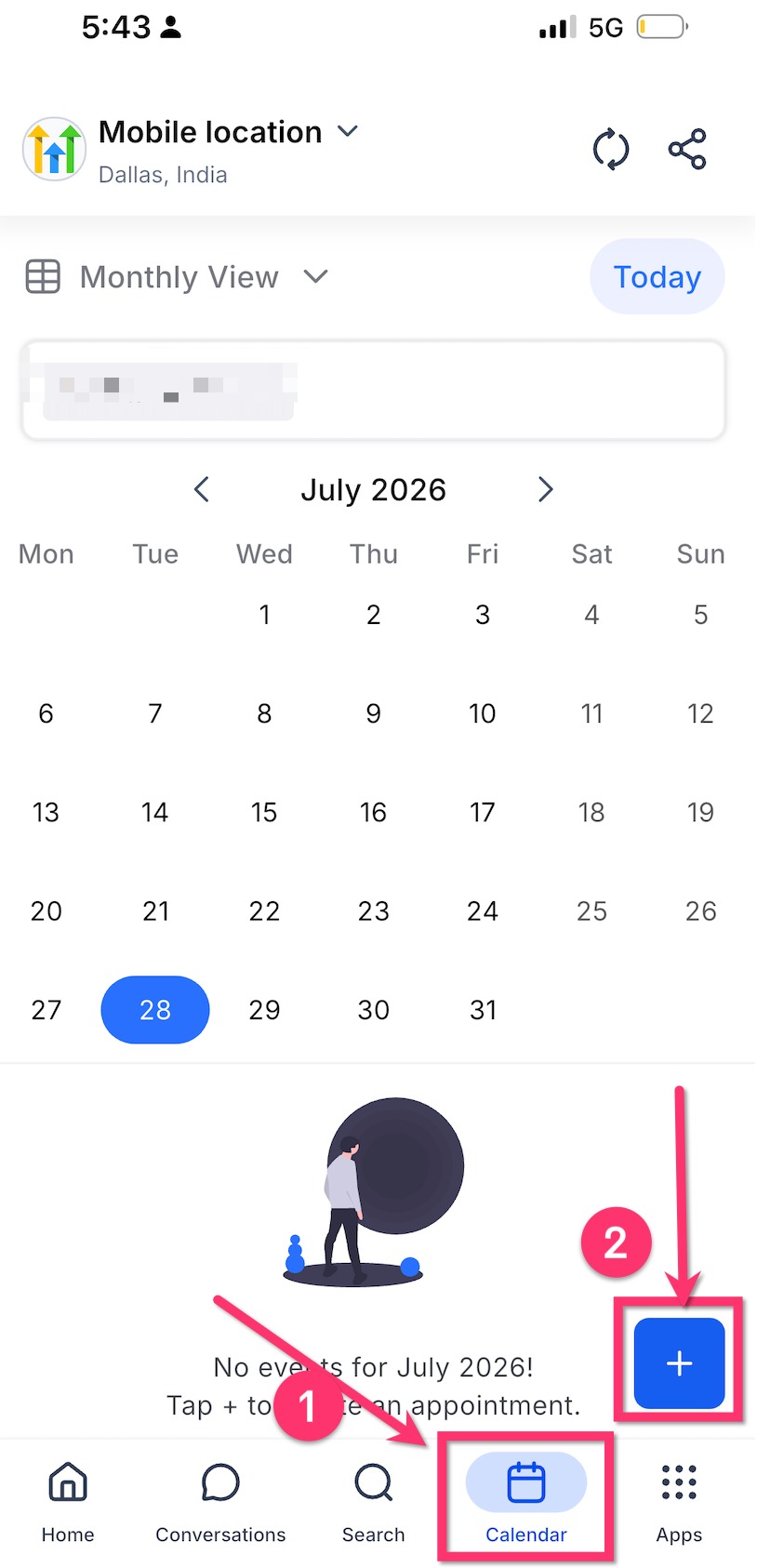
Open the HighLevel, LeadConnector, or white-label mobile app.
Go to Calendars.
Tap + New Service Appointment.
You can also start a Service v2 booking from Contacts, Conversations, or Opportunities.
Search for and select the customer.
Under Location Details, tap the location dropdown.
Select the location configured to collect the booker’s service address.
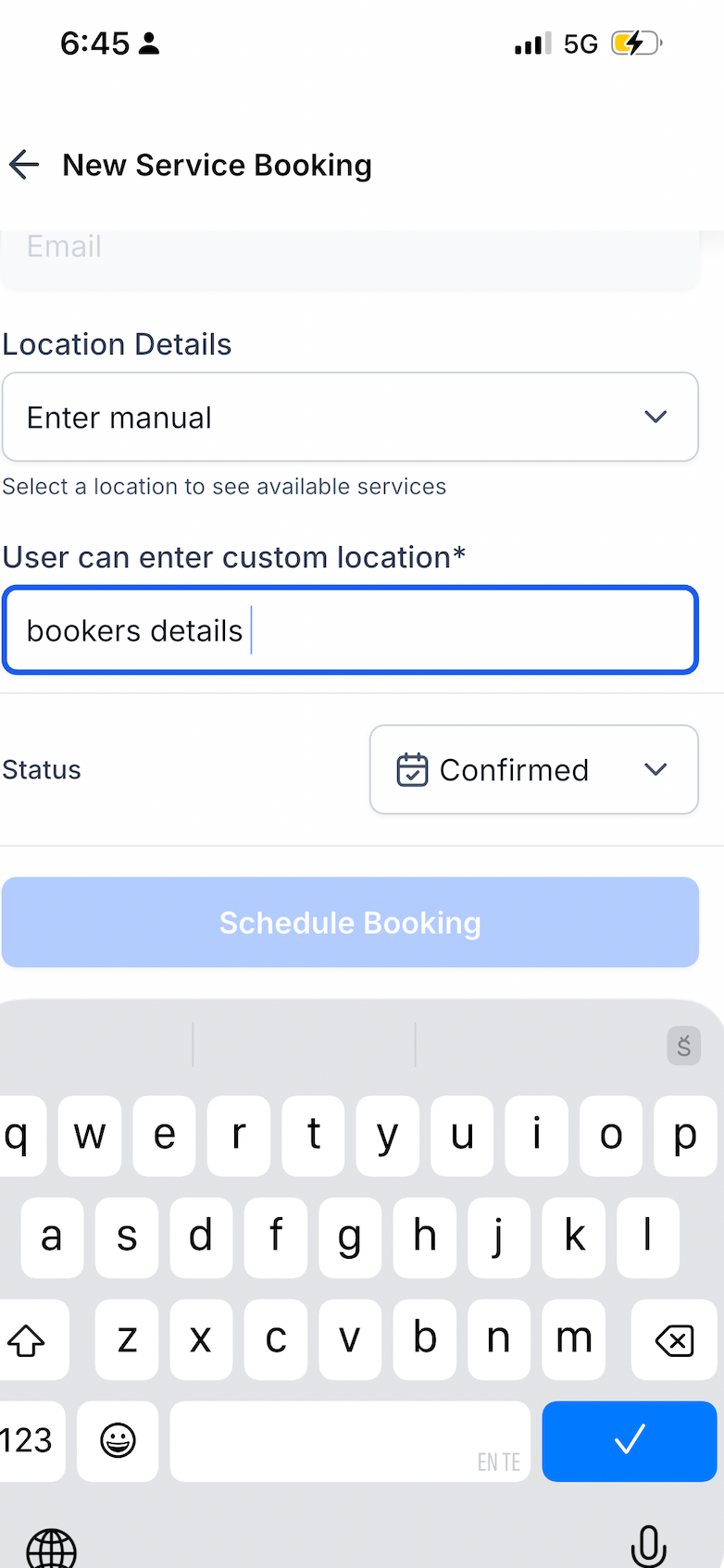
Enter the customer’s service address in the required address field.
The booking cannot be scheduled until a service address is entered.
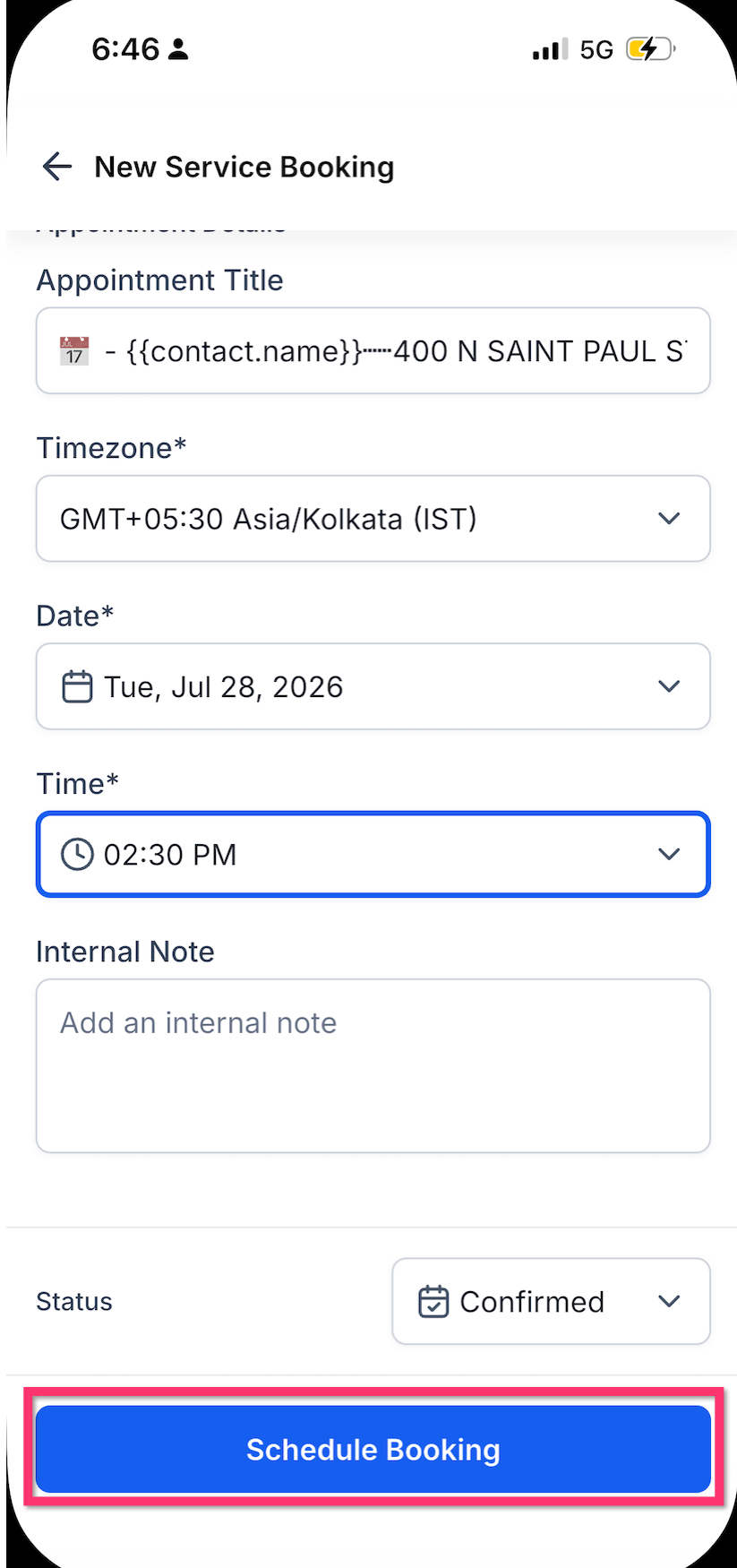
Add the applicable services, staff members, date, time, and appointment status.
Review the booking information and tap Schedule Booking.
Open the appointment details and confirm that the saved address appears under Location Details.
From the appointment details, users can copy the address or tap View Location to open it in their device’s maps application.
Frequently Asked Questions
Q: Does Ask the Booker location support work for all calendar types?
A: No. This feature is available for Service Calendar v2 appointments only.
Q: Where is the Ask the Booker location configured?
A: It is configured on web under Calendar Settings > Services (v2) > Locations.
Q: Is the service address required?
A: Yes. When an Ask the Booker location is selected, the address field is required before the booking can be scheduled.
Q: Why can’t I schedule the booking?
A: If the selected location requires the booker to enter a service address, the booking cannot be scheduled until the address field is completed.
Q: Where does the saved address appear?
A: The saved address appears under Location Details on the appointment detail screen.
Q: Is the address pre-filled when editing or duplicating an appointment?
A: Yes. The previously entered service address is pre-filled when editing or duplicating a Service v2 appointment.
Q: Can staff copy the address or open it in Maps?
A: Yes. The appointment detail screen includes copy and View Location options for the saved address.
Q: Which mobile apps support this feature?
A: This feature is available in the HighLevel mobile app, LeadConnector mobile app, and white-labeled mobile apps.
Q: What app version is required?
A: Mobile app version 4.10.0 (810) or later is required.
Related Articles
Was this article helpful?
That’s Great!
Thank you for your feedback
Sorry! We couldn't be helpful
Thank you for your feedback
Feedback sent
We appreciate your effort and will try to fix the article