Enhanced Document Privacy & Access Controls
Enhanced Document Privacy & Access Controls upgrades how you share files from the contact record's Documents panel. Instead of every file behaving like a public URL, you can generate configurable share links with different security levels, expirations, and download permissions.
This guide walks through the four link types, access controls, and how to implement secure document sharing that aligns with your internal security policies and client expectations.
This feature is available through Labs and may evolve over time. If you don't see it in your account, ask an Agency or Sub-account Admin to check Settings → Labs and enable it for your location.
What is Enhanced Document Privacy & Access Controls?
Enhanced Document Privacy & Access Controls upgrades how you share documents stored in a contact's Documents panel on the Contact Detail Page. Instead of every file behaving like a public URL, you can generate configurable share links with different security levels, expirations, and download permissions. You also gain visibility into who accessed what and when.
Historically, documents under contacts could be accessed by anyone with the URL, which meant sensitive information required extra care. With this feature enabled, new links default to private/internal access, and you explicitly choose when a link should be public, email-verified, or password-protected.
New documents uploaded as attachments through Notes are private by default. These files are stored in the Notes attachments folder under Documents.
This change applies only to Notes attachments uploaded after this update. Existing documents previously uploaded through Notes remain public.
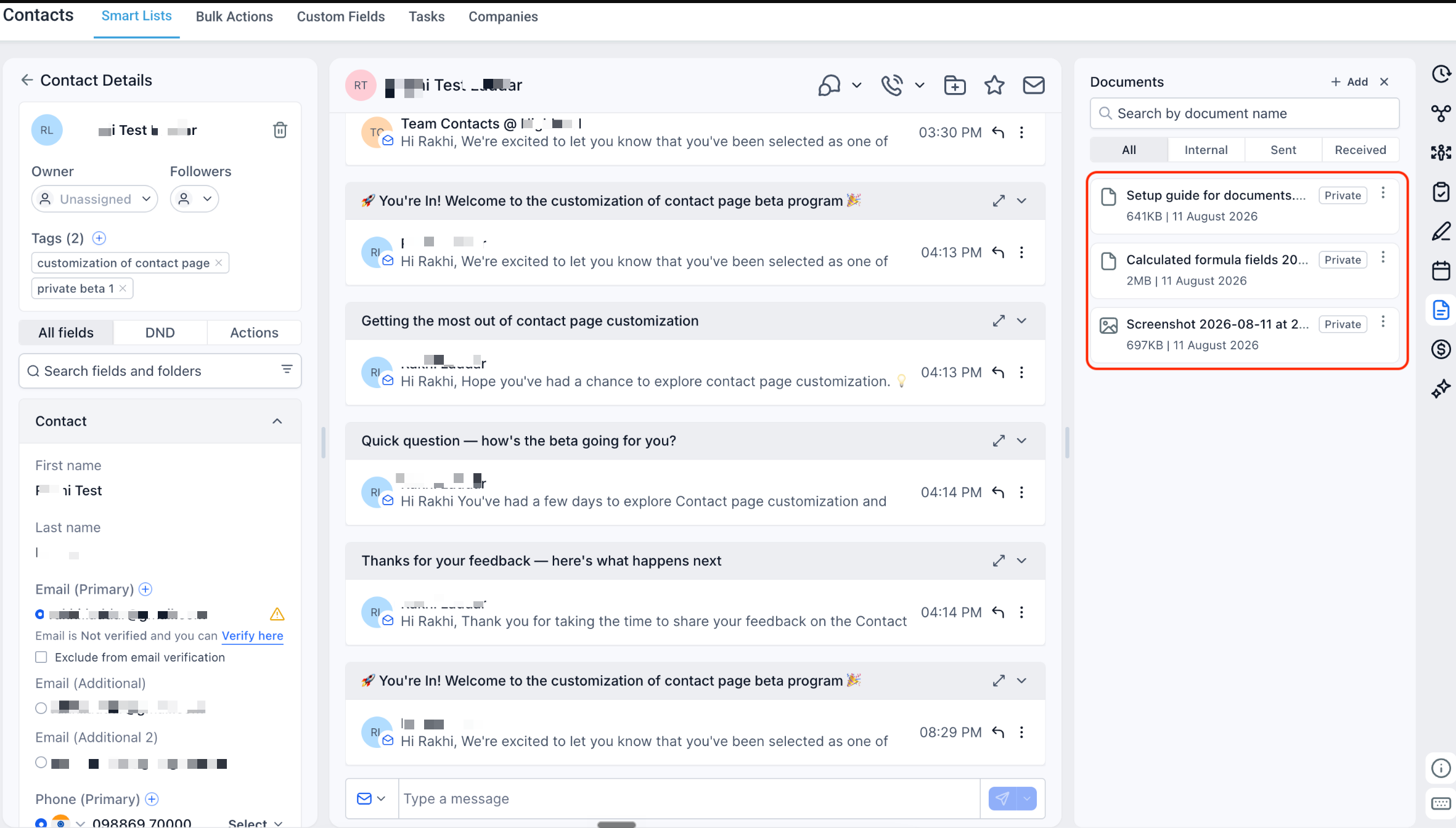
This feature is delivered through Labs and may evolve based on feedback. Behavior and UI can change over time as the product team refines the experience.
Key Benefits
Stronger document controls protect your clients and your team while keeping everyday work simple. These benefits focus on how the feature improves real-world document workflows:
Link Expiration & Download Controls
Expiration dates and download permissions add fine-grained control over how long a link stays active and what recipients can do with the file. Used together, they significantly reduce the risk of documents lingering in inboxes or being downloaded inappropriately.
Set a specific date when the link should stop working. This is ideal for time-boxed offers, sensitive reports, or compliance-driven data retention policies.
Choose whether recipients can download the file for their records, or restrict to view-only access (where supported). This helps keep copies under tighter control.
Combine shorter expiration windows and restricted downloads for documents that carry the most risk if leaked.
Document Details & Access History
Document details and access history give you visibility into how each file is being shared and interacted with. This is especially helpful for audits, internal reviews, and troubleshooting questions like "Did the client open this yet?"
From the document's details view, you can:
- See the link type (public, private, OTP, password-protected) and whether downloads are allowed
- Confirm expiration settings and when the file was last updated
- Review access history, such as when links were opened and by whom (where available), giving you an at-a-glance audit trail for that document
Combined with activity tracking and message history, this gives teams a fuller picture of contact engagement around key documents.
How to Set Up Enhanced Document Privacy & Access Controls
Setting up this feature has two main parts: enabling it through Labs (where available) and then using the new controls while sharing documents from the contact record. A careful setup ensures your links default to the correct privacy level and your team knows which option to choose in each scenario.
- Sign in with an Agency Admin or Sub-account Admin account that can access Settings and Labs
- From the appropriate workspace (Agency or Sub-account), go to Settings → Labs
- Locate the feature card named similar to "Enhanced document privacy & access controls" or referencing document link controls for contacts
- Toggle the feature ON. If the card supports assignment, select the sub-accounts/locations that should get access, then save
- Refresh your Contact Detail Page and confirm that the new sharing options appear when you share a document from the Documents panel
- Go to Contacts and open any contact record
- In the right panel, click the Documents tab/module to view files associated with that contact (internal docs, synced attachments, and other stored files)
Documents uploaded through Notes are stored in the Notes attachments folder under Documents. New Notes attachments are private by default.
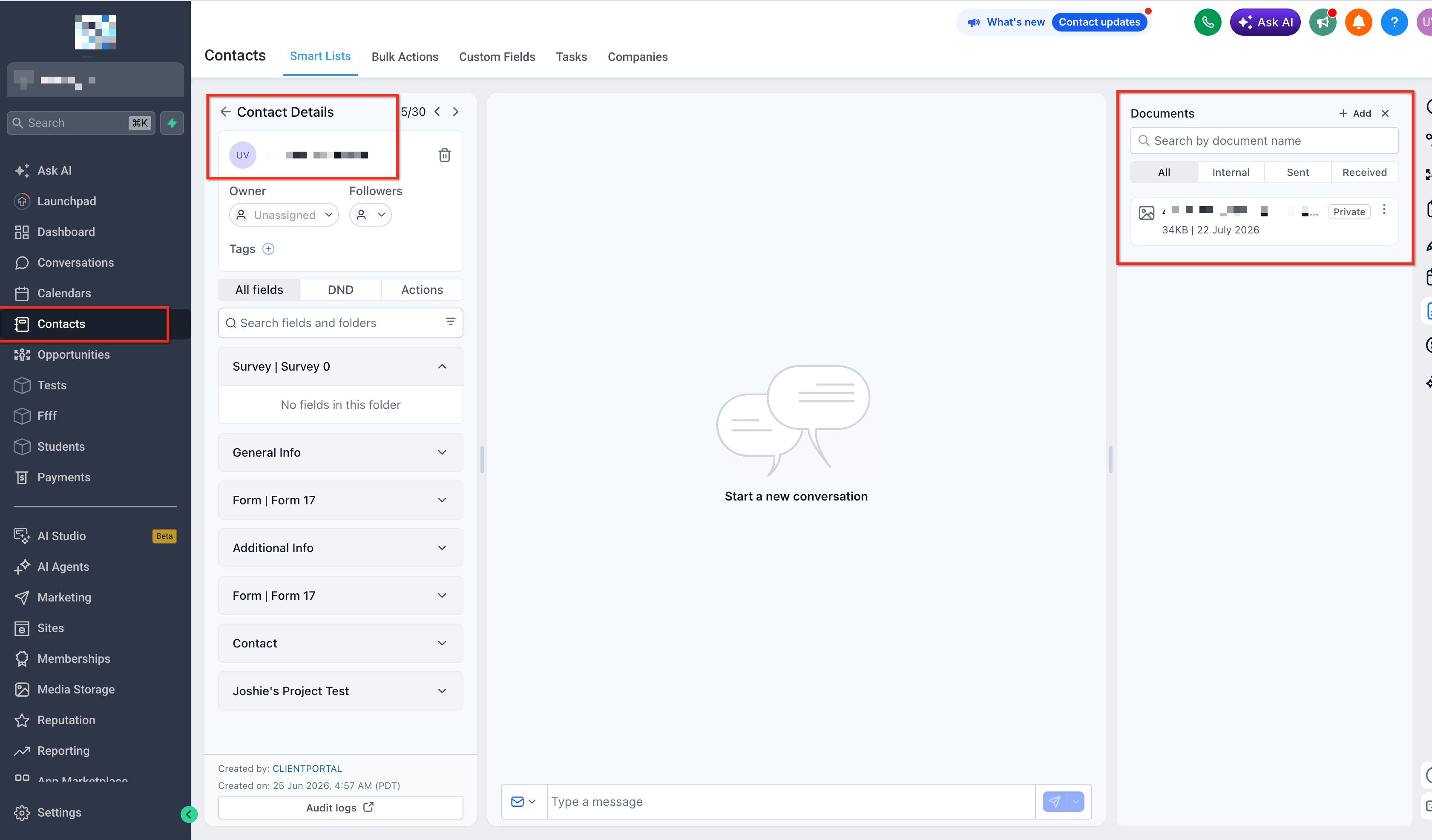
- Locate the file you want to share in the contact's Documents list
- Click the more actions menu (shown as three dots) next to the file name, then choose Share link
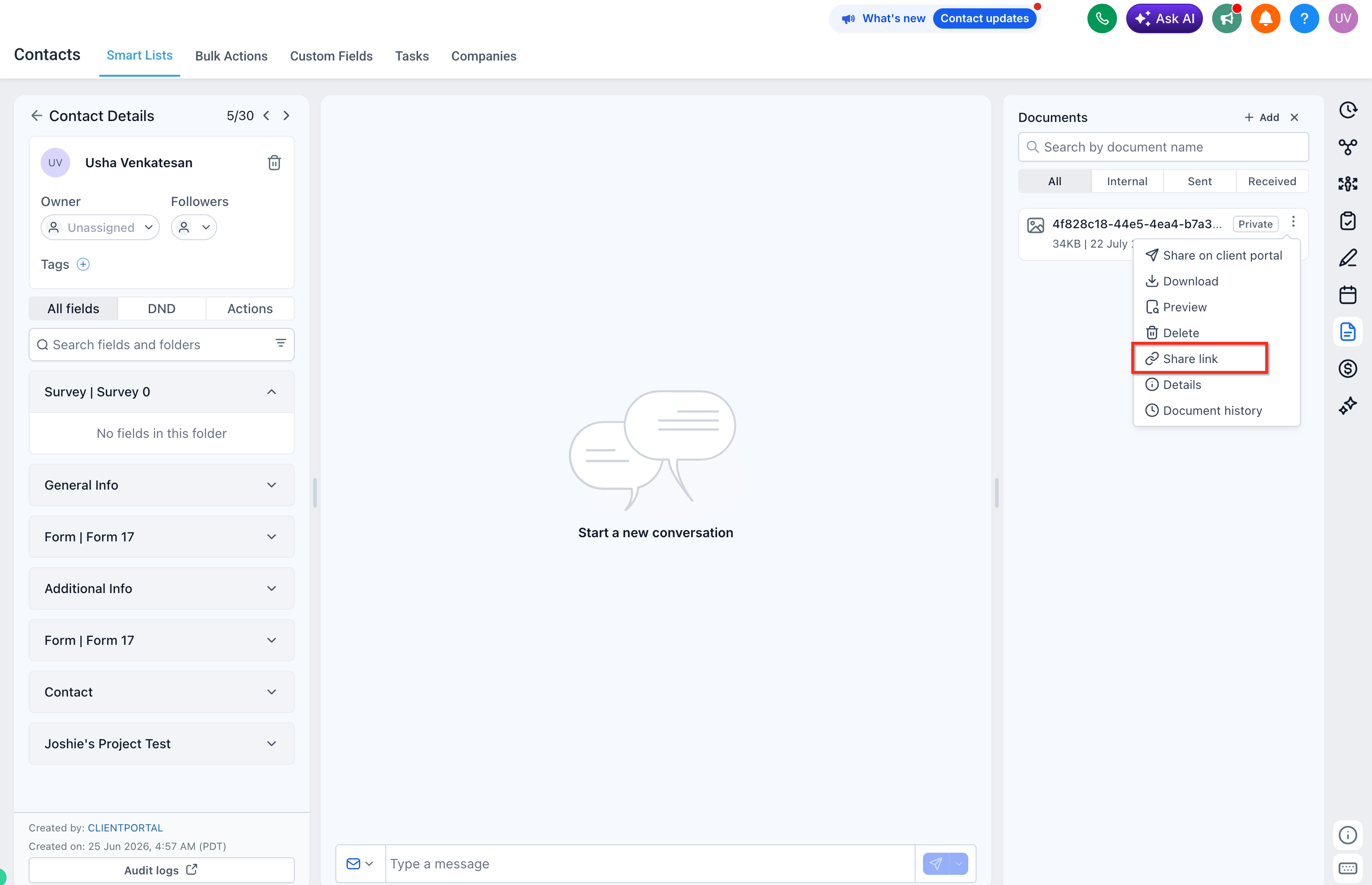
In the share dialog, select one of the available access types:
- Public link — anyone with the URL can view (respecting your download and expiry settings)
- Private link — only authorized HighLevel users can access
- One-time passcode link — recipients must confirm access through a code sent to the contact's primary email
- Password-protected link — requires a passcode that you define
Confirm that the access type matches the sensitivity of the document and your internal policies.
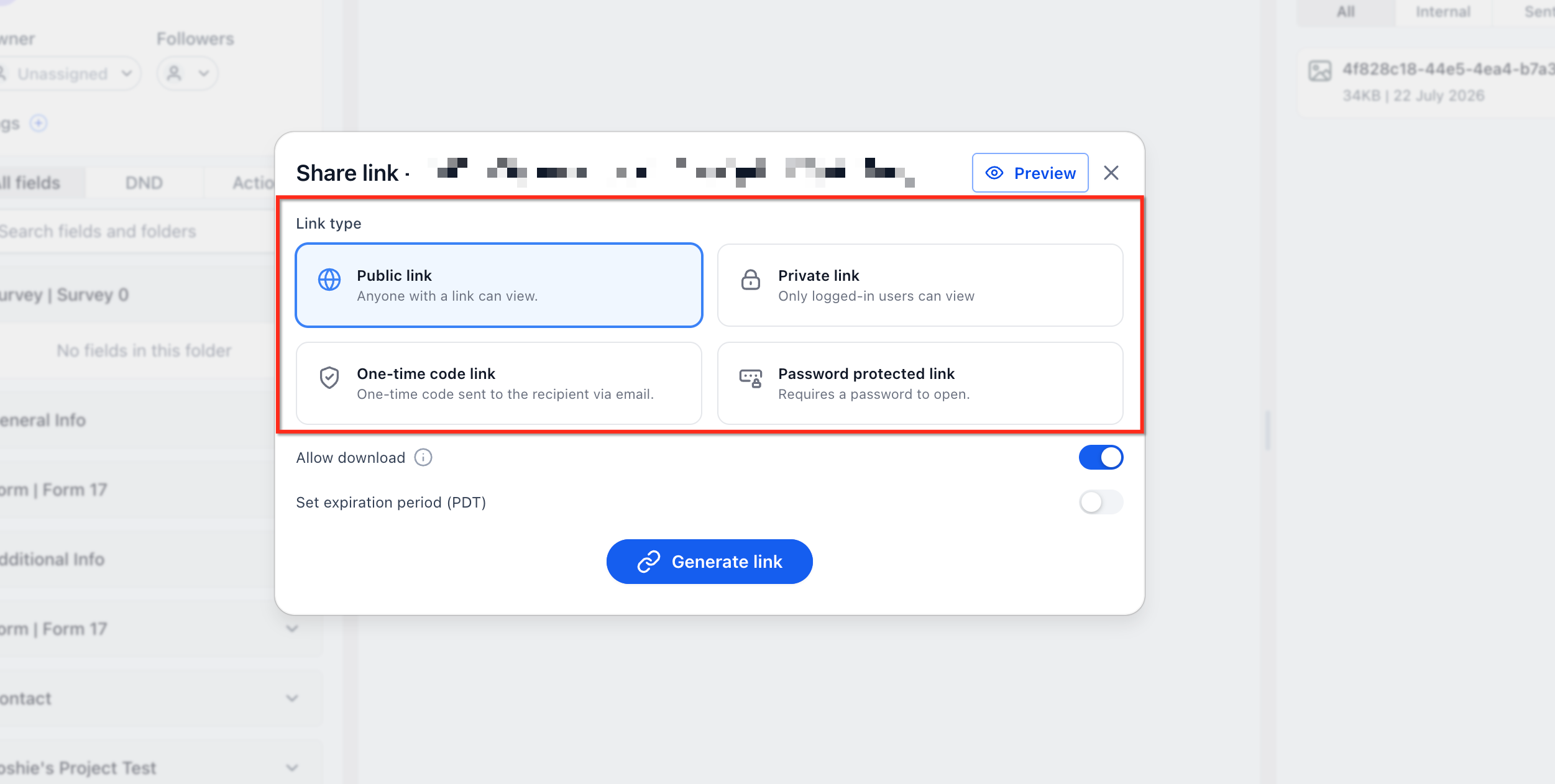
- Set an expiration date (optional but recommended): Pick the date when this link should no longer be accessible
- Choose download permissions: Enable "Allow downloads" if recipients should save a copy. Disable it to keep access as view-only where supported
- Review the summary of your chosen settings before finalizing
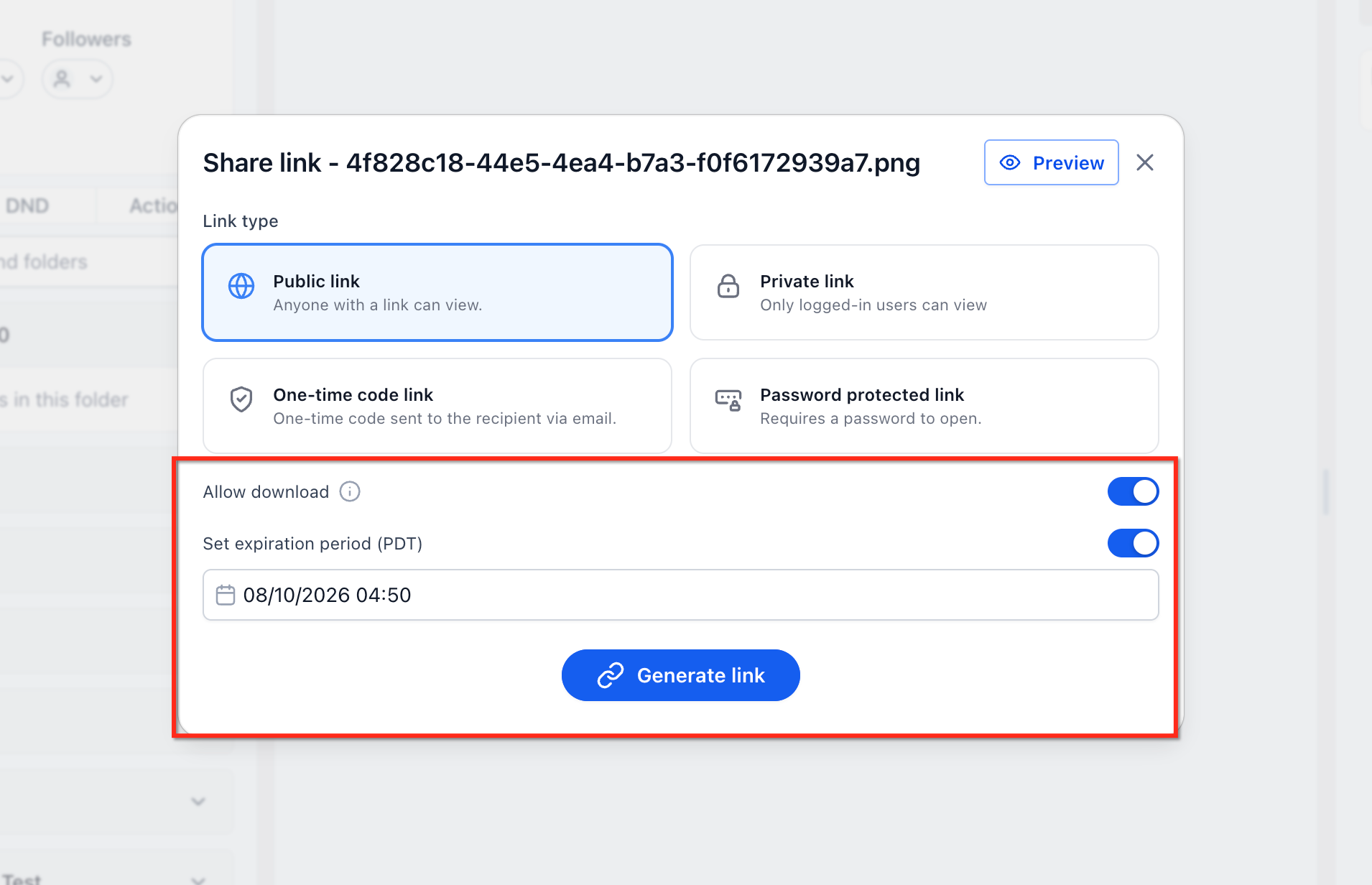
- Click Create or Generate link (wording may vary)
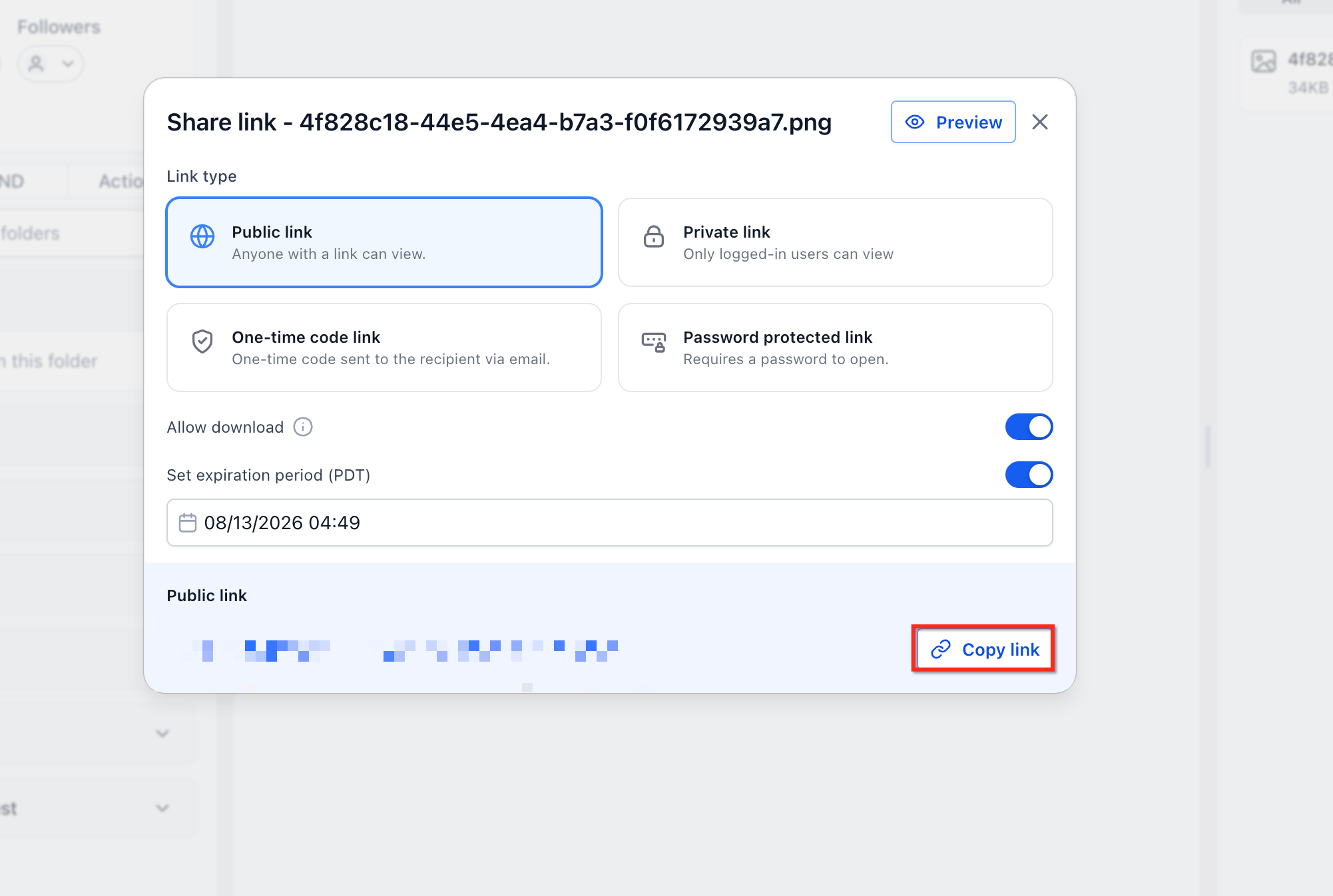
- Use the Copy link button to copy the URL to your clipboard
- Paste and send the link via your preferred channel (email, SMS, WhatsApp, client portal message, etc.), following your security practices—for example, sharing passwords or sensitive details via a separate channel
- Return to the contact's Documents panel
- Open Document details for the shared file (e.g., via a details icon or more options menu)
- Review: Link type and expiration, Download settings, Access history where available (e.g., last accessed timestamps)
- Use this view to confirm that settings are correct and to support internal reviews or client inquiries
Frequently Asked Questions
Was this article helpful?
That’s Great!
Thank you for your feedback
Sorry! We couldn't be helpful
Thank you for your feedback
Feedback sent
We appreciate your effort and will try to fix the article