The HighLevel MCP Server lets AI agents and MCP-compatible clients connect securely to HighLevel tools and services. With MCP, AI assistants can retrieve records, update data, send messages, search opportunities, access calendar information, and automate tasks through a standardized HTTP connection.
TABLE OF CONTENTS
- What is HighLevel MCP Server?
- Key Benefits of HighLevel MCP Server
- Example of Supported MCP Clients
- Prerequisites
- How To Setup the HighLevel MCP Server
- Recommended Scopes
- Example of Some Available MCP Tools
- Example Tool Call
- Example MCP Workflows
- How Users can Use the MCP Tool
- Security and Authentication
- Best Practices
- Frequently Asked Questions
- Related Articles
What is HighLevel MCP Server?
The HighLevel MCP Server uses the Model Context Protocol, or MCP, to let AI agents securely interact with HighLevel services. MCP acts as a bridge between an AI client and HighLevel, allowing the AI client to discover available tools, query data, and perform approved actions.
The MCP Server can be used with supported AI clients and developer tools to interact with HighLevel services such as Contacts, Conversations, Calendars, Opportunities, Payments, Locations, and Custom Fields.
HighLevel MCP Endpoint:

https://services.leadconnectorhq.com/mcp/
Key Benefits of HighLevel MCP Server
- Centralized AI Access: Connect AI agents to multiple HighLevel services through one MCP endpoint.
- Secure Authentication: Use Private Integration Tokens and scoped permissions to control access.
- Natural Language Automation: Let AI assistants perform supported actions from plain-language prompts.
- Multi-Service Connectivity: Work with contacts, conversations, calendars, opportunities, payments, locations, and more.
- MCP-Compatible Flexibility: Connect supported clients such as Cursor, Windsurf, OpenAI Playground, Claude-compatible clients, and custom MCP applications.
- No SDK Required: Use a standardized HTTP-based MCP connection instead of building a full custom integration.
Example of Supported MCP Clients
MCP-compatible clients allow AI agents to discover and run HighLevel tools through a connected server. Support depends on whether the client can connect to HTTP-based MCP servers and pass the required authentication headers.
Supported client examples include:
- Cursor
- Windsurf
- OpenAI Playground
- Claude-compatible MCP clients
- Custom MCP-compatible applications
- Other HTTP-based MCP clients
Prerequisites
A correct setup helps ensure the AI client can access only the HighLevel data and actions it needs.
Before connecting to the HighLevel MCP Server, make sure you have:
- Access to the desired HighLevel sub-account/location
- A Private Integration Token
- Required scopes enabled for the token
- The sub-account/location ID
- An MCP-compatible client
How To Setup the HighLevel MCP Server
Connecting an MCP client requires a Private Integration Token, the HighLevel MCP endpoint, and the location ID. Once connected, the AI client can discover available tools based on the scopes granted to the token.
Step 1: Create a Private Integration Token
Private Integration Tokens allow your MCP client to authenticate securely with HighLevel.
- Log in to HighLevel.
- Open the desired sub-account/location.
- Go to Settings.
- Select Private Integrations.
- Click Create New Integration.
- Choose the required scopes.
- Click Create Integration.

- Copy the generated token.

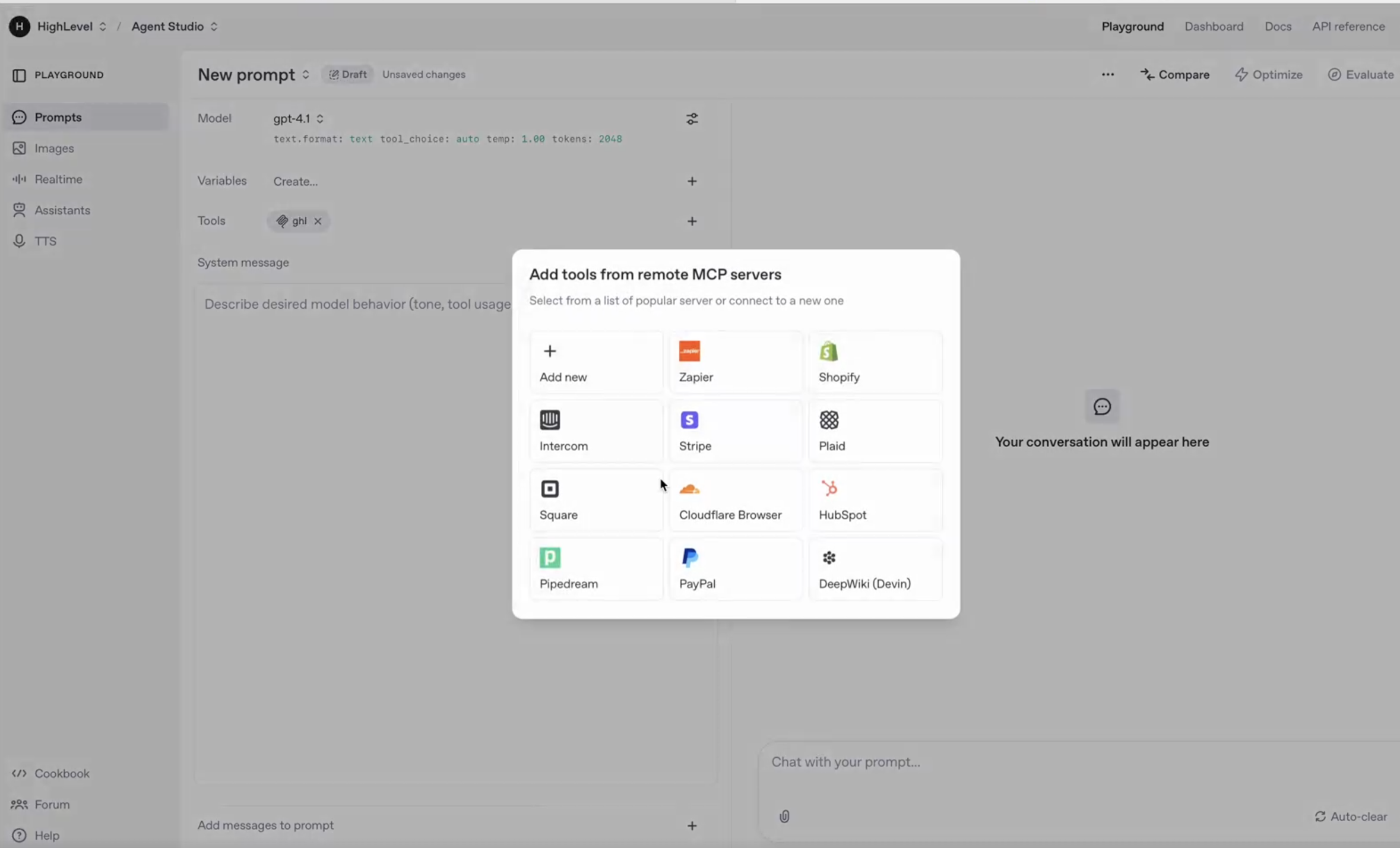
Step 2: Add the MCP Server to Your Client
Add the MCP endpoint and authentication headers to your MCP-compatible client.
{ "mcpServers": { "prod-ghl-mcp": { "url": "https://services.leadconnectorhq.com/mcp/", "headers": { "Authorization": "Bearer <your-token>", "locationId": "<your-location-id>" } } } }Replace:
<your-token>with your Private Integration Token<your-location-id>with the HighLevel sub-account/location ID
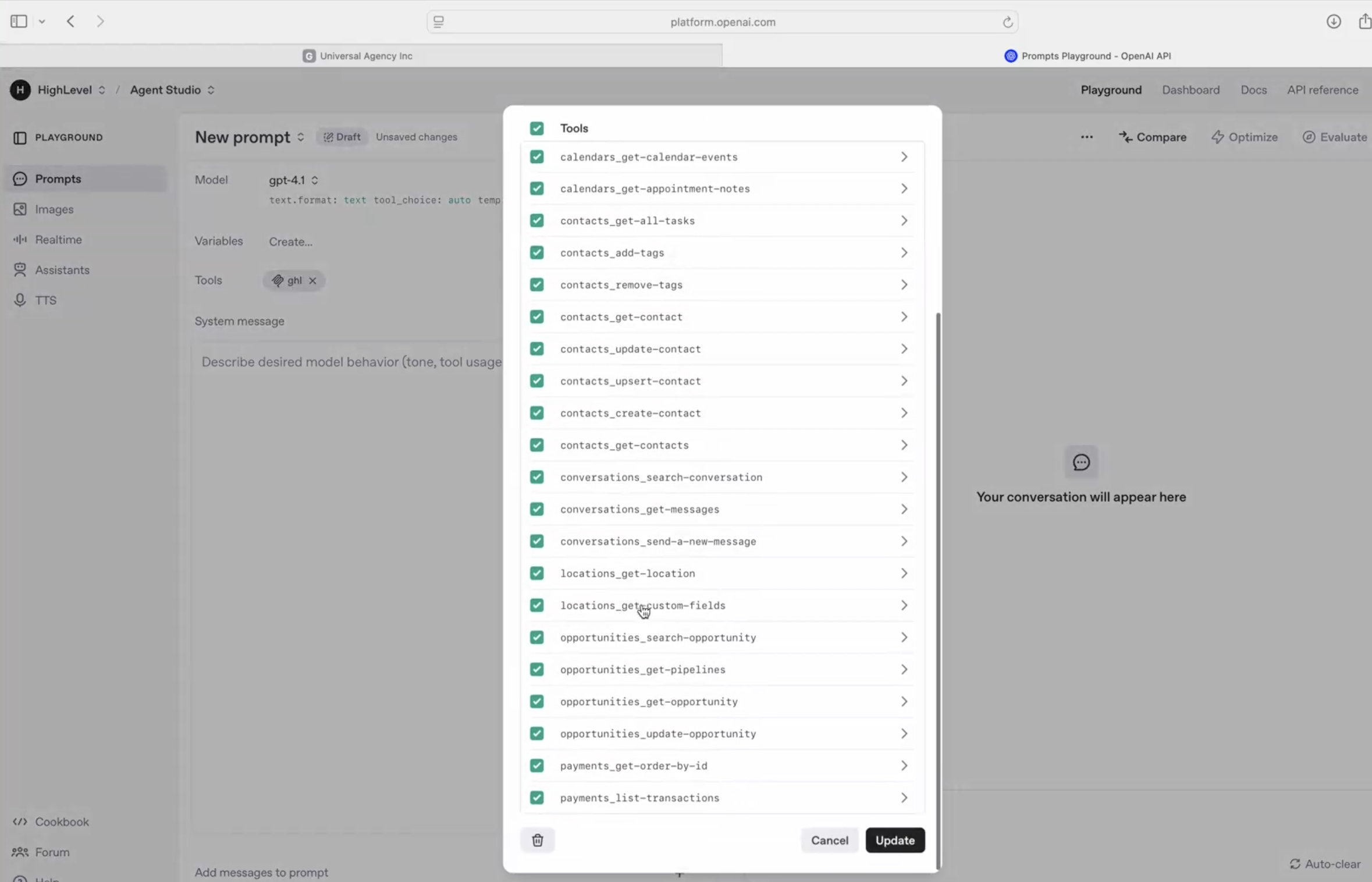
Step 3: Select the Required Tools
After the client connects, available tools appear based on the scopes assigned to the Private Integration Token. Select only the tools your AI agent needs for the workflow.
Recommended Scopes
Scopes control which HighLevel resources the MCP client can read or modify. Grant only the permissions required for your workflow.
Recommended scopes may include:
- Contacts: View Contacts, Edit Contacts
- Conversations: View Conversations, Edit Conversations
- Conversation Messages: View Conversation Messages, Edit Conversation Messages
- Opportunities: View Opportunities, Edit Opportunities
- Calendars: View Calendars, Edit Calendars
- Calendar Events: View Calendar Events, Edit Calendar Events
- Payments: View Payment Orders, View Payment Transactions
- Other: View Custom Fields, View Forms, View Locations
Example of Some Available MCP Tools
The HighLevel MCP Server includes tools across core HighLevel services. The tools available to your client depend on the permissions granted through the Private Integration Token.
Calendar Tools
Calendar tools help AI agents retrieve scheduling information and appointment details.
calendars_get-calendar-eventscalendars_get-appointment-notes
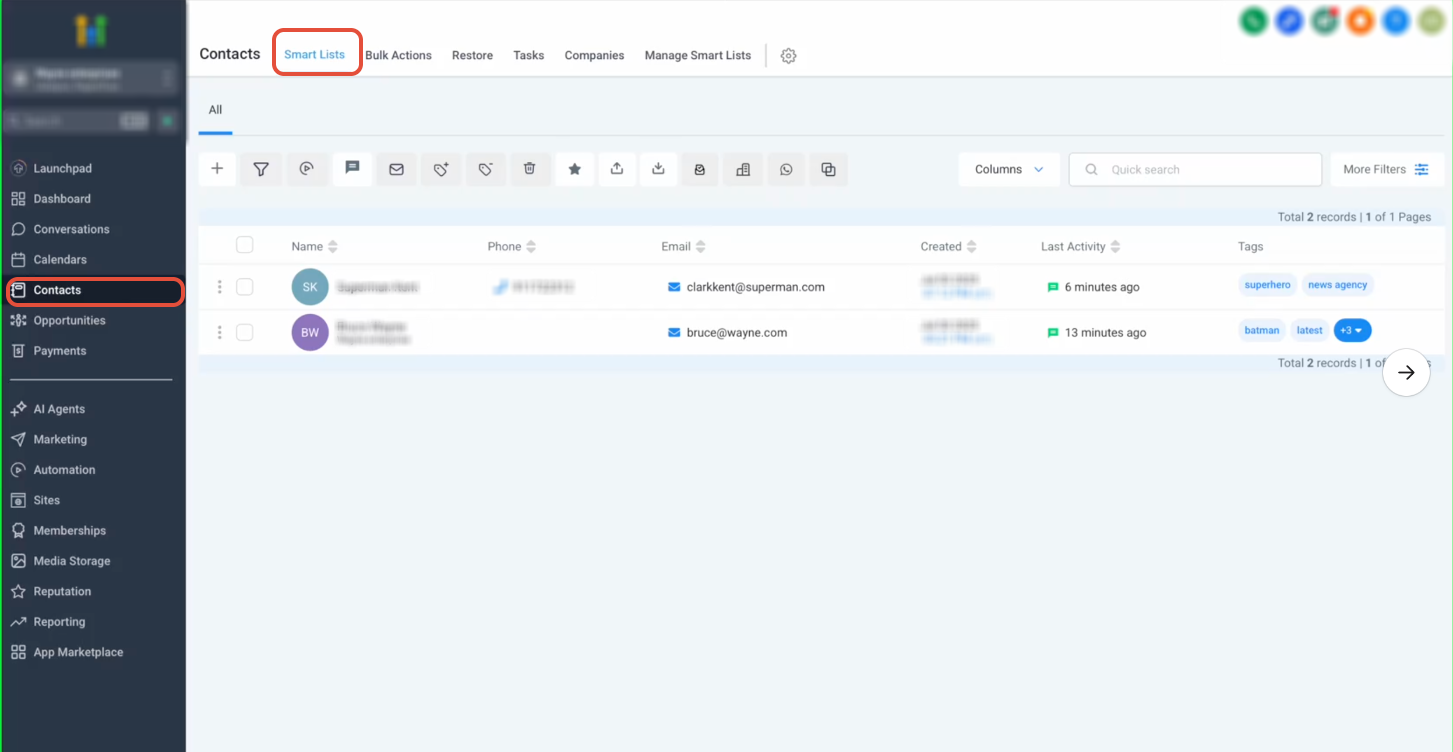
Contact Tools
Contact tools allow AI agents to find, create, update, and manage contact records.
contacts_get-all-taskscontacts_add-tagscontacts_remove-tagscontacts_get-contactcontacts_update-contactcontacts_upsert-contactcontacts_create-contactcontacts_get-contacts
Conversation Tools
Conversation tools allow AI agents to search conversations, review message history, and send supported messages.
conversations_search-conversationconversations_get-messagesconversations_send-a-new-message
Location Tools
Location tools allow AI agents to retrieve location details and custom field information.
locations_get-locationlocations_get-custom-fields
Opportunity Tools
Opportunity tools allow AI agents to search, retrieve, and update pipeline opportunities.
opportunities_search-opportunityopportunities_get-pipelinesopportunities_get-opportunityopportunities_update-opportunity
Payment Tools
Payment tools allow AI agents to retrieve order and transaction data.
payments_get-order-by-idpayments_list-transactions
Example Tool Call
Python example:
import requests
headers = {
"Authorization": "Bearer YOUR_PIT_TOKEN",
"locationId": "YOUR_LOCATION_ID"
}
data = {
"tool": "contacts_get-contact",
"input": {
"contactId": "abc123"
}
}
response = requests.post(
"https://services.leadconnectorhq.com/mcp/",
headers=headers,
json=data
)
print(response.json())
Example MCP Workflows
MCP allows AI agents to interact with HighLevel using natural language while executing approved tools in the background.
Common workflows include:
- Searching for a contact by name, email, or phone number
- Creating or updating a contact
- Adding or removing contact tags
- Searching conversation history
- Sending a message to a contact
- Retrieving calendar events
- Searching opportunities
- Updating opportunity details
- Reviewing payment order or transaction data
How Users can Use the MCP Tool
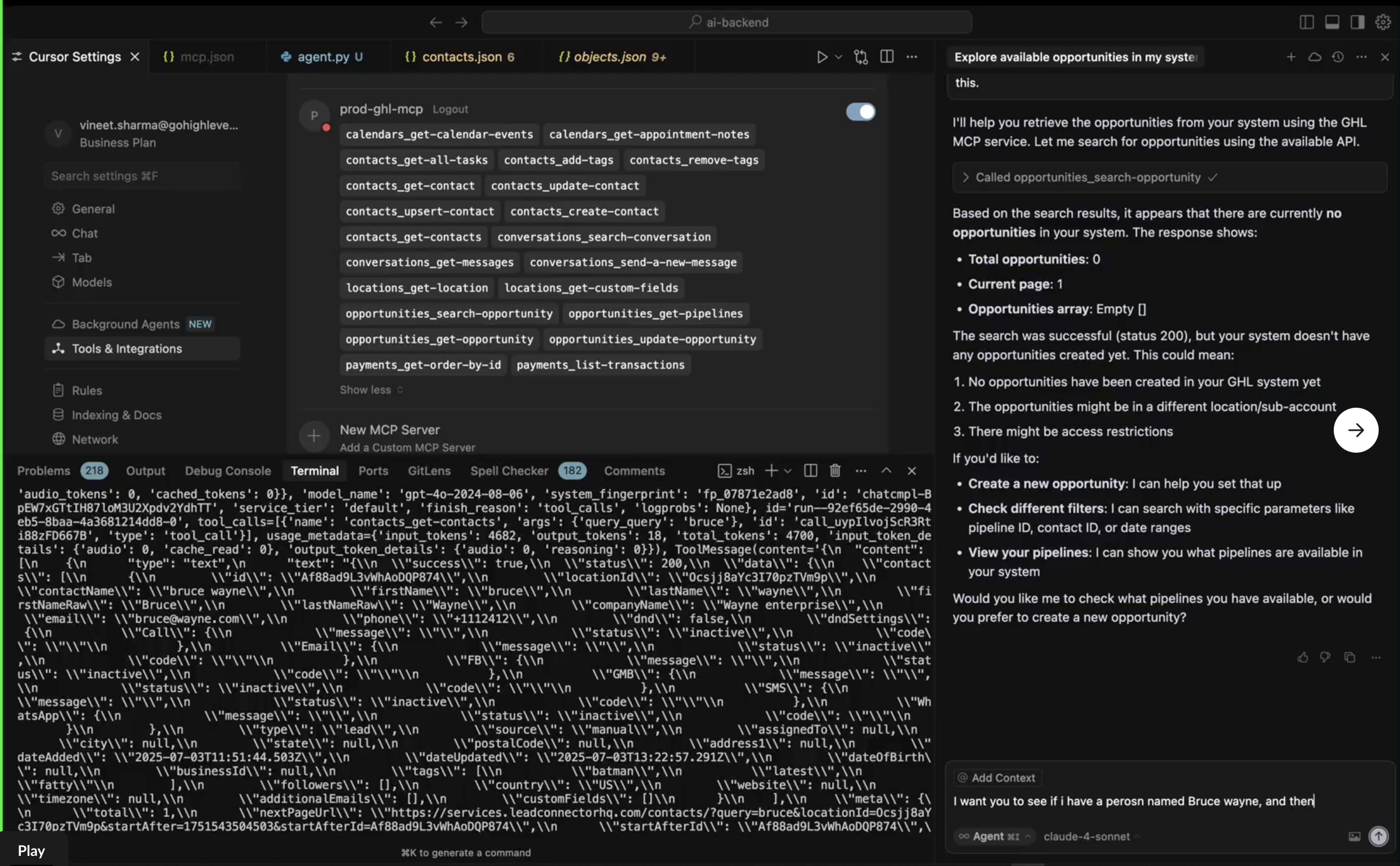
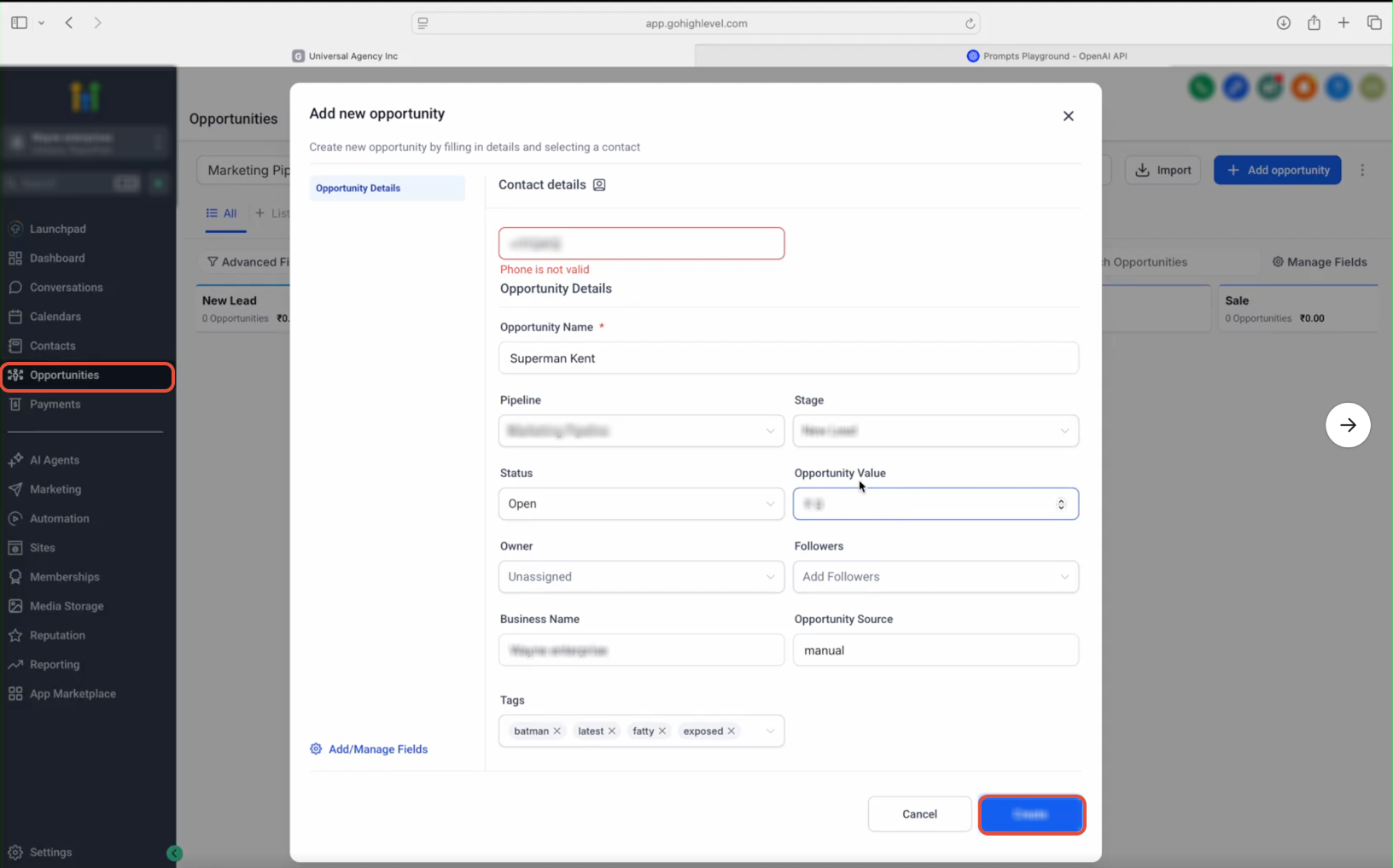
Users can use the HighLevel MCP Server to complete actions inside HighLevel. After the MCP server is connected, the user can call available tools based on the user’s prompt and the token’s scopes.
For example, a user could ask:
Check if I have a contact named Bruce Wayne.
The AI client can use contact tools to search HighLevel and return matching records.
Another example:
Search for available opportunities in my account.
The AI client can call opportunity tools and summarize the results.
Security and Authentication
The MCP Server uses token-based authentication to protect access to HighLevel data. Each request must include a valid Private Integration Token and location ID.
Required authentication details:
- Private Integration Token
locationId- Required scopes for the requested tools
Keep tokens private and never expose them in public repositories, screenshots, shared prompts, or client-side code.
Best Practices
Following MCP best practices helps keep AI workflows secure, reliable, and easier to manage.
- Use least-privilege access: Enable only the scopes required for the AI workflow.
- Store tokens securely: Keep Private Integration Tokens in secure storage and avoid sharing them publicly.
- Review write permissions carefully: Grant edit permissions only when the AI agent needs to create or update data.
- Test before production use: Confirm the AI client calls the correct tools and returns expected results.
- Monitor AI activity: Review AI-driven actions when enabling write access.
- Rotate tokens periodically: Replace tokens regularly or when access should be revoked.
- Use clear prompts: Give the AI agent specific instructions about when it should read data, update records, or ask for confirmation.
Frequently Asked Questions
Q: What does MCP stand for?
MCP stands for Model Context Protocol. It is a standardized protocol that allows AI agents and copilots to connect with external tools and services.
Q: What does the HighLevel MCP Server do?
It allows MCP-compatible AI clients to securely access supported HighLevel tools, retrieve data, and perform approved actions.
Q: Can I use this with OpenAI Playground or Claude?
Yes! Any client supporting HTTP requests can integrate with MCP.
Q: Do I need to install an SDK?
No SDK is required — MCP uses a standard HTTP protocol.
Q: Is my data secure?
Yes. Data access is fully scoped via Private Integration Tokens and secured through HTTPS.
Q: Which HighLevel services are supported?
The MCP Server supports tools for contacts, conversations, calendars, opportunities, payments, locations, and custom fields.
Q: How do I authenticate with the MCP Server?
Authentication requires a Private Integration Token and a valid location ID added to the MCP client configuration headers.
Q: Can AI agents update HighLevel data through MCP?
Yes. AI agents can update data when the connected token includes the required edit scopes.
Q: Can I limit what an AI client can access?
Yes. Access is controlled through the scopes assigned to the Private Integration Token.
Q: Can I use MCP with Cursor or Windsurf?
Yes. MCP-compatible clients such as Cursor and Windsurf can connect when they support the required HTTP MCP configuration.
Q: Can I use MCP with OpenAI Playground?
Yes. OpenAI Playground can connect to remote MCP servers when configured with the endpoint and required headers.
Q: Is OAuth supported?
OAuth support is planned for a future release. Use Private Integration Tokens for the current setup.
Q: Can I connect custom AI agents to the HighLevel MCP Server?
Yes. Custom applications can connect if they support MCP over HTTP and can send the required authentication headers.
Related Articles
Was this article helpful?
That’s Great!
Thank you for your feedback
Sorry! We couldn't be helpful
Thank you for your feedback
Feedback sent
We appreciate your effort and will try to fix the article