Custom API Calls let Managed Agents connect to external APIs to retrieve information, send data, and use live results while handling conversations. Configure the request method, endpoint, authentication, parameters, and response fields, then test the request before making it available to the agent. This guide explains how to configure a Custom API Call and how Managed Agents use API data during a conversation.
TABLE OF CONTENTS
- What Are Custom API Calls?
- Requirements and Supported Options
- Set Up a Custom API Call
- How the Managed Agent Uses the API
- Frequently Asked Questions
- Related Articles
What Are Custom API Calls?
Custom API Calls allow Managed Agents to interact with external services while handling a conversation. When an API call is relevant, the agent can collect required information, send the configured request, and use selected response data to continue the conversation.
This can be useful for retrieving current information from external systems, sending or updating data, checking availability, or performing other API-supported actions.
Requirements and Supported Options
Before configuring a Custom API Call, have the API documentation and required credentials available. You should know the endpoint, request method, required parameters, headers, request body fields, and the response data the Managed Agent should use.
Supported Request Methods
- GET
- POST
- PUT
- PATCH
- DELETE
Supported Authentication Methods
- API Key
- Bearer Token
- Basic Authentication
- No Authentication
Set Up a Custom API Call
Configure and test the API request before using it in live conversations so the Managed Agent can collect the correct information and use the expected response fields.
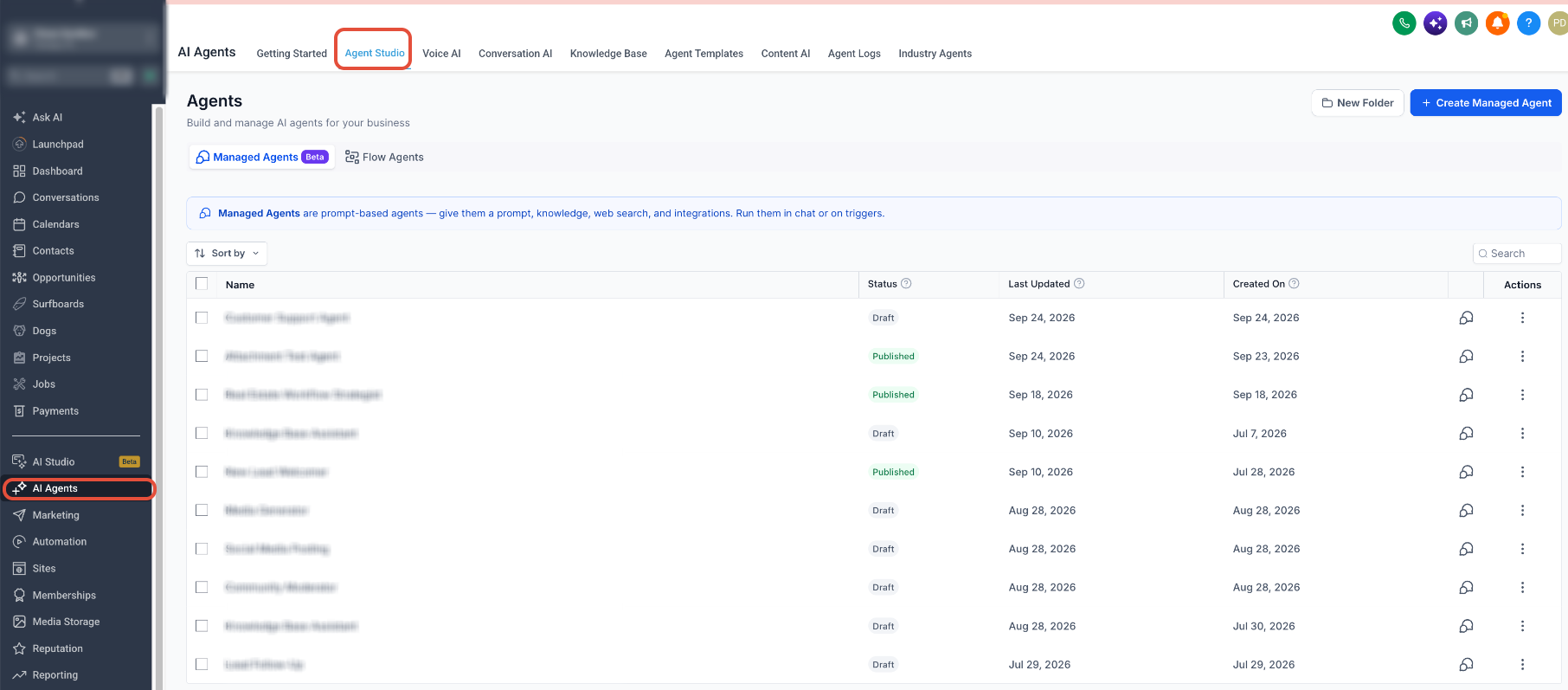
Step 1: Open the Managed Agent
- Go to AI Agents → Agent Studio.
- Open Managed Agents.
- Select the Managed Agent you want to configure.
Step 2: Configure the API Request
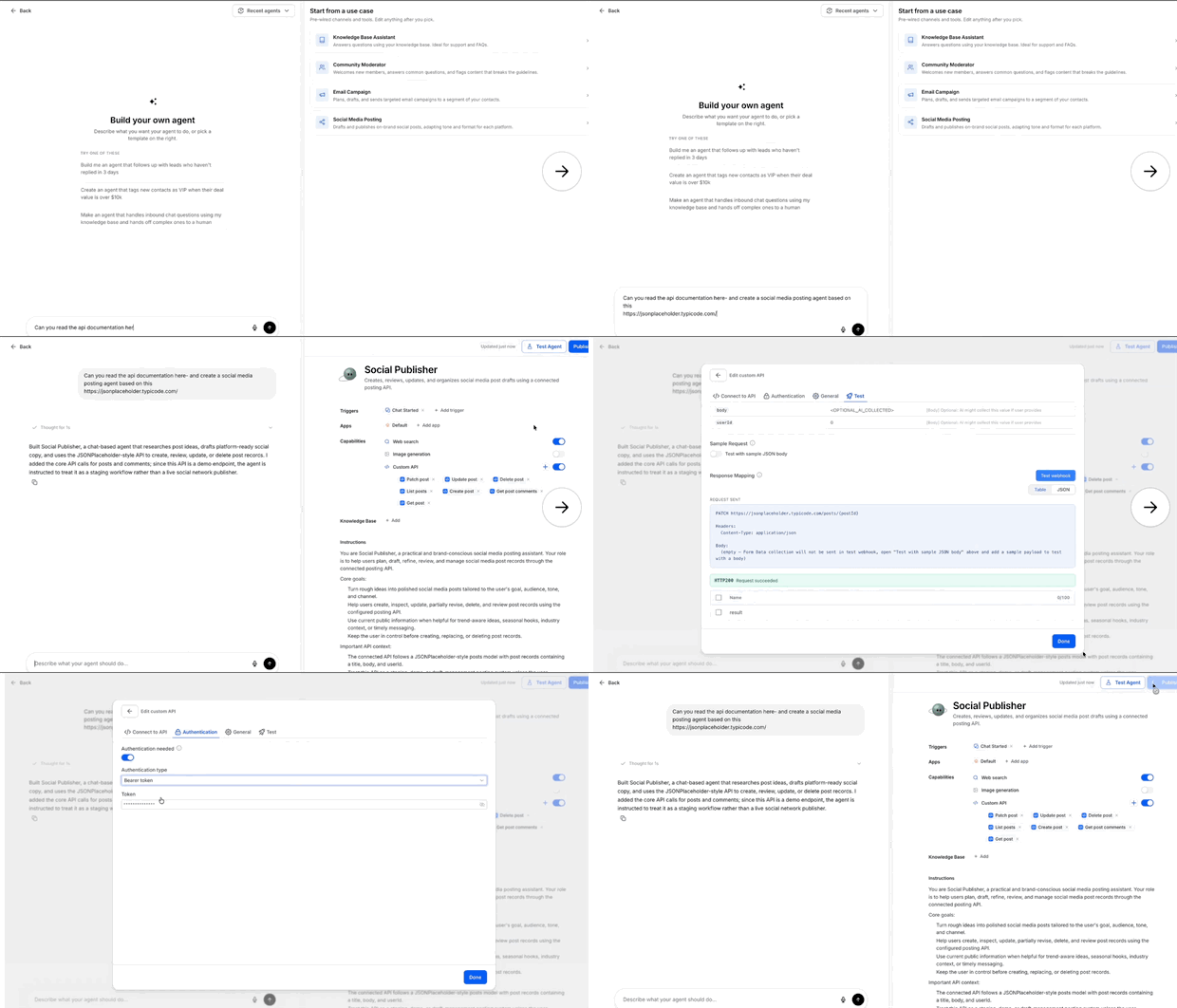
Add or configure the Custom API Call, then enter the required request details:
- Request method
- Endpoint URL
- Path or query parameters
- Headers
- Request body, when required
- Authentication
- Usage instructions
Step 3: Define When the API Should Be Used
Add clear instructions describing when the Managed Agent should use the API call. Specific instructions are especially important when the agent has access to multiple API calls or tools.
Step 4: Test the Request
- Enter test values for any required parameters.
- Run the test request.
- Review the request status and API response.
The testing experience can also provide a cURL preview for reference or troubleshooting.
Step 5: Select Response Fields
Select the response fields the Managed Agent should use from the API response. Only include the data the agent needs to complete the task or continue the conversation.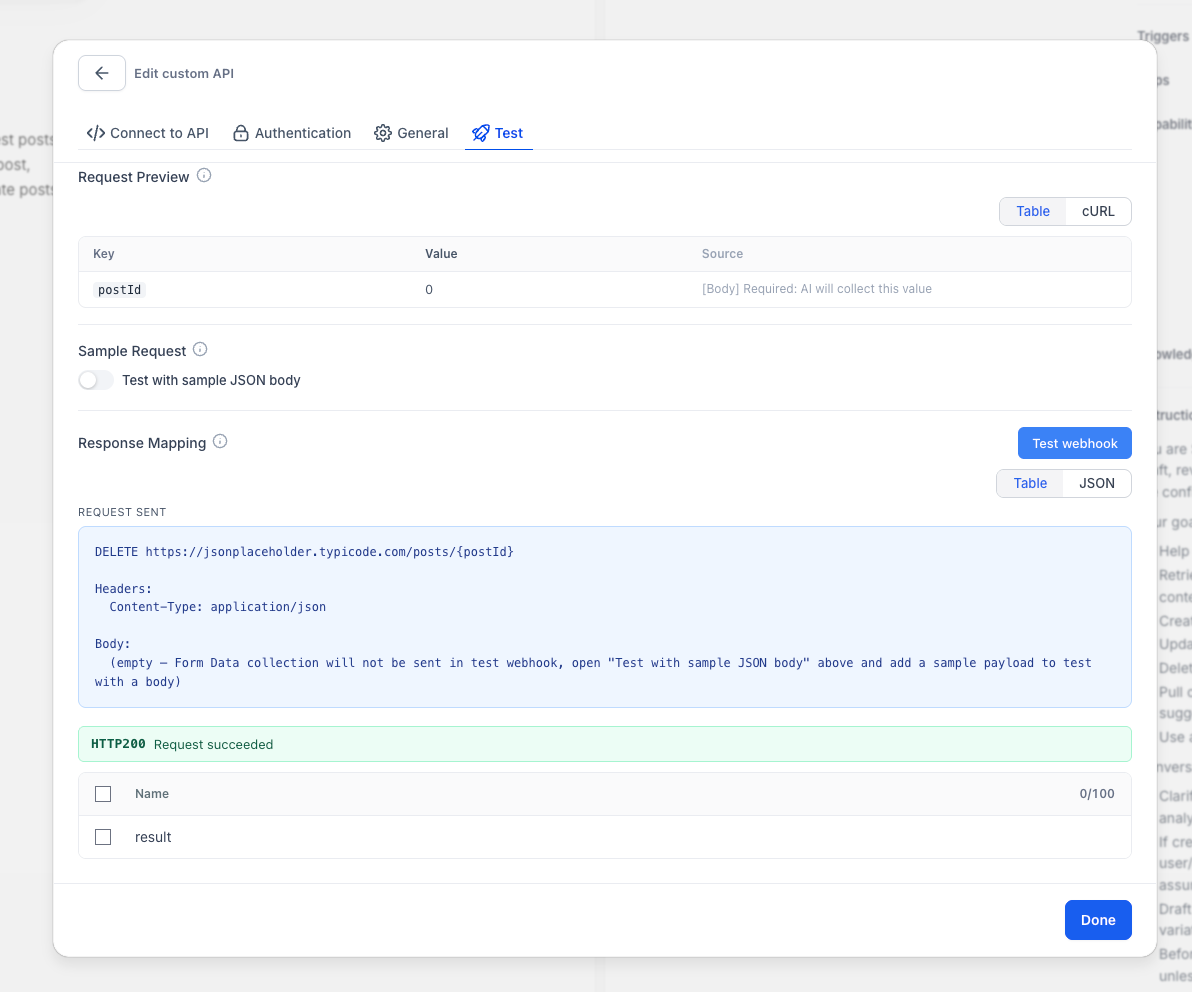
Step 6: Save and Test the Managed Agent
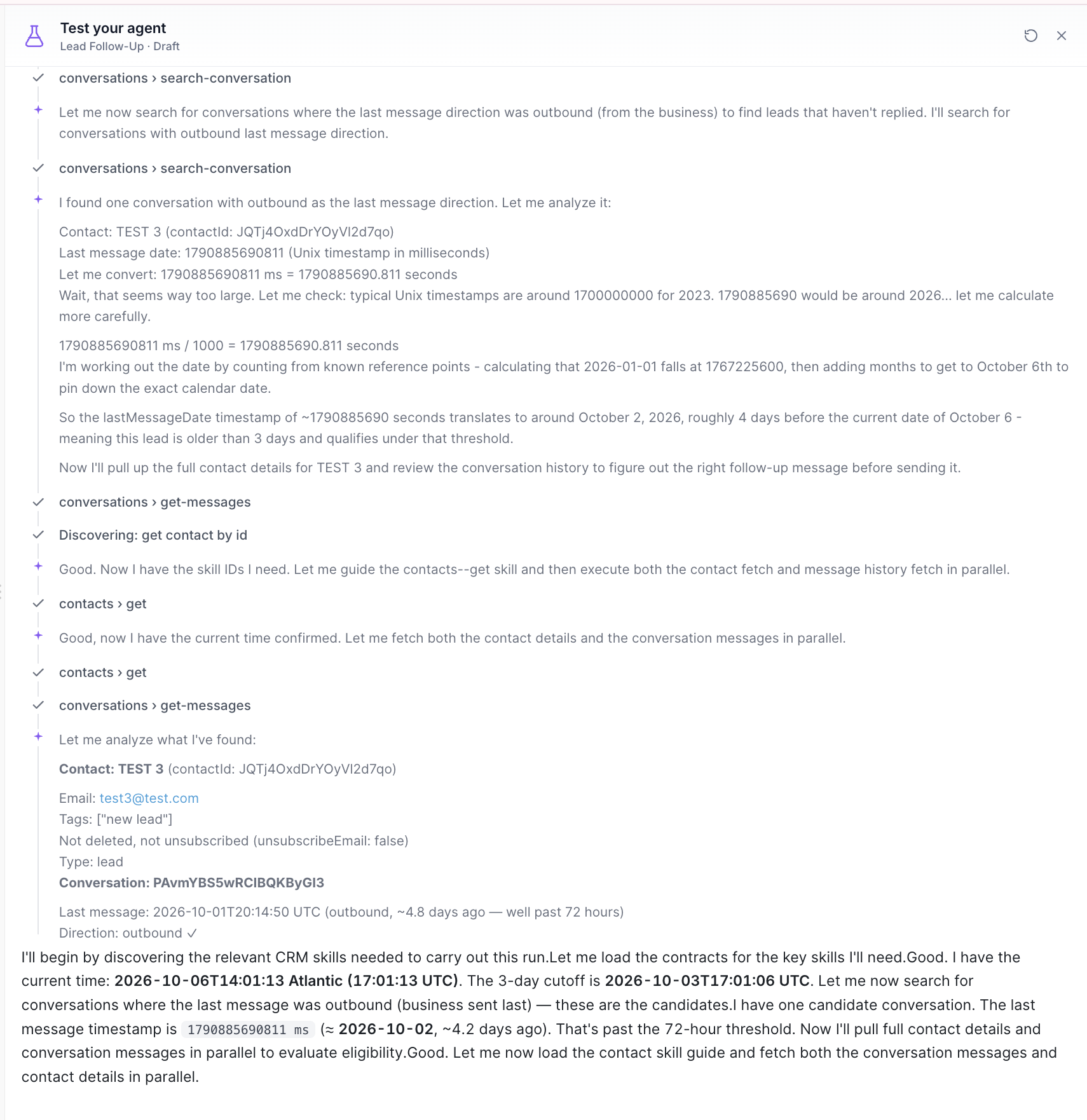
Save the Custom API Call, then test the Managed Agent with realistic requests. Confirm that the correct API is selected, required values are collected, the request succeeds, and the expected response data is used before publishing the agent.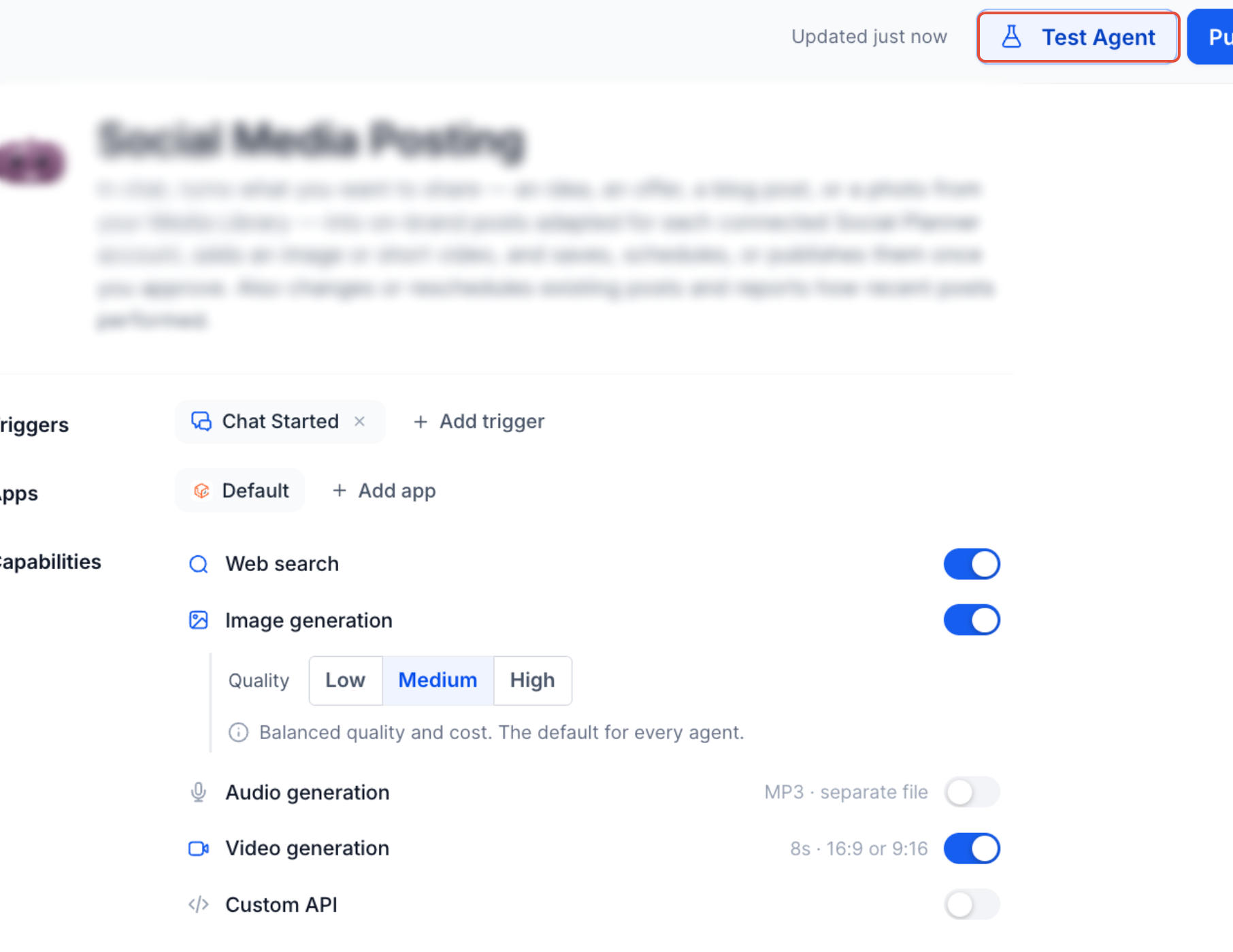
How the Managed Agent Uses the API
When a configured API call is relevant, the Managed Agent can:
- Check whether the required information is already available.
- Ask the user for any missing required values.
- Insert those values into the configured request.
- Send the API call using the configured authentication.
- Use the selected response fields to continue the conversation.
Frequently Asked Questions
Q: Can a Managed Agent use more than one Custom API Call?
Yes. You can configure multiple API calls. Give each API clear usage instructions so the Managed Agent can determine when it should be used.
Q: What happens when information required by the API is missing?
The Managed Agent can ask for the missing information during the conversation before sending the request.
Q: Can I test different parameter values?
Yes. Enter test values in the testing interface and review the returned response before using the API call in live conversations.
Q: What authentication methods are supported?
Custom API Calls support API Key, Bearer Token, Basic Authentication, and endpoints that require no authentication.
Q: Do I need to write cURL commands?
No. Configure the API through the Managed Agent interface. The testing experience can provide a cURL preview for reference and troubleshooting.
Related Articles
- Setup and Use Managed Agents in Agent Studio
- MCP Connectors for Managed Agents & Ask AI
- Deploy to API for Managed Agents
- AI Tools in HighLevel
Was this article helpful?
That’s Great!
Thank you for your feedback
Sorry! We couldn't be helpful
Thank you for your feedback
Feedback sent
We appreciate your effort and will try to fix the article