Managed Agents (formerly Super Agents) can be packaged inside HighLevel Account Snapshots and deployed across multiple subaccounts. This helps agencies reuse proven AI configurations, streamline client onboarding, and maintain consistent agent behavior without rebuilding each agent manually. Managed Agents are available under the Agent Studio asset category during Snapshot creation, refresh, and loading workflows.
TABLE OF CONTENTS
- What Are Managed Agents in Snapshots?
- Key Benefits of Managed Agents in Snapshots
- What Transfers with a Managed Agent?
- Managed Agents in the Snapshot Asset Selector
- Conflict Checking When Loading Managed Agents
- Refreshing a Snapshot After Updating a Managed Agent
- How To Set Up Managed Agents in Snapshots
- Create a Snapshot That Includes a Managed Agent
- Load the Managed Agent into Another Subaccount
- Verify the Managed Agent in the Destination Subaccount
- Frequently Asked Questions
- Related Articles
What Are Managed Agents in Snapshots?
Managed Agents in Snapshots are reusable Agent Studio assets that can be copied from a source subaccount into other HighLevel subaccounts. A Snapshot packages the selected agent configuration so agencies can deploy the same AI-powered experience across clients, locations, or standardized account templates.
When a Managed Agent is included in a Snapshot, HighLevel preserves its agent structure, configuration, connected Knowledge Bases, and version state. Supporting assets must also be selected when they are needed by the agent.
Key Benefits of Managed Agents in Snapshots
Packaging Managed Agents in Snapshots reduces repetitive setup work while helping agencies deliver consistent AI experiences across multiple accounts.
Faster client onboarding: Deploy prebuilt Managed Agents without recreating their configuration for every new client.
Consistent AI experiences: Reuse tested prompts, instructions, triggers, capabilities, and agent behavior across subaccounts.
Scalable deployment: Distribute one or more Managed Agents to multiple clients or business locations.
Flexible asset selection: Include individual Managed Agents independently or package them with other Snapshot assets.
Simplified updates: Refresh a Snapshot after changing an agent in the source subaccount, then distribute the updated asset to linked accounts.
Reusable agency solutions: Share configured agents through Snapshot links or include them in broader account templates.
What Transfers with a Managed Agent?
Understanding what a Snapshot preserves helps you prepare the source subaccount and identify any supporting assets that must be selected separately.
A Managed Agent Snapshot can preserve:
Agent flow structure
Node configurations
Prompts and instructions
Triggers
Skills and capabilities
Connected Knowledge Bases when the required Knowledge Base assets are selected
Agent version state, such as Draft, Staging, or Production
Selected supporting assets
Snapshots transfer selected configuration assets rather than live account activity or customer records. Integrations, third-party connections, credentials, and other account-specific resources may require additional setup in the destination subaccount.
Important: Review the agent’s dependencies before creating the Snapshot. If the Managed Agent relies on a Knowledge Base, workflow, Custom Value, or another selectable asset, include that supporting asset in the Snapshot.
Managed Agents in the Snapshot Asset Selector
The Snapshot asset selector organizes supported assets by product category. Managed Agents appear beneath Agent Studio, allowing you to expand the category and select only the agents needed for a particular deployment.
You can use this asset selector when:
Creating a new Snapshot
Refreshing an existing Snapshot
Loading a Snapshot into a subaccount
Pushing selected Snapshot assets to linked subaccounts
HighLevel also supports selecting individual assets rather than loading every asset contained in the Snapshot.
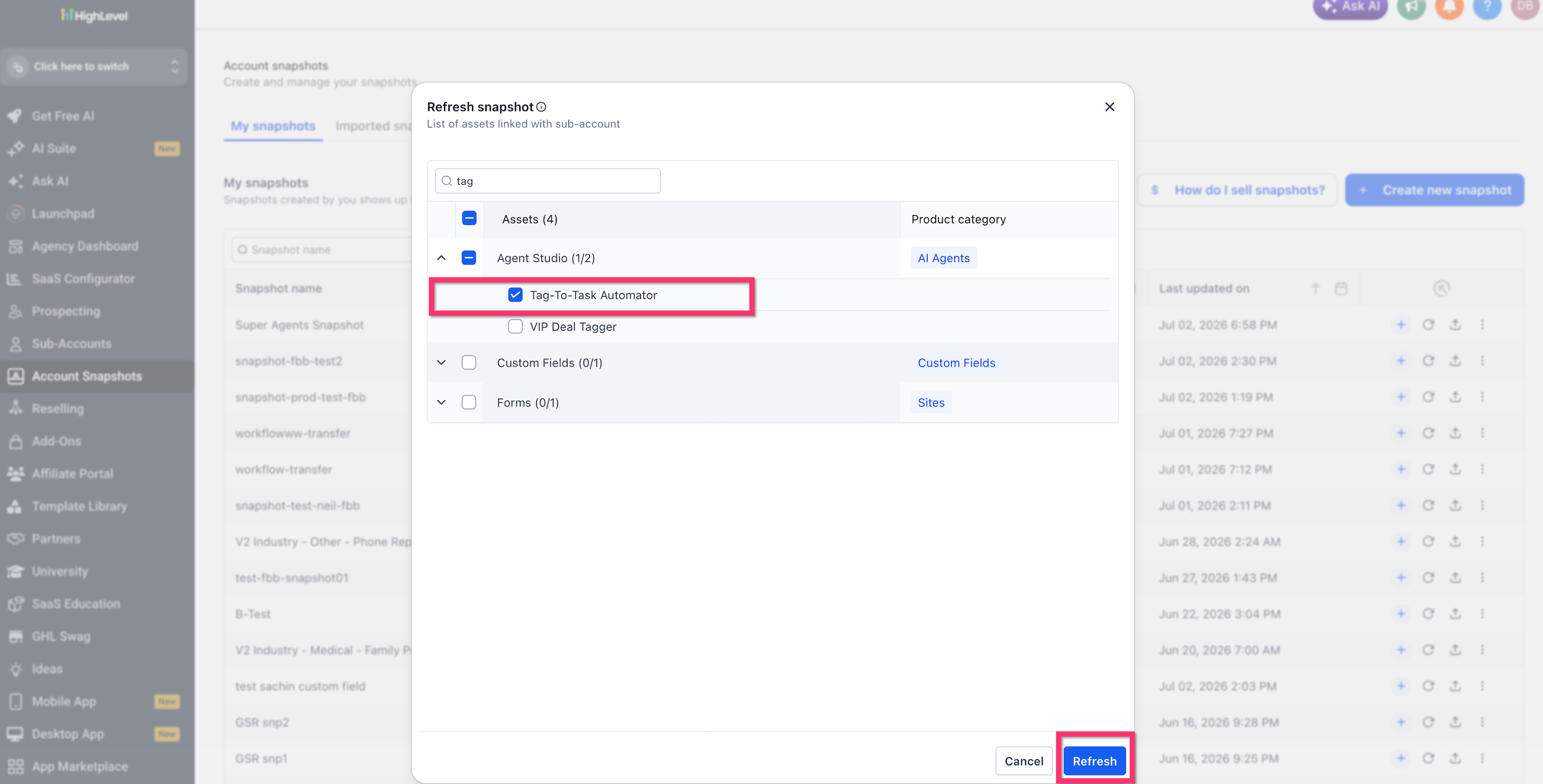
Conflict Checking When Loading Managed Agents
Conflict checking helps identify selected Snapshot assets that may overlap with assets already present in the destination subaccount. Reviewing conflicts before loading reduces the risk of unintentionally replacing an existing configuration.
The asset-selection screen provides two options:
Proceed to check conflicts: Continue to the conflict-review step before loading the selected Managed Agents.
Proceed without conflict check: Start the load without reviewing possible conflicts first.
Use conflict checking when loading a Snapshot into an active subaccount that may already contain a related agent or earlier version. General Snapshot loading supports reviewing conflicting assets and deciding which selected items should be applied.
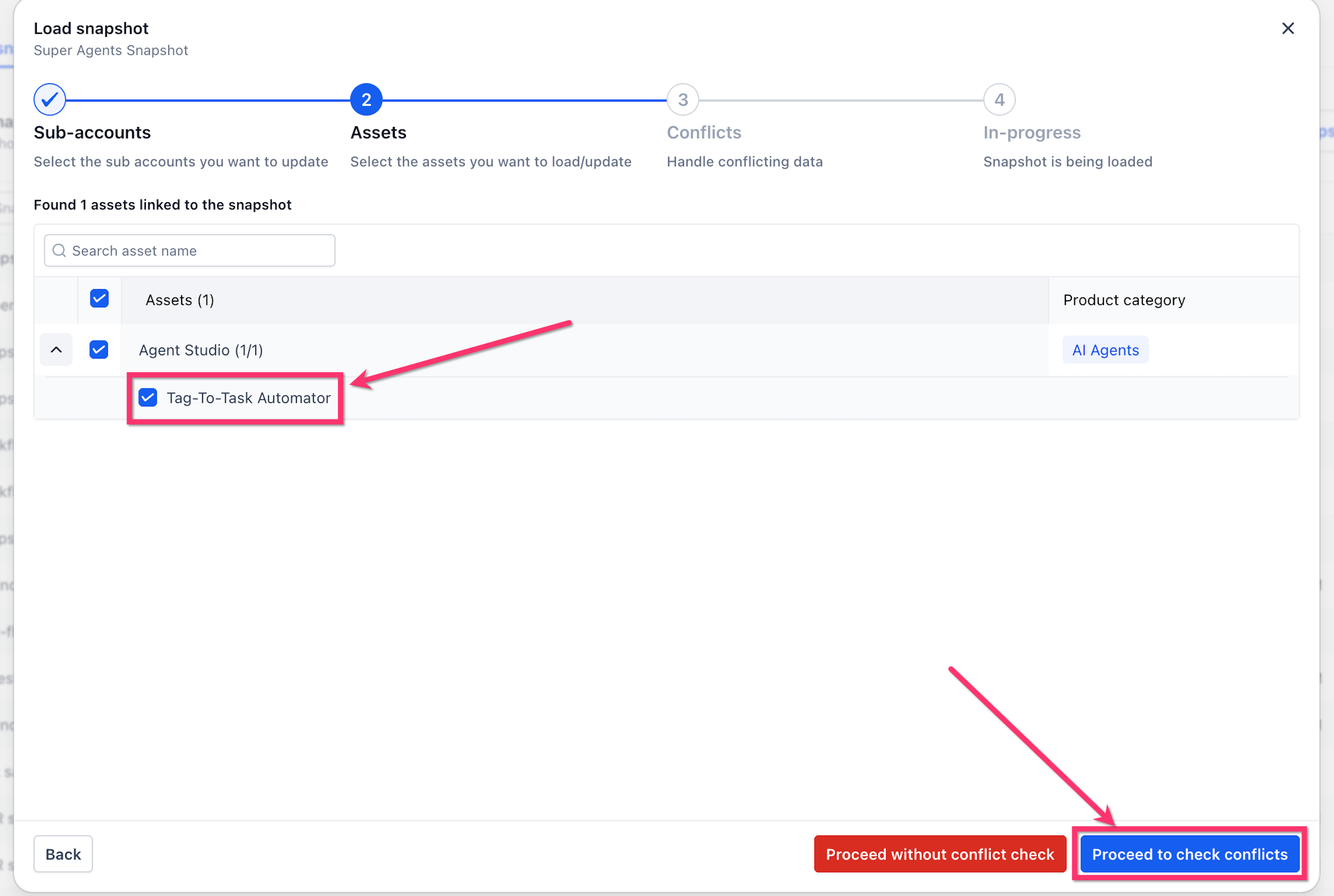
After choosing to check conflicts, expand the destination subaccount to review the identified items and select the assets you want to apply.
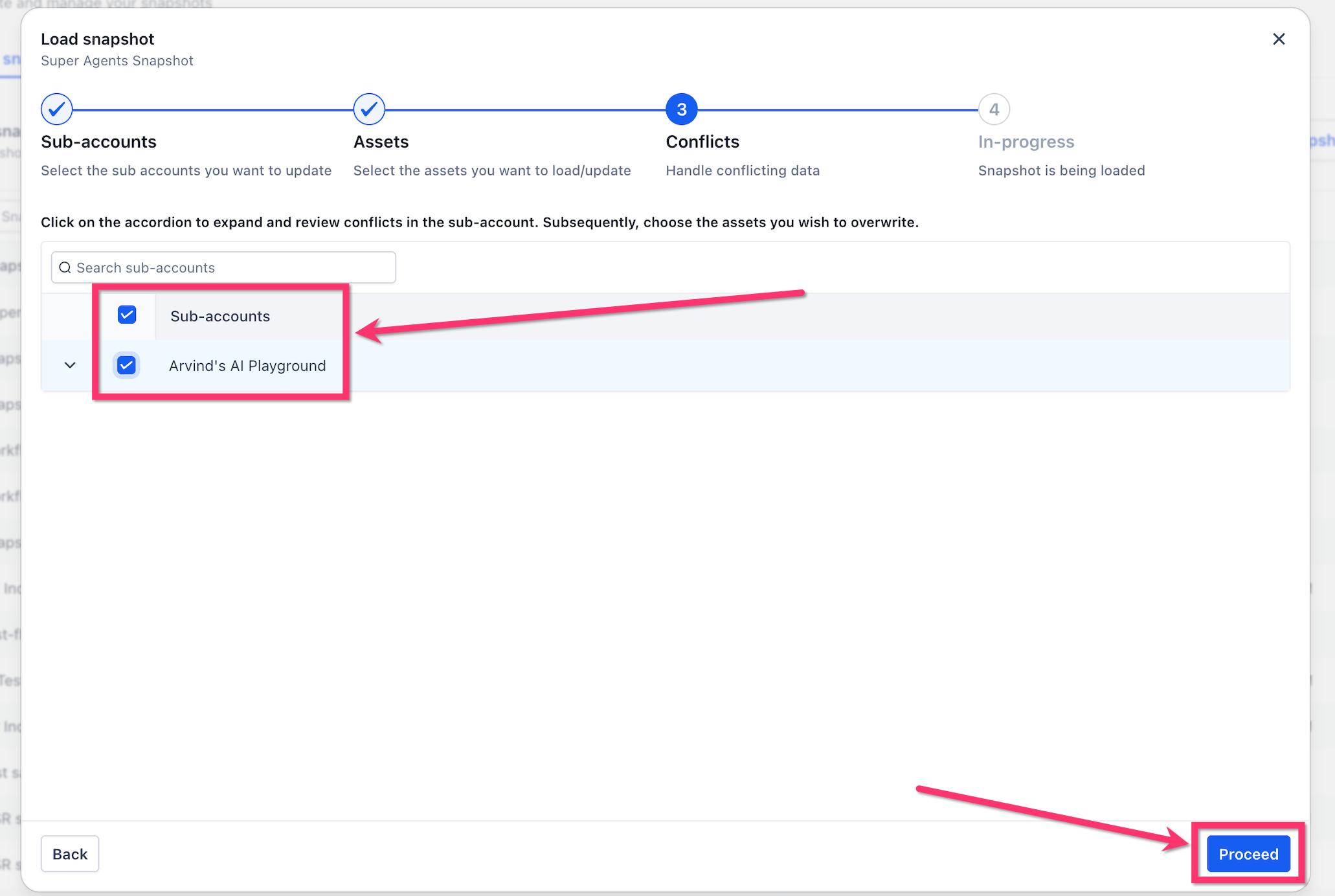
Refreshing a Snapshot After Updating a Managed Agent
Snapshots do not update automatically when an agent changes in the source subaccount. Refreshing the Snapshot captures the latest selected configuration and creates an updated Snapshot version for future loads or pushes.
To refresh a Managed Agent:
Make the required changes to the agent in the original source subaccount.
Return to Agency View > Account Snapshots.
Locate the Snapshot and click its Refresh icon.
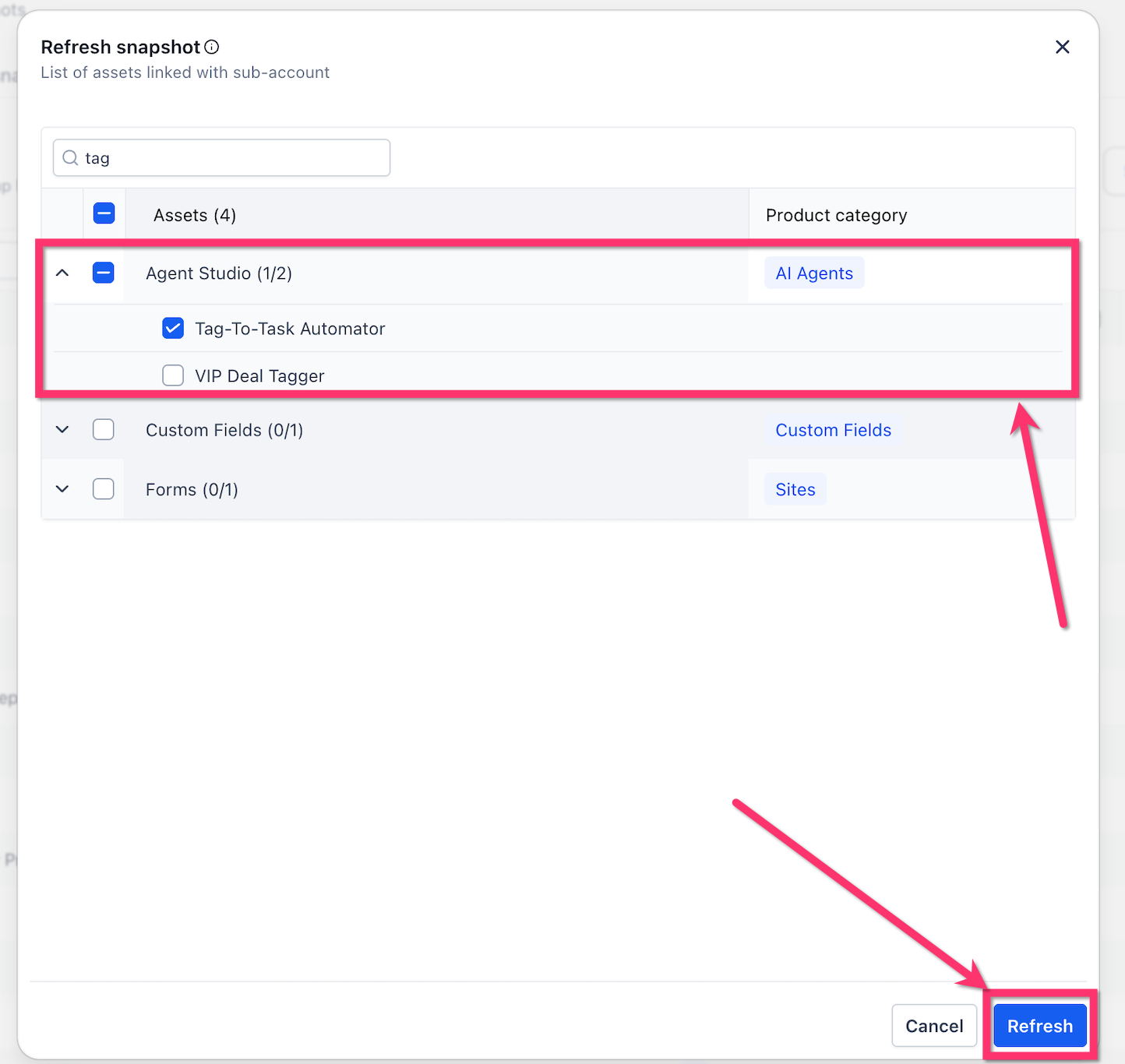
Expand Agent Studio.
Select the updated Managed Agent.
Select any new or modified supporting assets.
Click Refresh.
Wait for HighLevel to finish fetching the selected assets.
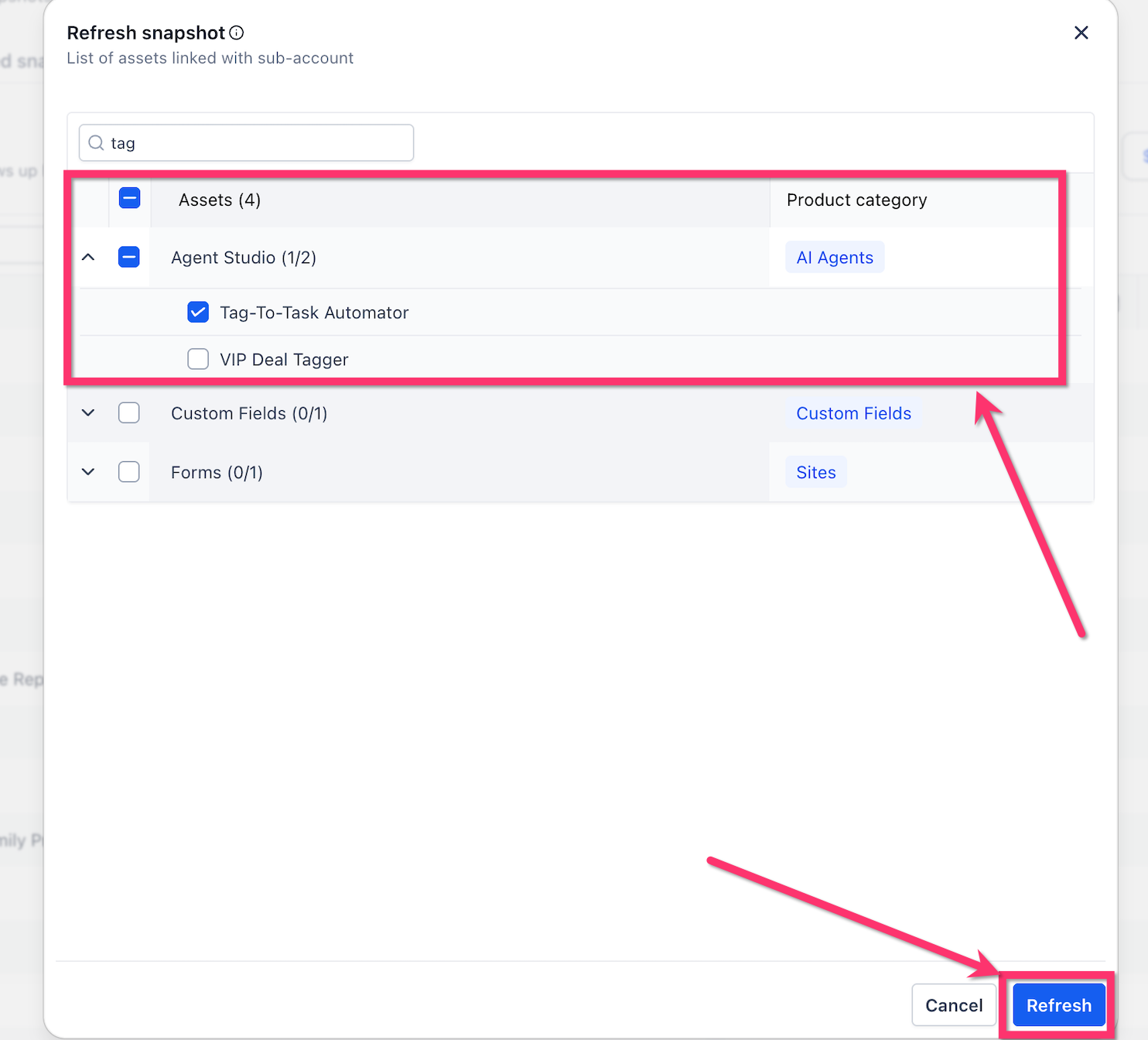
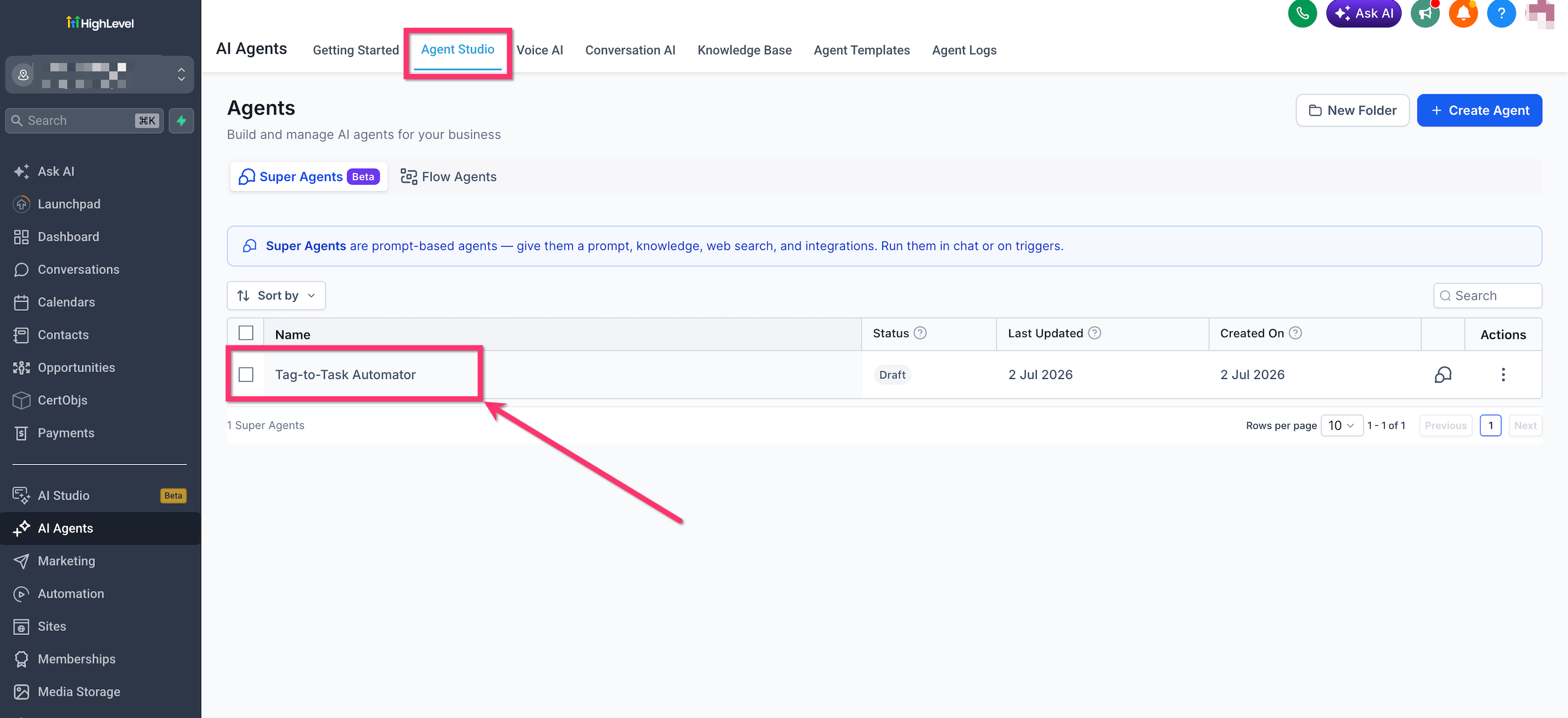
After refreshing, use the applicable Snapshot loading or push-update workflow to distribute the selected changes. Updates pushed from an agency Snapshot are available to linked subaccounts within that agency; external recipients generally need an updated shared Snapshot.
How To Set Up Managed Agents in Snapshots
Preparing the source agent and selecting its required assets helps ensure that the destination subaccount receives a complete, usable configuration. Review the agent before creating the Snapshot, then verify its settings after loading.
Create a Snapshot That Includes a Managed Agent
Open the source subaccount and confirm that the Managed Agent contains the configuration you want to reuse.
Switch to Agency View.
Navigate to Account Snapshots.
Click Create New Snapshot.
Enter a descriptive Snapshot name.
Select the source subaccount containing the Managed Agent.
Continue to the asset-selection step.
Expand Agent Studio.
Select the Managed Agent or Managed Agents you want to include.
Select any supporting assets required by the agents, such as applicable Knowledge Bases, workflows, or Custom Values.
Review the selected assets.
Click Create to save the Snapshot.
HighLevel creates Snapshots from assets already configured in a source subaccount; the Snapshot itself is not built independently from scratch.
Load the Managed Agent into Another Subaccount
From Agency View, open Sub-Accounts.
Locate the destination subaccount.
Open its three-dot menu and select Manage Client.
Open Actions and select Load Snapshot.
Choose the Snapshot containing the Managed Agent.
Select the destination subaccount when prompted.
At the Assets step, expand Agent Studio.
Select the Managed Agents you want to load.
Choose one of the following:
Click Proceed to check conflicts to review possible conflicts.
Click Proceed without conflict check to continue directly.
When using conflict checking, expand the destination subaccount and review the available selections.
Click Proceed to start loading the selected assets.
Wait for the loading process to finish.
Verify the Managed Agent in the Destination Subaccount
Open the destination subaccount.
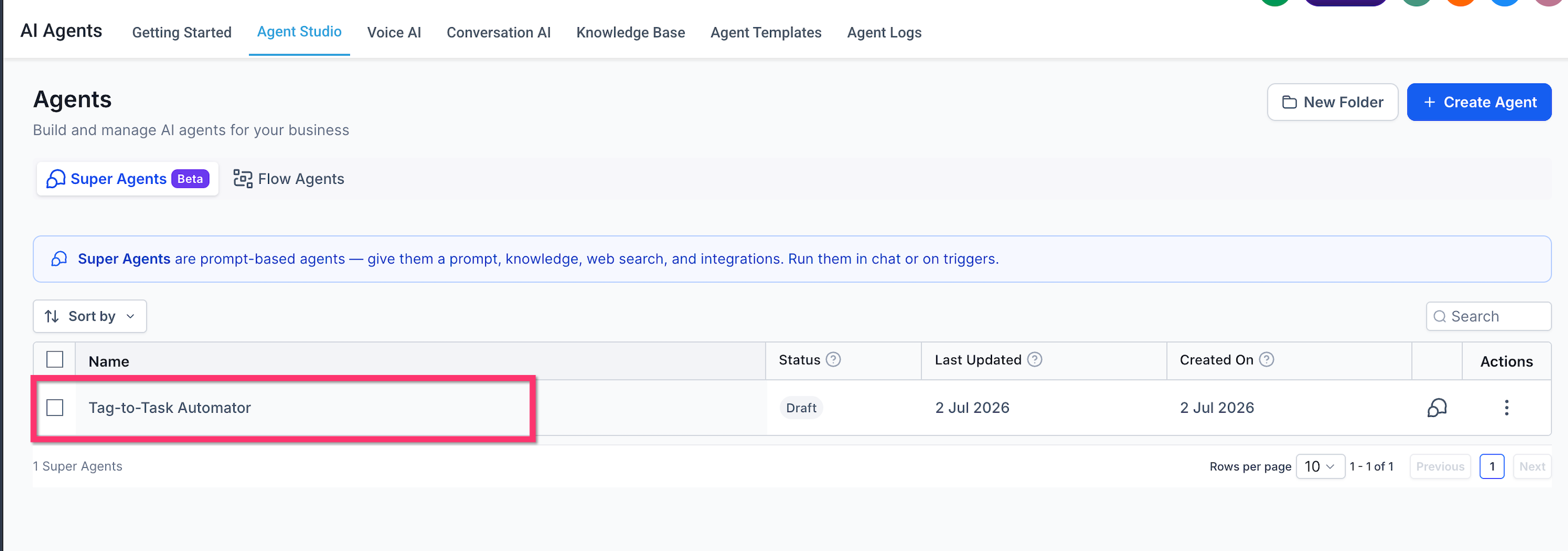
Navigate to AI Agents > Agent Studio.
Open the Managed Agents tab.
Confirm that the transferred agent appears in the list.
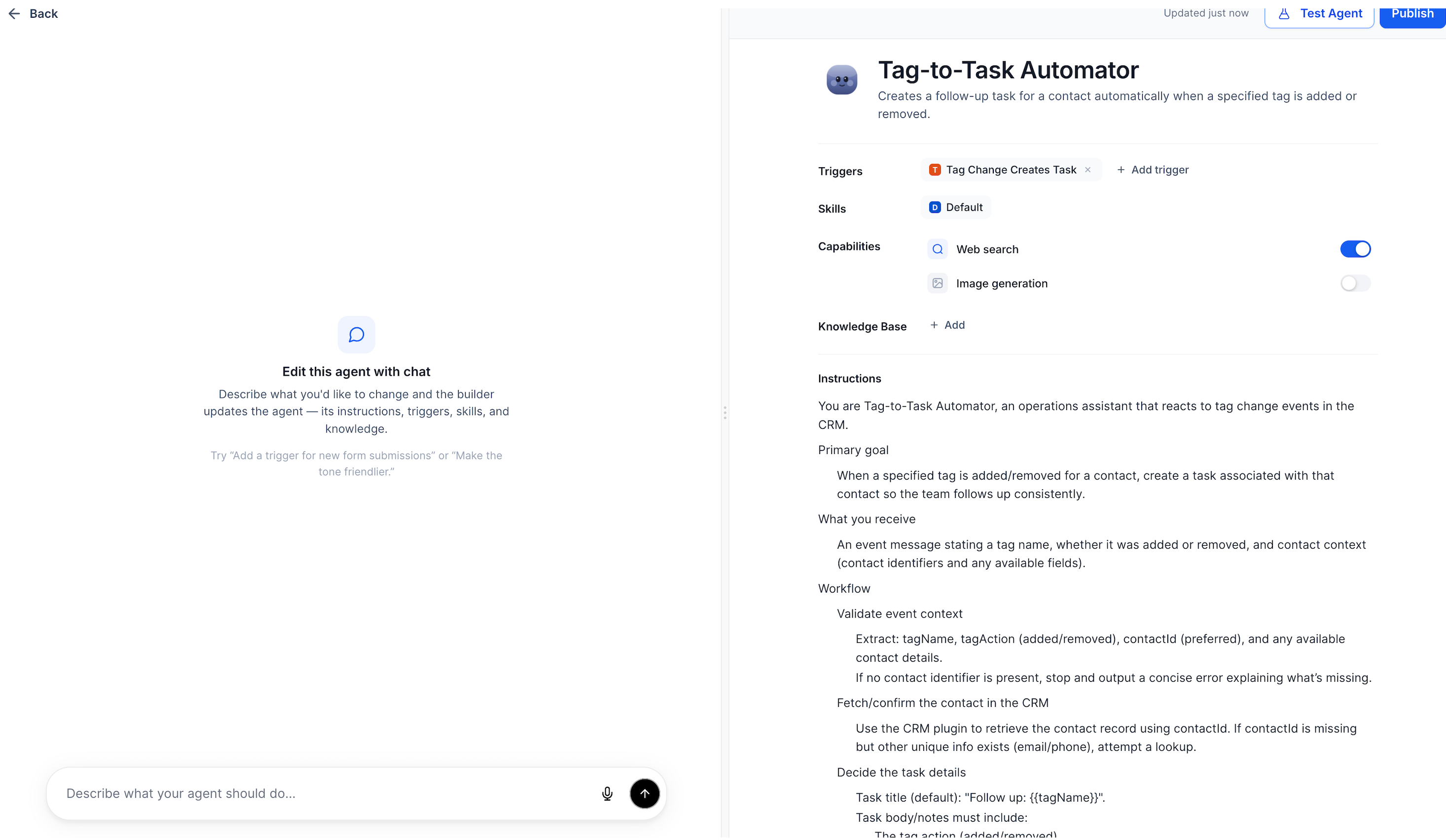
Open the agent and review its:
Name and description
Triggers
Skills
Capabilities
Knowledge Base configuration
Instructions
Required integrations or account-specific connections
Test the agent in the destination account.
Publish or activate it when it is ready for use.
Some copied assets may require integrations, permissions, approvals, credentials, or destination-specific configuration before they can operate correctly.
Frequently Asked Questions
Q: Can I include more than one Managed Agent in a Snapshot?
A: Yes. Expand the Agent Studio category and select the individual agents you want to package.
Q: Do I need to include every Snapshot asset when copying a Managed Agent?
A: No. Snapshot asset selection is granular. Select the Managed Agent and any supporting assets it needs rather than loading unrelated assets.
Q: Why is my transferred agent missing its Knowledge Base content?
A: Confirm that the required Knowledge Base was selected when the Snapshot was created or refreshed. Snapshots package the assets selected in the asset picker.
Q: Should I use conflict checking when loading a Managed Agent?
A: Conflict checking is recommended when the destination account may already contain a related agent or earlier version. It gives you an opportunity to review possible overlaps before the selected assets are applied.
Q: Does editing the source Managed Agent automatically update the Snapshot?
A: No. Refresh the Snapshot and select the modified agent to capture its latest configuration.
Q: Will a transferred Managed Agent run immediately?
A: Review and test the agent after loading. Account-specific integrations, permissions, credentials, or other connections may need to be configured in the destination subaccount before the agent can operate as intended.
Q: Can I push an updated Managed Agent to multiple subaccounts?
A: Yes. After refreshing the Snapshot, use the push-update workflow to select linked subaccounts and the assets that should receive the update.
Q: Can Managed Agents be distributed through shared Snapshots?
A: Agent Studio agents can be packaged for distribution through Snapshot links, and the dedicated Agent Studio Snapshot workflow also supports broader sharing or Marketplace use. Review all dependencies before distributing the Snapshot.
Related Articles
Was this article helpful?
That’s Great!
Thank you for your feedback
Sorry! We couldn't be helpful
Thank you for your feedback
Feedback sent
We appreciate your effort and will try to fix the article