Track whether your team is meeting response commitments — without leaving HighLevel. SLA Widgets bring dedicated service-level analytics directly into your Sub-Account Dashboard and Custom Reports, giving agencies and their clients a clear picture of SLA met rates, breach patterns, average response times, and team performance by user and channel.
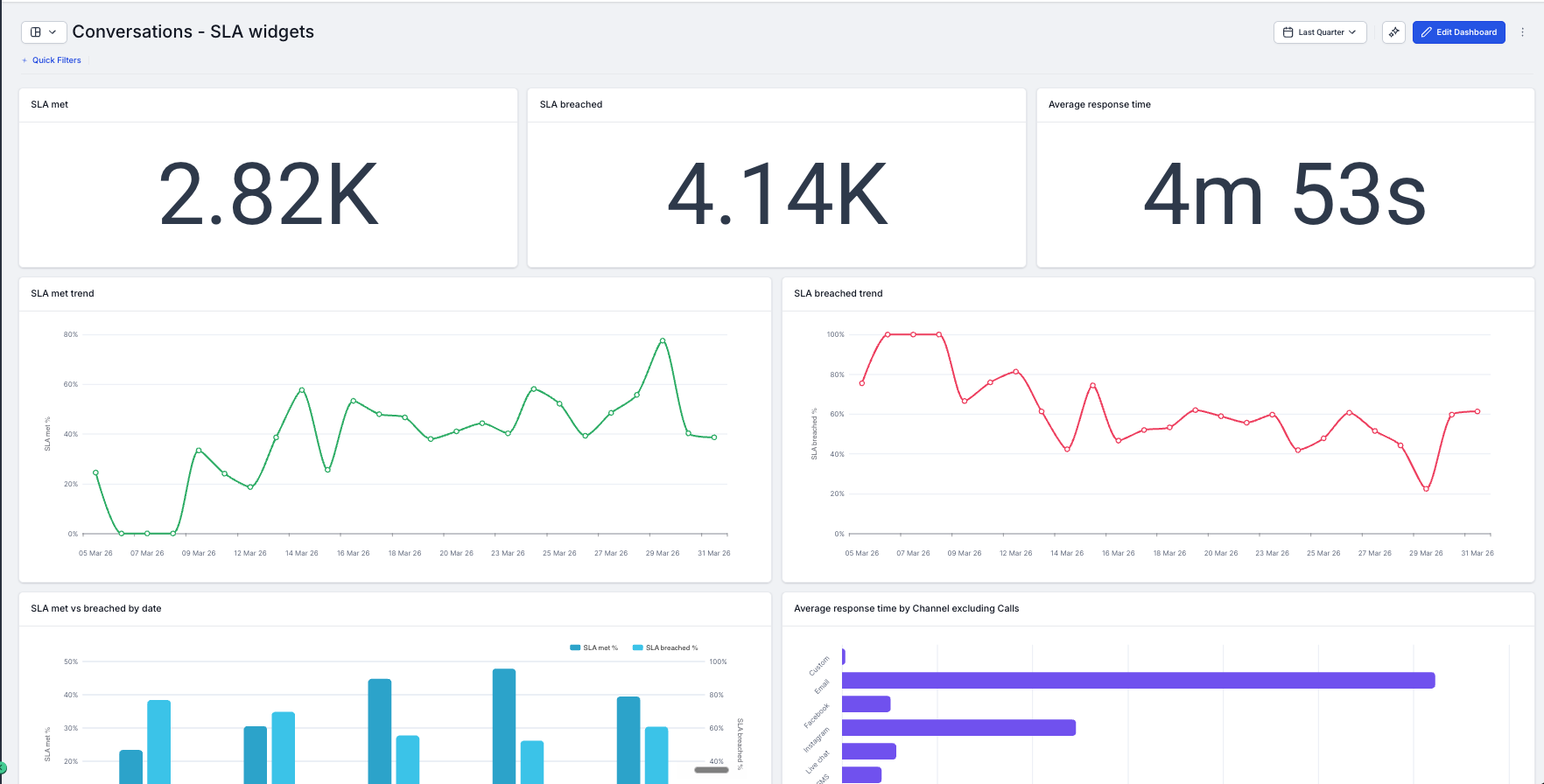
TABLE OF CONTENTS
- What Are SLA Widgets?
- Key Benefits of SLA Widgets
- Prerequisites & Access
- Available SLA Widgets
- Dashboard Widgets vs. Custom Report Widgets
- How to Add SLA Widgets
- Configuring SLA Widgets
- Using SLA in Custom Metrics
- Frequently Asked Questions
- Related Articles
What Are SLA Widgets?
SLA Widgets are pre-built visual reporting blocks that surface service-level agreement data directly inside any HighLevel Sub-Account Dashboard or Custom Report. They sit inside the Conversations widget section — alongside the existing volume, assignment, and channel widgets — so you can see SLA health in the same view where you already track conversation activity.
With four dedicated widgets covering SLA met trend, SLA breached trend, average response time trend, and cross-user SLA performance, you can build an SLA health view for clients in minutes and share it on a schedule.
Key Benefits of SLA Widgets
- Monitor SLA health at a glance — See SLA met and breached percentages as numeric KPIs or trend lines without digging through Conversations manually
- Catch breach patterns early — SLA breached trend surfaces the time periods where your team fell behind, so managers can investigate causes before they become client issues
- Track response speed over time — Average response time trend shows whether your team is getting faster or slower across any date range, by day, week, or month
- Hold teams accountable by person — SLA performance compares met and breached rates across users so managers have a data-backed view of individual performance
- Filter by channel — Segment SLA data by Message channel (Call, SMS, Email, Web chat, Facebook, GMB, Instagram) to understand where response time pressure is coming from
- Build precise KPIs with Custom Metrics — Combine SLA met and SLA breached counts in the formula builder to create metrics like SLA Compliance Rate
Prerequisites & Access
- Dashboards & Reports access: verify the user has permission to view or edit dashboards and to create or schedule Custom Reports
- SLA must be enabled in your sub-account before any SLA widget will show data. To enable SLA, go to Conversations → Settings → SLA and turn it on. If SLA is not configured, all widgets will return 0 and show no data — this is expected behaviour, not a bug.
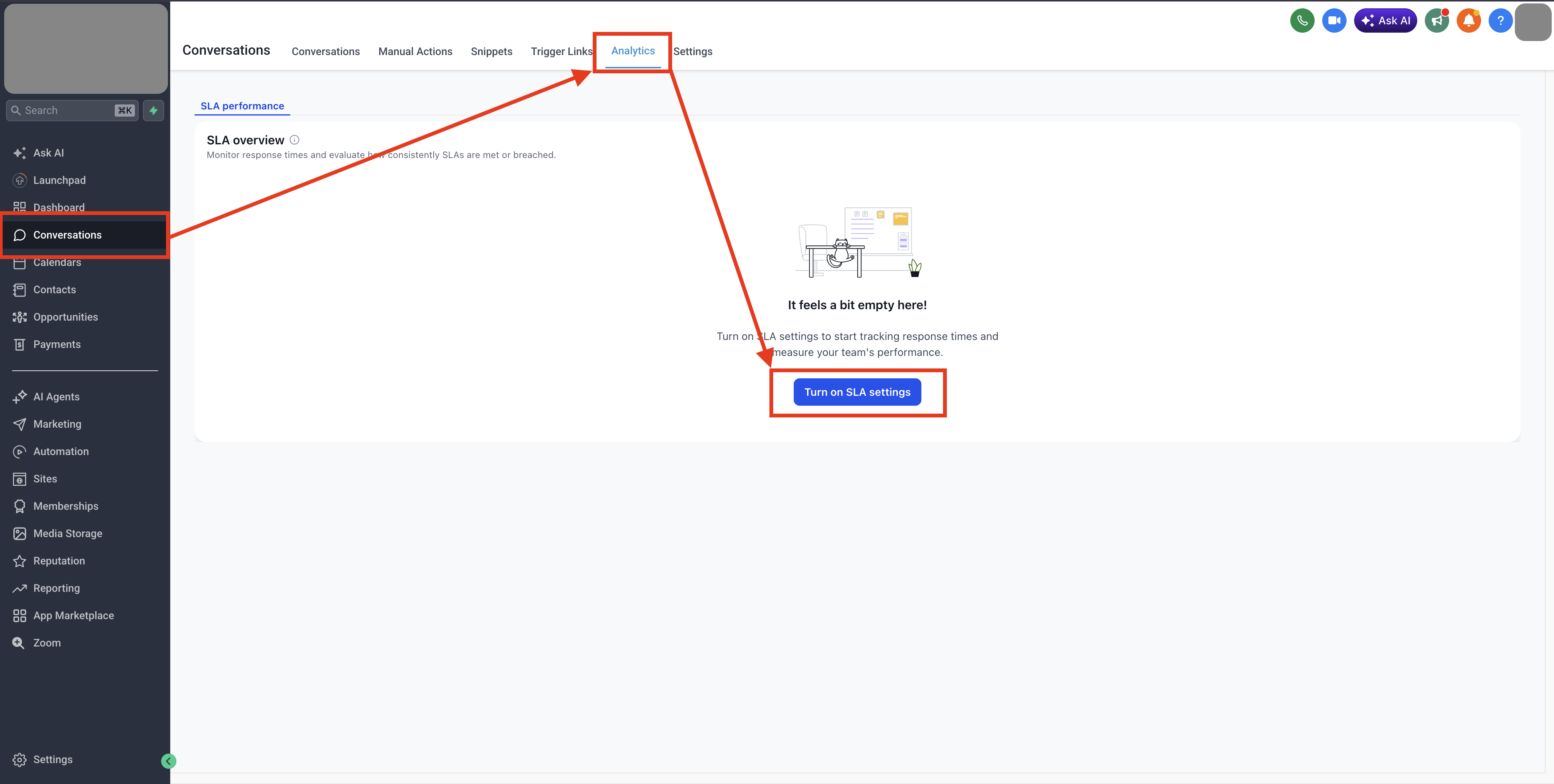
Note: SLA Widgets are limited to a 1-year date range. All the widgets in the dashboard including SLA works based on the Dashboard Date Range at the top!
Available SLA Widgets
Four SLA widgets are available, each configurable with chart type, conditions, and themes.
- SLA met trend — Percentage of conversations that met SLA targets over time. View by day, week, or month. Break down by Inbound at, Assigned user, or Message channel.
- SLA breached trend — Percentage of conversations that breached SLA thresholds over time. Useful for identifying problem periods and tracking improvement after changes.
- Average response time trend — How average first response time is trending over the selected date range — viewable by day, week, or month.
- SLA performance — SLA met and breached rates compared across users and message channels. Use this to benchmark team members and identify where support is needed.
Dashboard Widgets vs. Custom Report Widgets
Both environments use the same four SLA widgets. Choose based on how you need to view and share data.
- Dashboard — Best for always-on monitoring. Widgets live on a Sub-Account dashboard and update automatically. Place SLA widgets alongside your existing Conversations, Email, and SMS widgets for a full communication health view
- Custom Reports — Best for scheduled client delivery. Add SLA widgets to a report layout and schedule automatic email delivery on a daily, weekly, or monthly cadence.
How to Add SLA Widgets
1) Add SLA Widgets to a Dashboard
1. In your Sub-Account, navigate to Dashboards and open the dashboard you want to edit (or create a new one)
2. Click Edit Dashboard in the top right corner
3. Click + Add Widget — the widget panel opens on the right side
4. Scroll down to the Conversations section — the four SLA widgets are listed at the bottom (below New Conversations started)
5. Click on the widget you want to add — it is placed on your dashboard canvas
6. Configure the widget using the Configure and Conditions tabs (see below)
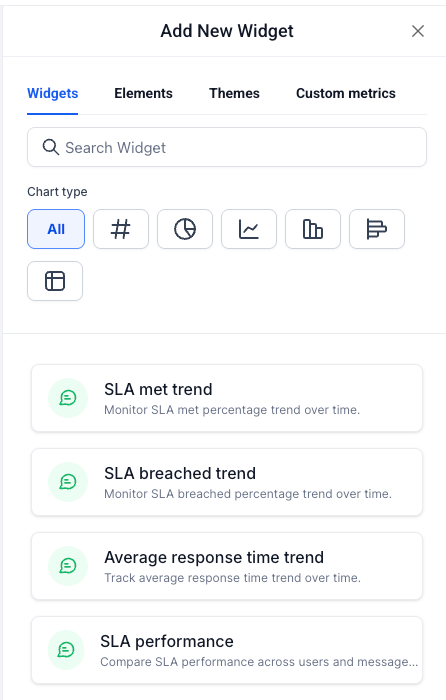
7. Click Save Changes to publish the widget to your dashboard
> Tip: Add SLA met trend and SLA breached trend side by side for a quick SLA health view. Pair them with the numeric SLA met and SLA breached widgets at the top of the dashboard for an at-a-glance summary.
2) Add SLA Widgets to a Custom Report
1. In your Sub-Account, go to Reporting → Custom Reports and open an existing report or click New Report
2. Choose to start from a blank canvas, use a template, or import an existing dashboard layout
3. Click Add Widget / Element in the top left of the report builder
4. Scroll to the Conversations section and drag the SLA widgets you want into your report layout
5. Configure each widget using the Configure and Conditions tabs
6. Click Save
7. Click Send or Schedule to set up automatic email delivery of the report
Configuring SLA Widgets
Each SLA widget has a Configure tab and a Conditions tab in the Edit Widget panel.
Configure Tab
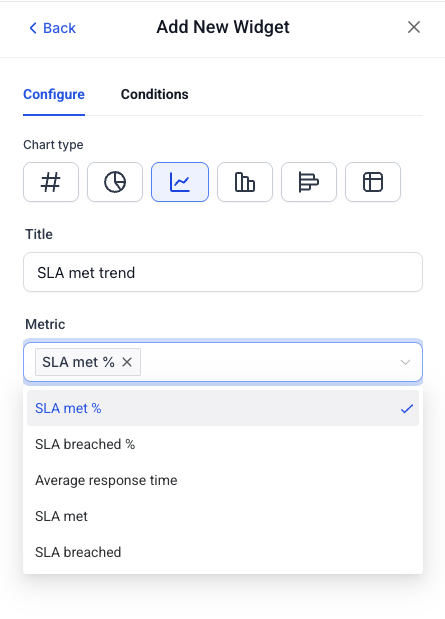
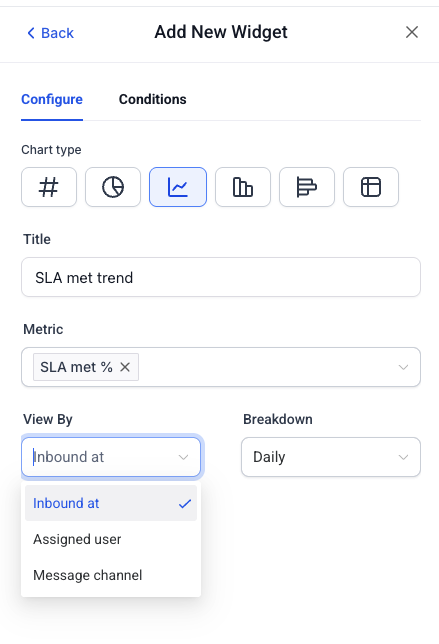
The Configure tab controls how the widget looks, which metric it displays, and how data is grouped.
1. Chart type — Choose from Numeric (#), Donut, Line, Bar, Horizontal Bar, or Table. Availability varies by widget.
2. Title — Rename the widget to suit your dashboard or client context
3. Metric — Select from SLA met %, SLA breached %, Average response time, SLA met (count), or SLA breached (count)
4. View By — Controls the primary grouping dimension. Options: Inbound at, Assigned user, Message channel
5. Breakdown — Controls the time granularity for trend widgets. Options: Daily, Weekly, Monthly
6. Date range — Defaults to Dashboard Date Range. Override with a custom range if needed. Maximum range is 1 year.
Conditions Tab
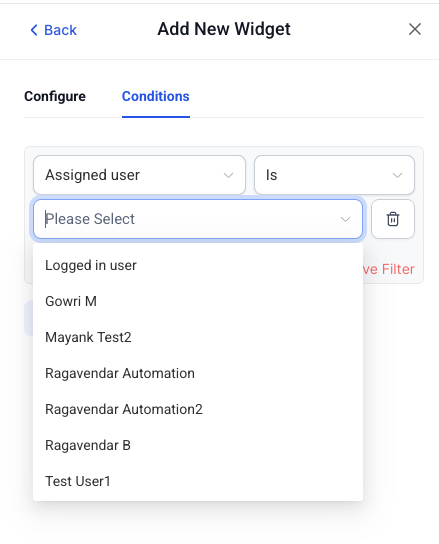
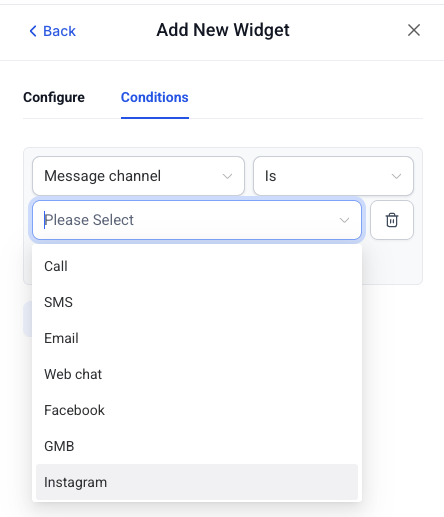
Add filters to control exactly which conversation data the widget displays. Conditions narrow your dataset to specific users or channels.
1. Assigned user — Logged in user, or any team member in the sub-account. Filter SLA data to a specific team member's conversations.
2. Message channel — Call, SMS, Email, Web chat, Facebook, GMB, Instagram. Filter SLA data by the channel the conversation came through.
Themes Tab
Match widget colors to your dashboard or client brand. Select from available theme presets or customize colors.
Using SLA in Custom Metrics
SLA met and SLA breached are already available as dimensions in Custom Metrics. Use them in the formula builder to create KPIs that combine SLA data into a single number.
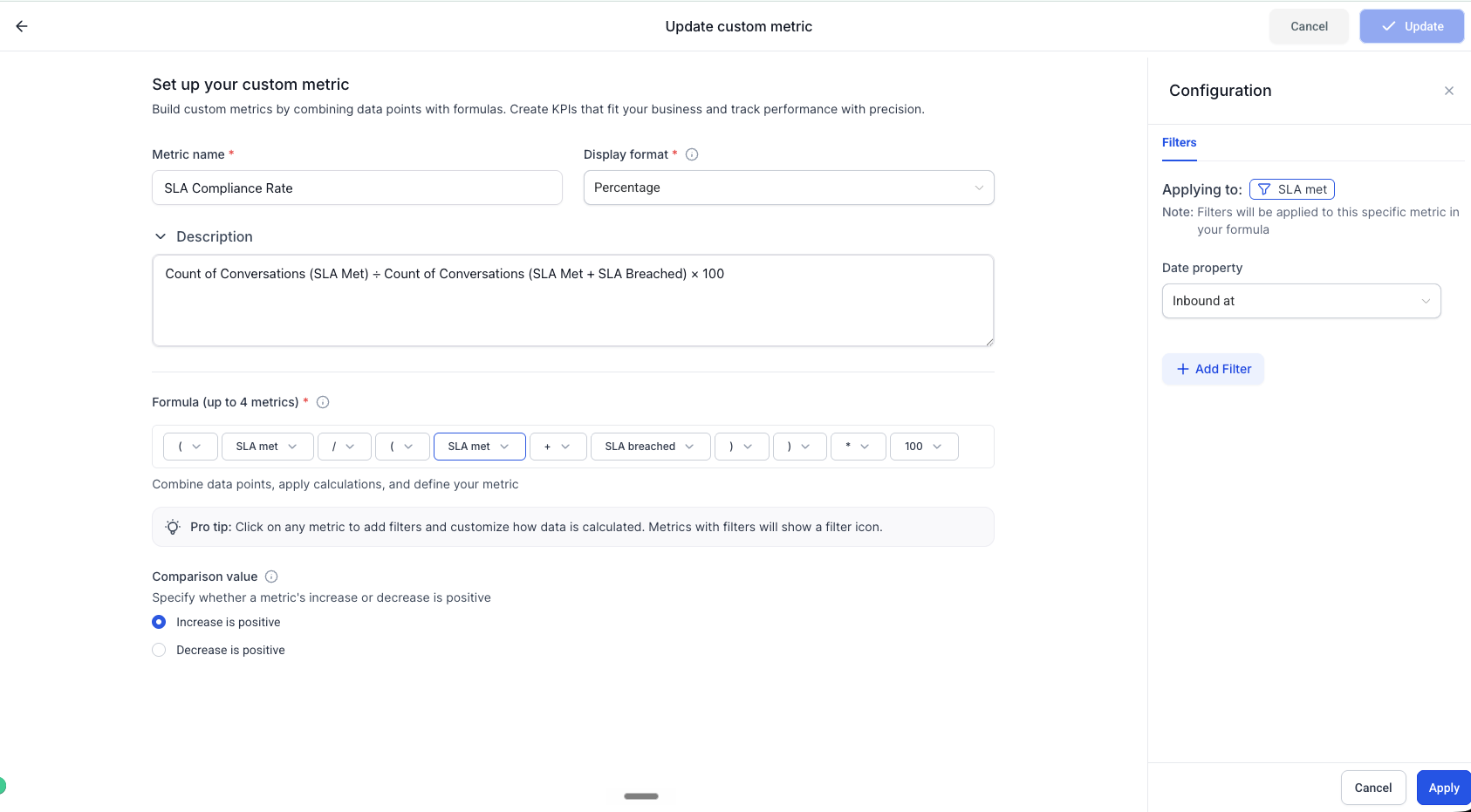
How to build an SLA Compliance Rate custom metric
1. Go to Dashboards → Custom Metrics and click Create Custom Metric
2. Set Metric name to SLA Compliance Rate and Display format to Percentage
3. In the Formula builder, enter: ( SLA met / ( SLA met + SLA breached ) ) × 100
4. Click on SLA met in the formula to open the Configuration panel on the right
5. Under Filters, set Date property to Inbound at and add any additional filters needed
6. Repeat for the SLA breached metric in the formula
7. Set Comparison value to Increase is positive (a higher compliance rate is better)
8. Click Create
Example KPIs you can build
- SLA Compliance Rate => ( SLA met / ( SLA met + SLA breached ) ) × 100
- SLA Breach Count => SLA breached (raw count for a period)
- SLA Met Count => SLA met (raw count for a period)
Frequently Asked Questions
Q: Where are the SLA widgets in the widget panel?
They are in the Conversations section, listed at the bottom — below New Conversations started (This Week).
Q: What is the maximum date range for SLA widgets?
SLA widgets support a maximum date range of 1 year.
Q: What metrics are available in SLA widgets?
SLA met %, SLA breached %, Average response time, SLA met (count), and SLA breached (count).
Q: What are the View By options?
Inbound at, Assigned user, and Message channel.
Q: Which message channels can I filter by?
Call, SMS, Email, Web chat, Facebook, GMB, and Instagram.
Q: Can I filter SLA data to a specific team member?
Yes. Use the Assigned user condition in the Conditions tab and select any team member in the sub-account, or choose Logged in user to show only the current user's conversations.
Q: Can I combine SLA widgets with other Conversations widgets on the same dashboard?
Yes. All Conversations widgets — volume, assignment, channel distribution, and SLA — can be placed on the same dashboard for a unified view.
Q: Can I schedule an SLA report for clients?
Yes. Add SLA widgets to a Custom Report and schedule automatic email delivery on a daily, weekly, or monthly cadence.
Q: Is SLA data available in Custom Metrics?
Yes. SLA met and SLA breached are available in the Custom Metrics formula builder. Use them to build KPIs like SLA Compliance Rate.
Q: Why is my SLA widget showing no data?
Most common cause: SLA is not enabled for this sub-account. Go to Conversations → Settings → SLA and enable it first. Once enabled, the widgets will begin populating with data going forward. Other causes: the selected date range has no SLA activity, the date range exceeds 1 year, or filters are too narrow.
Q: Which plans include SLA Widgets?
SLA Widgets are available on all plans that include Dashboards & Reporting.
Related Articles
- How To Create A Custom Dashboard
- SLA Performance in Conversations
Was this article helpful?
That’s Great!
Thank you for your feedback
Sorry! We couldn't be helpful
Thank you for your feedback
Feedback sent
We appreciate your effort and will try to fix the article