Voice AI Performance Reports give you an automated email summary of how each Voice AI agent is performing over time. Instead of checking dashboards manually, you can receive scheduled reports with key call metrics, caller sentiment, actions taken, after-hours activity, and flagged calls that may need review. Reports are configured per agent, giving teams flexibility to choose different frequencies and recipients for each Voice AI agent.
TABLE OF CONTENTS
- What is Voice AI Performance Reports?
- Key Benefits of Voice AI Performance Reports
- What’s Included in a Voice AI Performance Report?
- Report Frequency Options
- Report Recipient Options
- Call Anomalies and Deep Links
- How To Setup Voice AI Performance Reports
- Frequently Asked Questions
- Related Articles
What is Voice AI Performance Reports?
Voice AI Performance Reports are scheduled email summaries that help you monitor Voice AI agent performance without needing to manually review reporting dashboards. Each report provides a periodic snapshot of call activity, quality signals, caller outcomes, and automation activity for a specific Voice AI agent.
Voice AI agents can already be reviewed through in-app dashboards, logs, and call records in HighLevel. Performance Reports add an email-based layer for teams that want recurring visibility into agent performance, call trends, and calls that may need follow-up review. The Voice AI Agents Dashboard article covers in-app analytics for call performance, sentiment, and triggered actions, while Agent Logs and Call Logs provide deeper call-level review options.
Key Benefits of Voice AI Performance Reports
Performance Reports help teams stay informed about Voice AI activity by sending important metrics directly to the right people. This makes it easier to identify trends, review customer experience signals, and monitor automation outcomes without manually checking each agent.
- Automated Visibility: Receive recurring performance summaries by email for each Voice AI agent.
- Flexible Reporting Cadence: Choose Weekly, Fortnightly, or Monthly reports based on how often each agent needs to be reviewed.
- Agent Level Control: Configure report frequency and recipients independently for each Voice AI agent.
- Caller Experience Tracking: Review positive, neutral, and negative caller sentiment trends over time.
- Operational Insights: See after-hours calls, action counts, and period-over-period changes in one summary.
- Faster Call Review: Use flagged call links to quickly investigate negative sentiment or unexpectedly short calls.
- Cleaner Inboxes: Reports are skipped automatically for periods with zero calls.
What’s Included in a Voice AI Performance Report?
Each Voice AI Performance Report gives you a clear summary of activity for the selected reporting period. These metrics help you understand call volume, call quality, customer sentiment, and how often the agent completed important actions.
A report may include the following information:
- Total Calls: The number of calls handled by the Voice AI agent during the reporting period.
- Total Call Duration: The combined duration of all calls included in the report.
- Average Call Duration: The average length of calls during the reporting period.
- Success Rate: A summary indicator showing how successfully the agent handled calls during the period.
- Caller Sentiment: A positive, neutral, and negative breakdown to help track caller experience.
- After Hours Calls: The number of calls received outside business hours, based on the agent’s configured timezone.
- Action Breakdown: Counts for key actions such as SMS sent, call transfers, workflows triggered, appointments booked, and custom actions executed.
- Period Over Period Comparison: Percentage changes compared with the previous reporting period.
- Call Anomalies: Up to three flagged calls, such as calls with negative sentiment or unexpectedly short duration, with deep links back into HighLevel for review.
Report Frequency Options
Choosing the right frequency helps your team receive performance insights at the right pace. High-volume agents may need weekly review, while lower-volume or stable agents may only need monthly summaries.
Voice AI Performance Reports can be sent on one of the following cadences:
- Weekly
- Fortnightly
- Monthly
Each Voice AI agent can have its own reporting frequency. For example, one agent can send a weekly report to operations managers, while another agent sends a monthly report to business stakeholders.
Report Recipient Options
Recipient settings let you decide who should receive each agent’s report. This is useful when different teams, managers, clients, or external stakeholders need visibility into specific Voice AI agents.
You can send reports to:
- All Admins of the location
- All Users of the location
- A list of specific users
- Custom email addresses
Custom email addresses are useful for stakeholders who need report visibility but may not be standard users inside the sub-account.
Receiving an email report does not always mean the recipient can access linked in-app call details. Access to Voice AI settings, dashboards, logs, or call records may depend on the user’s HighLevel permissions. HighLevel’s Voice AI permission controls are covered in the Managing Granular Permissions for Voice AI Agents article.Call Anomalies and Deep Links
Call anomalies help teams quickly identify conversations that may need closer review. Instead of reading through every call, you can start with flagged calls that may indicate a poor caller experience, an incomplete interaction, or a call that ended earlier than expected.
Each report can include up to three flagged calls. These may include:
- Calls with negative caller sentiment
- Calls that were unexpectedly short
Use the deep links in the report to open the related call details in HighLevel and review what happened. For deeper troubleshooting, use Voice AI Agent Logs or Call Logs to inspect call details, transcripts, summaries, actions, transfers, and other interaction history.
How To Setup Voice AI Performance Reports
Proper setup ensures the right people receive the right report at the right time. Because Performance Reports are configured per agent, each Voice AI agent must be updated individually with its own frequency and recipient settings.
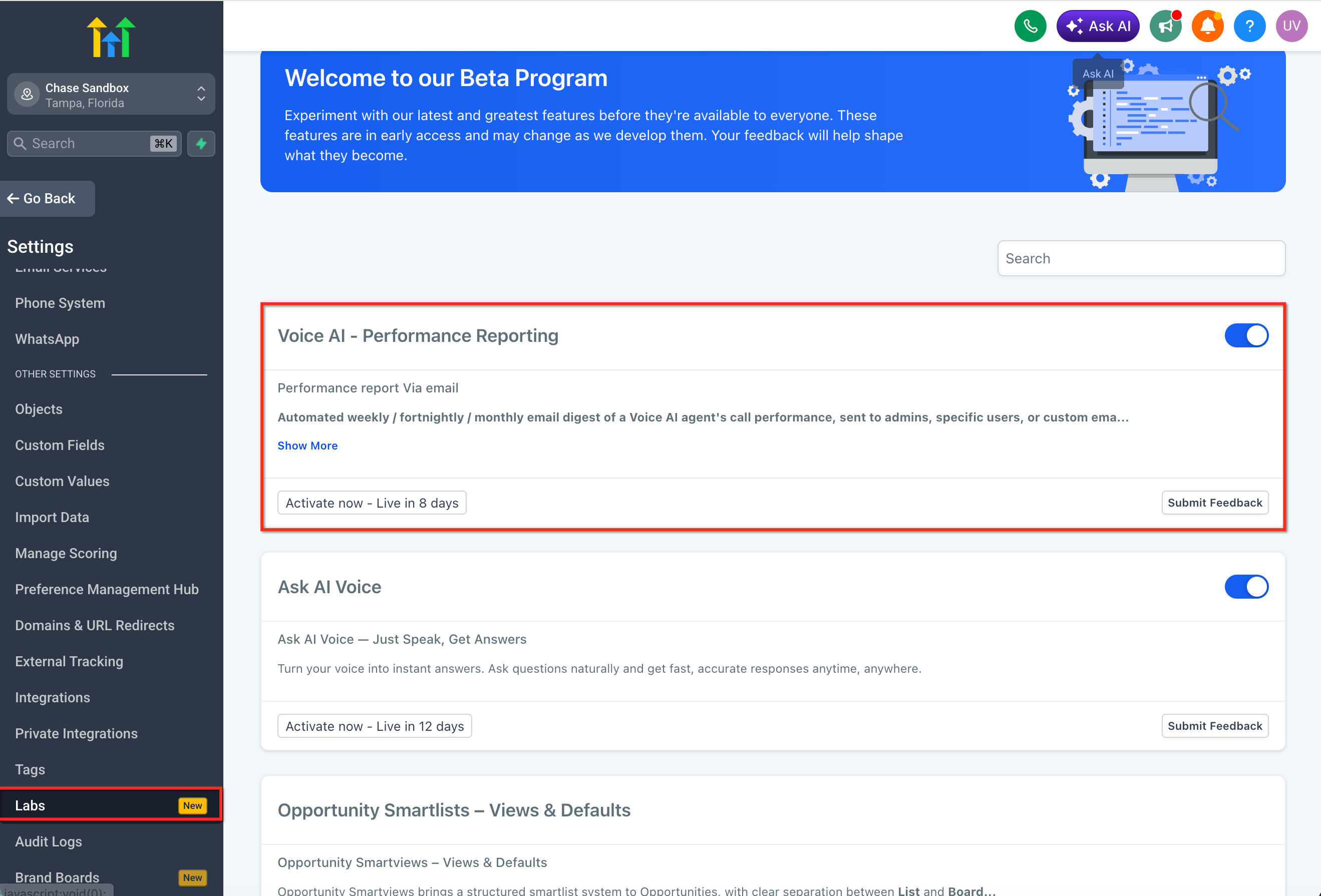
- Go to Agency View in HighLevel. Open Labs. Turn on Voice AI Performance Reports.
- Open the sub-account where the Voice AI agent is configured.
- Go to Voice AI.
- Open the Voice AI agent you want to configure.
- Select Performance Report Settings.
- Choose the report frequency:
- Weekly
- Fortnightly
- Monthly
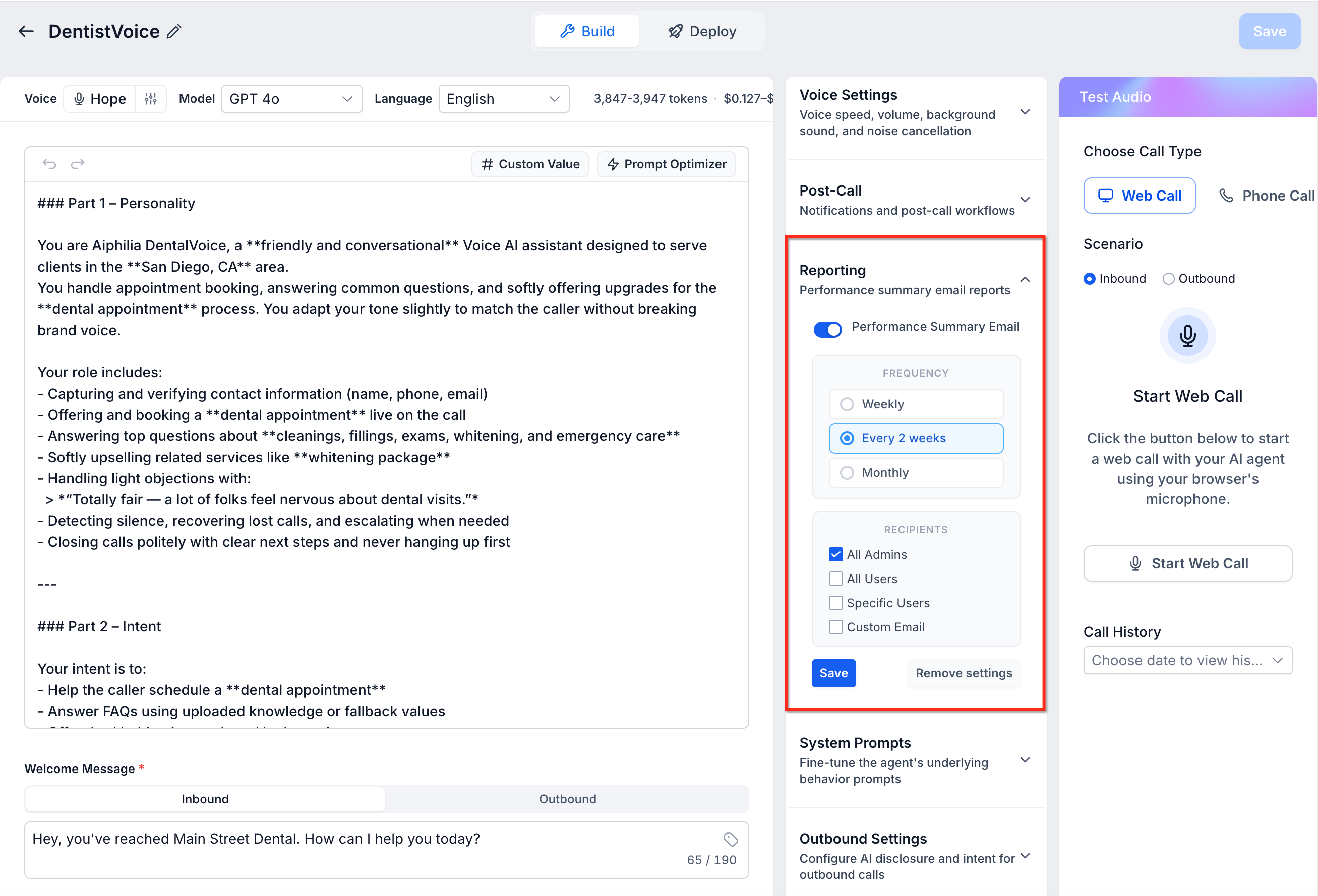
- Weekly
- Choose who should receive the report:
- All Admins of the location
- All Users of the location
- Specific users
- Custom email addresses
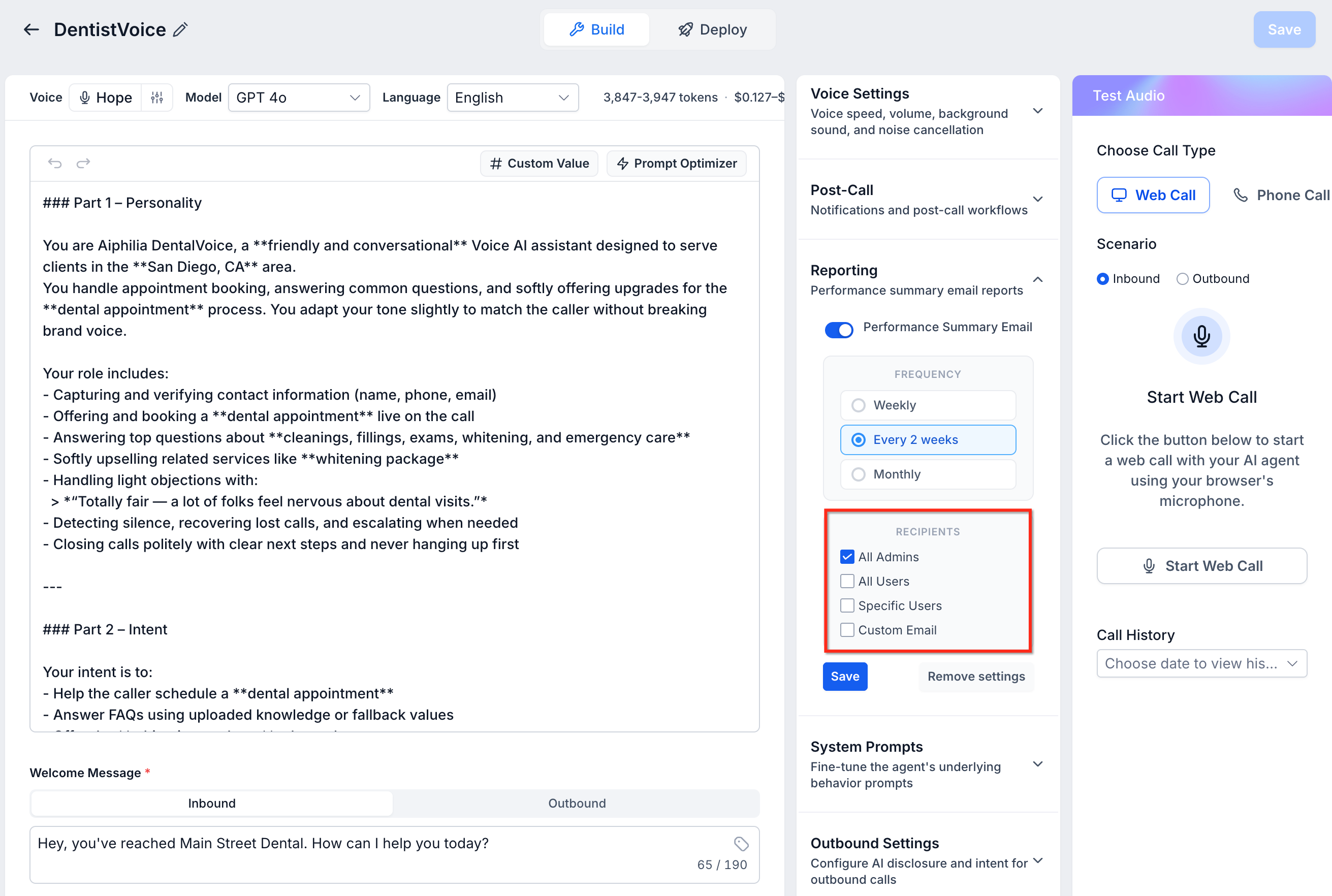
- All Admins of the location
- Save the report settings.
The first report will arrive at the start of the next reporting period. Reports are skipped automatically for periods where the agent has zero calls.Frequently Asked Questions
Q: Is Voice AI Performance Reports available for all accounts?
A: Voice AI Performance Reports is currently available through Labs. The feature must be enabled from Labs in Agency View before it can be configured for Voice AI agents.
Q: Why did I not receive a report for my Voice AI agent?
A: Reports are skipped automatically for periods with zero calls. If the agent did not handle any calls during the reporting period, no report is sent.
Q: Can different Voice AI agents have different report settings?
A: Yes. Each Voice AI agent is configured independently, so you can use different frequencies and recipient lists for each agent.
Q: Can I send reports to people who are not HighLevel users?
A: Yes. You can add custom email addresses as recipients, which is useful for external stakeholders.
Q: Can custom email recipients open the deep links in the report?
A: They may receive the email, but access to linked call details in HighLevel may require the correct user access and permissions.
Q: What timezone is used in the report?
A: Report times respect the Voice AI agent’s configured timezone.
Q: What types of calls can be flagged as anomalies?
A: Reports can flag calls with negative sentiment or unexpectedly short duration, helping your team quickly review conversations that may need attention.
Q: Can I change report recipients after saving the settings?
A: Yes. Open the agent’s Performance Report Settings, update the recipients, and save the changes.
Related Articles
- Voice AI Agents Dashboard
- How to Create Voice AI Agents
- Voice AI - Agent Logs
- Call Logs for Voice AI Agents
- Managing Granular Permissions for Payments
- AI Voice Agents Overview
Was this article helpful?
That’s Great!
Thank you for your feedback
Sorry! We couldn't be helpful
Thank you for your feedback
Feedback sent
We appreciate your effort and will try to fix the article