The SaaS V2 system allows you to bill clients via your agency sub-account. That goes for SaaS subscriptions, reselling, and rebilling. This article outlines how reselling and rebilling work with this setup, which products are supported, and how to enable the billing configuration.
SaaS V2 uses an agency sub-account to manage the supported payment-provider setup. Applicable reselling and rebilling charges are collected through the client sub-account wallet, so confirming the wallet has sufficient funds is important.
TL;DR: The sub-account wallet is used for payments corresponding to reselling and rebilling.
TABLE OF CONTENTS
- What is SaaS V2 Reselling and Rebilling?
- Key Benefits of SaaS V2 Reselling and Rebilling
- Reselling Using Sub-Account Wallet
- Rebilling Using Sub-Account Wallet
- How to Enable Reselling and Rebilling for V2 Sub-Accounts?
- Frequently Asked Questions
- Related Articles
Key Benefits of SaaS V2 Reselling and Rebilling
Wallet-based billing helps agencies provide supported resellable products and recover usage charges through a client's sub-account. These benefits clarify how charges are handled and how the client billing setup can be managed.
- Wallet-based billing: Collect applicable reselling and rebilling charges through the client sub-account wallet.
- Provider flexibility: Rebill supported usage-based services regardless of the payment provider used to recharge the wallet.
- Reselling options: Offer supported products such as WhatsApp, WordPress, and Marketplace Apps.
- Markup configuration: Set reselling and rebilling markups during client account setup.
Reselling Using Sub-Account Wallet
For V2 sub-accounts linked to an agency sub-account for processing payments, reselling is charged through the client's sub-account wallet. The client needs to keep that wallet topped up so subscription charges can be debited.
List of supported products:
- Prospecting
- Client Portal
- Listings (Yext)
- WordPress
- AI Employee
- SEO
- Workflow Pro
- Ad Manager
- Marketplace Apps
Products not yet supported:
- Email IP
Rebilling Using Sub-Account Wallet
All V2 sub-accounts can be rebilled for their feature usage, irrespective of the payment provider used to top up the wallet. All usage-based products can be rebilled on the V2 setup.
List of supported products:
- Phone System
- LC - Premium Triggers & Actions
- LC Email Verification
- Content AI
- Workflow AI
- Conversation and Voice AI
- WhatsApp Conversation
- Reviews AI
- Domain Purchase
- Auto-Complete Address
- Funnel AI
How to Enable Reselling and Rebilling for V2 Sub-Accounts?
Selecting the correct SaaS V2 provider and billing contact helps ensure that client payments are associated with the intended setup. Configure reselling and rebilling markups, then confirm the client's wallet is funded before relying on wallet-based charges.
Step 1: Select your payment provider. On the Manage Client page while enabling reselling or rebilling, select the payment provider of your choice. In the V2 setup, choose the agency sub-account that will be used to process payments.
Identify the V2 configuration: Provider cards show the provider logo, a V1 or V2 label, and where customer and subscription data is managed. For this setup, the appropriate card is labeled V2 (Sub-account) and identifies the agency sub-account used to process payments. Its description shows that data is managed in HighLevel.
Unavailable providers: Cards marked Not supported remain visible but cannot be selected for SaaS subscription or rebilling setup.
See Choose a Payment Provider for the shared provider-selection explanation and an illustrated example in the SaaS Configurator guide.
Step 2: Choose a billing contact. Choose a contact or create a new contact. This contact will be used to store payment methods, and all payments will be processed against this contact.
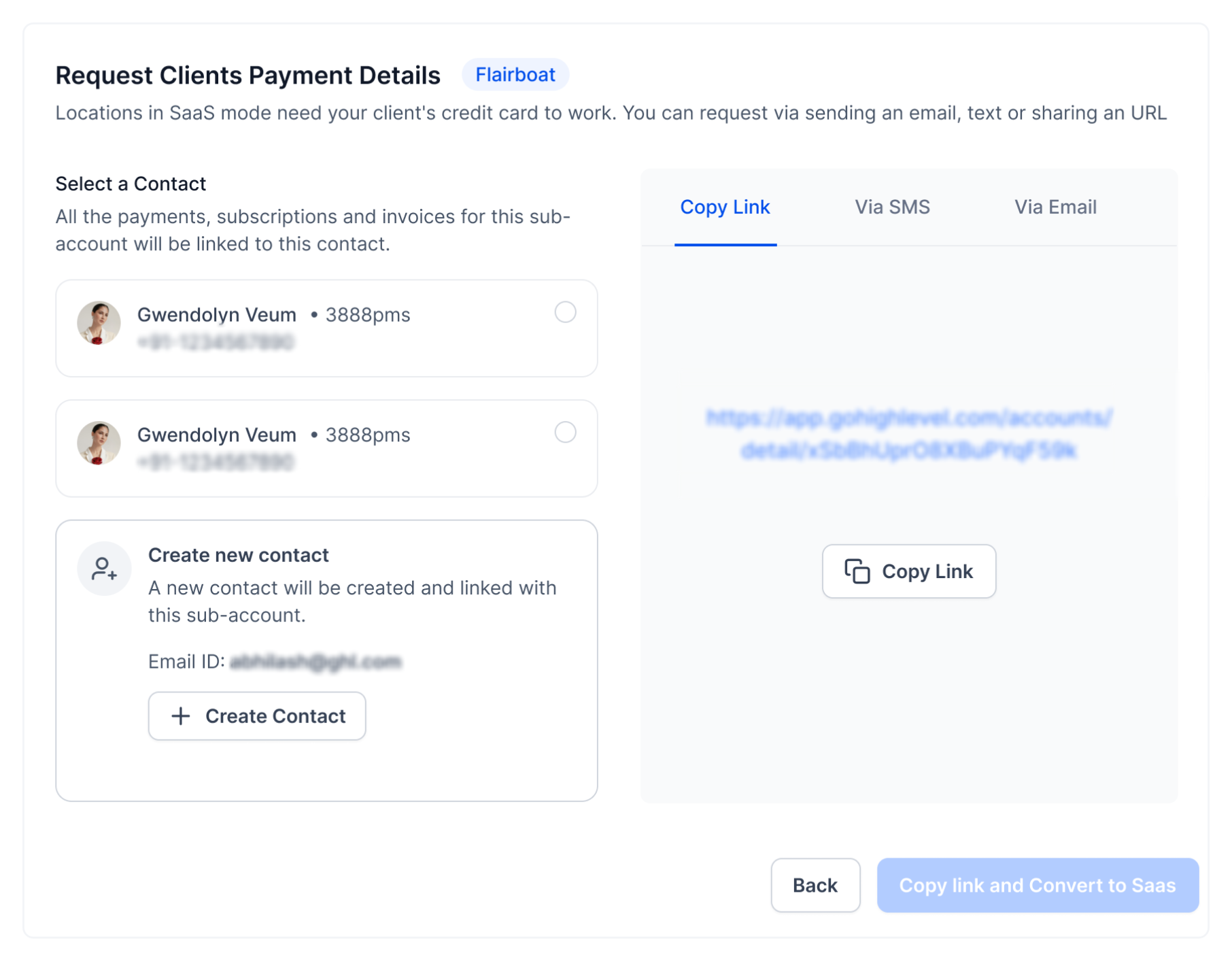
Step 3: Configure markups. Proceed to set reselling and rebilling markups.


Step 4: Recharge the wallet. The client needs to recharge their wallet.

Step 5: Confirm setup. You're all set. All payments will be processed from the client's wallet.
Frequently Asked Questions
Q: What should I check if a client does not have enough funds for a wallet charge?
Confirm the client's wallet balance and recharge it as needed. Sub-account wallet minimum-balance and recharge settings can be reviewed under Sub-Account View > Settings > Company Billing. See SaaS Wallet Credit Management - Sub Account Level.
Q: Can SaaS V2 use a payment provider other than Stripe?
Yes. SaaS V2 can use a supported provider configured in the selected Agency Sub-Account. The available provider cards depend on the agency's configuration; cards marked Not supported cannot be selected.
Q: Why can Email be rebilled even though Email IP is not supported for reselling?
Email appears in the usage-based rebilling list, while Email IP appears in the list of products not yet supported for reselling. Reselling and rebilling are different billing capabilities.
Q: What is the difference between an Agency Sub-Account and a client sub-account?
The Agency Sub-Account manages the SaaS V2 billing configuration and supported payment providers. The client sub-account belongs to the customer and has a wallet used for applicable charges.
Q: Why do I need to choose or create a contact during setup?
The contact holds the payment methods used for the client billing setup, and payments are processed against that contact. Confirm the correct client contact before continuing.
Q: What if rebilling has been configured but the client has not completed payment setup?
When a required payment method is missing, a rebilling configuration may remain On Hold until payment details are provided and payment is completed successfully. Check Agency View > Sub-Accounts > Manage Client > Rebilling, and see Rebilling, Reselling, and Wallets Explained for details.
Related Articles
Was this article helpful?
That’s Great!
Thank you for your feedback
Sorry! We couldn't be helpful
Thank you for your feedback
Feedback sent
We appreciate your effort and will try to fix the article