The enhanced Calendar View in HighLevel delivers a cleaner, more spacious, and intuitive way to manage your schedule. With dedicated scheduling types, contextual filters, and an optimized layout, users can focus on what matters most—seeing the right appointments, staff, and services at a glance. These improvements make managing meetings, services, and upcoming rental bookings simpler and more efficient than ever.
TABLE OF CONTENTS
- What is Calendar View Enhancements?
- Key Benefits of Calendar View Enhancements
- Dedicated Scheduling Types
- Smart Dropdown Navigation
- Contextual Filters
- Unified Service View
- More Space to View Events
- View Buffer Time in Day and Week Views
- Mini Month Calendar Relocation
- Calendar View Enhancements Availability
- Frequently Asked Questions
- Related Articles
What is Calendar View Enhancements?
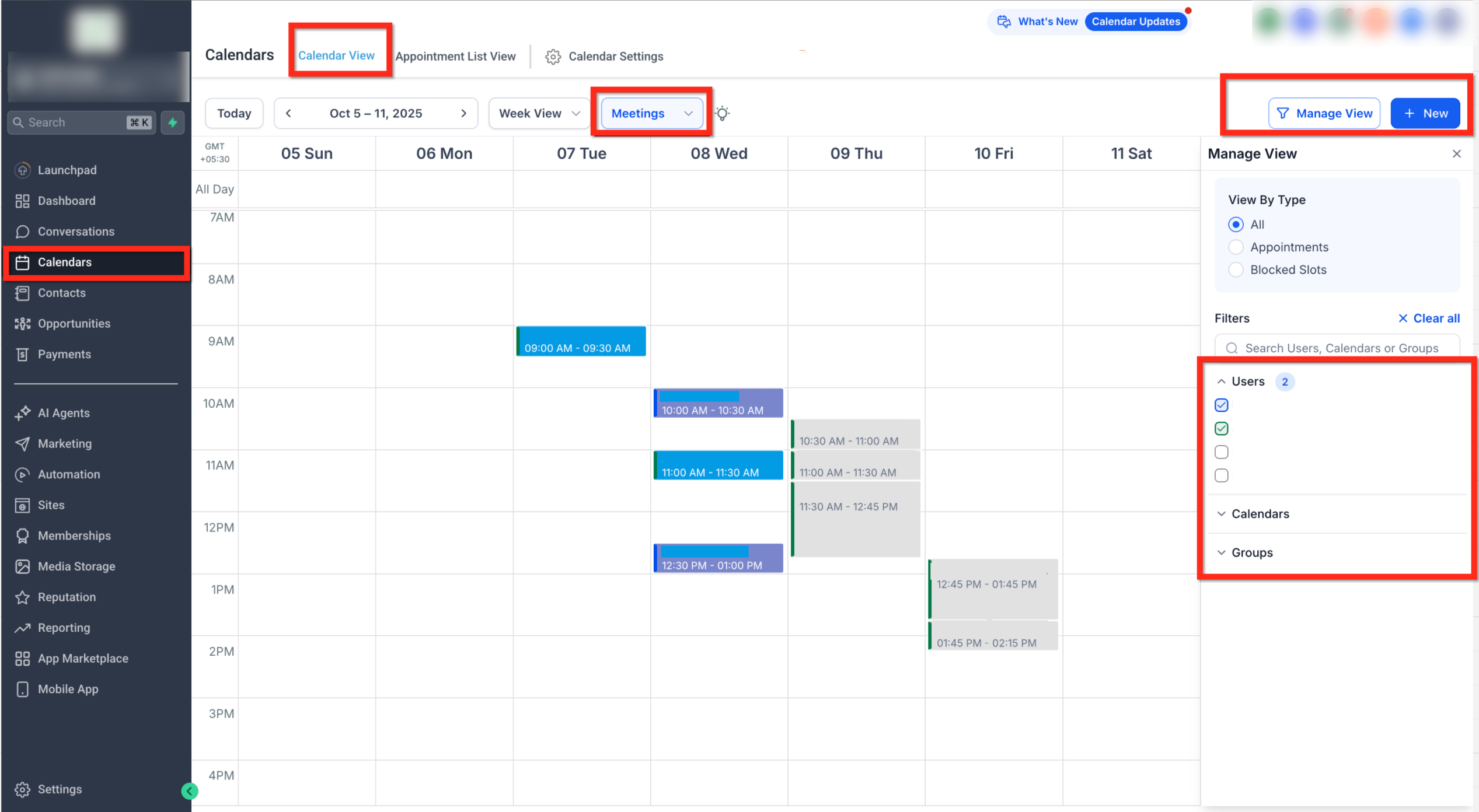
The Calendar View Enhancements introduce a modernized scheduling experience designed to reduce clutter and adapt dynamically to your workflow. Depending on your scheduling type—Meetings, Services (v2), or upcoming Rentals—the view adjusts filters, displays, and navigation tools so you can organize appointments effortlessly.
This update focuses on improving usability by introducing type-specific calendar views, streamlined filters, and flexible viewing options that expand screen space for better visibility.
Key Benefits of Calendar View Enhancements
Understanding the main advantages helps you maximize productivity and simplify daily scheduling.
Focused views: Only appointments and filters related to your active scheduling type are shown—no more mixed results or visual clutter.
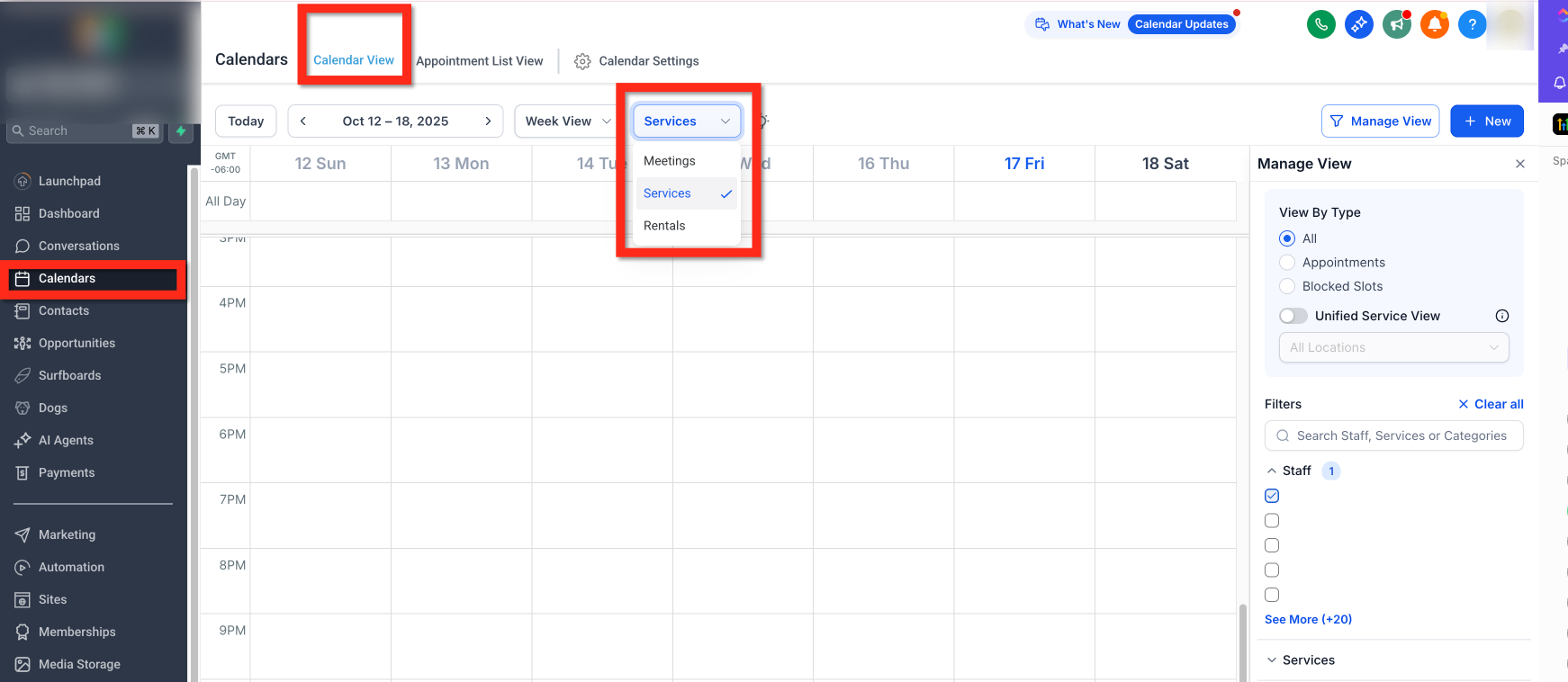
Smart navigation: A new dropdown lets you switch between Meetings and Services instantly.
Optimized workspace: Use the Manage View toggle to hide filters and expand your visible calendar area.
Quick monthly navigation: The mini month-view has been relocated under the main date for easy access.
Cleaner interface: If your agency has only one scheduling type enabled, the dropdown hides automatically for a distraction-free workspace.
Unified Service View: Displays multi-staff service bookings clearly in one view.
Buffer visibility: Show pre-buffer and post-buffer time in Day and Week views to understand appointment spacing at a glance.
Dedicated Scheduling Types
HighLevel’s Calendar View now recognizes separate scheduling types to better align with your business model and booking needs.
This feature ensures that each type—Meetings, Services, or Rentals—has its own focused workspace, tailored filters, and dedicated management tools.
Meetings: Includes all legacy calendar types—Personal, Round Robin, Collective, Class, Service Menu, and Service Calendars (v1).
Services (v2): Built for service-based businesses. Supports advanced capabilities like variations, add-ons, and staff pricing.
Rentals (coming soon): A future release designed for rental-based businesses (e.g., studios, venues, or equipment rentals).
Smart Dropdown Navigation
The new Smart Dropdown makes switching between scheduling types effortless. It appears at the top of the calendar when multiple scheduling types are enabled in Agency Settings. If only one type is active, the dropdown stays hidden, ensuring a cleaner layout.
This contextual navigation improves workflow continuity—no more switching tabs or sub-accounts to view different calendar types.
Contextual Filters
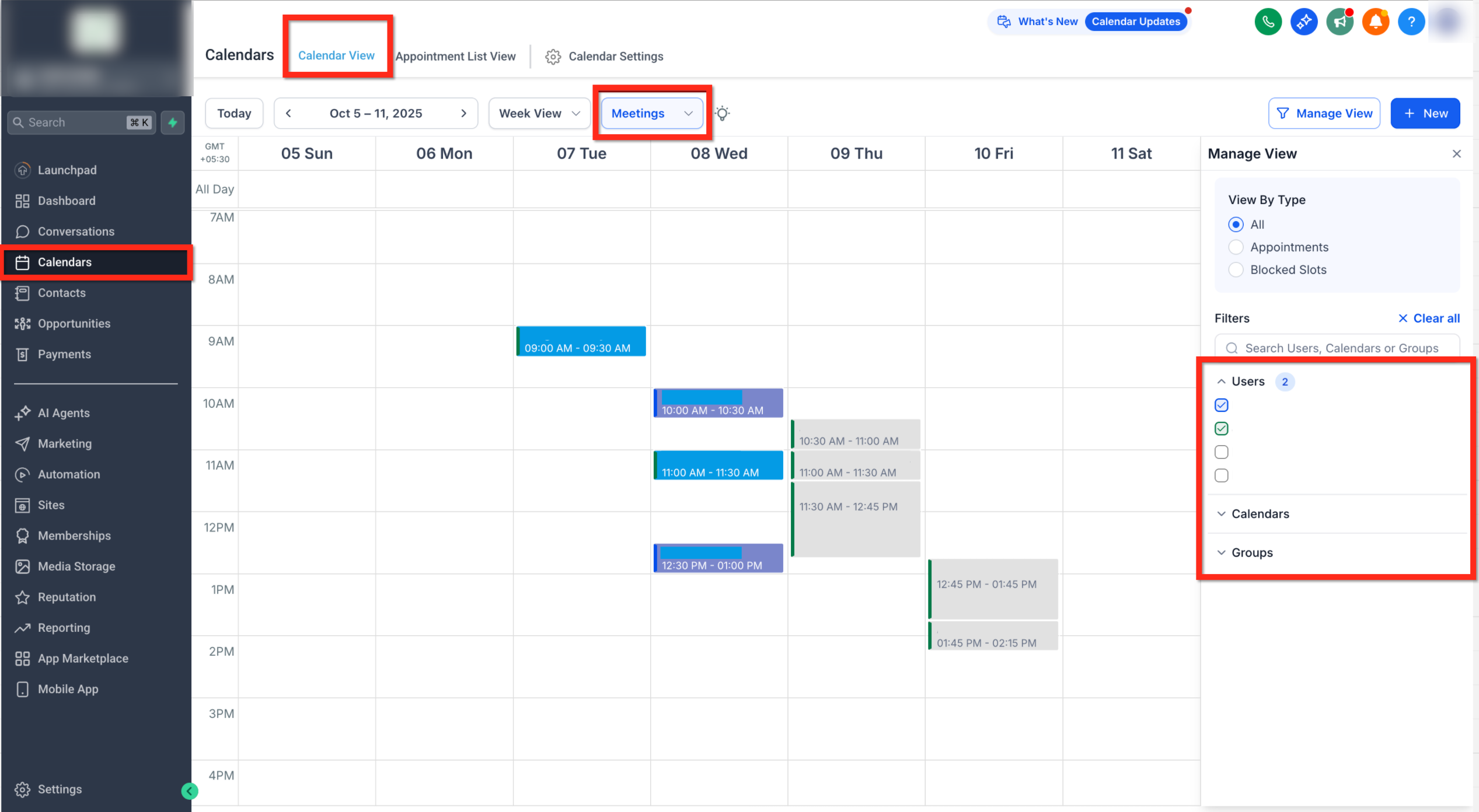
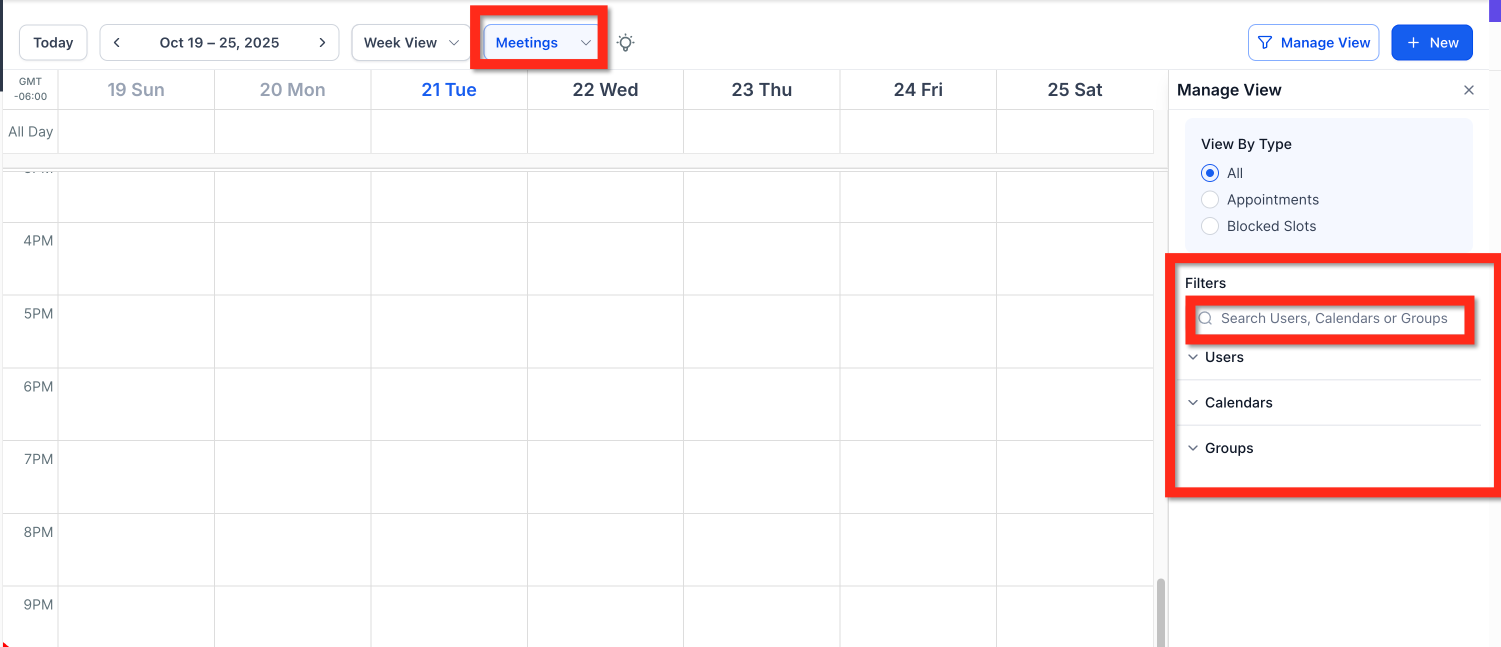
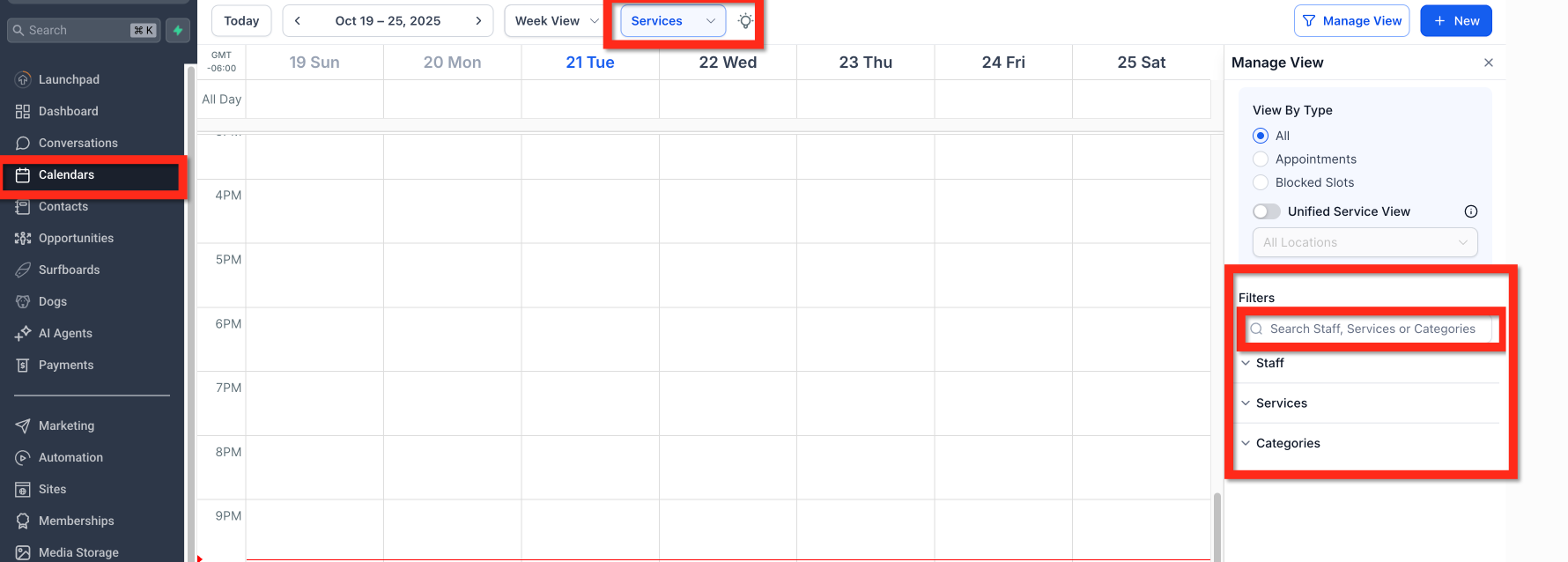
The right-hand filter panel updates dynamically based on your selected scheduling type. Each view provides only relevant filters, streamlining your workflow.
By dynamically adjusting filters, you can quickly focus on the specific appointments, services, or staff that matter most without visual overload.
Meetings View Filters:
Users
Calendars
Groups
Services View Filters:
Staff
Services
Categories
Location (when Unified Service View is enabled)
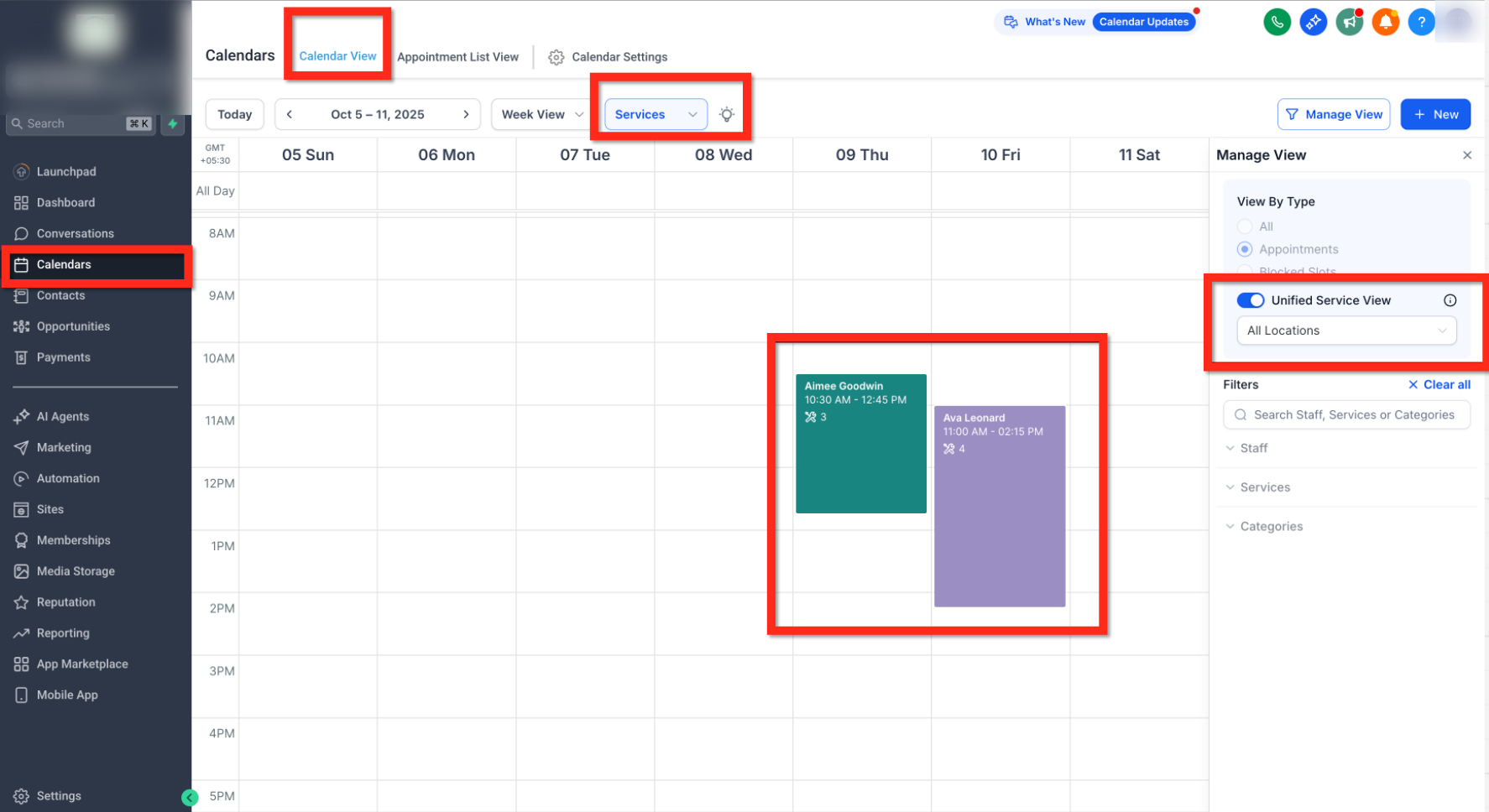
Unified Service View
When toggled on, Unified Service View groups all service-based bookings (across staff) in one unified timeline, providing complete visibility of your service schedule at a glance.
This view helps service-based teams quickly identify overlaps, staff assignments, and available time slots across multiple locations.
More Space to View Events
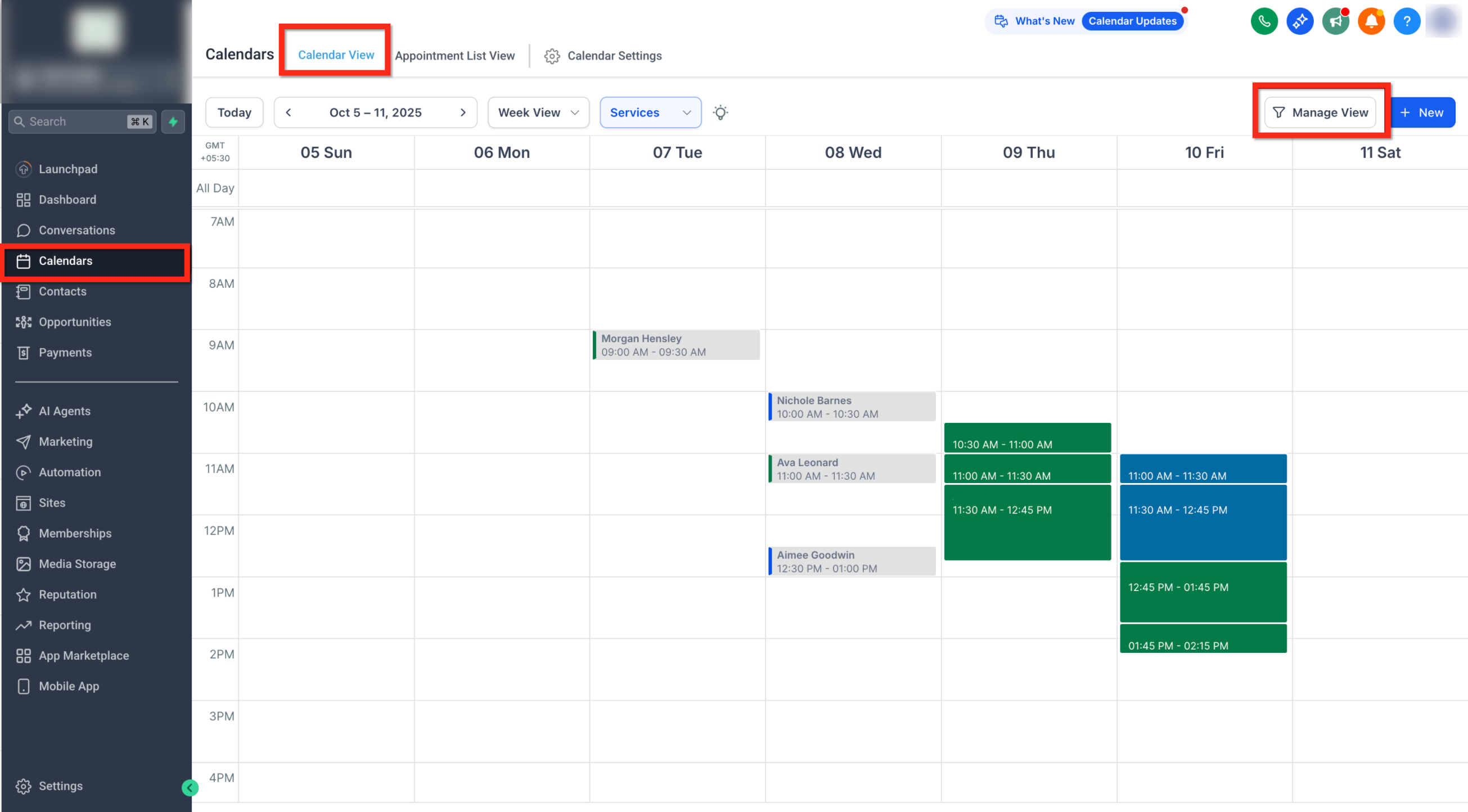
To maximize visibility, the enhanced Calendar View reduces padding and allows you to hide the filter panel.
This makes it ideal for users who handle a high volume of appointments and need to see as many events as possible without scrolling.
How to expand view space:
Click Manage View (top right corner).
Hide or unhide the right-side panel as needed.
Adjust zoom or screen size to display more appointments in view.
View Buffer Time in Day and Week Views
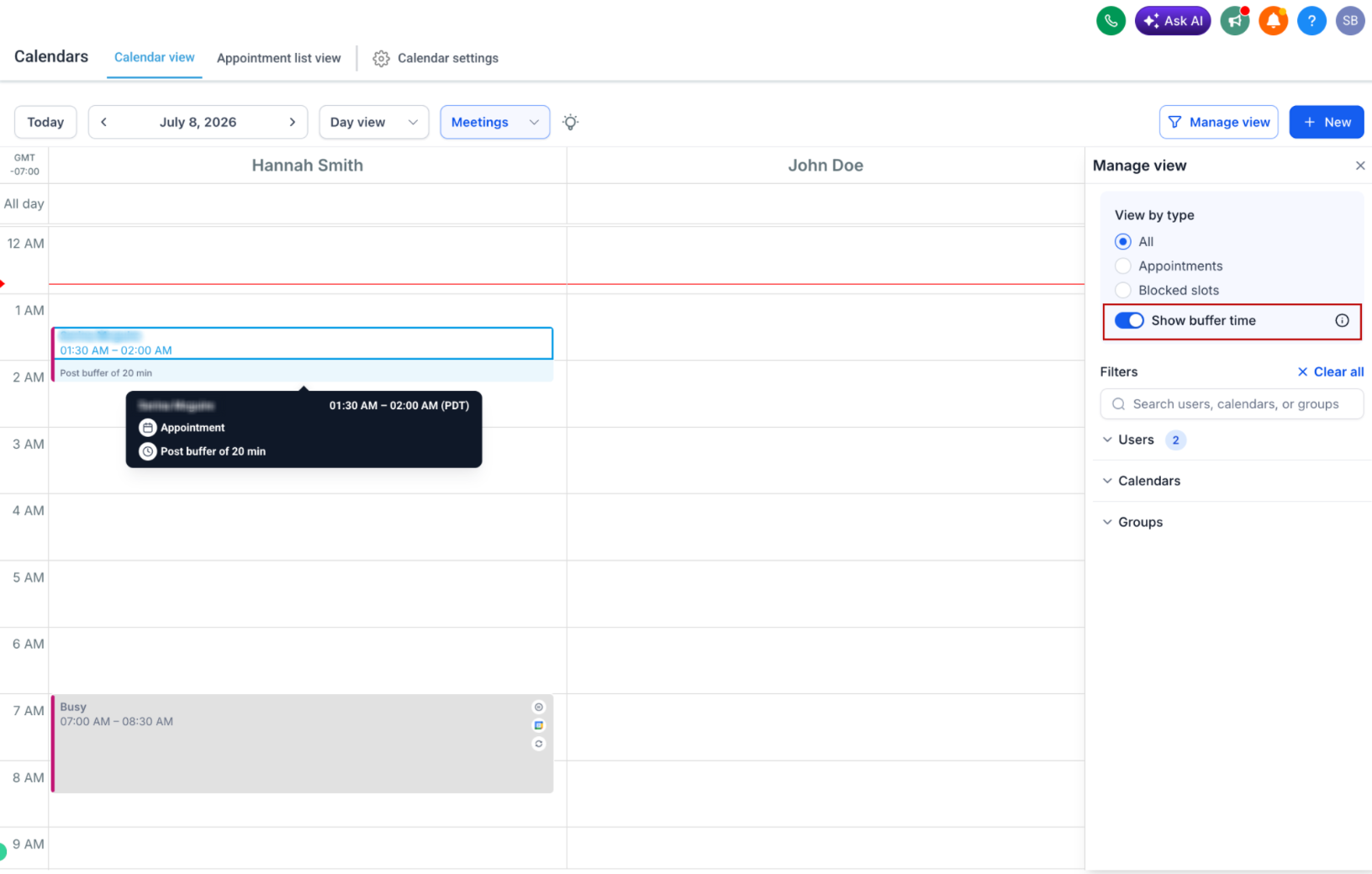
You can display pre-buffer and post-buffer times directly in the Day and Week calendar views.
To show buffer time:
- Go to Calendars.
- Select Day view or Week view.
- Click Manage View.
- Turn on Show buffer time.
Configured pre-buffer and post-buffer periods appear as visually distinct blocks around appointments. This helps you identify the time reserved before or after an appointment without changing the appointment itself or its scheduling rules.
Turn off Show buffer time when you want to hide buffer blocks from the calendar view.
Mini Month Calendar Relocation
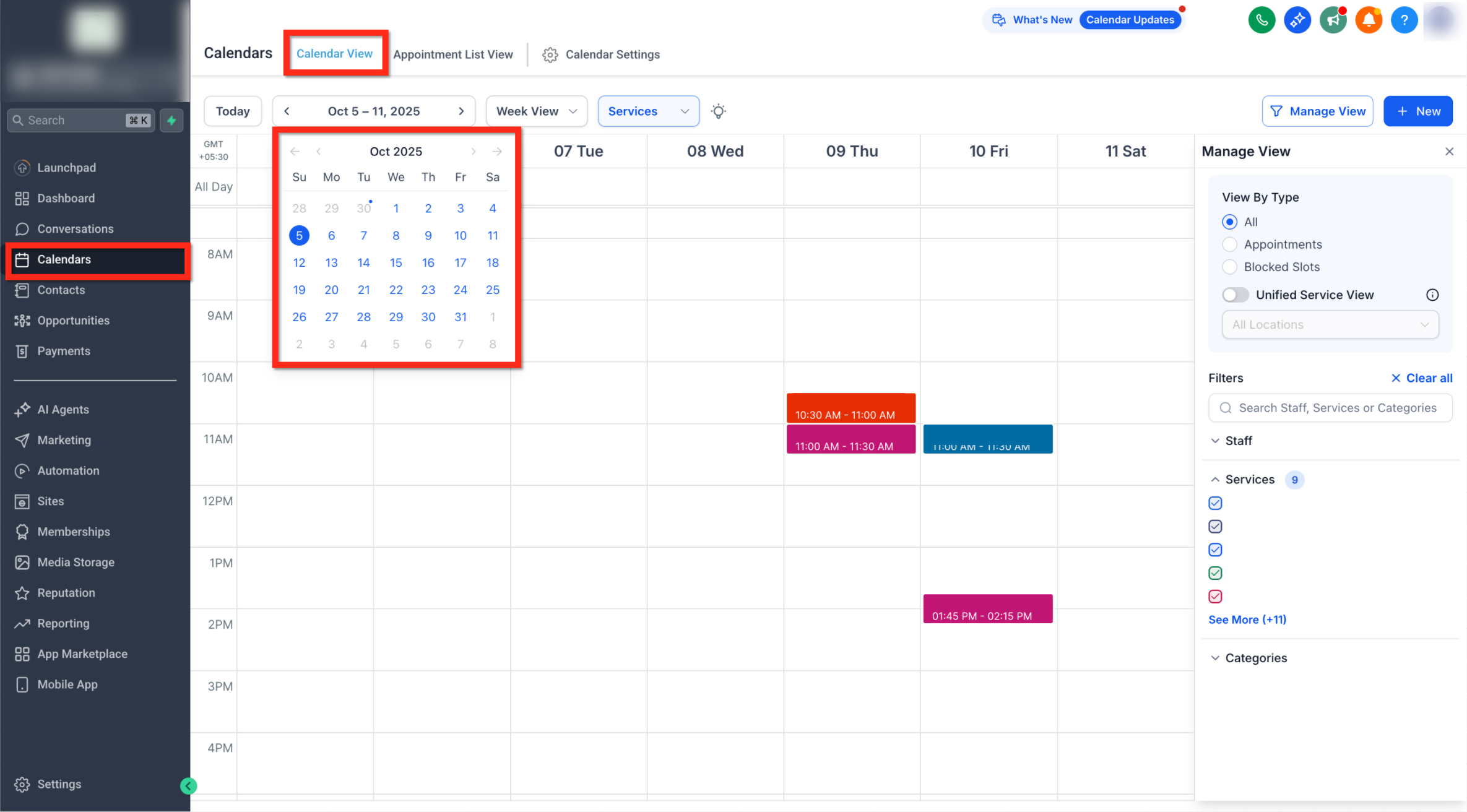
The mini month-view calendar now appears just below the main date. Click the date to expand or collapse it, giving you quick navigation between months while staying in your current weekly or daily view.
This relocation improves flow and keeps essential navigation tools within easy reach.
Calendar View Enhancements Availability
The enhanced Calendar View feature is automatically available when Meetings, Services (v2), or both scheduling types are enabled within your agency settings. Once active, the calendar interface updates automatically—no additional setup is required.
When multiple scheduling types are enabled, a type selector appears at the top of the Calendar View, allowing users to switch between Meetings and Services. If only one scheduling type is active, the selector remains hidden to maintain a simplified layout.
The Manage View panel on the right includes dynamic filters that adjust based on the selected scheduling type. This ensures that users only see relevant filters, such as Users, Calendars, or Groups for Meetings, and Staff, Services, or Categories for Services. Agencies offering service-based bookings can also use Unified Service View to view all service appointments across team members in a single, consolidated timeline.
The updated layout is designed for greater visibility and flexibility. The filter panel can be collapsed to display more appointments on screen, and a mini month calendar positioned beneath the main date header allows for quick date navigation without leaving the current view.
Frequently Asked Questions
Q: Do I need to migrate my existing calendars to use the new view?
A: No. All existing calendars automatically appear under the Meetings view. Services (v2) calendars show in the Services view once that feature is enabled.
Q: Why don’t I see the Meetings/Services dropdown?
A: The dropdown only appears if multiple scheduling types are active in Agency Settings.
Q: Can I still drag and drop appointments?
A: Yes, you can still drag, drop, reschedule, and cancel appointments as before.
Q: Does hiding the filter panel affect other users?
A: No. The Manage View setting is user-specific and does not impact others.
Q: Will Google Calendar sync with Services (v2)?
A: Not currently. Google Calendar sync applies to Meetings only; Services must be managed directly within HighLevel.
Q: Is Rentals available yet?
A: Rentals are under development and will be added in a future update.
Q: Can I enable Services (v2) for multiple sub-accounts at once?
A: Yes. Go to Agency Settings → Subaccount → Bulk Actions → Setup Calendars to enable Services across accounts.
Related Articles
Was this article helpful?
That’s Great!
Thank you for your feedback
Sorry! We couldn't be helpful
Thank you for your feedback
Feedback sent
We appreciate your effort and will try to fix the article