Agent Logs Metrics is a dashboard inside Agent Logs that helps you measure AI agent activity using widgets, filters, and saved layouts. Instead of reviewing one conversation at a time, it gives you a broader view of performance, efficiency, and activity across your AI operations. This makes it easier to spot trends, monitor workload, and identify areas that may need optimization.
TABLE OF CONTENTS
- What is Agent Logs Metrics?
- Key Benefits of Agent Logs Metrics
- Dashboard Layouts and Widgets
- Key Metrics and Operational Insights
- How To Setup Agent Logs Metrics
- Frequently Asked Questions
- Related Articles
What is Agent Logs Metrics?
Agent Logs Metrics helps you track how your AI agents are performing over time with a flexible dashboard inside HighLevel. You can monitor conversation volume, message activity, response speed, and operational trends without reviewing each interaction individually. With customizable widgets, filters, and auto-refresh, it becomes easier to understand agent performance and make informed improvements.
Agent Logs Metrics is useful when you need a higher-level view than session or execution logs can provide. While detailed logs help you review individual interactions and execution steps, Metrics helps you track overall performance across agents, channels, and AI activity from one dashboard.
Key Benefits of Agent Logs Metrics
Agent Logs Metrics helps teams move from reviewing individual logs to monitoring performance at scale. This gives you a faster way to identify trends, compare activity, and focus your optimization efforts where they matter most.
- Centralized visibility: Track AI activity from one dashboard instead of reviewing conversations one by one.
- Custom monitoring views: Build layouts around the metrics that matter most to your team or workflow.
- Faster issue detection: Use performance and activity widgets to spot unusual trends, latency concerns, or heavy tool usage more quickly.
- Better optimization decisions: Compare trends over time and use detailed logs when a metric needs deeper investigation.
- Real-time awareness: Use auto-refresh intervals to keep the dashboard current during active monitoring.
Dashboard Layouts and Widgets
The Agent Logs Metrics page includes default layouts and customizable layouts for tracking AI agent activity. You can view preconfigured metrics or create layouts that focus on the information you want to monitor.
Default Layouts
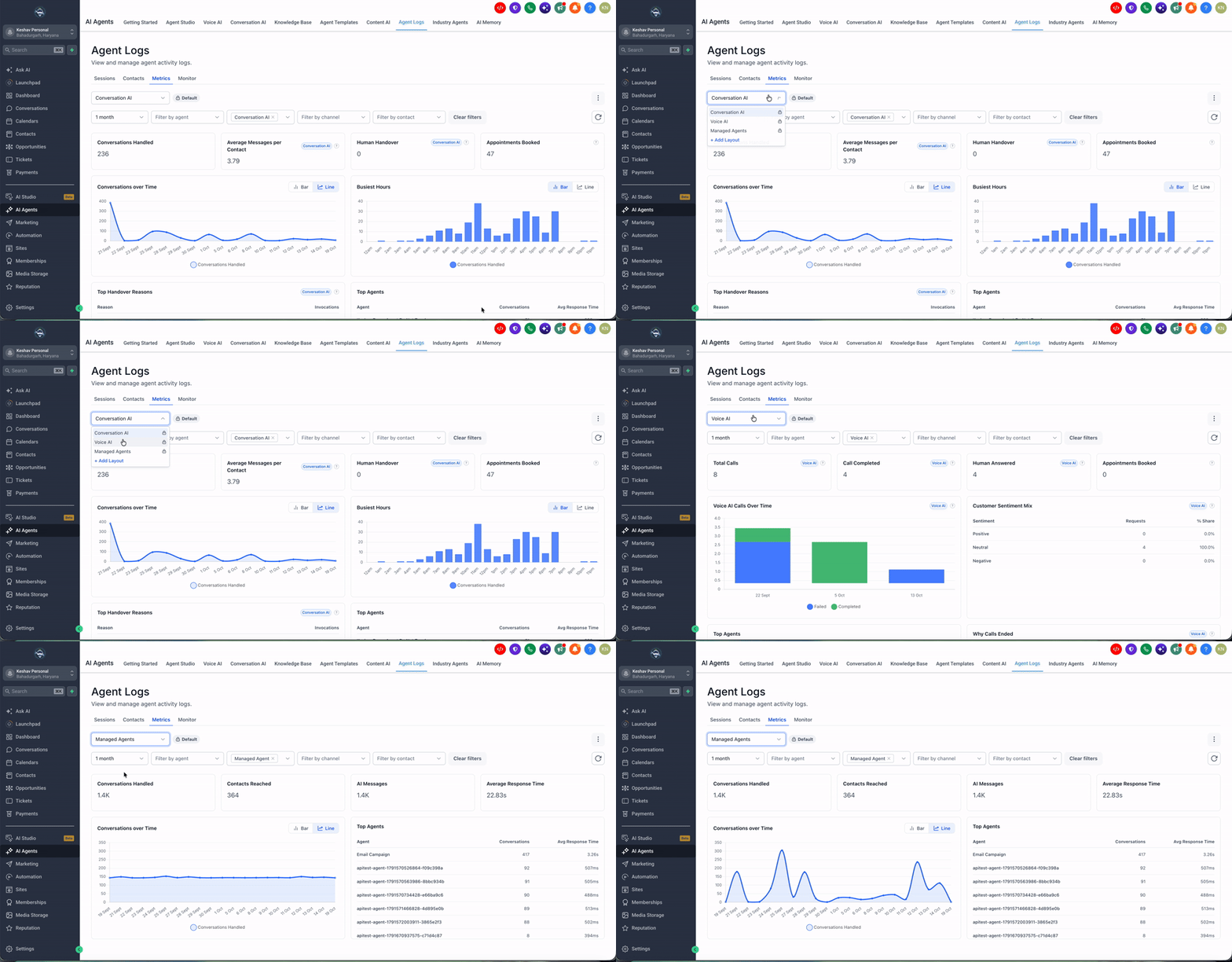
Three default layouts are available in the layout dropdown:
- Conversation AI: View chat volume, human handovers, follow-ups, and busiest hours.
- Voice AI: Monitor call volume, call outcomes, sentiment, and reasons calls end.
- Managed Agents: Review conversations handled, contacts reached, and agent response times.
These layouts display a Default label. You can view them, but you cannot edit or delete them.
To customize your dashboard, create a separate layout using a template or an empty canvas.
Templates and Custom Layouts
Custom layouts let you organize widgets around specific reporting needs. Unlike default layouts, you can edit, rename, rearrange, and delete layouts you create.
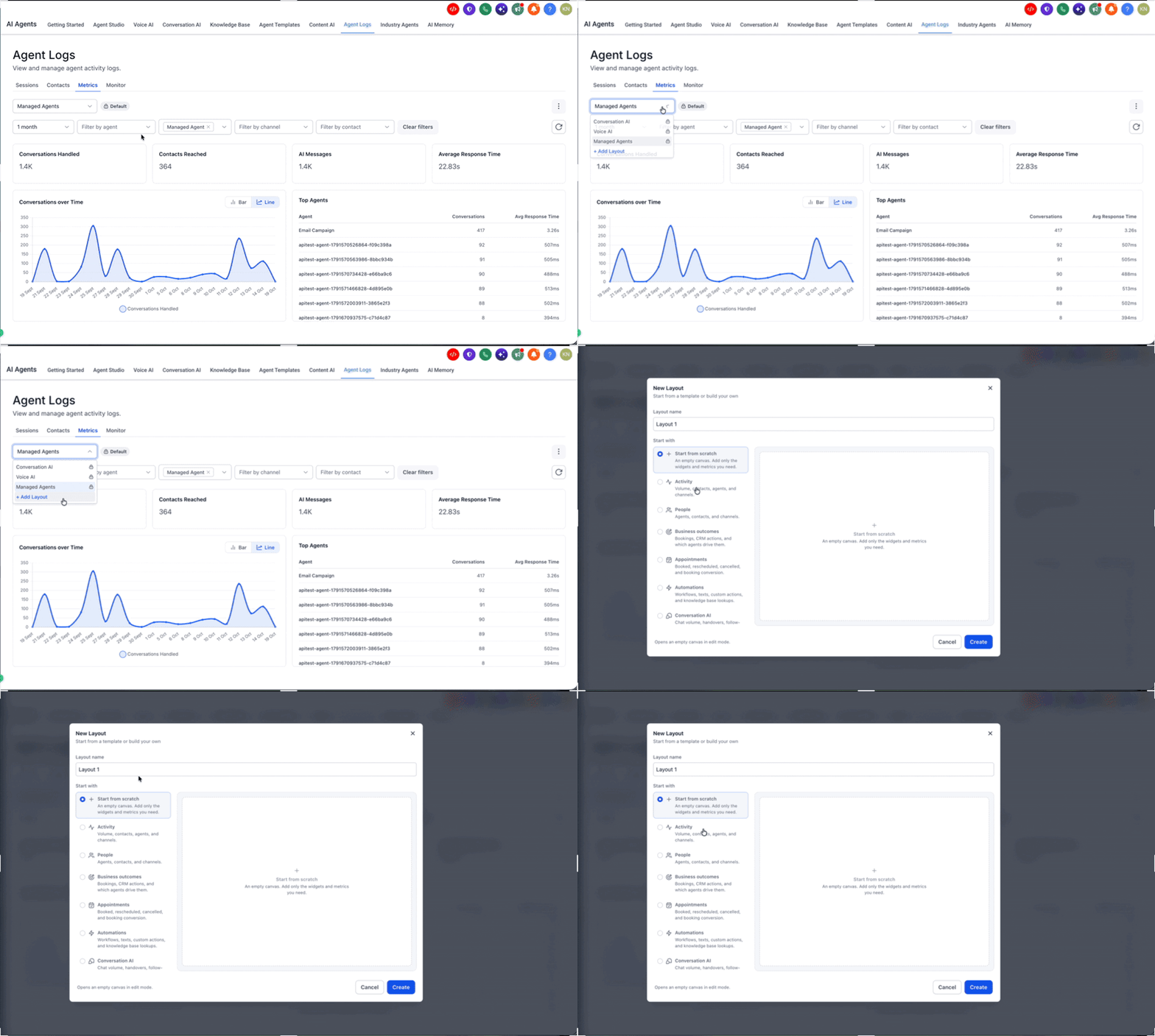
When creating a layout, choose one of these options:
- Start with a template: Begin with a predefined collection of widgets. You can remove widgets, rearrange them, and add more before saving.
- Start from scratch: Begin with an empty canvas and add only the widgets you need.
Pre-built and Custom Widgets
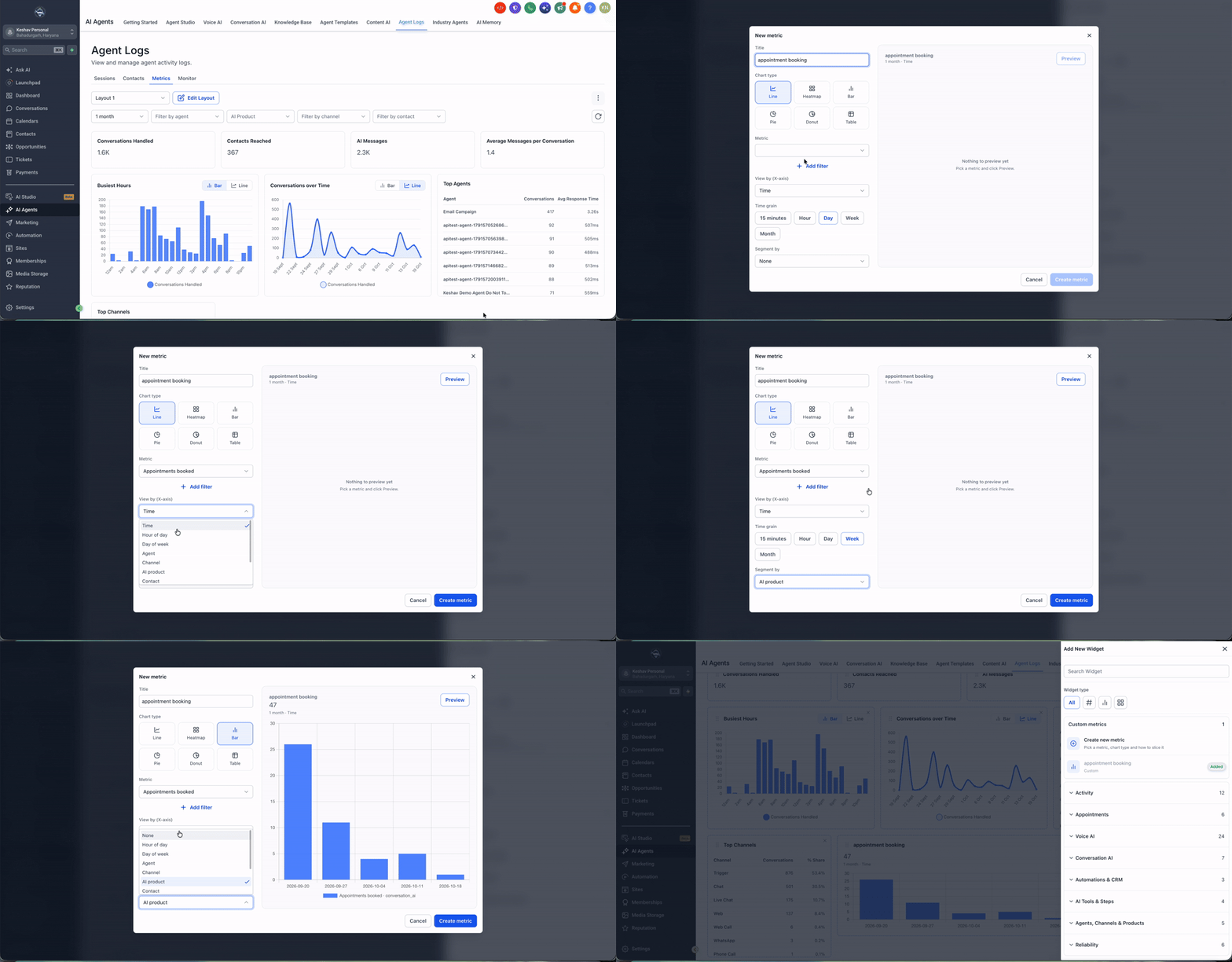
Use Add Widget to add widgets to a custom layout.
Pre-built widgets provide existing metrics and visualizations. Browse the available categories, search for a widget, or filter by widget type, including numbers, charts, and tables.
Custom metrics let you define your own visualization using the metrics available in Agent Logs.
With custom metrics, you can:
- Give a metric a title.
- Choose a line, bar, pie, donut, heatmap, or table visualization.
- Select the metric you want to track.
- Filter data by agent, channel, AI product, or tool.
- Configure supported chart breakdowns and time intervals.
- Preview the visualization before adding it to your layout.
After adding widgets to a custom layout, you can rearrange them and save your changes.
Key Metrics and Operational Insights
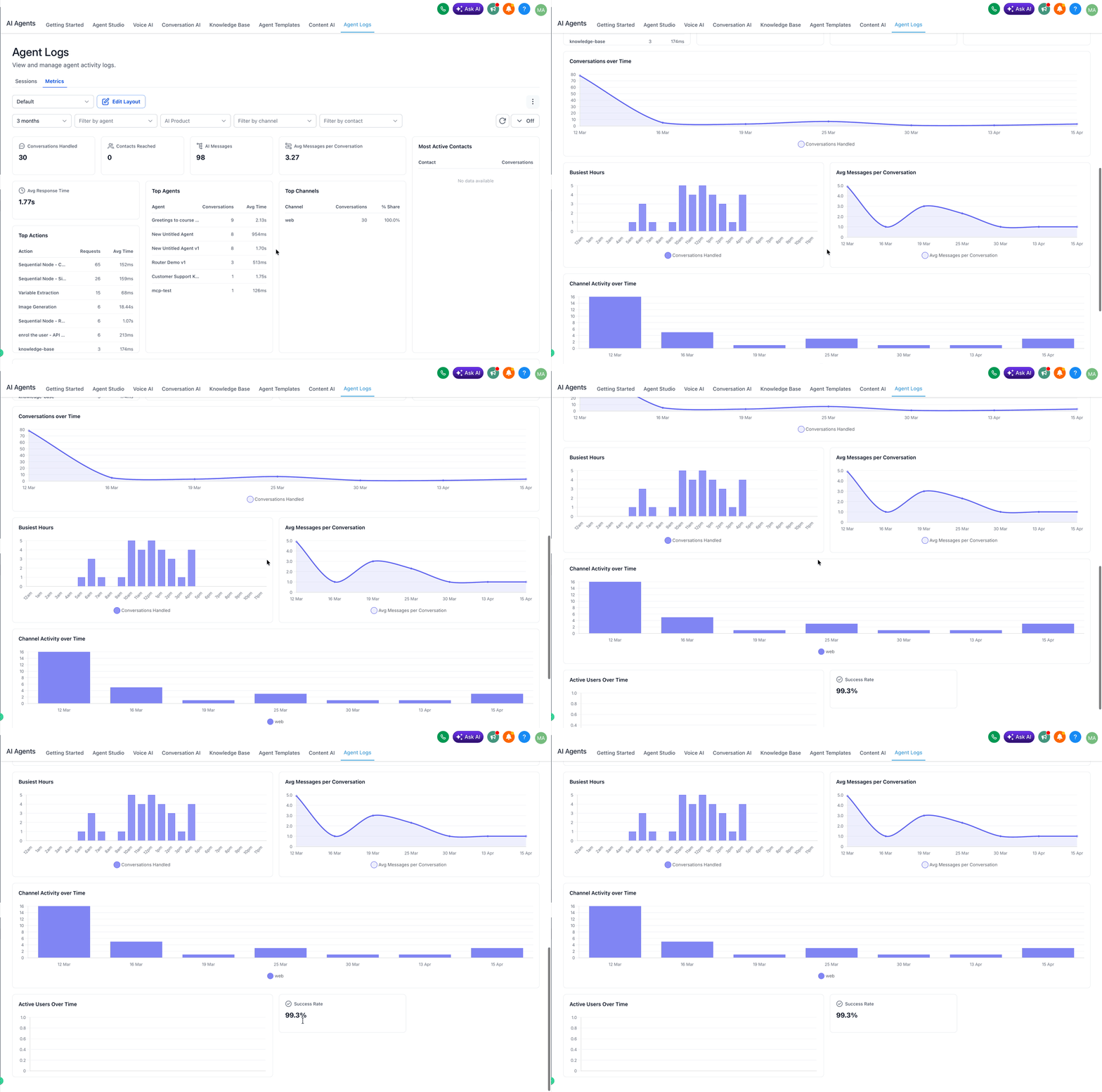
The Metrics tab includes widgets that help you understand both activity levels and operational performance. These widgets make it easier to identify patterns, compare trends, and decide where to focus your attention.
These widgets are designed to help you monitor trends quickly. When you need deeper analysis, you can use detailed logs and debugging tools to investigate individual conversations, actions, or execution paths.
| Metric | Description |
|---|---|
| Conversations Handled | The total number of AI conversations processed during the selected time range. |
| AI Messages | The total number of messages generated by AI agents. |
| Average Messages per Conversation | The average number of messages exchanged within each conversation. |
| Avg Response Time | The average time an AI agent takes to respond. |
| Top Agents | A view of the agents with the highest activity in the selected range. |
| Top Actions | A summary of the most frequently used actions and their average execution latency. |
| Busiest Hours | A breakdown of the times of day when conversation activity is highest. |
| Channel Activity | A view of how activity changes across supported communication channels over time. |
How To Setup Agent Logs Metrics
Proper setup helps ensure your dashboard reflects the right data, metrics, and monitoring priorities for your team. Once your layout and filters are configured, you can reuse them to support daily reporting, live monitoring, and optimization work.
Open Agent Logs and select the Metrics tab
Open AI Agents > Agent Logs in your HighLevel account, then choose the Metrics tab to access the dashboard.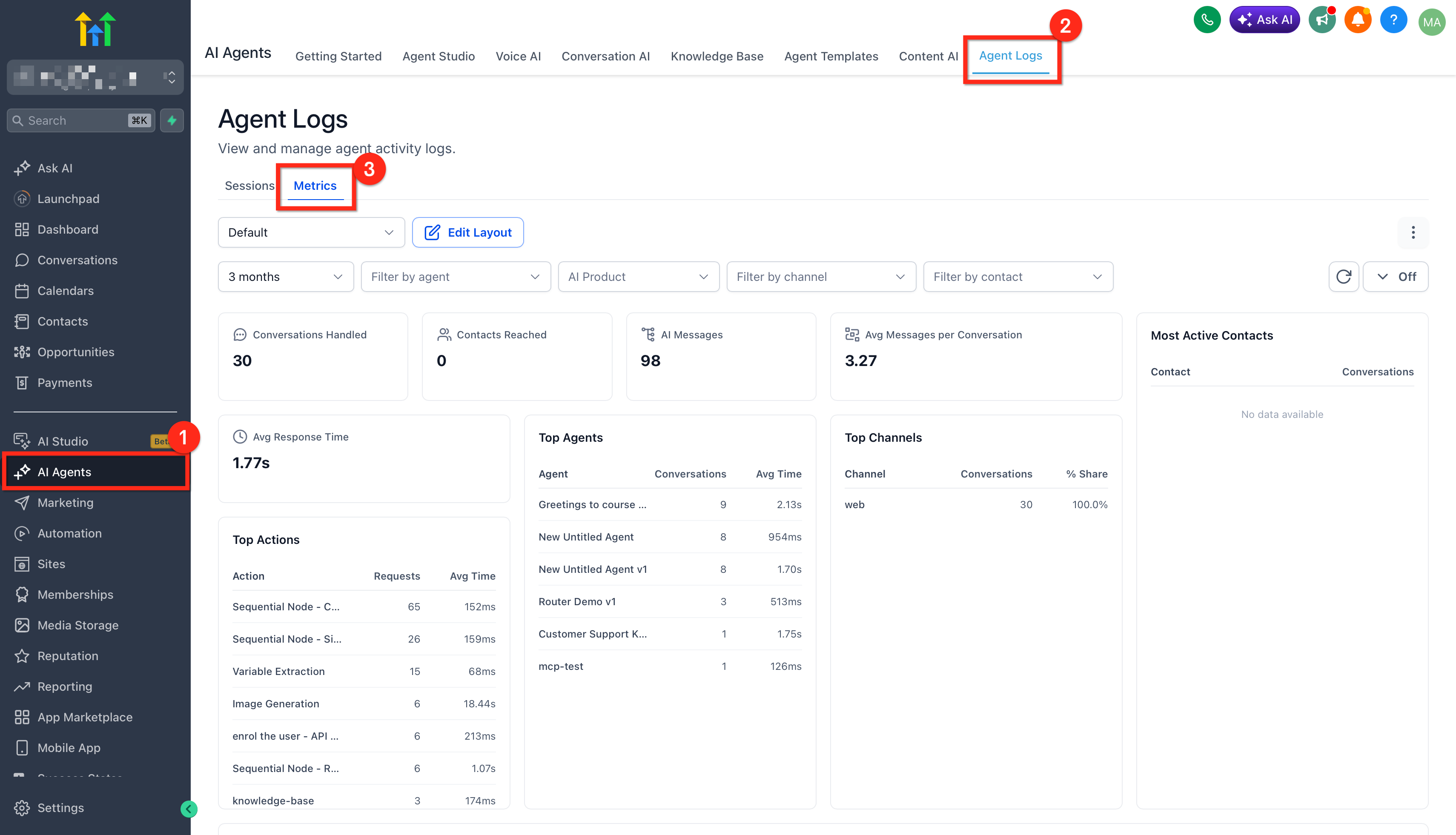
Choose your filter scope
Set the filters for the data you want to analyze. You can narrow the dashboard by Time Range, Agents, AI Products, Channels, and Contacts.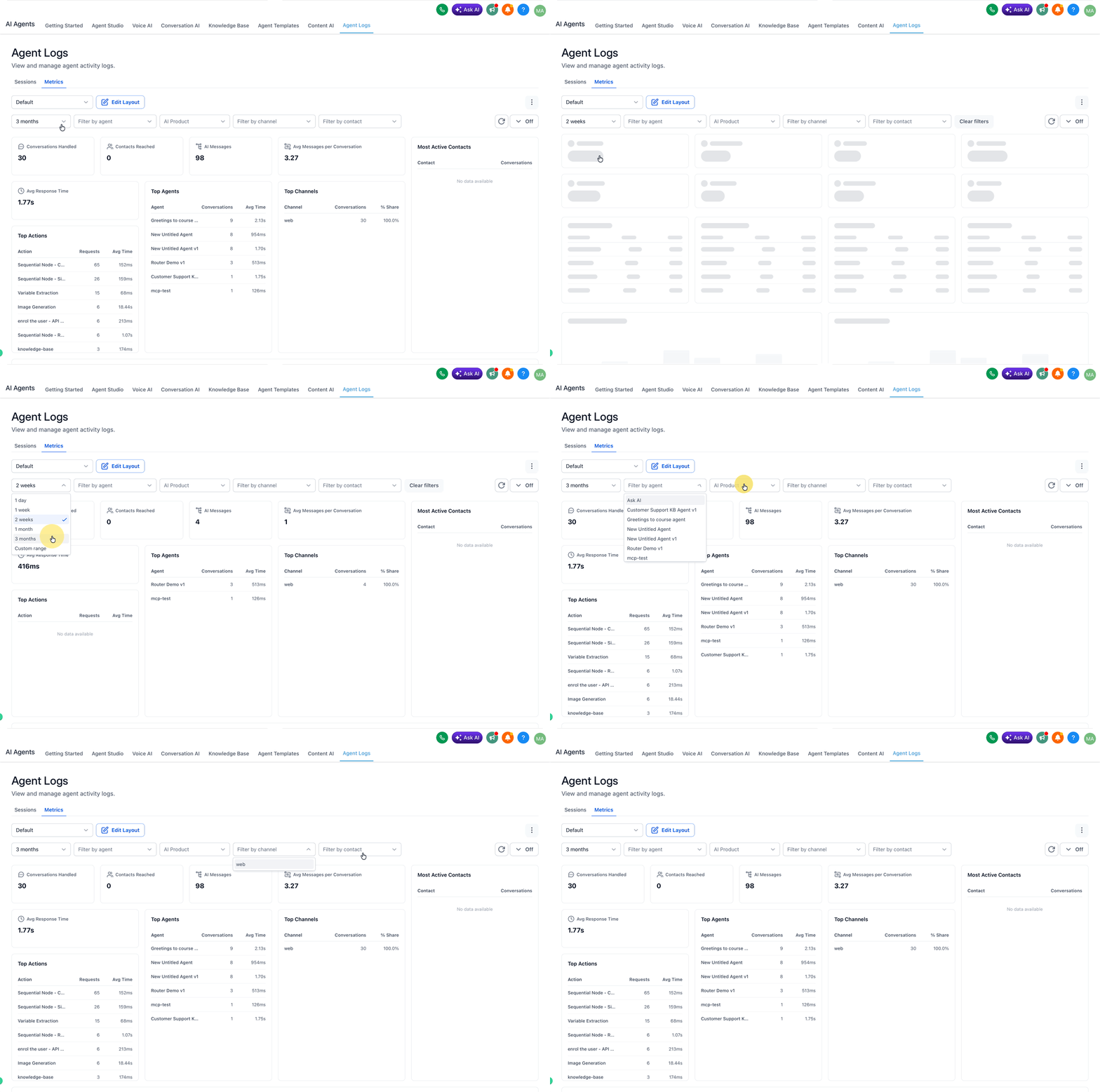
Create or select a custom layout
Open the layout dropdown and select Add Layout to create a layout.
Choose a template to begin with preconfigured widgets, or select Start from scratch to begin with an empty canvas.
The three default layouts: Conversation AI, Voice AI, and Managed Agents—are read-only. Create a custom layout to make changes.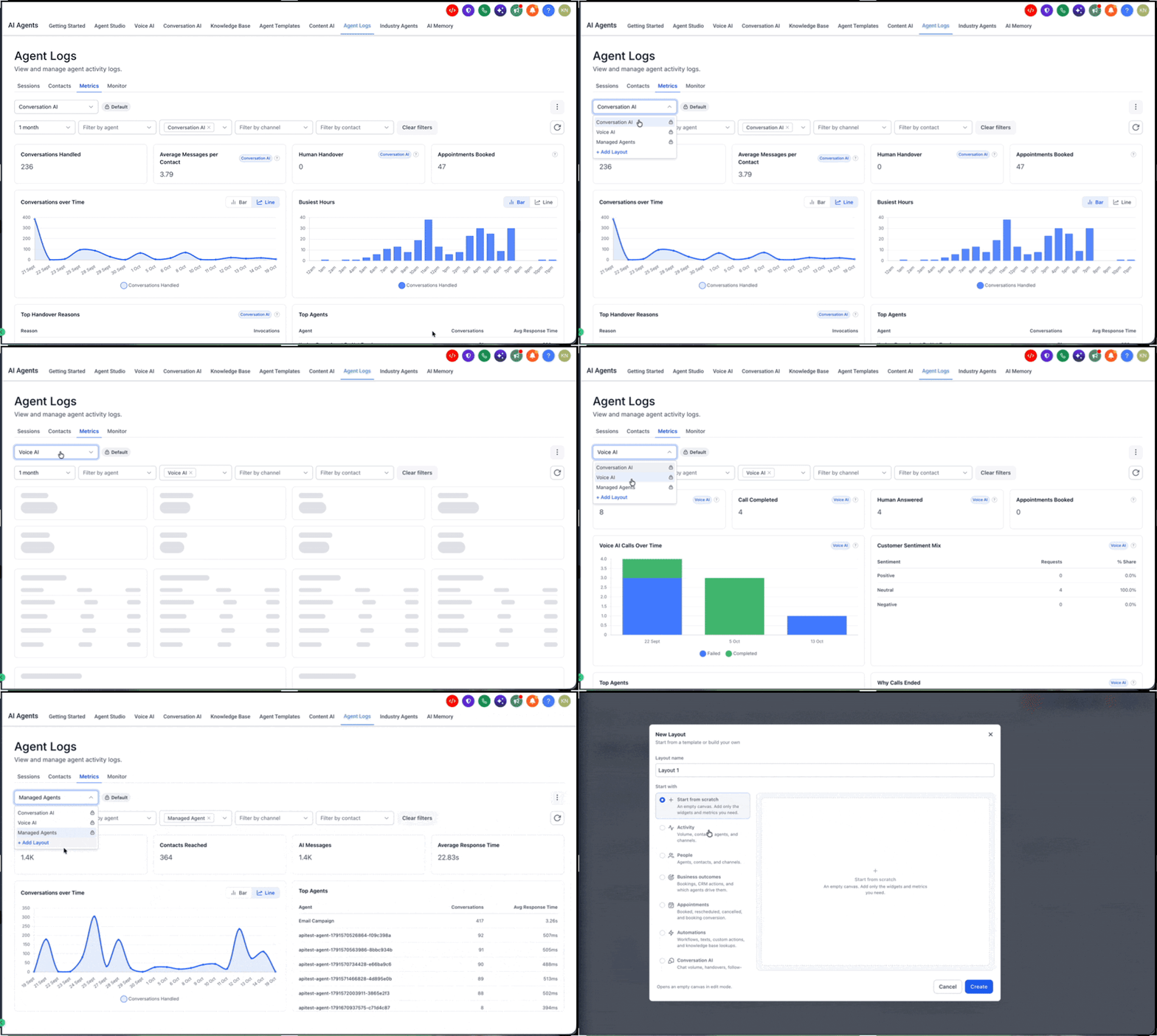
Customise and Save your layout
Use Edit Layout to customise a layout you created.
Select Add Widget add pre-built widgets or custom metrics.
Remove widgets you don't need
Drag and drop widgets to rearrange them
Resize widgets to organise your dashboard
Select save changes when you finish customising your layout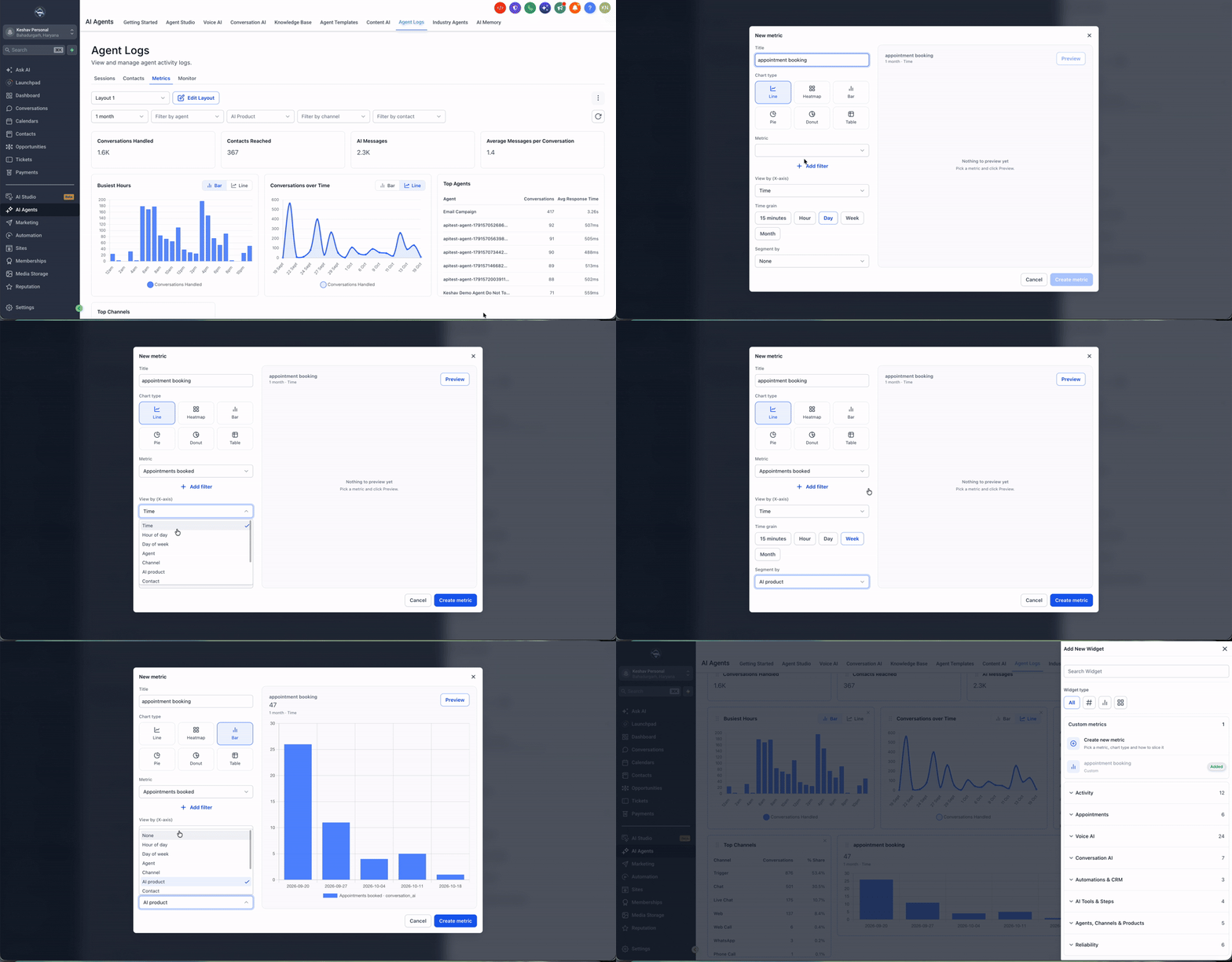
Set auto-refresh when monitoring live activity
Choose an auto-refresh interval of 30 seconds, 1 minute, 5 minutes, or 15 minutes depending on how actively you need to watch the dashboard or click the refresh icon to update instantly.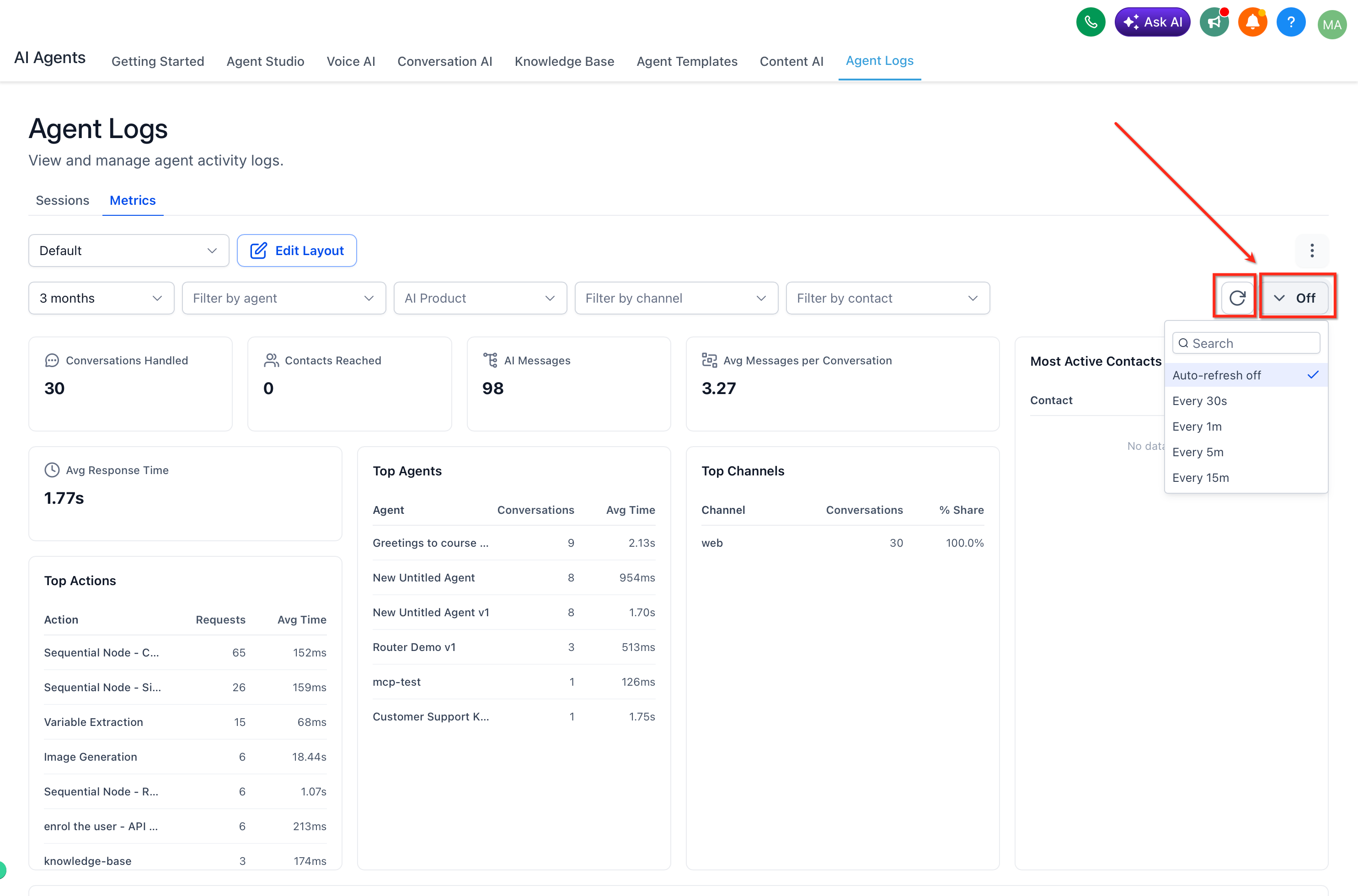
- Use Sessions for deeper investigation
When a dashboard trend needs closer review, open Agent Logs > Sessions to examine the conversation behind the metric. This gives you more context into what the AI agent handled, how the interaction progressed, and where you may want to investigate further. For more information, refer to Agent Logs Overview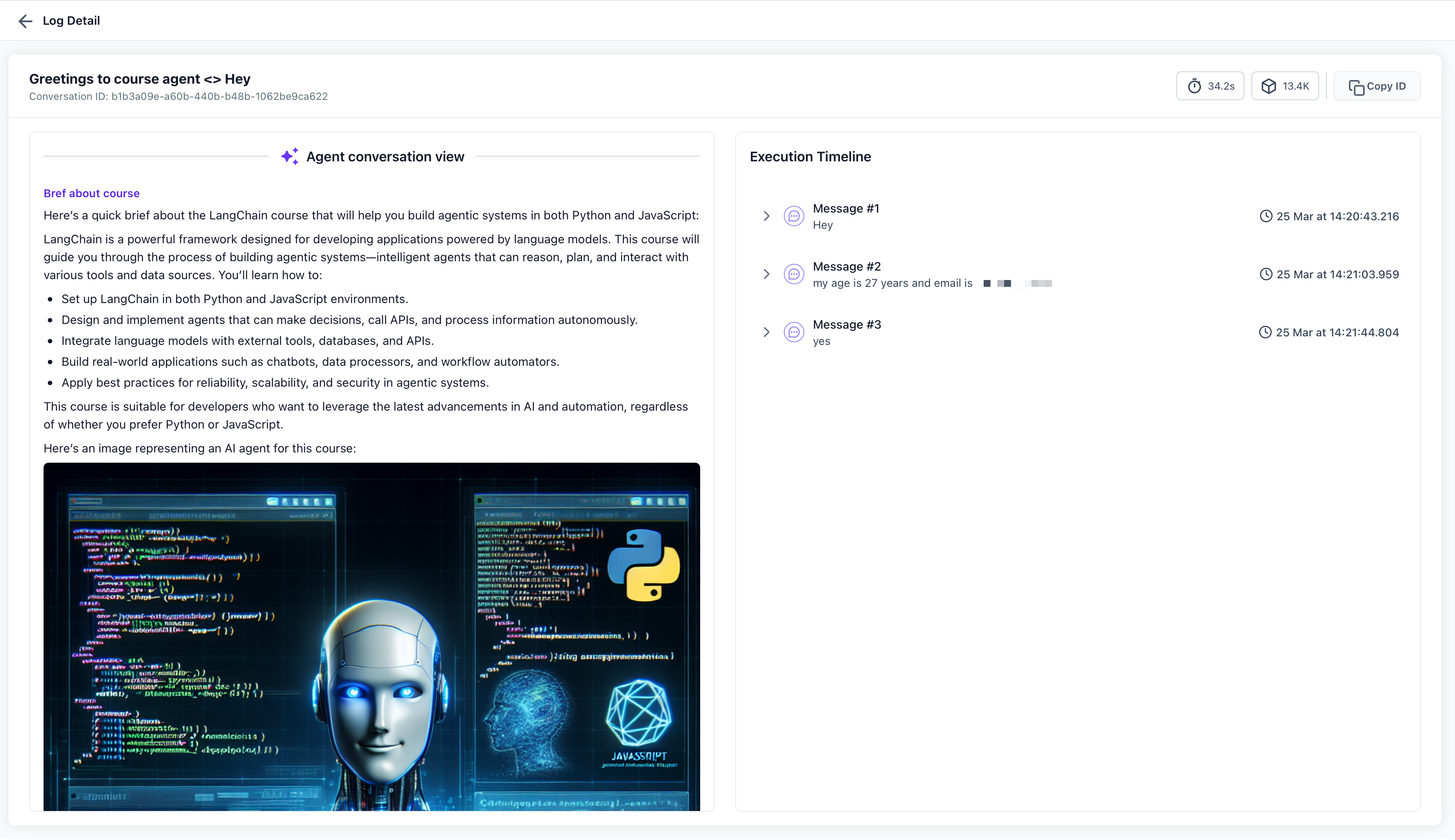
Frequently Asked Questions
Q: What is the difference between Agent Logs Metrics and Agent Logs Sessions?
Agent Logs Metrics gives you an aggregated dashboard view of performance and activity, while session and execution logs are used to inspect individual interactions or execution steps in more detail.
Q: Which filters are available in Agent Logs Metrics?
You can filter by Time Range, Agents, AI Products, Channels, and Contacts.
Q: Can I customize the dashboard layout?
Yes. You can create custom layouts from templates or from scratch. Use Edit Layout to add, remove, rearrange, and resize widgets in layouts you create. The three default layouts are read-only.
Q: Can I save different dashboard views?
Yes. You can save multiple custom layouts and switch between them using the layout dropdown. You can also rename and delete layouts you created.
Q: Can I edit or delete the default Conversation AI, Voice AI, and Managed Agents layouts?
No. These three layouts are included by default and cannot be edited or deleted. To customize your Metrics dashboard, create a separate layout.
Q: Can I create a chart using metrics that are not available as pre-built widgets?
Yes. Select Add Widget, then Create new metric under Custom metrics. Choose an available measurement, select a chart type, configure the supported filters and breakdowns, and preview the result before adding it to your layout.
Q: Does Agent Logs Metrics refresh automatically?
Yes. Auto-refresh options include 30 seconds, 1 minute, 5 minutes, and 15 minutes.
Q: What should I do if I notice a performance issue in Metrics?
Use the dashboard to identify the trend first, then open the relevant logs or debugging tools for more detailed analysis.
Q: Can I create metrics that are not available as pre-built widgets?
Yes. Use Custom metrics in Add Widget to create visualizations using available measurements, chart types, filters, and breakdowns.
Was this article helpful?
That’s Great!
Thank you for your feedback
Sorry! We couldn't be helpful
Thank you for your feedback
Feedback sent
We appreciate your effort and will try to fix the article