Learn how to make your AI Studio website more discoverable by search engines, social platforms, and AI-powered search tools. This article covers server rendering, Advanced SEO Support, and essential SEO settings to help crawlers access your content and improve how your website appears in search results.
TABLE OF CONTENTS
- What is Advanced SEO Support for AI Studio?
- Which Type of Project Do I Have?
- New Projects: Server-Rendered by Default
- Older Projects: Turn On Advanced SEO Support
- How pre-rendering works
- Improve Your SEO
- Tips for Better Search and AI Visibility
- Frequently Asked Questions
- Related Articles
What is Advanced SEO Support for AI Studio?
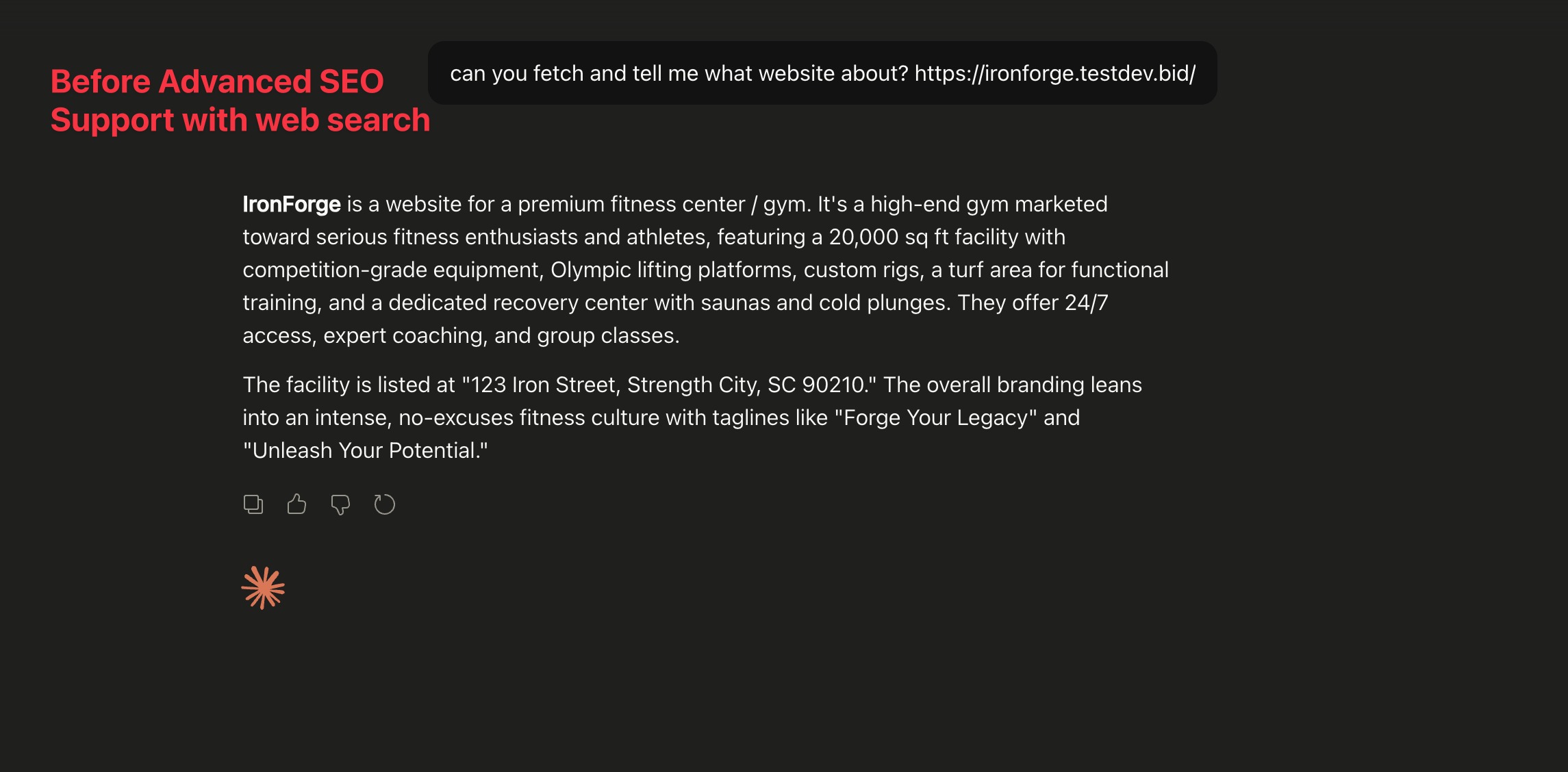
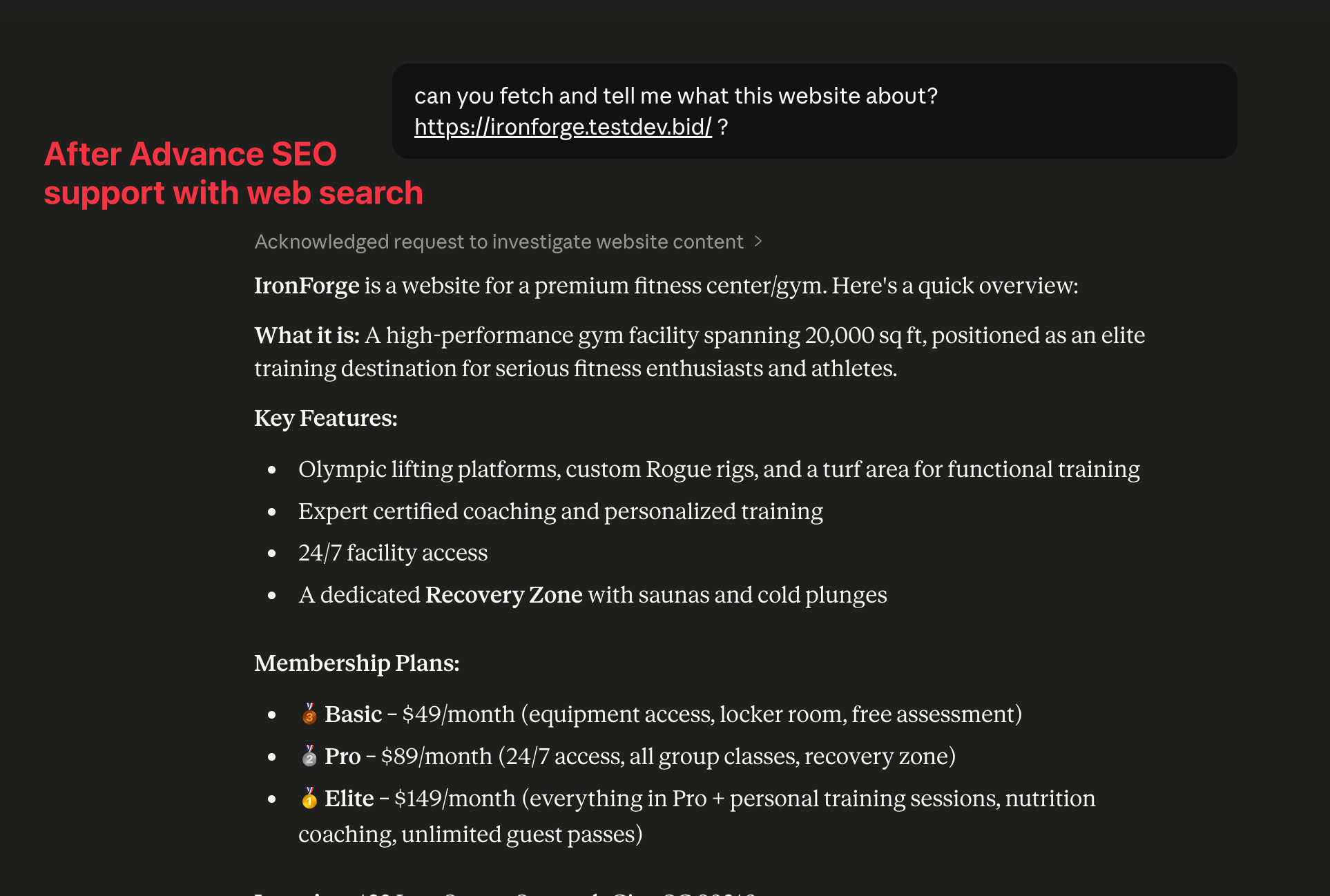
Advanced SEO Support in AI Studio helps published AI Studio sites become easier for search engines, social platforms, and AI crawlers to read. This matters because most AI Studio sites are Single-Page Applications (SPAs). While they are fast for humans, they often look like "empty boxes" to bots because they require JavaScript to load. This meant:
- Google took weeks to index your content.
- Social Previews (on Slack/Twitter) looked blank or generic.
- AI Search (ChatGPT/Perplexity) couldn't "read" your site to cite it.
With Advanced SEO Support, supported bots can receive rendered HTML instead of an empty SPA shell. This helps improve crawlability, supports better social link previews, and makes published content easier for AI-powered tools to understand.
How search engines, social platforms, and AI crawlers read your AI Studio site depends on when the project was created:
- Created on or after September 8, 2026: the project uses TanStack Start, which renders every page on the server. So, there is no need to turn on Advanced SEO support.
- Created before September 8, 2026: turn on Advanced SEO Support to pre-render pages for supported bots. This needs a published project and a connected custom domain.
Whichever type you have, the SEO & AI search panel walks you through the rest: page titles and descriptions, social link previews, a favicon, a sitemap, and Google Search Console.
Which Type of Project Do I Have?
AI Studio projects run on one of two setups. Both can be found in search and AI answers; they differ in how pages reach crawlers and what you need to set up.
| New projects (TanStack Start) | Older projects (single-page app) | |
|---|---|---|
| Created | On or after September 8, 2026 | Before September 8, 2026 |
| How pages are served | Rendered on the server for every request | Built in the visitor's browser with JavaScript |
| What crawlers see | The same finished HTML as visitors | Pre-rendered HTML, once Advanced SEO Support is on |
| Setup needed | None | Publish, connect a custom domain, turn on Advanced SEO Support |
| Custom domain | Recommended | Required for pre-rendering |
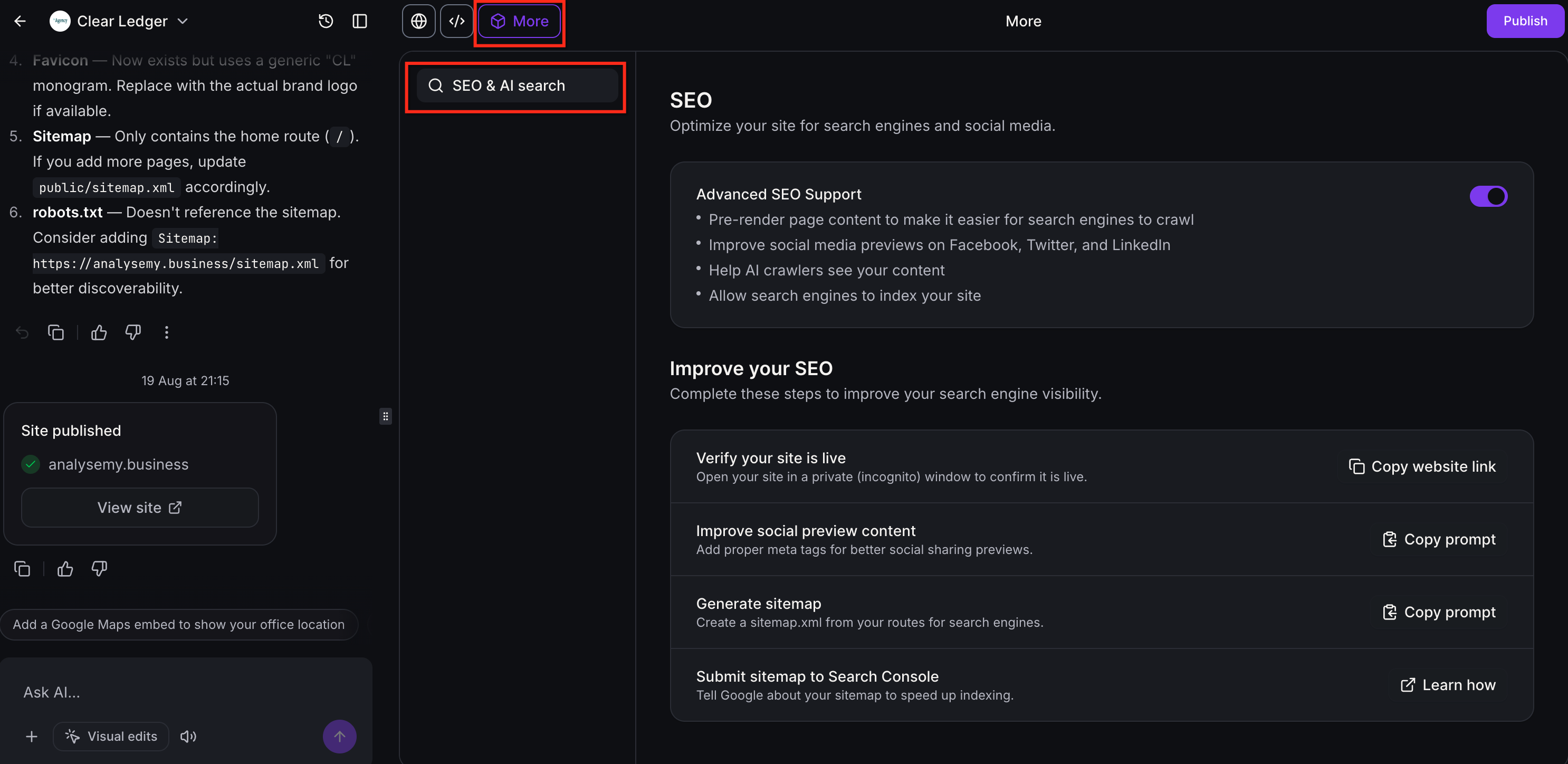
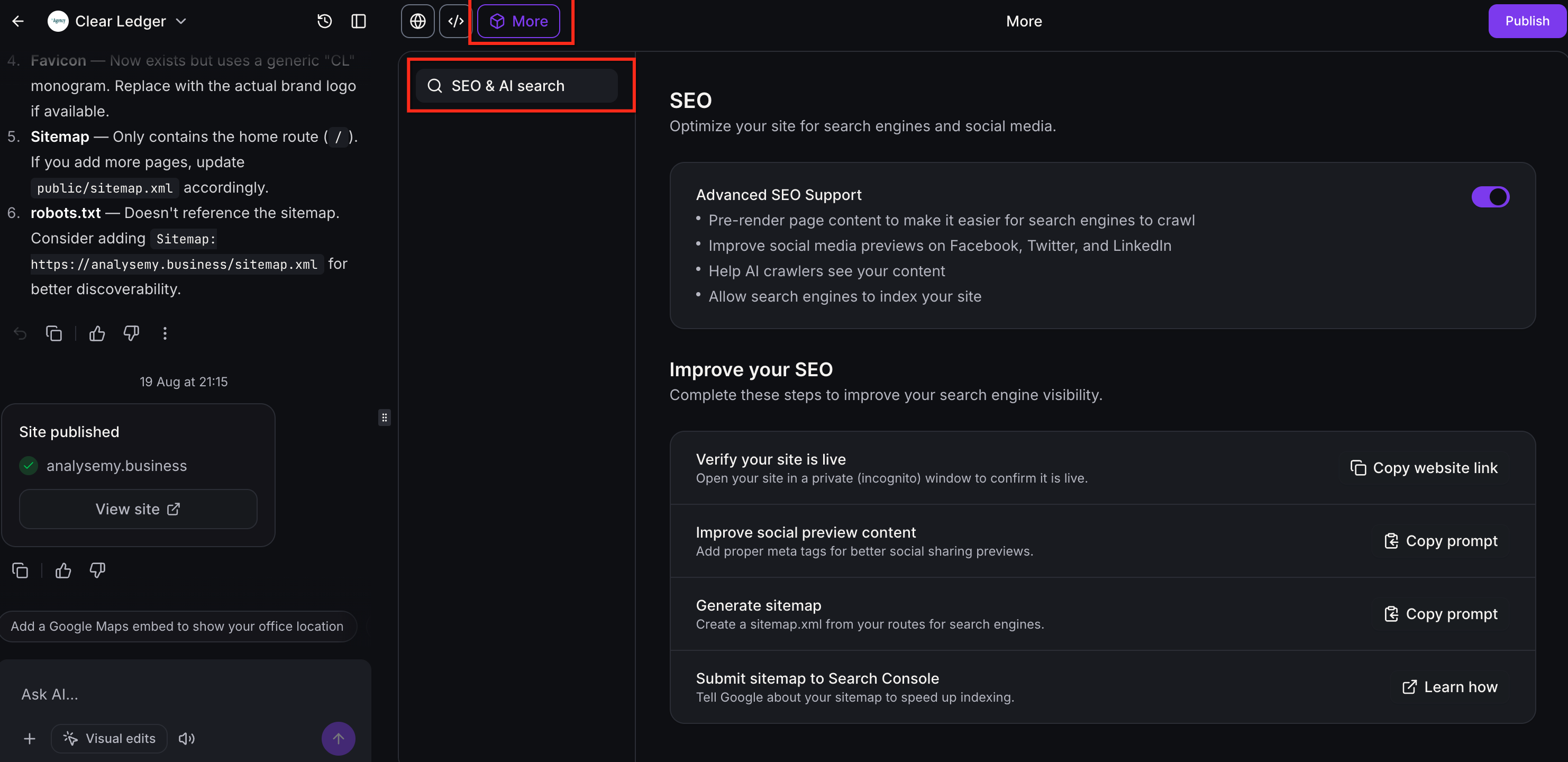
To check your project type: open your project, click More at the top of the builder, and select SEO & AI search.
- If the panel says Pre-rendering is not needed, your project is on TanStack Start.
- If the panel shows an Advanced SEO Support toggle, your project is a single-page app.
You can also ask in the AI Studio chat: What stack is this project on?
New Projects: Server-Rendered by Default
AI Studio projects created on or after September 8, 2026 are built on TanStack Start, which renders every page into finished HTML on the server before it is sent. Visitors, search engines, AI crawlers, and link-preview bots all receive the same complete page. There is no toggle to turn on and no custom domain required for crawlability.
What this means for your site:
- Crawlers see real content, not an empty JavaScript shell.
- Social previews read your title, description, and image straight from the page.
- AI assistants can read and cite your content.
- Nothing to maintain: no pre-render cache, route limit, or re-publish step for SEO.
To view the SEO panel:
- Open your AI Studio project.
- Click More at the top of the builder, then select SEO & AI search.
- Confirm the panel shows Pre-rendering is not needed.
- Under How your site appears, review the search preview of your title, URL, and description.
Server rendering makes your pages readable. It does not write good titles, descriptions, or preview images for you.

Older Projects: Turn On Advanced SEO Support
Older AI Studio projects are single-page apps (SPAs). The browser builds each page with JavaScript, so bots that skip or delay JavaScript can see an almost empty page. Advanced SEO Support fixes this by pre-rendering your pages and serving that HTML to supported bots. Human visitors keep the same fast, interactive experience.
Note: The project must be published, and a custom domain must be connected and set as the primary domain. Pre-rendering does not run on the default preview domain.
To turn on Advanced SEO Support:
- Open the AI Studio project you want to configure.
- Click More at the top of the builder. In the More panel, open SEO & AI search.
- Make sure the project is published, a custom domain is connected, and the custom domain is set as primary. Under Complete these steps to enable, Publish your project shows Done; click Go to Domains to finish the domain setup. For more info, see Publishing Your AI Studio Projects.
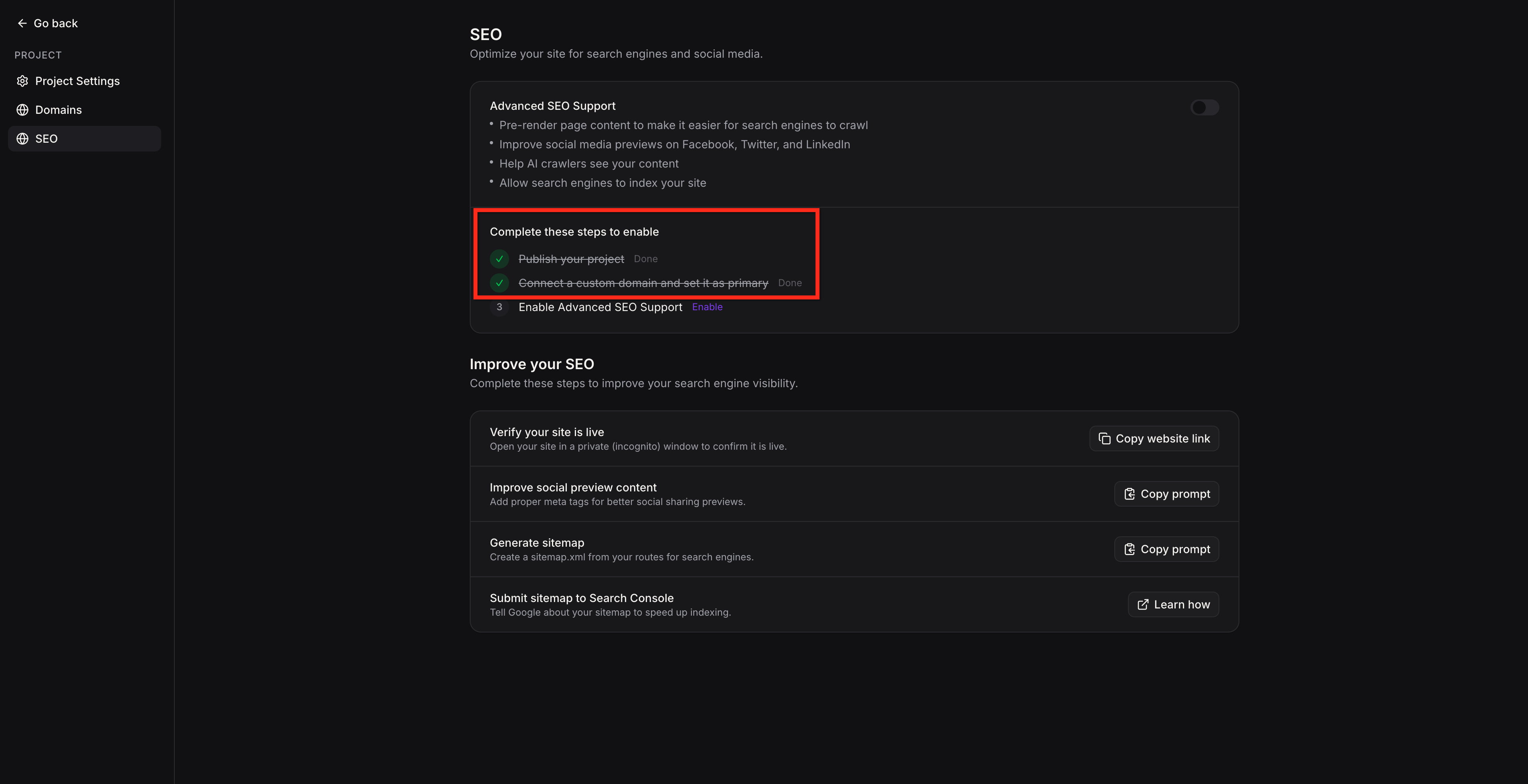
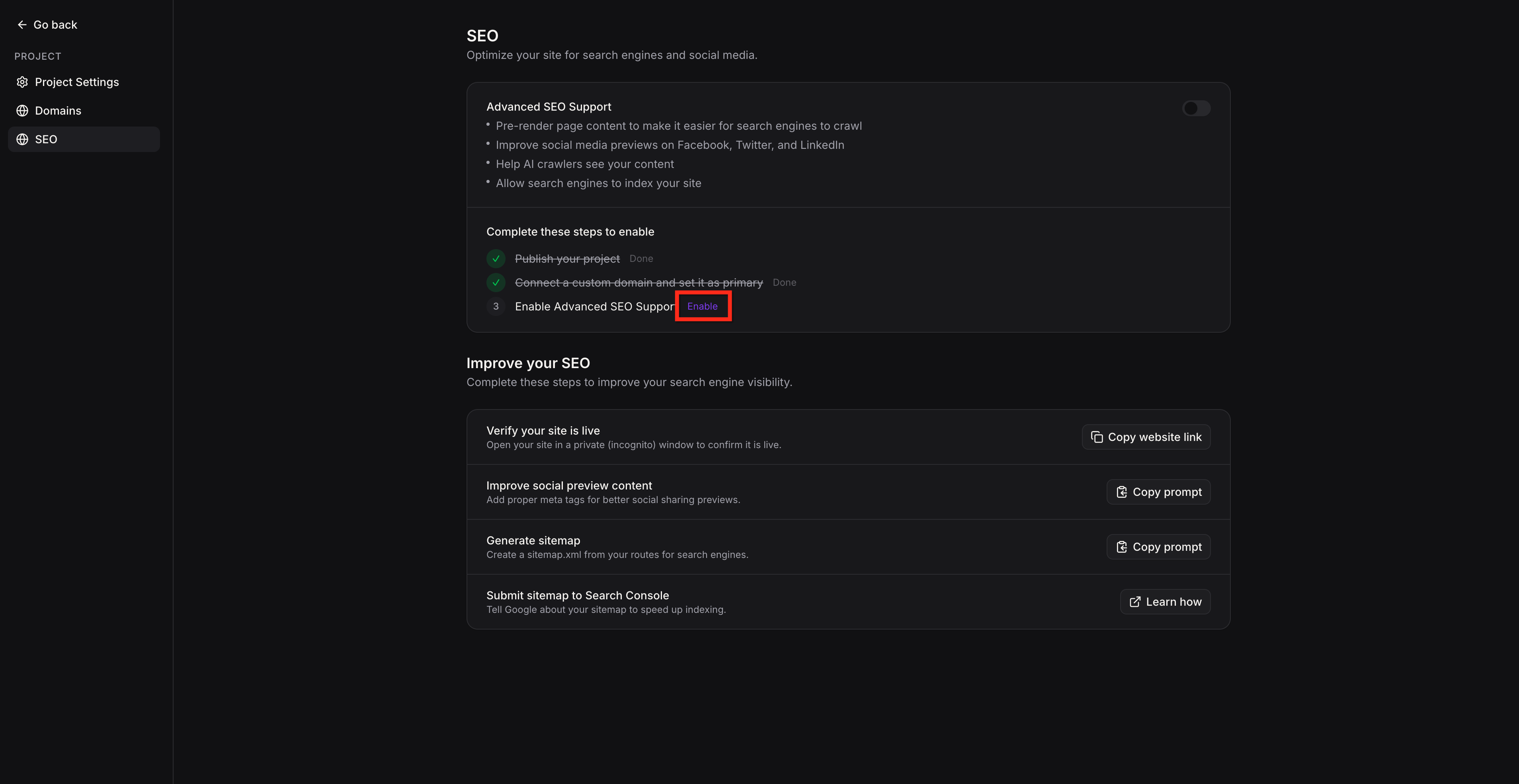
- Click Enable to turn on Advanced SEO Support.
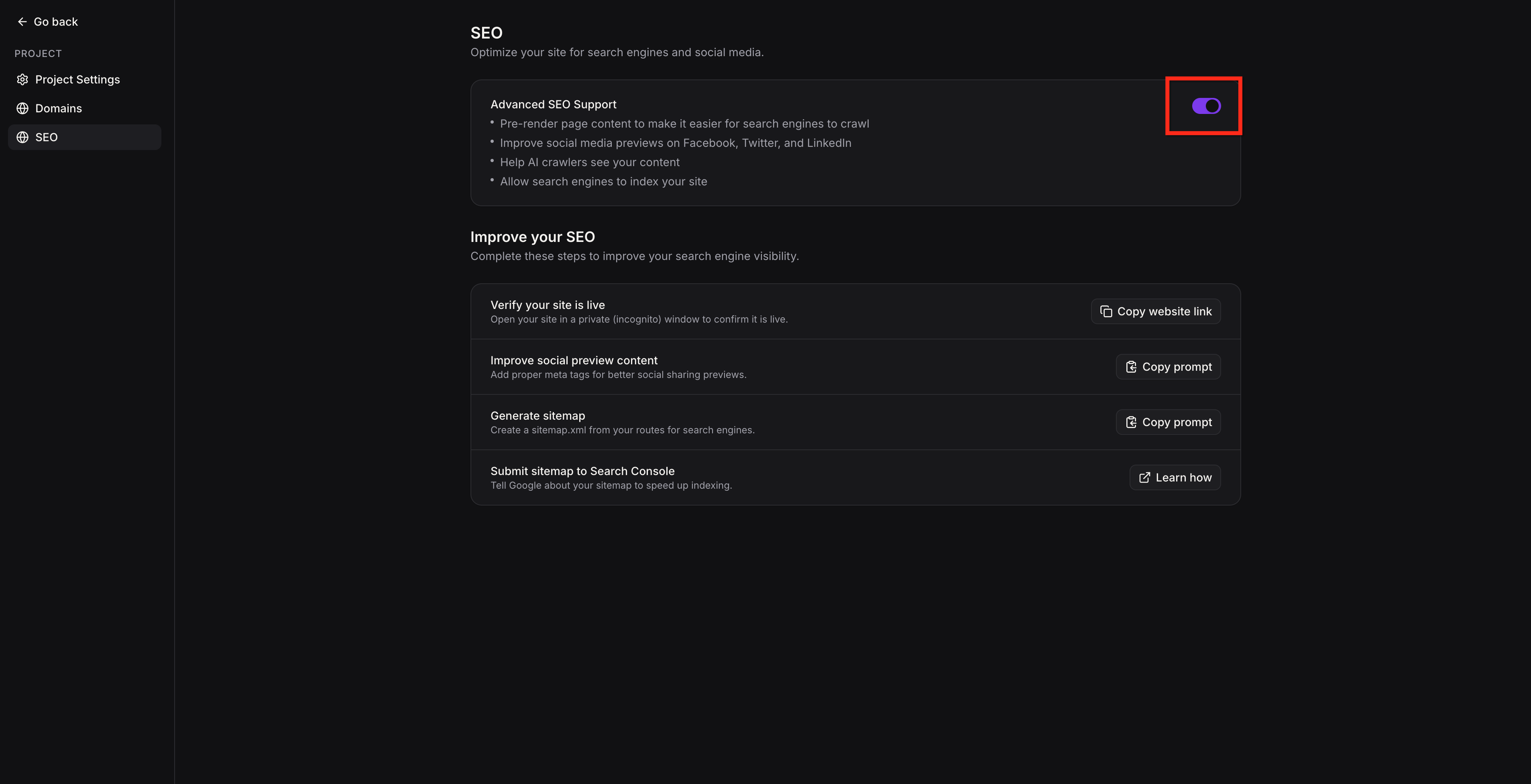
- Confirm the toggle turns purple. Then re-publish the project so the latest rendered output is available to supported bots.
How pre-rendering works
- Automatic bot detection: Supported search engine crawlers, social media bots, and AI crawlers are served rendered HTML automatically. Other bots get the normal single-page app.
- Graceful fallback: If pre-rendering is not enabled or a page is not yet cached, bots receive the standard single-page app, the same as before. No degradation from the current experience.
- Automatic cache refresh: Pre-rendered pages are regenerated on every publish, domain change, or site update. No manual cache clearing or rebuilding is required. The system handles up to 150 routes per site.
- Edge-level serving: Pre-rendered pages are served from Cloudflare's edge network, so bots get them quickly and visitors are not affected.
- What bots can read: Page content, metadata, images, canonical tags, and structured data that already exist on the page.
You can turn pre-rendering off per project with the same toggle.
Want server rendering instead? You can convert an older project to TanStack Start from Project Settings → Migrate to SSR. This creates a separate draft copy; your original project, live site, and domains stay unchanged until you publish the copy and move the domain. See How to Migrate Existing React Projects to SSR in AI Studio.
Improve Your SEO
Readable pages are the foundation. These steps make sure search engines and social platforms show the right information. Both project types have them under Improve your SEO in the SEO & AI search panel; the button names differ slightly.
| Step | New projects | Older projects |
|---|---|---|
| Edit page titles and descriptions | Ask AI to edit meta details | Improve social preview content → Copy prompt |
| Social link previews | Ask AI to edit meta details | Improve social preview content → Copy prompt |
| Favicon | Ask AI to edit favicon | Ask in the AI Studio chat |
| Sitemap | Ask in the AI Studio chat | Generate sitemap → Copy prompt |
| Verify site is live | Copy website link | Copy website link |
| Submit sitemap to Google | Learn how | Learn how |
Edit Titles, Descriptions, and Social Previews
Links shared on Facebook, X (Twitter), LinkedIn, WhatsApp, Slack, and Discord can show the correct page title, description, and Open Graph image instead of a blank or generic preview. Each page can serve its own title, description, and preview image rather than relying on a single site-wide fallback.
- Open the AI Studio project you want to update.
- Click More at the top of the builder, then open SEO & AI search.
- New projects: click Ask AI to edit meta details. Older projects: find Improve social preview content and click Copy prompt.
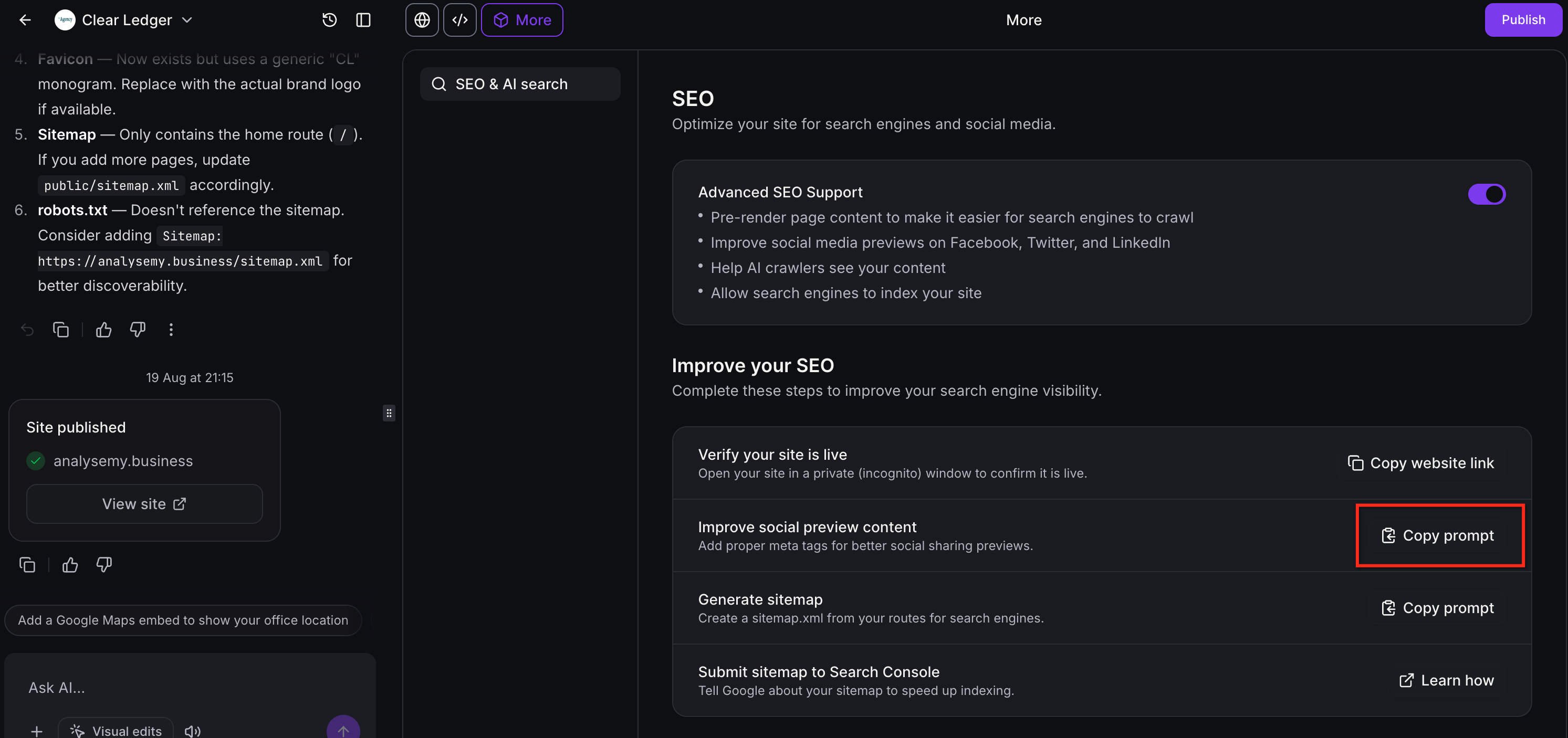
- Older projects: paste the copied prompt into the AI Studio chat.
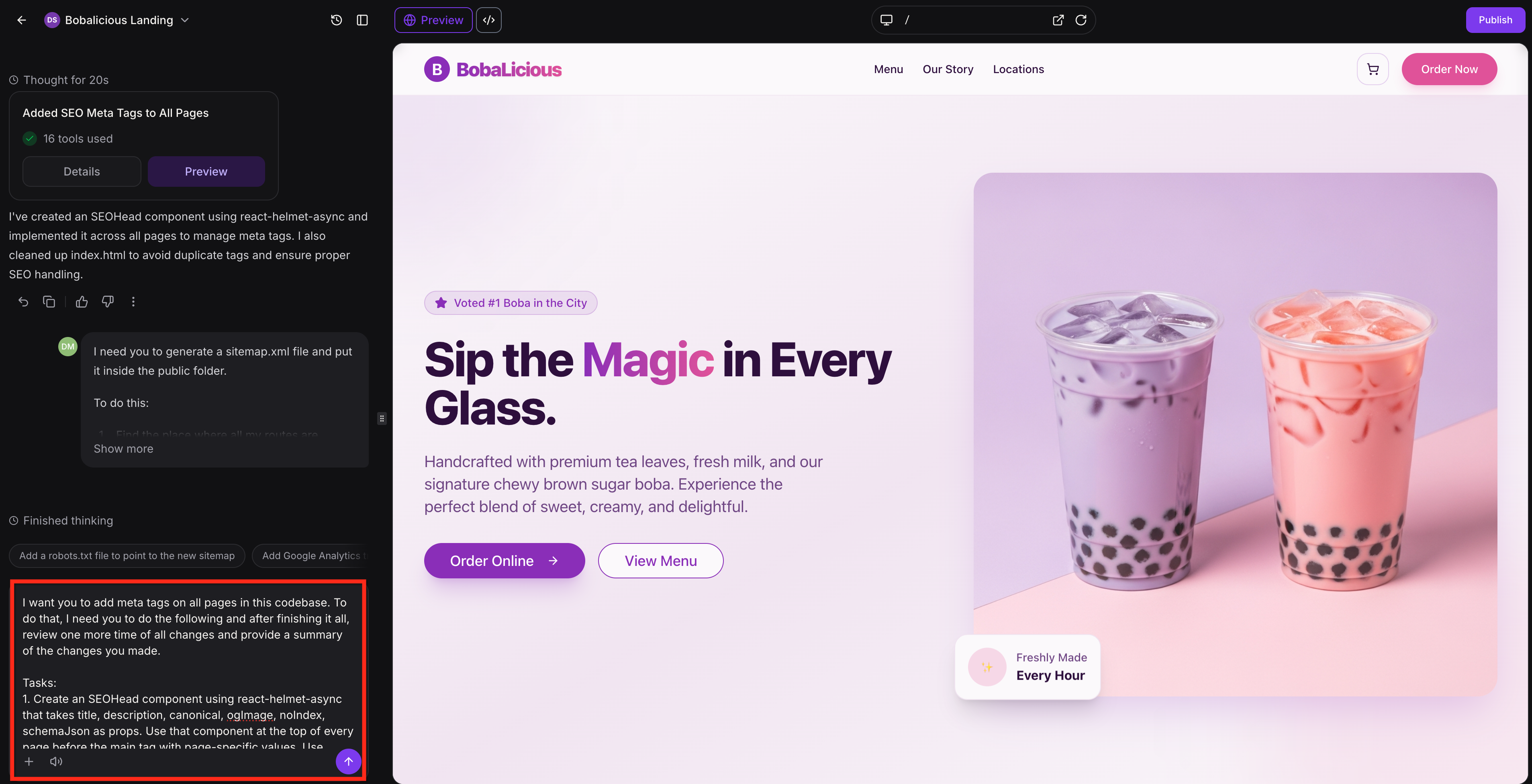
- Review the returned update summary in the builder, then publish your project to apply the updates.
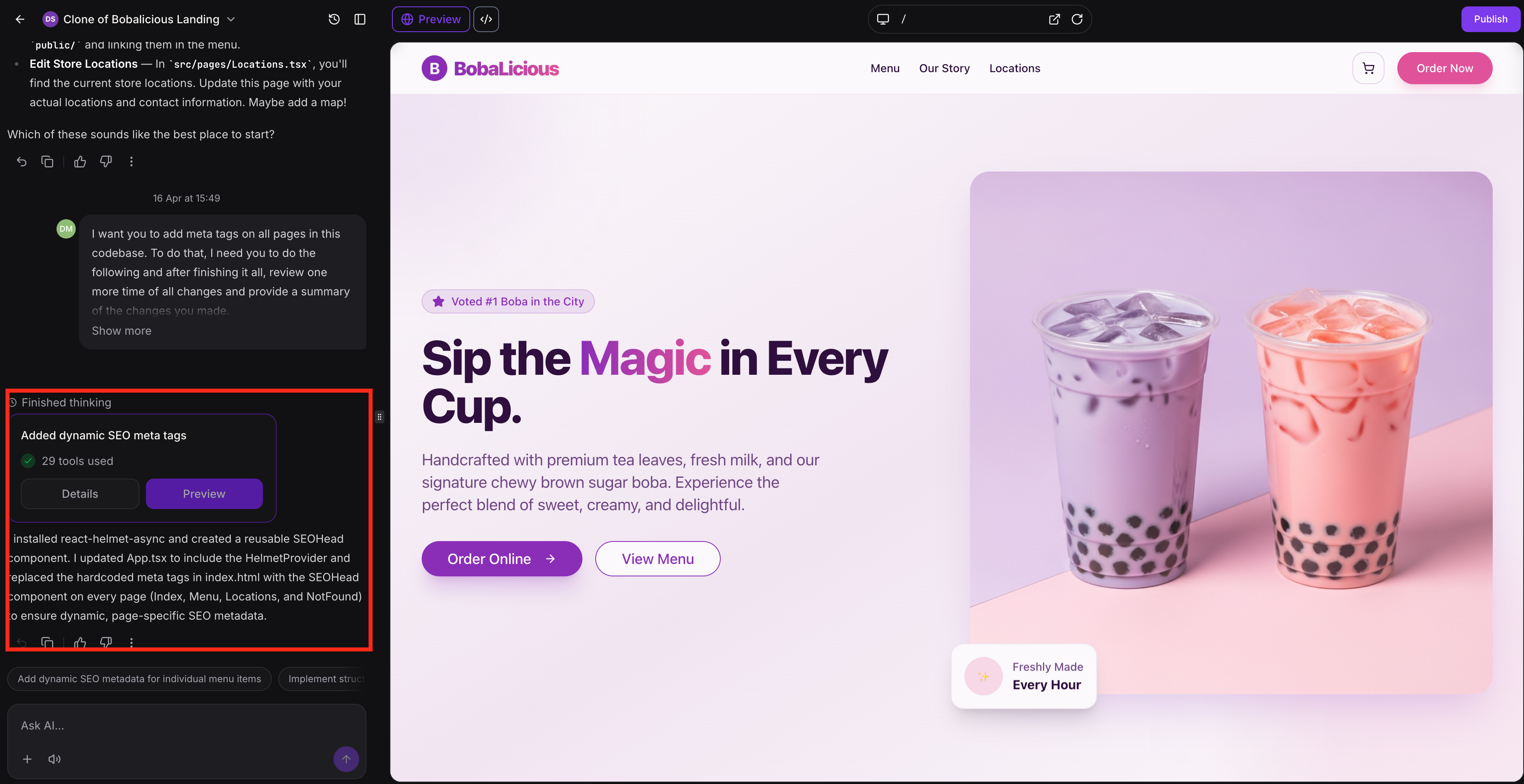
- Confirm it works: share the live URL on a supported platform and check that the preview shows the expected title, description, and image. You can also use the Facebook Sharing Debugger, Twitter Card Validator, or LinkedIn Post Inspector to confirm Open Graph tags are being served and to refresh cached previews.
Tip: Use preview images of 1200 × 630 pixels and keep them small (a few hundred KB). Large images may not show in WhatsApp.
Update Your Favicon
Click Ask AI to edit favicon (new projects), or ask in the AI Studio chat: Update my site's favicon to match my logo. Publish to apply.
Generate a Sitemap
A sitemap lists your important pages so search engines find them faster.
- Open the AI Studio project you want to update.
- Click More at the top of the builder, then open SEO & AI search.
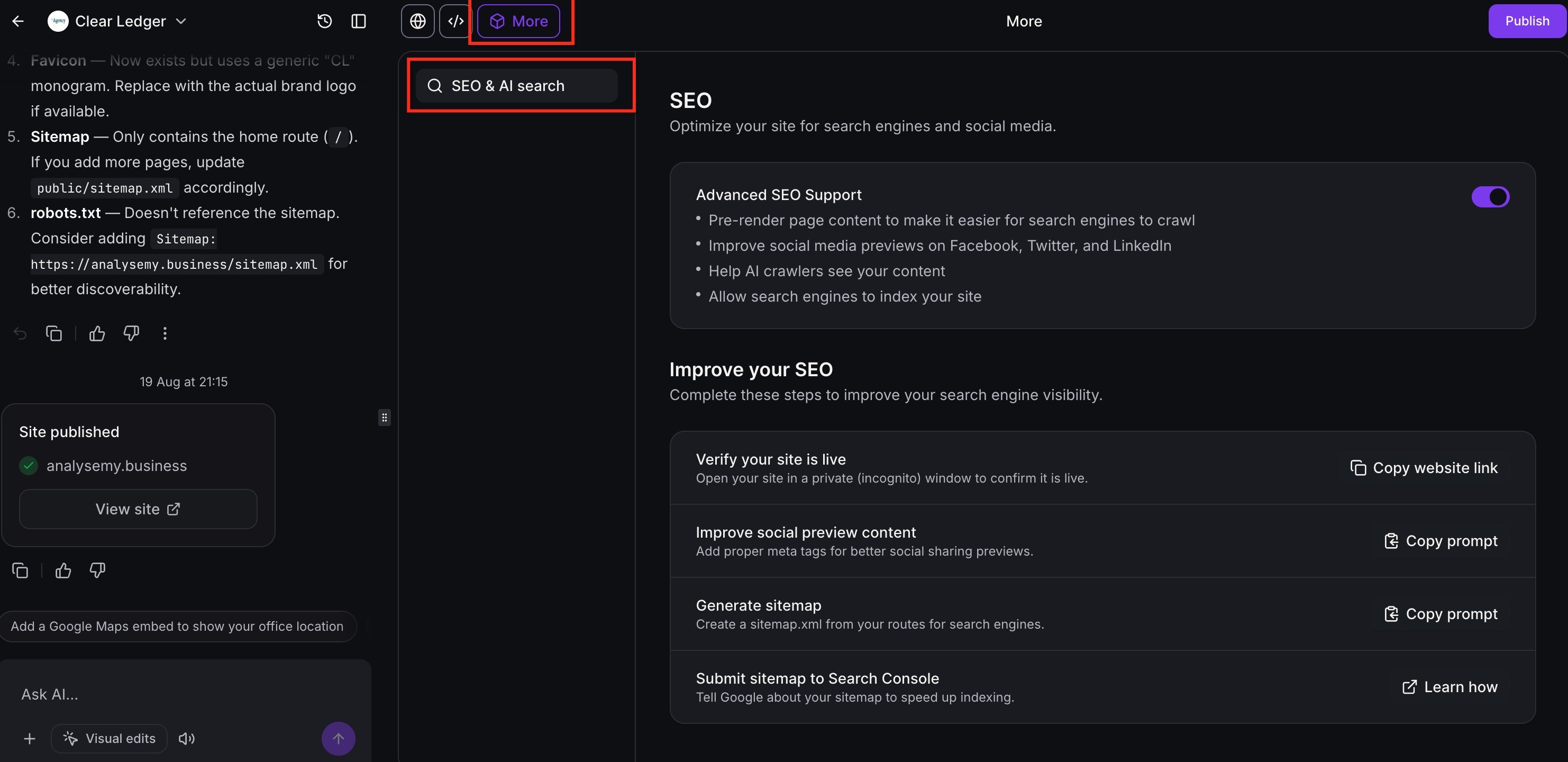
- Older projects: find Generate sitemap and click Copy prompt, then paste it into the AI Studio chat. New projects: ask in the chat:
Create a sitemap.xml for all public pages.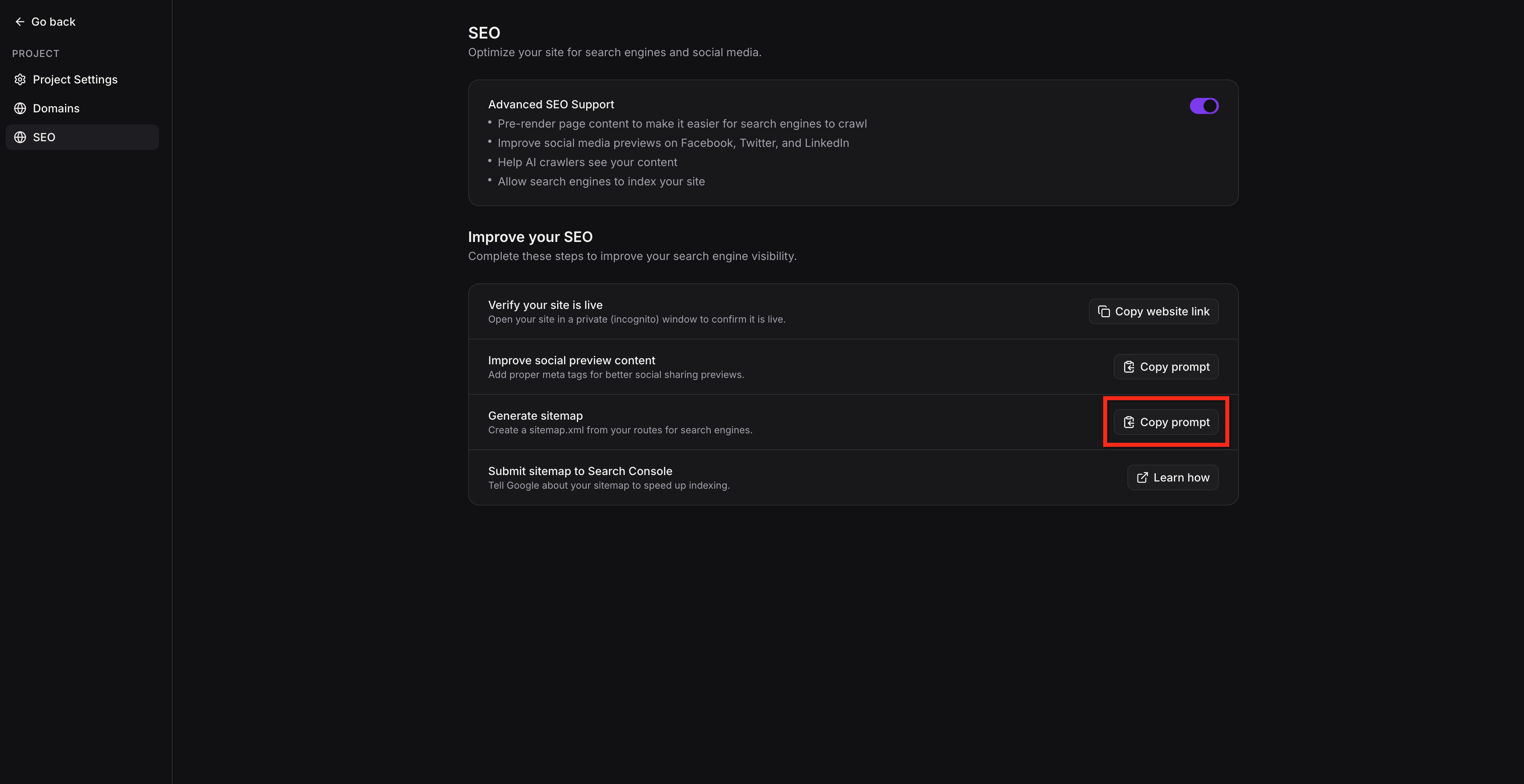
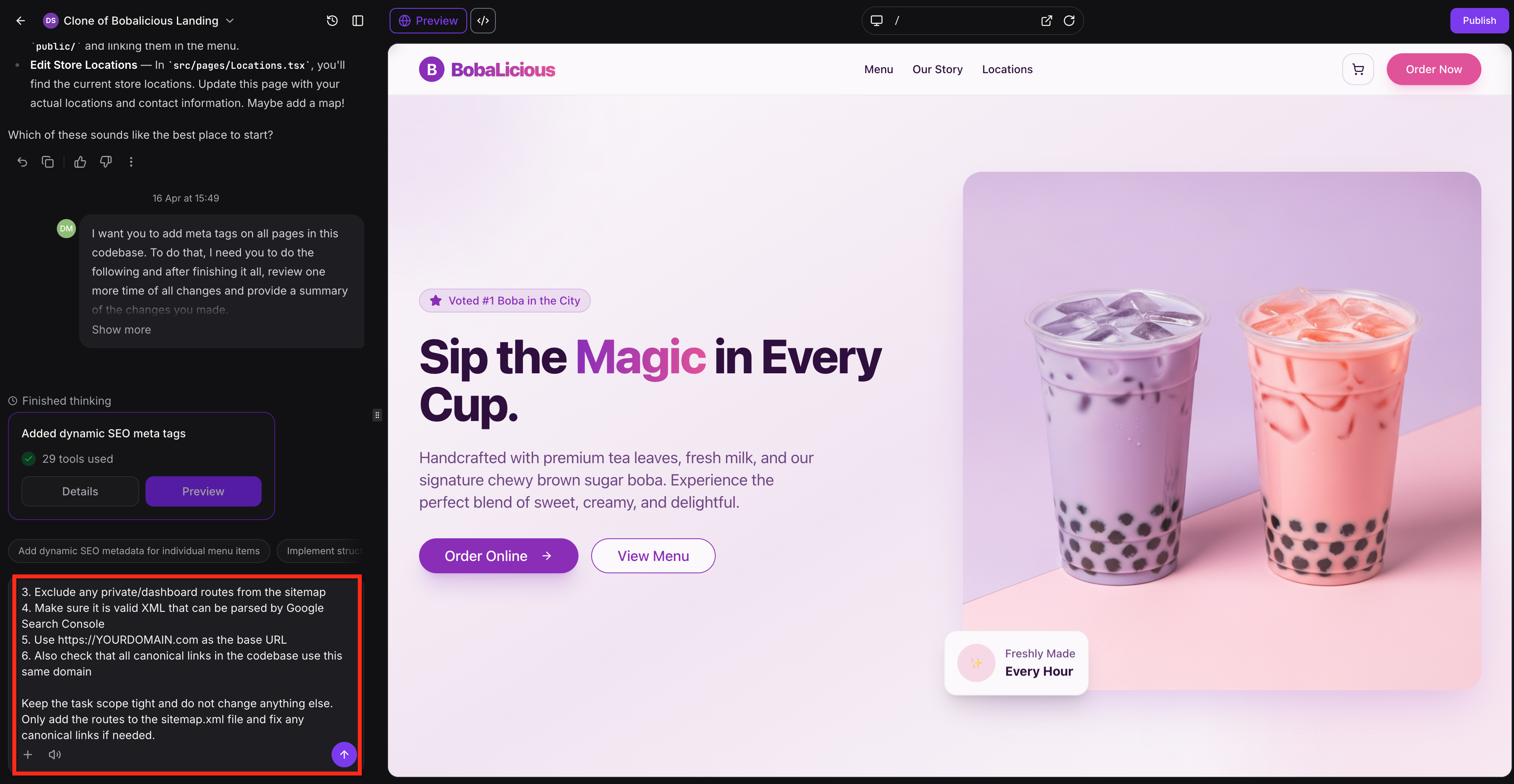
- Review the returned update summary in the builder, then publish your project. To view your sitemap, click Details.
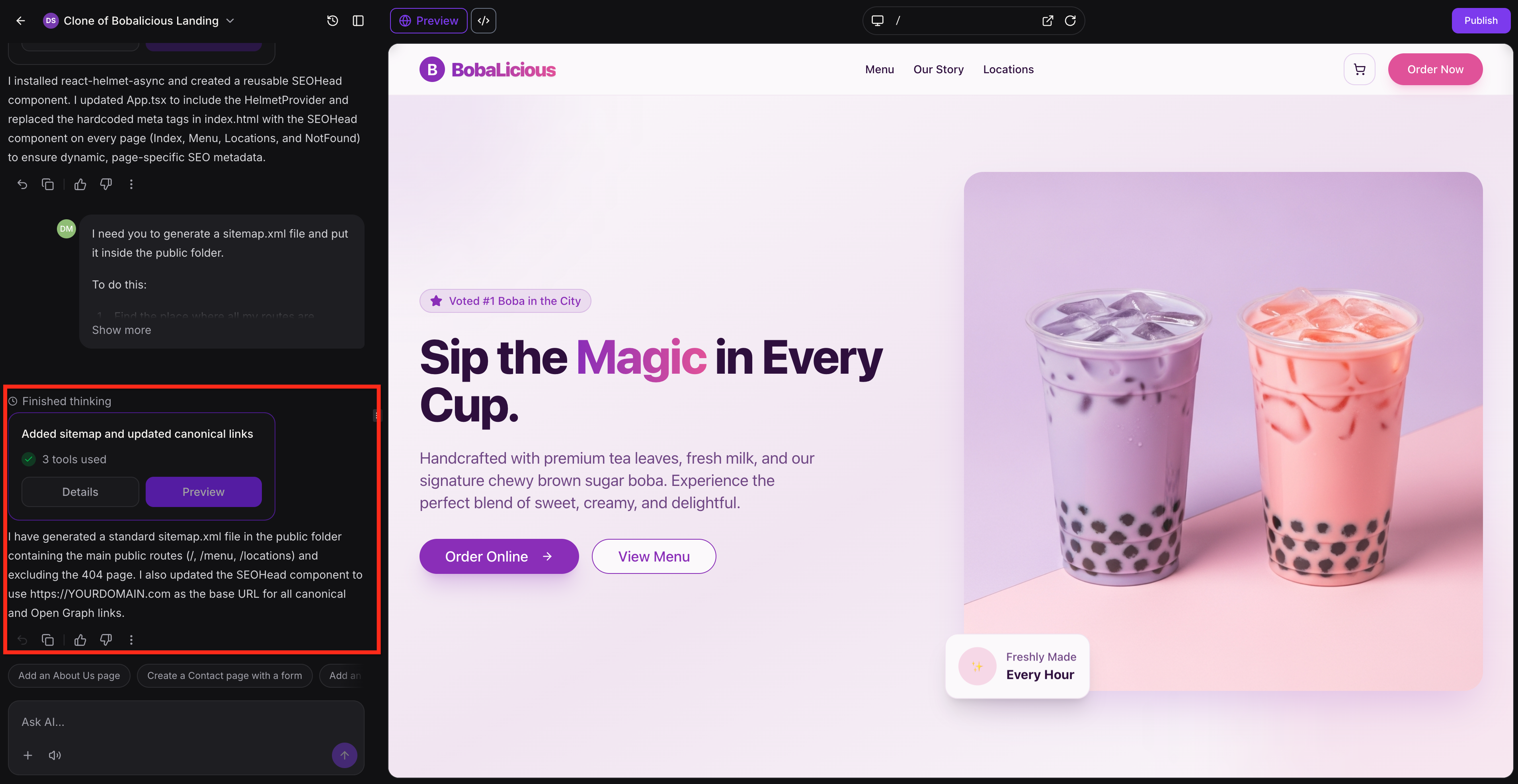
- Open
yourdomain.com/sitemap.xmlto confirm it lists your pages.
Verify Your Site and Submit It to Google
- Click Copy website link and open it in a private (incognito) window to confirm the site is live.
- Add your site to Google Search Console and verify it.
- In Search Console, open Sitemaps, then submit your sitemap URL. This helps Google discover your URLs and lets you monitor sitemap processing.
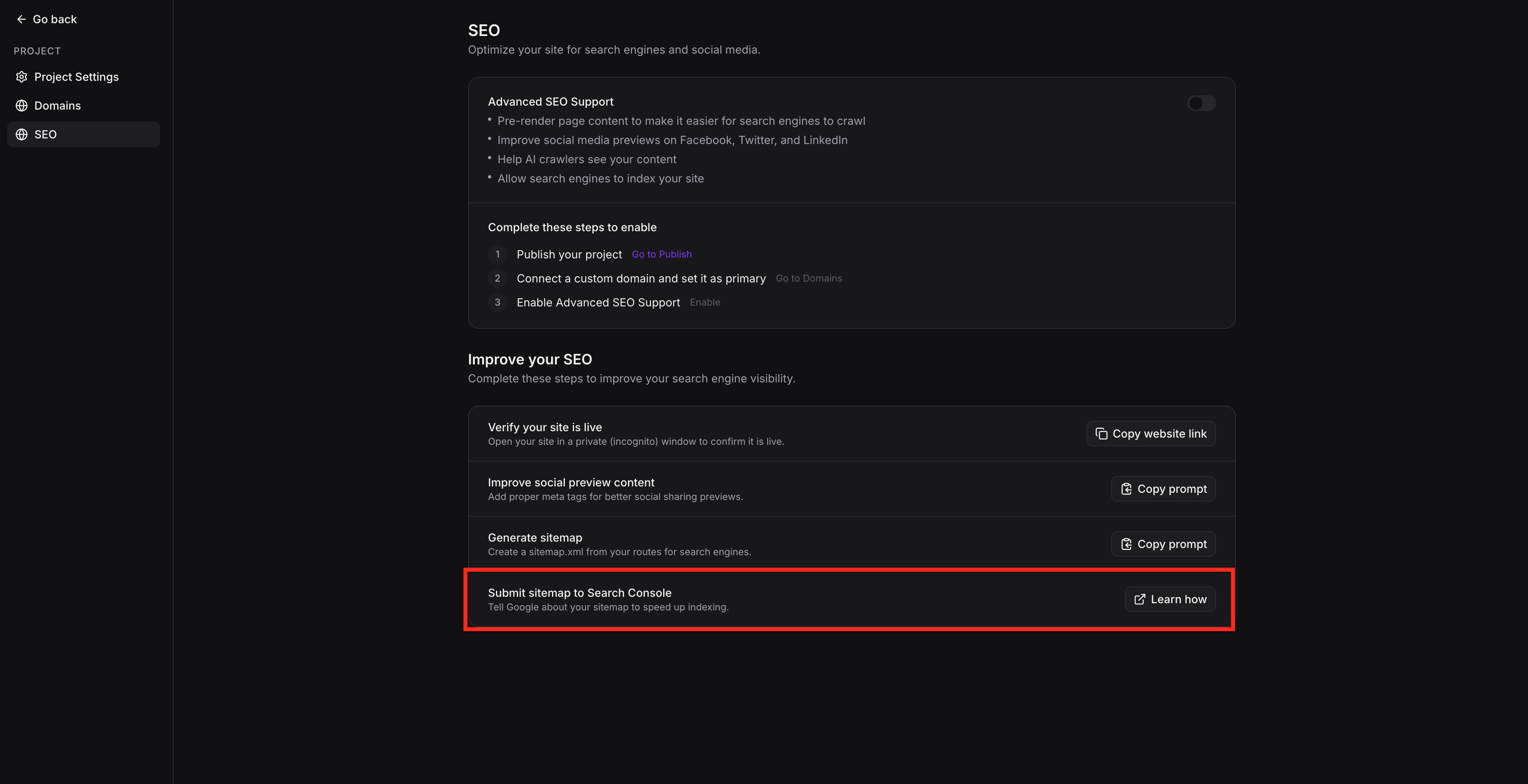
- Use URL Inspection → Request indexing for your most important pages.
If you change your custom domain later, verify the new domain in Search Console and submit the sitemap again.
Tips for Better Search and AI Visibility
Technical setup gets your pages read. Rankings and AI citations still depend on content, structure, and links. You can ask the AI Studio chat to help with each of these.
Content and structure
- One clear H1 per page, with headings in order (H1, H2, H3).
- Alt text on every meaningful image.
- Important facts written as visible text on the page, not only inside images.
- Short, direct answers to the questions your customers ask. AI assistants cite these.
Metadata
- A unique title and description for every important page.
- A preview image per page instead of one site-wide image.
- Structured data (schema) where it fits, such as LocalBusiness, Event, or FAQ. Advanced SEO Support does not add it for you.
Domain and authority
- Use a custom domain, set it as primary, and verify it in Google Search Console.
- Link to your site from your social profiles, listings, and partner sites.
Prompts to try in the AI Studio chat
Review every public page and give each one a unique title and meta description.Add alt text to all images that are missing it.Add LocalBusiness structured data using the address and hours on the contact page.Add an FAQ section to the home page with FAQ structured data.
Frequently Asked Questions
Q: My project says "Pre-rendering is not needed." Do I still need a custom domain?
Not for crawlers to read your pages. We still recommend one, set as primary, so your search presence, backlinks, and Search Console data build on a domain you own.
Q: Do I need to publish before my site shows up in search?
Yes. Only published, public sites can be indexed. Unpublished changes are not visible to search engines.
Q: Does pre-rendering change how my site looks for visitors?
No. On older projects, only supported bots receive the pre-rendered HTML. Visitors get the same interactive site. On new projects, everyone gets the same server-rendered page.
Q: Can I move an older project to TanStack Start?
Yes, but you don't have to. Open the project, go to Project Settings, and select Migrate to SSR. AI Studio creates a separate draft copy named "{project name} (TanStack)" and converts it in chat. Your original project, live site, and domains are not changed. Before publishing the copy, test forms, calendars, and integrations, re-add secrets, and update any workflow filters that point to the original project. Full steps: How to Migrate Existing React Projects to SSR in AI Studio.
Q: Why does my link preview still show the wrong title or image?
Check that each page has its own title, description, and preview image, then publish. Platforms cache previews, so refresh them with the platform's debugging tool.
Q: How long until Google indexes my site?
Usually days, sometimes longer. Submit your sitemap in Google Search Console and use Request indexing for priority pages to speed it up.
Q: Does Advanced SEO Support add schema markup?
No. Ask the AI Studio chat to add structured data. On older projects, pre-rendering then serves it to bots; on new projects it is already in the server-rendered HTML.
Q: Do I need an llms.txt file for AI search?
No. AI assistants read your rendered pages. Focus on clear headings, visible facts, and good metadata.
Q: When does the pre-render cache refresh? (older projects)
Automatically, whenever you publish, update and re-publish the site, or change the connected domain.
Related Articles
Was this article helpful?
That’s Great!
Thank you for your feedback
Sorry! We couldn't be helpful
Thank you for your feedback
Feedback sent
We appreciate your effort and will try to fix the article