Create SEO-friendly blog posts faster with Blog Post AI. This built-in writing assistant helps you generate, refine, and publish blog content directly inside the Blog Editor, so you can move from idea to draft without switching tools.
Important: Blog Post AI is available through Labs. Turn it on for your sub-account before using it.TABLE OF CONTENTS
What is Blog Post AI?
Blog Post AI is HighLevel’s built-in AI writing assistant for the Blogs. It helps you create SEO-friendly content from inside the Blog Editor. Instead of starting from a blank page or relying on external writing tools, you can generate and refine blog content in one place.
Blog Post AI can search the web in real time to gather the latest information before generating content. The AI retrieves relevant sources, compiles recent updates, and uses that information to generate structured blog content.
Whether you want full automation or precise control, you can choose between Assist Mode and Build Mode to generate content effortlessly. Blog Post AI enables you to:
Generate blog posts from a topic
Create long-form or custom content using your own prompt
Automatically generate images
Get SEO-personalized titles, descriptions & keywords
Edit, rewrite, or regenerate any part of your blog
Publish or save drafts instantly
This turns HighLevel into a full end-to-end content creation workspace!
Key Benefits of Blog Post AI
Faster Drafting: Generate complete blog post drafts in minutes instead of writing every section from scratch.
Built-in SEO Support: Create blog content with SEO-focused structure, metadata, and keyword guidance directly in the editor.
Flexible Creation Options: Choose between guided topic-based generation and custom prompt-based generation depending on your goals.
Smarter Editing: Improve tone, clarity, readability, and content length without leaving the Blog Editor.
Streamlined Publishing: Save your work as a draft or publish directly after reviewing the final content.
AI Modes Explained
Below are detailed explanations of the two AI writing modes:
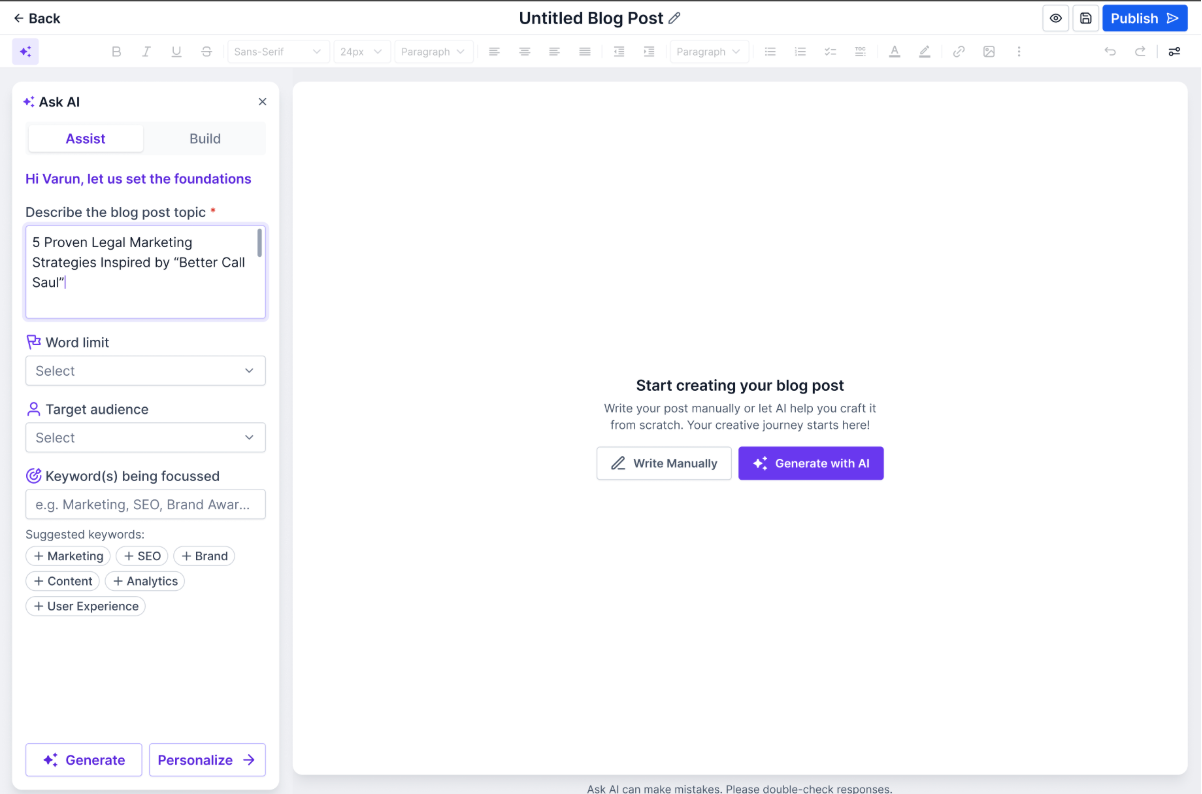
Assist Mode (Topic-Based Blog Generation)
Use Assist Mode when you want AI to create a full blog from a simple topic. This option is useful when you already know the blog subject but want help with structure, SEO direction, and drafting.
How it works:
Enter your topic and preferences (word count, target audience, keywords) and HighLevel generates a blog draft designed for readability and SEO. This includes a complete outline, headings & subheadings, SEO metadata (title, description, keywords) and relevant AI-generated images.
Best for:
First drafts from a simple topic idea
SEO-focused content
Faster content creation with minimal prompting
Agencies producing blogs at scale
Build Mode (Prompt Creation)
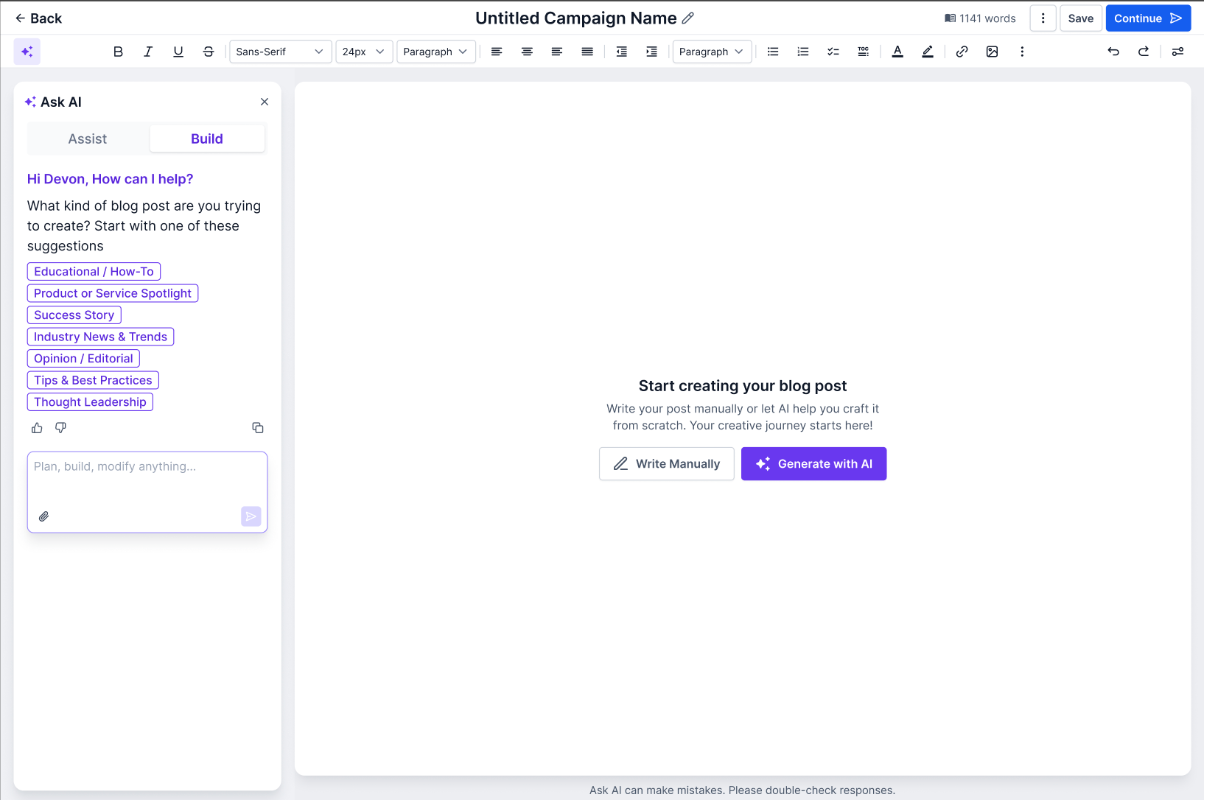
Build Mode is for advanced users who want long-form or highly personalized outputs. By allowing you to enter a custom prompt, Build Mode gives you more control over the content direction, tone, structure, or creative style.
How it works:
To use Build Mode, write any custom prompt, such as the example below, and the AI will create a tailored blog:
“Write a 1500-word guide on sustainable fashion for beginners.”
“Create a blog about the benefits of magnesium with research-backed points.”
Best for:
Niche industries
Technical or expert-level topics
Advanced marketers & agencies
Writers needing creative control
Smart Editing Tools
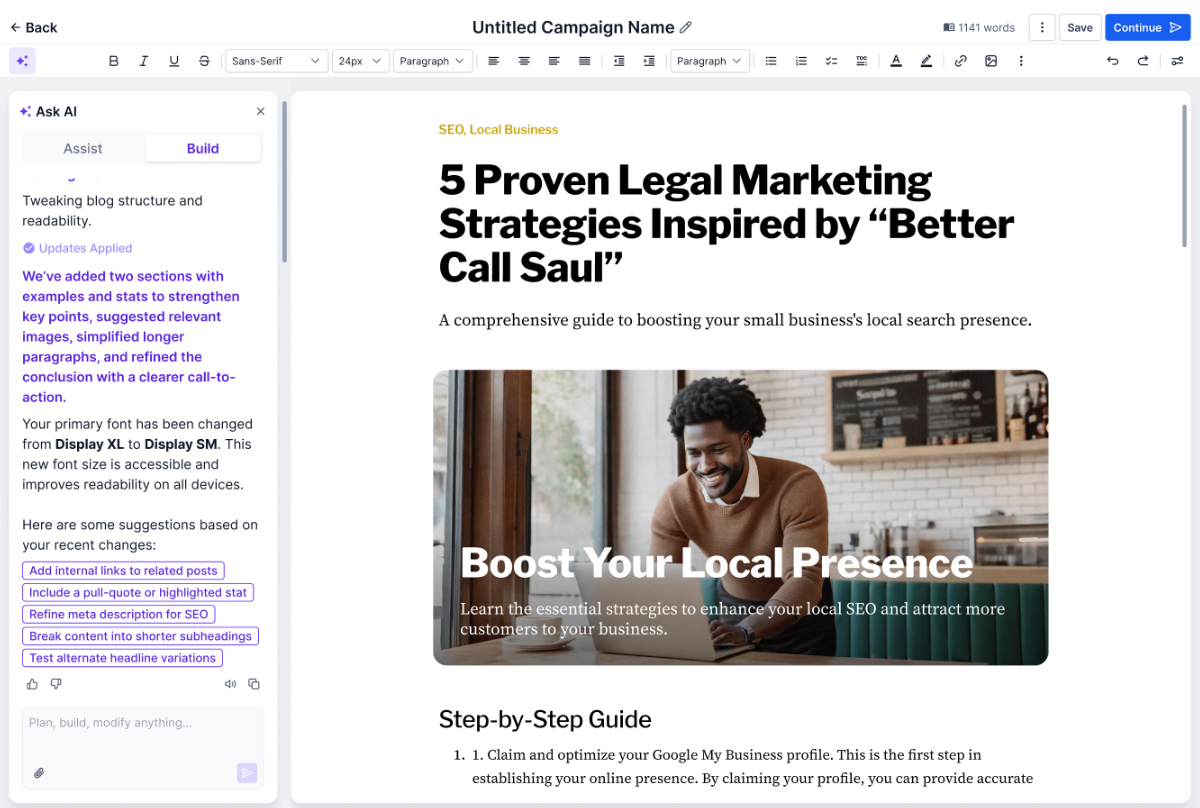
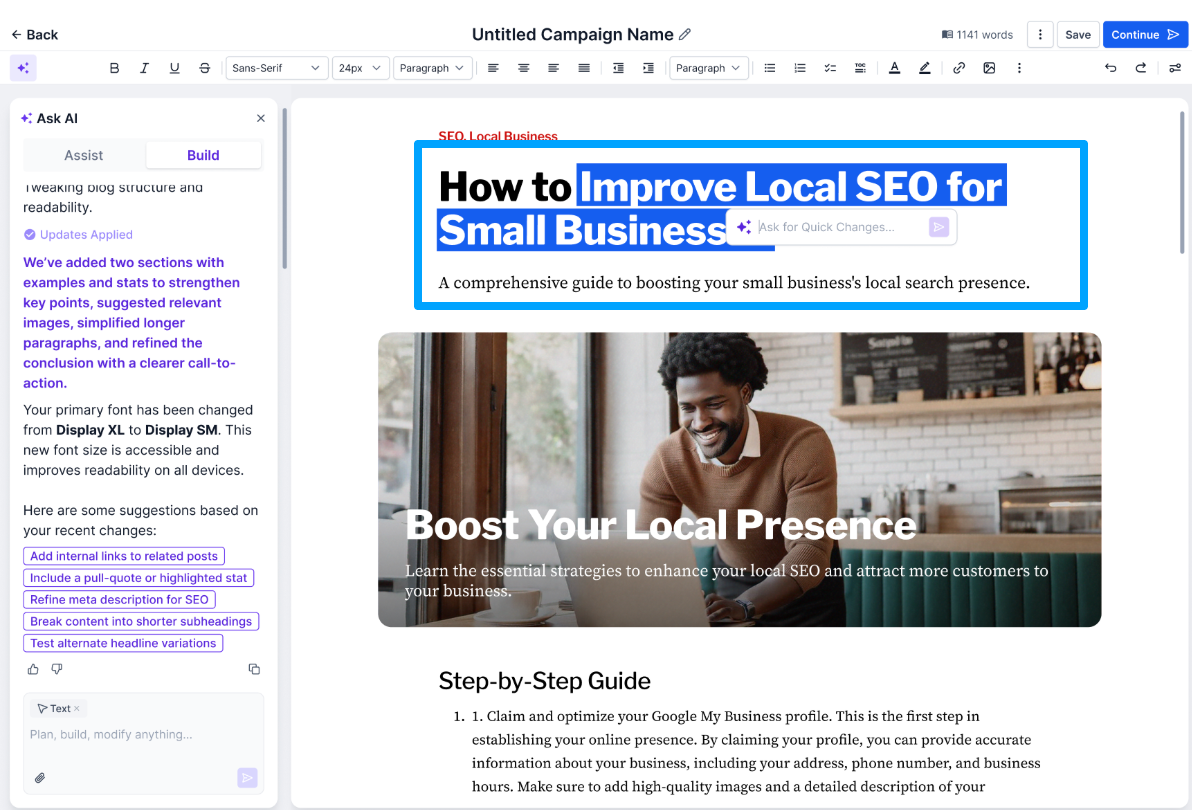
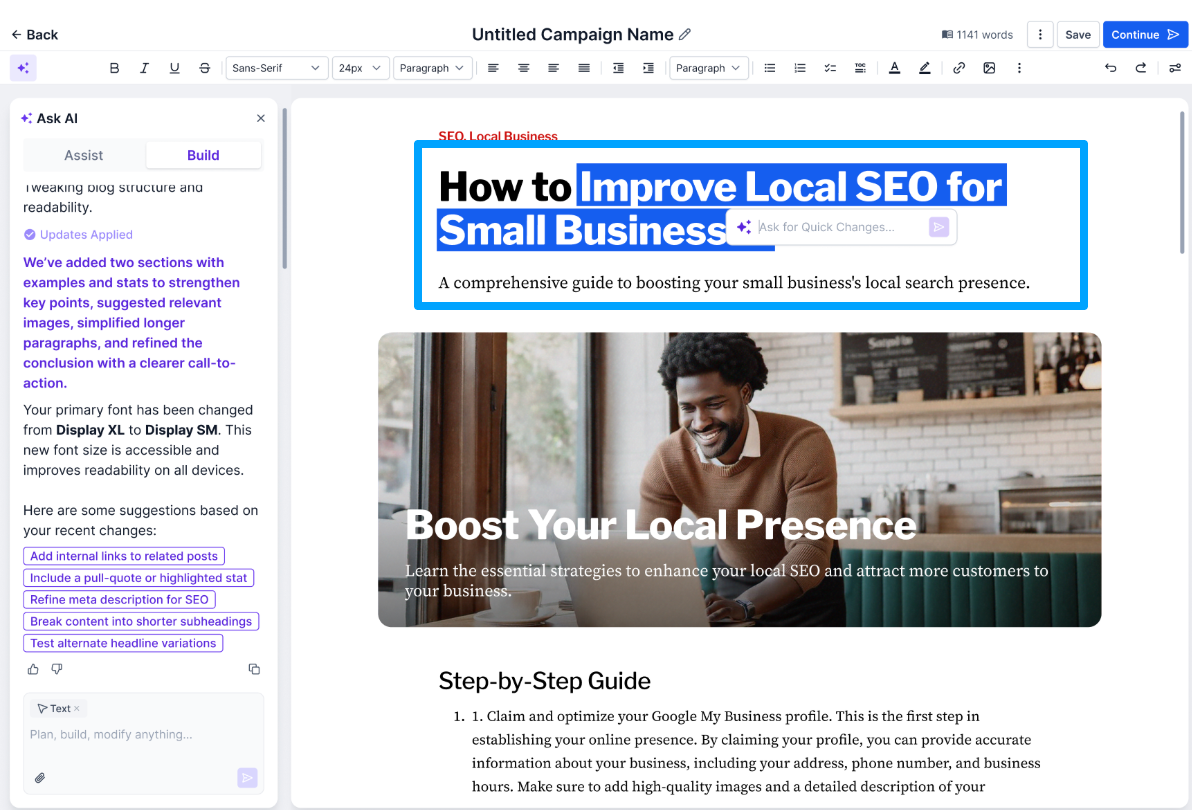
After generating content, you can seamlessly refine your post. Inside the editor, you can:
- Regenerate paragraphs
- Improve tone, clarity, or length
- Replace or regenerate AI images
- Delete unused sections
- Apply SEO enhancement suggestions
Everything happens in one place, no copying or switching tabs.
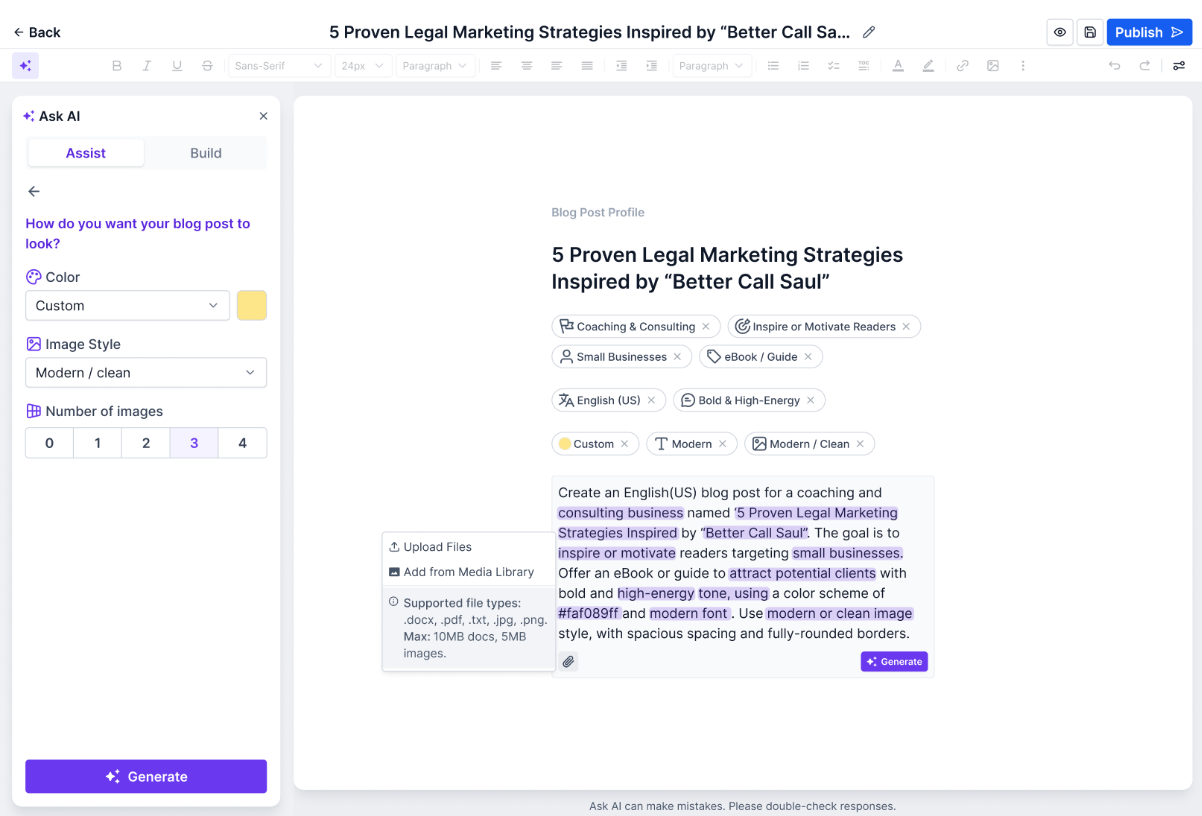
Language Translation
Blog Post AI supports multi-language content generation and translation, allowing users to create or translate blog content into different languages directly inside the editor. This makes it easier for businesses and agencies to publish content for global audiences.
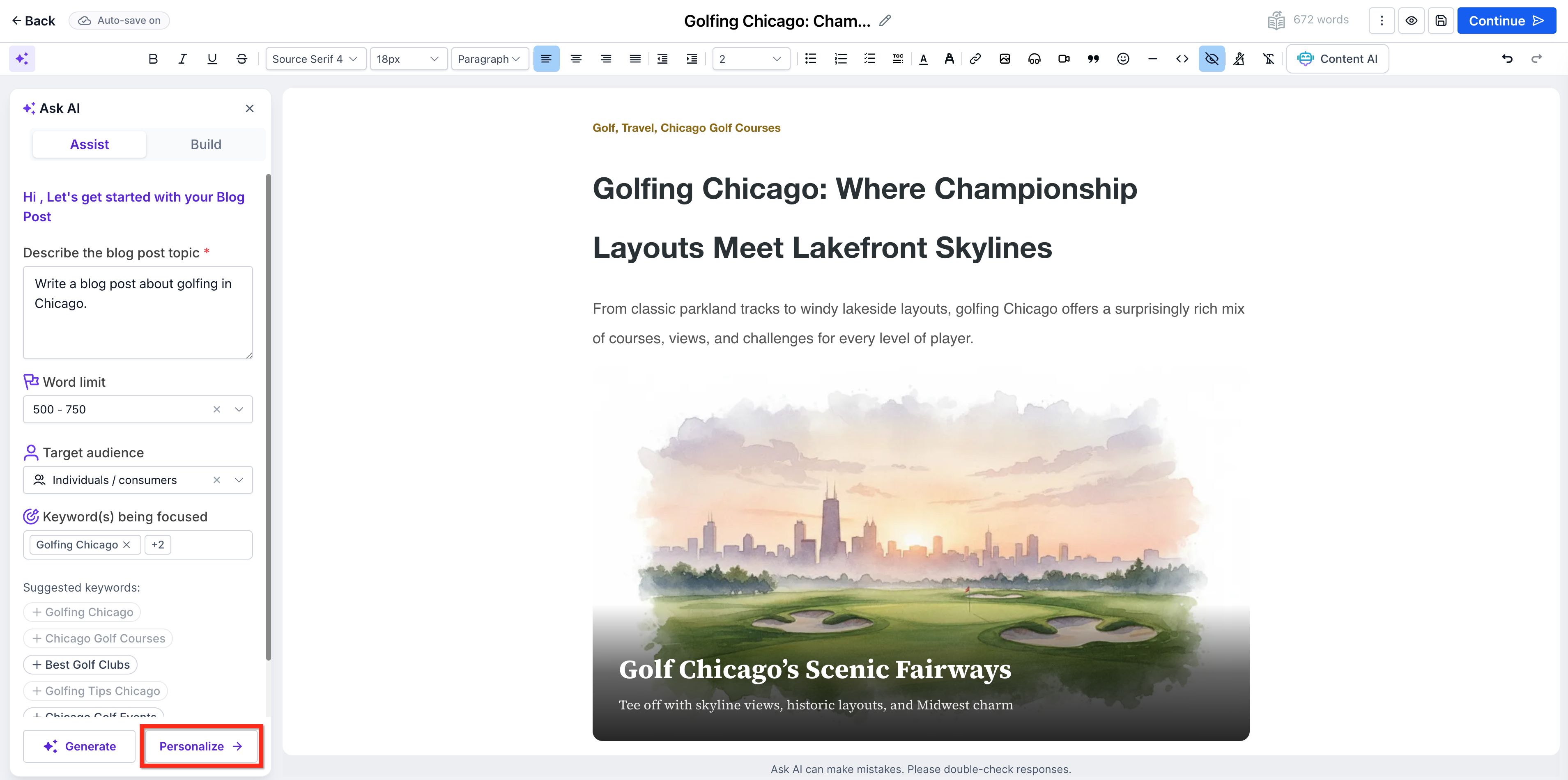
- Under Assist mode, select Personalize.
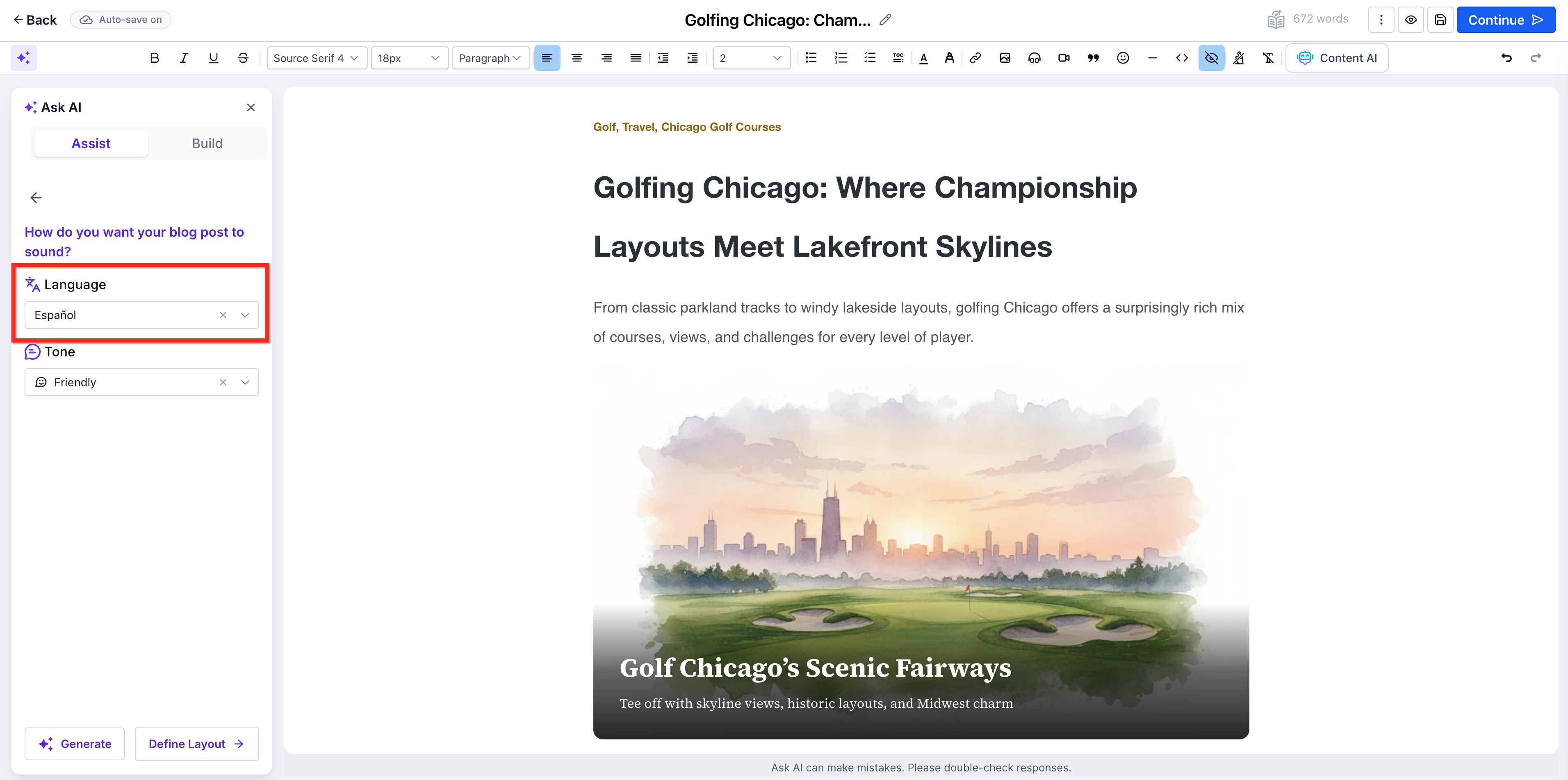
- Use the drop-down to select the desired language. You can also change the tone of the writing from this page.
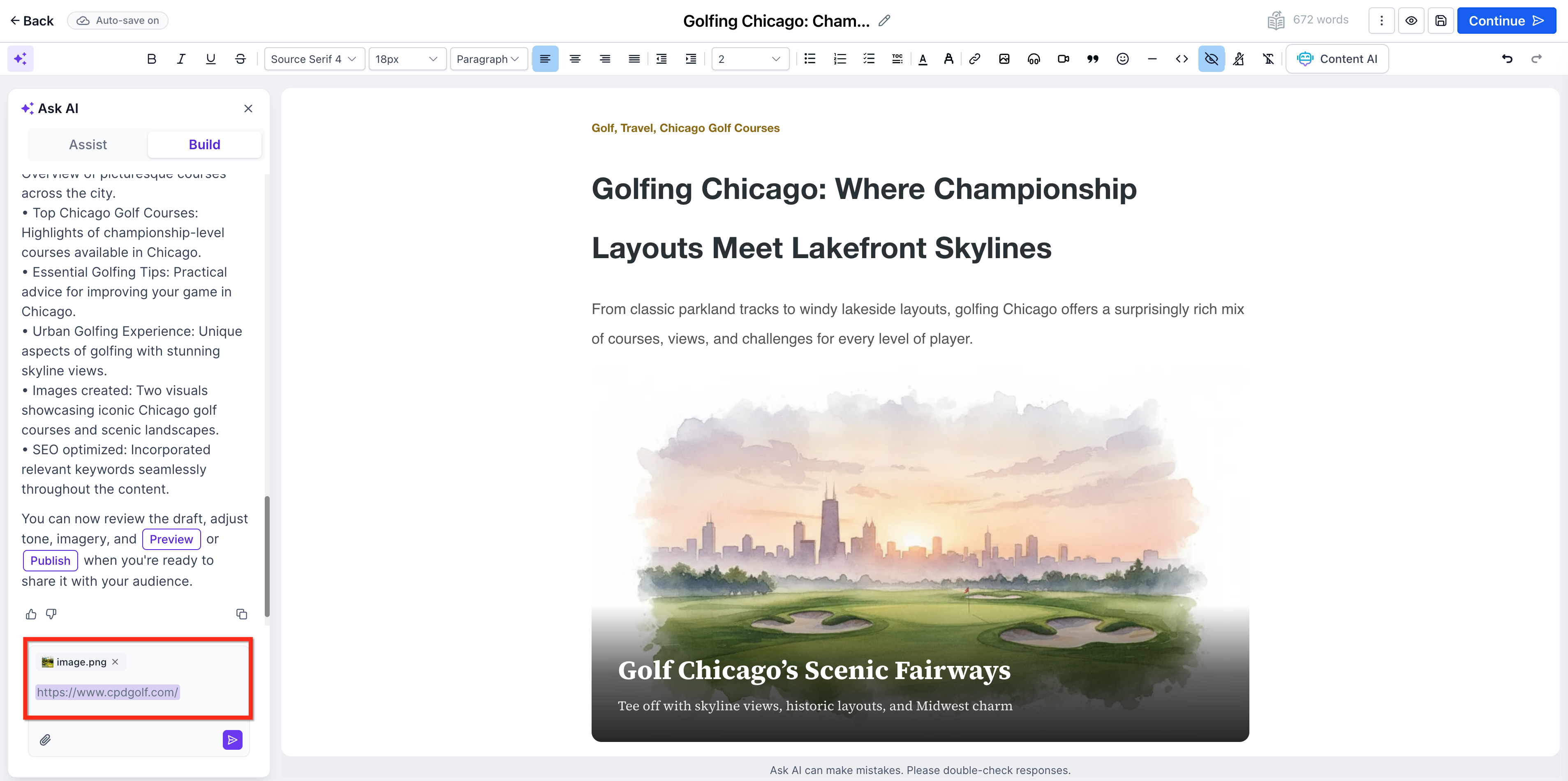
URL and Image Referencing
Reference inputs help Blog Post AI produce more contextual and relevant output. Supplying a source URL or an image can improve alignment when you want the generated content to follow a specific source, campaign, topic, or visual direction.
Blog Post AI can use:
Reference URLs as contextual inputs during content generation
Image inputs when generating blog sections or related content
How to Use Blog Post AI
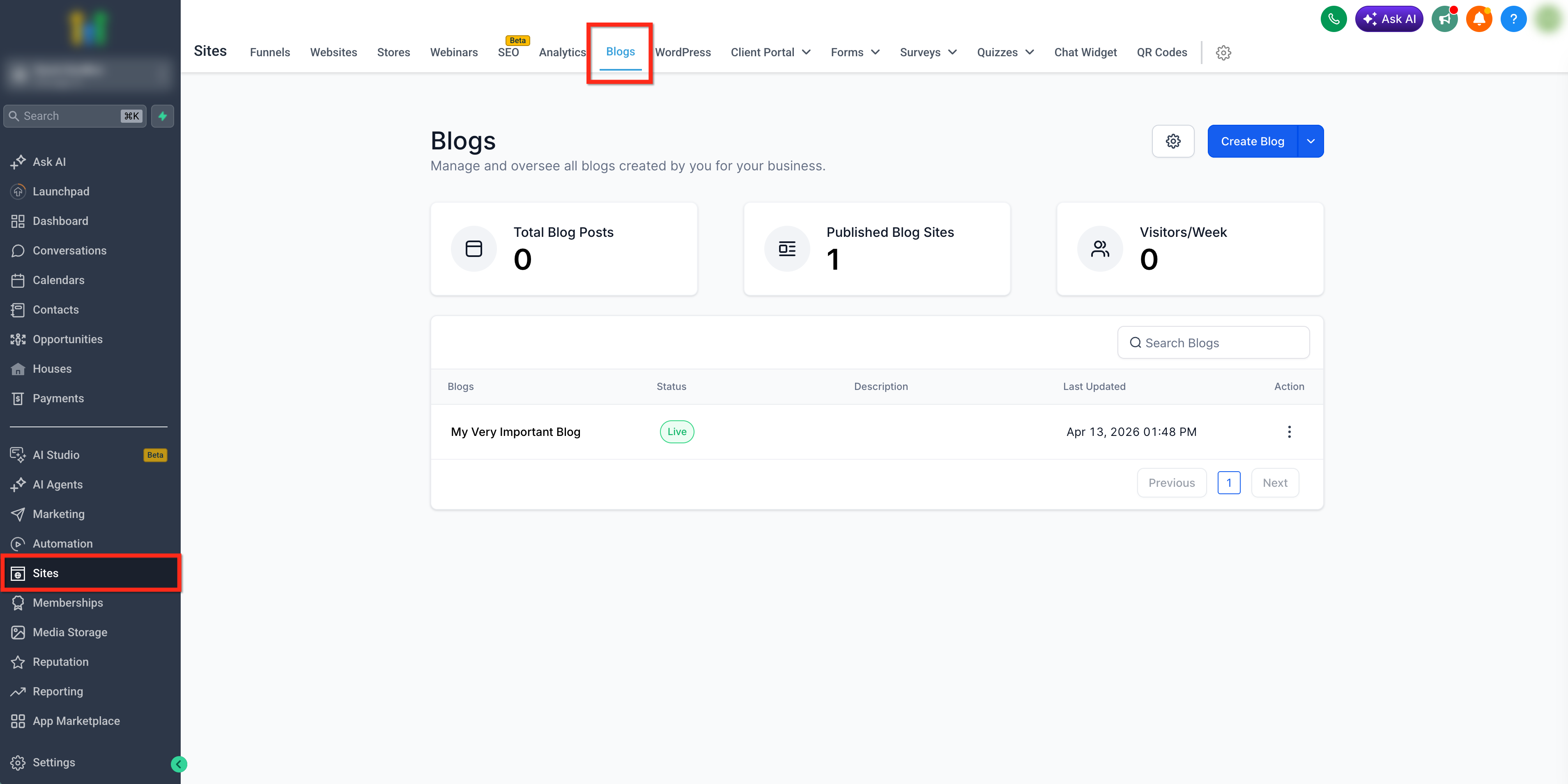
Go to Sites > Blogs.
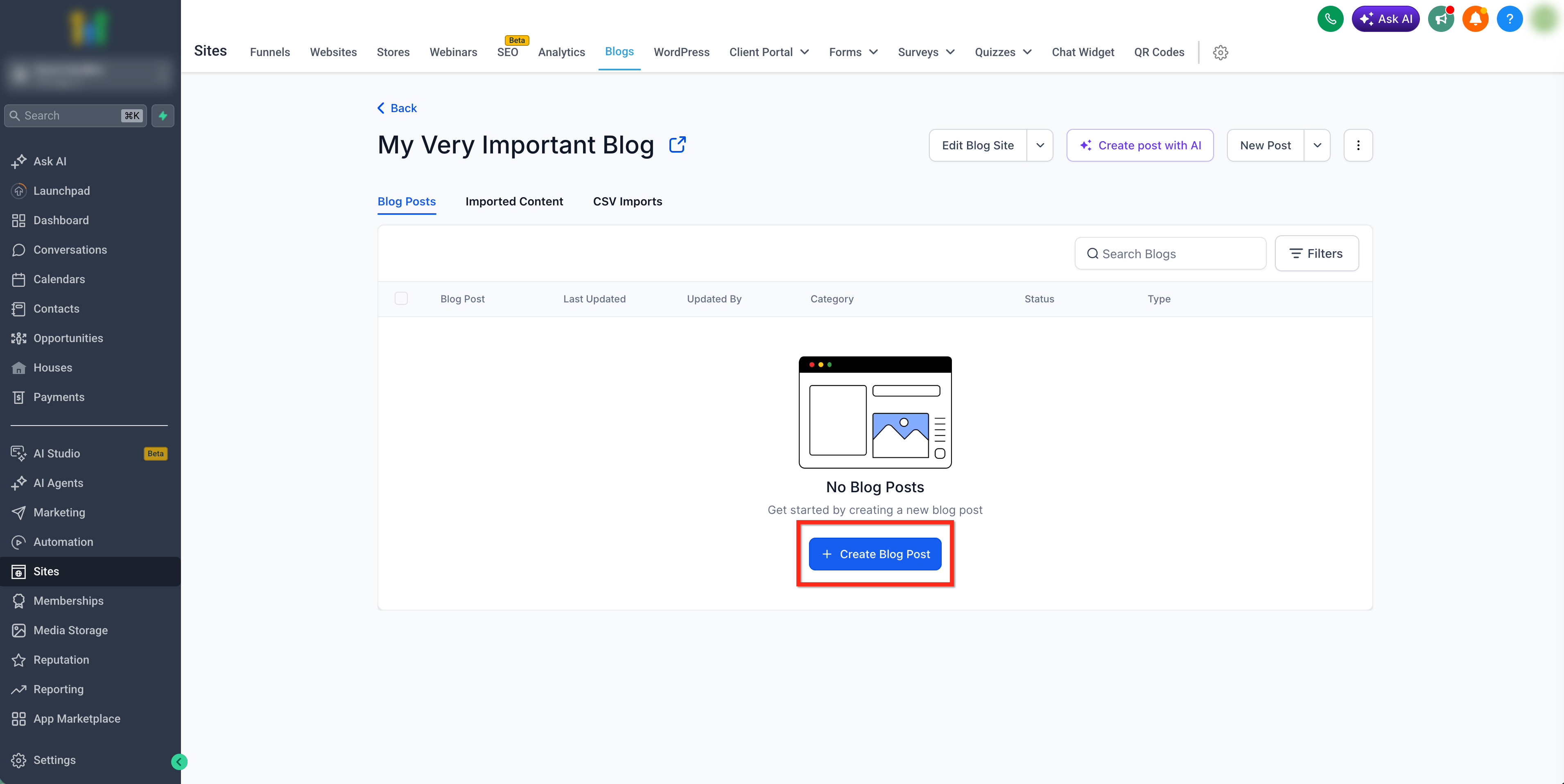
Open your blog and create a new blog post or open an existing draft.
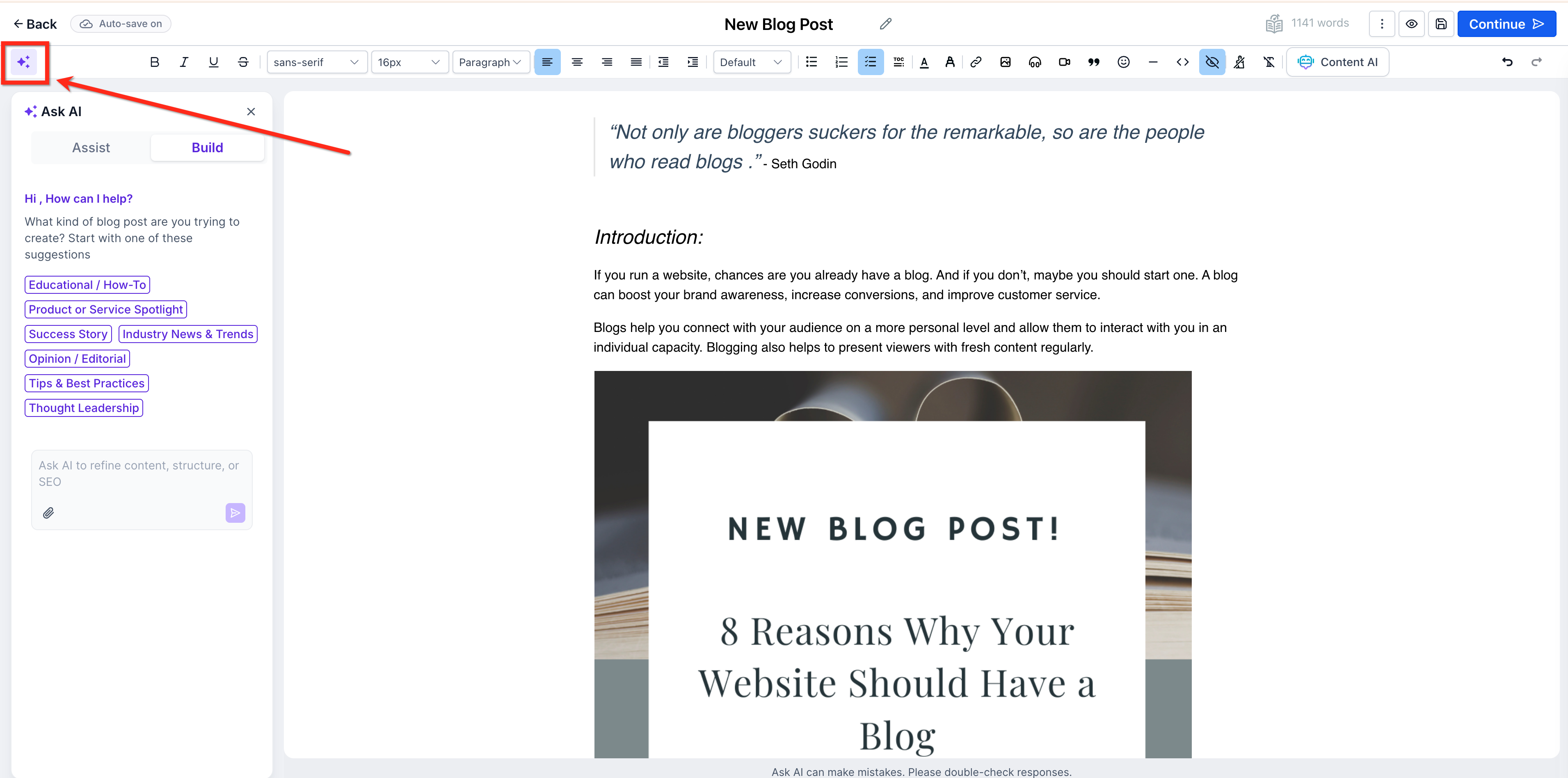
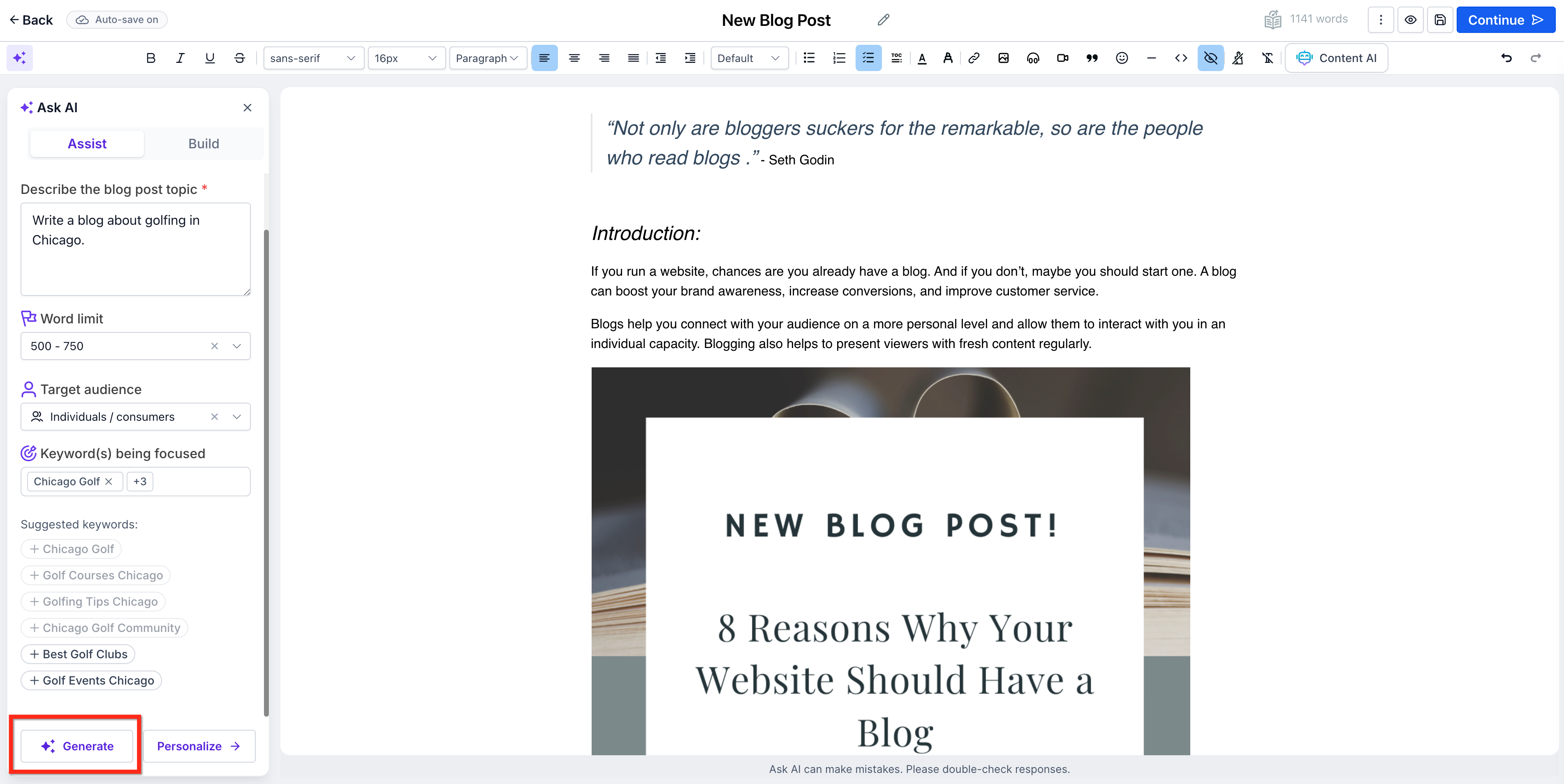
In the Blog Editor, open the Ask AI panel.
Choose Assist (Topic-Based) or Build (Free Prompt) depending on how you want to generate content.
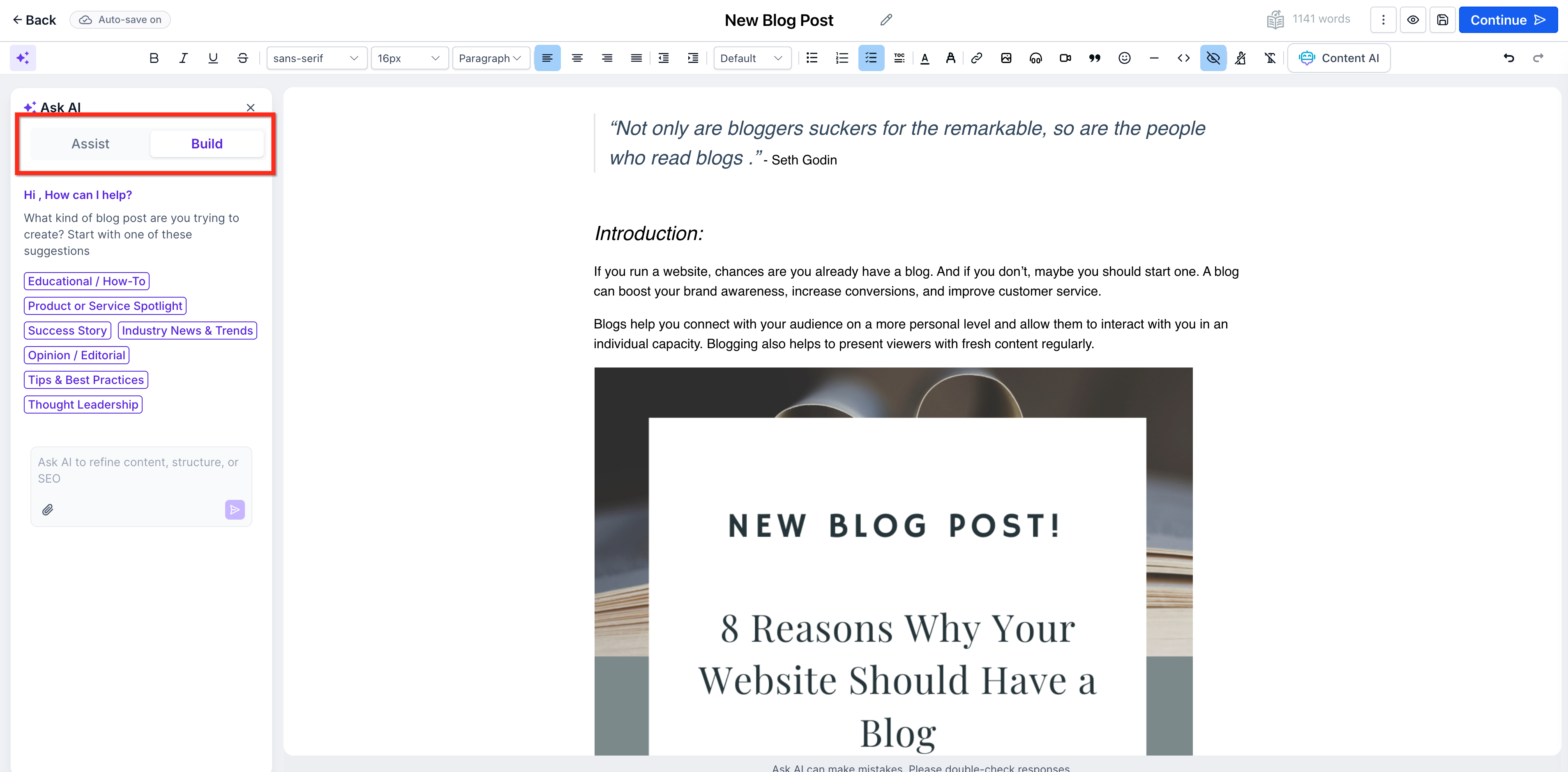
Enter topic or prompt and click Generate.
Edit & refine using Smart Editing Tools.
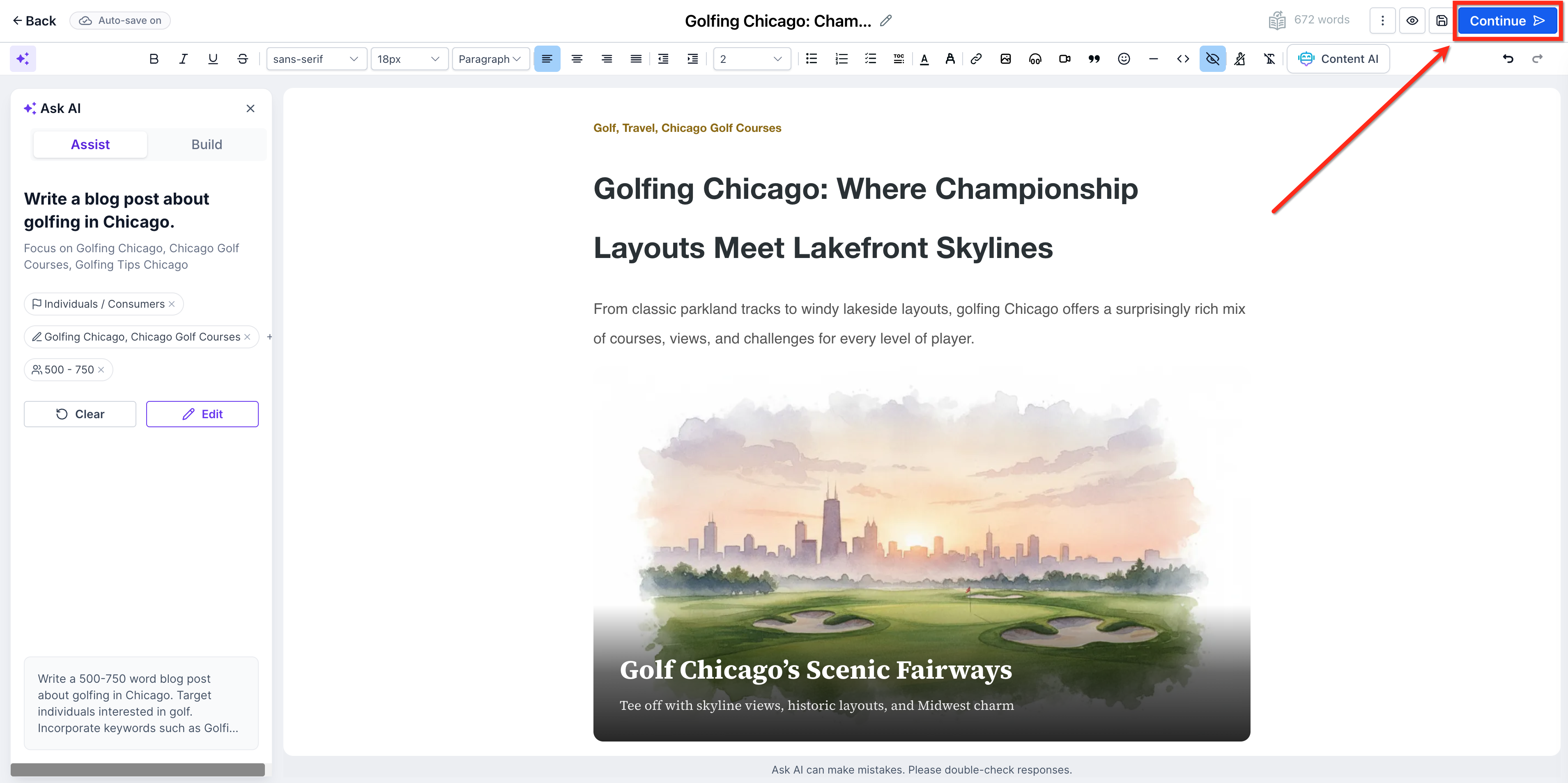
Once the draft is complete, click Continue.
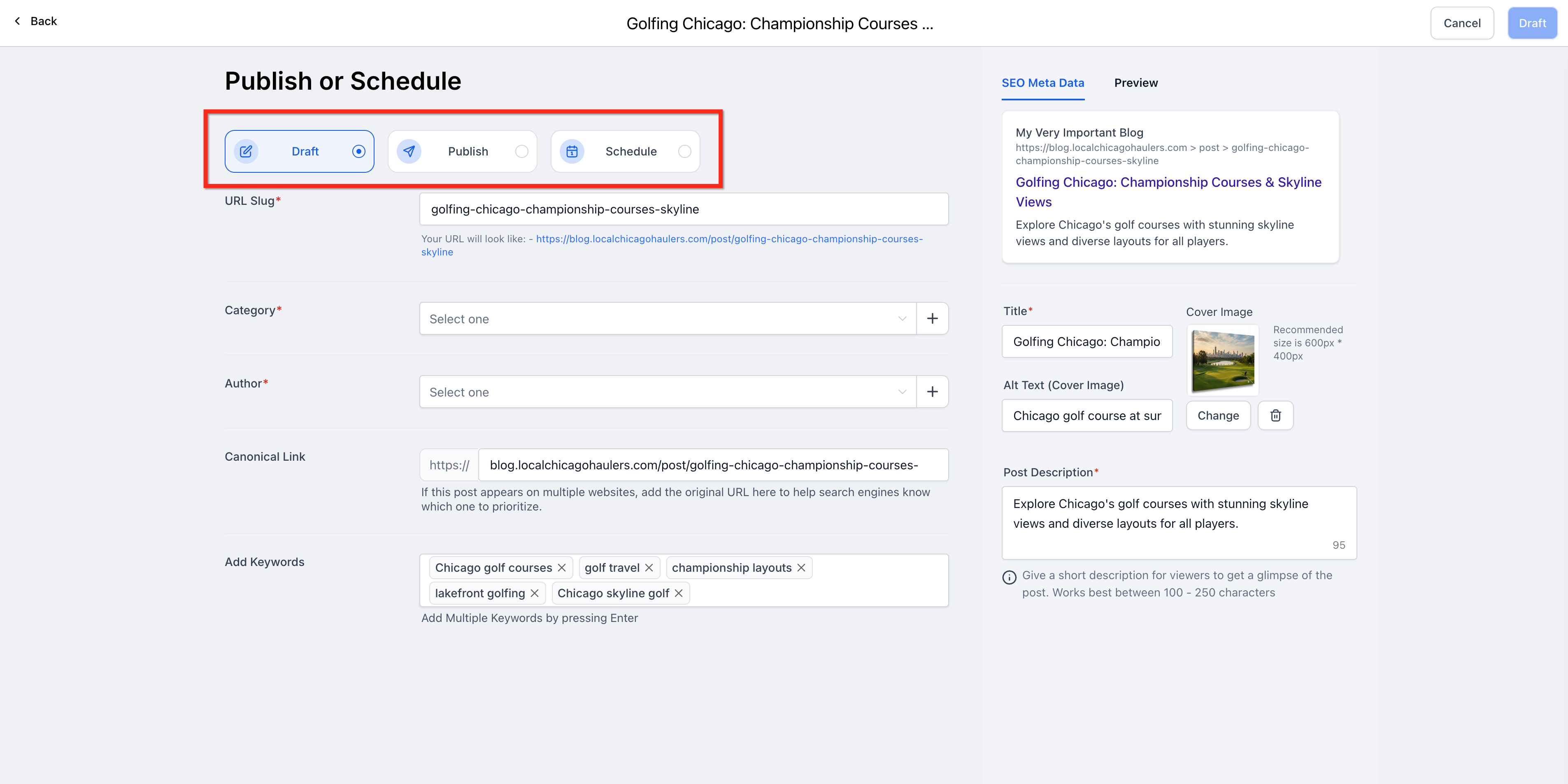
View the SEO information that was generated by the AI. Make any needed updates.
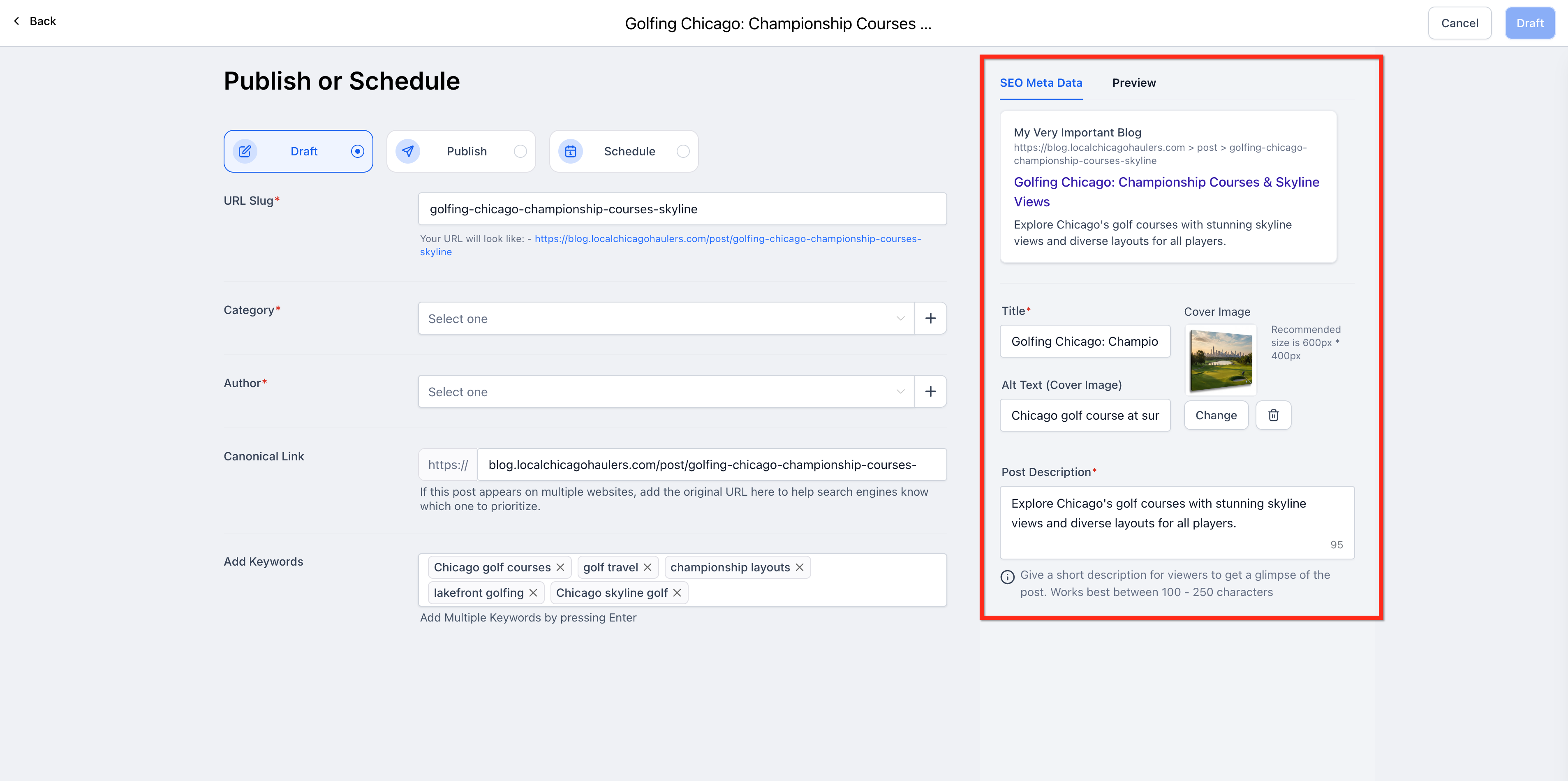
Select Draft, Publish or Schedule then click the button in the top right corner to apply.
Frequently Asked Questions
Q: Can I regenerate only a specific section?
Yes. Hover over any paragraph → choose Regenerate, Rewrite, or Adjust Tone.
Q: Can I change the AI-generated images?
Absolutely. You can replace, regenerate, or delete images anytime.
Q: Is SEO metadata generated automatically?
Yes. Blog Post AI creates the SEO title, meta description and keywords. All of which can be edited manually.
Q: Can I use both modes in the same blog?
Yes. You can start in Assist Mode, then use Build Mode prompts for additional sections.
Q: What is the difference between Assist Mode and Build Mode?
Assist Mode generates a complete blog from a simple topic input. Build Mode gives you more control using custom prompts for specific or branded content
Related Articles
Was this article helpful?
That’s Great!
Thank you for your feedback
Sorry! We couldn't be helpful
Thank you for your feedback
Feedback sent
We appreciate your effort and will try to fix the article