AI Studio is an AI-powered builder in HighLevel that helps you create websites, landing pages, and other interactive experiences faster using natural language prompts. Instead of building everything from scratch, you can describe what you want, use templates, reference a URL or image, and refine the result with AI. AI Studio is designed to speed up creation while keeping your projects organized inside a dedicated workspace.
TABLE OF CONTENTS
- What is AI Studio
- Key Benefits of AI Studio
- Where to Find AI Studio
- User Permissions for AI Studio
- AI Studio Home and Interface Overview
- Creating a Project in AI Studio
- How to Edit and Refine Projects
- Visual Edits in AI Studio
- Code Editor in AI Studio
- Advanced SEO Support in AI Studio
- Previewing and Reviewing Your Project
- Version History
- Forms and Calendar Integration
- Publishing Your Projects
- Cloning Projects in AI Studio
- Submission Data of your Project
- Current Limitations and Important Notes
- Troubleshoot Issues with AI Studio
- Frequently Asked Questions
- Related Articles
What is AI Studio
AI Studio is a conversational, AI-powered builder that helps you turn ideas into working digital experiences faster. It can generate layouts, content, images, and multi-page experiences from a prompt, then lets you refine the result through follow-up instructions.
AI Studio can create one page or several connected sections in the same web project, helping users get to a more complete starting point faster instead of building each part manually. It also applies a consistent look across the page, generates content based on the prompt and page goal, and gives users a strong draft they can refine later. If a user does not provide images, AI Studio can generate visuals for hero sections and supporting areas. If the user uploads images and clearly asks AI Studio to use them, it can place those visuals into the page.
AI Studio is not limited to standard websites or landing pages. It can also be used to create interactive front-end experiences such as multi-step surveys, custom calendar booking flows, branded forms, and other client-facing experiences. This makes AI Studio a broader creative workspace for building customer experiences, not just static pages.
AI Studio can help you:
- Create a landing page using a live URL as inspiration for the layout and structure
- Build a storefront using your uploaded branded photos
- Generate a dashboard layout for a specific business use case
- Create an appointment booking page connected to your calendar
- Build a website with content, visuals, and calls to action already in place
Note: AI Studio and Agent Studio are two separate AI tools within HighLevel, designed for different use cases.

AI Studio is a conversational, AI-powered builder that helps you quickly create websites, pages, and other web assets using prompts. Agent Studio is a visual builder used to create AI-powered agents that can respond to events, interact with users, and automate tasks.
Key Benefits of AI Studio
AI Studio helps teams create faster, experiment more easily, and move from idea to launch with less manual work. Its biggest advantage is that it combines generation, iteration, previewing, and project management in one workspace.
Faster Creation: Start with a prompt instead of building every section manually
Natural Editing: Request changes in plain language and let AI update the project
Visual Refinement: Click elements in the live preview to update text, images, icons, spacing, colors, and layout details without editing code.
Flexible Inspiration: Use templates, URLs, screenshots, and uploaded images to guide the output
Safe Iteration: Use version history and restore options to test changes with more confidence
Built-In Organization: Manage projects, folders, recent work, and starred items from one place
Production Path: Preview, publish, and connect a custom domain when the project is ready
Where to Find AI Studio
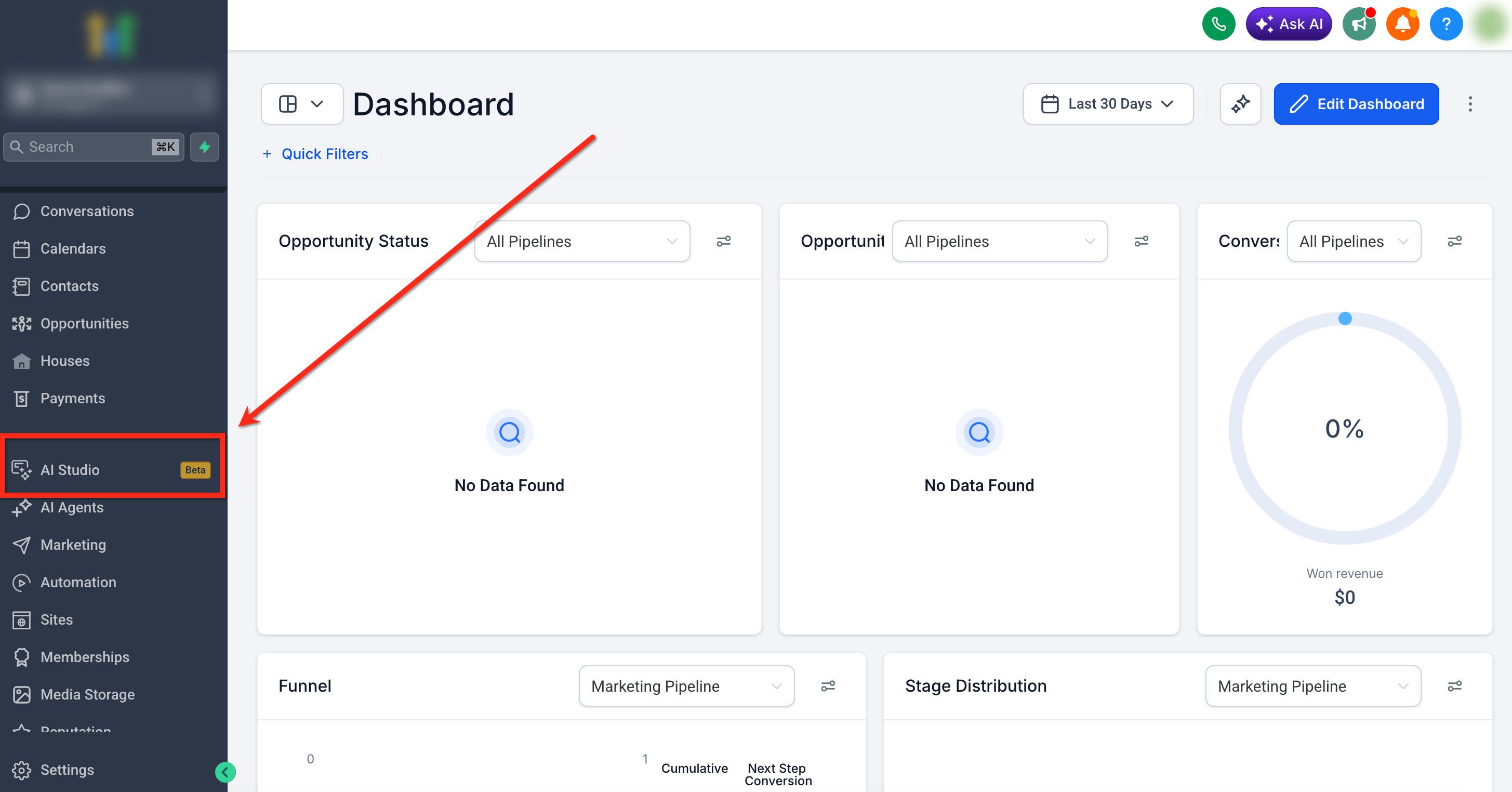
AI Studio is available from the left navigation inside your sub-account.
Open your sub-account in HighLevel.
In the left navigation, click AI Studio.
User Permissions for AI Studio
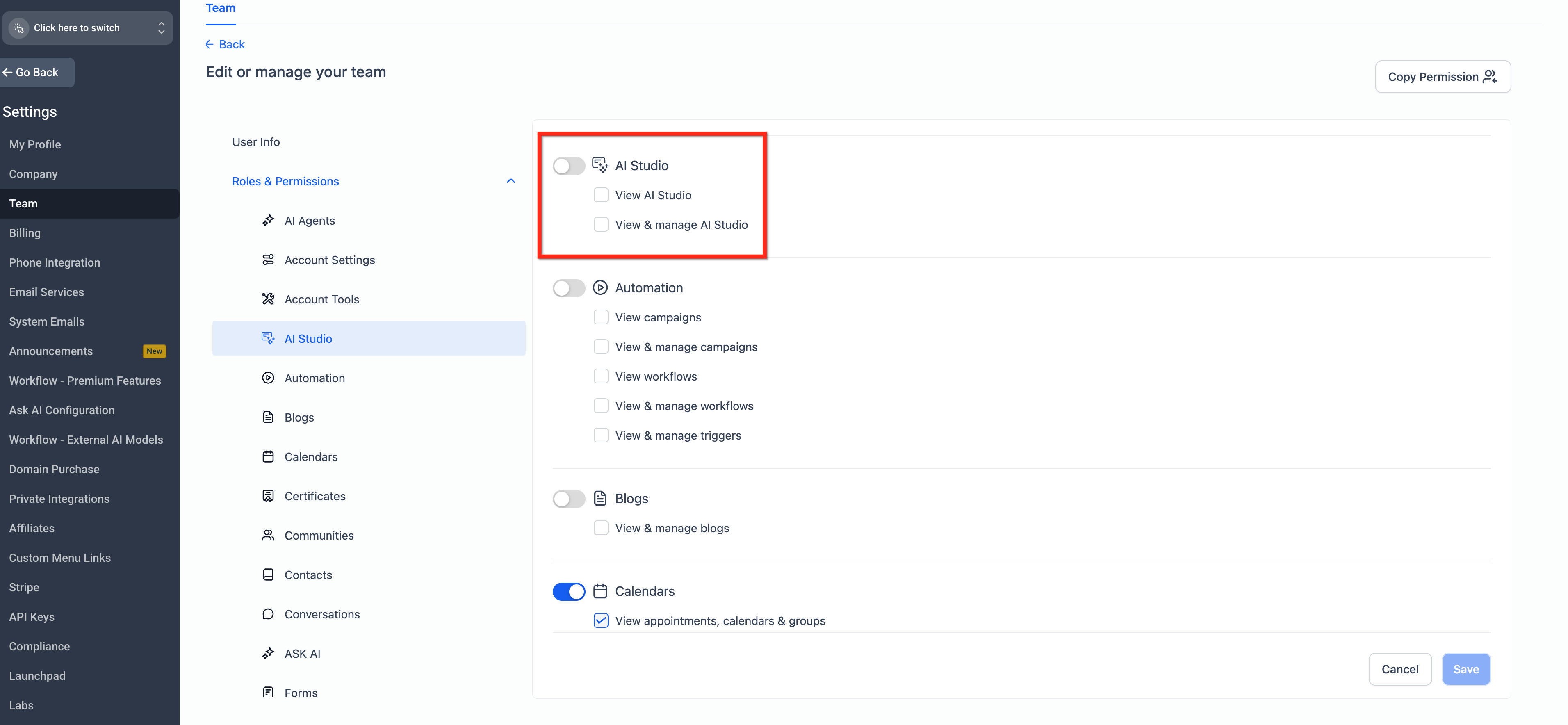
AI Studio permissions help account admins and owners control which team members can access, view, and manage AI Studio resources. AI Studio includes two permission levels:
- View AI Studio: Provides read-only access to AI Studio.
- View & Manage AI Studio: Provides full read and write access to AI Studio.
AI Studio Home and Interface Overview
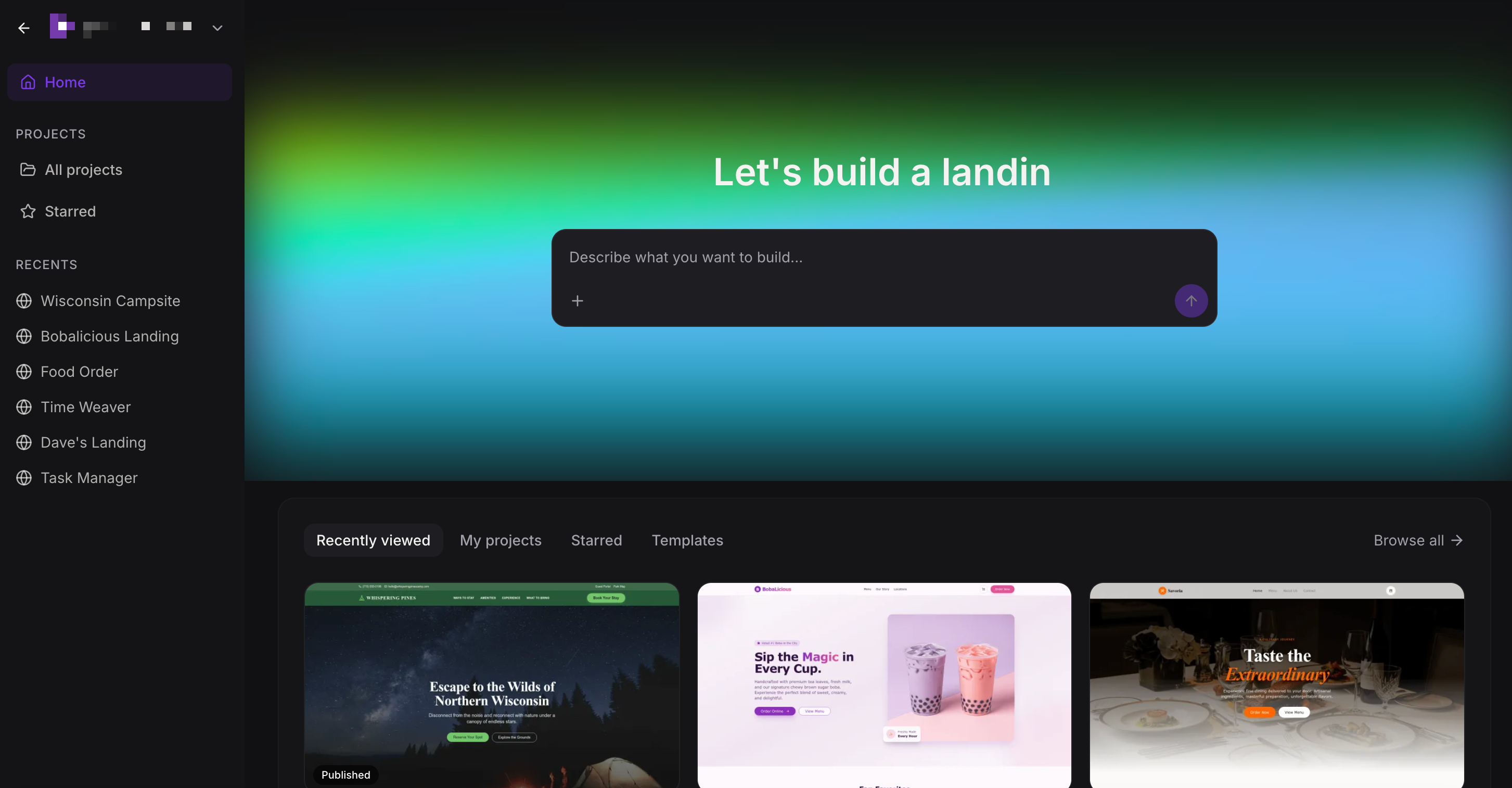
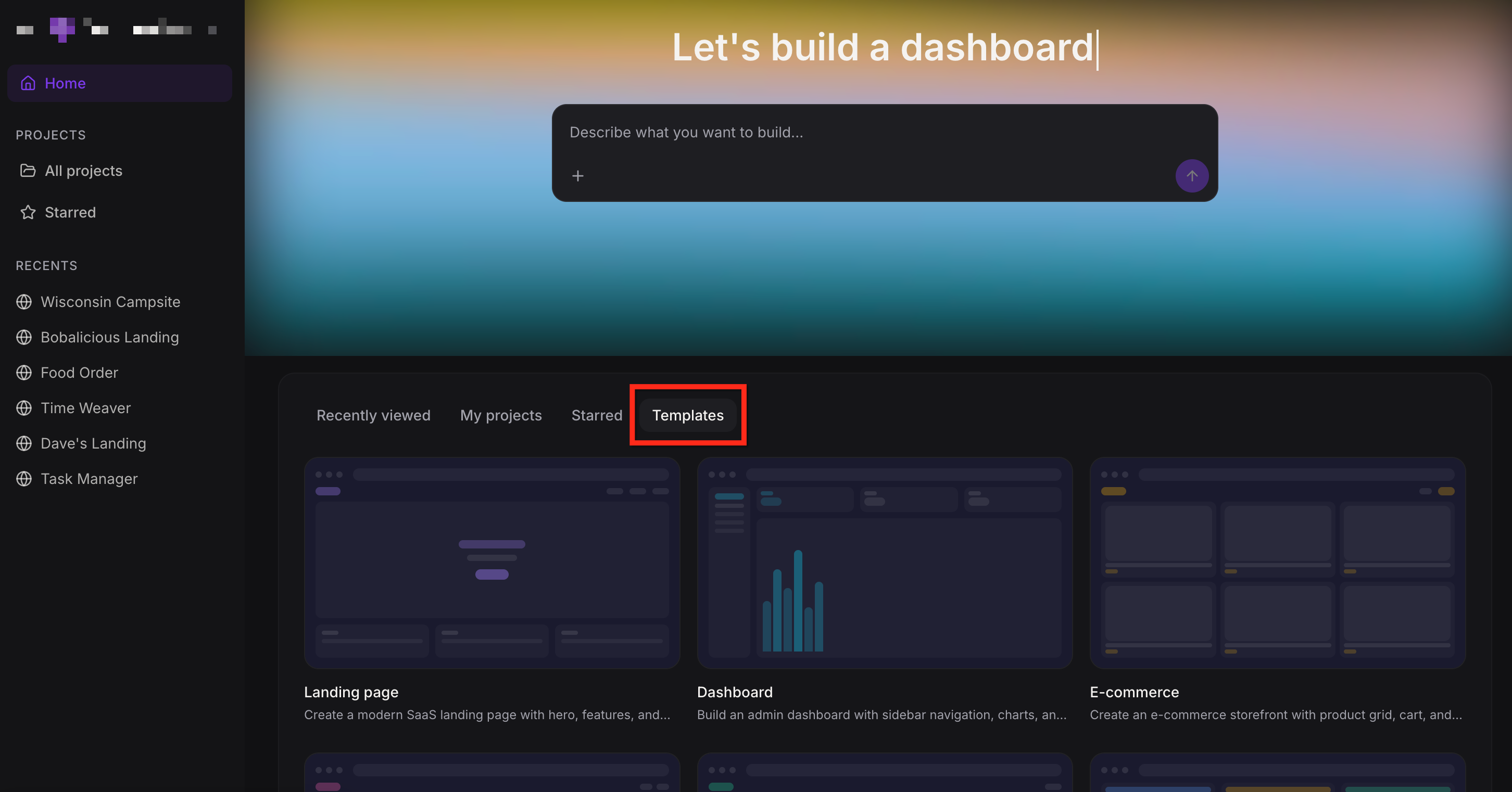
The AI Studio home screen is where you start new projects, reopen past work, and manage everything you have built. Understanding this layout makes it easier to move quickly between creation, editing, and organization.
When you open AI Studio, you will see:
A description box where you can type what you want to build
Tabs such as Recently Viewed, My Projects, Starred, and Templates
Template options such as landing pages, dashboards, ecommerce storefronts, portfolios, and blogs
A left sidebar with project access and recent work
From the home area, you can start a new project, open an existing project, rename a project, move a project to a folder or delete a project.
Creating a Project in AI Studio
AI Studio gives you several ways to begin, which helps different users start from the type of input they already have. Whether you begin with an idea, a template, a website reference, or an image, the goal is the same: get to a strong first draft faster.
Start with a Prompt
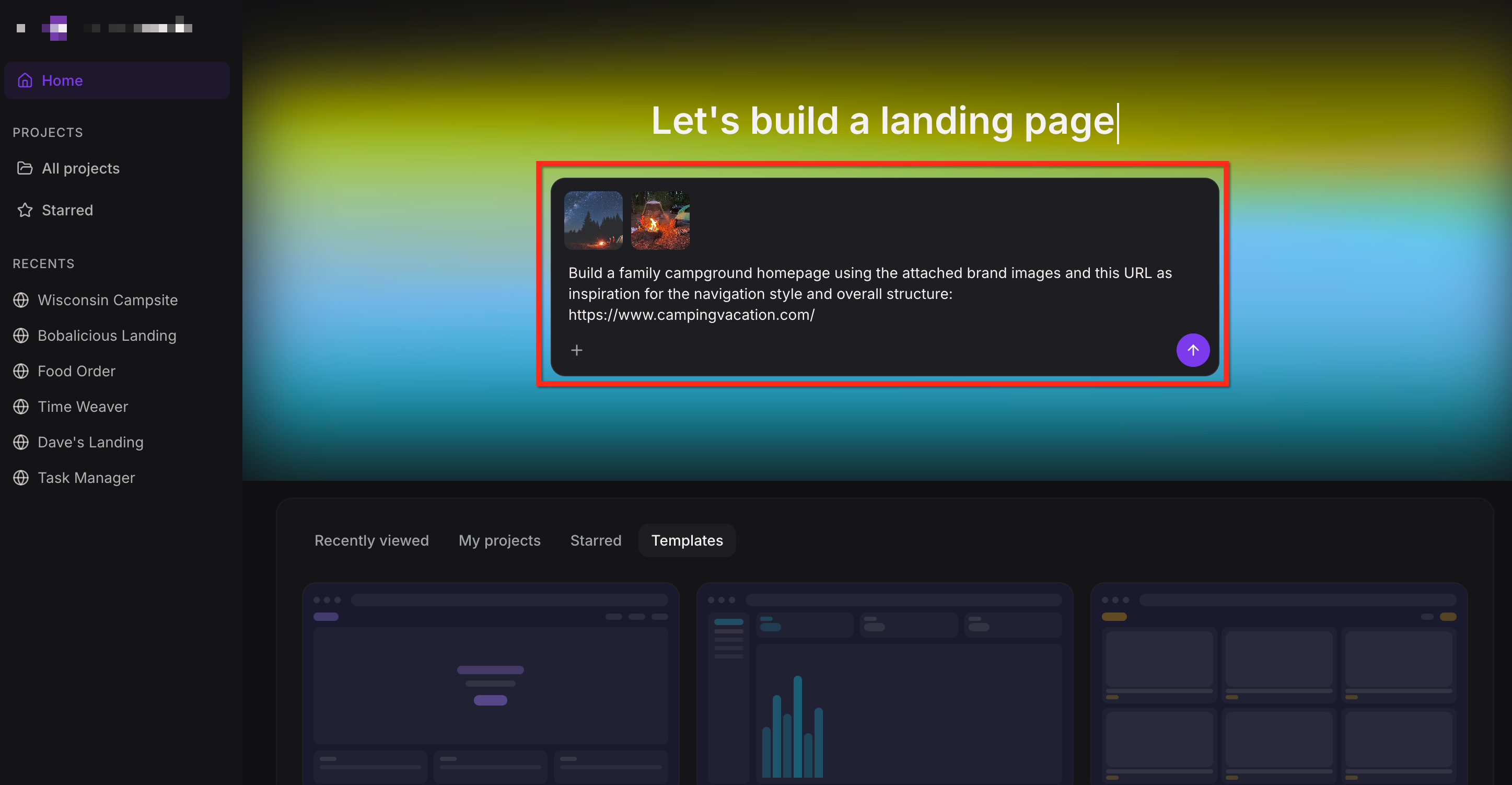
You can type a prompt that describes what you want to build. The more detail you provide, the better AI Studio can shape the first version. Along with your prompt, you can also use supporting inputs such as files, images or a live URL for structure, layout or style inspiration.
Example prompts:
Create a website for a dental clinic with online booking
Build a portfolio site for a freelance designer using the attached brand images
Build a family campground homepage using this URL as inspiration for the navigation style and overall structure: https://www.campingvacation.com/
Create a boutique skincare website using the attached homepage screenshot as visual direction for the hero section, spacing, and typography
Guided Design Preferences
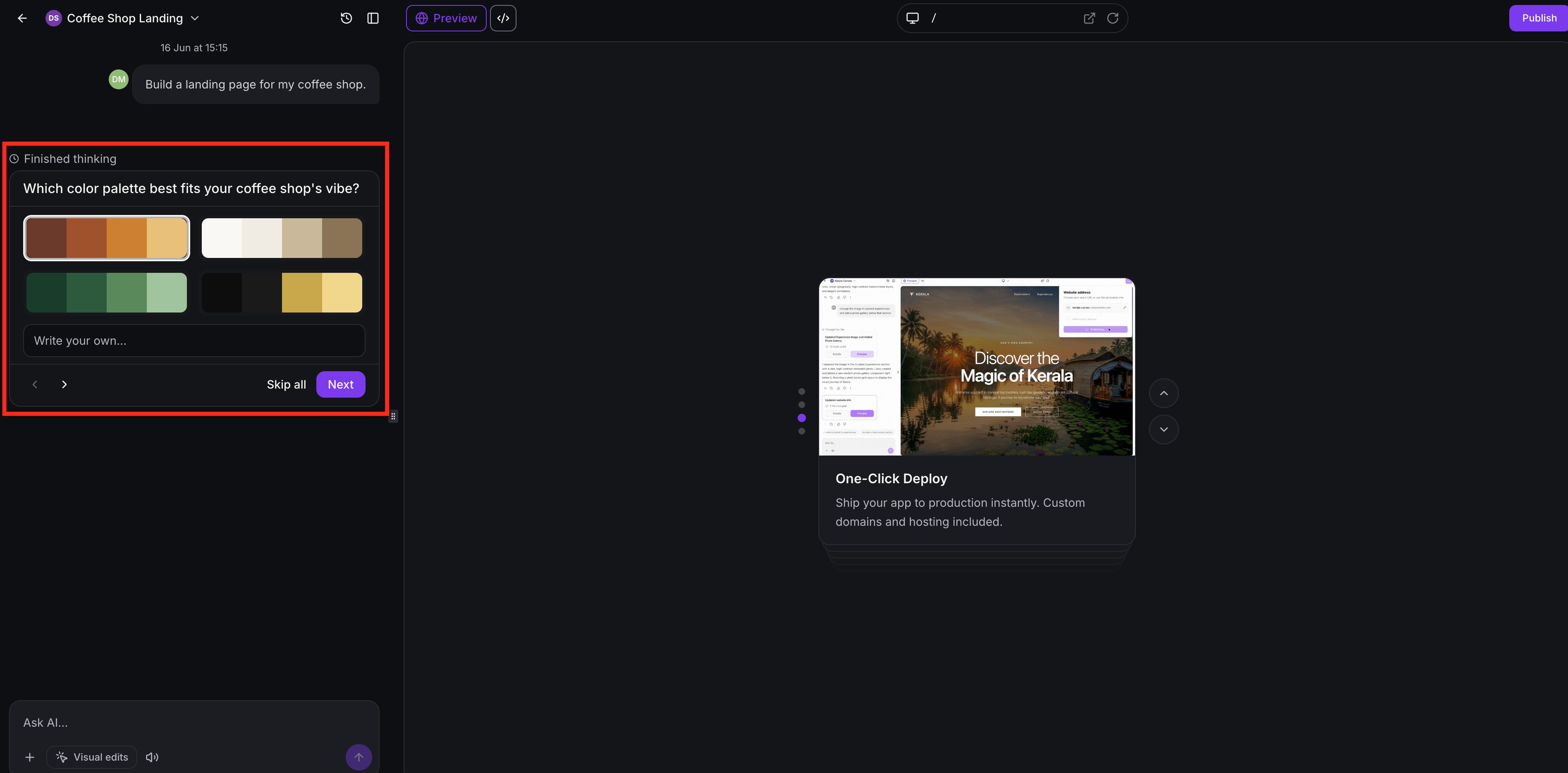
Users do not need to write a perfect prompt to get started. When a request is broad or missing important design details, AI Studio can ask follow-up questions before building so the first draft better matches the user’s goal, brand, and preferred look and feel.
For example, if a user says, “build a website for my business,” AI Studio may ask what kind of business the site is for, what the main conversion goal should be, or which design direction best matches the brand. These follow-up questions can include simple choices, visual options, sliders, or custom text answers.
AI Studio may ask users to choose preferences such as:
- Color palette: Select from curated visual swatches without needing to provide exact colors or hex codes.
- Typography style: Choose font pairings that help define the page personality, such as modern, clean, premium, creative, editorial, or energetic.
- Layout direction: Pick from visual layout options such as grid-based sections, split layouts, editorial layouts, gallery-style layouts, or section-based layouts.
- Conversion goal: Choose the main action the page should encourage, such as booking a call, selling a product, or collecting leads.
Guided design questions only appear when they are useful. If the user already provides clear style direction, AI Studio can start building directly.
Users can also review their answers before submitting, skip individual questions, or click Skip all to let AI Studio choose sensible options based on the request.
Start with a Template
Templates are useful when you want a faster starting point with a familiar structure. AI Studio offers templates for common project types like:
Landing page
Dashboard
Ecommerce Storefront
Portfolio
To get started with a template, click the Templates tab then select the desired template.
How to Edit and Refine Projects
AI Studio works best as a conversational builder. You are not locked into the first version it creates, which makes it easier to keep improving the result until it matches your goal. After generation, you can continue prompting AI Studio to make changes such as:
Change colors or styling
Rewrite headlines or body copy
Add a contact form or booking section
Use a reference URL or screenshot for a specific section
Examples of follow-up prompts:
- Change the colors to use light green instead of orange
- Add a Contact page
- Make the top navigation similar to the reference URL
- Add a testimonial section similar to the attached screenshot
- Change the hero section visual to the attached image
AI Studio can also use uploaded images in the project. If you do not provide images, it may generate visuals for you.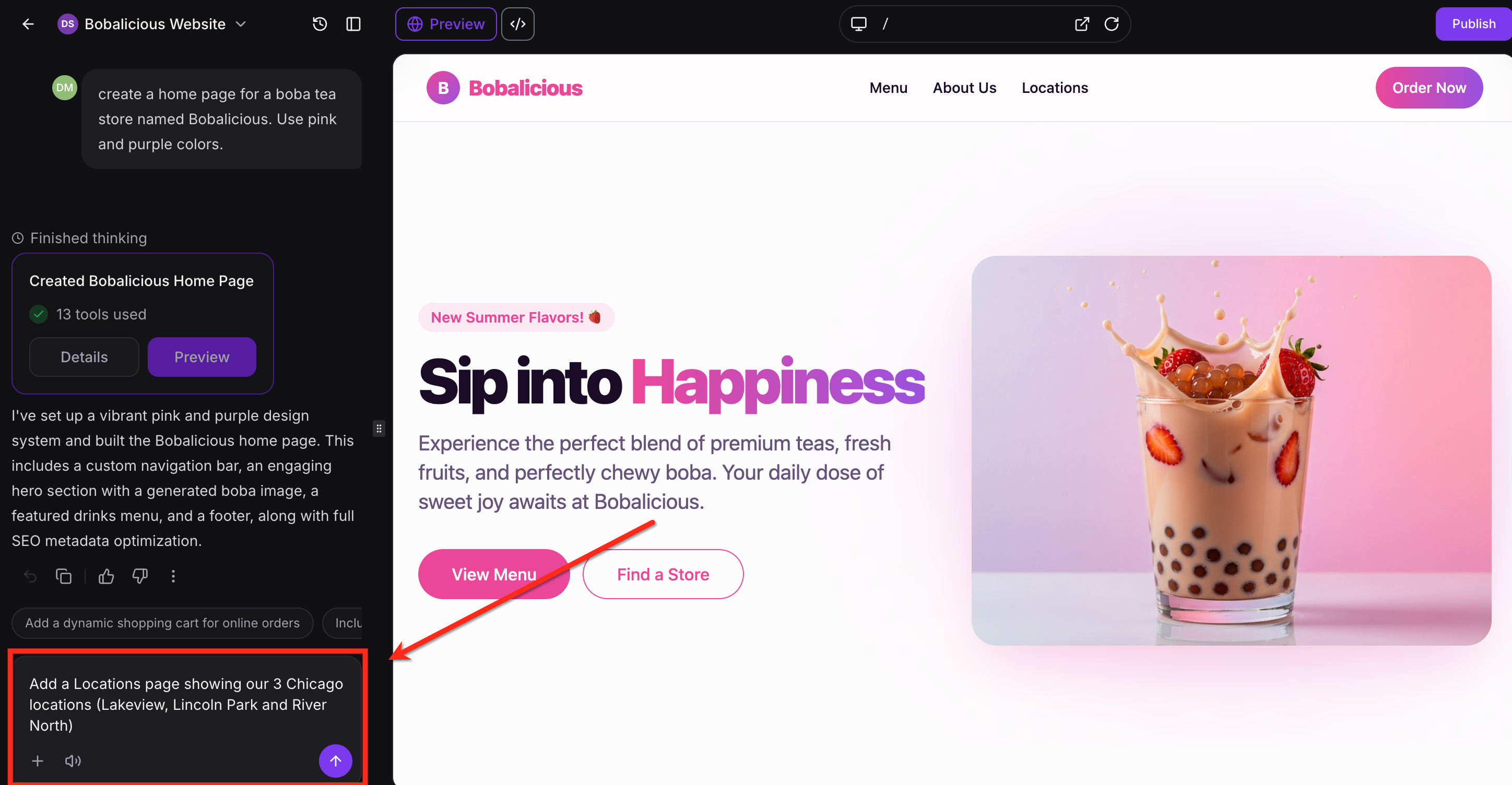
Visual Edits in AI Studio
Visual Edits gives users a direct way to refine AI Studio projects from the live preview. Instead of using prompts or opening the Code Editor for every small adjustment, users can select elements on the page and make visual updates to text, buttons, images, icons, colors, spacing, and layout details.
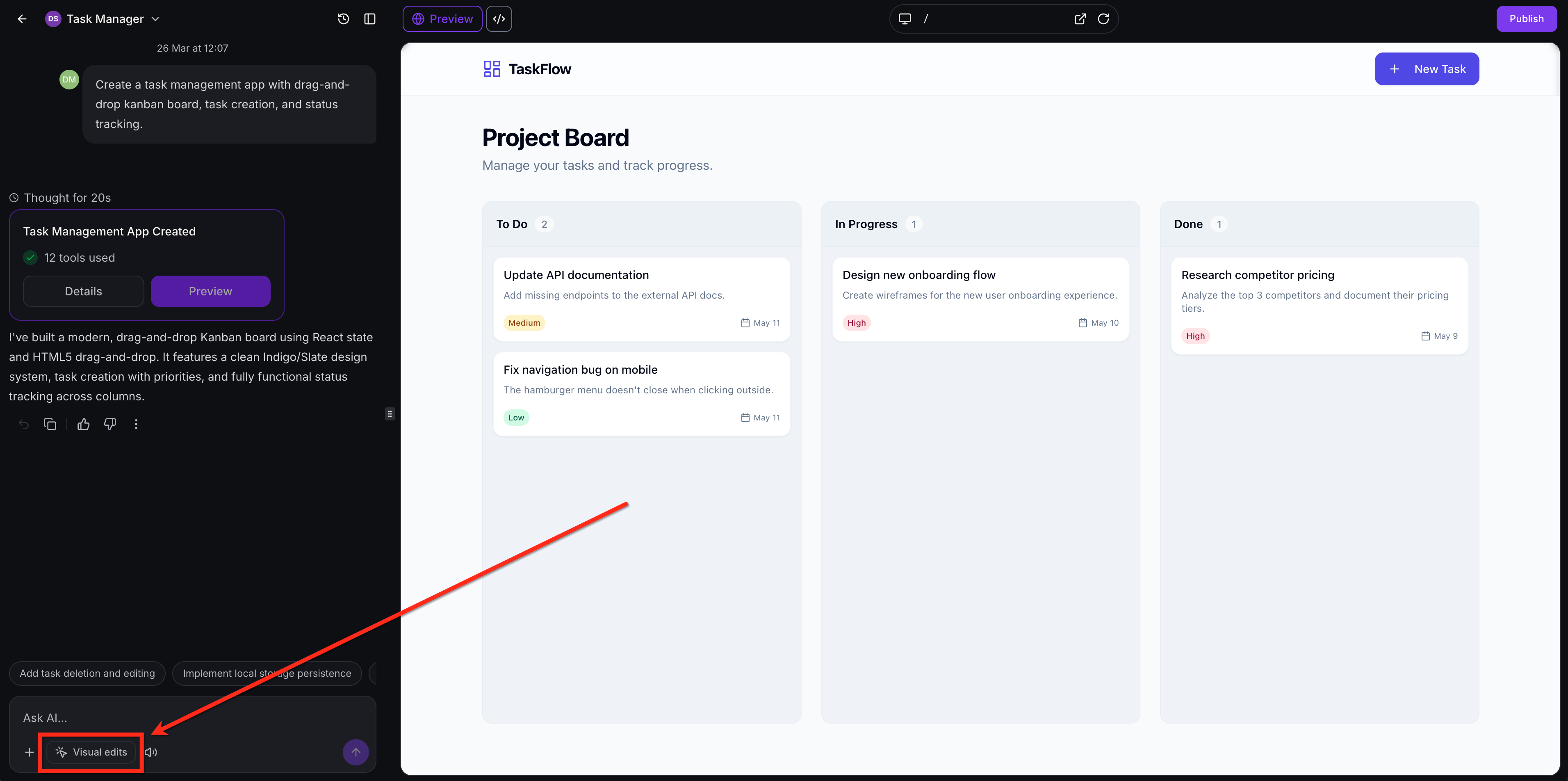
To enter Visual Edit mode, click Visual Edits in the prompt area at the bottom-left of the builder.
After Visual Edit mode is enabled, the preview becomes interactive. Users can double-click text to edit it inline, select elements to open contextual controls, or use a prompt on selected elements when they want AI help with a targeted change.
For a full walkthrough of features and capabilities, see: Visual Edits in AI Studio
Code Editor in AI Studio
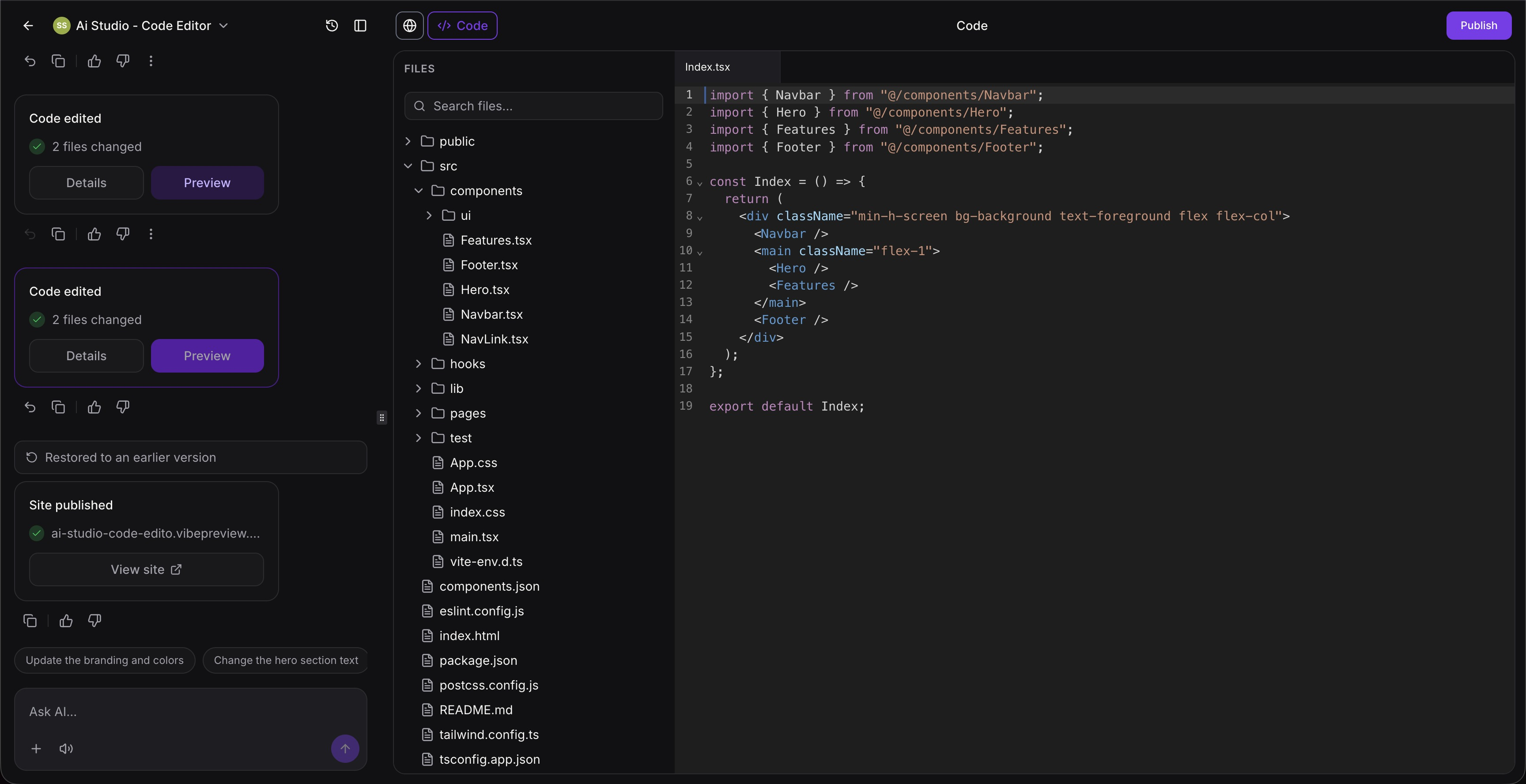
AI Studio also includes a built-in Code Editor for users who want more direct control over their projects. The Code Editor allows you to manually edit the underlying code for more precise customization.
This is especially useful for making targeted design changes, adjusting functionality, or refining AI-generated output without regenerating the entire project. You can use the Code Editor to update layouts, modify styles, debug issues, and fine-tune advanced behaviors—all within AI Studio, with changes reflected in real time.
For a full walkthrough of features and capabilities, see: Code Editor in AI Studio
Advanced SEO Support in AI Studio
AI Studio includes built-in SEO tools to help your projects get discovered by search engines, social platforms, and AI-powered search experiences.
Because AI Studio sites are built as fast, modern web apps, they can sometimes be harder for search engines and crawlers to read by default. Advanced SEO Support solves this by making your content more accessible and easier to index—without changing how your site looks or performs for visitors.
With SEO enabled, you can:
- Improve how your site is crawled and indexed by search engines
- Ensure shared links display the correct title, description, and preview image
- Generate a sitemap to help search engines discover your pages faster
- Make your content more readable for AI search tools like ChatGPT and other assistants
These features work together to improve visibility across traditional search, social sharing, and emerging AI-driven discovery.
For step-by-step instructions and a full breakdown of SEO features, see: Advanced SEO Support in AI Studio
Previewing and Reviewing Your Project
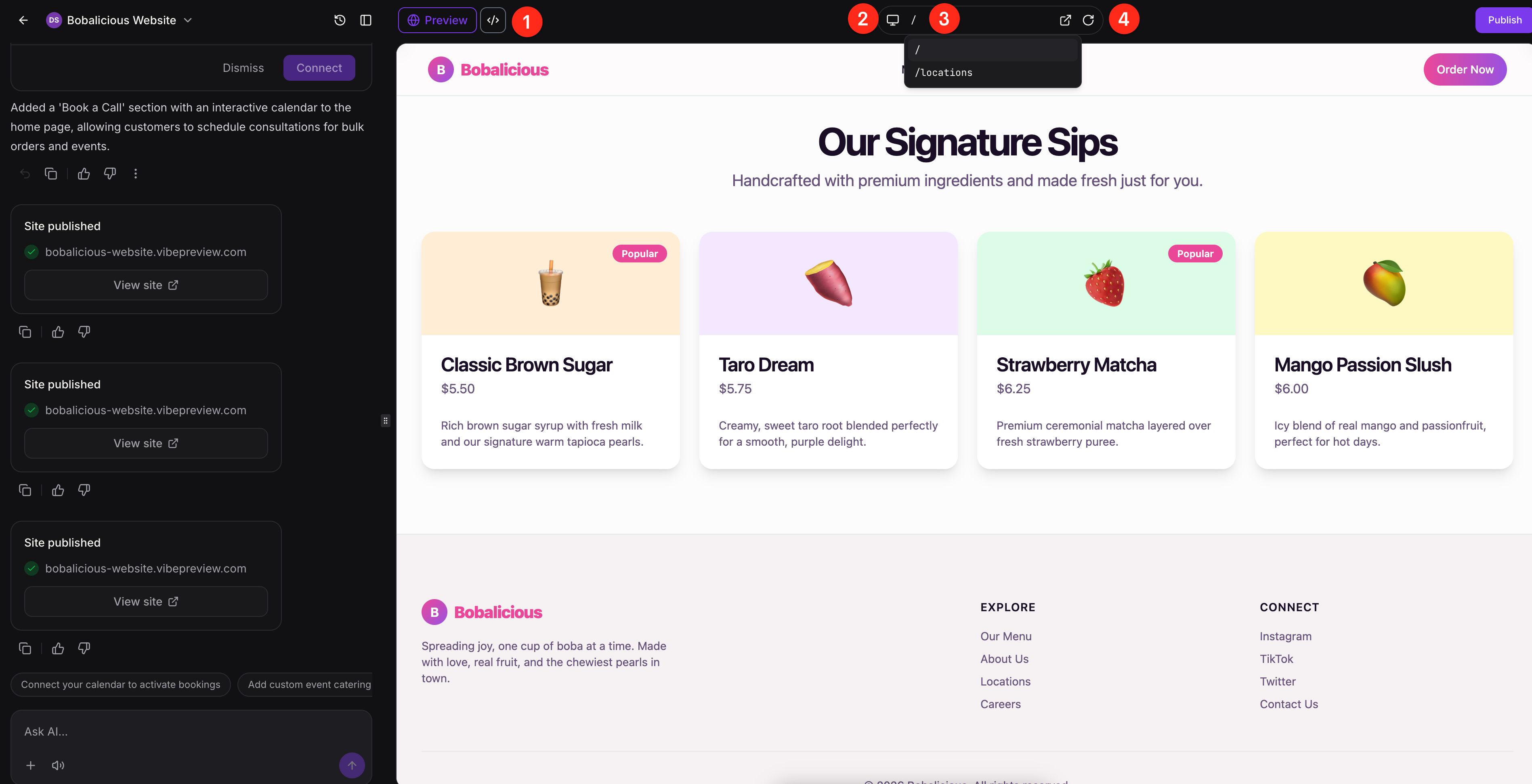
Preview tools help you check how the project looks before publishing. These controls are useful for reviewing layout, testing multiple pages, and confirming the experience across device types.
Inside the editor, you can:
Switch between Preview and Code view
View the project in desktop, tablet, and mobile modes
Use the page dropdown to switch between pages in a multi-page project
Open the selected page in a new tab or refresh preview after changes
Version History
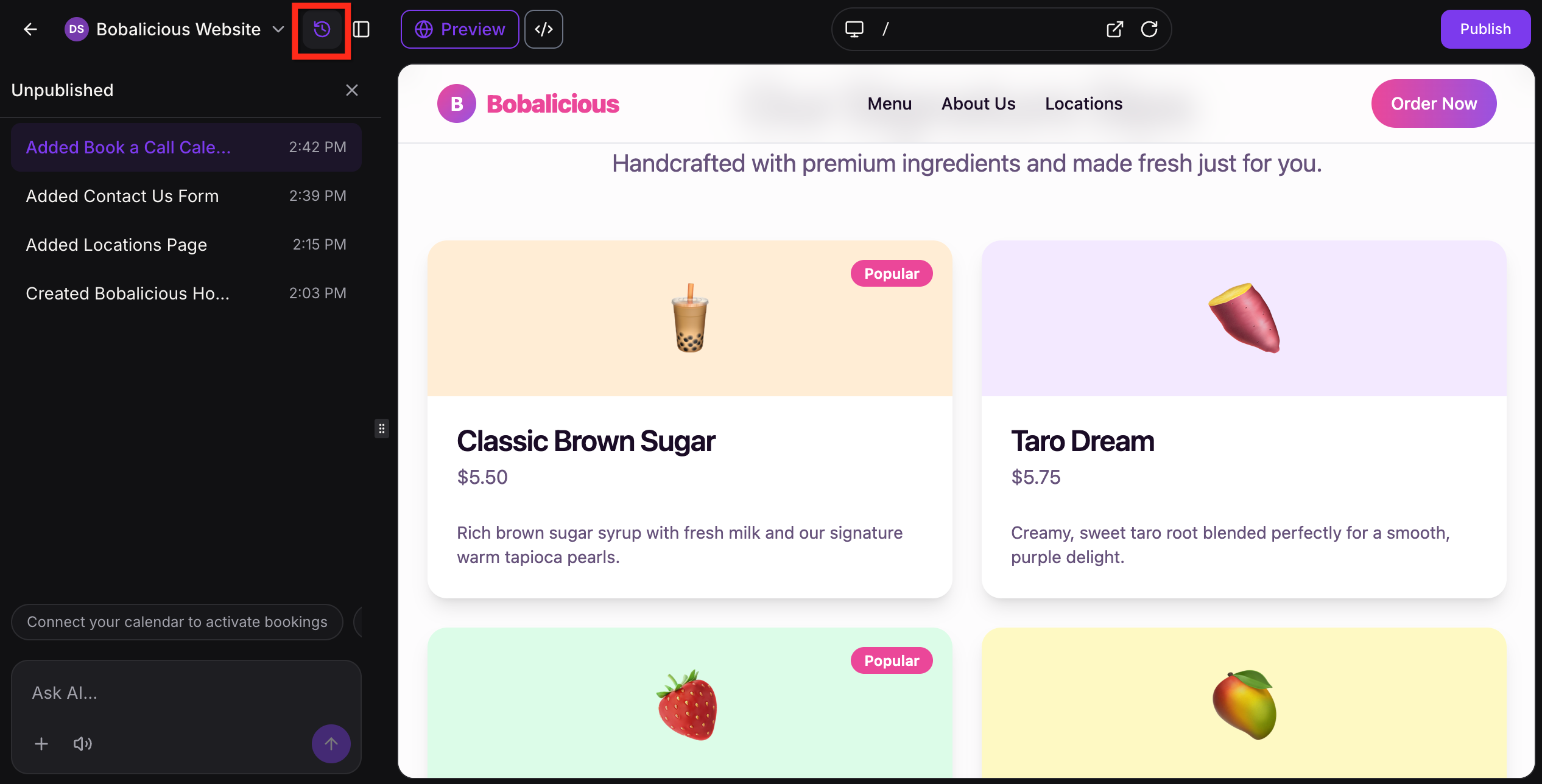
Each AI-generated change creates a version you can return to later. This gives you a safer way to refine your work without worrying about losing an earlier draft. From version history, you can:
Open earlier versions
Preview an earlier version
Bookmark a version
Revert to an earlier version if needed
This is useful when you want to compare changes, undo a prompt result, or return to a version that better matched your goal.
To view version history, click the Version History button from within your project.
Forms and Calendar Integration
Forms and calendars help turn an AI-generated page into a working experience that can collect information or book time with your business. AI Studio can build the front-end experience for these actions then guide you through the connection steps needed to make them functional inside your HighLevel account. This makes the output more usable from the start while still letting you control when forms and calendars are connected.
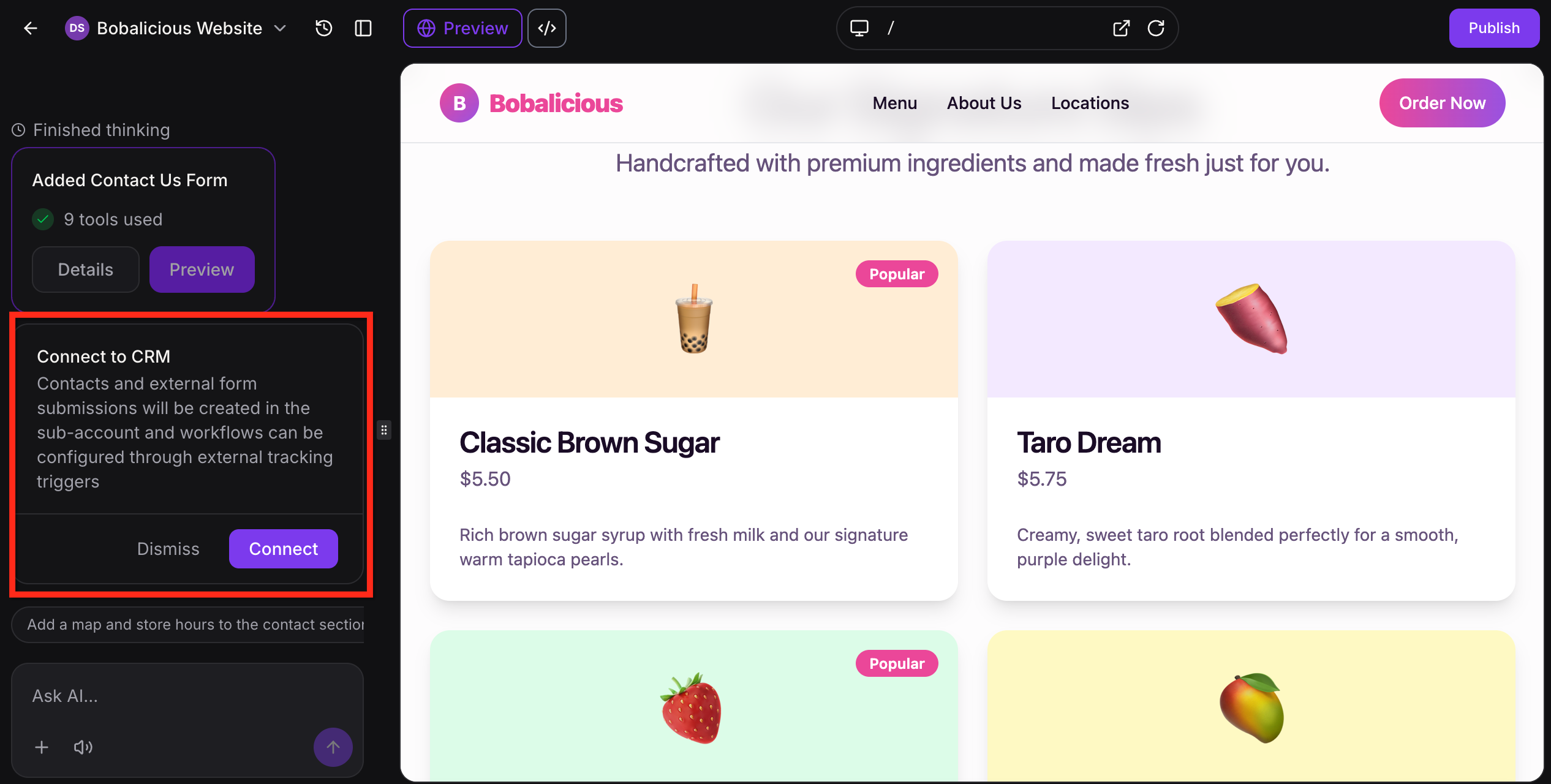
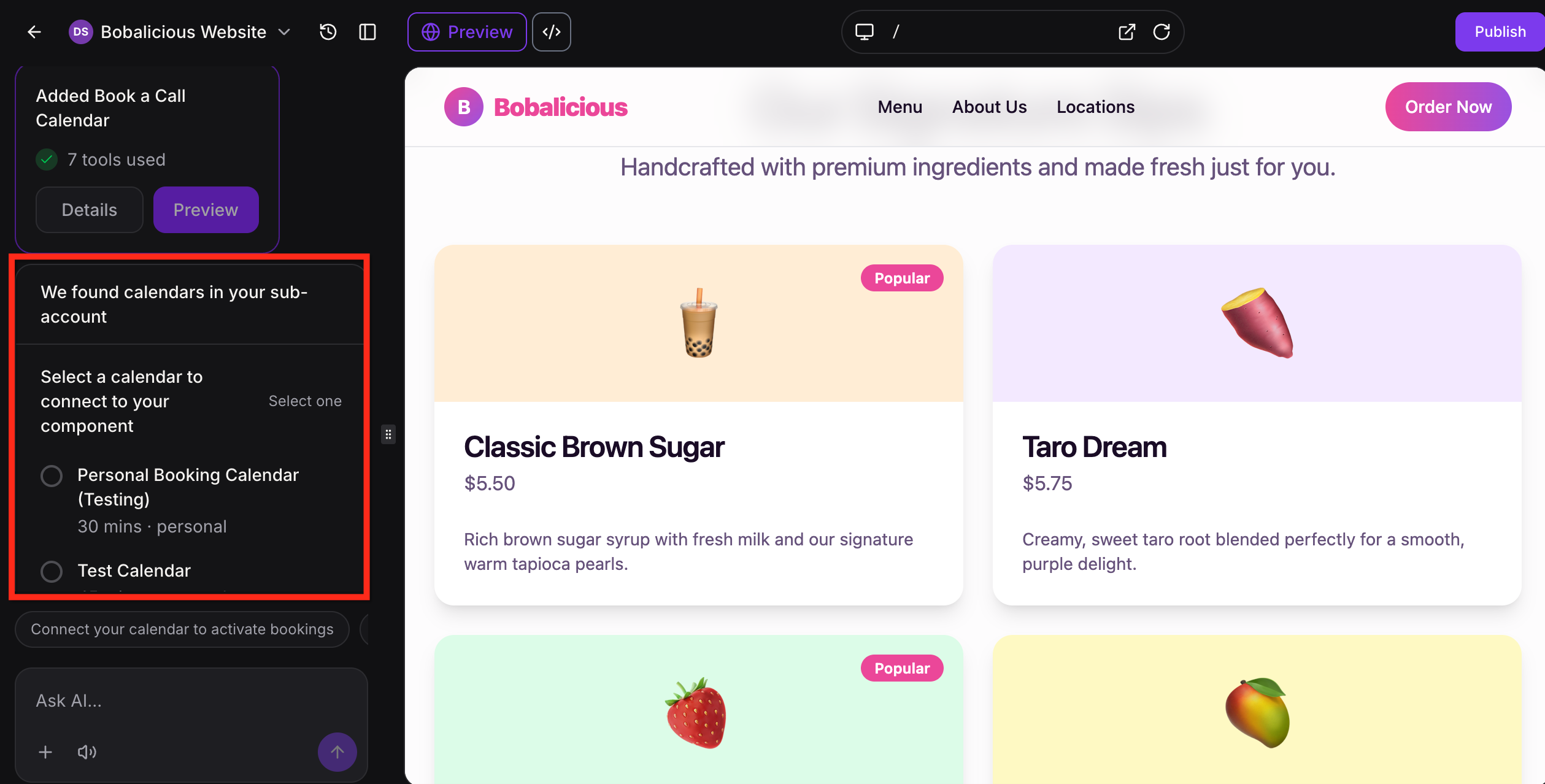
AI Studio can pause for your input: When a build requires an account-specific choice, such as selecting a calendar or form, AI Studio pauses the current request and displays a selection card in chat. After you make your choice, the same request continues without starting over.
Important: Forms and calendars are not connected automatically. AI Studio can create the layout for a form or booking section, but you need to ask it to connect that component before it starts sending data into your sub-account.How Forms Work in AI Studio
AI Studio can create form-based sections and page experiences from a prompt. For example, you can ask it to add a contact form, registration form, feedback form, or lead capture section to the page. At this stage, the form starts as a front-end layout first. That means the form can appear on the page before it is connected to your CRM.
When you want the form to start collecting submissions, ask AI Studio to connect it or click Connect when prompted in the chat. This triggers the Connect to CRM flow, which is used to:
Create contacts in the sub-account
Capture form submissions
Support workflows through tracking triggers
Once that connection step is completed, AI Studio can wire the form into the connected setup so submissions flow into your HighLevel account.
For a full walkthrough, see the dedicated article on connecting forms and calendars in AI Studio.
How Calendars Work in AI Studio
AI Studio can also create booking-focused pages. If you ask for an appointment page, consultation booking page, or discovery call page, it can build the page around scheduling and add a booking section.
To make that booking experience functional, AI Studio can detect calendars that already exist in the sub-account and prompt you to choose which one to connect. At a high level, the calendar flow works like this:
AI Studio creates the booking area on the page.
You select a calendar from the sub-account.
That calendar is connected to the page.
This makes it easier to turn a booking page into a working scheduling experience without rebuilding it manually.
For a full walkthrough, see the dedicated article on connecting forms and calendars in AI Studio.
Publishing Your Projects
Publishing your AI Studio project makes it available through a live URL so you can review it, share it, and launch it on your own domain. HighLevel supports a simple publishing flow that starts with a preview URL, then lets you connect a custom domain and choose the main published URL visitors should use.
After a site is published, users can continue making edits. Those changes remain in draft until the user publishes again. This makes it safer to improve the page without changing the live version right away.
When an AI Studio project is connected to a domain:
The project lives in AI Studio under Sites
The domain connection is visible in Domains
The published page appears on that connected domain
Publish to a Preview Domain
Publishing to a preview domain gives you a live version of your AI Studio project before you connect a branded domain. This helps you test the experience, review the layout, and confirm everything works as expected before going live on your custom domain.
To publish your project to a preview domain:
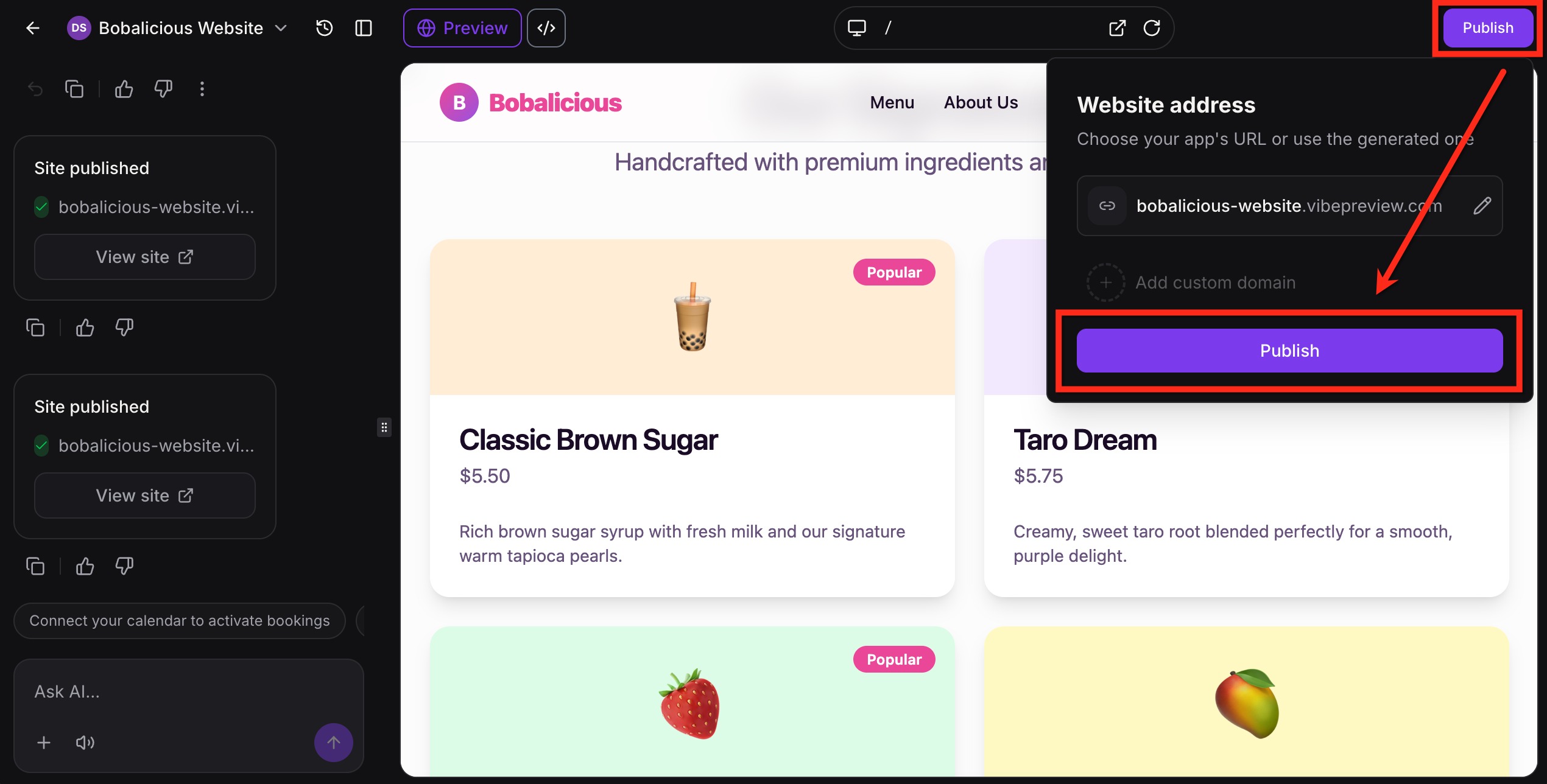
- Click Publish in the top right corner. Update the URL if needed, then click Publish again.
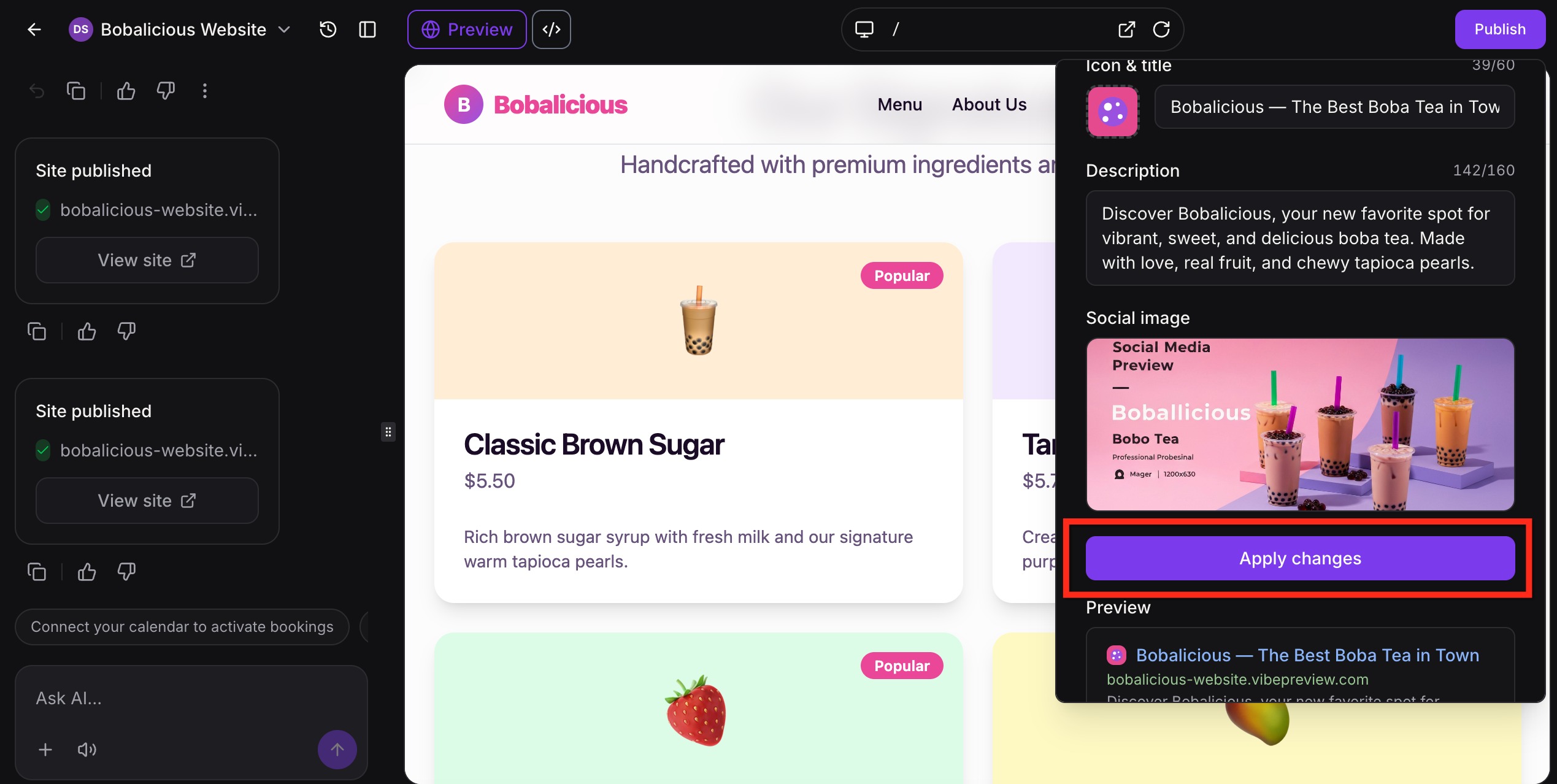
- Update the icon, name, description, and social image. Then click Apply Changes.
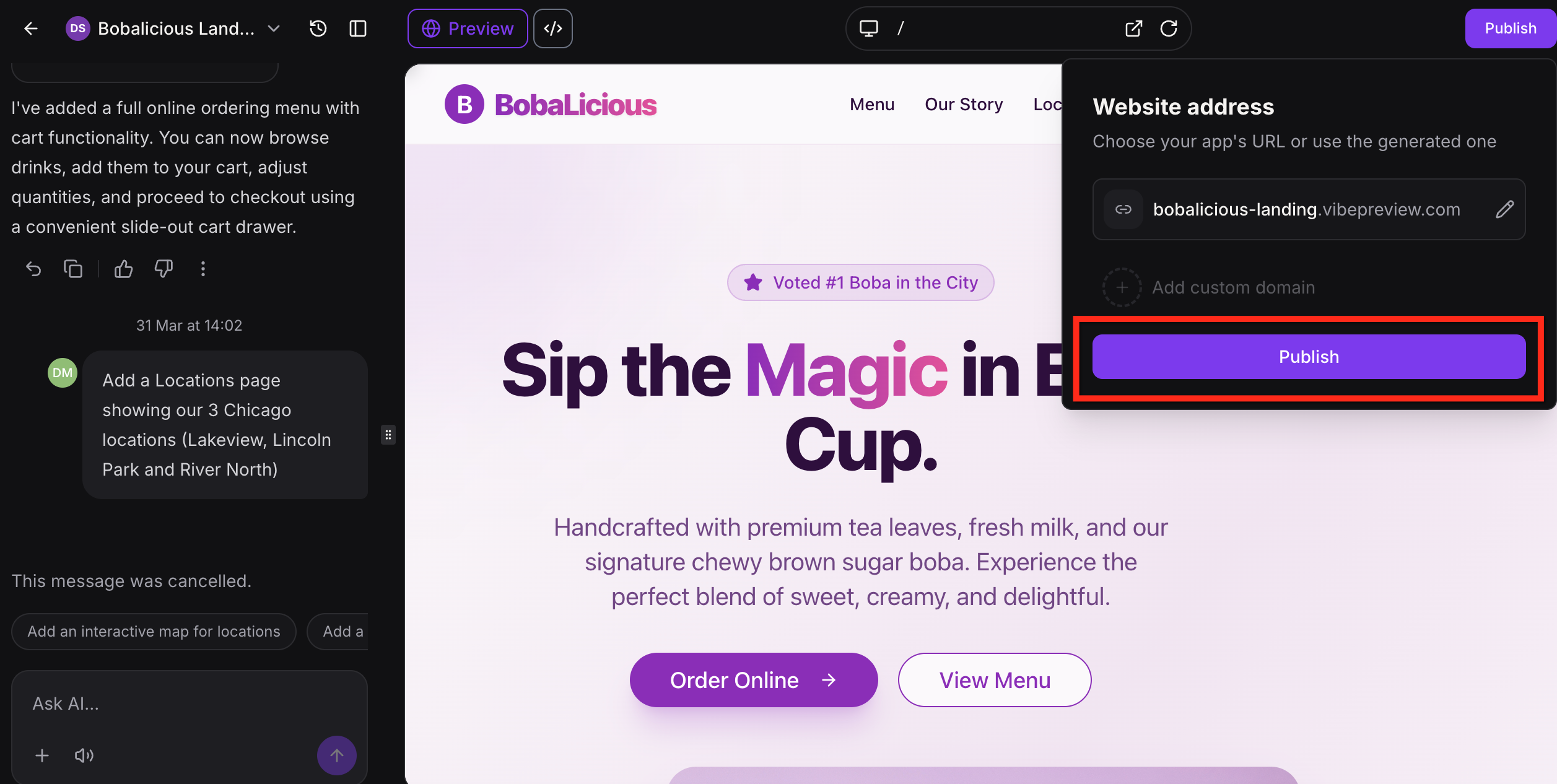
- Click Publish.
Connect an AI Studio Domain from Domain Hub
You can also connect a domain or sub-domain to an AI Studio project directly from Domain Hub. This lets you complete DNS setup and link the domain to a project without starting inside AI Studio.
- From the Sub-Account view, go to Settings → Domains & URL Redirects.
- Click + Connect a domain.
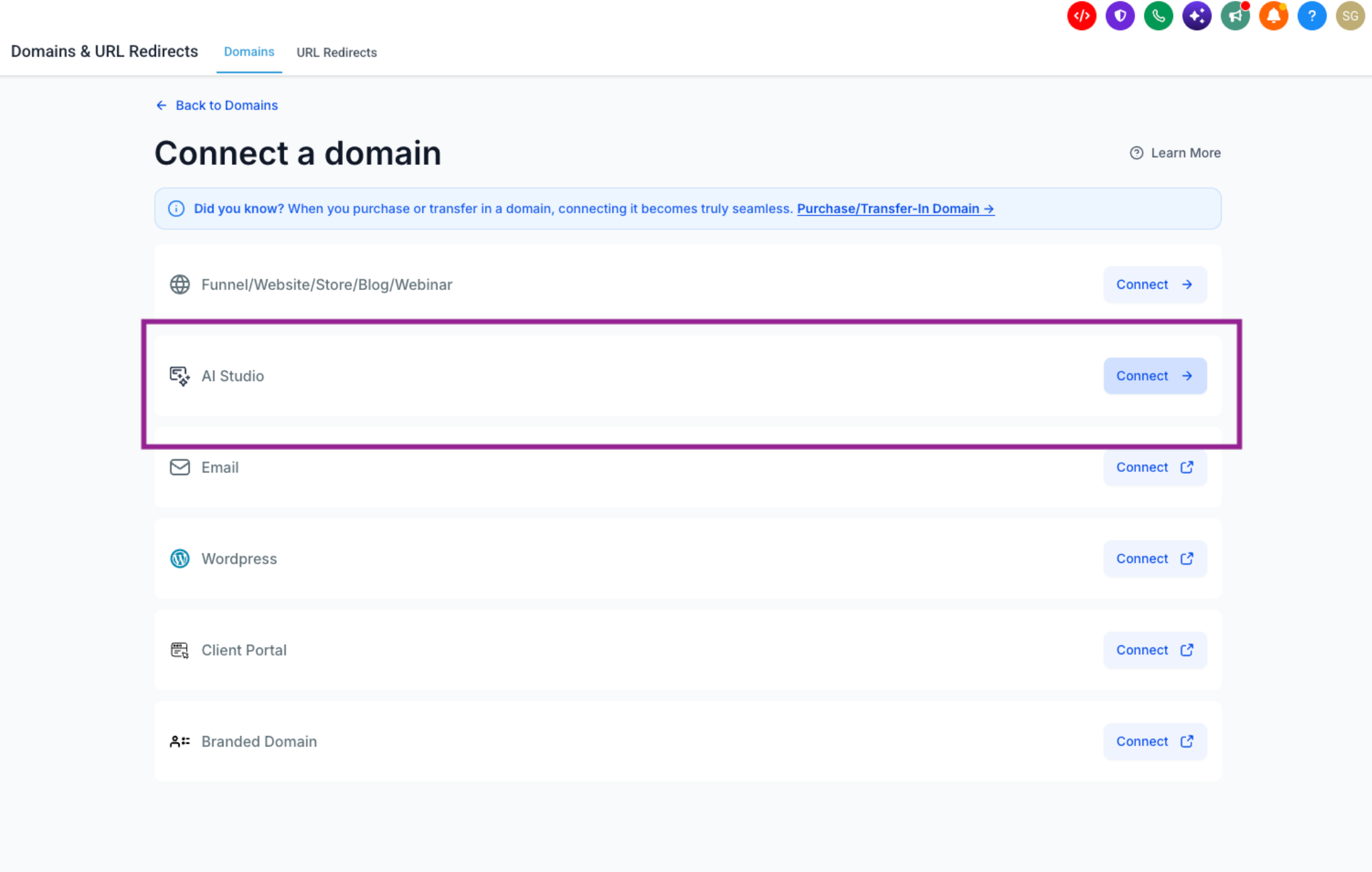
- Under What will this domain be used for?, locate AI Studio and click Connect.
- Enter the domain or sub-domain you want to connect.
- Complete the guided DNS setup and verification.
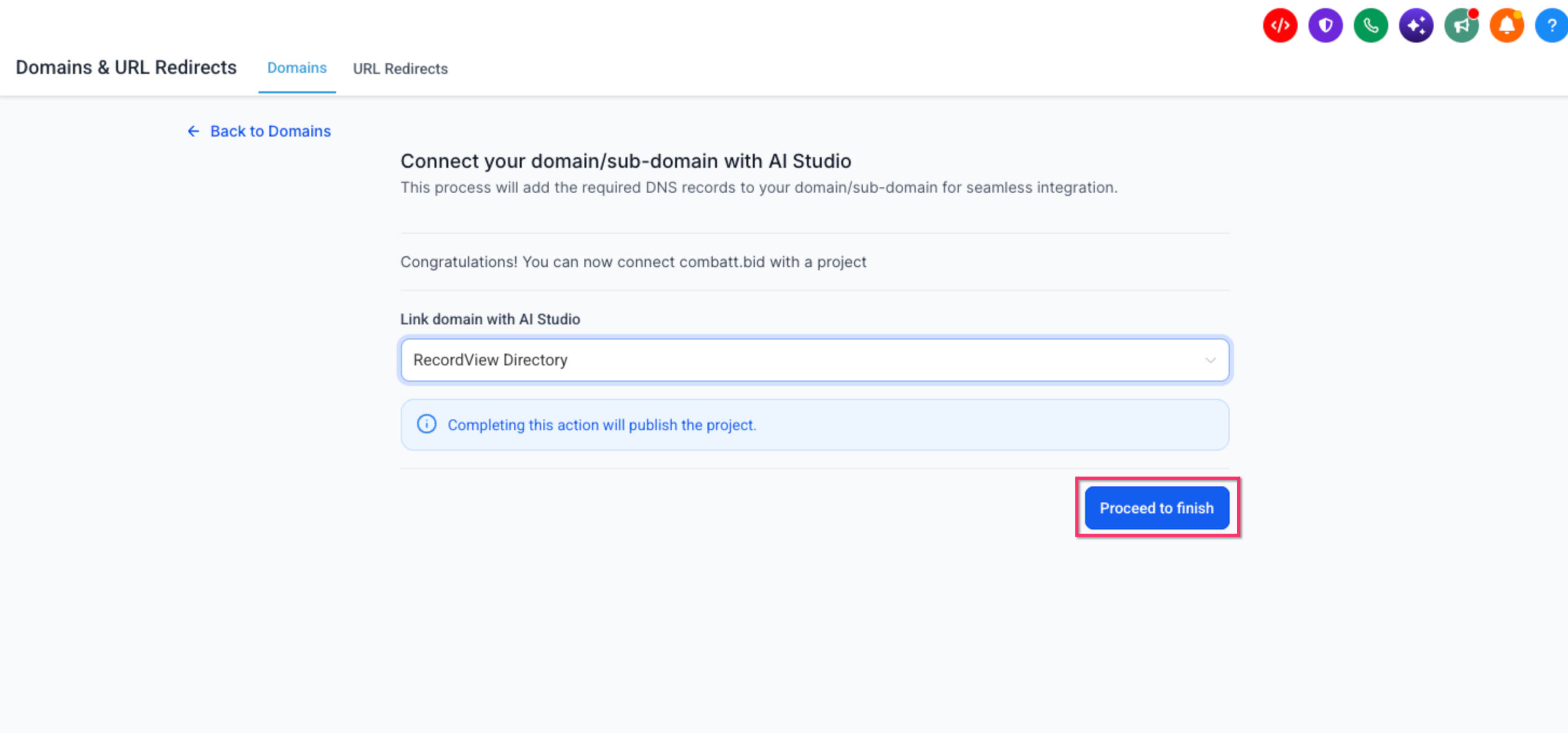
- After DNS is verified, select the AI Studio project under Link domain with AI Studio.
- Click Proceed to finish.
If you connect a root domain, HighLevel also includes the `www` companion in this Domain Hub flow.
If the selected project is not yet published, completing the connection publishes the project before attaching the domain.
If the project already has a primary domain, connecting an additional domain does not replace the existing primary domain.
If the domain is already connected to another AI Studio project, HighLevel stops the process before making changes to either project.
Connect a Custom Domain
Connecting a custom domain lets you publish your AI Studio project on a branded URL. You cannot connect a custom domain until the project has first been published to a preview domain.
To connect a custom domain:
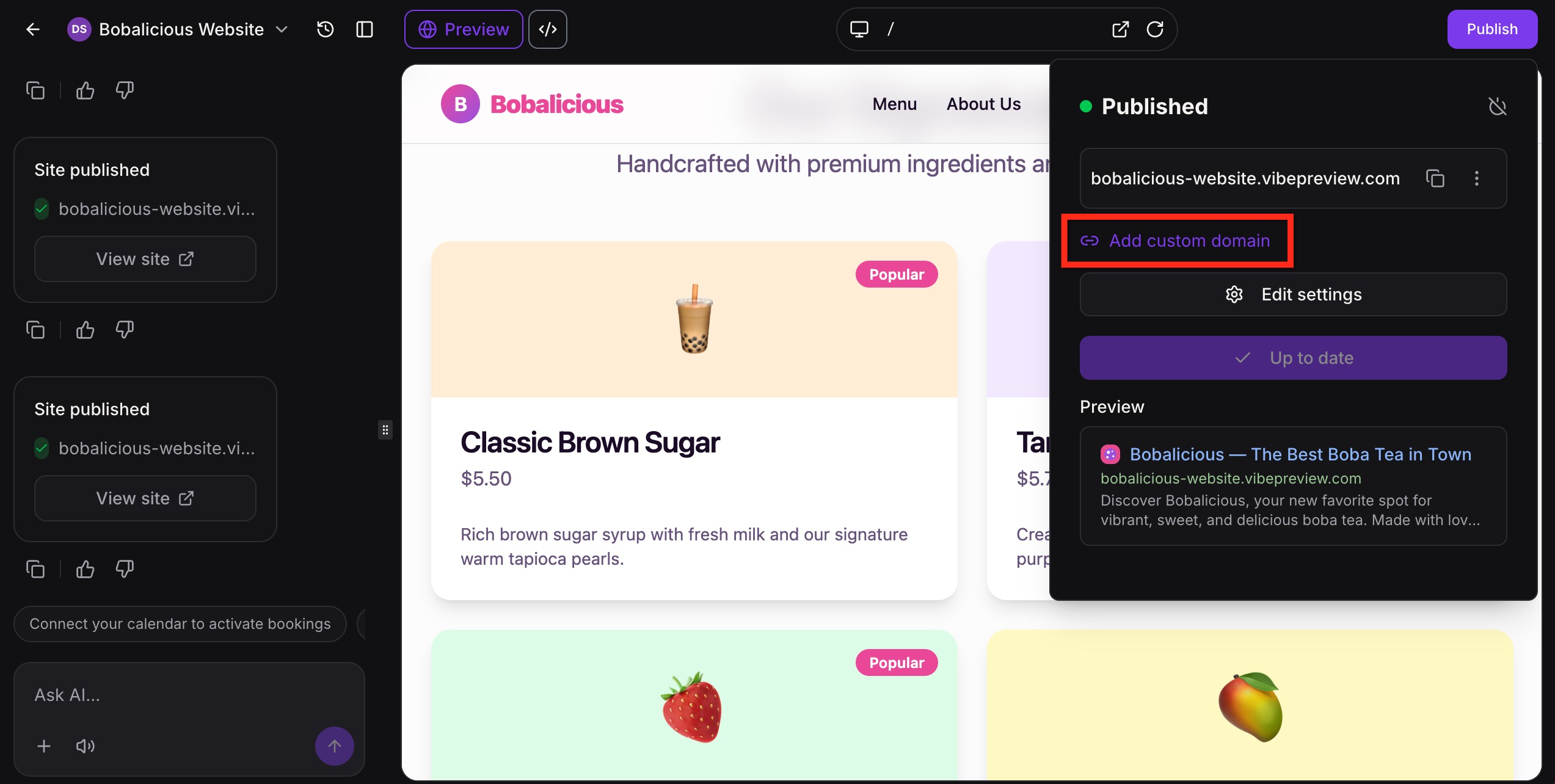
Click Publish then select Add Custom Domain.
Enter the domain you want to connect.
If you enter an apex domain (example.com) or the www version (www.example.com), an option appears to also add the other domain and set up a redirect. It is recommended to connect both your root and www domains.
Leave it selected to connect both domains in the same setup. Clear it if you only want to connect the domain you typed. This option only appears for apex and www domains (not for other subdomains like blog.example.com).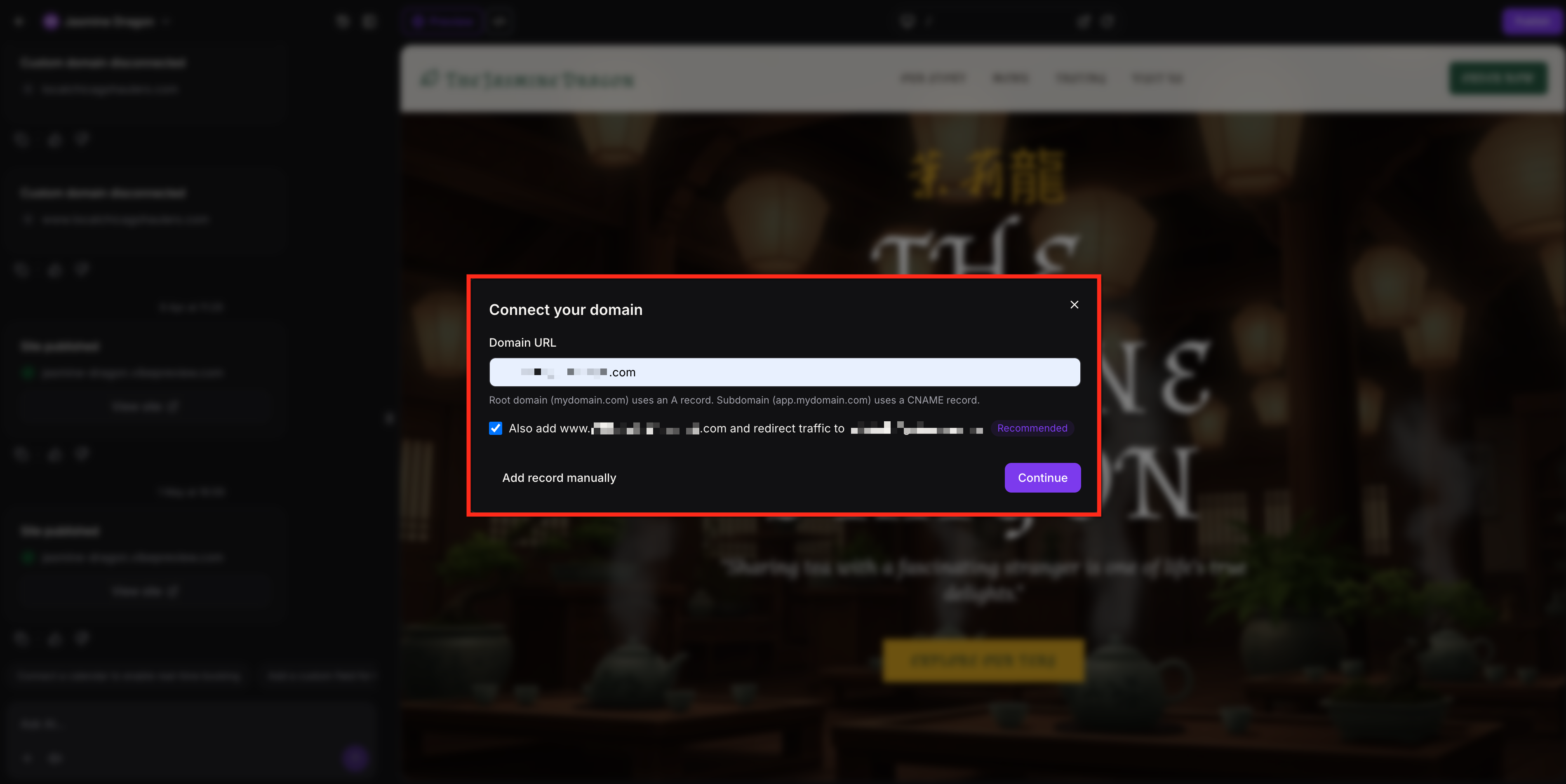
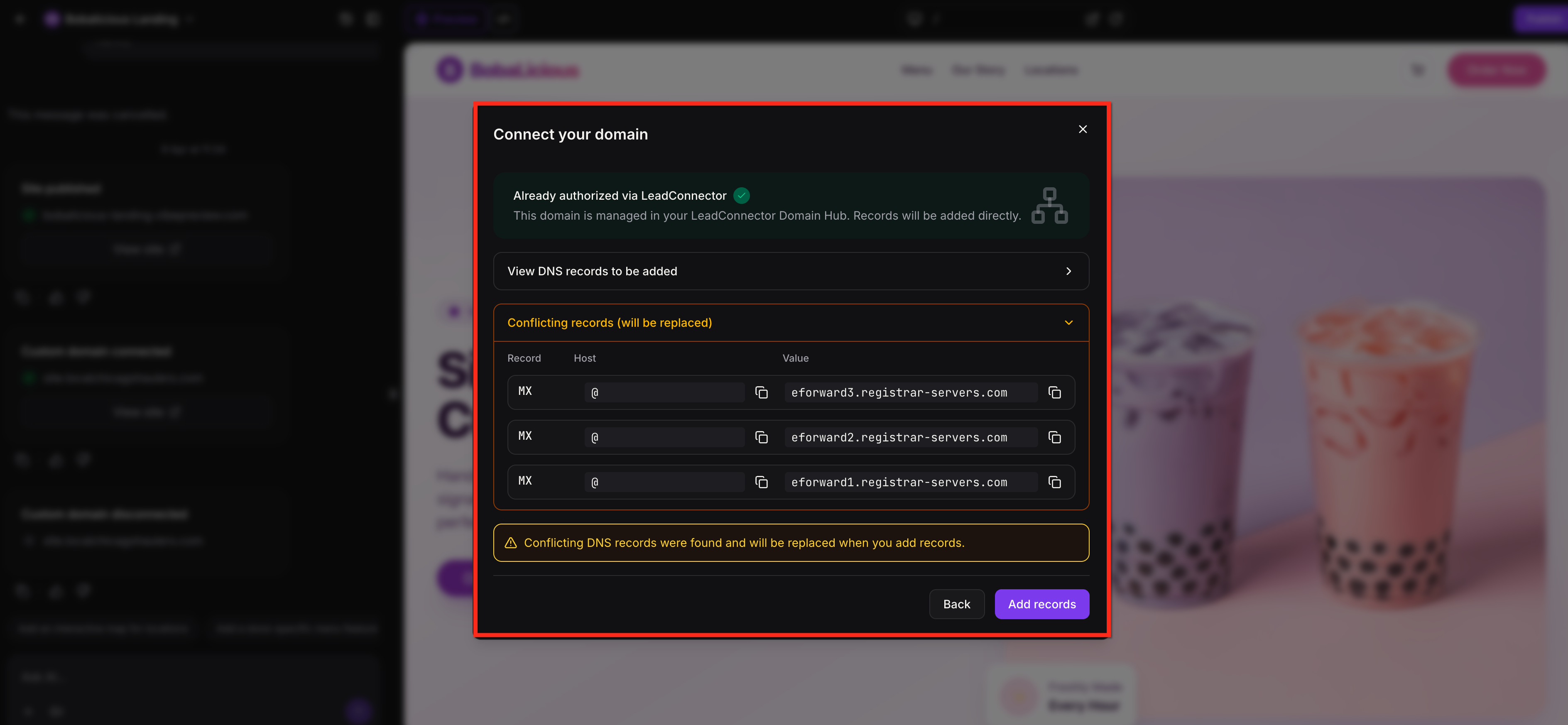
If the domain is already managed in HighLevel, the setup continues within the flow. If conflicting records are found, review the warning and affected records before clicking Add Records.
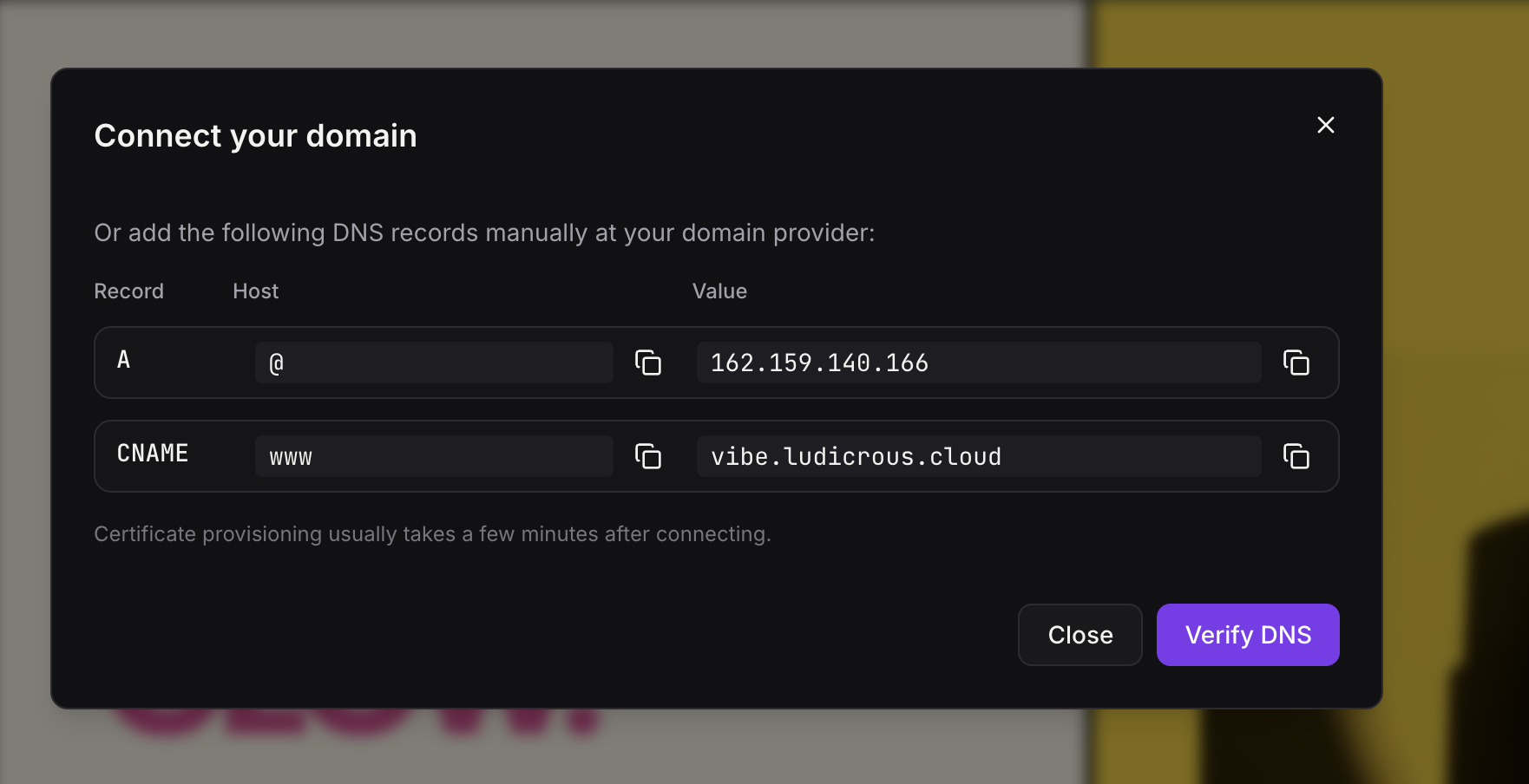
If the domain is not managed in HighLevel, add the DNS record(s) shown, then click Verify DNS. If you chose to connect both apex and www, you’ll be prompted to add/verify two records in the same flow.
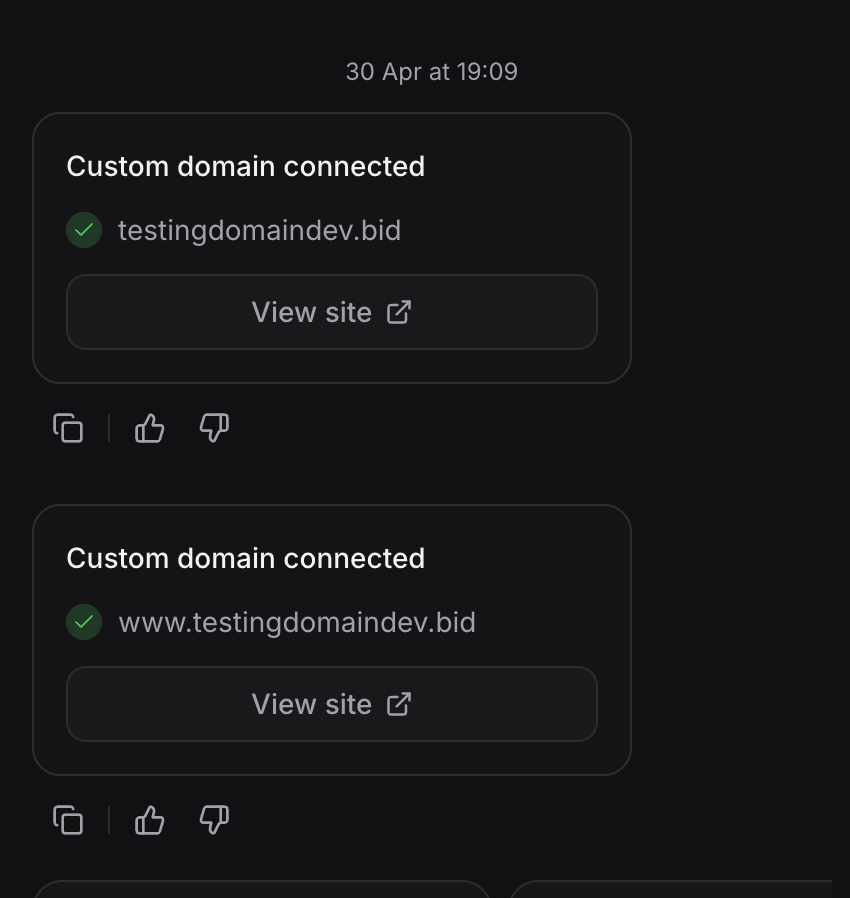
After setup is complete, the AI chat shows that the custom domain is connected, displays the connected domain, and includes a View site option.
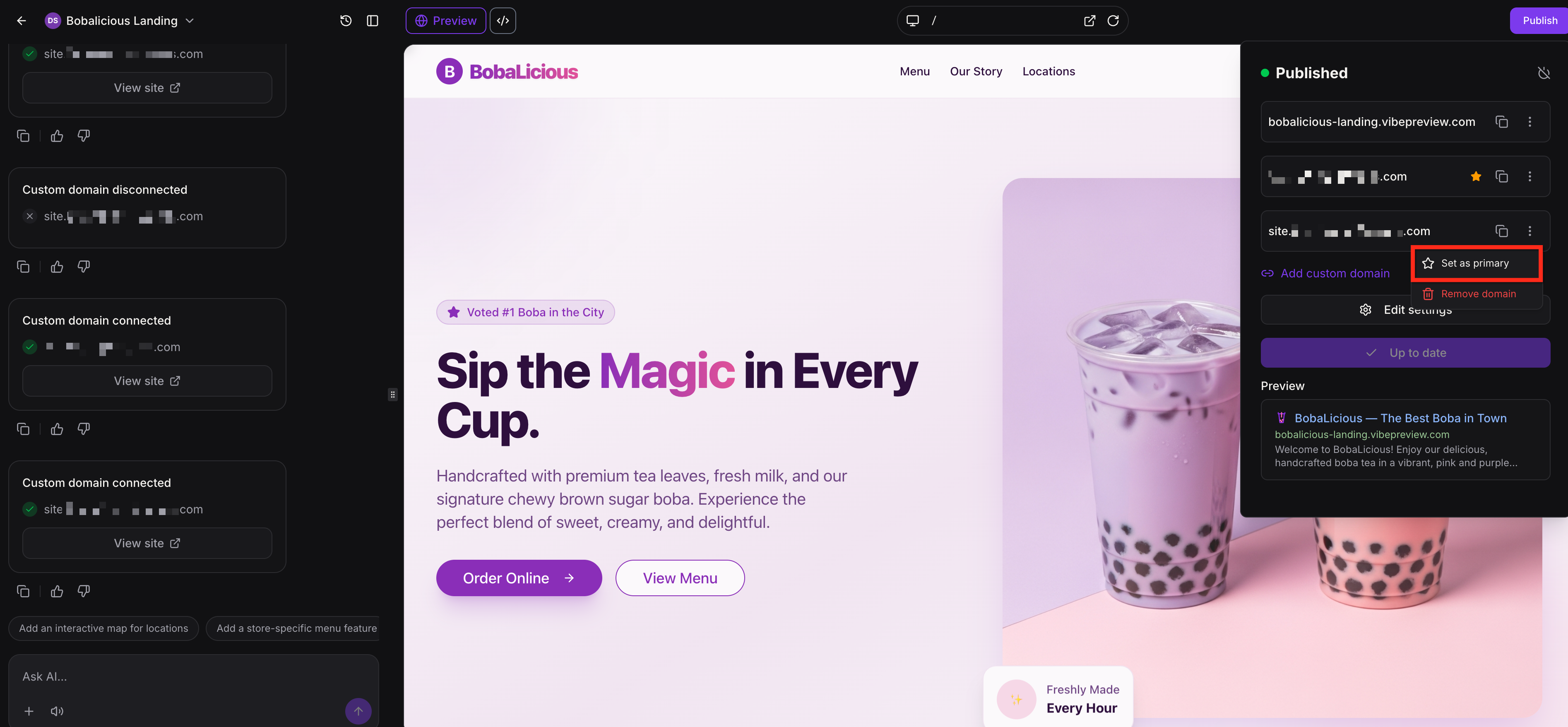
Set a Primary Published URL
Setting a primary published URL lets you choose the main live domain for your AI Studio project. Other connected URLs will automatically do a 301 redirect to the primary domain.
Note: If you connected both the apex and www domains during setup, the domain you typed is treated as the primary (canonical) URL and the other domain redirects to it. If your project already has a primary URL set, it remains unchanged.To set a primary published URL:
- Click Publish, then click the three-dot menu next to the URL you want to make primary.
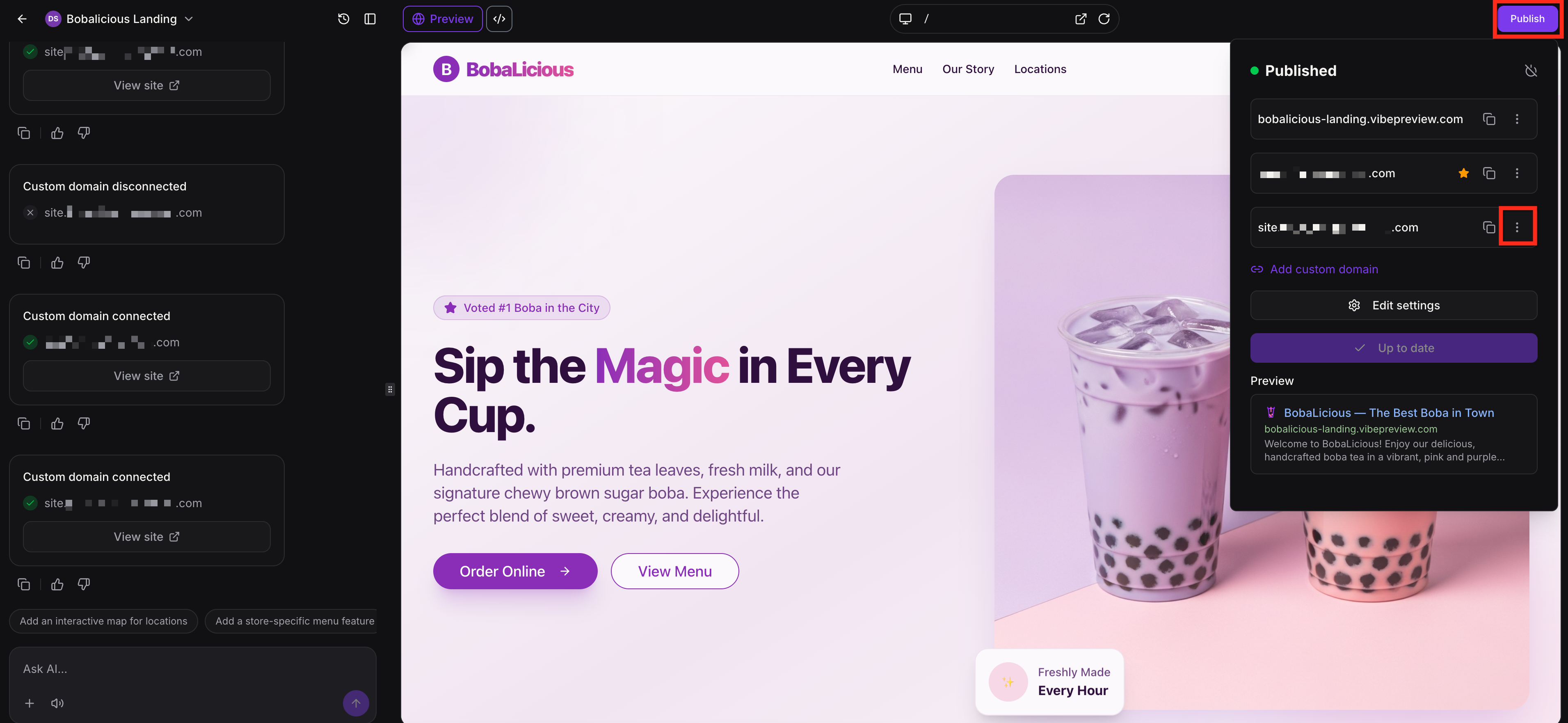
- Click Set as primary.
Cloning Projects in AI Studio
AI Studio lets you clone a project within the same sub-account or across sub-accounts in the same agency. Project cloning makes it easier to reuse successful work without rebuilding the same experience from scratch.
When cloning a project, you can:
- Duplicate it inside the same sub-account
- Clone it to another sub-account in your agency
- Place it at the root level or inside an existing folder
- Choose whether to include chat activity and version history from the original project
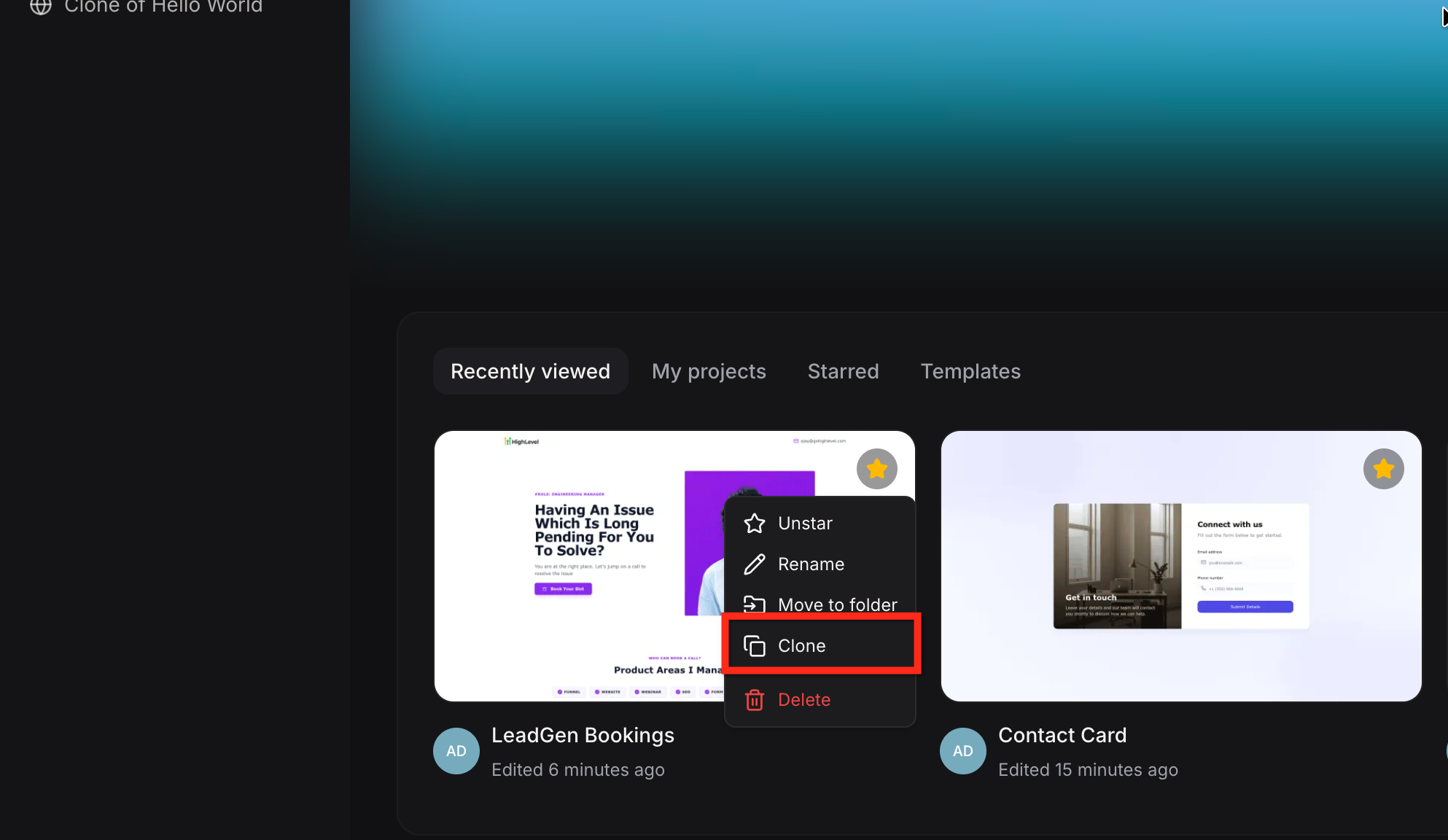
Follow the steps below to clone a project:
- Click the three-dot menu on the project you would like to clone and select Clone.
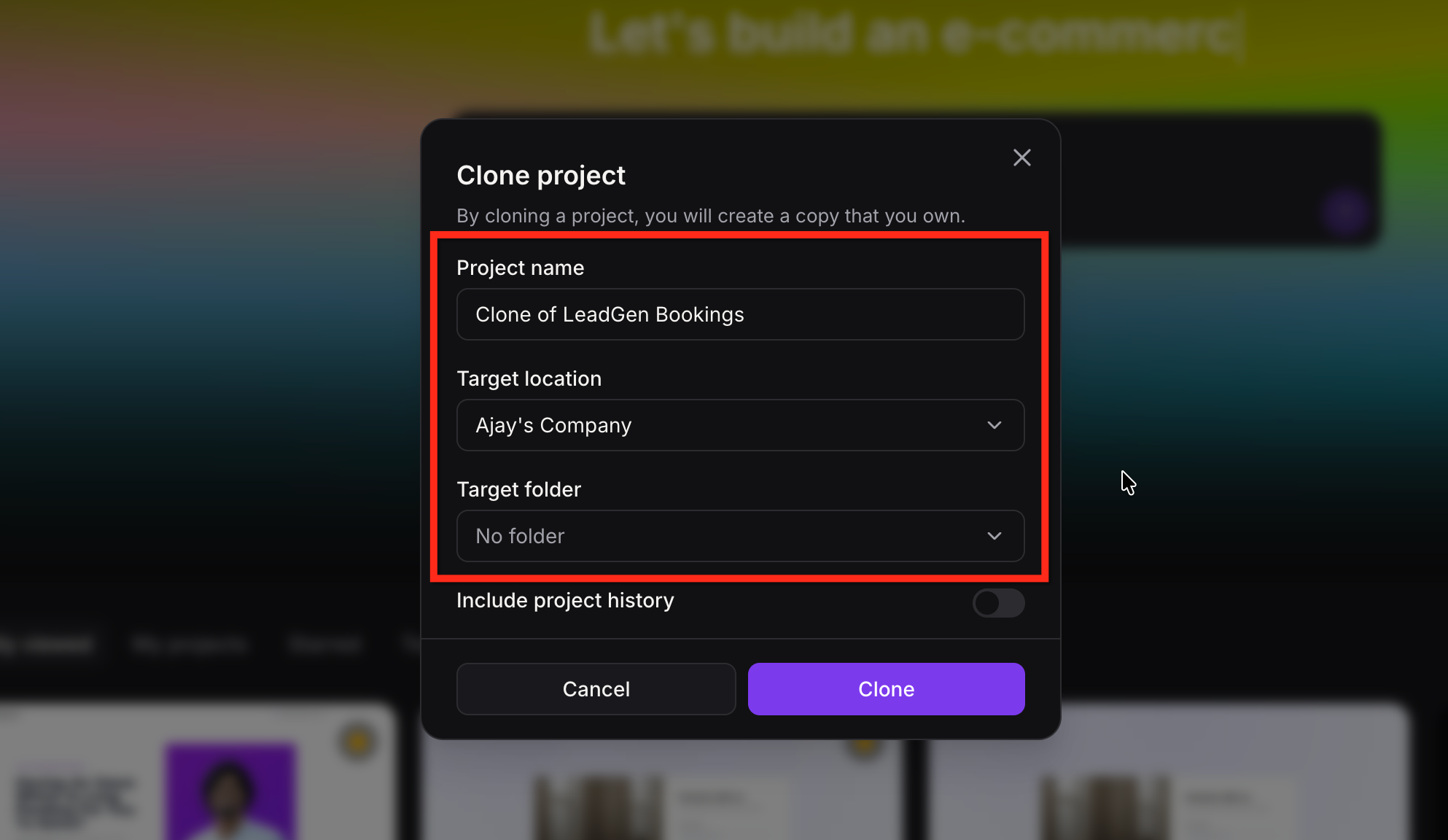
- In the Clone project window, enter the new project name. Choose the target sub-account and target folder(or leave it at the root level).
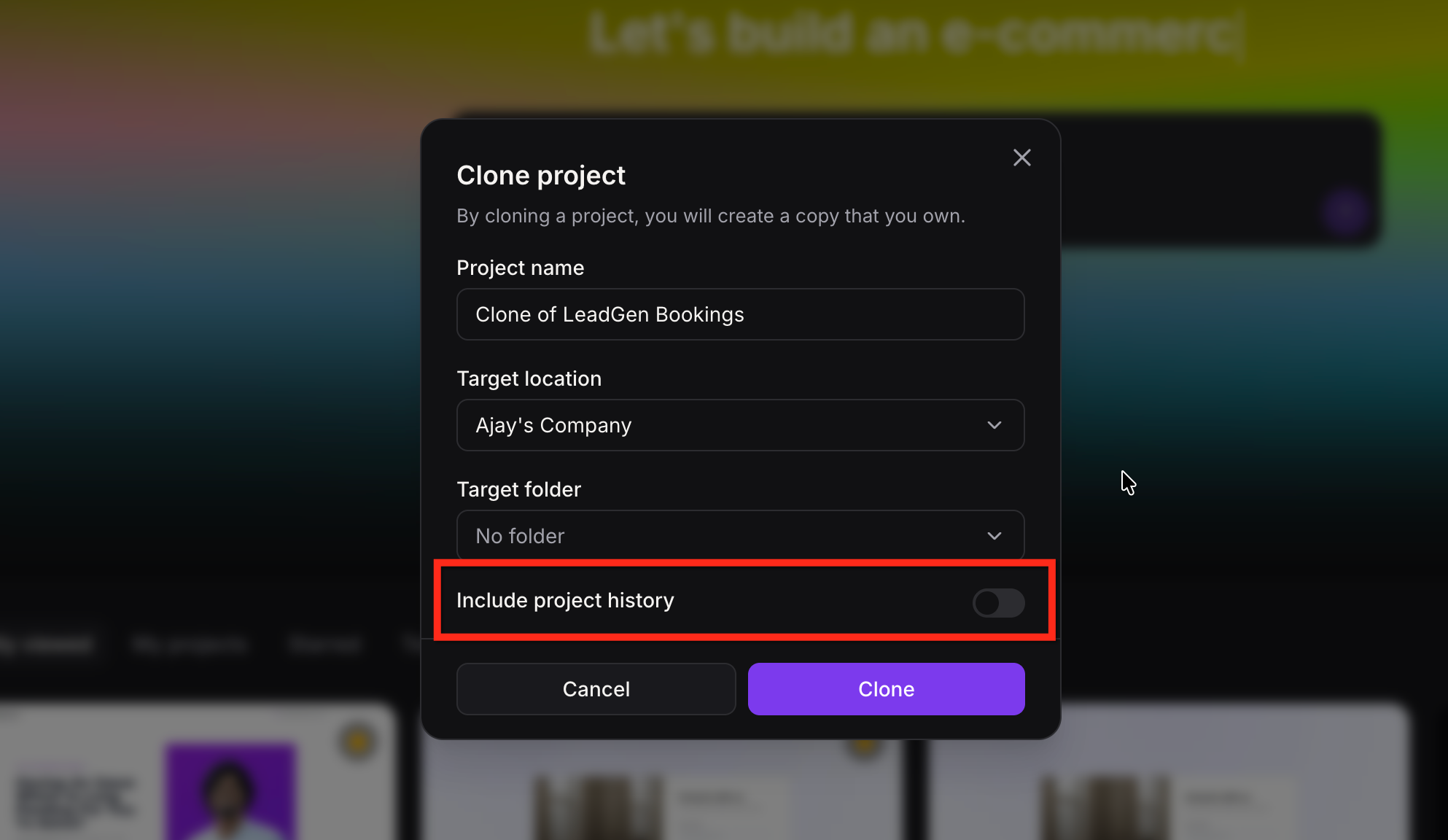
- Turn Include project history on or off. With History includes chat activity and version history from the original project. Without History creates a clean copy with no chats or version history.
- Click Clone.
Share Projects Using Snapshots
You can also use Snapshots to share multiple AI Studio projects across agencies or sub-accounts. Snapshots let you package selected projects from a source sub-account and reuse them in existing sub-accounts or when creating new ones.
Use Snapshots when you want to:
- Share multiple AI Studio projects at once
- Create reusable project templates
- Standardize AI Studio setups across sub-accounts
- Speed up onboarding without cloning each project individually
To create and use a Snapshot, see Creating New Snapshots in HighLevel.
Submission Data of your Project
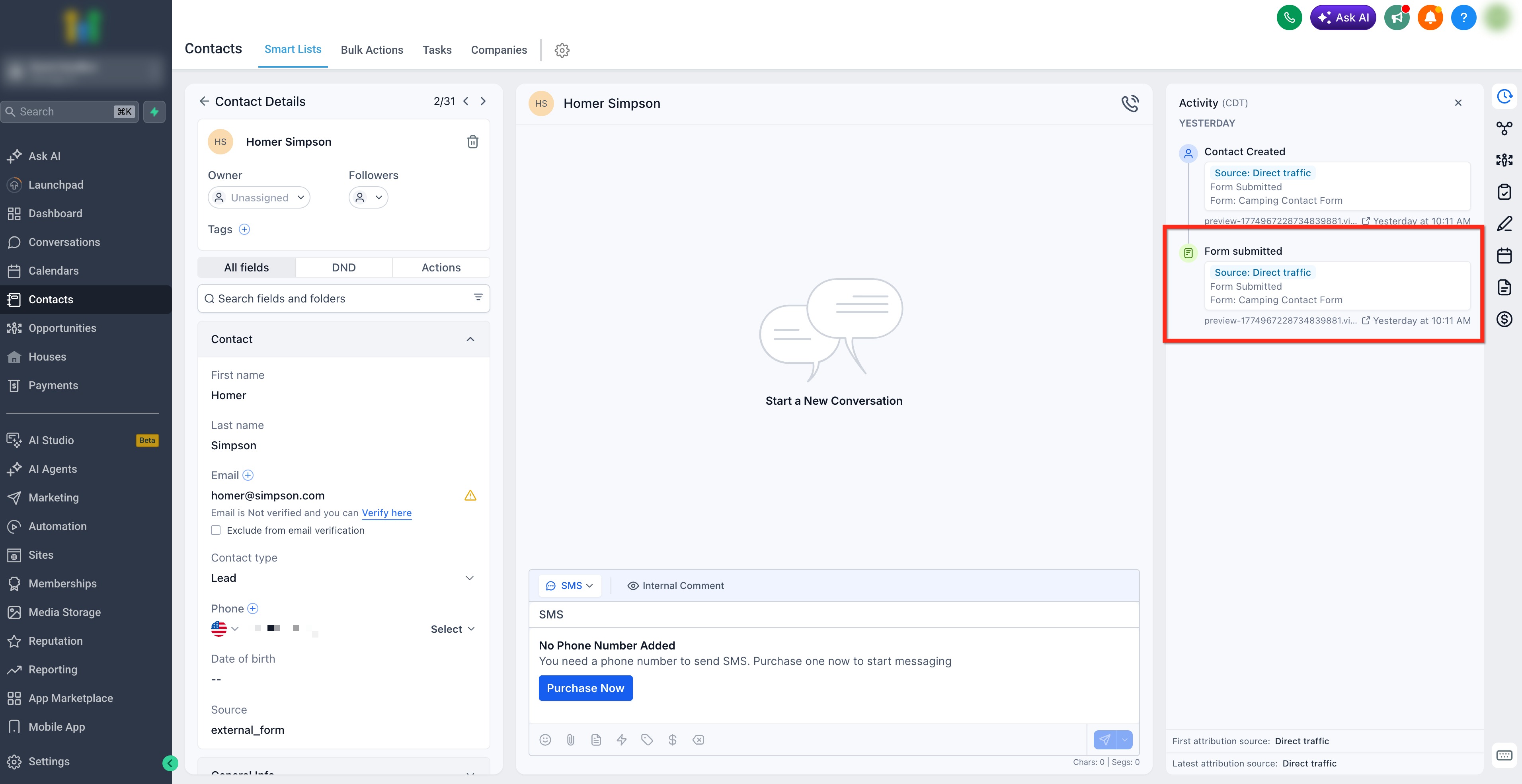
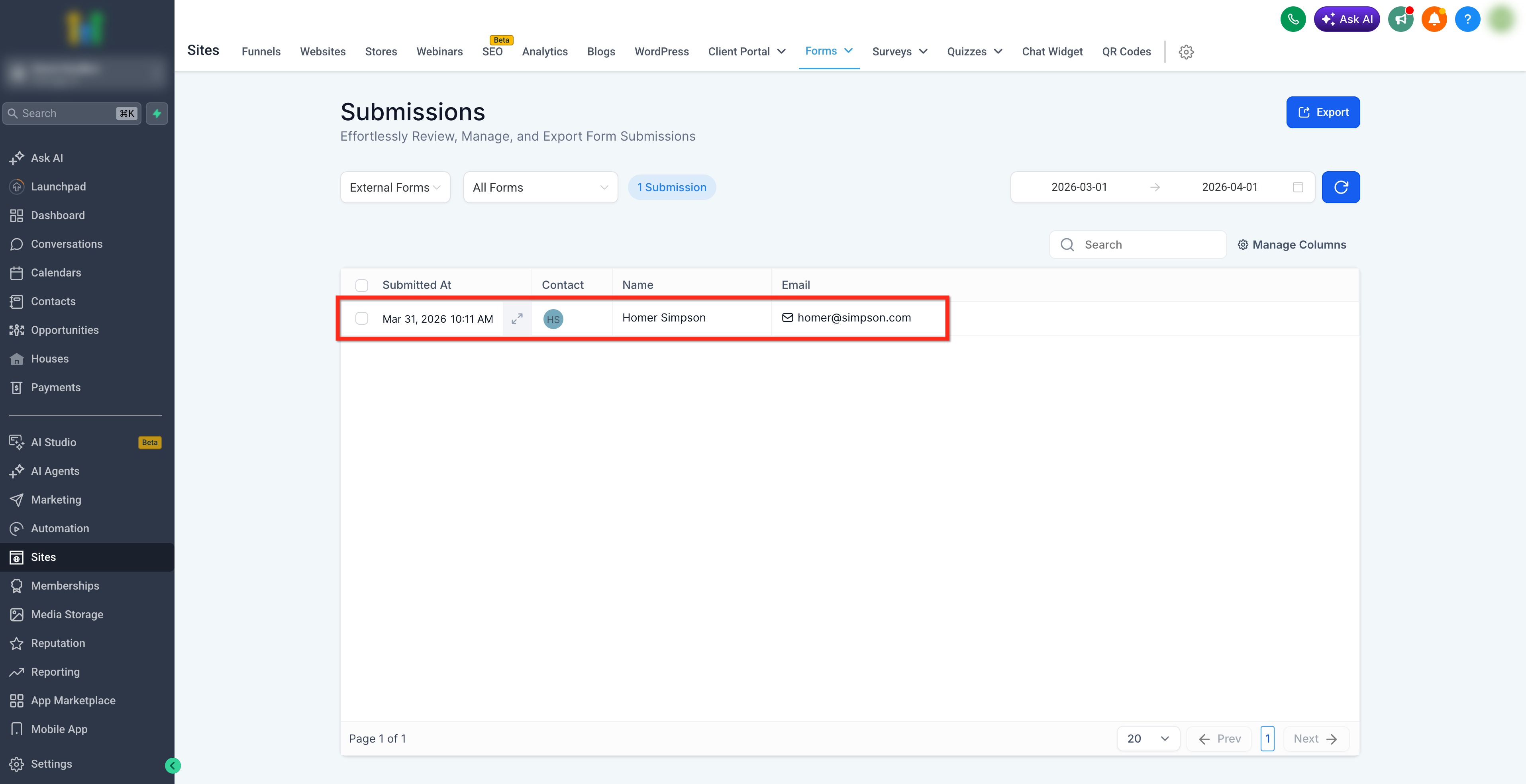
Once connected, form submissions go into the connected sub-account CRM setup, not into the AI Studio project itself. This means that the page lives in AI Studio but the responses, contacts and submission activity go into the connected HighLevel account. After connection, form submissions can appear under form submissions as third-party submissions, and they can also be tied into workflow activity through external tracking behavior.
Users can view submissions in:
- Contacts
- Sites > Forms > Submissions > External Forms
How Workflows Connect to Form Submissions
New: AI Studio forms can now use the AI Studio Form Submitted workflow trigger. It starts a workflow when a connected AI Studio form is submitted and supports filters for the AI Studio project, form, page path, and domain. Learn more about the AI Studio Form Submitted trigger.
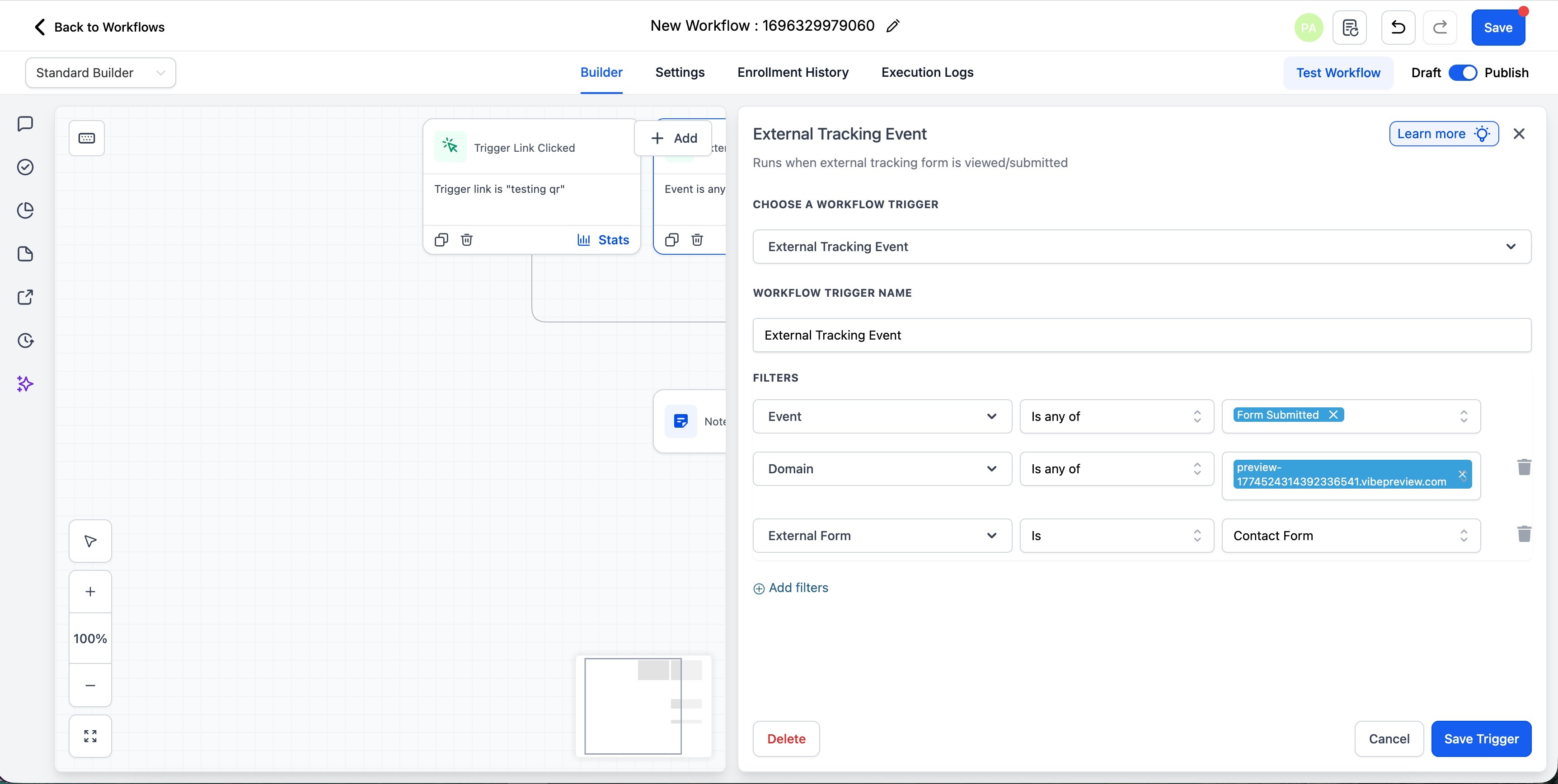
Once the form is connected to CRM tracking, submissions can be used in workflows through tracking triggers. The practical flow is:
- Create the form layout in AI Studio
- Connect the form to CRM tracking
- In a workflow, use the trigger "External Tracking Event"
- Use the "Form submission" event to continue automations
- Use the "Domain" filter and/or "External Form" filter then continue your automation actions.
Current Limitations and Important Notes
Knowing the current boundaries of AI Studio helps set expectations and prevents confusion during setup.
Important notes:
AI Studio projects are managed inside AI Studio and cannot be moved into the standard Sites or Funnels builders.
URL and image-based recreation should be treated as inspiration for structure, layout, and style direction rather than an exact one-to-one copy.
Forms and calendars may require connection steps before they work with your HighLevel data and scheduling setup.
Troubleshoot Issues with AI Studio
When you ask AI Studio to fix a problem, it can investigate the running project to better understand what is happening before making changes.
When deeper troubleshooting is needed, AI Studio can inspect the application's behavior, review relevant project information, test functionality and external resources, and use those results to identify the cause of an issue.
For example, AI Studio can identify when a preview is showing an outdated version, check whether an external resource is available, or investigate an application error before applying a fix.
If the project environment becomes stale or unresponsive, AI Studio can attempt to recover it and continue working.
After applying a fix, AI Studio can check the project again to verify the result before completing the request.
You do not need to run these troubleshooting steps manually. Ask AI Studio to build, change, or fix your project as usual.
Frequently Asked Questions
Q: Is AI Studio only for websites and landing pages?
No. AI Studio can also create other front-end experiences such as multi-step surveys, branded forms, booking flows, and other interactive customer-facing experiences.
Q: How much does AI Studio cost?
AI Studio uses the following pricing structure:
- AI Employee Growth: Usage Included.
- AI Employee Unlimited: 3x Usage Included.
- Pay-Per-Use: At Token Cost.
Usage is measured in 5-hour windows. Each plan has its own usage limit within that window. AI Employee Unlimited includes 3x the limit of AI Employee Growth. If a limit is reached, access resets at the end of the 5-hour window.
AI Studio also displays usage notification banners to help users monitor consumption and spending as usage increases. These notifications are enabled automatically for users with access to AI Studio. For notification thresholds, pay-per-use spending alerts, and pricing details, see AI Studio - Pricing. For spending limits and limit-management workflows, see AI Usage Limits.
Q: Do I need to move an AI Studio project into Funnels or Websites before publishing it?
No. AI Studio projects can be published directly from AI Studio. You can also connect a custom domain to an AI Studio project from Settings → Domains & URL Redirects → + Connect a domain → AI Studio.
Q: Can I move or copy an AI Studio project into Funnels or Websites under Sites?
No. AI Studio projects stay in AI Studio and cannot be copied into the standard Funnels or Websites builders under Sites. AI Studio is designed to publish directly from its own workspace, you do not need to move the output into the legacy Funnels or Websites builders.
Q: Can I preview my project on mobile before publishing?
Yes. AI Studio includes preview options for desktop, tablet, and mobile views so you can review the layout before publishing. Just click on the Computer icon in the top of the preview to switch between view modes
Q: Can I connect an AI Studio domain without opening AI Studio first?
Yes. Go to Settings → Domains & URL Redirects → + Connect a domain → AI Studio. Complete DNS verification, then select the AI Studio project you want the domain to serve.
Related Articles
Was this article helpful?
That’s Great!
Thank you for your feedback
Sorry! We couldn't be helpful
Thank you for your feedback
Feedback sent
We appreciate your effort and will try to fix the article