This article explains how Agency owners and admins can disable AI Studio in bulk across multiple sub-accounts.
This guide is intended for Agency owners and admins who want to restrict access to AI Studio for their sub-accounts. Once disabled, AI Studio will only be available to sub-accounts when it is manually enabled by the Agency.
How to Bulk Enable/Disable AI Studio Across Sub-Accounts
Follow the instructions in this article to configure this setting.
- Navigate to your Agency dashboard
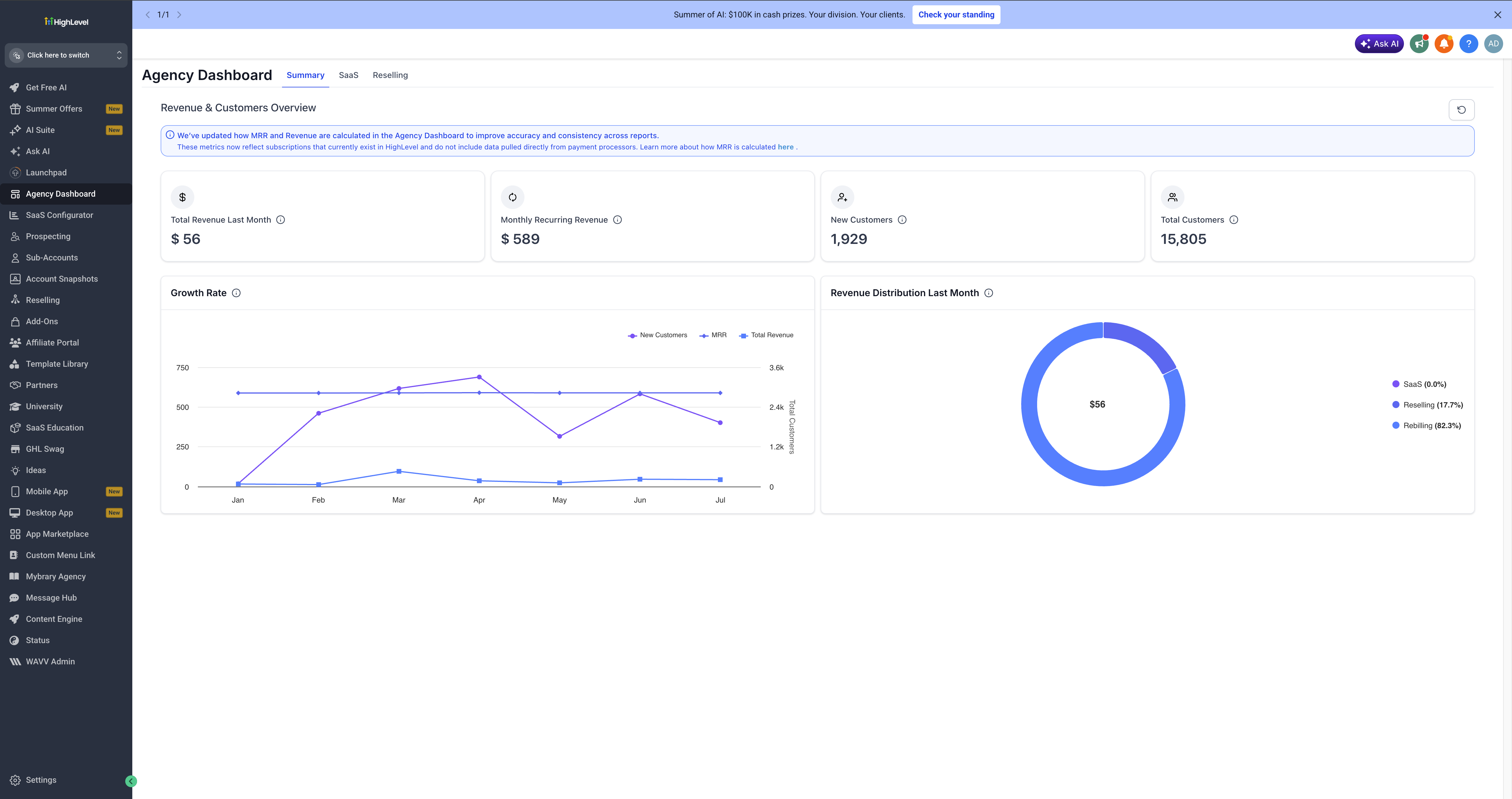
- Select AI Suite from the left-hand menu.
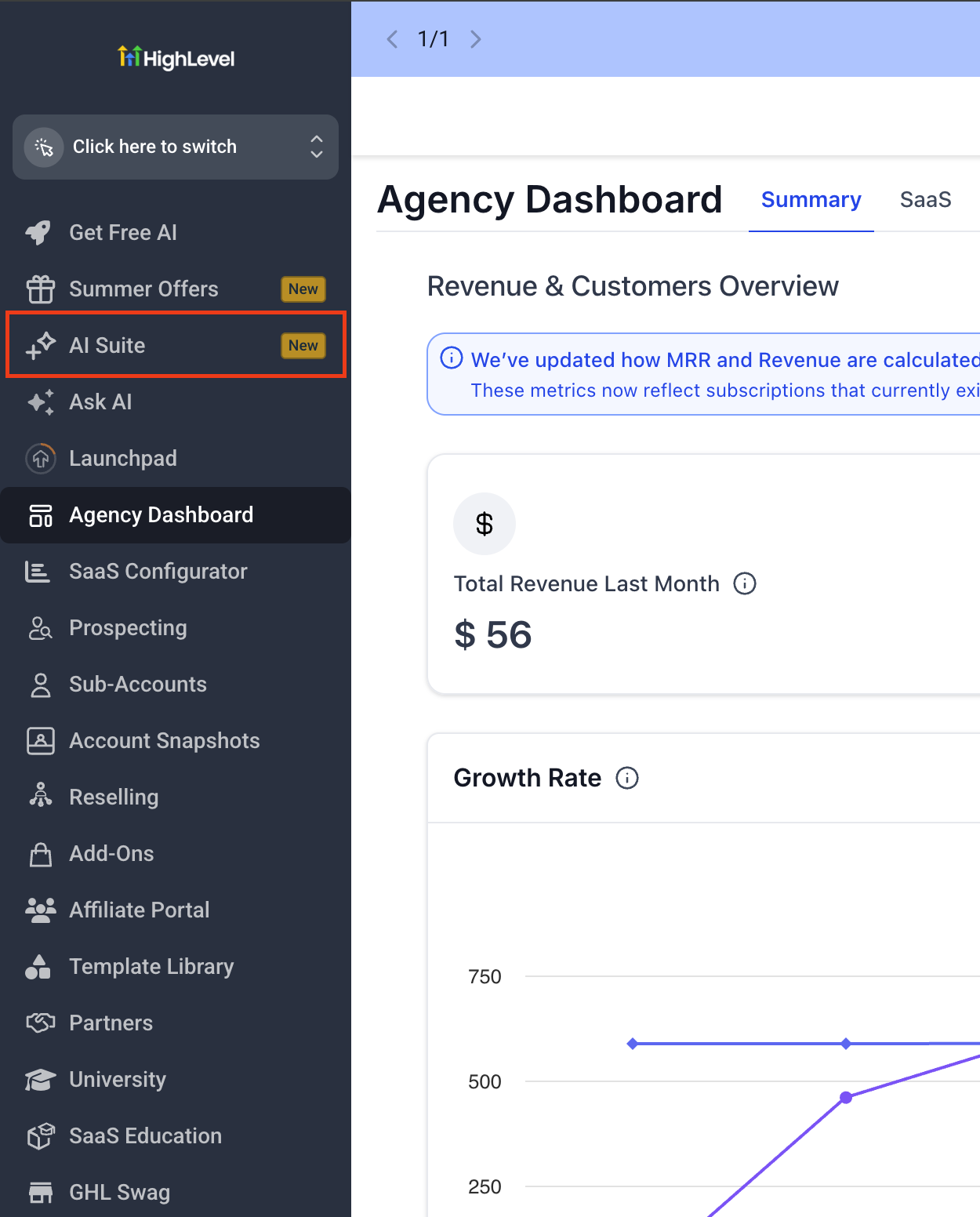
- Select AI setup from the menu options in AI Suite.
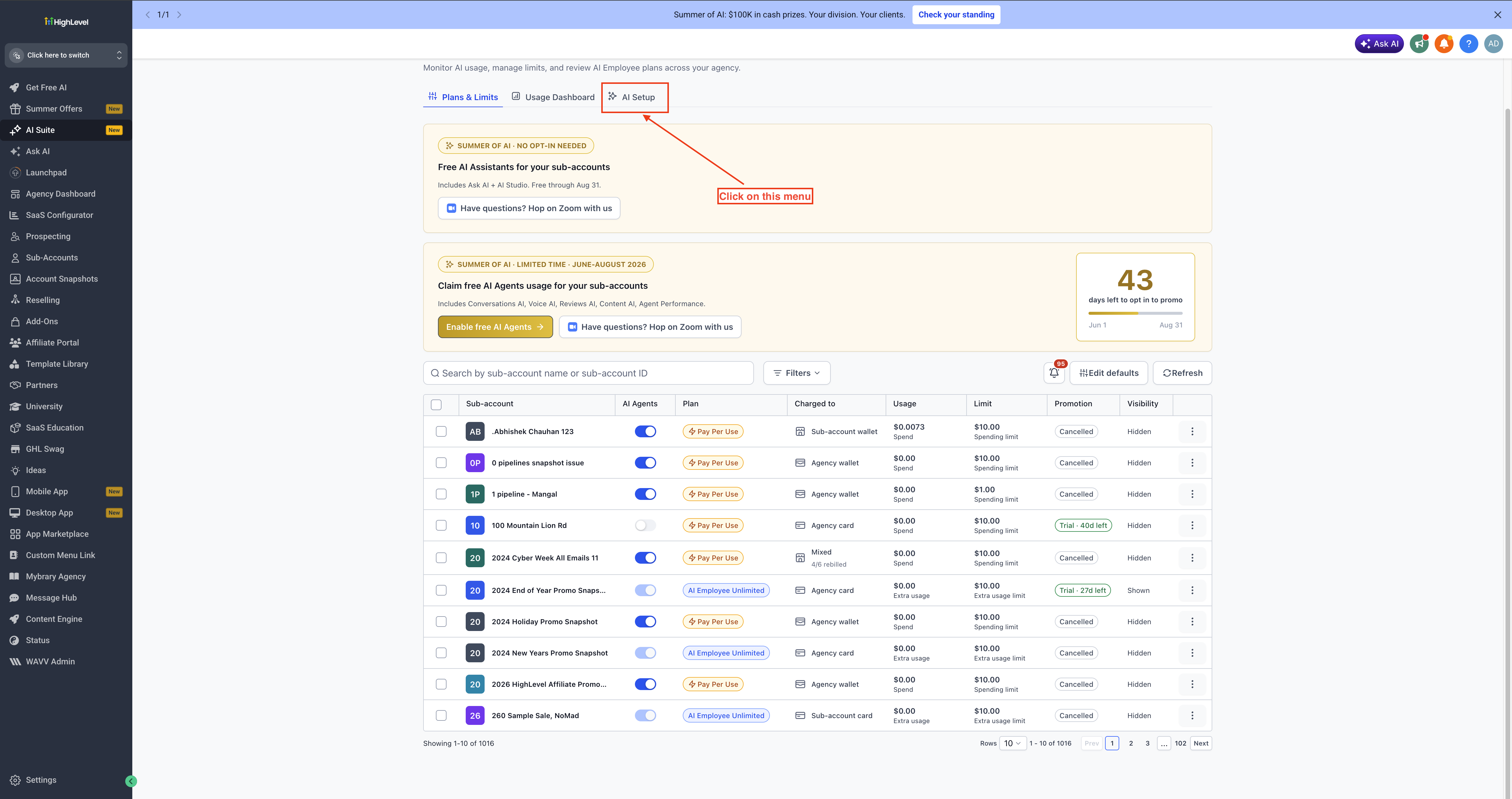
- Use the multi select checkboxes in the table entries to select sub-accounts for which you wish to change the permissions in bulk. Once selected click on Manage AI access button which will open a drawer on the right side.
- In the drawer, select the AI Studio permission you want to apply to the selected sub-accounts. Then click Apply Changes.
- No change: Keeps the existing AI Studio setting for each selected sub-account.
- Enable for sub-account admins only: Allows only sub-account admins to access AI Studio. Other users in those sub-accounts will not have access.
- Enable for all sub-account admins and users: Allows all users in the selected sub-accounts to access AI Studio, regardless of their role.
- Disable: Hides AI Studio and prevents access in the selected sub-accounts.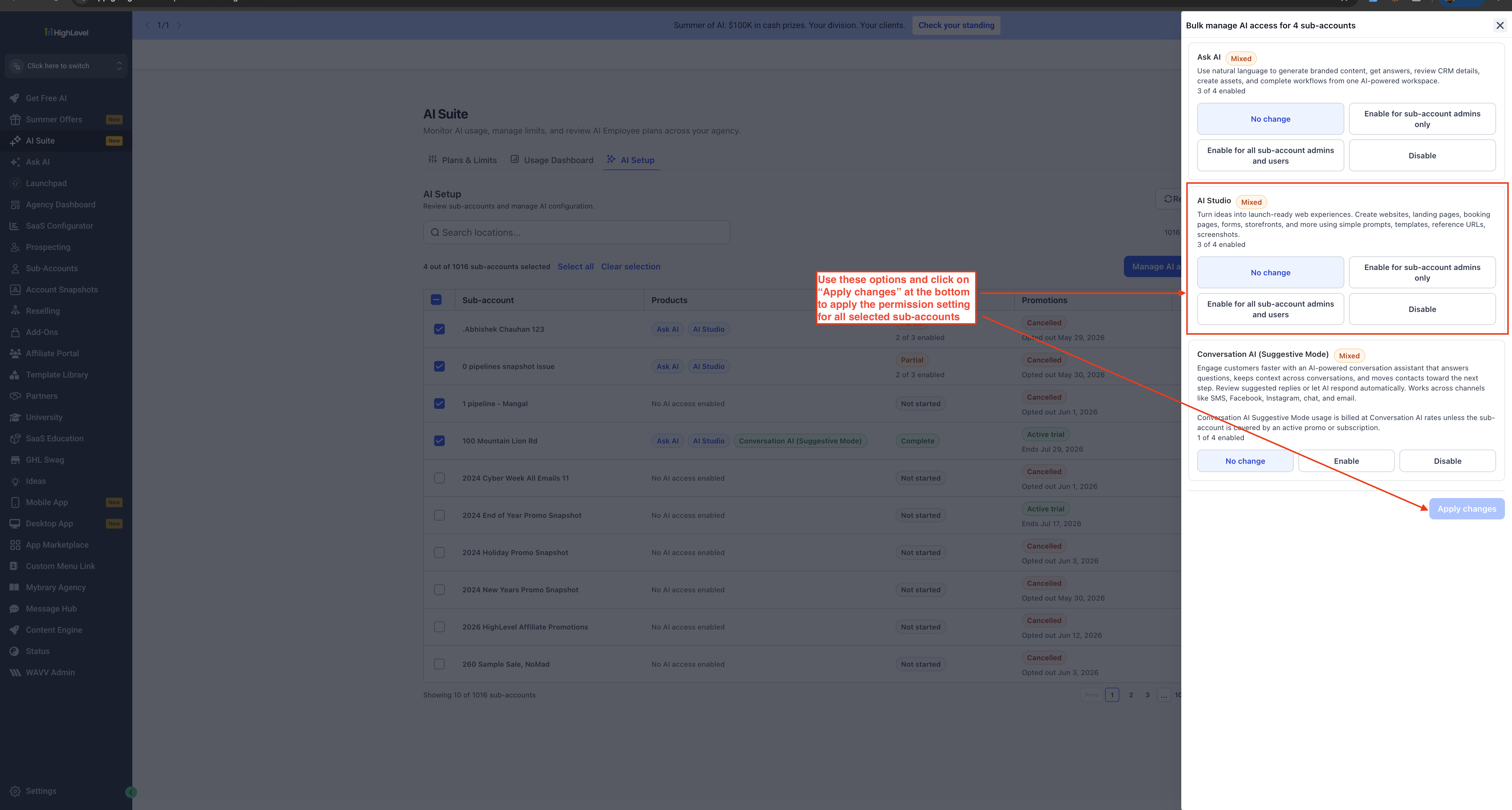
Was this article helpful?
That’s Great!
Thank you for your feedback
Sorry! We couldn't be helpful
Thank you for your feedback
Feedback sent
We appreciate your effort and will try to fix the article