Taxes for Rentals in HighLevel | Manual Tax Setup
Modified on: Wed, 18 Mar, 2026 at 8:01 AM
Taxes for Rentals helps you control how taxes are applied to rental bookings without changing your listing pricing workflow. Because each rental listing is tied to a product in Payments, you can configure the manual tax rate once and have it automatically apply to future bookings for that listing. Variant-based listings are also supported, which allows each variant to use its own linked product and tax configuration.
TABLE OF CONTENTS
- What is Taxes for Rentals?
- Key Benefits of Taxes for Rentals
- How To Setup Taxes for Rentals
- Frequently Asked Questions
- Related Articles
What is Taxes for Rentals?
Manage rental bookings in HighLevel with transparent manual taxes applied to eligible listings. Taxes for Rentals lets you connect tax setup to the product linked to each rental listing, so future bookings automatically include the configured tax amount. This helps rental businesses present accurate totals, improve customer transparency, and reduce manual tax work. Rentals currently supports manual taxes only, and tax setup is handled through the linked product in Payments → Products.
Key Benefits of Taxes for Rentals
Accurate tax setup is essential for rental businesses that need compliant booking totals and clear customer-facing pricing. Taxes for Rentals gives you a straightforward way to apply manual tax rates at the listing or variant level while keeping booking totals and invoices aligned with what customers should pay.
- Manual Tax Control: Configure manual taxes for rental listings using the linked product in Payments.
- Transparent Pricing: Help customers see more accurate booking totals when taxes apply to a rental booking.
- Variant-Level Flexibility: Apply different tax configurations when each variant has its own linked product.
- Operational Efficiency: Eliminate manual tax calculations and reduce workarounds during booking management.
- Better Financial Visibility: Ensure taxes appear in booking-related totals, invoices, and related reporting views where supported.
How To Setup Taxes for Rentals
Proper tax setup ensures future rental bookings calculate totals correctly and keeps your listing-to-product relationship aligned in Payments. Following the setup flow below helps you apply manual taxes consistently and avoid confusion between pricing rules and tax configuration.
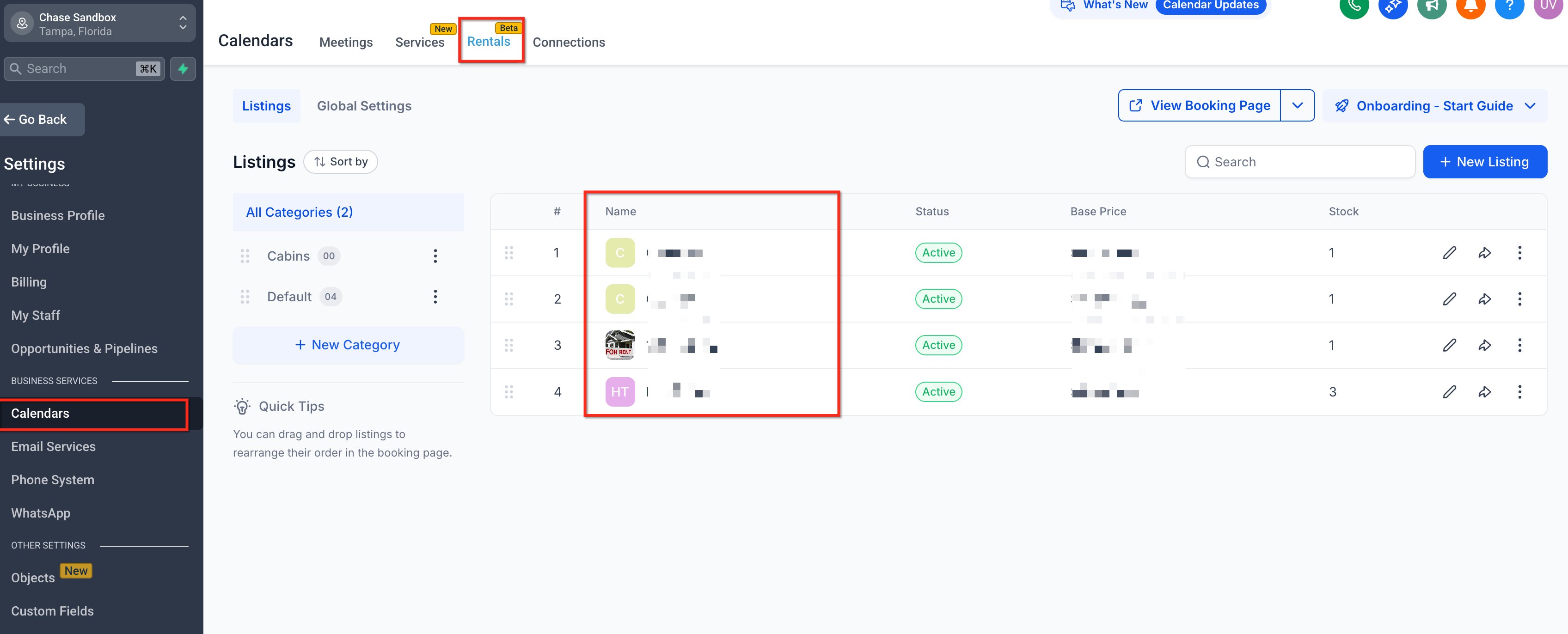
- Go to Calendars → Calendar Settings → Rentals → Listings and open the listing you want to update. The Rentals listing editor includes the advanced configuration areas used to manage inventory, pricing, and related options.
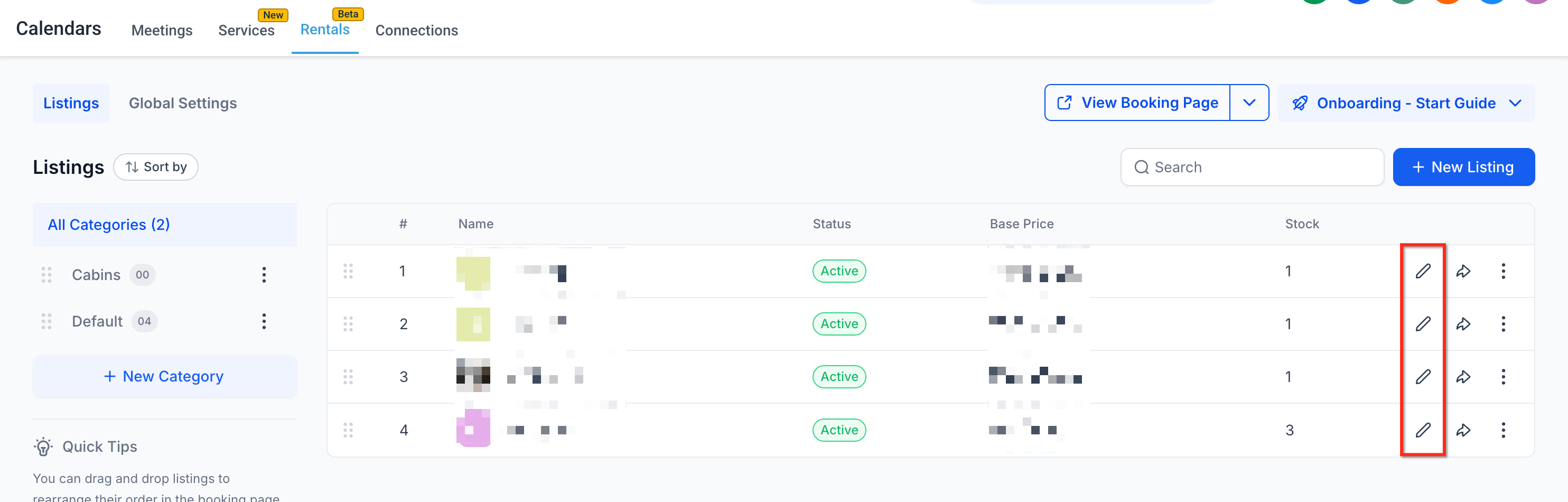
- Click Edit Listing.
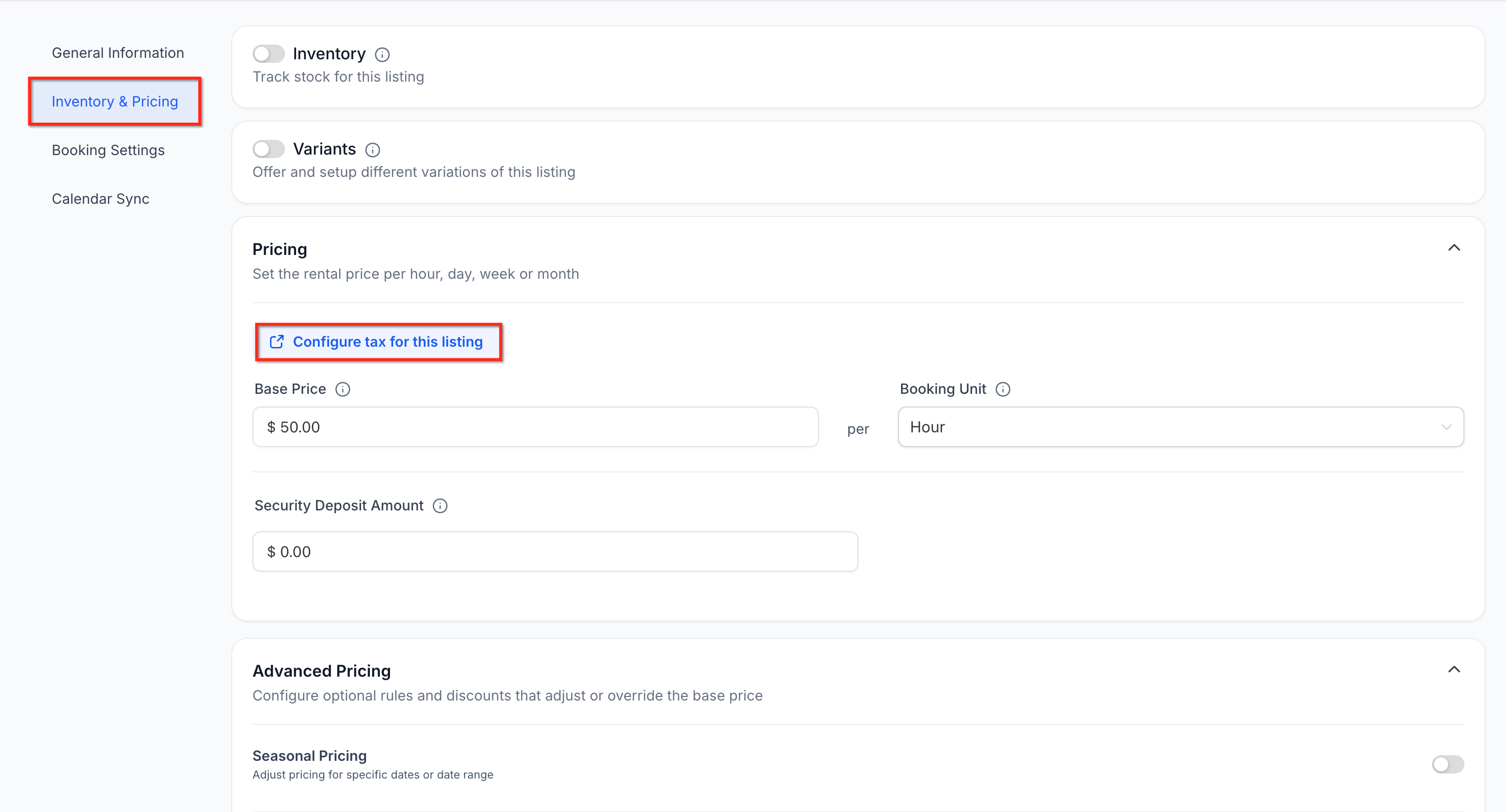
- Navigate to Inventory & Pricing.
- Click Configure tax for this listing.
- HighLevel redirects you to the linked product under Payments > Products.
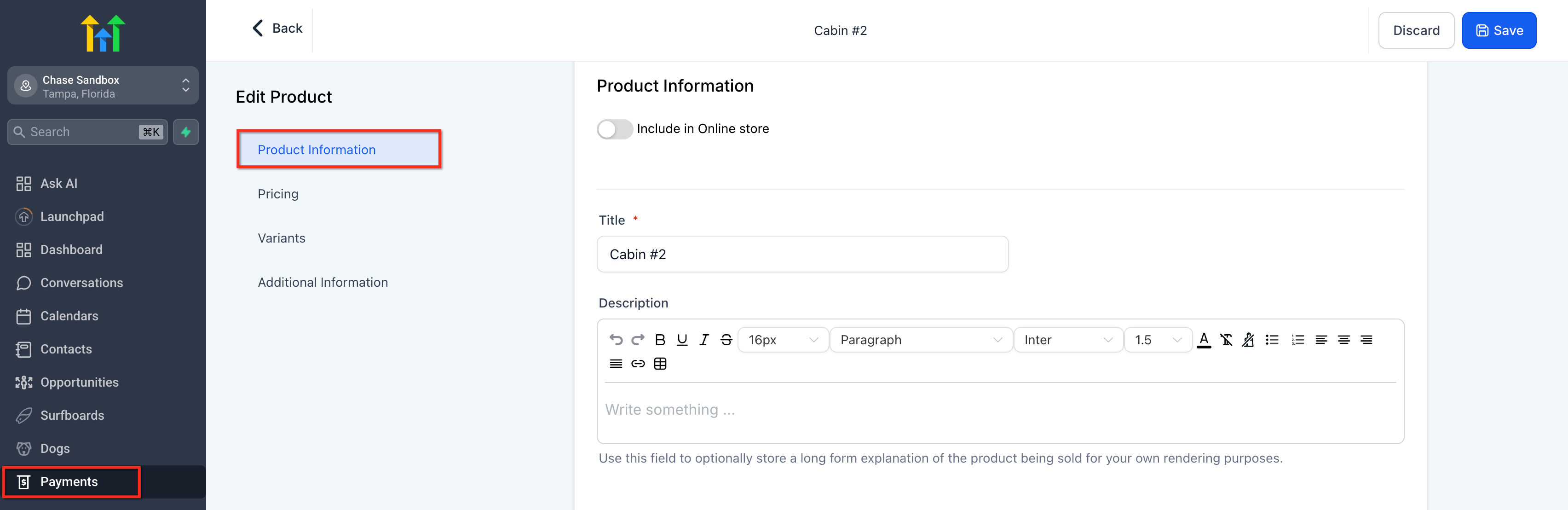
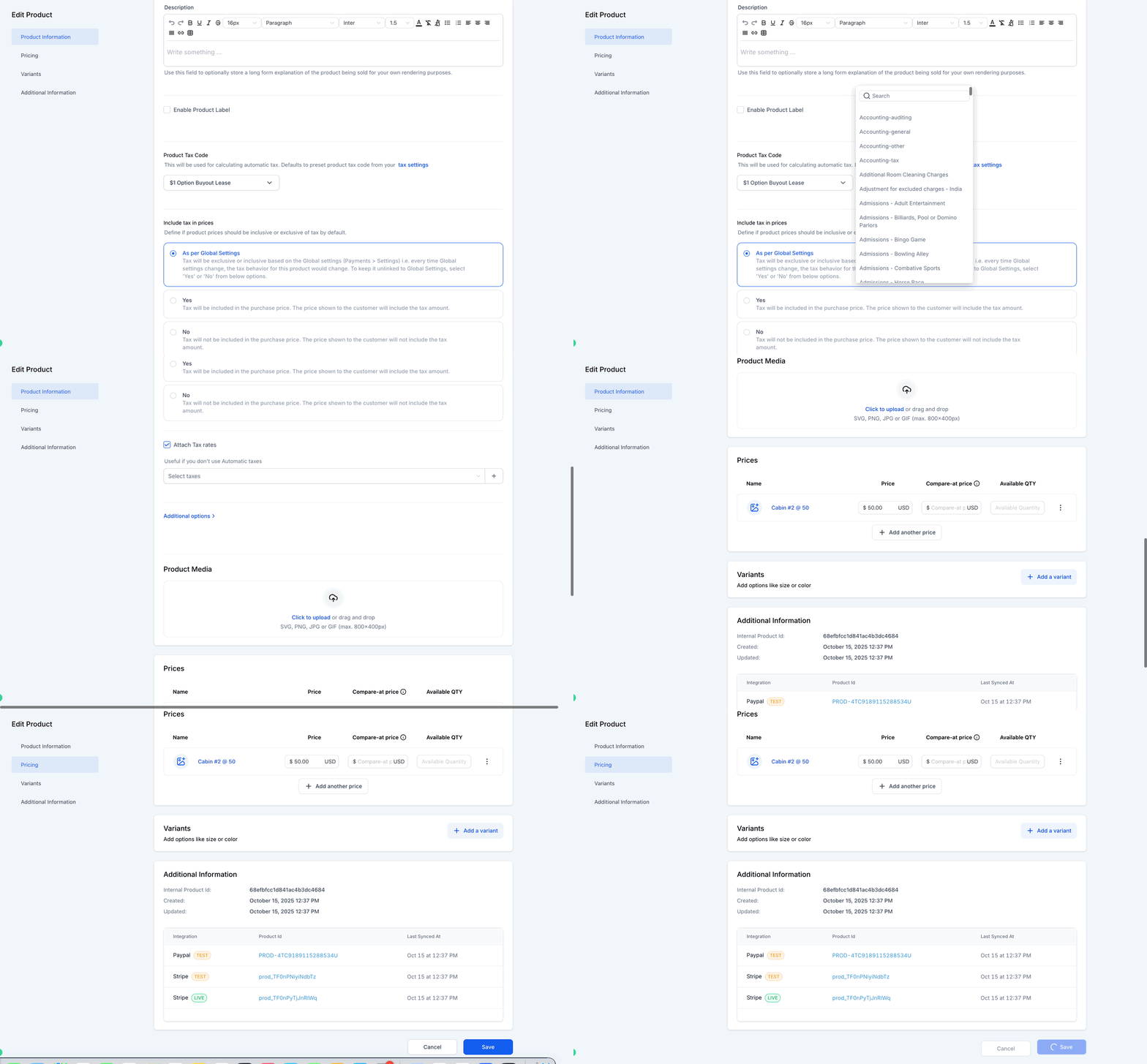
- Add or update the manual tax for the linked product. Click Save.
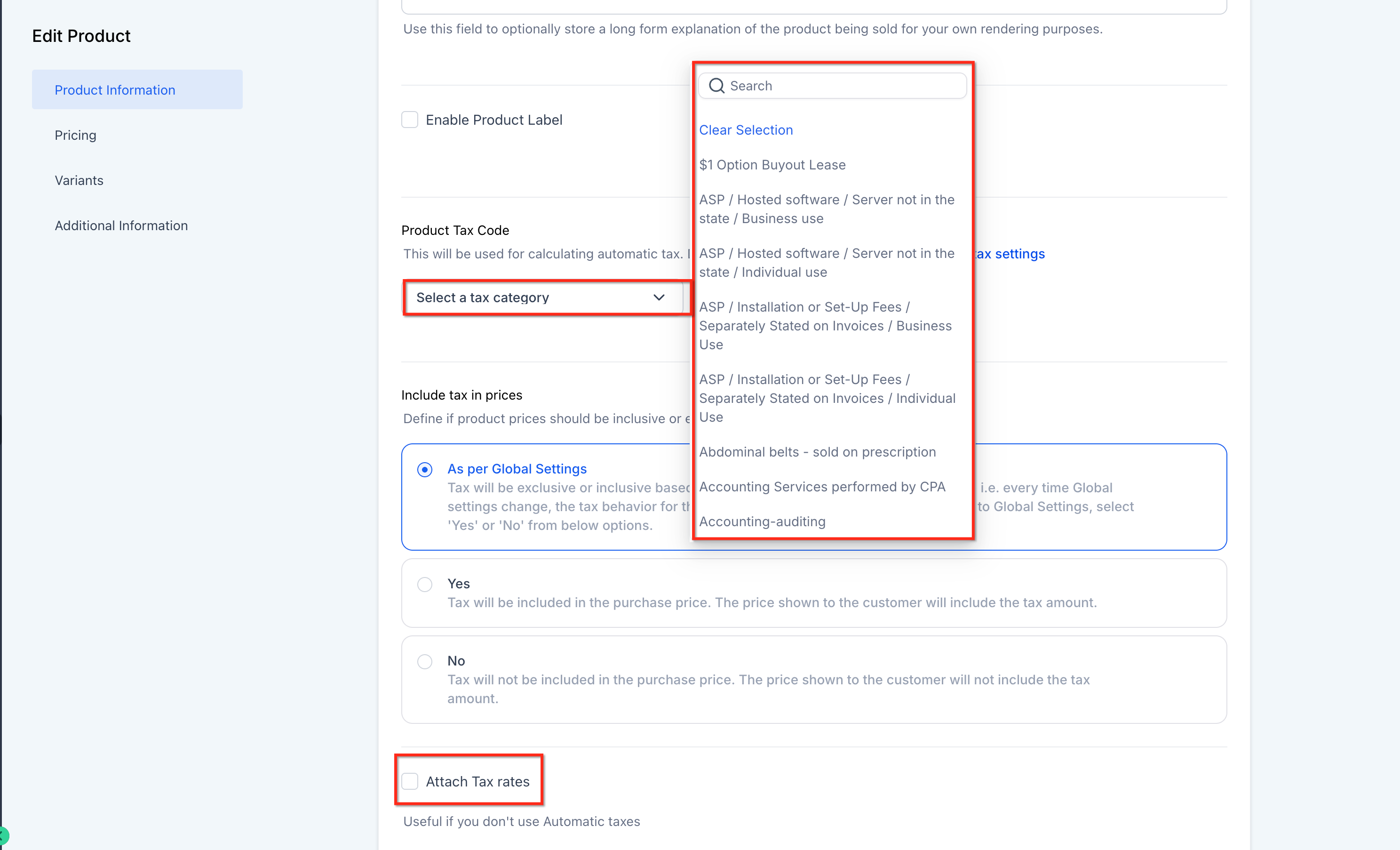
- Create a new booking or review a future booking total to confirm that tax is being applied as expected. Taxes apply to future bookings after configuration is saved.
Setup Notes
- Rentals supports manual taxes only.
- Taxes are configured through the linked product, not directly inside pricing discounts or seasonal pricing rules.
- If your listing has variants, repeat the setup for each variant that needs its own tax configuration.
- Taxes do not apply to the associated security deposit.
Frequently Asked Questions
Q: Does Rentals support automatic taxes?
A: No. Rentals currently supports manual taxes only.
Q: Where do I configure taxes for a rental listing?
A: Taxes are configured on the product linked to the listing in Payments → Products, accessed through the Configure tax for this listing button in the listing editor.
Q: Do taxes apply to existing bookings?
A: Taxes automatically apply to future rental bookings after the tax configuration is saved.
Q: Do I need to configure taxes for each listing separately?
A: Yes. Because tax setup is tied to the product linked to a listing, each listing should be configured individually as needed.
Q: How do taxes work when a listing has variants?
A: Variant-level tax configuration is supported. Each variant links to its own product, and the manual tax is configured on that linked product.
Q: Can different variants have different tax rates?
A: Yes. Since each variant can link to its own product, each one can use a separate manual tax configuration.
Q: Do taxes apply to the security deposit?
A: No. Taxes are applied to the listing only, not to the associated security deposit.
Q: Where can I verify that the tax was applied successfully?
A: You can review booking totals, booking details, invoices, and related reporting views where supported.
Related Articles
Was this article helpful?
That’s Great!
Thank you for your feedback
Sorry! We couldn't be helpful
Thank you for your feedback
Feedback sent
We appreciate your effort and will try to fix the article