Forward inbound emails directly from the Conversations inbox to any external recipient without leaving HighLevel. This guide explains what forwarding does, how it behaves in a conversation thread, and how to set it up for smooth escalations, reviews, and handoffs—all while keeping Conversations your single source of truth.
TABLE OF CONTENTS
- What is Email Forwarding in Conversations?
- Key Benefits of Email Forwarding in Conversations
- Manual Forwarding vs. Email Services Forwarding
- Permissions & Availability
- Sender & From‑Name Behavior
- Attachments & Formatting
- Threading & Record‑Keeping
- How To Set Up and Use Email Forwarding
- Troubleshooting
- Frequently Asked Questions
- Related Articles
What is Email Forwarding in Conversations?
Email Forwarding in Conversations allows users to manually forward an individual inbound email message from a contact’s Conversation thread to another email recipient. This is useful when a teammate, vendor, partner, or external contact needs visibility into a specific customer email without requiring access to the full Conversation thread.
This feature is different from Email Services forwarding settings, which are used to automatically forward replies or route copies of emails based on location-level email configuration.
- Forward any inbound email message to external recipients right from the thread.
- Preserve original content and layout for context continuity.
- Keep the full history inside the same Conversation for auditability.
Key Benefits of Email Forwarding in Conversations
Understanding the benefits helps teams decide when to use forwarding instead of copy‑pasting or switching to a separate inbox. These advantages reduce handoff friction and keep records centralized.
- Improve collaboration: Share customer emails with teammates, vendors, clients, or external partners without leaving Conversations.
- Keep communication organized: Maintain a record of forwarded emails in the customer’s Conversation thread.
- Save time: Forward important details directly from the inbox instead of recreating the message in a separate email client.
- Support customer context: Include relevant message content, formatting, and supported attachments when forwarding email content.
- Reduce missed details: Help recipients review the original message instead of relying on a summary or copied text.
Manual Forwarding vs. Email Services Forwarding
HighLevel supports more than one type of email forwarding, so it is important to choose the option that matches your workflow. Manual forwarding is best for one-time sharing from a Conversation thread, while Email Services forwarding settings are best for automated reply routing and account-level email behavior.
- Use manual forwarding from Conversations when you need to forward a specific inbound email message to another recipient.
- Use Email Services forwarding settings when you want HighLevel to automatically forward replies, send BCC copies, configure reply addresses, or forward messages to the assigned user.
Permissions & Availability
Before forwarding, ensure the right users have access and that the email channel is correctly connected. Proper prerequisites prevent missing buttons or delivery failures later.
- An active email channel must be connected to the sub‑account (e.g., LC Email, Gmail via 2‑way sync, Outlook via 2‑way sync, or SMTP).
- Users must have access to Conversations and permission to send emails.
- Mobile availability may vary; if you don’t see Forward, use the web app.
- Forwarding uses your account’s configured sending mailbox and routing rules.
Sender & From‑Name Behavior
Knowing which sender address and display name are used helps you meet brand guidelines and set recipient expectations. Use this section to understand current behavior and upcoming enhancements.
- Forwards are sent using the sending mailbox associated with the Conversation’s email channel and your sending priority rules.
- The From name follows current account rules. From‑name editability for forwards is planned as an enhancement.
- Recipients see the sender per your existing Sending Priority configuration.
Attachments & Formatting
Forwards often include screenshots, PDFs, or inline images. Understanding how the system handles formatting and files reduces resend attempts and confusion for recipients.
- The forwarded email preserves original content and formatting for clarity.
- Inline images and signatures are included when supported by the source and provider.
- Attachments from the original email are included when supported; extremely large files or blocked types may be excluded by your provider or security settings.
- Provider and domain policies (e.g., size limits, file‑type restrictions) still apply.
Threading & Record‑Keeping
Maintaining a complete history inside the Conversation helps teams collaborate and comply with audits. This section clarifies how a forward shows in the timeline and how it relates to the original message.
- The forward appears in the same Conversation as an outbound email event so teammates can see context.
- The timeline shows who forwarded, when, and the recipients (redacted where appropriate).
- Replies to the forwarded message route back to your connected mailbox and appear in the Conversation if syncing is enabled.
How To Set Up and Use Email Forwarding
A clean setup and a consistent workflow ensure your forwards deliver successfully and remain linked to the right records. Follow these steps to configure, verify, and send your first forward.
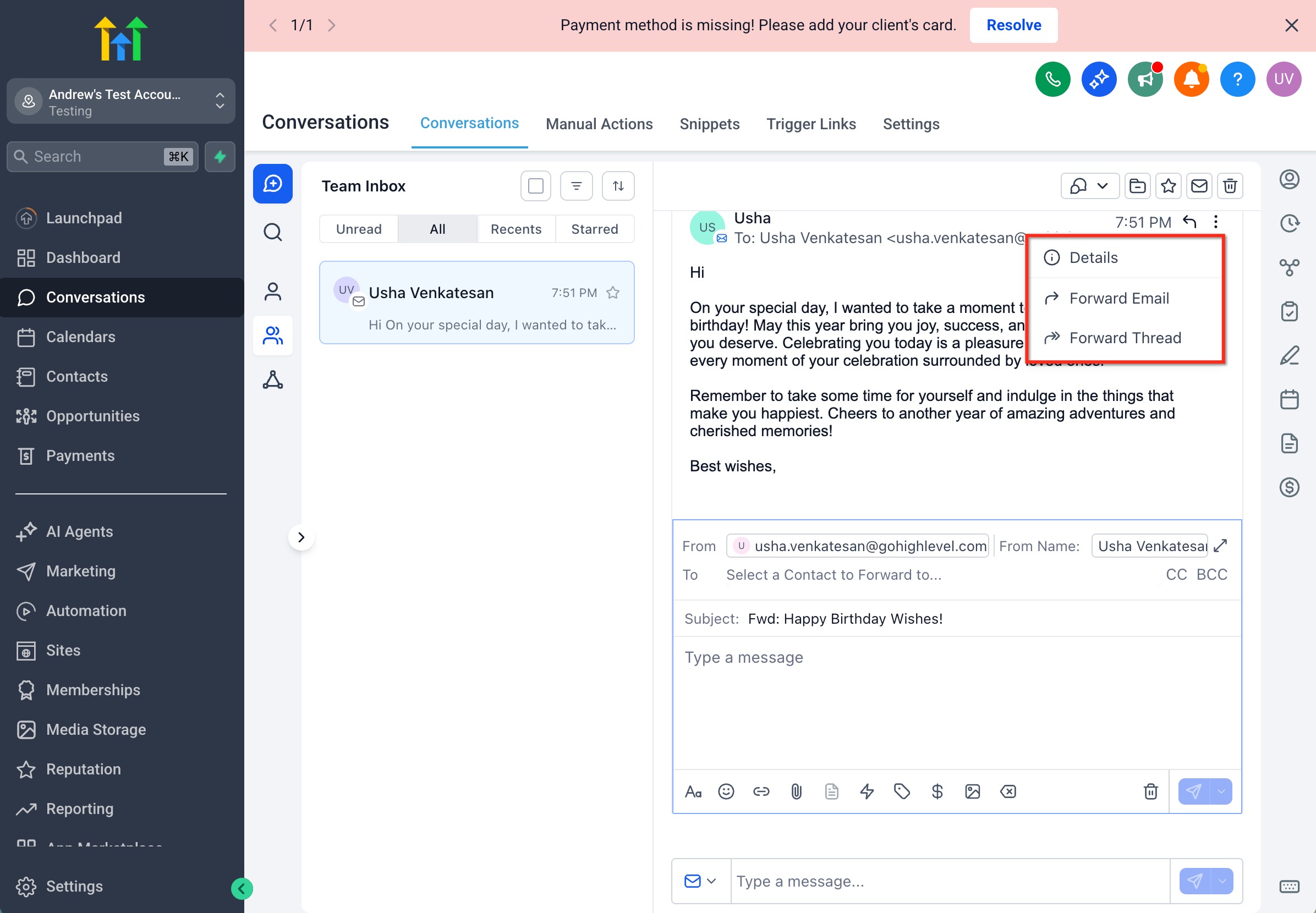
- Go to Conversations and open a thread that contains an inbound email you want to forward.

- Click on the Kebab icon and locate the Forward action (usually in the message actions or overflow menu).
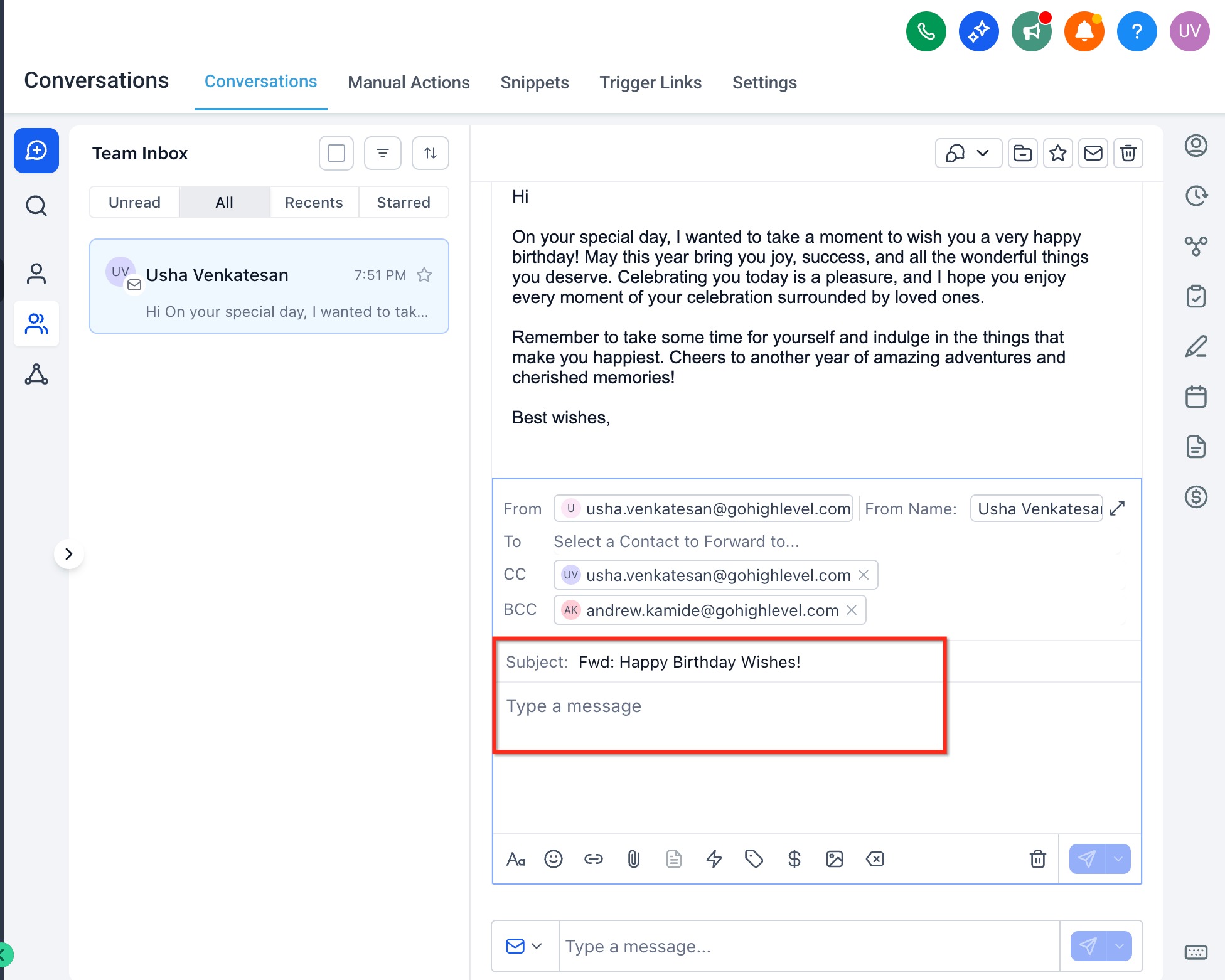
- In the Forward composer, add recipient email addresses in To. Optionally add CC/BCC if available.

- Review the Subject (prefixed with Fwd: by default) and edit the message body as needed.
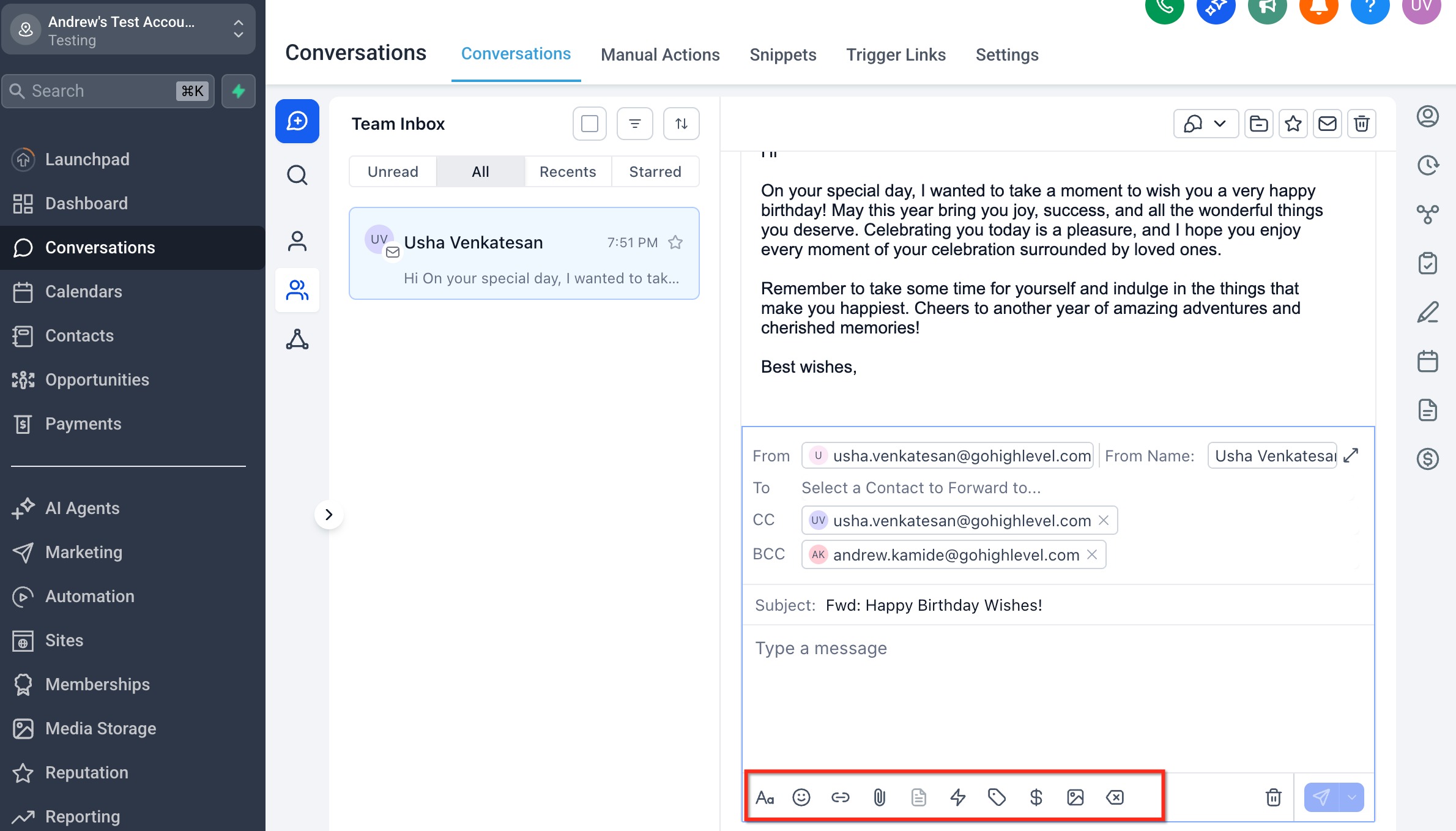
- Confirm attachments/inline images you want to include are present.
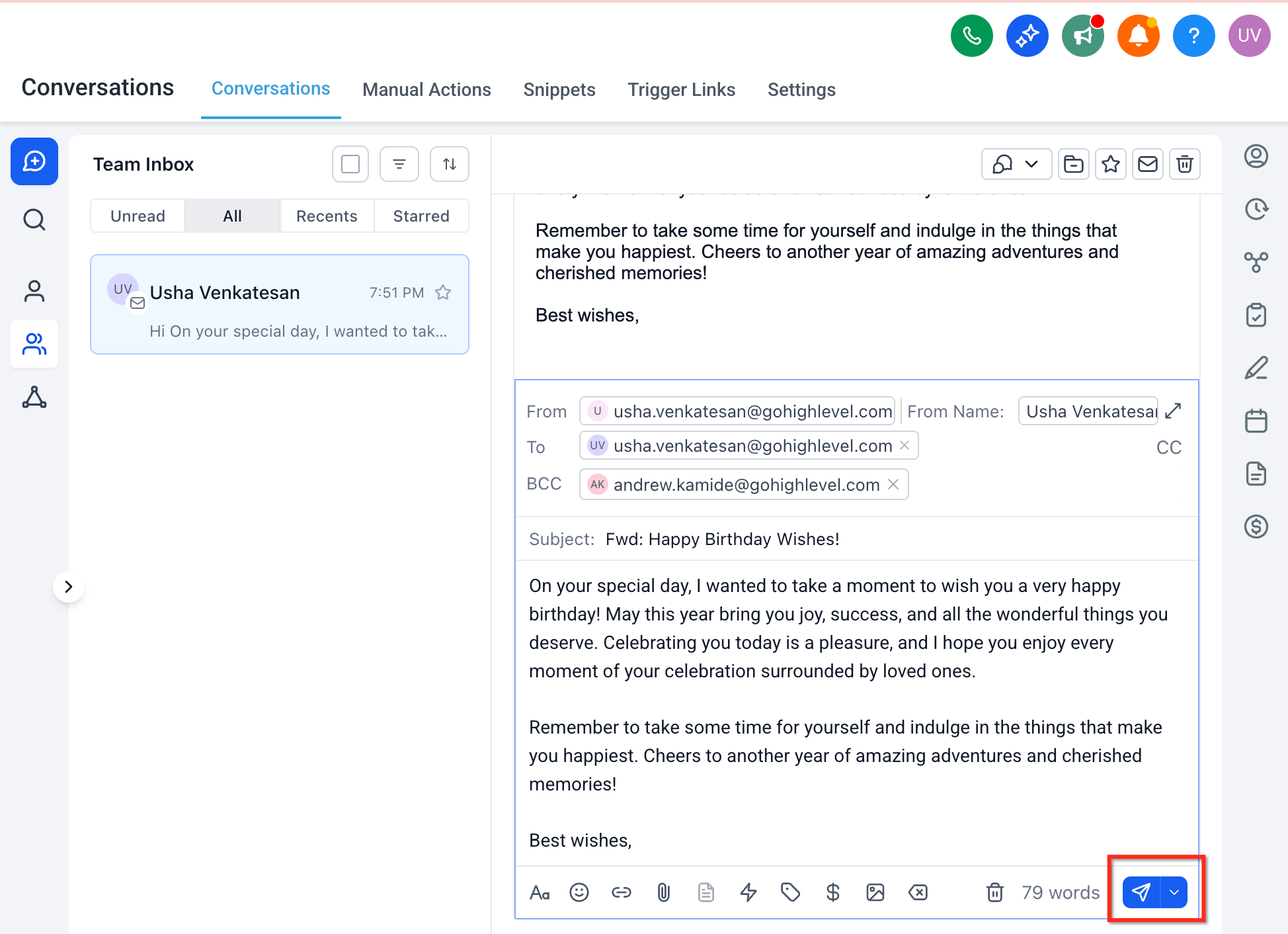
- Click Send. The forwarded message posts to the conversation timeline.
Troubleshooting
If forwarding fails or behaves unexpectedly, use these checks to isolate configuration issues, provider limits, or permission constraints quickly.
- Can’t see the Forward Option: Ensure you’re viewing an email message (not SMS or social) and you have send permissions. Verify the account has an email channel connected.
- Bounces or Delivery Errors: Review the error banner or status in the Conversation. Check domain DNS, sender reputation, and provider limits.
- Missing Attachments or Broken Formatting: Very large files, blocked types, or certain inline formats may be stripped by providers. Re‑attach files manually or share via a secure link.
- Replies Not Threading Back: Confirm 2‑way sync is active and healthy for the sending mailbox.
- Unexpected Sender: Review Sending Priority and mailbox connections to see which address HighLevel selected for the forward.
Frequently Asked Questions
Q: Can I forward any message type from Conversations?
Email forwarding is designed for forwarding inbound email messages from a Conversation thread. Other message types, such as SMS, social messages, WhatsApp messages, or internal comments, may not use the same forwarding option.
Q: Can I forward outbound emails from Conversations?
The forwarding action is intended for individual email messages inside Conversations. If the Forward option does not appear on an outbound email, use the available message actions or send a new email with the needed context.
Q: Will the forwarded email include attachments?
Attachments may be included when supported. File size, file type, source formatting, and provider limitations can affect whether attachments appear in the forwarded email.
Q: Will replies to the forwarded email appear in the original Conversation?
Replies may appear when the connected inbox, reply tracking, and provider setup support syncing those replies. If replies are missing, review the account’s email sync and reply tracking configuration.
Q: Can I change the From name before forwarding?
Sender details follow the account’s connected inbox and sending priority configuration. Review sender settings if the forwarded email appears to come from an unexpected name or address.
Q: Can I add CC or BCC recipients when forwarding?
Yes, use CC or BCC fields in the forward composer when you need to include additional recipients.
Q: Is forwarded email activity saved on the contact record?
Yes, forwarded email activity is logged in the contact’s Conversation thread so the team can reference what was shared.
Q: Why does forwarding behave differently for Gmail, Outlook, LC Email, or SMTP?
Each provider can have different sync, sender, attachment, and reply behavior. Review the connected email provider settings when behavior differs from what you expect.
Related Articles
Was this article helpful?
That’s Great!
Thank you for your feedback
Sorry! We couldn't be helpful
Thank you for your feedback
Feedback sent
We appreciate your effort and will try to fix the article