Apps enable you to integrate HighLevel with third-party applications. To achieve this integration, you must connect the app with the third-party application. This document explains how these connections work and are managed.
Understanding the basics
- All connections are made at the sub-account level. So each sub-account will have a unique connection with the third-party app
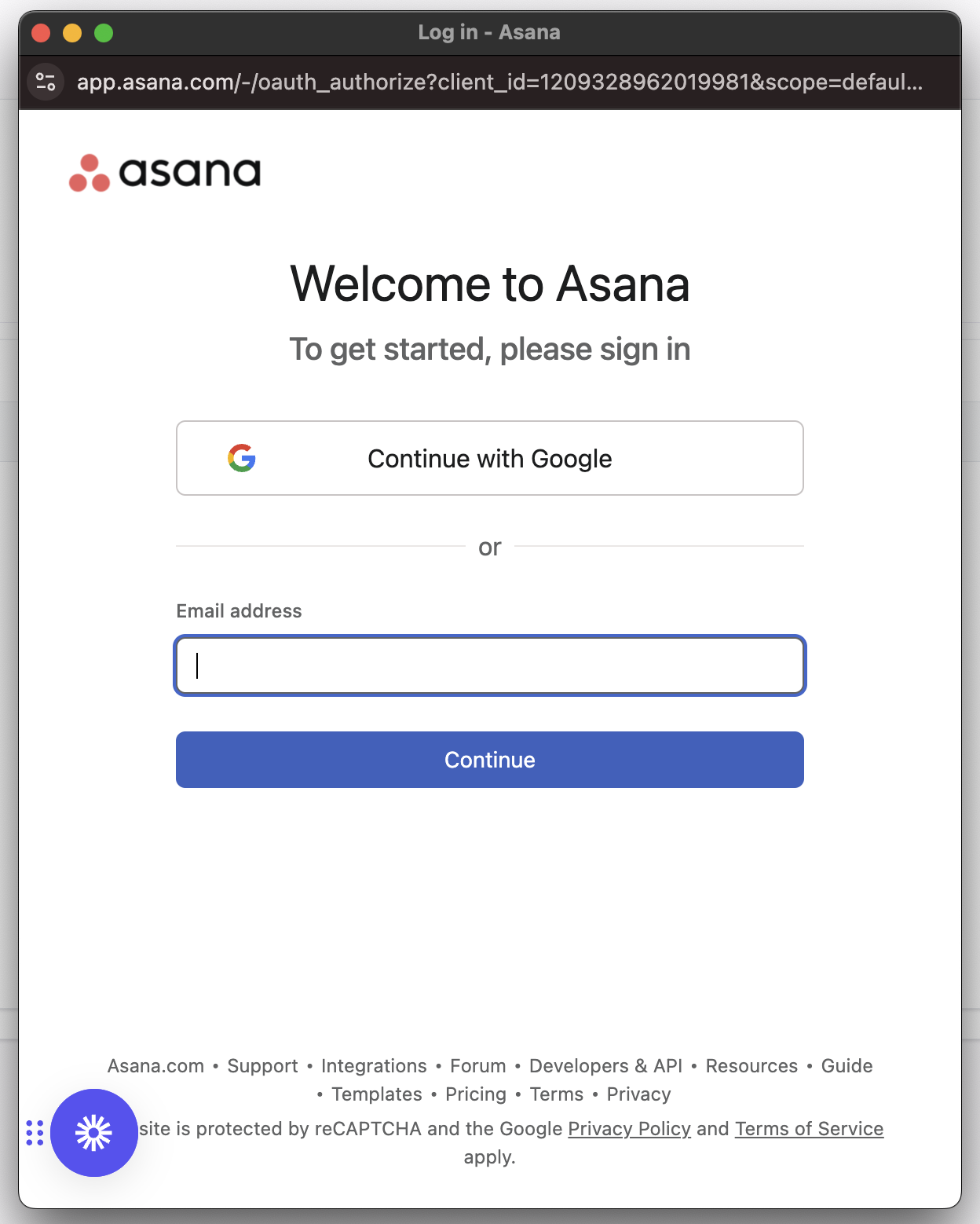
- If you're installing an app that requires external connection to a particular sub-account, the connection request will launch immediately after the installation is completed.
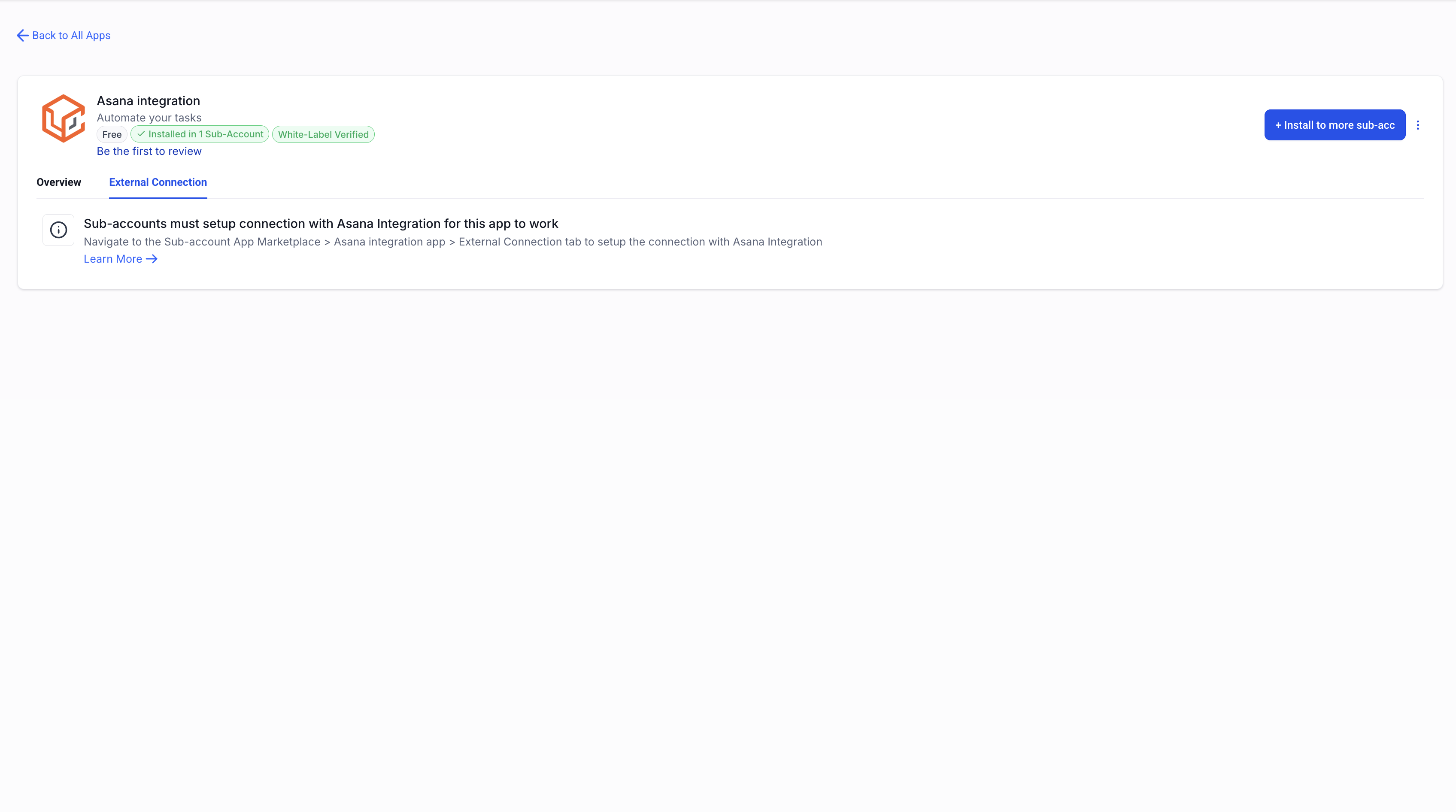
- If you are bulk-installing an app across multiple sub-accounts, then the connection request is not automatically launched during installations. Since the connections are established at individual sub-account level, your sub-account users must connect the app within the sub-account marketplace.
What authentication methods are supported?
We currently support three types of authentication methods:
- OAuth - Login with third-party app and authorise the integration
- API Keys - Copy API key from the third-party app and paste it in HighLevel
- Basic Auth - Username/Password credentials of your third party app
Google Connections Through Marketplace
New Google account connections use the Marketplace authentication framework to manage Google account access and permissions. Existing Google connections continue working without requiring users to reconnect or change their settings.
Connect and Manage Google Accounts
In the Google Marketplace app:
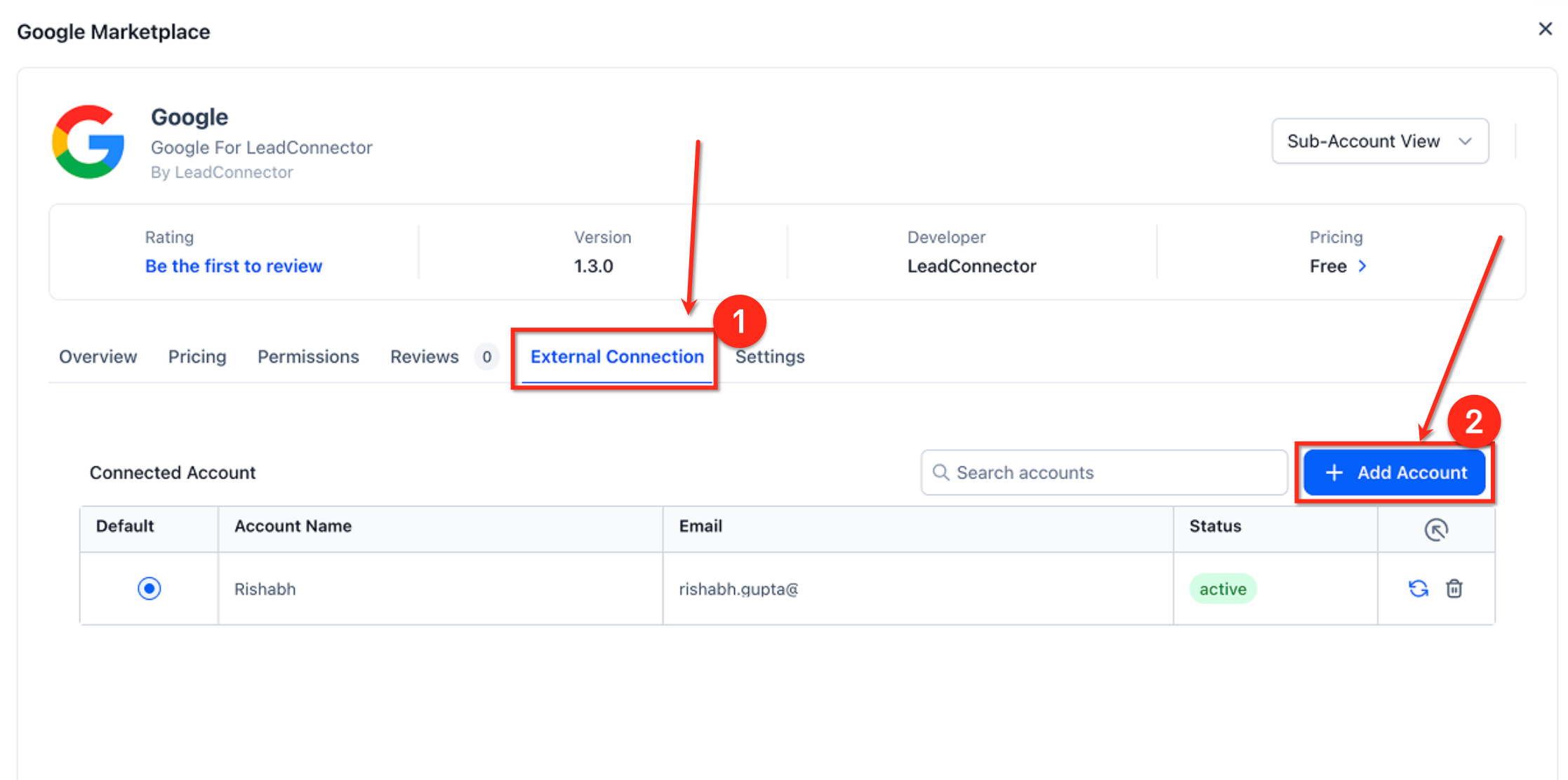
Open the External Connection tab.
Click Add Account to connect a new Google account.
Complete the Google authorization process.
View connected accounts and their connection status.
Use the available controls to set a default account, refresh a connection, or disconnect an account.
Configure Google Account Settings
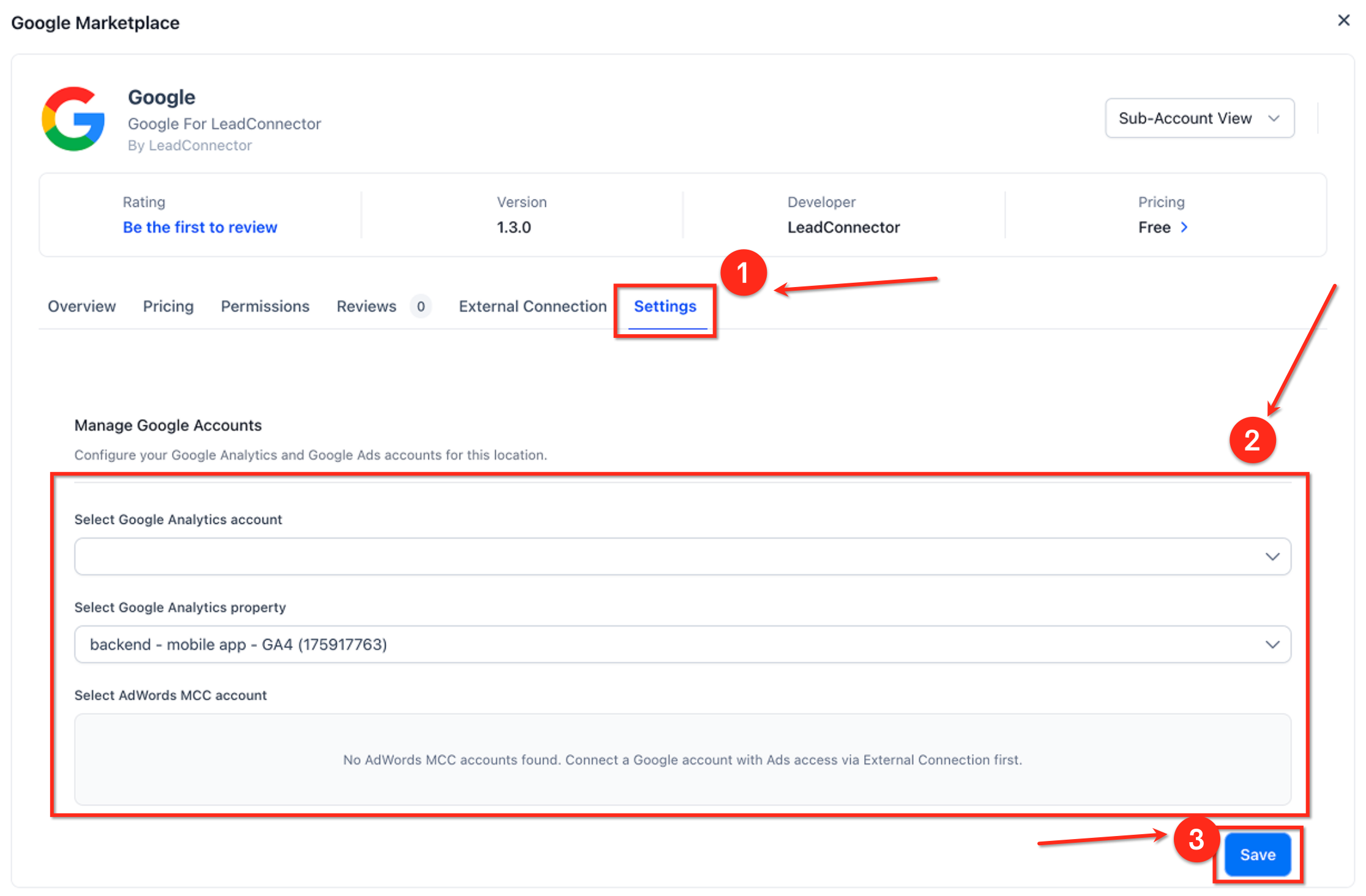
The Settings tab provides options to configure Google Analytics and Google Ads accounts for the location.
Available settings include:
Select Google Analytics account
Select Google Analytics property
Select AdWords MCC account
Select the applicable accounts and click Save.
What Happens to Existing Google Connections?
Existing Google connections continue working without interruption.
No reconnection or reconfiguration is required.
Existing Google workflows and automations continue functioning as before.
Automatic migration of existing connections to the Marketplace framework is planned after the feature moves beyond Labs. No action is currently required from existing users.
Manage Connection Issues from Installed Apps
Marketplace Installed Apps now makes connection issues easier to identify and review. If an app connection fails, you may see it surfaced directly in the Installed Apps list along with a quick filter for connection-related issues.
For supported apps, you may also see a Reconnect action directly from the Installed Apps page, which helps reduce extra navigation during troubleshooting.
For full installation and installed-app management guidance, refer to the Marketplace installation article.
Was this article helpful?
That’s Great!
Thank you for your feedback
Sorry! We couldn't be helpful
Thank you for your feedback
Feedback sent
We appreciate your effort and will try to fix the article