Learn why Apple Mail can display a cached countdown image, how Hide Timer in Apple Mail works, how to enable the setting, and how timer-aware email links continue to route contacts based on the timer state.
What Is the Hide Timer in Apple Mail Setting?
Hide Timer in Apple Mail prevents the countdown timer from displaying in Apple Mail when image caching could cause the timer to appear outdated. Other supported email clients can continue displaying the countdown normally.
Important: Hiding the countdown timer only changes whether the timer image is displayed in Apple Mail. It does not automatically change the campaign deadline or the destination used by your email calls-to-action.
Why Apple Mail Can Show an Outdated Timer
Countdown timers in emails are displayed as animated images. Apple Mail may cache the timer image, which can prevent the countdown from refreshing normally when the same email is opened again. Hiding the timer in Apple Mail avoids showing a cached countdown image that may no longer match the current timer state.
How to Hide a Countdown Timer in Apple Mail
Enable this setting when Apple Mail caching could cause the countdown image to display outdated timer information.
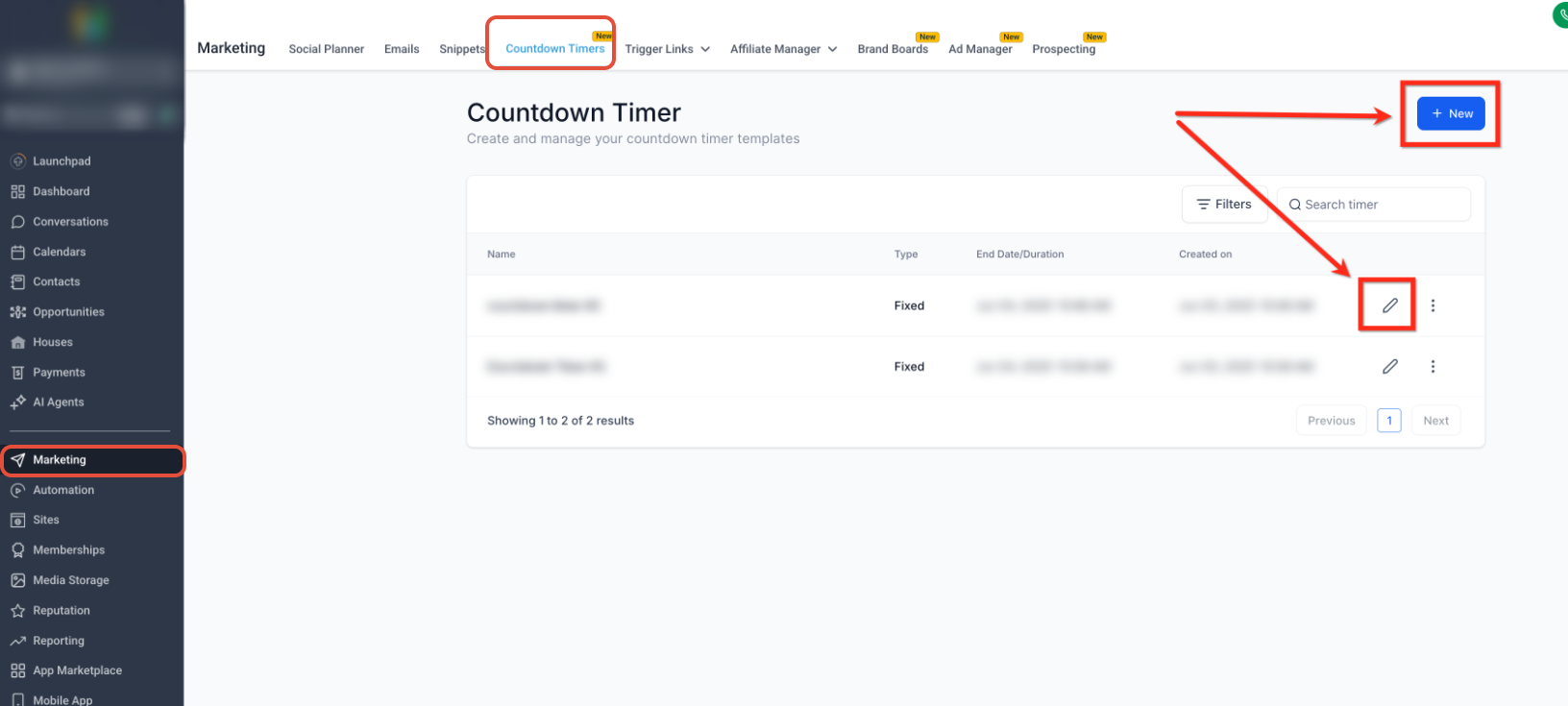
- Go to Marketing → Countdown Timers.
- Open an existing timer or click + Newto create one.
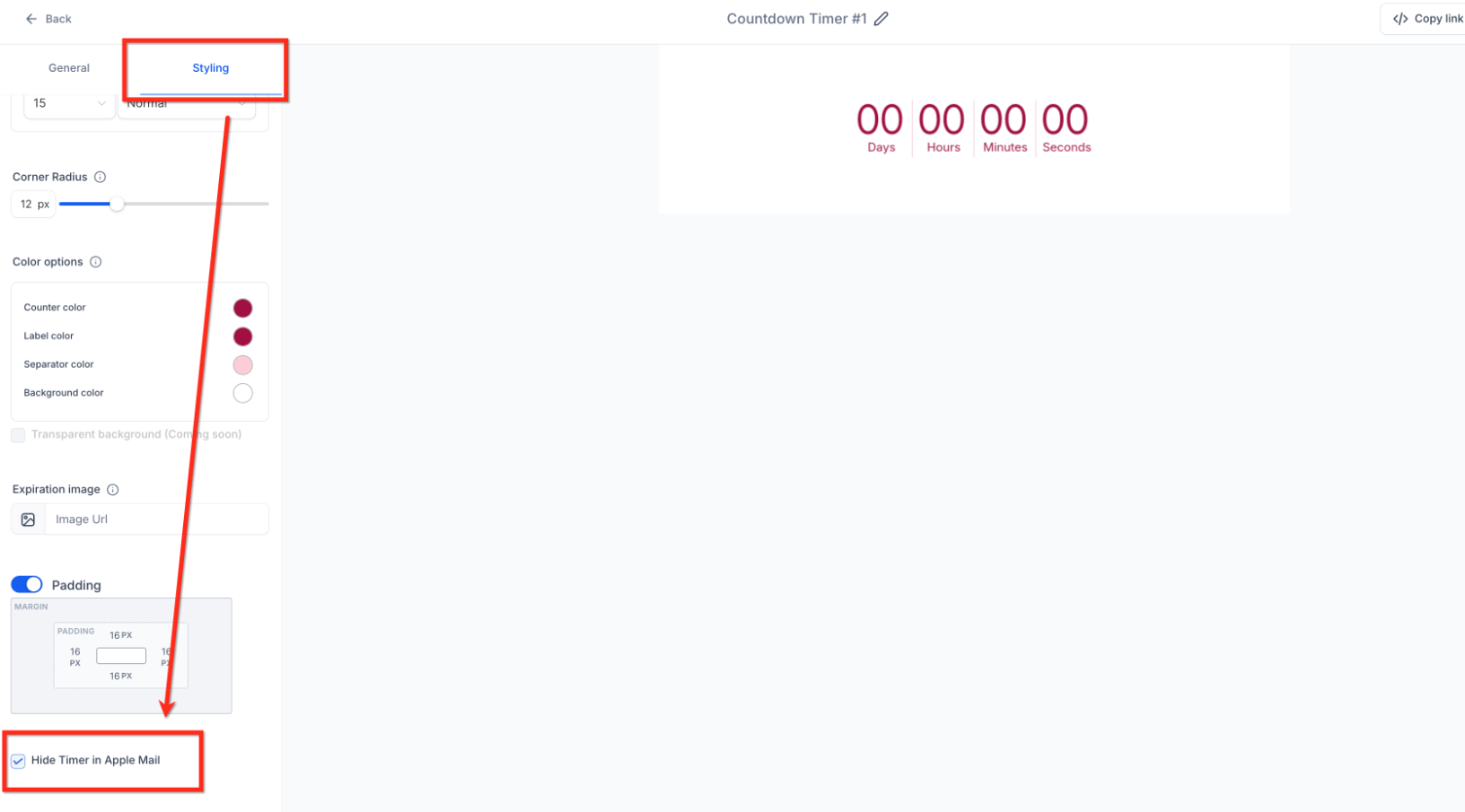
- Open the Styling settings.
- Scroll to the Apple Mail setting.
- Enable Hide Timer in Apple Mail.
- Save the timer.
- Preview and test the email before sending it to your audience.
Frequently Asked Questions
Was this article helpful?
That’s Great!
Thank you for your feedback
Sorry! We couldn't be helpful
Thank you for your feedback
Feedback sent
We appreciate your effort and will try to fix the article