Learn why countdown timers become placeholders when email templates are copied between sub-accounts, how to copy the template, and how to connect the placeholder to a working timer in the destination sub-account.
What Is a Countdown Timer Placeholder?
A Countdown Timer Placeholder appears when an email template containing a countdown timer is copied to another sub-account. The placeholder preserves the timer's position in the template but does not function as a countdown until a timer from the destination sub-account is selected.
Countdown Timer placeholders are currently documented for shared email templates.
Important: A Countdown Timer Placeholder is not a working timer. Before using the copied email template, select an existing countdown timer from the destination sub-account or create a new one.
How to Copy an Email Template With a Countdown Timer
Copy the email template normally. The countdown timer will automatically become a placeholder when the template is copied to another sub-account.
- Go to Marketing → Emails → Templates.
- Create or open an email template that contains a countdown timer.
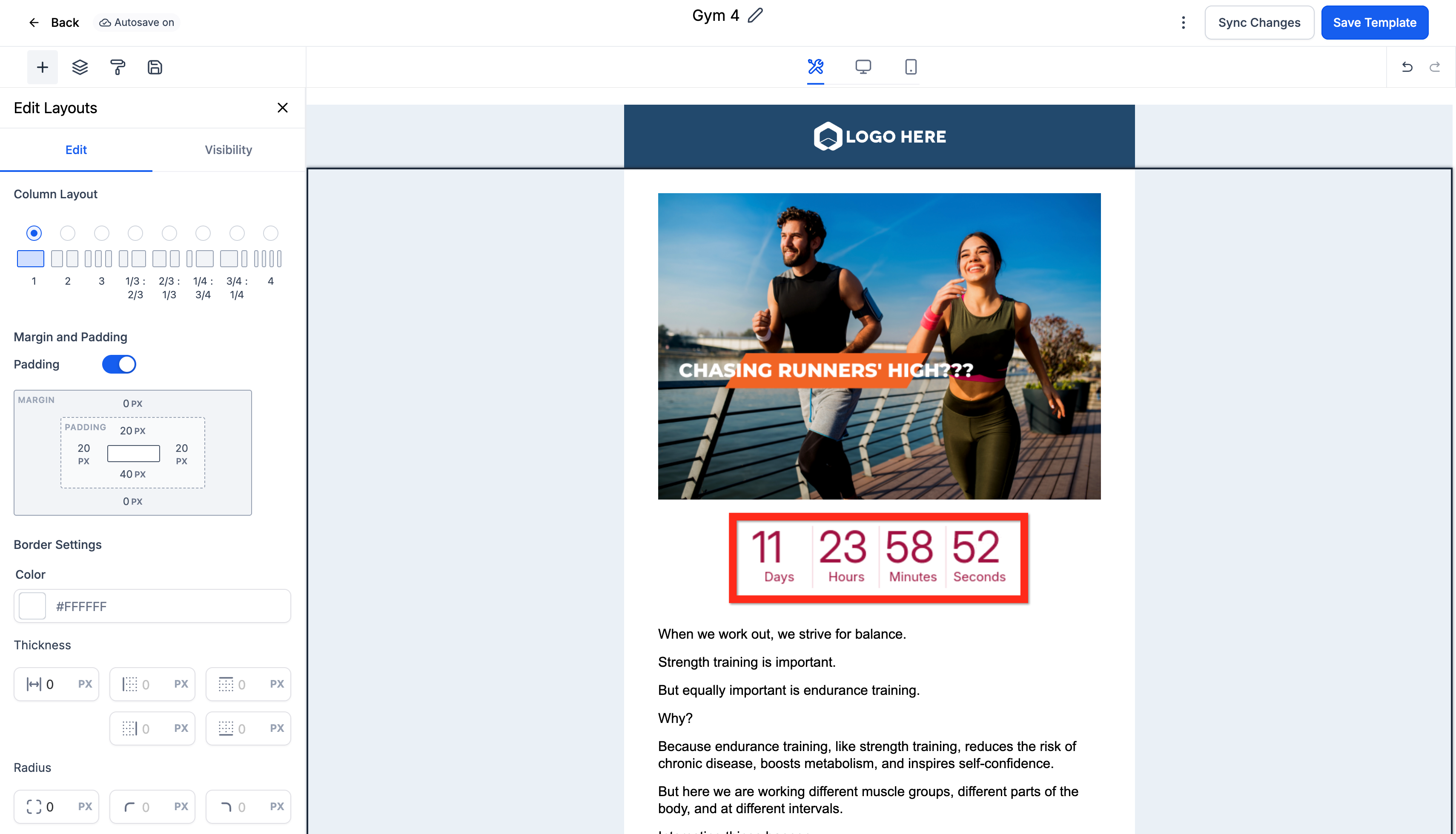
- Return to the Templates list.
- Open the template's three-dot menu and select Share.
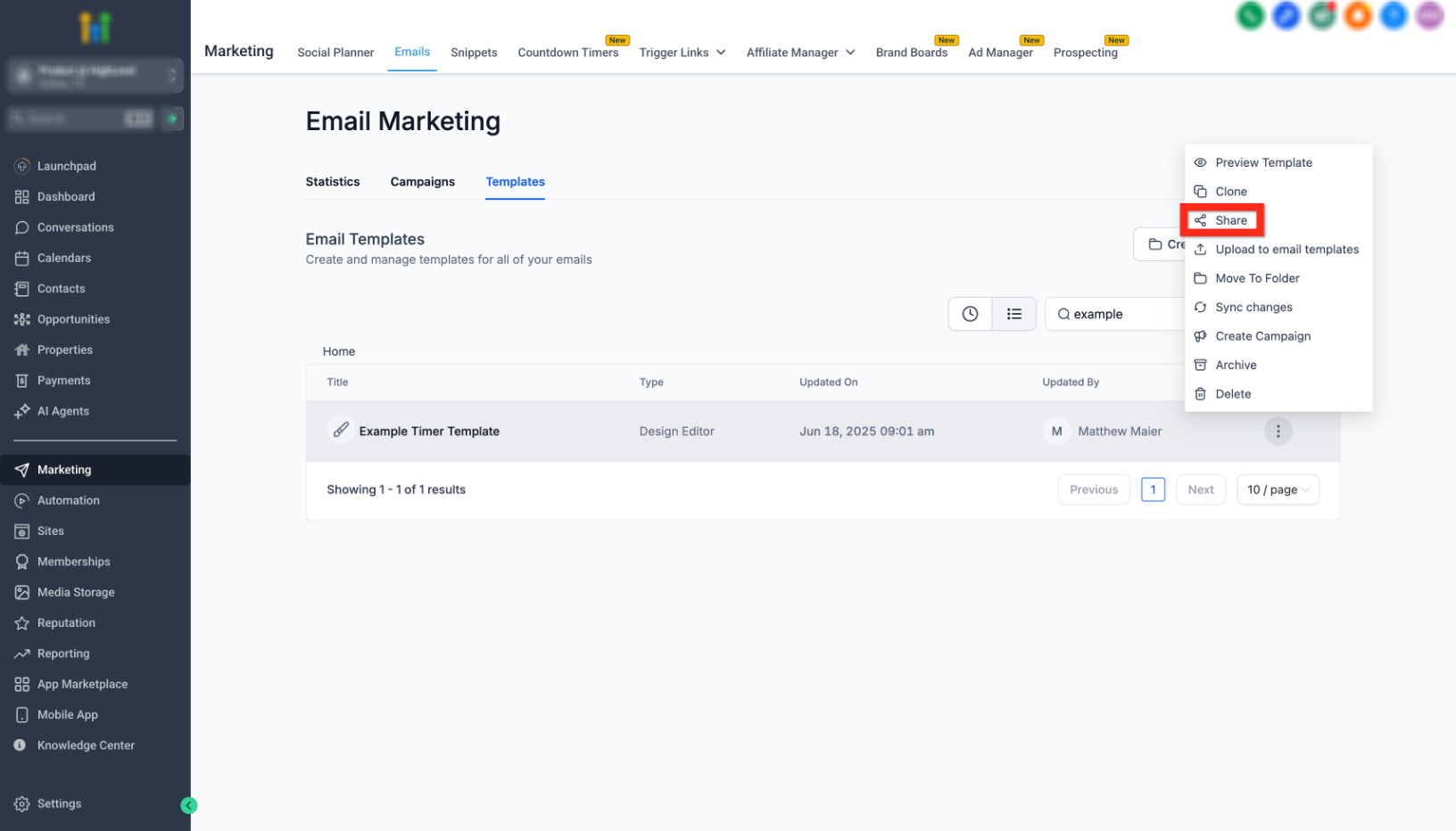
- Configure the sharing permissions and copy the template link.
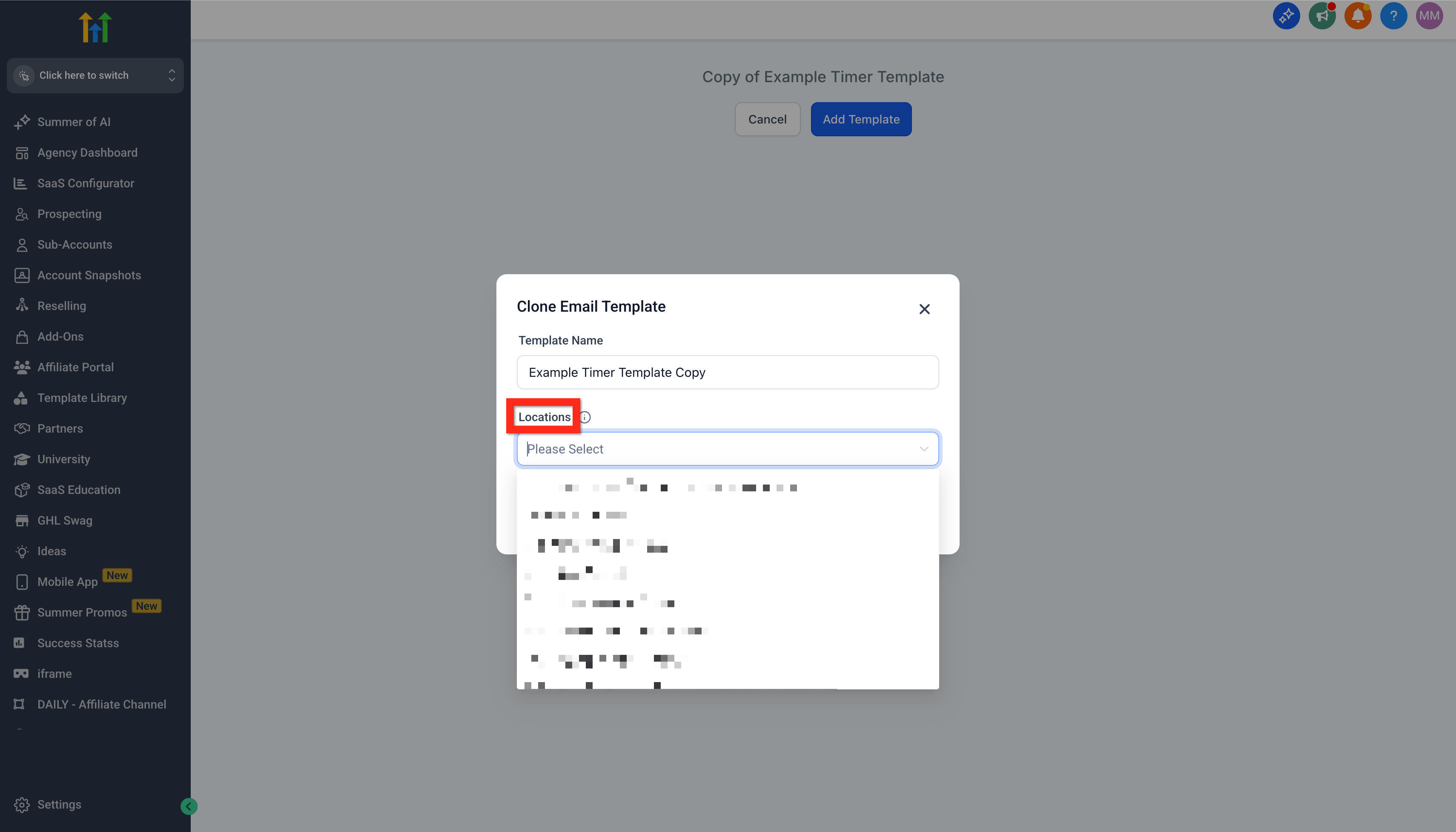
- Open the share link and select Add Template.
- Select the destination sub-account, rename the template if needed, and clone the template.
How to Replace the Countdown Timer Placeholder
The copied template cannot use the original countdown timer automatically. Select a countdown timer available in the destination sub-account before using the email.
- In the destination sub-account, go to Marketing → Emails → Templates.
- Open the copied email template.
- Select the Countdown Timer Placeholder.
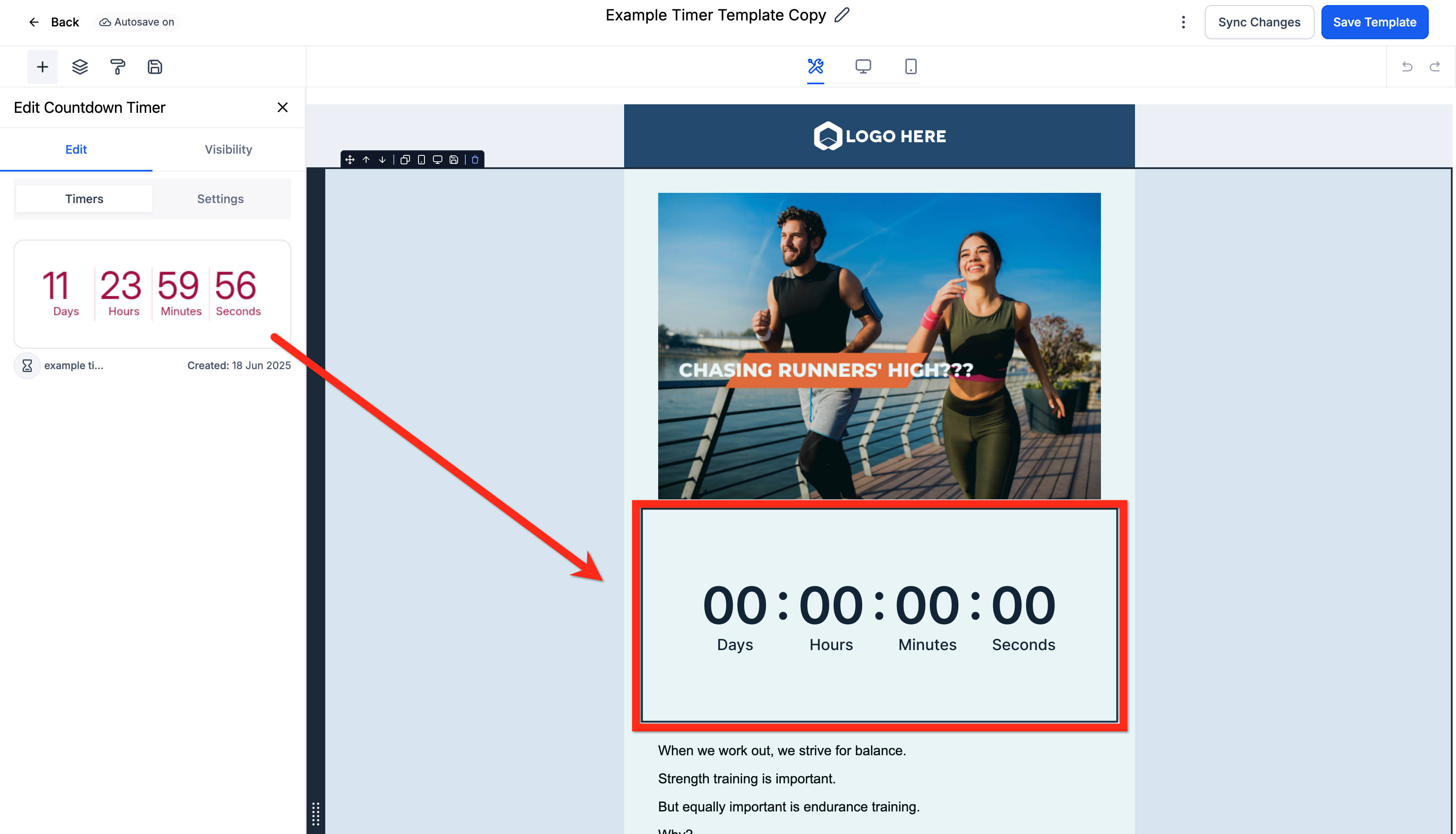
- Choose an existing countdown timer from the destination sub-account
- If no suitable timer exists, go to Marketing → Countdown Timers and create one. Then return to the email template and select the new timer.
- Save and test the email before using it in a campaign.
Frequently Asked Questions
Was this article helpful?
That’s Great!
Thank you for your feedback
Sorry! We couldn't be helpful
Thank you for your feedback
Feedback sent
We appreciate your effort and will try to fix the article