Learn how timezone adaptation determines the timezone used for email, funnel, and website timers, how the fallback timezone works, how to enable the setting, and when to use localized deadlines.
What Is Timezone Adaptation in Countdown Timers?
Use Timezone Adaptation when a countdown timer should follow the viewer’s local timezone instead of always using the timezone selected during timer setup. The configured timer timezone remains the fallback when HighLevel cannot determine the contact or visitor timezone.
How Timezone Is Determined
The timezone source depends on where the countdown timer is displayed.
| Placement | Timezone Source | Fallback |
| Contact timezone | Timer’s configured timezone | |
| Funnel / Website | IP-detected visitor timezone | Timer’s configured timezone |
Fallback behavior: If contact timezone or IP-detected timezone data is unavailable, HighLevel uses the timezone selected during timer setup.
How To Enable Timezone Adaptation
For more information on creating a countdown timer, see Getting Started with Countdown Timer.
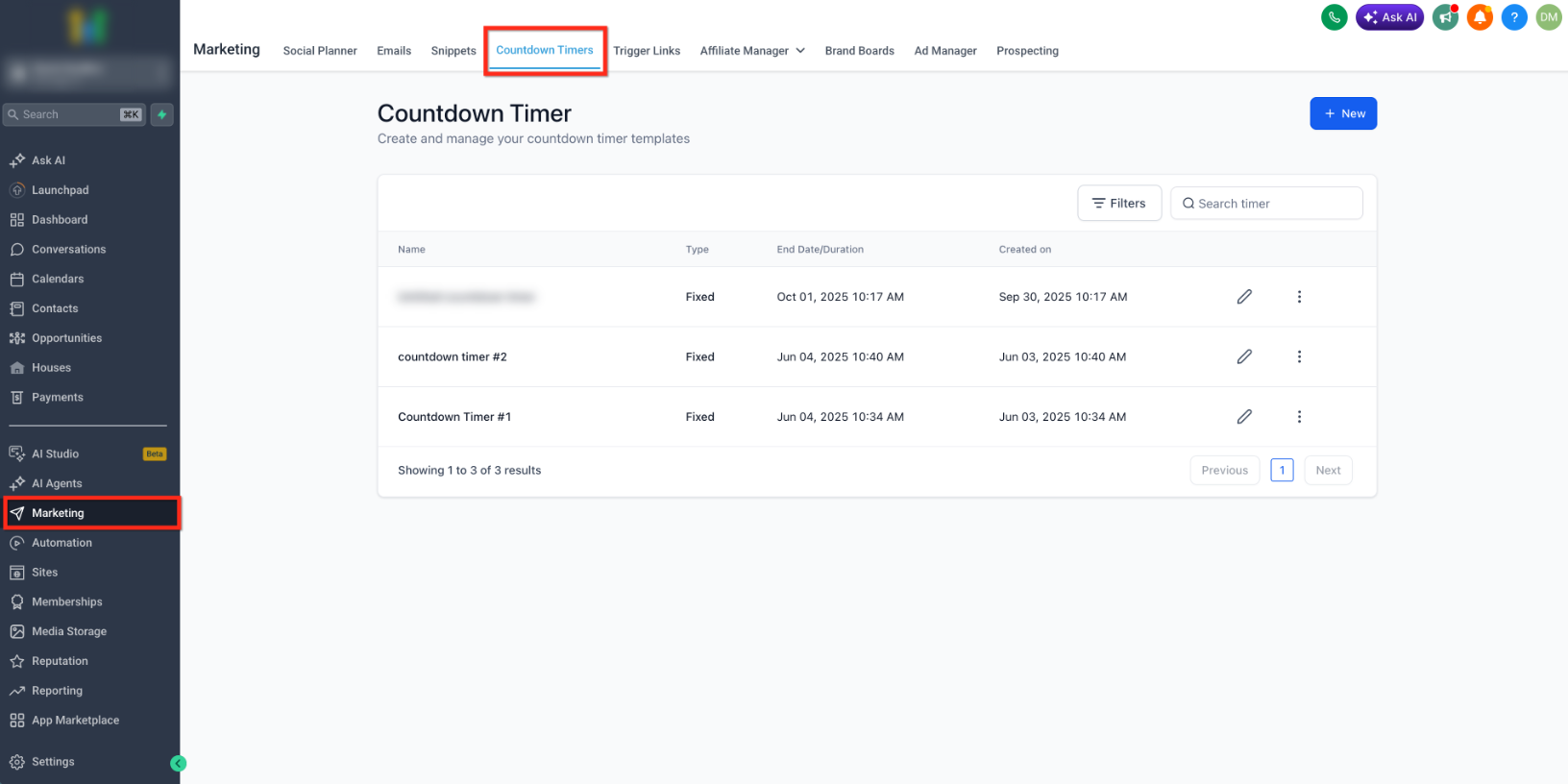
- Go to Marketing → Countdown Timersand open the countdown timer you want to update, or create a new one.
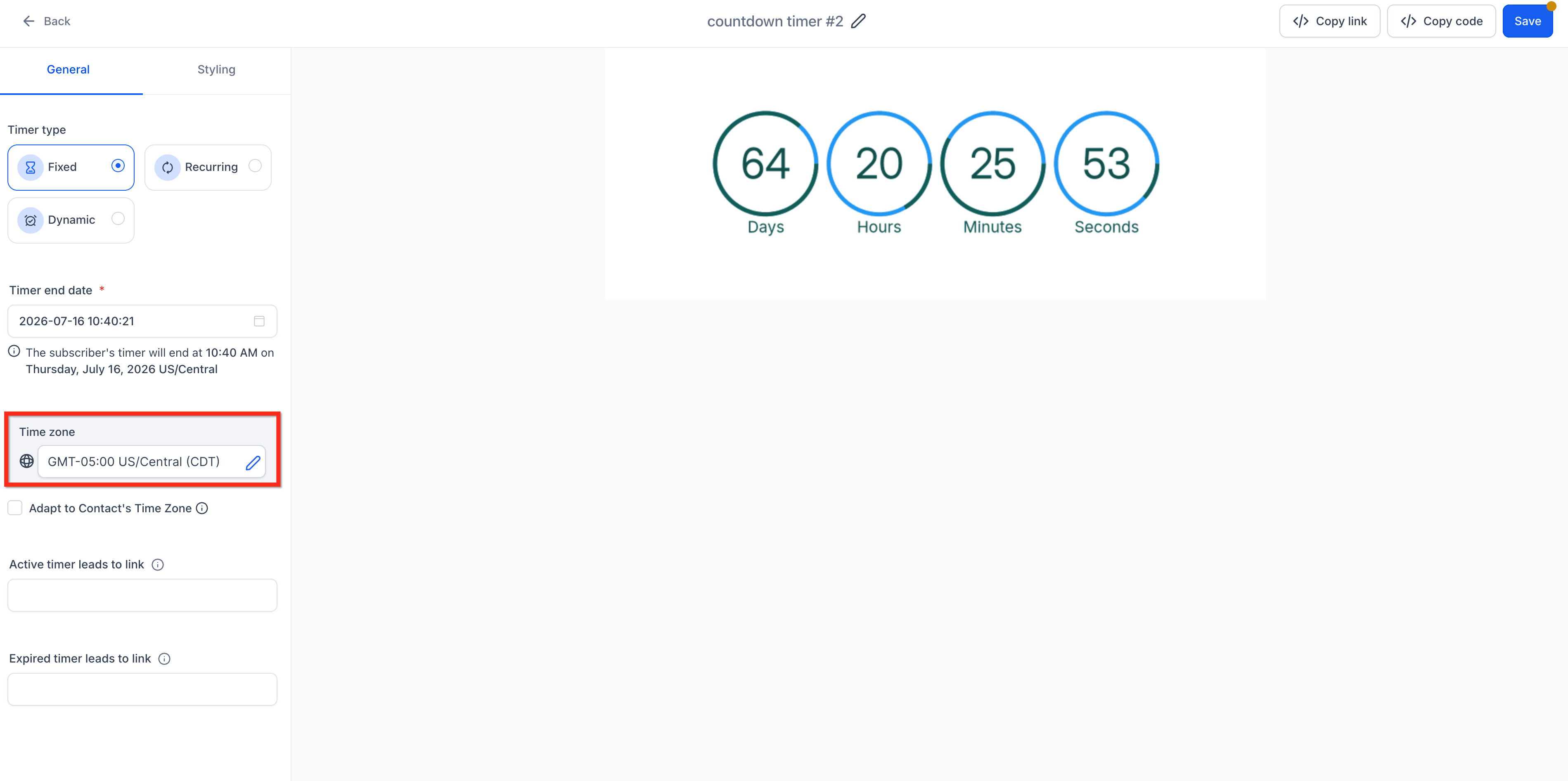
- In the timer settings, select the Time zonethat should be used as the fallback timezone.
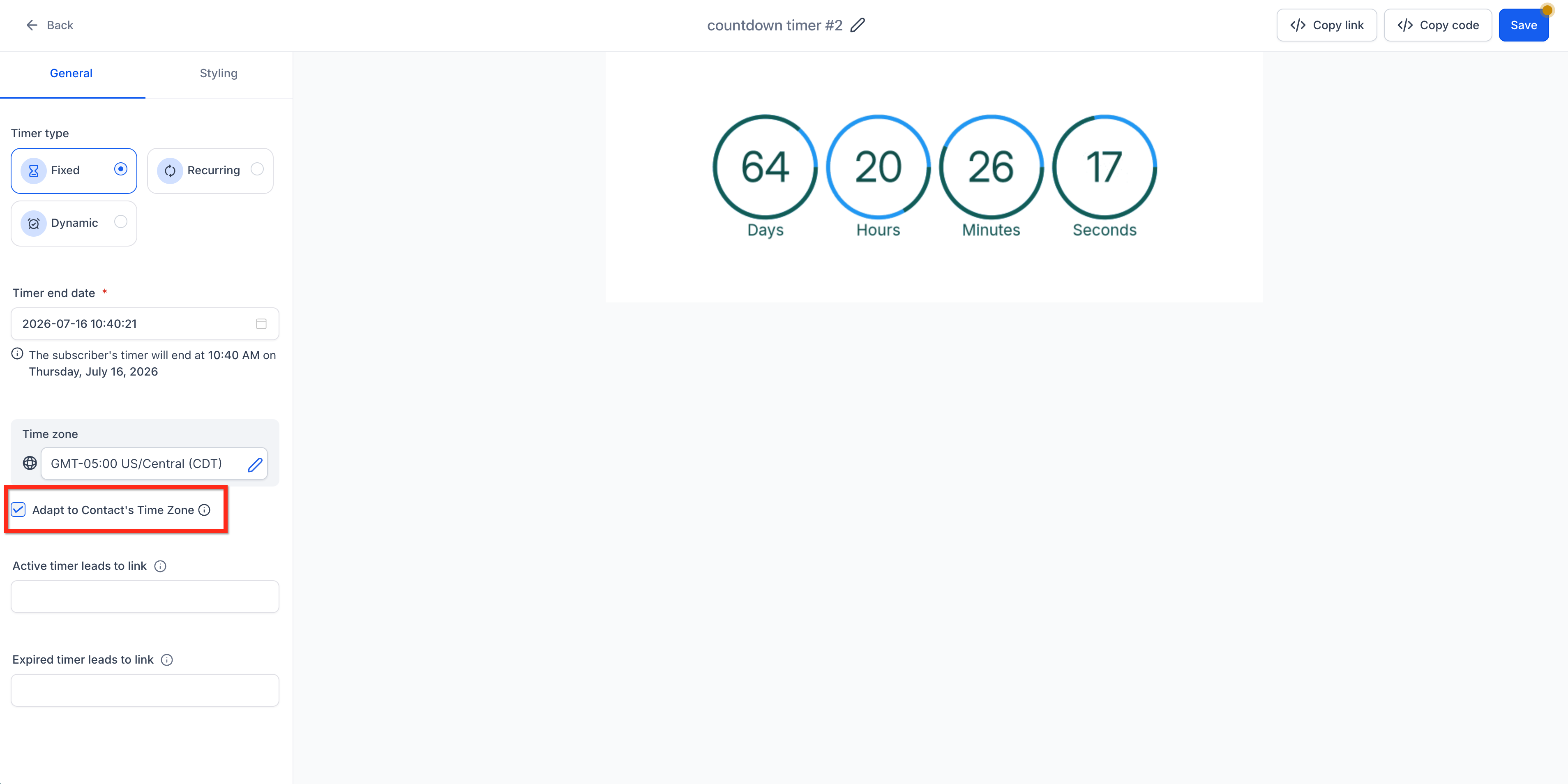
- Check the Adapt to Contact Time Zonebox.
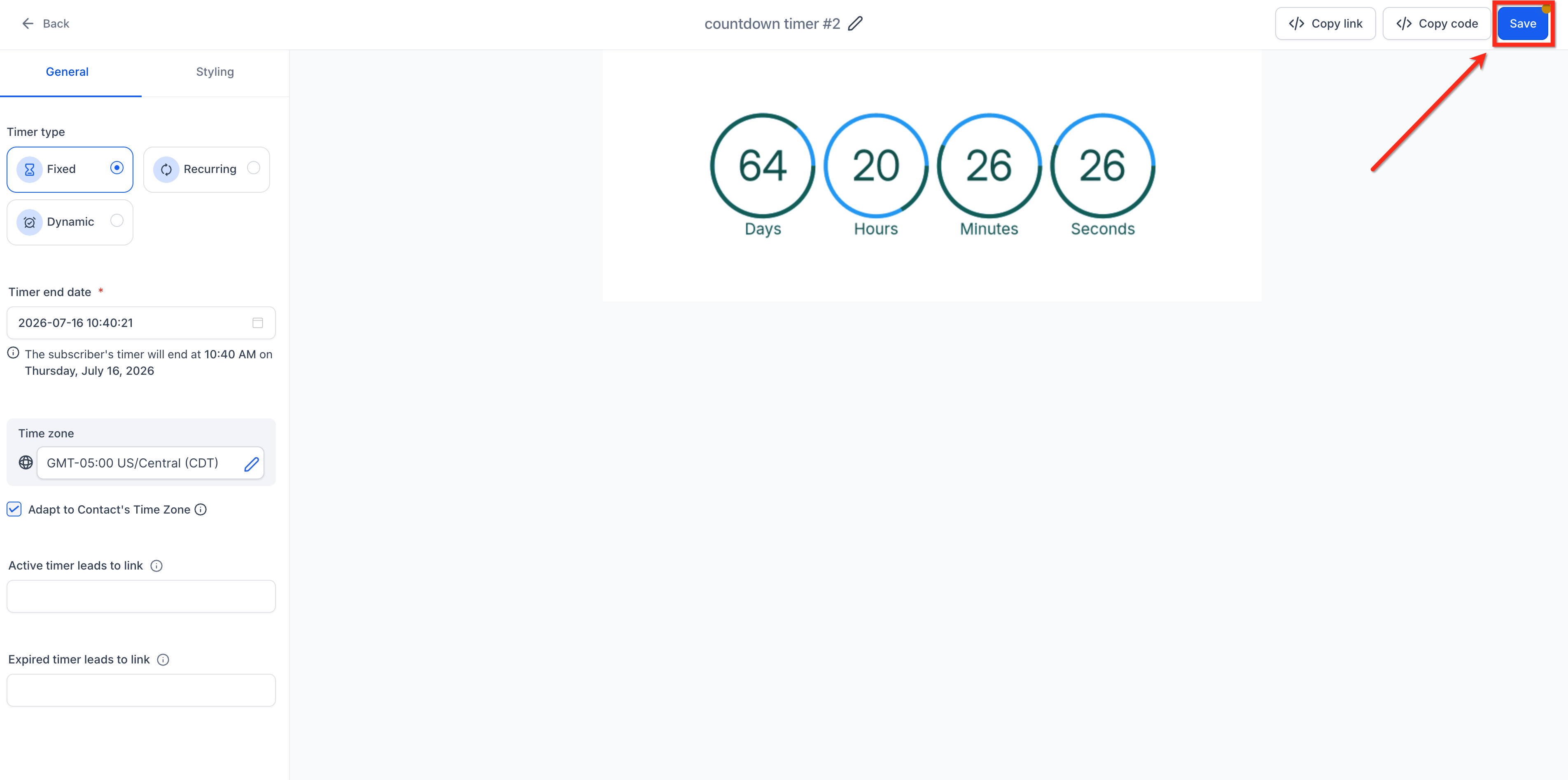
- Save the timer. When the timer is used in a supported email, funnel, or website placement, the applicable timezone logic is used.
For placement instructions, see Using Countdown Timers in Emails and How to Use Countdown Timers in Funnels.
When to Use Timezone Adaptation
Enable Timezone Adaptation when the deadline should occur at the same local clock time for each viewer. If everyone must reach the deadline at the same absolute moment, review the timer configuration before enabling timezone adaptation.
Frequently Asked Questions
Was this article helpful?
That’s Great!
Thank you for your feedback
Sorry! We couldn't be helpful
Thank you for your feedback
Feedback sent
We appreciate your effort and will try to fix the article