Conditional Logic v2 in HighLevel allows you to create personalized surveys that adapt to respondents' answers and product selections. You can show or hide fields, products, and individual product variants, redirect respondents, display custom messages, disqualify leads, or guide users to different survey slides. These capabilities help you build smarter surveys and Order Forms without creating separate experiences for every customer.
TABLE OF CONTENTS
- Key Benefits of Conditional Logic in Surveys
- Available Conditional Logic Actions
- Product-Level Conditional Logic
- Supported Fields and Operators
- How to Set Up Conditional Logic in Surveys
- Rule Behavior and Important Considerations
- Frequently Asked Questions
- Related Articles
Key Benefits of Conditional Logic in Surveys
Conditional Logic makes surveys more interactive and relevant by automatically adjusting questions, products, and outcomes based on user responses.
Personalized Experiences: Display relevant questions, products, and content based on customer selections.
Smarter Order Forms: Dynamically show or hide individual products and variants.
Automated Lead Qualification: Qualify or disqualify respondents based on their answers or selected products.
Flexible Survey Branching: Guide respondents to different slides, messages, or URLs.
Improved Completion Experience: Reduce unnecessary questions and irrelevant product options.
Simplified Rule Management: Manage complex conditions using an intuitive rule builder.
Available Conditional Logic Actions
Conditional Logic determines what happens when a respondent's answers or selections meet specific conditions. HighLevel supports five actions for creating dynamic survey experiences.
| Action | Description |
|---|---|
| Show/Hide Fields | Show or hide fields, elements, individual products, or product variants. |
| Display Custom Message | Display personalized messages based on responses or product selections. |
| Redirect to URL | Redirect respondents to a specific webpage. |
| Disqualify Lead | Disqualify respondents based on predefined criteria. |
| Jump To | Direct respondents to another slide within the survey. |
Note: Product-based IF conditions are supported for Redirect to URL, Display Custom Message, Disqualify Lead, and Show/Hide Fields. Jump To remains a separate survey navigation action.
Product-Level Conditional Logic
Product-Level Conditional Logic lets you create personalized Order Forms based on the products customers select. Instead of relying only on answers from regular survey fields, you can now use individual products as conditions to control survey outcomes and product visibility.
Product-Based Conditions
Individual products can be used as IF conditions across four Conditional Logic actions:
Redirect to URL: Direct customers to a specific webpage based on their selected product.
Display Custom Message: Show a personalized message based on product selection.
Disqualify Lead: Disqualify respondents when a particular product is selected.
Show/Hide Fields: Display or hide fields and supported elements based on selected products.
Example: If a customer selects a consultation product, display additional questions about their business requirements.
Show or Hide Individual Products and Variants
Previously, Conditional Logic could show or hide the entire Sell Products element. The enhancement adds more precise visibility controls without requiring you to hide the complete product section.
You can now:
Show/Hide Entire Products: Control individual products within the Sell Products element.
Show/Hide Product Variants: Display only specific variations, such as sizes or colors.
Apply Conditional Visibility: Change visible products based on customer responses or selections.
Show/Hide the Sell Products Element: Continue using the existing functionality to control the entire element.
Example: An Order Form sells T-shirts in different sizes and colors. Based on a customer's preferences, ConditionalLogic can display only relevant products or variants while hiding unrelated options.
Availability: Product-Level Conditional Logic is supported in both old and new Forms & Surveys.
Supported Fields and Operators
Conditional Logic supports different field types and operators to evaluate respondent inputs. Choosing the appropriate operator ensures your rules respond correctly to answers and selections.
| Field Type | Supported Operators |
|---|---|
| Text | Equal To, Not Equal To, Contains, Starts With, Ends With, Is Empty, Is Filled |
| Number, Score, Monetary | Equal To, Greater Than, Less Than, Between, Is Empty, Is Filled |
| Date | Equal To, Before, After, Between, Is Empty, Is Filled |
| Dropdown, Radio, Checkbox | Equal To, Not Equal To, Is Empty, Is Filled |
| Terms & Conditions | Is Checked, Is Not Checked |
| File Upload, Signature | Is Empty, Is Filled |
Additional supported visibility elements include Text, HTML, Images, and product-related elements.
Note: Calendar fields are not supported. Product-based conditions use the available product selection options in the Conditional Logic builder.How to Set Up Conditional Logic in Surveys
Configuring Conditional Logic allows you to control how respondents navigate a survey and which products or fields they see. Before creating rules, ensure the required survey questions, products, variants, and slides are configured.
Step 1: Open the Survey Builder
Navigate to Sites > Surveys in HighLevel.
Open an existing survey or create a new one.
Add the required questions, slides, and Sell Products element if needed.
Click Conditional Logic in the Survey Builder.
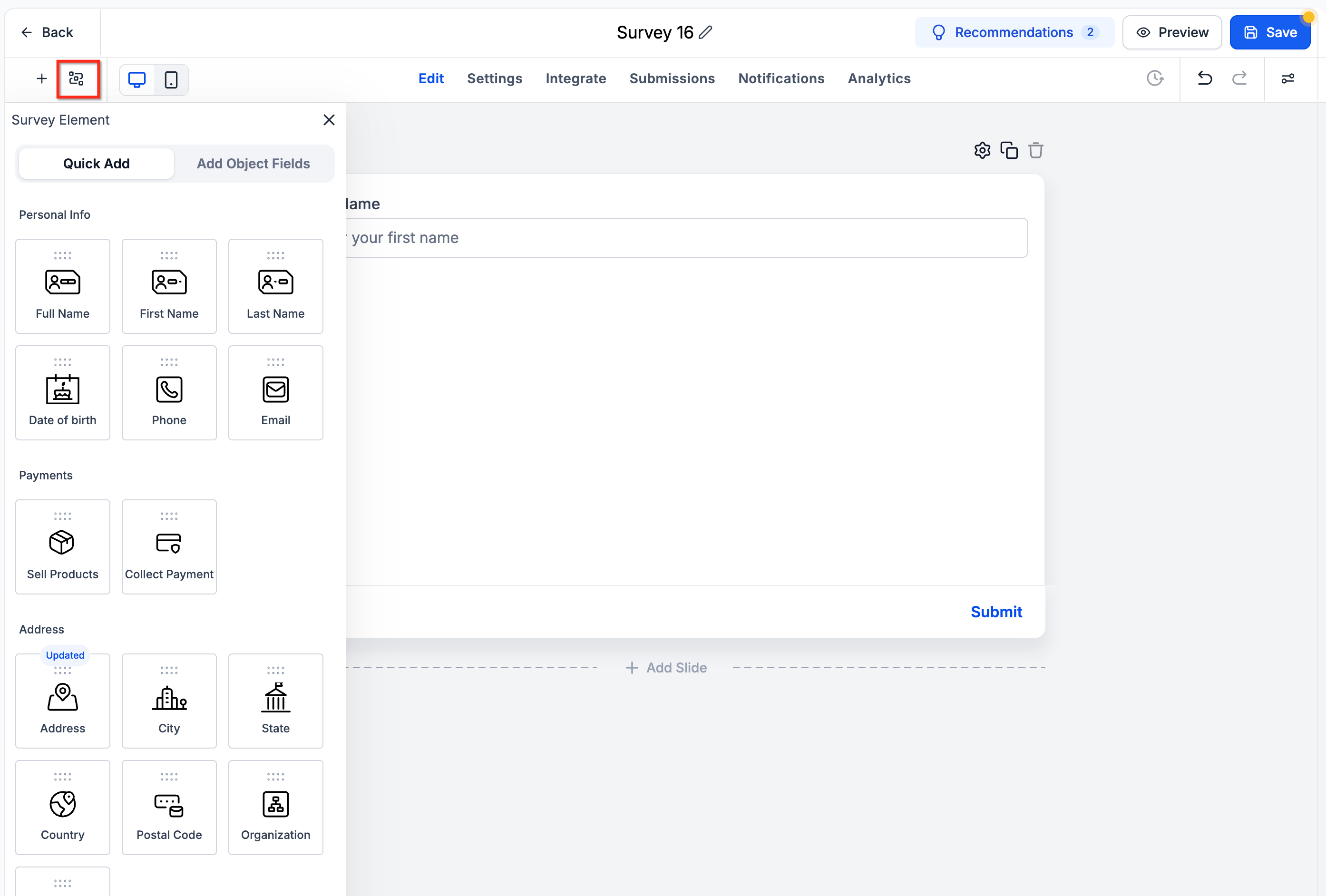
Step 2: Create a Conditional Logic Rule
Click Add New Condition.
Select an action: Show/Hide Fields, Redirect to URL, Display Message, Disqualify Lead, or Jump To.
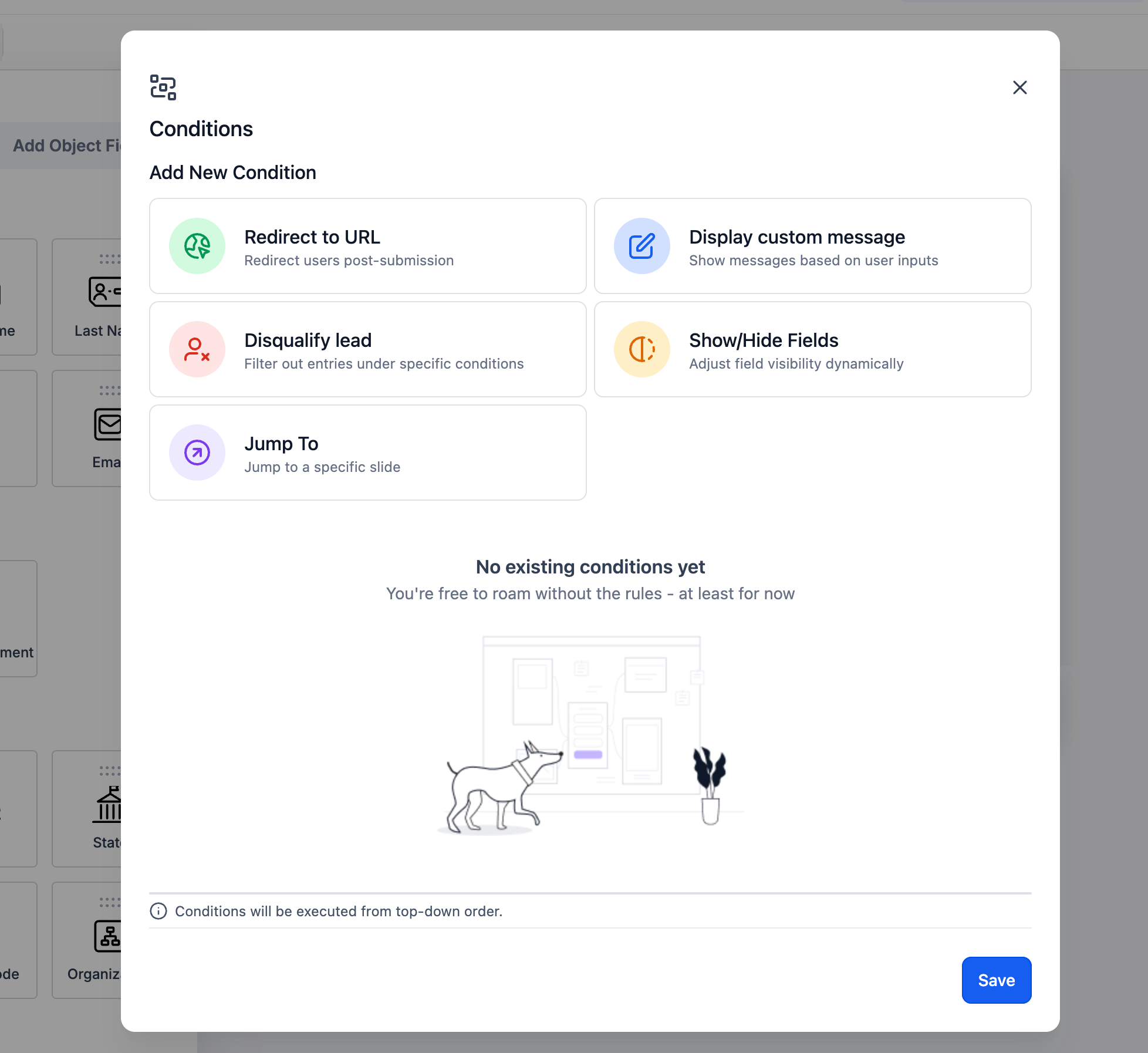
Configure the IF condition using:
Select Field: Choose a supported survey field or product.
Select State: Choose the appropriate comparison operator.
Provide Value: Enter or select the matching value, when required.
Add additional conditions using AND or OR if needed.
Note: A single rule supports either AND or OR conditions, but not both.
Step 3: Configure Product Visibility
To dynamically show or hide products and variants:
Select Show/Hide Fields as the action.
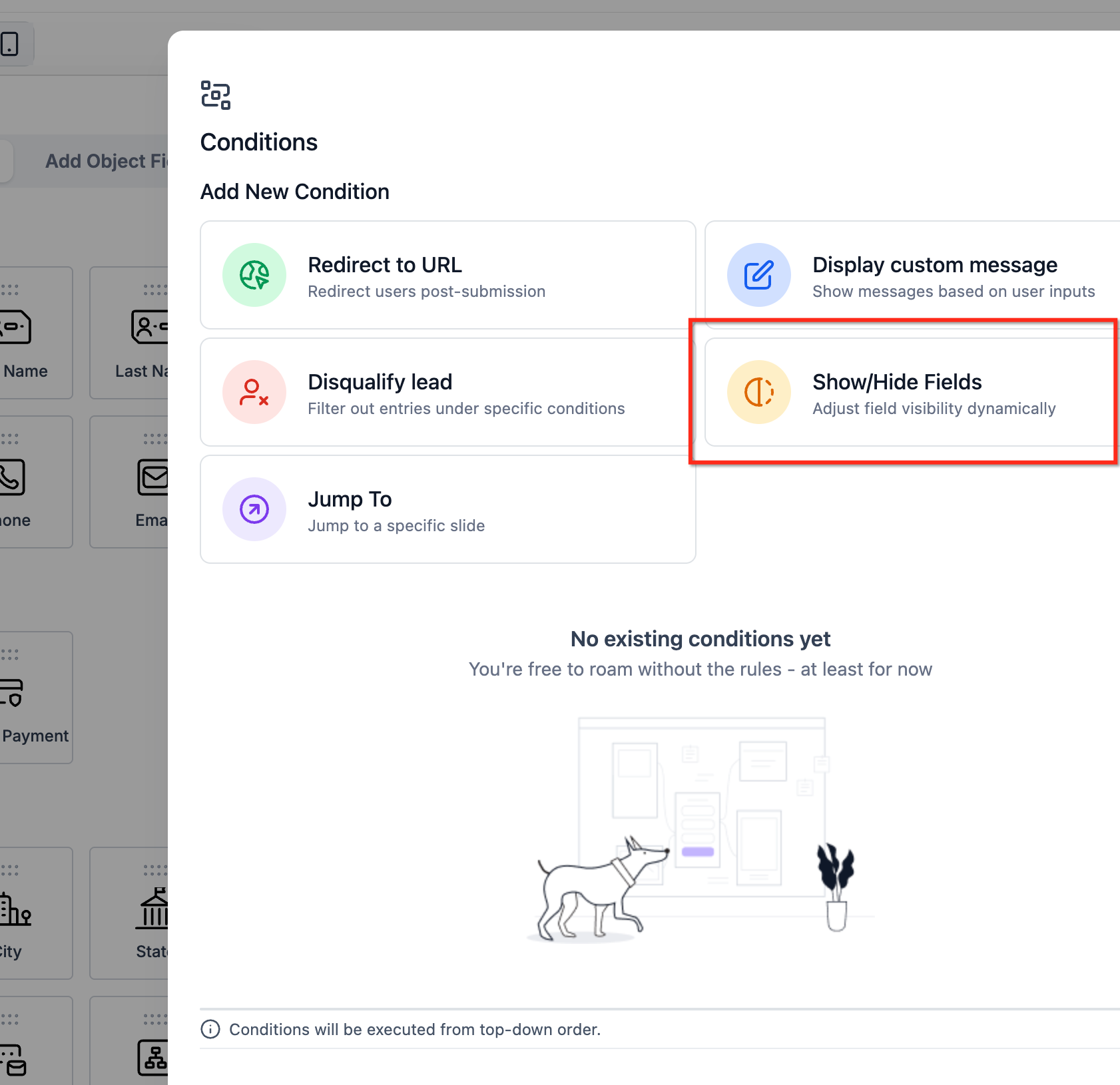
Configure the conditions that determine when the rule applies.
Choose the visibility target:
Entire Sell Products element
Individual product
Specific product variant
Select whether the target should be shown or hidden.
Save the rule.
Example: If a customer selects "Premium Package," show the premium product options and hide unrelated products.
Step 4: Save and Test Your Rules
Save the configured conditions.
Open the survey preview.
Test different responses and product selections.
Verify that fields, products, and variants appear or disappear correctly.
Test redirects, custom messages, disqualification, and slide navigation where applicable.
Rule Behavior and Important Considerations
Conditional Logic evaluates rules in a defined order to determine which actions should occur. Understanding rule priority and feature availability helps prevent unexpected results.
Rule Priority: Rules are evaluated from top to bottom.
Submission Actions: Redirect, Display Message, and Disqualify use the first matching rule.
Show/Hide Rules: Later matching rules can override earlier visibility rules.
Jump To: Rules are evaluated when respondents advance to another slide.
AND/OR Conditions: Each rule supports one connector type.
Survey Compatibility: Conditional Logic v2 is available for newly created or cloned surveys.
Product Compatibility: Product-Level Conditional Logic is available in old and new Forms & Surveys.
Snapshots: Conditional Logic rules are not included in account snapshots.
Query Keys: Survey fields should have unique Query Keys to prevent configuration issues.
Best Practice: Preview every survey path and product selection combination before publishing, especially when
multiple visibility rules control the same products or variants.
Frequently Asked Questions
Q: Can I create conditions based on individual product selections?
Yes. You can use individual products as IF conditions for Redirect to URL, Display Custom Message, Disqualify Lead, and Show/Hide Fields.
Q: Can I hide individual products without hiding the entire Sell Products element?
Yes. You can now control individual products while keeping the Sell Products element visible.
Q: Can I show or hide specific product variants?
Yes. Conditional Logic supports variant-level visibility, allowing you to display relevant product options based on configured conditions.
Q: Is Product-Level Conditional Logic available in older Forms and Surveys?
Yes. The product-level enhancement supports both old and new Forms & Surveys.
Q: Can I still hide the entire Sell Products element?
Yes. Existing Show/Hide functionality for the complete Sell Products element remains available.
Q: Can product selections trigger Jump To actions?
The product-level enhancement specifically documents four supported actions: Redirect to URL, Display Custom Message, Disqualify Lead, and Show/Hide Fields. Product-based Jump To conditions are not specified in this update.
Q: What happens when multiple visibility rules match?
Rules are evaluated from top to bottom, and later matching Show/Hide rules can override earlier ones.
Related Articles
Was this article helpful?
That’s Great!
Thank you for your feedback
Sorry! We couldn't be helpful
Thank you for your feedback
Feedback sent
We appreciate your effort and will try to fix the article