Exporting Email Marketing Data allows users to download email performance metrics directly from the Email Statistics dashboard as a CSV file. This makes it easier to analyze campaign performance, share results with stakeholders, and maintain reporting records outside of the platform. Exports can include statistics from campaigns, workflows, and bulk email actions, and download links are securely delivered via email.
TABLE OF CONTENTS
- What is Exporting Email Campaign Data?
- Email Data Export Types
- Recent Exports
- How To Export Email Campaign Data
- Frequently Asked Questions
- Related Articles
What is Exporting Email Campaign Data?
Export Email Campaign Data allows users to download email performance statistics from Email Statistics dashboard in CSV format. This capability simplifies reporting by letting teams extract campaign performance metrics and analyze them in spreadsheet tools or external reporting systems.
Email Data Export Types
HighLevel supports multiple export scopes so users can download the exact set of email statistics needed for reporting or analysis. Each export type corresponds to email activity tracked in the Email Statistics dashboard.
| Export Type | Explanation |
|---|---|
| All Campaigns | Exports statistics for all email activity visible in Email Statistics, including campaigns, workflows, and bulk sends. |
| Email Marketing Campaigns Only | Exports performance metrics for email campaigns created in Marketing → Emails → Campaigns. |
| Workflows Only (Individual Email Action Level) | Exports performance data for individual email actions within workflows. |
| Bulk Actions Only | Exports statistics for emails sent through Contacts → Bulk Actions. |
Recent Exports
The Recent Exports area provides a centralized place to track exported files generated from the Email Statistics dashboard. It helps teams verify that exports were successfully created and allows users to review reporting activity within their location.
Recent exports stores export records for up to 30 days, providing visibility into recent reporting requests and making it easier for teams to coordinate reporting tasks.
Information typically displayed in Recent Exports includes:
Export file name or description
Export type (Campaigns, Workflows, Bulk Actions, etc.)
User who requested the export
Date and time the export was created
Export status (for example, Completed)

How To Export Email Campaign Data
Exporting email performance data requires no additional configuration once Email Statistics is available for your location. Users can generate exports directly from the Email Statistics dashboard and receive the download link via email.
Navigate to Marketing → Emails → Statistics.

Choose the Campaign type , date range Click the Export button.

Add the email address(es) where you want to receive the file and click on Export.

Check your email inbox for the message containing the download link to the exported CSV file.
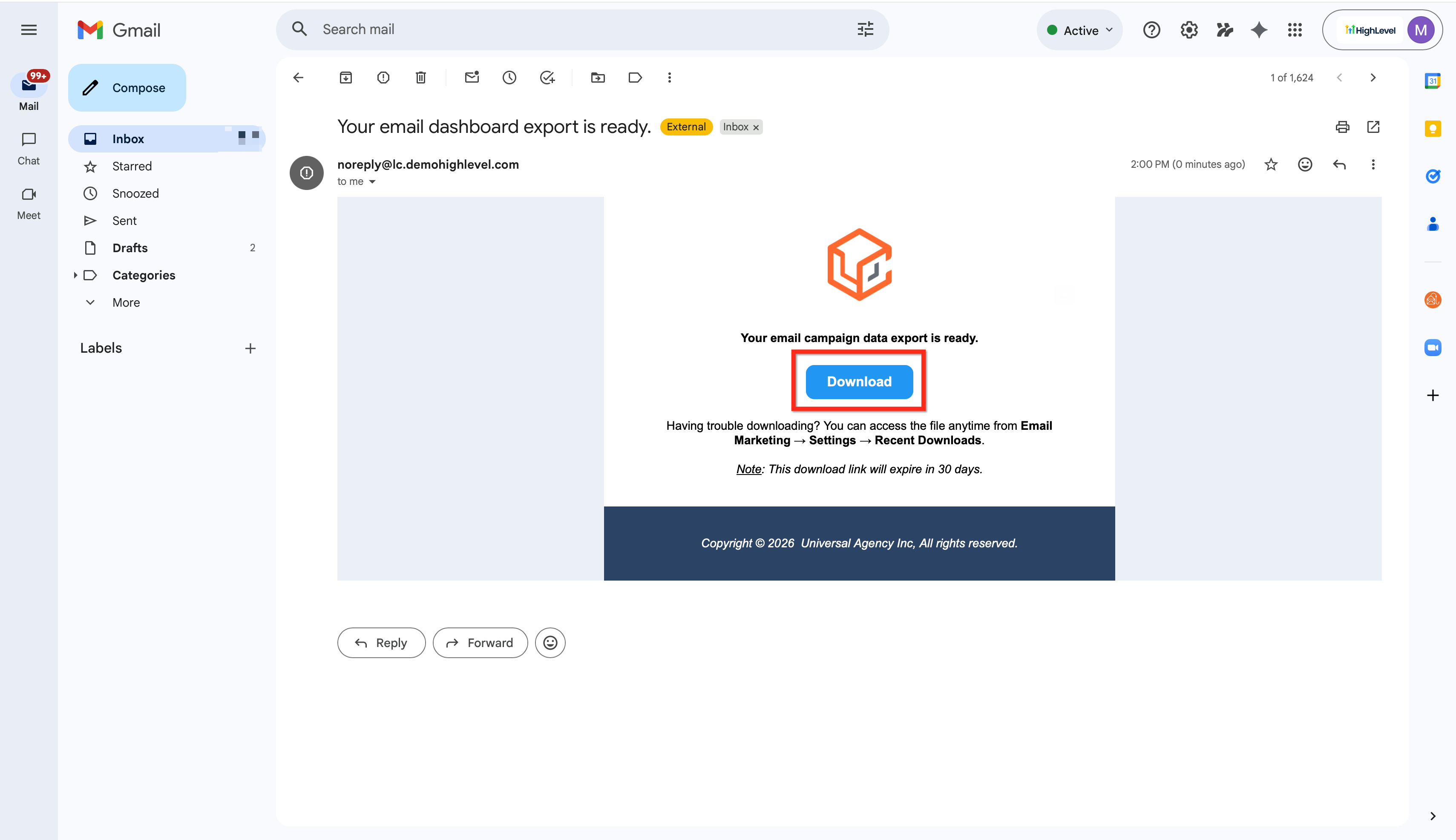
- All exports include key performance metrics such as deliveries, opens, and clicks.

Frequently Asked Questions
Q: What metrics are included in the export?
The export includes key email performance metrics available in Email Statistics, such as deliveries, opens, and clicks.
Q: How do I receive the exported file?
As CSV download link to the email address provided when the export request is created.
Q: How long is the export download link valid?
Download links remain valid for 30 days after the export is generated.
Q: Can I export workflow email performance?
Yes. Workflow exports provide performance data at the individual email action level within workflows.
Q: Does exporting email data affect campaigns or contacts?
No. Exporting data is a reporting action only and does not modify campaigns, workflows, contacts, or statistics.
Related Articles
Was this article helpful?
That’s Great!
Thank you for your feedback
Sorry! We couldn't be helpful
Thank you for your feedback
Feedback sent
We appreciate your effort and will try to fix the article